> ## Documentation Index
> Fetch the complete documentation index at: https://www.spacebring.com/docs/llms.txt
> Use this file to discover all available pages before exploring further.
# Set up pricing
> Set pricing for bookings or rentals of your rooms, desks, offices, parking lots, and equipment
## What are resources
Your space has a limited inventory—this can include zones with hot or dedicated desks, private offices, meeting rooms, phone booths, parking spots, or equipment like monitors and projectors. In Spacebring, all these are called **resources**.
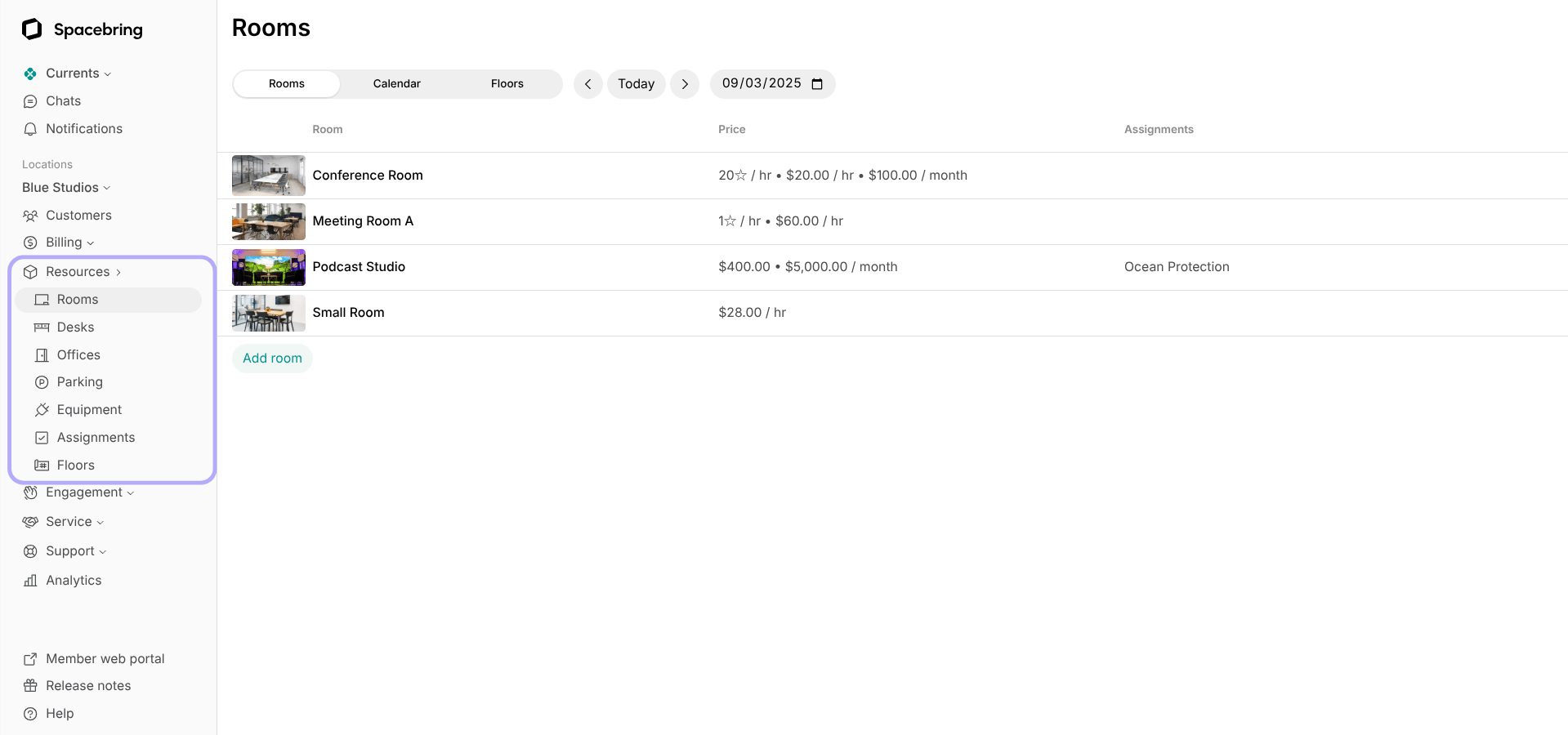 Each resource can have pricing for:
* Only short-term bookings (hourly, daily)
* Only long-term rentals (weekly, monthly, or longer)
* Both bookings and rentals
The system automatically considers both bookings and rentals when calculating availability, so customers always see real-time, accurate availability.
Customers can view all available booking and rental options and pricing directly on the resource page and either book or subscribe for long-term use.
Rooms, desks, parking lots, and equipment can be set for both bookings and rentals. Offices can only be set for long-term rental pricing.
## Set up pricing for bookings
For bookings, you can set a single rate or multiple price tiers based on booking duration. For example, lower rates for longer bookings or fixed half-day or full-day rates.
### Set the first price tier
1. [Add a new resource](/docs/resource-management) or [edit](/docs/resource-management/edit-a-resource) an existing one.
2. Set **Min duration** and **Max duration**.
3. Enable the **Money** switch if the resource is available for short-term bookings.
* Disable it if the resource is only available for long-term rental.
4. Click the first automatically created price tier to configure it. This tier applies to bookings starting from your **Min duration**.
5. Set the price:
* If pricing is per hour, enter a **Unit price** and set **Flat price** to 0.
* If pricing is fixed regardless of duration, enter a **Flat price** and set **Unit price** to 0.
* If pricing includes an hourly rate plus an additional fixed fee, set both values.
At least one price must be non-zero: Unit price, Flat price, or both.
| **Price type** | **Explanation** | **Booking price calculation** | **Example** |
| --------------------------------- | ---------------------------------------------------------------------- | -------------------------------------------- | ----------- |
| Unit price | Cost per hour. | Booking duration × Unit price | |
| Flat price | Fixed price for any booking duration within the tier. | Fixed price | |
| Both Unit and Flat prices are set | Price is calculated per hour, plus an extra fixed fee is added on top. | (Booking duration × Unit price) + Flat price | |
#### Set multiple price tiers
If you offer different rates for longer bookings, you can add more price tiers.
1. Click **Add tier** under the existing tier.
2. Set the **From** value, which defines the booking duration from which this rate applies.
3. Set the **Unit price**, **Flat price**, or both, using the same rules as above.
Price tiers are created in consecutive order, from the shortest to the longest booking duration. The **From** field only shows predefined duration options based on your existing tiers.
Each resource can have pricing for:
* Only short-term bookings (hourly, daily)
* Only long-term rentals (weekly, monthly, or longer)
* Both bookings and rentals
The system automatically considers both bookings and rentals when calculating availability, so customers always see real-time, accurate availability.
Customers can view all available booking and rental options and pricing directly on the resource page and either book or subscribe for long-term use.
Rooms, desks, parking lots, and equipment can be set for both bookings and rentals. Offices can only be set for long-term rental pricing.
## Set up pricing for bookings
For bookings, you can set a single rate or multiple price tiers based on booking duration. For example, lower rates for longer bookings or fixed half-day or full-day rates.
### Set the first price tier
1. [Add a new resource](/docs/resource-management) or [edit](/docs/resource-management/edit-a-resource) an existing one.
2. Set **Min duration** and **Max duration**.
3. Enable the **Money** switch if the resource is available for short-term bookings.
* Disable it if the resource is only available for long-term rental.
4. Click the first automatically created price tier to configure it. This tier applies to bookings starting from your **Min duration**.
5. Set the price:
* If pricing is per hour, enter a **Unit price** and set **Flat price** to 0.
* If pricing is fixed regardless of duration, enter a **Flat price** and set **Unit price** to 0.
* If pricing includes an hourly rate plus an additional fixed fee, set both values.
At least one price must be non-zero: Unit price, Flat price, or both.
| **Price type** | **Explanation** | **Booking price calculation** | **Example** |
| --------------------------------- | ---------------------------------------------------------------------- | -------------------------------------------- | ----------- |
| Unit price | Cost per hour. | Booking duration × Unit price | |
| Flat price | Fixed price for any booking duration within the tier. | Fixed price | |
| Both Unit and Flat prices are set | Price is calculated per hour, plus an extra fixed fee is added on top. | (Booking duration × Unit price) + Flat price | |
#### Set multiple price tiers
If you offer different rates for longer bookings, you can add more price tiers.
1. Click **Add tier** under the existing tier.
2. Set the **From** value, which defines the booking duration from which this rate applies.
3. Set the **Unit price**, **Flat price**, or both, using the same rules as above.
Price tiers are created in consecutive order, from the shortest to the longest booking duration. The **From** field only shows predefined duration options based on your existing tiers.
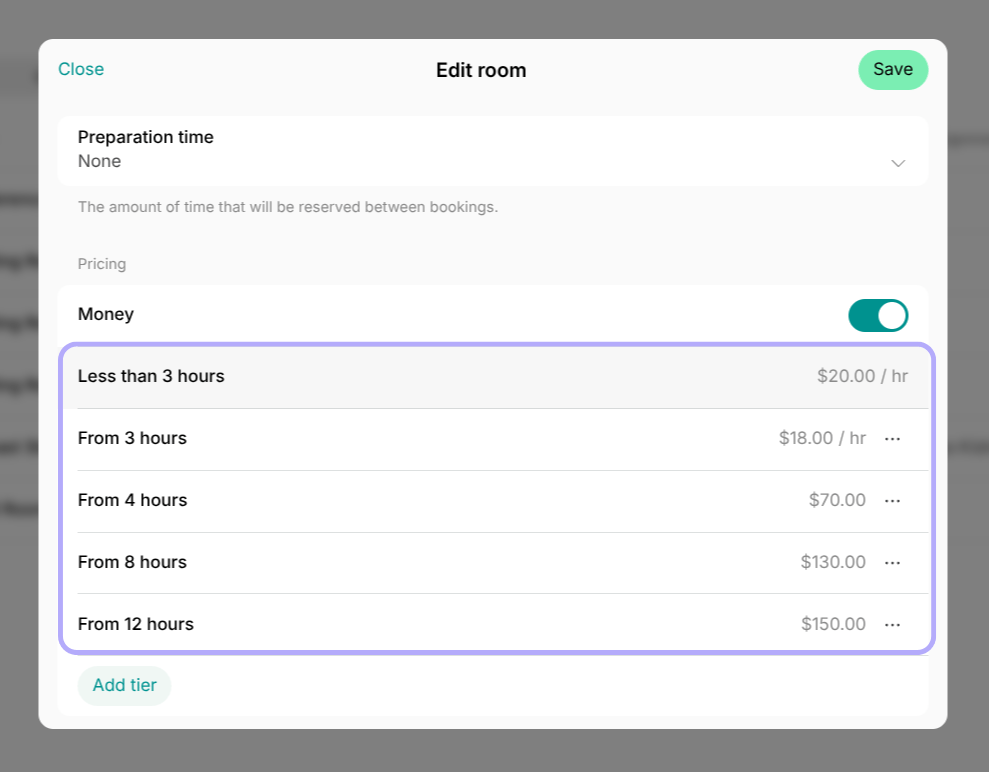 You can set short-term booking pricing for rooms, desks, parking, and equipment. Offices support only long-term rental pricing.
## Set up pricing for resource rentals
1. Add a [new resource](/docs/resource-management) or [edit](/docs/resource-management/edit-a-resource) an existing one.
2. Enable the **Plan** switch if the resource is available for long-term rentals.
* Disable it if the resource is only available for short-term bookings.
3. Click **Add tier**. Tiers are pricing options for the rental of this resource. For example:
* Weekly, monthly, and annual rental options.
* Tiers with different commitment periods and prices.
You can set short-term booking pricing for rooms, desks, parking, and equipment. Offices support only long-term rental pricing.
## Set up pricing for resource rentals
1. Add a [new resource](/docs/resource-management) or [edit](/docs/resource-management/edit-a-resource) an existing one.
2. Enable the **Plan** switch if the resource is available for long-term rentals.
* Disable it if the resource is only available for short-term bookings.
3. Click **Add tier**. Tiers are pricing options for the rental of this resource. For example:
* Weekly, monthly, and annual rental options.
* Tiers with different commitment periods and prices.
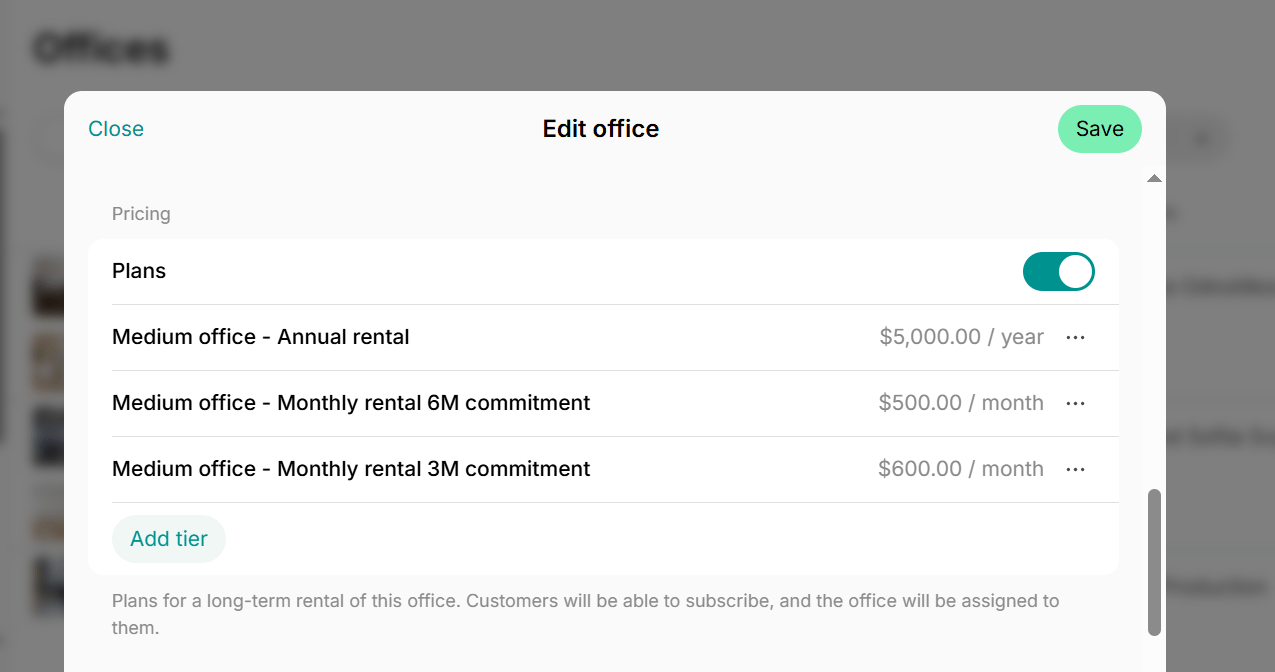 ### Resource tier settings
* **Name** —will appear on customer invoices and in analytics.
* **Cycle** — the interval of subscription validity and how often the subscription renews. Available options: 1 week, 1 month, 3 months, 6 months, or 1 year.
* **Description** — a customer-facing explanation of what the resource tier includes.
* **Price for** — define if that's the price for rental of 1 seat/item (e.g., 1 dedicated desk seat) or the entire resource (e.g, entire office).
* **Price** — the fee for one cycle.
* **Setup fee** — a one-time setup fee that is included in the customer's first invoice.
* **Minimum commitment** — enable to define the minimum subscription period for this resource tier (in cycles).
The setup fee is subject to tax but is not affected by discounts or invoice proration.
* [**Credits**](/docs/billing/credits-and-day-passes/credits) — the number of expiring credits that will be allocated to a customer with each subscription renewal for bookings or purchases. These credits expire at the end of every cycle. Credits must be [enabled](/docs/billing/credits-and-day-passes/credits) for this option to show up.
* [**Day passes**](/docs/billing/credits-and-day-passes/day-passes) - the number of temporary day passes that will be allocated to a customer with every subscription renewal for booking a hot desk. The day passes expire at the end of every cycle. Day passes must be [enabled](/docs/billing/credits-and-day-passes/day-passes) for this option to show up.
* [**Discounts**](/docs/billing/discounts/discounts-with-plan) — offer discounts on certain services to members subscribed to this resource tier.
* **Sign-up type** — control whether customers can sign up immediately or for this plan.
* **Immediate** — customers can sign up for rental immediately without contacting an administrator.
* **Request** — customers can apply to rent this resource. Administrators process requests as support tickets. [Configure rental applications or immediate sign-ups](/docs/resource-management/rentals/rental-applications-or-immediate-sign-ups)
## Common pricing scenarios
Setting multiple price tiers lets you to offer flexible pricing, attract a wider range of customers, maximize revenue across short and long bookings.
### Flexible hourly rates
**Goal:** Offer lower hourly rates for longer bookings. **Setup:**
1. Set the first tier with the highest hourly rate and shortest duration.
2. Add a second tier and define the **From** duration starting from which the lower rate applies.
3. Set a lower **Unit price** for the second tier.
4. Add additional tiers for even longer bookings if needed.
### Daily rate
**Goal:** Offer a discounted rate for full-day bookings.
**Setup:**
1. In the first tier, set the hourly rate for bookings shorter than one day.
2. Add a second tier and set the **From** value to the minimum number of hours from which a full-day rate applies.
3. Enter the daily rate in **Flat price**. Keep **Unit price** to 0.
### Half-day rate
**Goal:** Offer a discounted rate for half-day bookings.
**Setup:**
1. In the first tier, set the hourly rate for bookings shorter than a half day.
2. Add a second tier and define the **From** value for half-day duration.
3. Enter the half-day rate in **Flat price**. Keep **Unit price** to 0.
4. If needed, add a third tier for full-day or other extended rates.
### Hourly rate + flat fee
**Goal:** Charge an hourly rate plus a fixed fee (for example, a cleaning fee for longer bookings).
**Setup:**
1. In the first tier, set the hourly rate for shorter bookings.
2. Add a second tier and define the **From** value from which the flat fee applies additionally.
3. Set the **Unit price** for the hourly rate.
4. Set the **Flat price** for the fixed fee.
**FAQs**
The duration of the first tier is set automatically:
##### If there is only one price tier
* The tier applies to all bookings starting from the **Min duration**.
* To change it, edit the **Min duration**.
##### If there are multiple price tiers
* The first tier is defined as **Less than** the duration set in the second tier's **From** value.
* To change the first tier, edit the **From** value in the second tier — the first tier will adjust automatically.
* When customers open a specific desk, parking lot, or equipment unit, they see a **Pricing** section with all price tiers.
* For rooms, pricing is shown when clicking the ⓘ Information icon next to the room.
* On the **Rooms, Desks, Parking, or Equipment** listing pages, customers see the first price tier by default. When they open a specific resource, all pricing options for that resource are displayed.
### Resource tier settings
* **Name** —will appear on customer invoices and in analytics.
* **Cycle** — the interval of subscription validity and how often the subscription renews. Available options: 1 week, 1 month, 3 months, 6 months, or 1 year.
* **Description** — a customer-facing explanation of what the resource tier includes.
* **Price for** — define if that's the price for rental of 1 seat/item (e.g., 1 dedicated desk seat) or the entire resource (e.g, entire office).
* **Price** — the fee for one cycle.
* **Setup fee** — a one-time setup fee that is included in the customer's first invoice.
* **Minimum commitment** — enable to define the minimum subscription period for this resource tier (in cycles).
The setup fee is subject to tax but is not affected by discounts or invoice proration.
* [**Credits**](/docs/billing/credits-and-day-passes/credits) — the number of expiring credits that will be allocated to a customer with each subscription renewal for bookings or purchases. These credits expire at the end of every cycle. Credits must be [enabled](/docs/billing/credits-and-day-passes/credits) for this option to show up.
* [**Day passes**](/docs/billing/credits-and-day-passes/day-passes) - the number of temporary day passes that will be allocated to a customer with every subscription renewal for booking a hot desk. The day passes expire at the end of every cycle. Day passes must be [enabled](/docs/billing/credits-and-day-passes/day-passes) for this option to show up.
* [**Discounts**](/docs/billing/discounts/discounts-with-plan) — offer discounts on certain services to members subscribed to this resource tier.
* **Sign-up type** — control whether customers can sign up immediately or for this plan.
* **Immediate** — customers can sign up for rental immediately without contacting an administrator.
* **Request** — customers can apply to rent this resource. Administrators process requests as support tickets. [Configure rental applications or immediate sign-ups](/docs/resource-management/rentals/rental-applications-or-immediate-sign-ups)
## Common pricing scenarios
Setting multiple price tiers lets you to offer flexible pricing, attract a wider range of customers, maximize revenue across short and long bookings.
### Flexible hourly rates
**Goal:** Offer lower hourly rates for longer bookings. **Setup:**
1. Set the first tier with the highest hourly rate and shortest duration.
2. Add a second tier and define the **From** duration starting from which the lower rate applies.
3. Set a lower **Unit price** for the second tier.
4. Add additional tiers for even longer bookings if needed.
### Daily rate
**Goal:** Offer a discounted rate for full-day bookings.
**Setup:**
1. In the first tier, set the hourly rate for bookings shorter than one day.
2. Add a second tier and set the **From** value to the minimum number of hours from which a full-day rate applies.
3. Enter the daily rate in **Flat price**. Keep **Unit price** to 0.
### Half-day rate
**Goal:** Offer a discounted rate for half-day bookings.
**Setup:**
1. In the first tier, set the hourly rate for bookings shorter than a half day.
2. Add a second tier and define the **From** value for half-day duration.
3. Enter the half-day rate in **Flat price**. Keep **Unit price** to 0.
4. If needed, add a third tier for full-day or other extended rates.
### Hourly rate + flat fee
**Goal:** Charge an hourly rate plus a fixed fee (for example, a cleaning fee for longer bookings).
**Setup:**
1. In the first tier, set the hourly rate for shorter bookings.
2. Add a second tier and define the **From** value from which the flat fee applies additionally.
3. Set the **Unit price** for the hourly rate.
4. Set the **Flat price** for the fixed fee.
**FAQs**
The duration of the first tier is set automatically:
##### If there is only one price tier
* The tier applies to all bookings starting from the **Min duration**.
* To change it, edit the **Min duration**.
##### If there are multiple price tiers
* The first tier is defined as **Less than** the duration set in the second tier's **From** value.
* To change the first tier, edit the **From** value in the second tier — the first tier will adjust automatically.
* When customers open a specific desk, parking lot, or equipment unit, they see a **Pricing** section with all price tiers.
* For rooms, pricing is shown when clicking the ⓘ Information icon next to the room.
* On the **Rooms, Desks, Parking, or Equipment** listing pages, customers see the first price tier by default. When they open a specific resource, all pricing options for that resource are displayed.
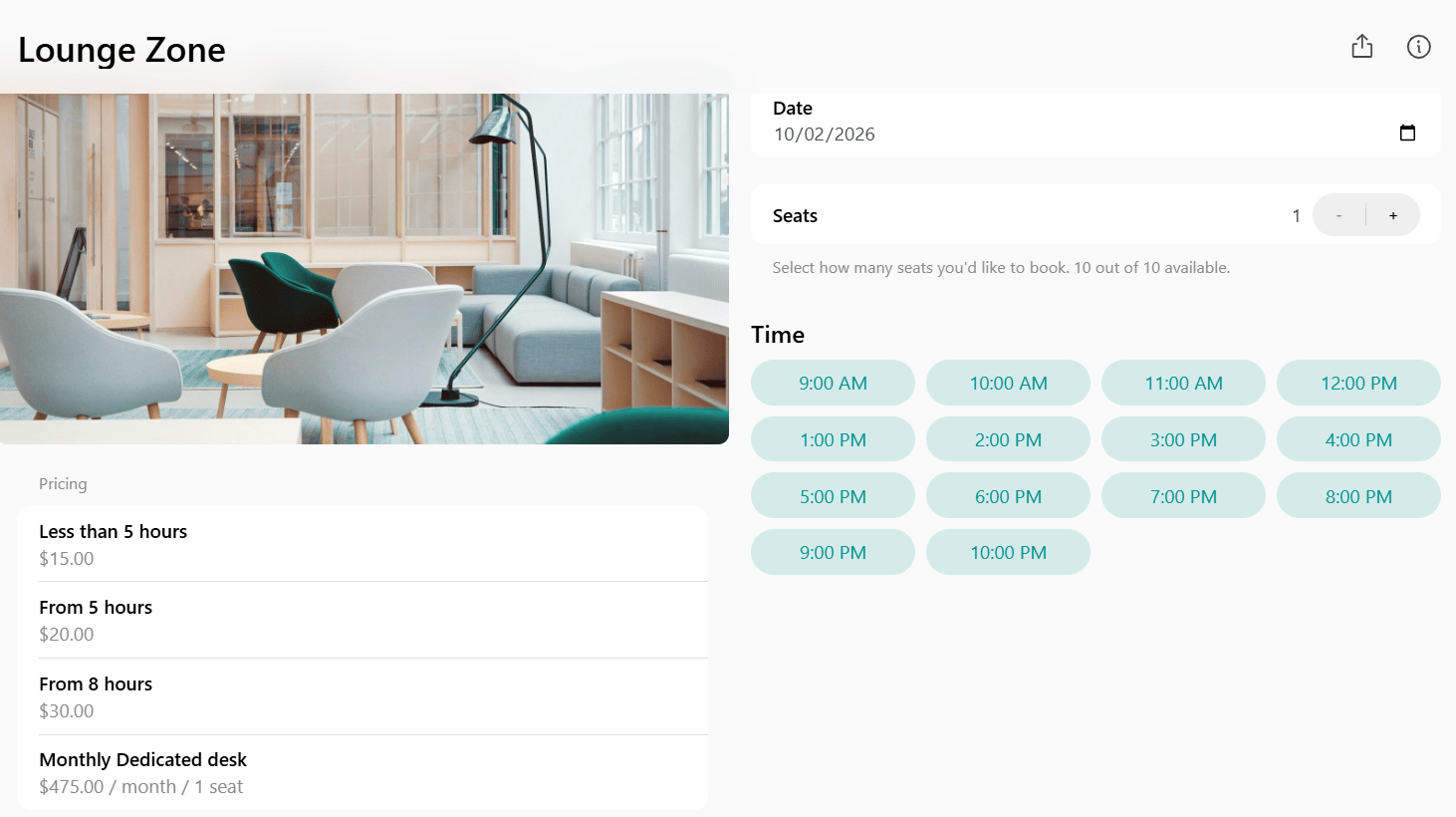 In addition to the first tier, you can add tiers with the following **From** values: 1 hr, 2 hr, 3 hr, 4 hr, 5 hr, 6 hr, 8 hr, 12 hr, 24 hr.
Pricing for resources is always set per hour using **Unit price**. For shorter bookings, the system automatically calculates the price based on duration.
Set **Min duration**, **Max duration**, and **Availability increment** to control in which time slots customers can book.
To check which values **Min duration**, **Max duration**, and **Availability increment** each resource type supports, start editing these properties in the resource settings.
Only longer durations than your existing tiers are shown. To add a shorter-duration tier, you must first adjust your current tiers.
Here's how to do it:
1. Click your existing tiers.
2. Adjust their **From** values so they are in ascending order and include the duration you want to add.
3. Re-add the longest duration tier last.
Remember that the first price tier cannot be edited directly. Its **Less than** value automatically updates based on the **From** value of the second tier. To change it, edit the **From** value in the second tier.
**Example**:
If you currently have tiers:
* Less than 5 hours
* From 5 hours
And you want to add a **Less than 2 hours** tier:
1. Edit the **From 5 hours** tier and change it to **From 2 hours**, setting the appropriate price.
2. The first tier will automatically update to **Less than 2 hours**. Edit its price as needed.
3. Re-add the **From 5 hours** tier with its original pricing.
| **Resource type** | **What to add** | **Guide** |
| ----------------- | ---------------------------------------------------------------------------------- | --------------------------------------------------- |
| Rooms | Meeting rooms, conference rooms, or call booths. Typically booked hourly or daily. | [Set up rooms](/docs/resource-management#rooms) |
| Desks | Hot desks, dedicated desks, desks in open space, any type of workstations. | [Set up desks](/docs/resource-management#desks) |
| Offices | Private offices for long-term rental. | [Set up offices](/docs/resource-management#offices) |
| Parking lots | Parking spaces. | [Set up parking lots](/docs/resource-management#parking) |
| Equipment | Microphones, screens, projectors, or any other equipment units. | [Set up equipment](/docs/resource-management#equipment) |
In addition to the first tier, you can add tiers with the following **From** values: 1 hr, 2 hr, 3 hr, 4 hr, 5 hr, 6 hr, 8 hr, 12 hr, 24 hr.
Pricing for resources is always set per hour using **Unit price**. For shorter bookings, the system automatically calculates the price based on duration.
Set **Min duration**, **Max duration**, and **Availability increment** to control in which time slots customers can book.
To check which values **Min duration**, **Max duration**, and **Availability increment** each resource type supports, start editing these properties in the resource settings.
Only longer durations than your existing tiers are shown. To add a shorter-duration tier, you must first adjust your current tiers.
Here's how to do it:
1. Click your existing tiers.
2. Adjust their **From** values so they are in ascending order and include the duration you want to add.
3. Re-add the longest duration tier last.
Remember that the first price tier cannot be edited directly. Its **Less than** value automatically updates based on the **From** value of the second tier. To change it, edit the **From** value in the second tier.
**Example**:
If you currently have tiers:
* Less than 5 hours
* From 5 hours
And you want to add a **Less than 2 hours** tier:
1. Edit the **From 5 hours** tier and change it to **From 2 hours**, setting the appropriate price.
2. The first tier will automatically update to **Less than 2 hours**. Edit its price as needed.
3. Re-add the **From 5 hours** tier with its original pricing.
| **Resource type** | **What to add** | **Guide** |
| ----------------- | ---------------------------------------------------------------------------------- | --------------------------------------------------- |
| Rooms | Meeting rooms, conference rooms, or call booths. Typically booked hourly or daily. | [Set up rooms](/docs/resource-management#rooms) |
| Desks | Hot desks, dedicated desks, desks in open space, any type of workstations. | [Set up desks](/docs/resource-management#desks) |
| Offices | Private offices for long-term rental. | [Set up offices](/docs/resource-management#offices) |
| Parking lots | Parking spaces. | [Set up parking lots](/docs/resource-management#parking) |
| Equipment | Microphones, screens, projectors, or any other equipment units. | [Set up equipment](/docs/resource-management#equipment) |