> ## Documentation Index
> Fetch the complete documentation index at: https://www.spacebring.com/docs/llms.txt
> Use this file to discover all available pages before exploring further.
# Benefits
> Set up a member benefits page to offer exclusive partner discounts, promotions, and perks. Add and manage benefits, benefit categories, and benefit applications
Offer discounts and exclusive promotions to your customers with the **Benefits** page.
## Enable Benefits
1. Click the menu (…) near the location name on the left-side panel.
2. Go to **Location settings** > **Service** > **Benefits**.
3. Enable the “Benefits” switch.
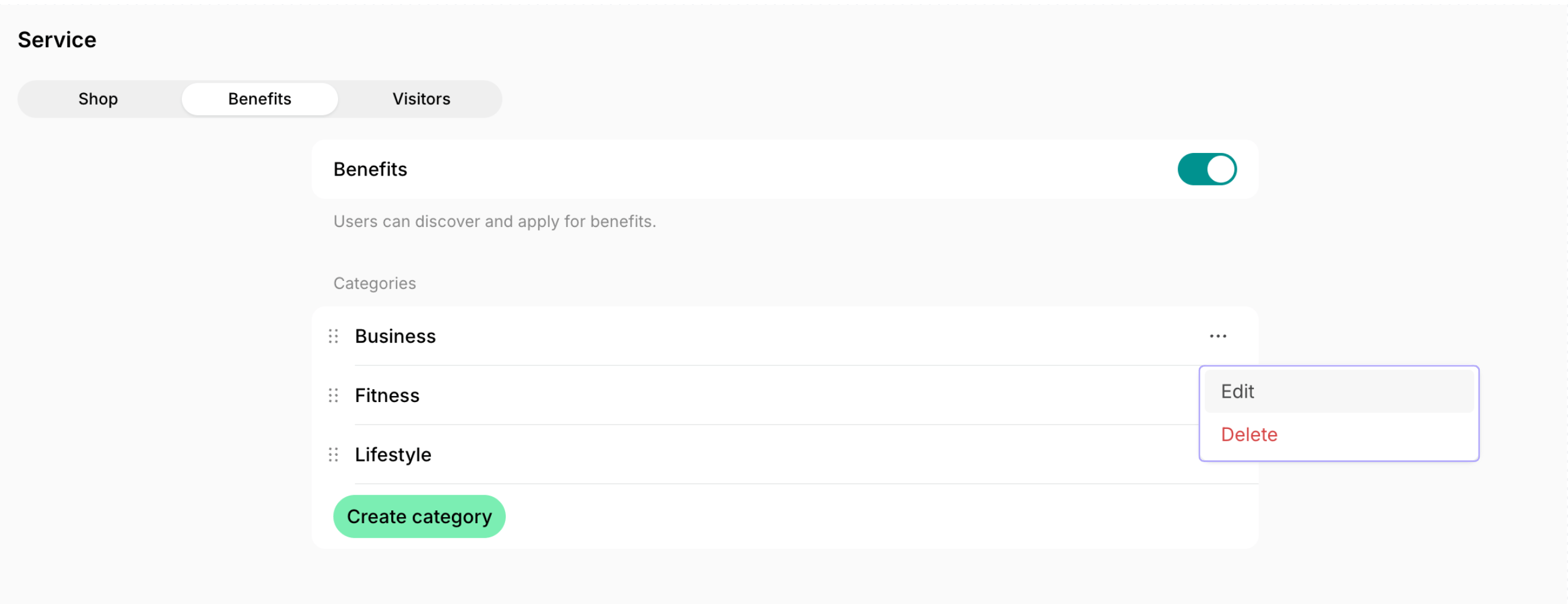
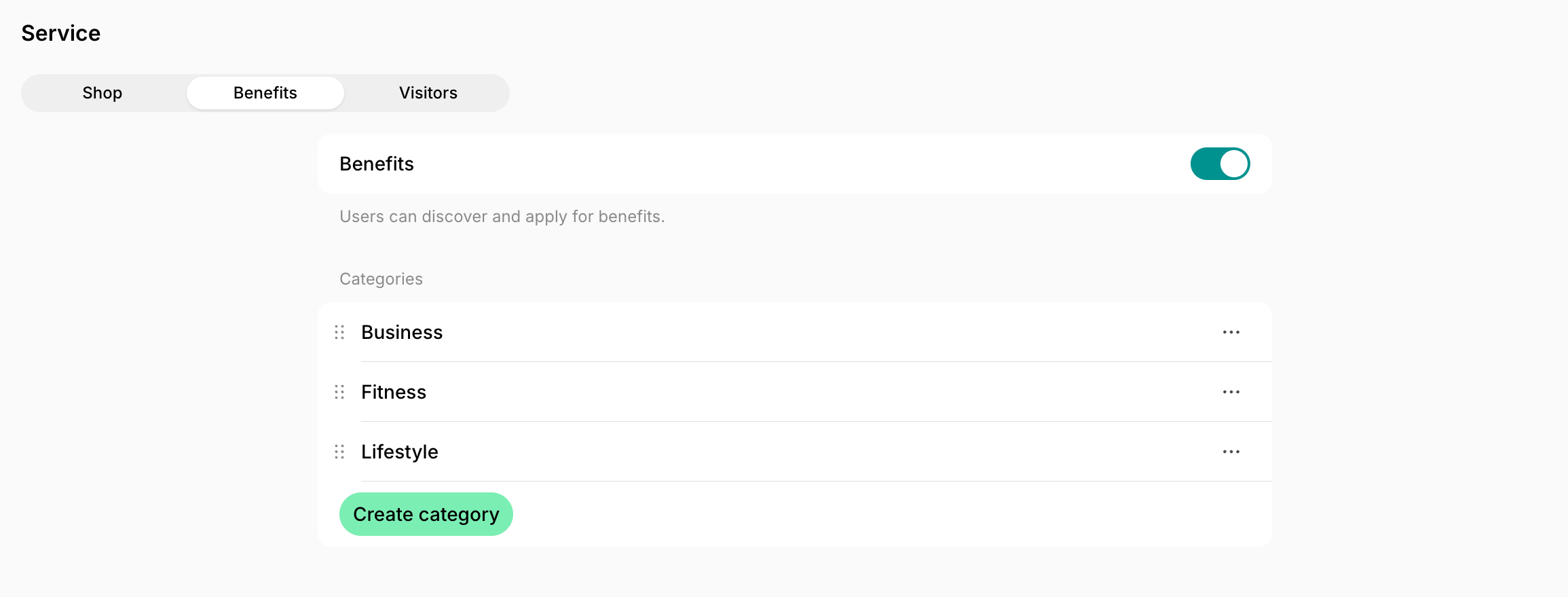
4. Create benefit categories to group your benefits by type.
By default, benefit categories are sorted alphabetically by title. Drag and drop categories to rearrange their order.
## Create a benefit
1. Go to the **Service** > **Benefits** page.
2. Press **Add benefit** in the top right corner and configure it:
| Cover photo | A picture with a 2x1 ratio. |
| --------------------- | -------------------------------------------------------------------------------------------------------------------------- |
| Title | The title of the benefit. |
| Subtitle | Summary of the benefit that appears below its title. |
| Description | Details about the benefit for the customers. |
| Category | Select which category the benefit belongs to. |
| Featured | If enabled, the benefit will be prominently pinned at the top of the **Benefits** page. |
| Application | If enabled, your customers will be able to apply for a benefit. |
| Application allowance | Can be set to either **Unlimited** or **Once**. |
| CTA button label | Customize the call-to-action button by selecting one of the options. |
| Confirmation email | Enable it to send confirmation emails to your customers and [customize the text](/customize-emails-to-users) of the email. |
| Visibility | Set whether the benefit should be visibile to public, network members, location members, or only administrators. |
[Bulk create benefits](/lem-ai/bulk-create) with the help of Lem AI.
## How benefits work
* Customers can explore and apply for benefits on the **Benefits** page. Understand [how users apply for benefits.](/member/benefits)
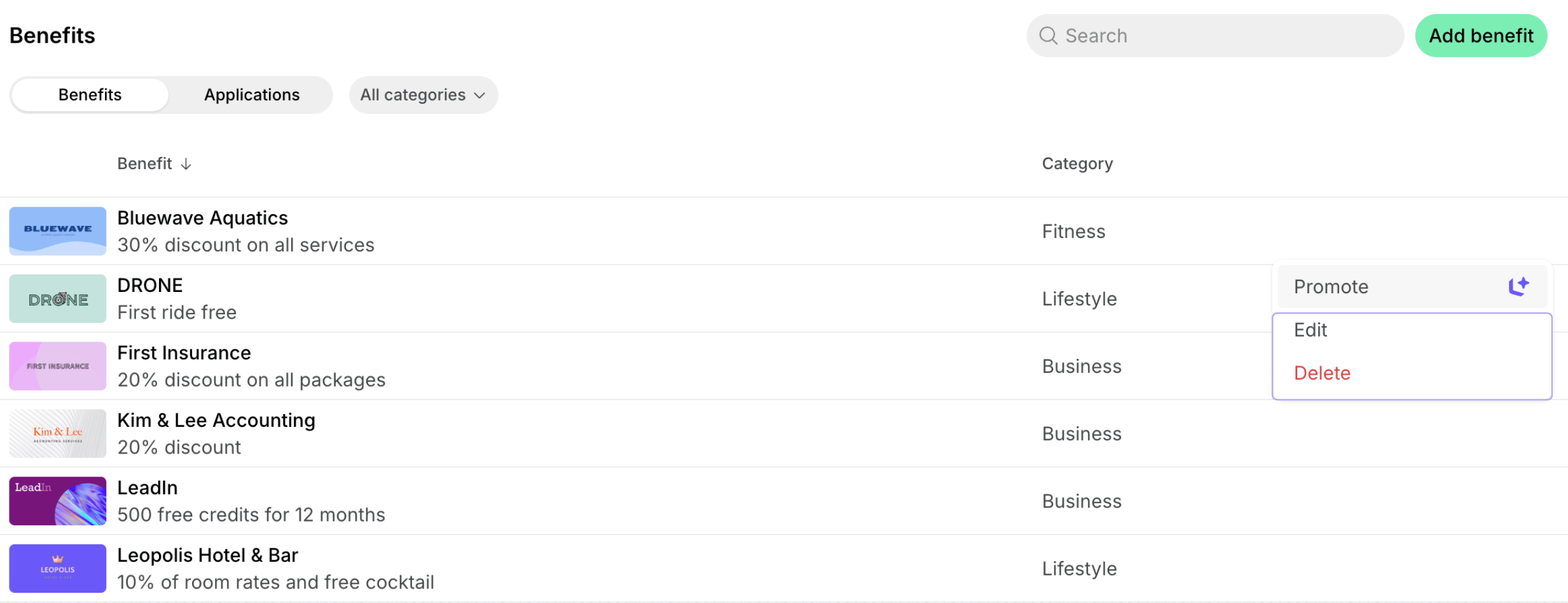
* Use the **Promote** feature to create a feed post about the benefit and attract more customer attention to it. This is a great way to announce a new member benefit or bring attention back to an existing one.
The **Benefits** module is available on the Pro plan and above in Spacebring legacy plans and on the new Business plan. If you’re currently on a legacy plan, [upgrade your subscription to the Business plan](/administration/billing/make-changes-to-spacebring-subscription) to access **Benefits**.
## Track benefit applications
Administrators can view all benefits applications in Spacebring by navigating to **Service** > **Benefits** > **Applications** panel.
Each benefit application has its sequence number like #1, #2, etc. (the most recent applications are at the top). The following data is available for every application:
* The benefit title
* The benefit application sequence number
* Date and time of application
* Applicant's name
Benefit applications are sorted from newest to oldest.
## Search for the application
For efficient benefit application management, you can easily find specific category benefit applications by filtering them based on the necessary category and user (applicant). [Manage benefit categories](/service/benefits)
Administrators can contact the users who applied for a benefit via chat, and provide all the necessary information. For this, click on the benefit application > press on the applicant > press **Chat**.
To check the benefit applications of a specific user, please go to **Customers** > click on the user > **Benefit applications**.
[Configure the notifications](/account/notifications) in the app to instantly receive notifications about new benefit applications.
## Edit or delete a benefit
1. Go to **Service** > **Benefits**.
2. Hover over the benefit > press the menu (…) next to it > **Edit** or **Delete**.
Deleting a benefit is irreversible and can not be undone.
## Edit or delete a benefit category
1. Go to **Location settings** > **Service** > **Benefits**.
2. Press the menu (…) next to the necessary category > **Edit** or **Delete**.
Deleting a benefit category is irreversible and can not be undone. All benefits from the selected category will be deleted automatically.
**FAQ**
The visibility of your **Benefits** page is directly controlled by the visibility settings of the individual benefits themselves. If the visibility of all your benefits is set to "Administrators," only administrators will see them in Spacebring. It won't be visible to anyone in the member web portal.
To check and update benefit visibility, follow [these steps](/service/benefits#edit-a-benefit).
 ## Create a benefit
1. Go to the **Service** > **Benefits** page.
2. Press **Add benefit** in the top right corner and configure it:
| Cover photo | A picture with a 2x1 ratio. |
| --------------------- | -------------------------------------------------------------------------------------------------------------------------- |
| Title | The title of the benefit. |
| Subtitle | Summary of the benefit that appears below its title. |
| Description | Details about the benefit for the customers. |
| Category | Select which category the benefit belongs to. |
| Featured | If enabled, the benefit will be prominently pinned at the top of the **Benefits** page. |
| Application | If enabled, your customers will be able to apply for a benefit. |
| Application allowance | Can be set to either **Unlimited** or **Once**. |
| CTA button label | Customize the call-to-action button by selecting one of the options. |
| Confirmation email | Enable it to send confirmation emails to your customers and [customize the text](/customize-emails-to-users) of the email. |
| Visibility | Set whether the benefit should be visibile to public, network members, location members, or only administrators. |
## Create a benefit
1. Go to the **Service** > **Benefits** page.
2. Press **Add benefit** in the top right corner and configure it:
| Cover photo | A picture with a 2x1 ratio. |
| --------------------- | -------------------------------------------------------------------------------------------------------------------------- |
| Title | The title of the benefit. |
| Subtitle | Summary of the benefit that appears below its title. |
| Description | Details about the benefit for the customers. |
| Category | Select which category the benefit belongs to. |
| Featured | If enabled, the benefit will be prominently pinned at the top of the **Benefits** page. |
| Application | If enabled, your customers will be able to apply for a benefit. |
| Application allowance | Can be set to either **Unlimited** or **Once**. |
| CTA button label | Customize the call-to-action button by selecting one of the options. |
| Confirmation email | Enable it to send confirmation emails to your customers and [customize the text](/customize-emails-to-users) of the email. |
| Visibility | Set whether the benefit should be visibile to public, network members, location members, or only administrators. |
 * Use the **Promote** feature to create a feed post about the benefit and attract more customer attention to it. This is a great way to announce a new member benefit or bring attention back to an existing one.

 Each benefit application has its sequence number like #1, #2, etc. (the most recent applications are at the top). The following data is available for every application:
* The benefit title
* The benefit application sequence number
* Date and time of application
* Applicant's name
Each benefit application has its sequence number like #1, #2, etc. (the most recent applications are at the top). The following data is available for every application:
* The benefit title
* The benefit application sequence number
* Date and time of application
* Applicant's name
 Administrators can contact the users who applied for a benefit via chat, and provide all the necessary information. For this, click on the benefit application > press on the applicant > press **Chat**.
To check the benefit applications of a specific user, please go to **Customers** > click on the user > **Benefit applications**.
Administrators can contact the users who applied for a benefit via chat, and provide all the necessary information. For this, click on the benefit application > press on the applicant > press **Chat**.
To check the benefit applications of a specific user, please go to **Customers** > click on the user > **Benefit applications**.