> ## Documentation Index
> Fetch the complete documentation index at: https://www.spacebring.com/docs/llms.txt
> Use this file to discover all available pages before exploring further.
# Shop
> Learn how to set up a Shop to sell extra products and services, add and manage products and product categories, and manage product availability
Sell additional services, such as food or merch, to your customers.
## Enable Shop
1. Click the menu **(...)** near the location name on the left-side panel.
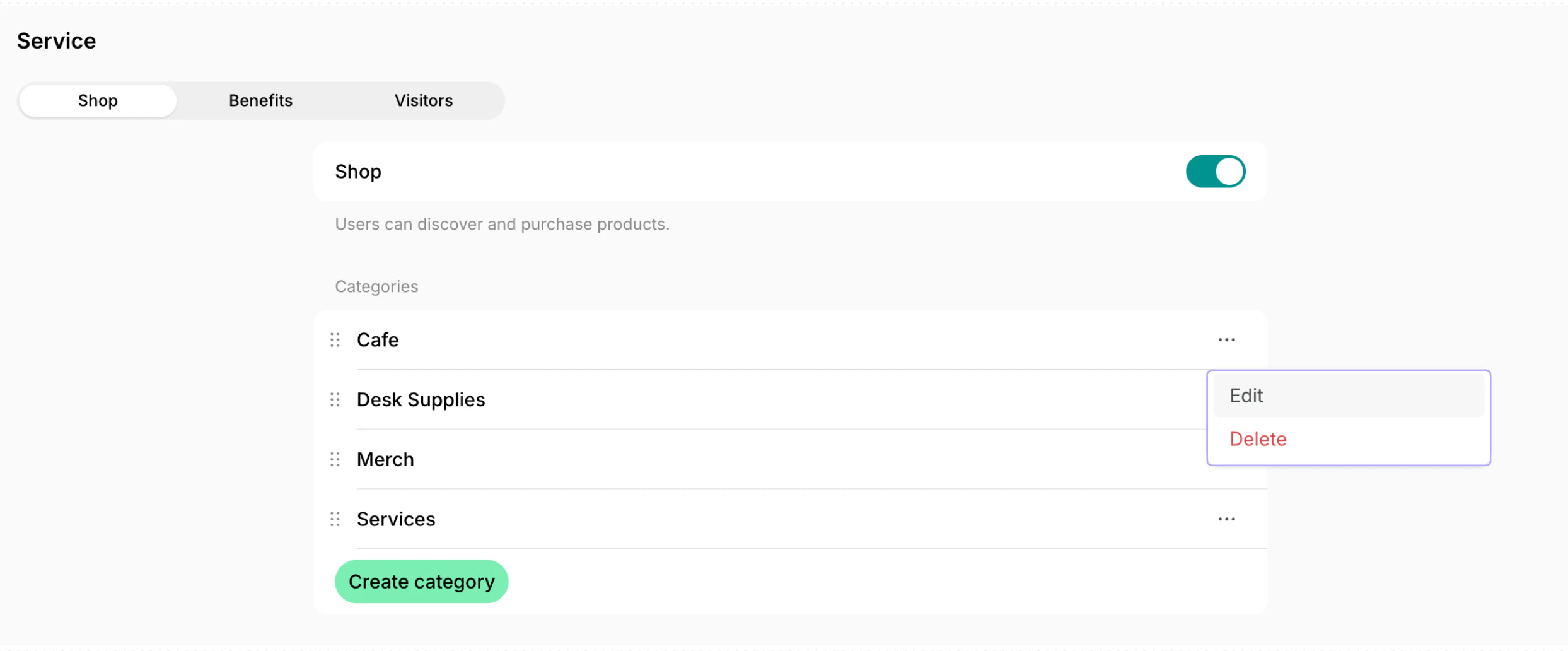
2. Go to **Location settings** > **Service** > **Shop**.
3. Enable the **Shop** switch.
4. Create product categories to group your products by type. For example, **Cafe**, **Merch**, **Services**, etc.
By default, shop categories are sorted alphabetically by title. Drag and drop categories to rearrange their order.
5. Enable the **Order confirmation email** switch and [customize your confirmation email](/docs/general/customize-emails) template.
Users automatically receive the customized order confirmation email text after each order.
## Add products
1. Go to **Service** > **Shop** > press **Add product** in the top right corner.
2. Configure the product details:
| **Product property** | **Meaning** |
| :------------------- | :----------------------------------------------------------------------------------------------------------------------------------------------------------------------------------------------------------------------------------------------------------------------------------------------------------------------------------------------------------------------------------------------------------------------------------------------------------------------------------------------------------------------------------------------------------------------------------------------------------------------------------------------------------------------------------------------------------------------------------------------------------------------------------------------------------------------------------------------------------------------------------------------------------------------------------------------------------------------------------------------------------------------------------------------------------------------- |
| Cover photo | A picture with a 2x1 ratio. |
| Title | The title of the product. |
| Description | Details you’d like users to know when ordering. |
| Category | Select which category the product belongs to. |
| Featured | If enabled, the product will be prominently pinned at the top of the **Shop** page. |
| Options | Add variations for the product. For example, if you're selling a branded T-shirt, your options might be different sizes and colors. If you're selling coffee, options could include **Latte** or "Americano." For each product option set:
**Name** — the name of the product.
**Description** — extra details about this specific option.
**Available for order** — toggle this on to make the option available for order. If it's turned off, the option will appear as greyed out and unavailable.
**Limited quantity** — if you have a limited number of items in stock, enable this option and enter the available quantity. The system will automatically show this option as **Out of stock** once this number of items is ordered. [Manage shop product availability](/docs/service/shop#manage-product-availability)
**Pricing** — set price in money and/or credits per item and set a [custom tax rate](/docs/billing/taxes/custom-tax-rates), if it's different from your location's default tax rate.
|
| Order |
**Enabled** — enables the **Order** button, allowing users to place orders for this product.
**Disabled** — lets users read the product description but not submit an order.
|
| Refund policy | Select whether orders are refundable. If an [automatic refund](/docs/billing/payments/refunds) is possible, it will only be processed if users cancel their orders while still in the **New** status. |
| Visibility | Manage access to the product by making it visible to administrators, location members, network members, or the public. |
[Bulk create shop products](/docs/lem-ai/bulk-create) with the help of Lem AI.
## How Shop works
* Customers can explore and purchase products on the **Shop** page. Understand [how users order products.](/docs/member/shop)
* Administrators can also [add any shop product as an item to a customer's invoice, contract, or subscription.](/docs/guides/catalog-of-reusable-fees)
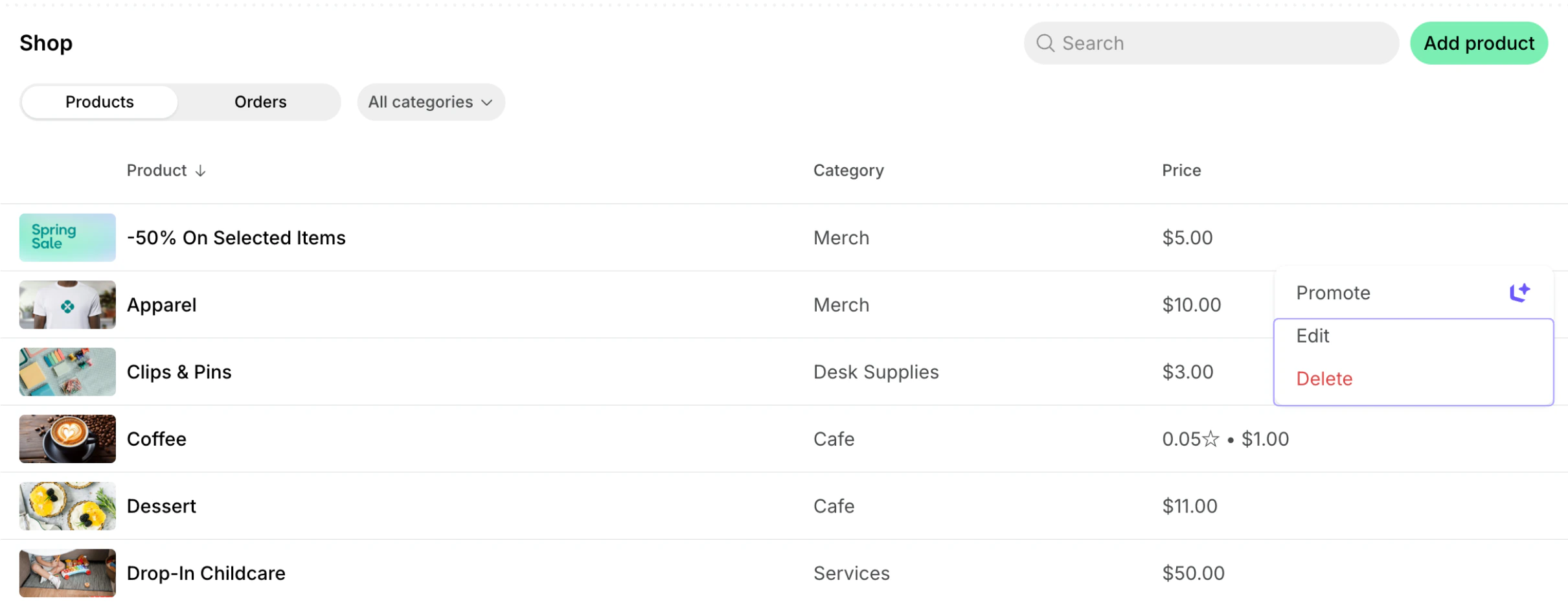
* Use the **Promote** feature to create a feed post about the product and attract more customer attention to it. It's a great way to announce new products available in your space or re-engage interest in existing ones.
## Manage product availability
You can flexibly control and update the availability and quantity of your shop products and product options for orders.
### Set **Limited quantity**
Setting **Limited quantity** is ideal for products like merchandise, where you have a specific number of items in stock.
1. Go to the **Service** > **Shop** page.
2. [Create](/docs/service/shop) or [edit](/docs/service/shop#edit-or-delete-a-product) a shop product.
3. Open a specific product option within the product.
4. Enable the **Limited quantity** switch and enter the number of units you have available.
The **Limited quantity** option only appears when the **Available for order** switch is turned on for this product option.
**How it works**
* The system will automatically track sales for this product option and update its availability.
* When only 2 or 1 item is left from the quantity you set, a badge will appear for users indicating "2 Left" or "1 Left."
* When the entire stock quantity has been purchased, the product option will show an **Out of stock** badge.
* You can restock a product option at any time by [editing its quantity](/docs/service/shop#edit-or-delete-a-product), and users will be able to continue ordering it.
### Disable orders for a certain product option
If a particular product option (like a specific salad variation) is temporarily unavailable, you can disable just that option within the product at any time.
1. Go to the **Service** > **Shop** page.
2. [Create](/docs/service/shop) or [edit](/docs/service/shop#edit-or-delete-a-product) a shop product.
3. Open a specific product option within the product.
4. Disable the **Available for order** switch.
The option will appear as greyed out and unavailable for order. All other options for that product will remain available.
### Disable orders for the entire shop product
To temporarily stop selling an entire product, you can disable orders for it.
1. Go to the **Service** > **Shop** page.
2. [Create](/docs/service/shop) or [edit](/docs/service/shop#edit-or-delete-a-product) a shop product.
3. Disable the **Order** switch.
The shop product will still be listed on the **Shop** page, but without the **Order** button. Therefore, users won't be able to purchase it.
You can make the product option or product available for order again at any time.
You can also temporarily hide a product from all users by [changing its **Visibility**](/docs/service/shop#edit-or-delete-a-product) to **Administrators**.
## Edit or delete a product
1. Go to **Service** > **Shop**.
2. Hover over the product > press the menu **(...)** next to it > **Edit** or **Delete**.
To delete multiple products at once, select their checkboxes, then press **Delete** in the toolbar that appears at the bottom of the page.
If you update a product, users will be notified with a red notification dot on the **Shop** button. The product will appear at the top of the category on the **Shop** page.
Editing the [refund policy](/docs/billing/payments/refunds) applies only to future orders made after the administrator's changes.
Deleting a product is irreversible and can not be undone.
## Edit or delete a product category
1. Go to **Location settings** > **Service** > **Shop**.
2. Press the menu **(...)** next to the necessary category > **Edit** or **Delete**.
Deleting a product category is irreversible and can not be undone. All products from the selected category will be deleted automatically.
 ## Add products
1. Go to **Service** > **Shop** > press **Add product** in the top right corner.
## Add products
1. Go to **Service** > **Shop** > press **Add product** in the top right corner.
 2. Configure the product details:
| **Product property** | **Meaning** |
| :------------------- | :----------------------------------------------------------------------------------------------------------------------------------------------------------------------------------------------------------------------------------------------------------------------------------------------------------------------------------------------------------------------------------------------------------------------------------------------------------------------------------------------------------------------------------------------------------------------------------------------------------------------------------------------------------------------------------------------------------------------------------------------------------------------------------------------------------------------------------------------------------------------------------------------------------------------------------------------------------------------------------------------------------------------------------------------------------------------- |
| Cover photo | A picture with a 2x1 ratio. |
| Title | The title of the product. |
| Description | Details you’d like users to know when ordering. |
| Category | Select which category the product belongs to. |
| Featured | If enabled, the product will be prominently pinned at the top of the **Shop** page. |
| Options | Add variations for the product. For example, if you're selling a branded T-shirt, your options might be different sizes and colors. If you're selling coffee, options could include **Latte** or "Americano." For each product option set:
2. Configure the product details:
| **Product property** | **Meaning** |
| :------------------- | :----------------------------------------------------------------------------------------------------------------------------------------------------------------------------------------------------------------------------------------------------------------------------------------------------------------------------------------------------------------------------------------------------------------------------------------------------------------------------------------------------------------------------------------------------------------------------------------------------------------------------------------------------------------------------------------------------------------------------------------------------------------------------------------------------------------------------------------------------------------------------------------------------------------------------------------------------------------------------------------------------------------------------------------------------------------------- |
| Cover photo | A picture with a 2x1 ratio. |
| Title | The title of the product. |
| Description | Details you’d like users to know when ordering. |
| Category | Select which category the product belongs to. |
| Featured | If enabled, the product will be prominently pinned at the top of the **Shop** page. |
| Options | Add variations for the product. For example, if you're selling a branded T-shirt, your options might be different sizes and colors. If you're selling coffee, options could include **Latte** or "Americano." For each product option set:  ## Manage product availability
You can flexibly control and update the availability and quantity of your shop products and product options for orders.
### Set **Limited quantity**
Setting **Limited quantity** is ideal for products like merchandise, where you have a specific number of items in stock.
1. Go to the **Service** > **Shop** page.
2. [Create](/docs/service/shop) or [edit](/docs/service/shop#edit-or-delete-a-product) a shop product.
3. Open a specific product option within the product.
4. Enable the **Limited quantity** switch and enter the number of units you have available.
## Manage product availability
You can flexibly control and update the availability and quantity of your shop products and product options for orders.
### Set **Limited quantity**
Setting **Limited quantity** is ideal for products like merchandise, where you have a specific number of items in stock.
1. Go to the **Service** > **Shop** page.
2. [Create](/docs/service/shop) or [edit](/docs/service/shop#edit-or-delete-a-product) a shop product.
3. Open a specific product option within the product.
4. Enable the **Limited quantity** switch and enter the number of units you have available.

 * You can restock a product option at any time by [editing its quantity](/docs/service/shop#edit-or-delete-a-product), and users will be able to continue ordering it.
### Disable orders for a certain product option
If a particular product option (like a specific salad variation) is temporarily unavailable, you can disable just that option within the product at any time.
1. Go to the **Service** > **Shop** page.
2. [Create](/docs/service/shop) or [edit](/docs/service/shop#edit-or-delete-a-product) a shop product.
3. Open a specific product option within the product.
4. Disable the **Available for order** switch.
* You can restock a product option at any time by [editing its quantity](/docs/service/shop#edit-or-delete-a-product), and users will be able to continue ordering it.
### Disable orders for a certain product option
If a particular product option (like a specific salad variation) is temporarily unavailable, you can disable just that option within the product at any time.
1. Go to the **Service** > **Shop** page.
2. [Create](/docs/service/shop) or [edit](/docs/service/shop#edit-or-delete-a-product) a shop product.
3. Open a specific product option within the product.
4. Disable the **Available for order** switch.
 The option will appear as greyed out and unavailable for order. All other options for that product will remain available.
 ### Disable orders for the entire shop product
To temporarily stop selling an entire product, you can disable orders for it.
1. Go to the **Service** > **Shop** page.
2. [Create](/docs/service/shop) or [edit](/docs/service/shop#edit-or-delete-a-product) a shop product.
3. Disable the **Order** switch.
### Disable orders for the entire shop product
To temporarily stop selling an entire product, you can disable orders for it.
1. Go to the **Service** > **Shop** page.
2. [Create](/docs/service/shop) or [edit](/docs/service/shop#edit-or-delete-a-product) a shop product.
3. Disable the **Order** switch.
 The shop product will still be listed on the **Shop** page, but without the **Order** button. Therefore, users won't be able to purchase it.