> ## Documentation Index
> Fetch the complete documentation index at: https://www.spacebring.com/docs/llms.txt
> Use this file to discover all available pages before exploring further.
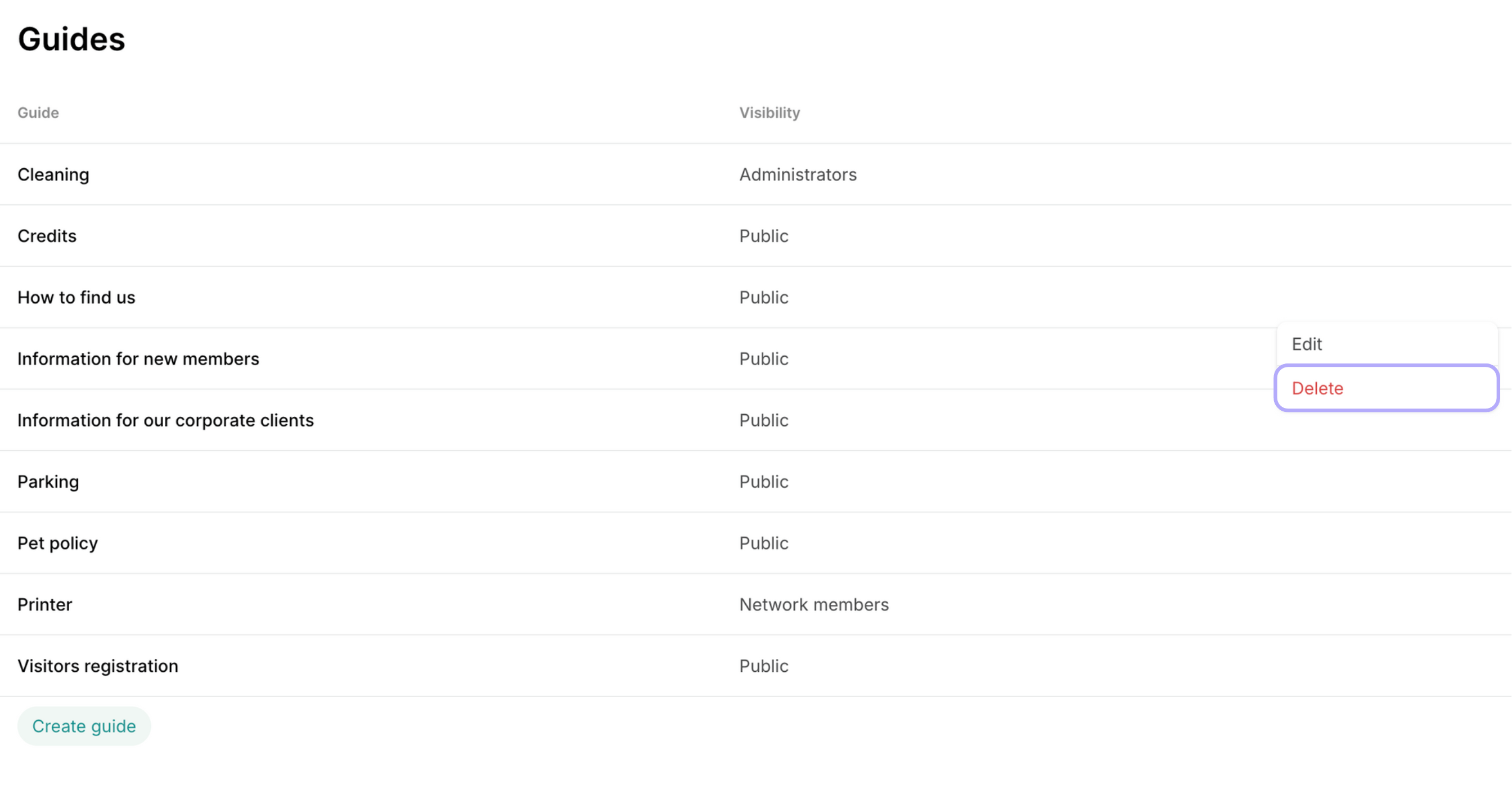
# Guides
> Create location guides to build a knowledge base for your space, understand where guides appear to users, explore recommended topics, and learn how to edit or delete guides
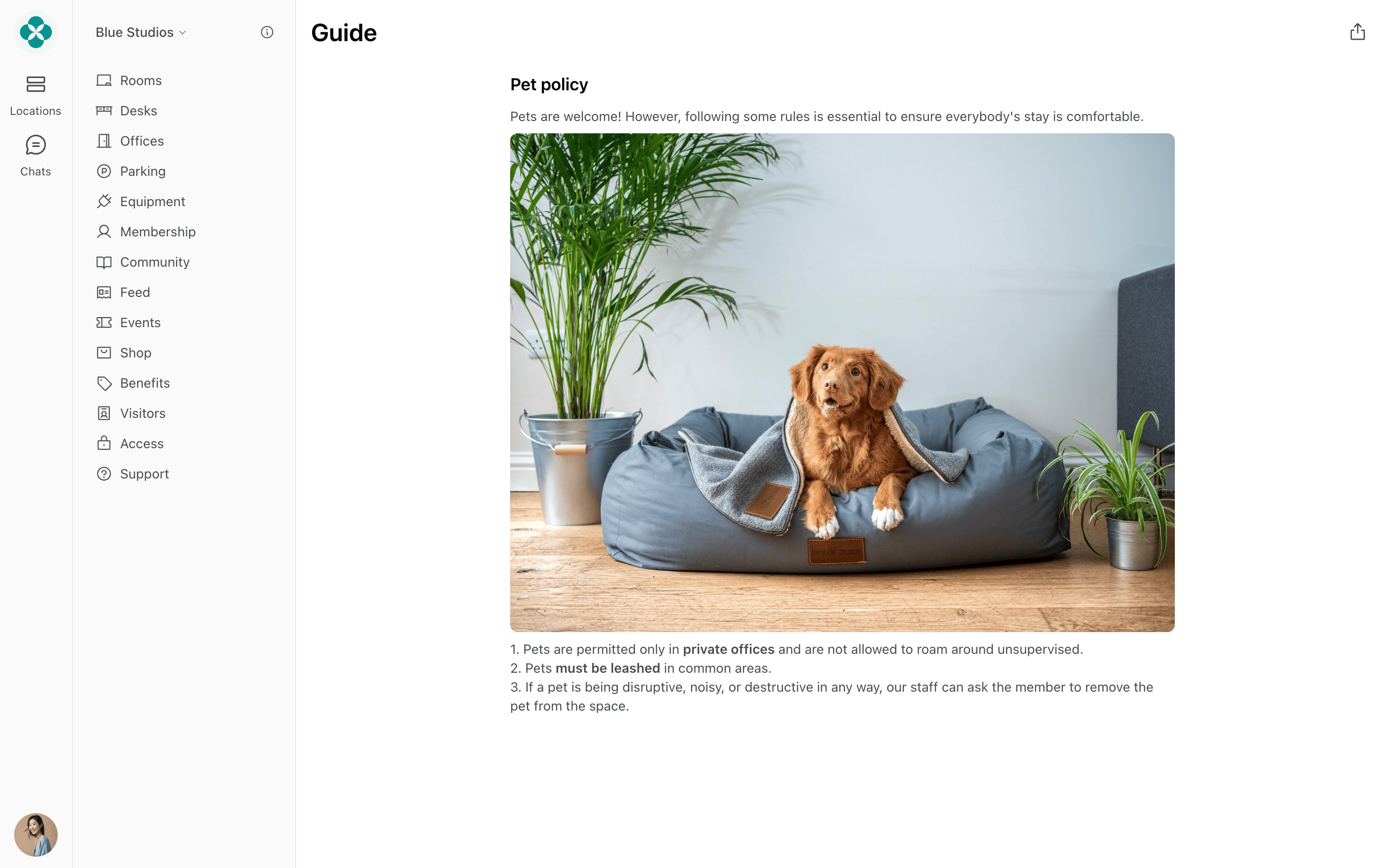
Location guides serve as a knowledge base that consolidates any helpful information about your space and features it for your customers.
## Create a guide
1. Go to the **Support** page > **Guides.**
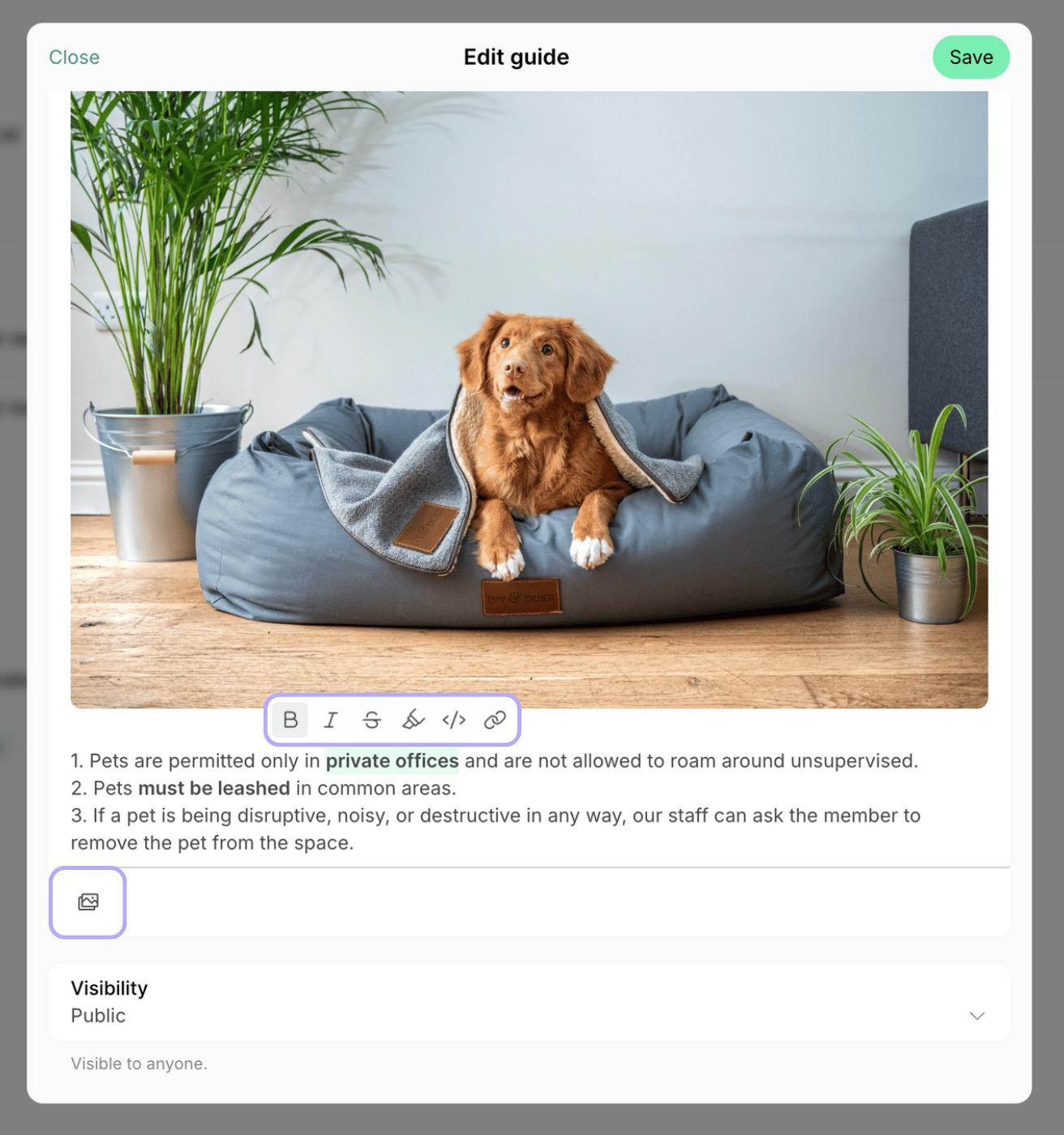
2. Press **Create** > add the guide title and description, use [rich text formatting](/docs/engagement/feed).
3. To add photos and videos to your guide description, click on the place in the text where you want the image or video to be inserted > paste the copied image or press **Gallery** icon in the lower left corner to pick a photo or video from your device. [Understand media formats](/docs/general/media-formats)
4. In the **Visibility** section, select the guide's visibility. [Understand and use visibility settings](/docs/location/visibility)
5. Tap **Create**.
You can also [ask Lem AI to create a guide](/docs/lem-ai/bulk-create) for you.
The visibility of your guides also influences the visibility of the **Information** page. Therefore, if the visibility of any of your guides is "Public," the **Information** page becomes visible public, too.
## Where guides appear to users
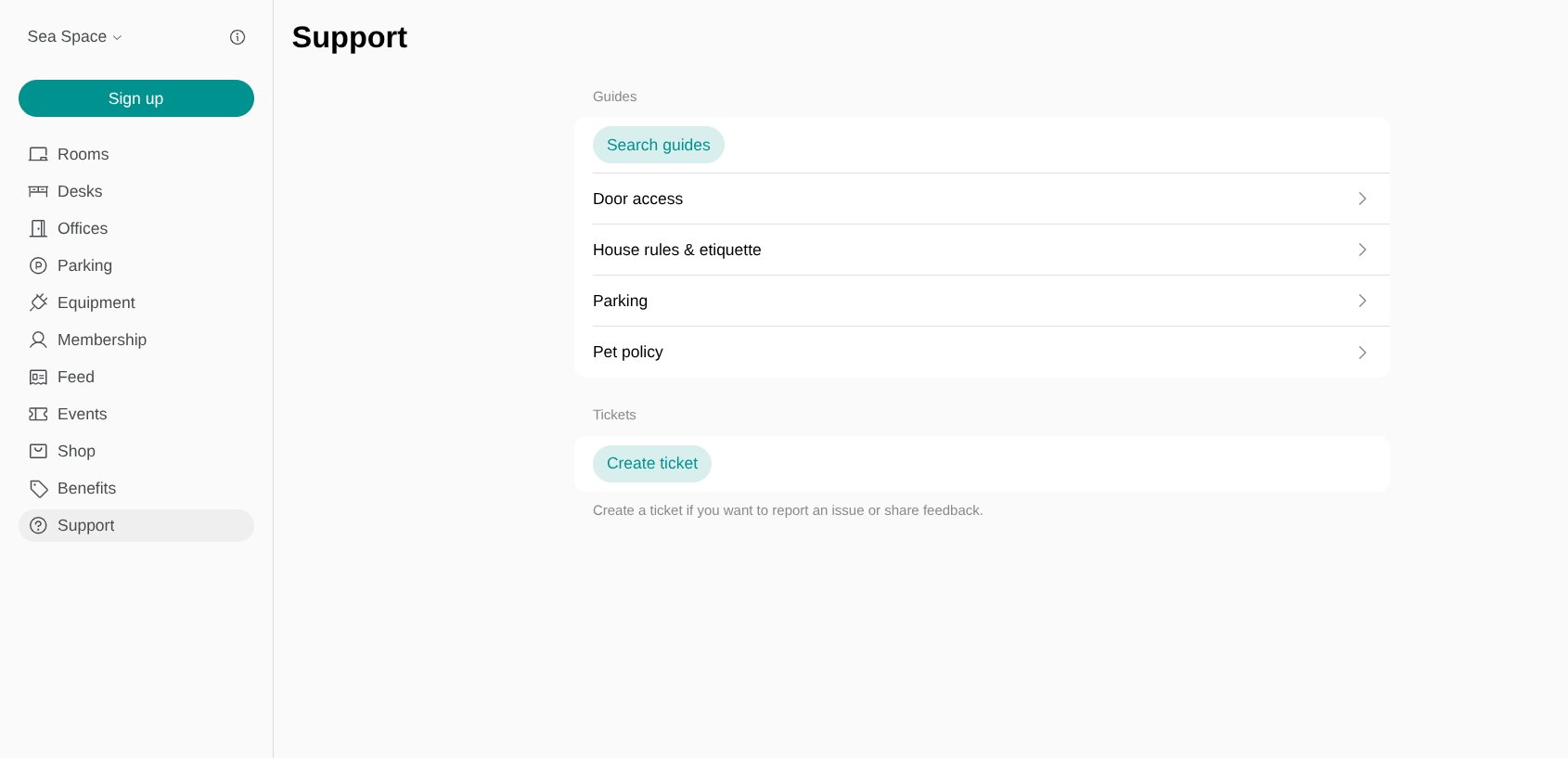
Once created, users can discover guides on the **Information** and **Support** pages.
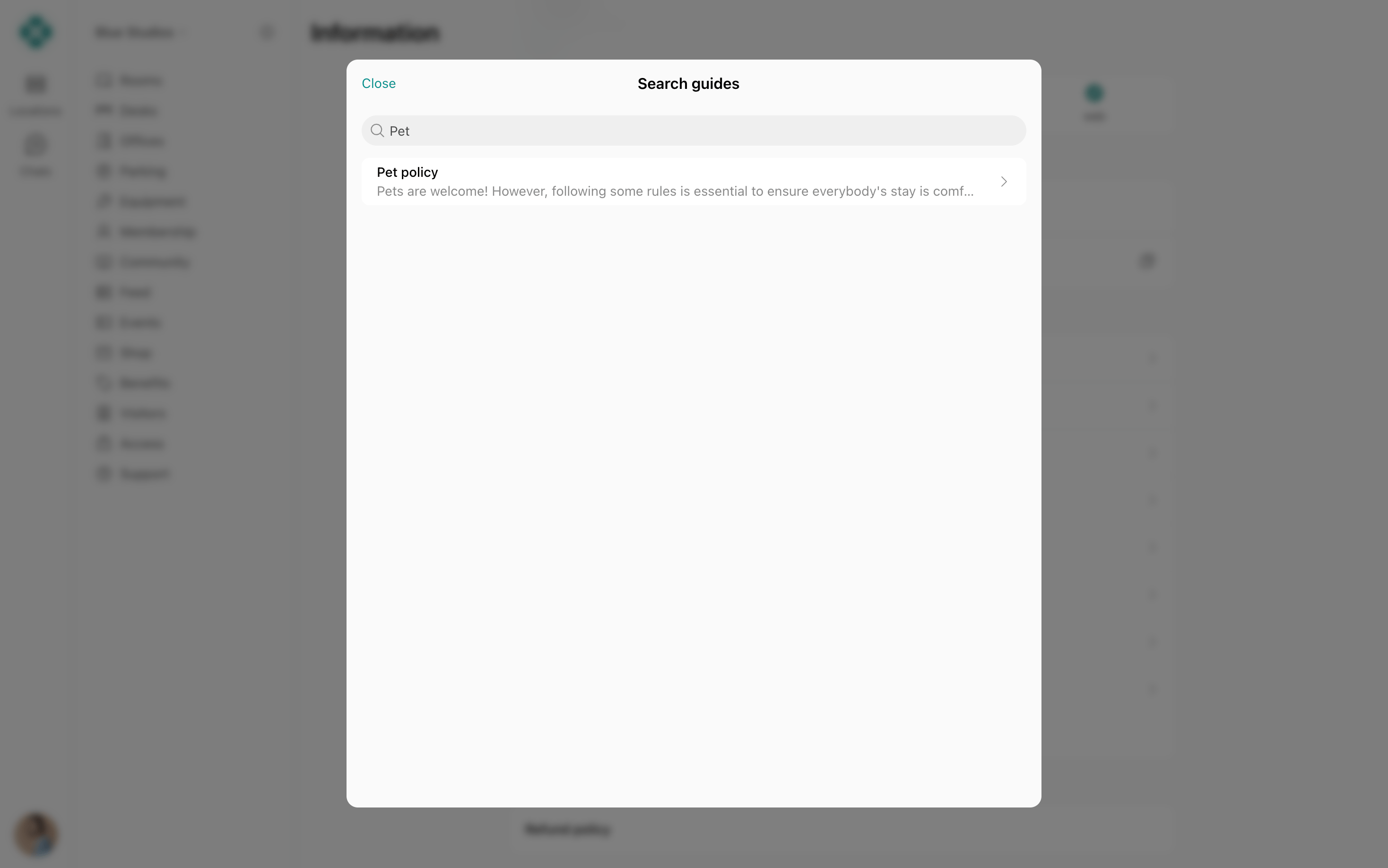
The **Search** field allows users to easily browse through location guides and quickly find answers to their questions.
Guides are sorted alphabetically by title.
## Recommended guides to create
Guides help all app users find additional information about your location to help them feel more convenient in your space. We recommend you create guides on the following topics:
* **How to find us** - give detailed directions on how to find your space at the given address or attach a video guide.
* **How to become a member** - a guide explaining how to sign up for a plan or office.
* **Parking** - share if you provide members with parking possibilities, give the details in this guide.
* **House rules** - describe room etiquette, kitchen rules, noise regulations, etc.
* **Refund policy** - clearly state the rules and timelines for processing returns or refunds on bookings, products, or events.
## Edit a guide
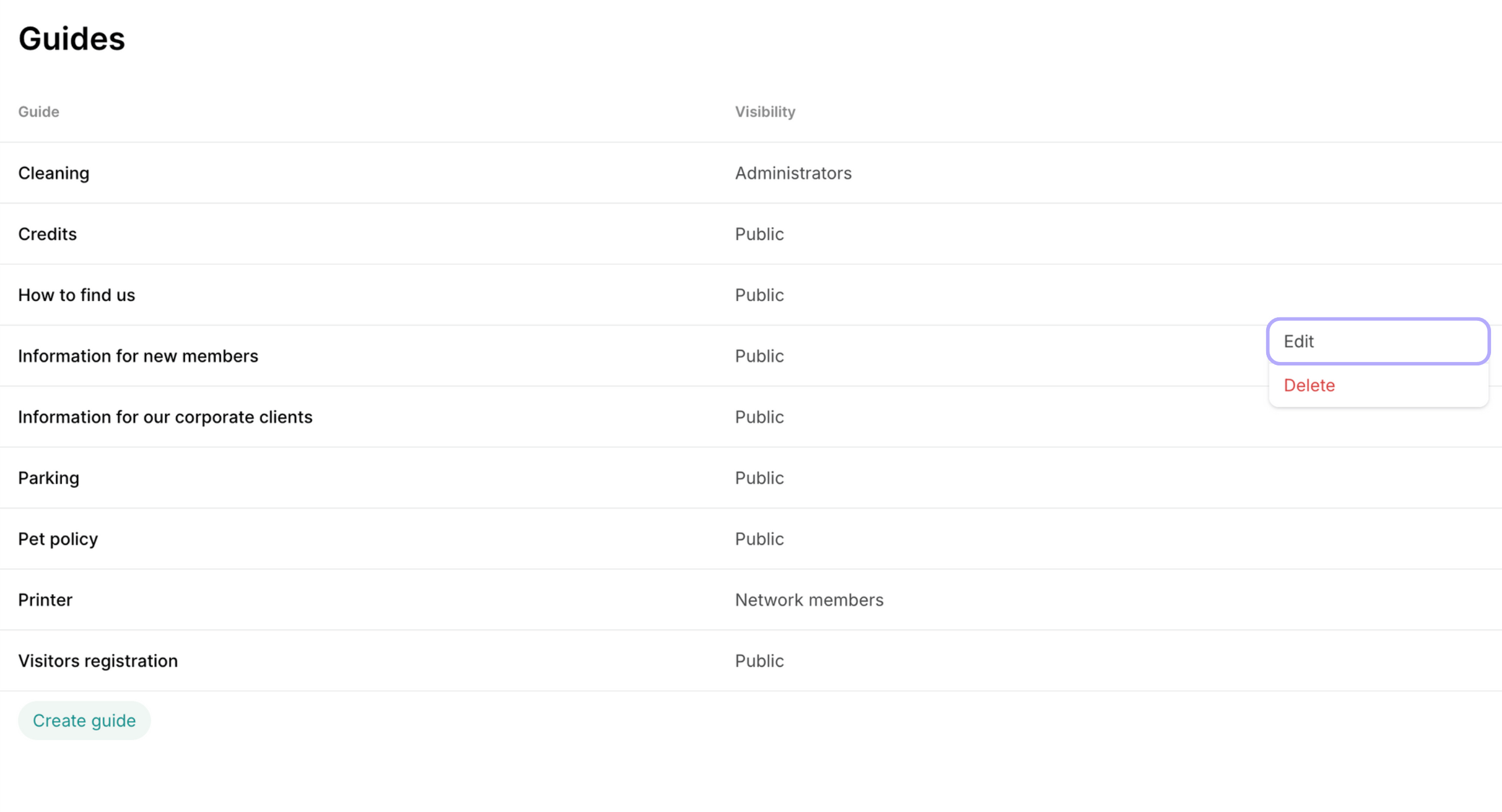
1. Navigate to the **Support** > **Guides**.
2. Hover over the guide > press the menu **(...)** next to it > press **Edit**.
3. Change the guide and press **Save**.
## Delete a guide
1. Navigate to the **Support** > **Guides**.
2. Hover over the guide > press the menu **(...)** next to it > press **Delete** and confirm your action.
Deleting a guide is irreversible and can not be undone.
 4. In the **Visibility** section, select the guide's visibility. [Understand and use visibility settings](/docs/location/visibility)
5. Tap **Create**.
4. In the **Visibility** section, select the guide's visibility. [Understand and use visibility settings](/docs/location/visibility)
5. Tap **Create**.
 The **Search** field allows users to easily browse through location guides and quickly find answers to their questions.
 ## Edit a guide
1. Navigate to the **Support** > **Guides**.
2. Hover over the guide > press the menu **(...)** next to it > press **Edit**.
## Edit a guide
1. Navigate to the **Support** > **Guides**.
2. Hover over the guide > press the menu **(...)** next to it > press **Edit**.
 3. Change the guide and press **Save**.
## Delete a guide
1. Navigate to the **Support** > **Guides**.
2. Hover over the guide > press the menu **(...)** next to it > press **Delete** and confirm your action.
3. Change the guide and press **Save**.
## Delete a guide
1. Navigate to the **Support** > **Guides**.
2. Hover over the guide > press the menu **(...)** next to it > press **Delete** and confirm your action.