

The Feed page is your go-to place for updates, announcements, and community engagement. Keep your customers informed about upcoming events, important news, and activities happening in your workspace.Documentation Index
Fetch the complete documentation index at: https://www.spacebring.com/docs/llms.txt
Use this file to discover all available pages before exploring further.
Set up Feed
To set up and start using Feed for your location:- In the left-side panel, click the menu (…) next to your location name.
- Go to Location settings > Engagement page > “Feed” tab and toggle the “Feed” switch on.
- Configure Feed permissions:
- Visibility — control who can see your Feed page. The visibility of the Feed page determines the visibility of all posts.
- Posting — choose who is allowed to create new posts. Typically, this includes administrators who share updates or announcements.
- Viewing comments — control who can see comments below each post. To encourage high engagement, set comments to be public. Alternatively, you can limit comment visibility to a selected group, such as administrators, location members, or network members.
- Commenting — define who can reply under posts.
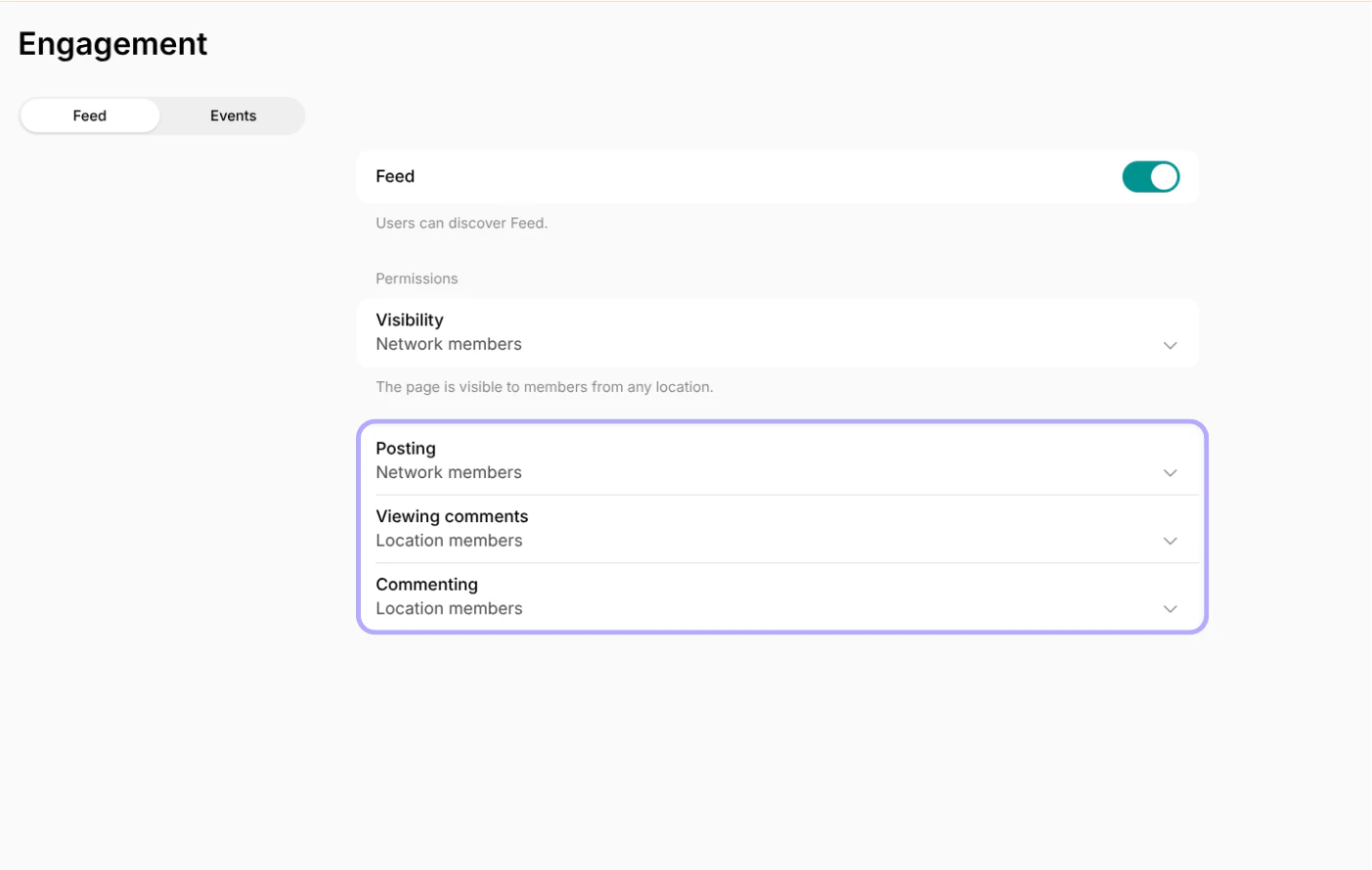
These settings define permissions for all posts on the Feed page.
Create a feed post
- Go to Engagement > Feed and press the
Create posttop right. 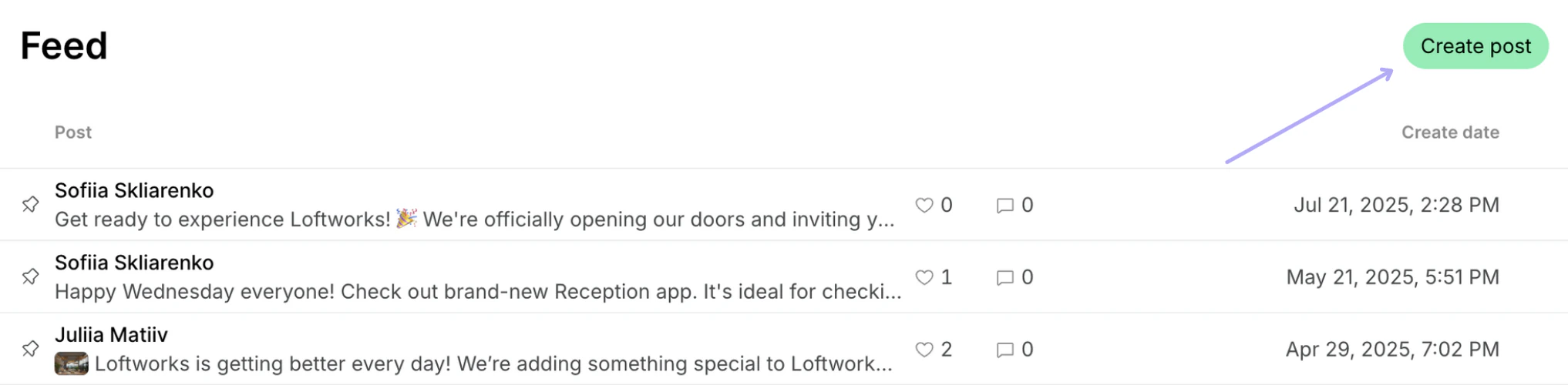
- Add the contents of your post.
- Press
Post. All members of the location will immediately get notified with a push notification.
Content formatting and attachments
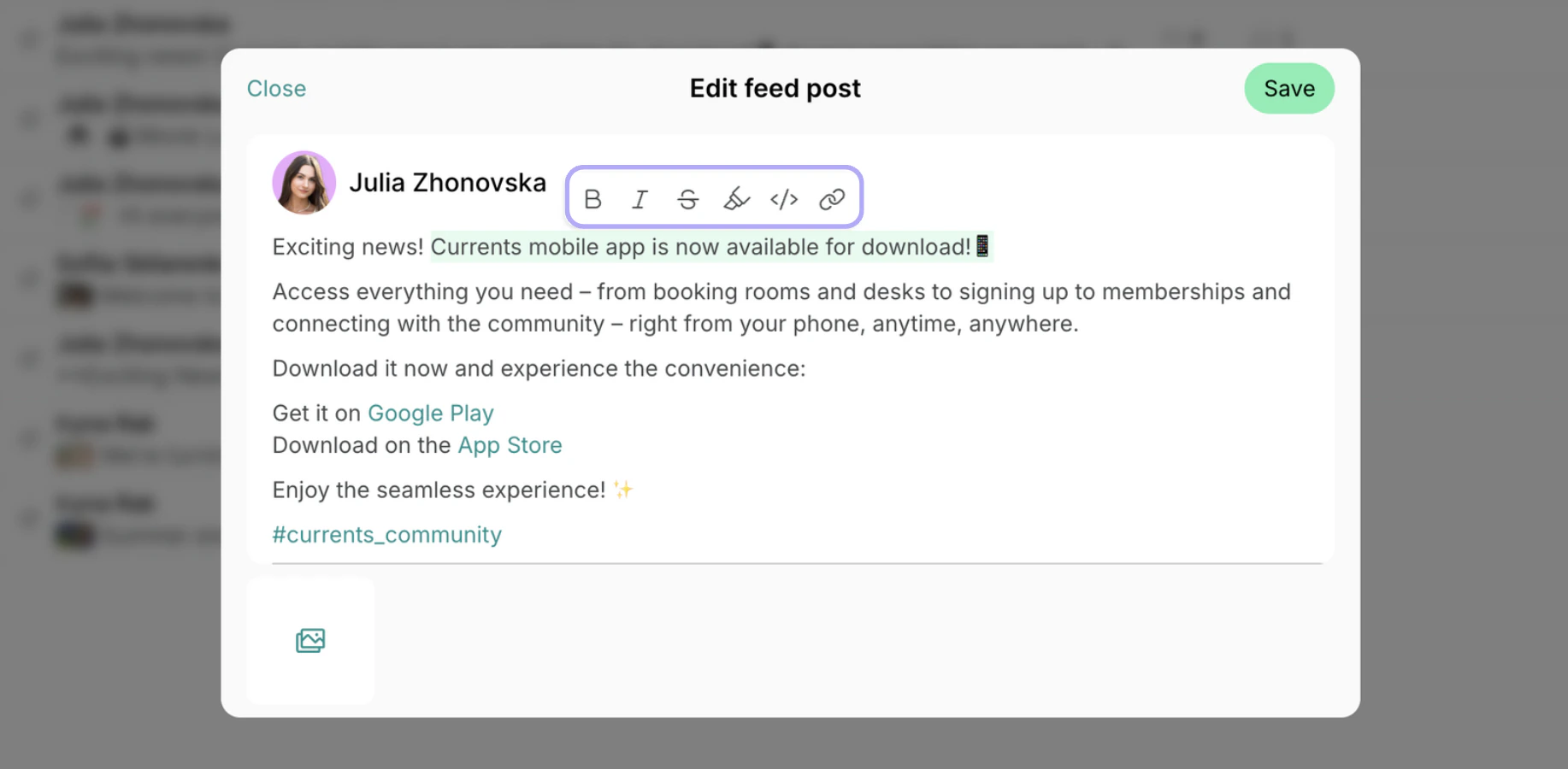
You can easily format your text using a visual editor and shortcuts:- Floating toolbar: Select text to format it (bold, italic, inline code, highlight, code block) with a quick-access menu.
- Keyboard shortcuts:
Command + B/Ctrl + B→ BoldCommand + I/Ctrl + I→ Italic
- Use
#to create a hashtag.
Use hashtags in posts
- Add hashtags to your feed posts to organize them by topics and make it easier for interested users to find related posts. When a user clicks on a hashtag, the Feed page is filtered to show all posts that contain the same hashtag.
- The 5 most frequently used hashtags in the last 6 months are prominently shown at the top of the Feed page. This allows quick and convenient access to popular or important categories of posts for all users.
See translation
Member Mobile Apps and Member Web App support automatic machine translation of the following content:- Description of products added to Rooms, Desks, Benefits, Shop, Events pages.
- Feed posts.
- Guides added to the Information page.
See translation button appears below the text.
Pressing the button automatically translates the text into the user’s interface language:
If the language of a user’s application is the same as the language of your content, the See translation button will not show up.
Edit a post
Administrators can edit their own posts as well as those created by other administrators and users. If you edit any post, users will not receive a notification about it. To modify a Feed post, open Spacebring and follow these steps:- Navigate to Engagement > Feed page.
-
Hover over the post > press the menu (…) next to it > press
Edit. -
Change the post and press
Save.
Pin a post
To pin a Feed post, follow these steps:- Navigate to Engagement > Feed page.
- Click the empty “Pin” icon next to the necessary post.
Only location administrators can pin and unpin posts. App users are not notified if you pin or unpin a post.
Delete a post
As an administrator, you can delete any post at any time. Users can only delete their own posts. To delete a Feed post, open Spacebring and follow these steps:- Navigate to Engagement > Feed page.
- Hover over the post > press the menu (…) next to it > press
Deleteand confirm your choice.
Deleting a post is irreversible and can not be undone.
Report a post
Users can report Feed posts if they consider the content to be offensive or objectionable. To send a report, users follow these steps:- Go to Locations > Feed and find a post.
- Press on the (…) menu next to this post.
- Choose
Reportand confirm your choice.
Only users to whom the visibility of your Feed page is available can report posts.