

QuickBooks is a distinct company not affiliated with us. For any inquiries regarding QuickBooks’s solutions, services, or pricing, reach out to QuickBooks directly. We do not have the authority to provide information or support on behalf of QuickBooks.
Prerequisites
- Have your QuickBooks Online account ready.
- Create the relevant service in your QuickBooks Online account where invoices and payments from Spacebring will be synced.
- Set a tax in your QuickBooks account:
- For US-based accounts: Set the tax regardless of the tax rate in Spacebring. The exact tax rate is not passed from Spacebring to QuickBooks and is defined by your QuickBooks settings.
If rates differ, the invoice will sync, but the payment cannot sync because the totals won’t match. The invoice will remain Unpaid in QuickBooks.
- For non-US-based accounts: Set the tax rate to match the one you have in your location. Manage taxes
Connect the QuickBooks Online integration
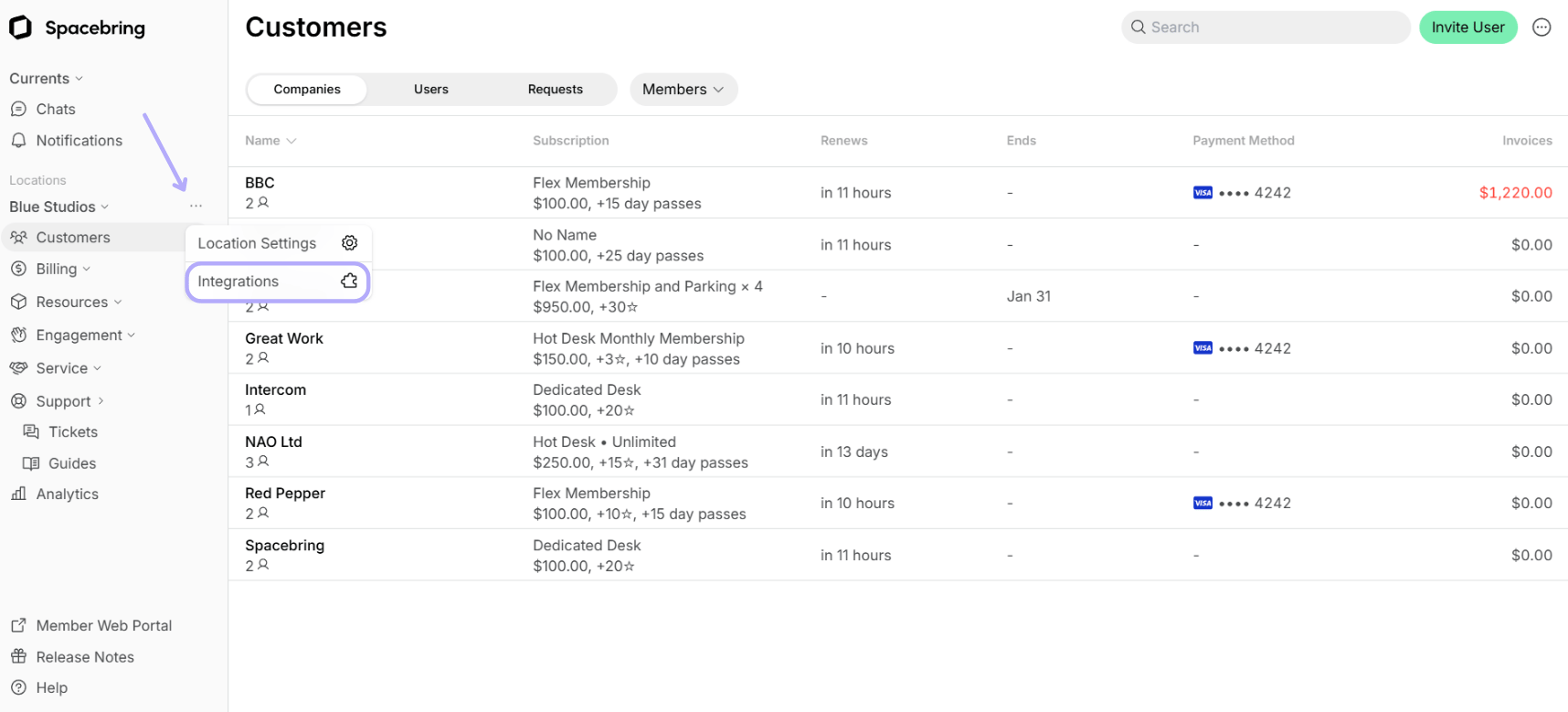
- Press the menu (…) next to the location’s name > go to the Integrations page.
- Find QuickBooks Online. Press Connect.
- Log in to your Intuit account and connect the company where to sync invoices.
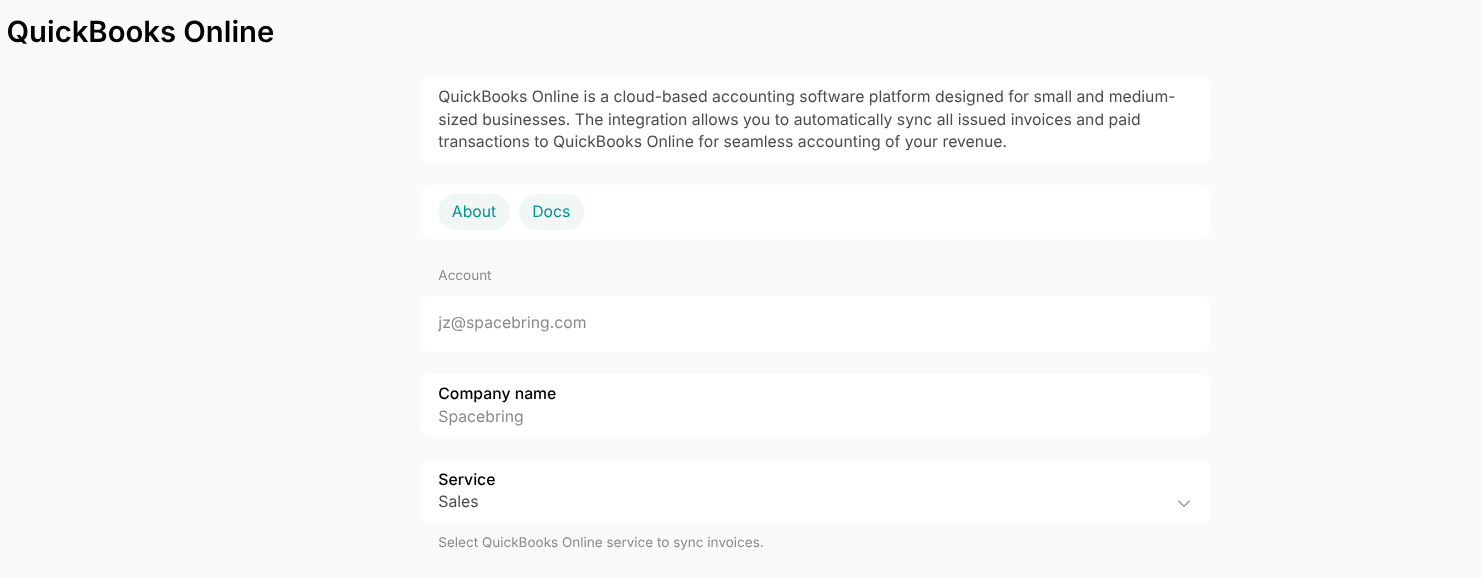
- Select the Service to which invoices and payments from Spacebring should synchronize in your QuickBooks account.
How QuickBooks Online integration works
- The integration automatically syncs all newly issued invoices to QuickBooks in real time.
- If the invoice status updates in Spacebring, it’s automatically reflected in QuickBooks.
- Once the invoice status changes to Paid, a corresponding payment for it is created.
- Spacebring syncs invoices for all types of purchases, including subscription invoices and one-off payments such as bookings, shop orders, event tickets, and more.
- Credit notes for unpaid invoices sync to QuickBooks as payments or credits, automatically updating the invoice status to Partially Paid.
Starting December 9, 2025, Spacebring began generating invoices for all payments. From this date onward, invoices for all payments sync to QuickBooks. Before December 9, 2025, immediate one-off payments (bookings, shop orders, event tickets, etc.) generated receipts only, and these transactions were synced to QuickBooks as Sales Receipts.
How invoices sync
The integration syncs and matches QuickBooks Online invoices with data from Spacebring: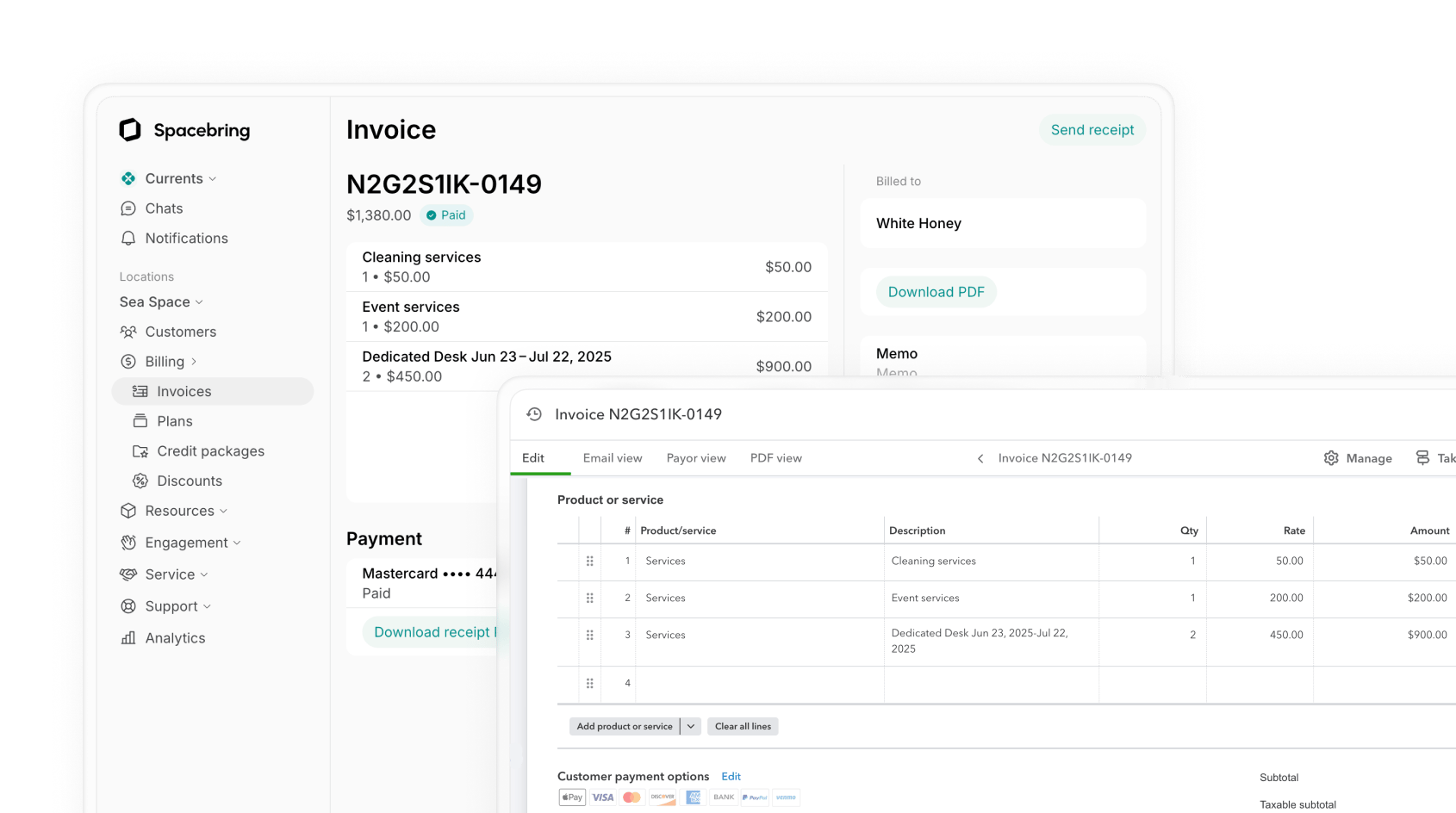
How invoice statuses and invoice payments sync
The integration syncs the following invoice statuses to QuickBooks Online: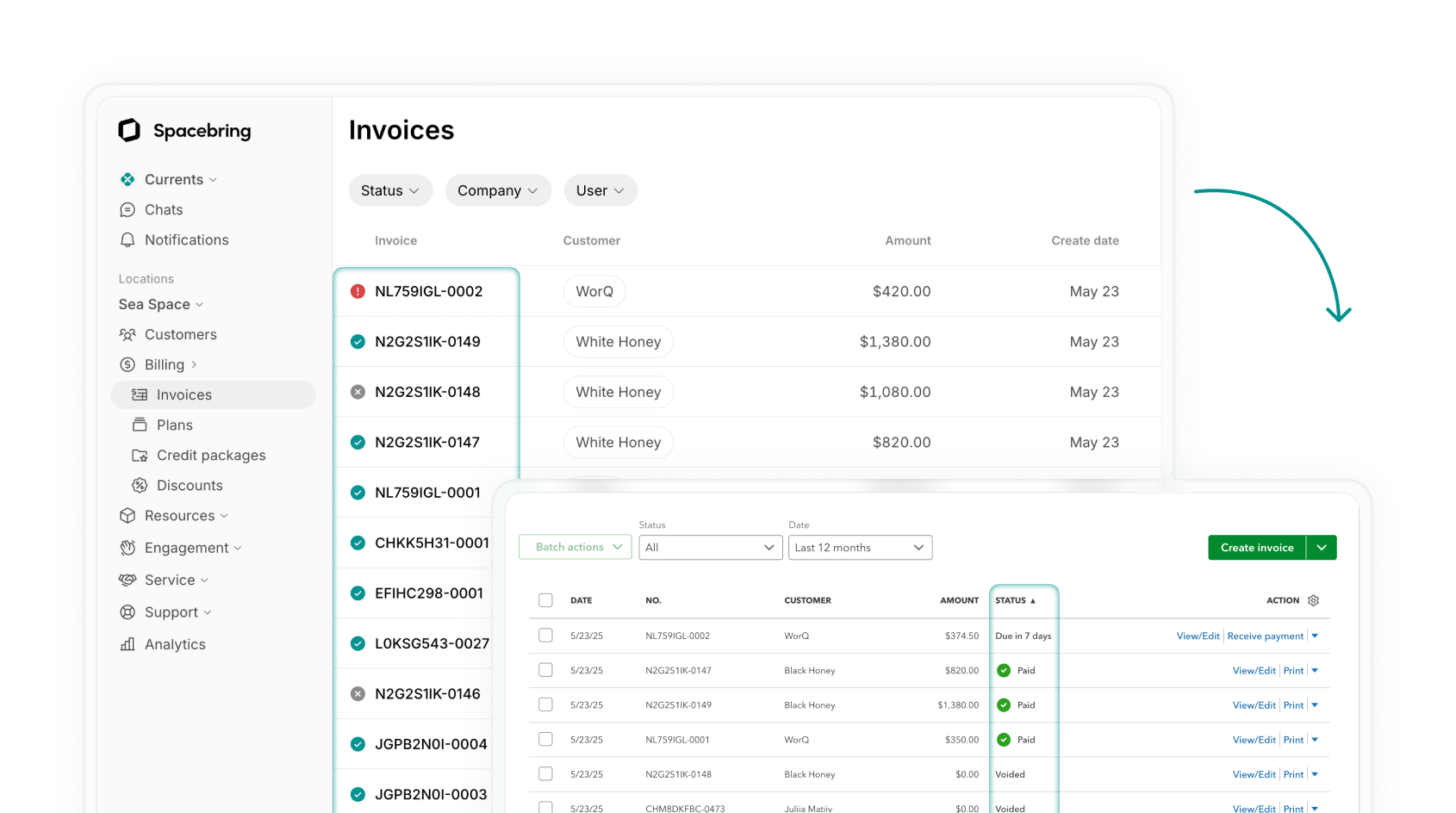
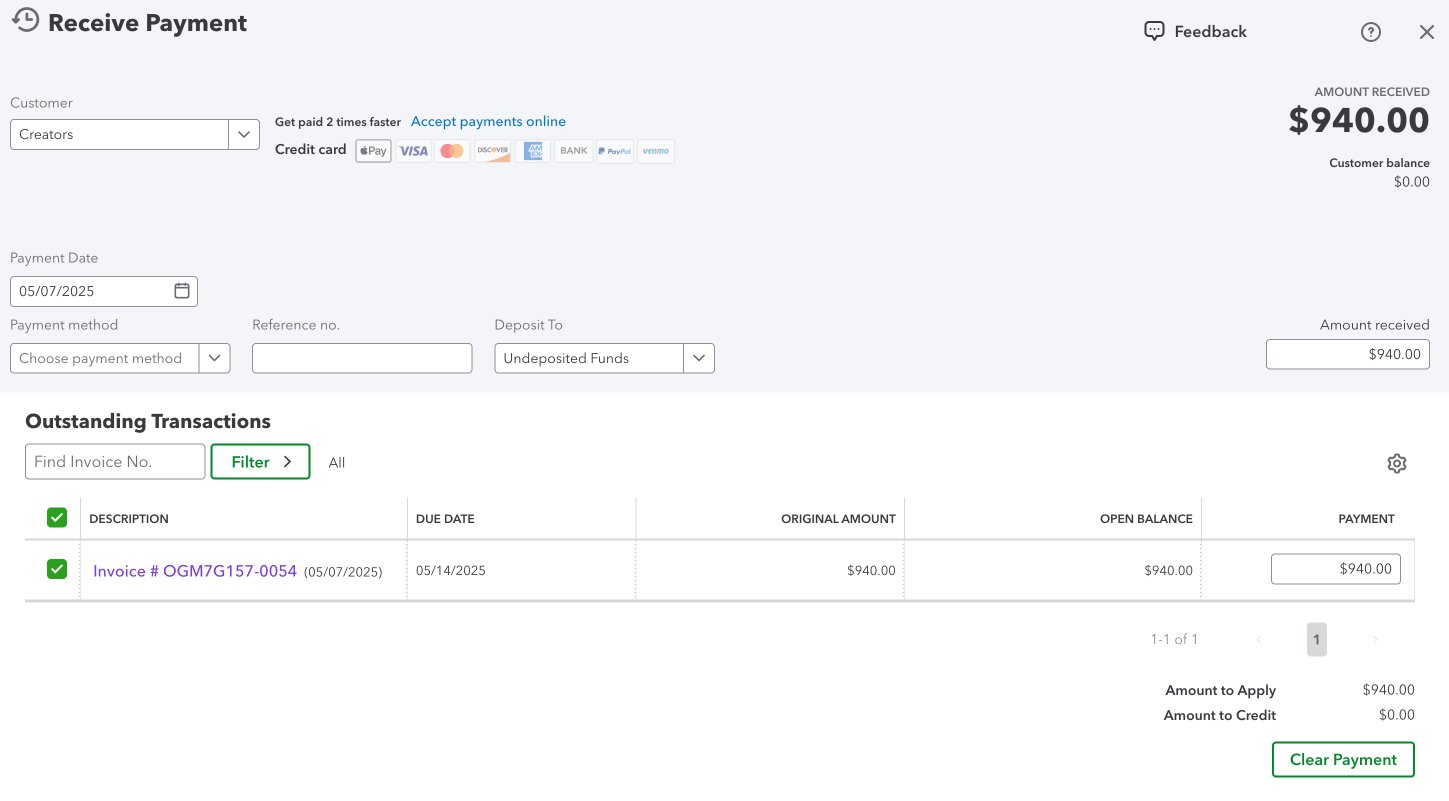
Notes
If a booking or purchase is canceled and auto-refunded in Spacebring, the refund and its status won’t sync to QuickBooks Online. For guidance on handling refunded transactions in QuickBooks Online, contact their support.Disconnect the QuickBooks Online integration
To disconnect QuickBooks Online, follow these steps:- Press the menu (…) next to the location’s name > go to the Integrations page.
- Select QuickBooks Online > press Disconnect and confirm your choice.
FAQs
Why aren't any of my invoices or payments syncing to QuickBooks?
Why aren't any of my invoices or payments syncing to QuickBooks?
This is usually because the integration setup is incomplete. Ensure you have selected a Service on the Spacebring Integrations page. Without a selected service, invoices and payments will not sync to QuickBooks Online.
Why is my invoice marked as 'Paid' in Spacebring but still shows as 'Unpaid' (Due) in QuickBooks?
Why is my invoice marked as 'Paid' in Spacebring but still shows as 'Unpaid' (Due) in QuickBooks?
This typically happens due to a tax rate discrepancy. If the tax rate in Spacebring differs from the one set in QuickBooks, the total amounts won’t match. QuickBooks cannot automatically apply a payment to an invoice if the totals are different, leaving the invoice in Unpaid status.
I am a non-US user. Why is my invoice failing to sync entirely?
I am a non-US user. Why is my invoice failing to sync entirely?
For non-US-based accounts, the tax rate in Spacebring must exactly match the tax rate set in your QuickBooks account. If there is any difference, QuickBooks will reject the invoice sync. Please verify and align your tax settings in both platforms.
Why didn't the status update in QuickBooks after I canceled and refunded a booking?
Why didn't the status update in QuickBooks after I canceled and refunded a booking?
The integration does not support the synchronization of applied balance, partial payments, credit notes on paid invoices, and refunds. When a transaction is refunded or canceled in Spacebring, you must manually update or void the corresponding invoice in QuickBooks.