

Xero is a distinct company not affiliated with us. For any inquiries regarding Xero’s solutions, services, or pricing, please reach out to Xero directly. We do not have the authority to provide information or support on behalf of Xero.
Prerequisites
- Have your Xero account ready.
- Set up the same tax rates in Xero and Spacebring.
- Make sure your Spacebring invoice currency matches your Xero account currency.
- Set up your “Revenue” accounts in Xero for syncing invoice items from Spacebring.
- Set up a clearing account in Xero for syncing invoice payments from Spacebring. Fill in the Code field for it and check the Enable payments to this account box.
Connect Xero integration
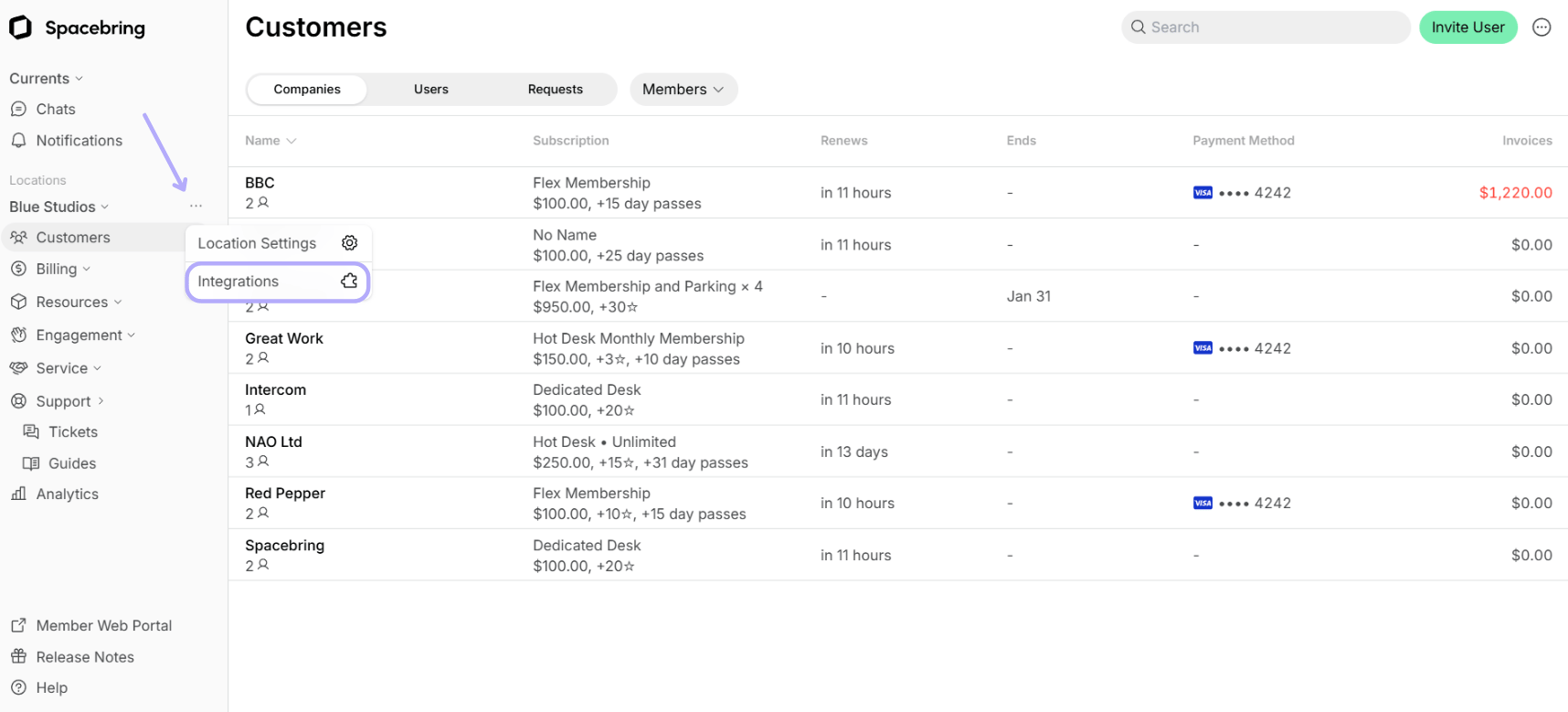
- Click the menu (…) next to the location’s name > go to Integrations.
- Open the Xero integration page and click Connect.
- Grant access to your Xero organization.
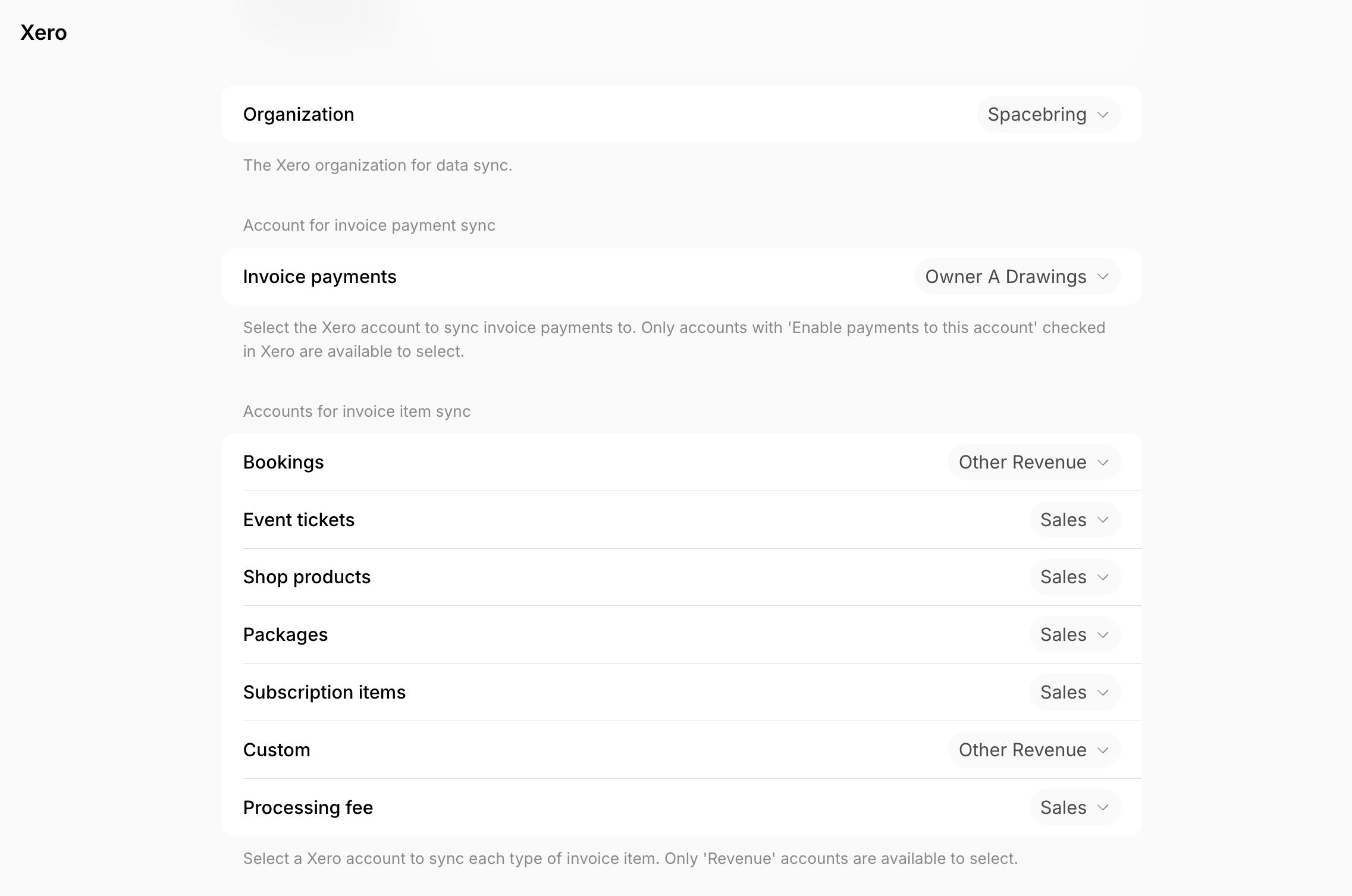
- Select the same organization in the Organization dropdown.
- Tax rates for invoice item sync — select the same Xero tax rates as the ones you use in Spacebring. During sync, each invoice item’s tax rate from Spacebring must match one of the Xero tax rates selected here.
- Account for invoice payment sync — select your Xero account where Spacebring should sync invoice payments.
Only accounts with ‘Enable payments to this account’ checked in Xero are available to select.
- Accounts for invoice item sync — for each product type, select your Xero account where Spacebring should sync invoice items for this product.
Only ‘Revenue’ accounts are available to select.
How Xero integration works
Once the integration is connected, Spacebring syncs the following to Xero in real time:- Newly issued invoices
- Invoice status updates
- Invoice payments
- Credit notes for unpaid invoices.
Applied balance, partial payments, credit notes for paid invoices, and refunds do not sync to Xero.
Spacebring syncs invoices for all purchase types, including subscriptions, bookings, shop orders, event tickets, and other one-time payments starting December 9, 2025. Before this date, immediate one-time payments (bookings, shop orders, event tickets, etc.) generated receipts only, which were not synced to Xero.
How invoices sync
The integration maps Spacebring invoice data to Xero as follows: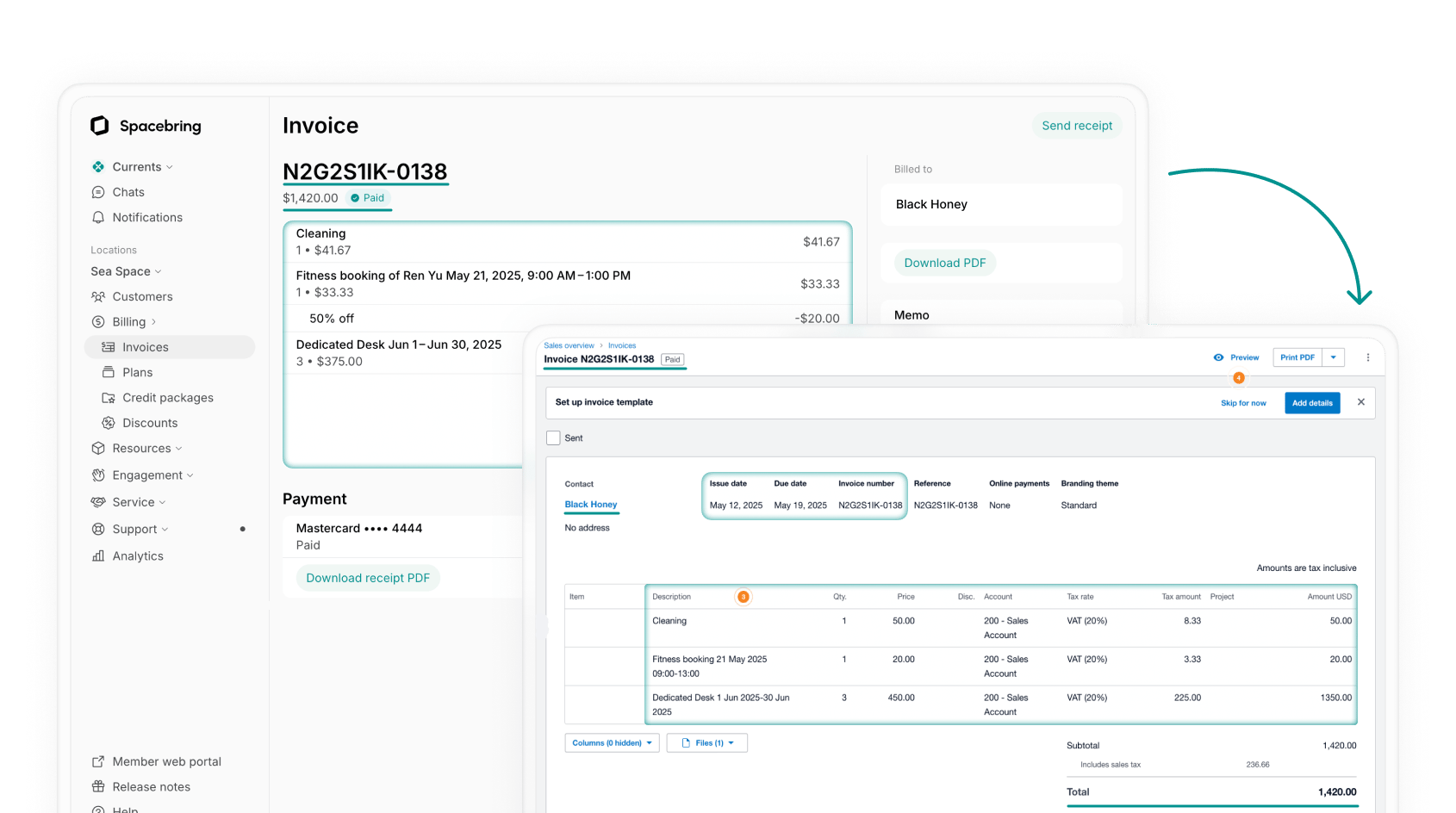
How invoice statuses sync
The integration syncs the following invoice statuses to Xero: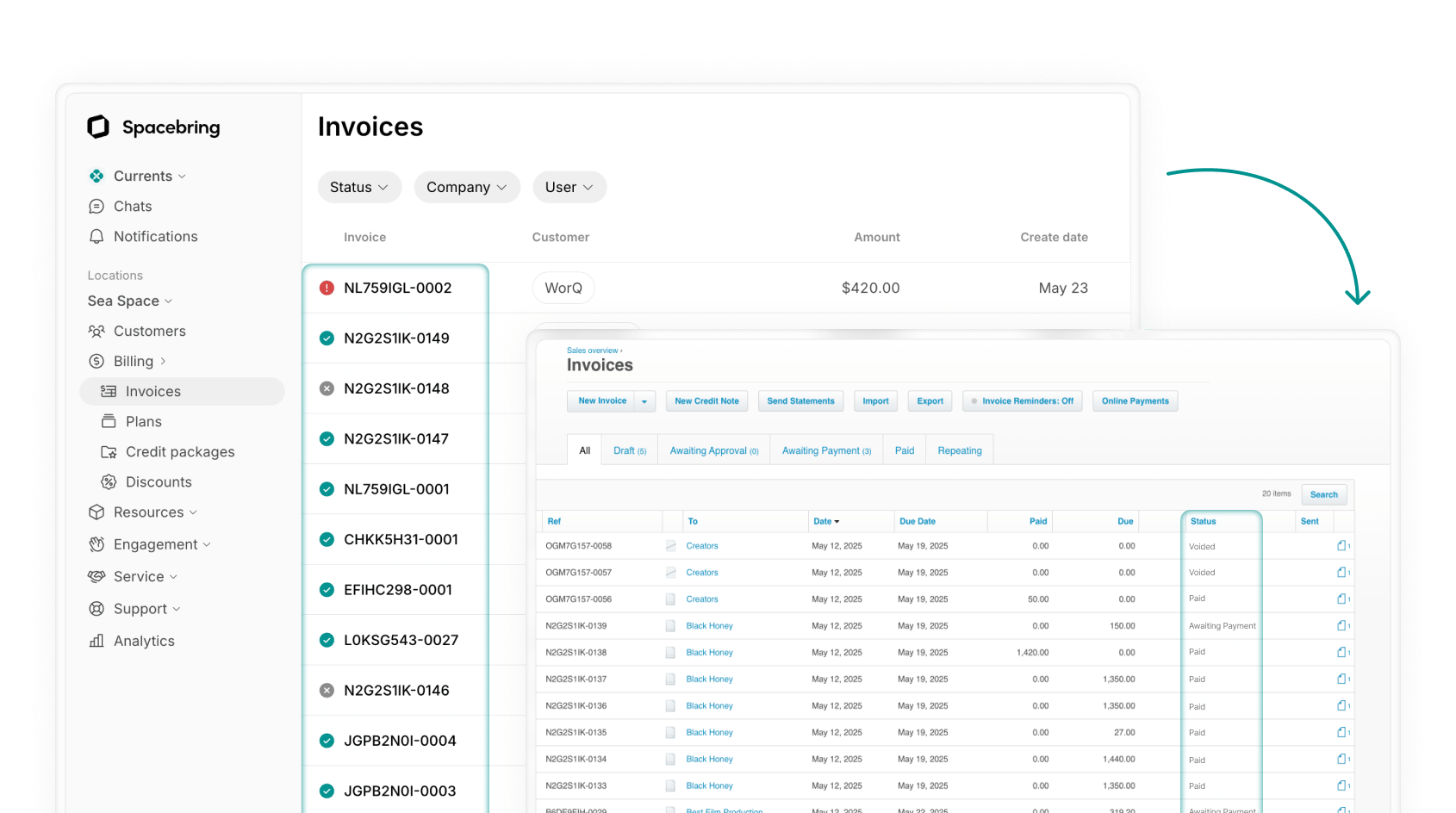
How invoice payments sync
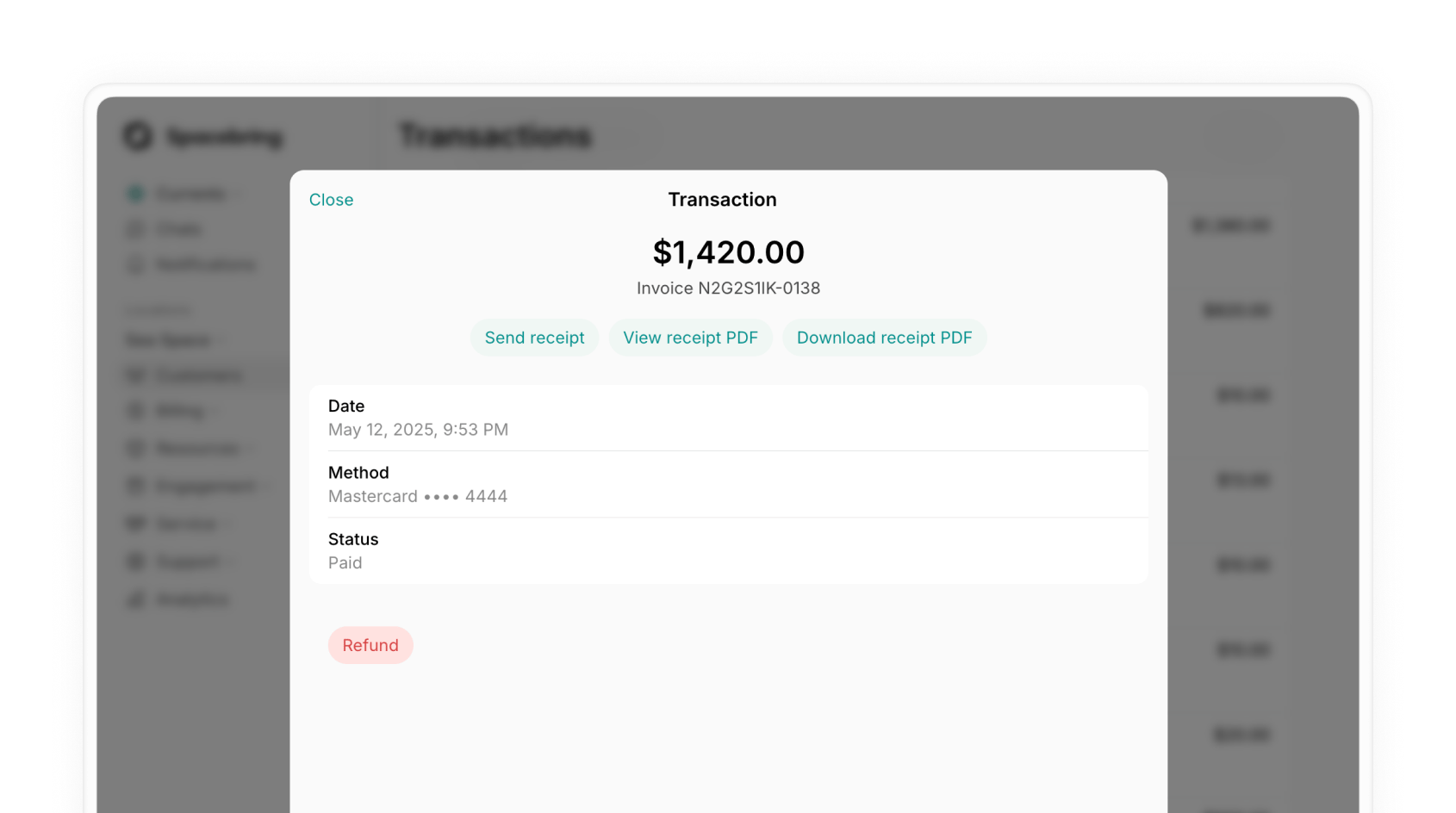
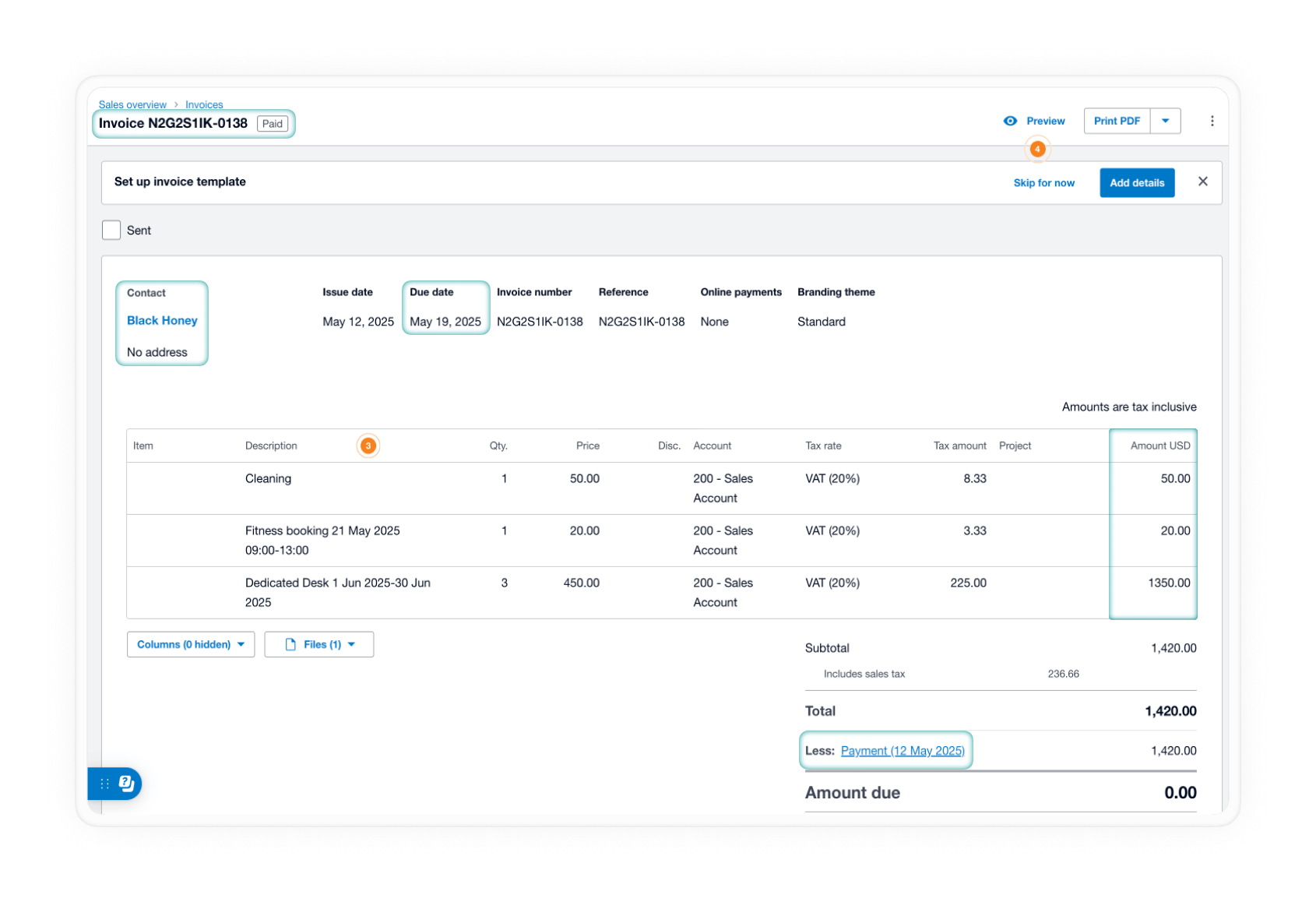
When payments sync to your Xero clearing account, the following data is transferred:
Invoice payment in Spacebring:
Disconnect the Xero integration
- Press the menu (…) next to the location’s name > go to the Integrations page.
- Select Xero > press Disconnect and confirm your choice.
FAQs
Why is nothing syncing at all after I connected Xero?
Why is nothing syncing at all after I connected Xero?
The connection stays incomplete — and nothing syncs — until every setting below is in place. Check them in this order.In Spacebring, on the Integrations > Xero page:
- Organization — select the same Xero organization you granted access to. Nothing syncs without it, and the tax rate and account sections only appear once it’s selected.
- Tax rates for invoice item sync — select the Xero tax rates matching the ones you charge. Required whenever taxes are enabled for your location. If an invoice item’s rate matches none of them, that invoice won’t sync.
- Account for invoice payment sync — select the Xero clearing account to sync invoice payments to. Without it, invoices sync but payments don’t.
- Accounts for invoice item sync — select an account for every item type: Bookings, Event tickets, Shop products, Packages, Subscription items, Processing fee, and Custom. Missing even one stops invoices syncing, including item types you don’t sell.
- The account you want for invoice payments needs Enable payments to this account checked, otherwise it won’t appear in the Spacebring dropdown.
- The accounts you want for invoice items must be Revenue accounts, otherwise they won’t appear either.
- Your Xero organization must be subscribed to the currency your invoices use.
- Your Xero tax rates must match the ones you charge in Spacebring.
Why are my invoices appearing in Xero, but not invoice payments?
Why are my invoices appearing in Xero, but not invoice payments?
This happens if no Account is selected in your Spacebring Xero settings. While invoices sync automatically, invoice payments require you to select a clearing account in the Account dropdown. Also, ensure that this clearing account has Enable payments to this account enabled in Xero.