

What you can do with Spacebring MCP
Once connected, your AI assistant can look up data from across your Spacebring network. Ask about any of the following in plain language, and it finds the answer for you:- Network & locations — your network and the details of every location you operate.
- Customers — members and companies, with their full membership and contact details, and their credits and day passes balances.
- Contracts & subscriptions — contracts, contract templates, and subscriptions.
- Invoices & transactions — invoices, pending invoice items, upcoming invoice previews, money, credits, and day passes transactions, and alternative currencies.
- Resources & bookings — your resources, their bookings, and whether a resource is free for a time slot.
- Plans, products & packages — the membership and resource plans you offer, your shop products and orders, and the credit and day pass packages you sell.
- Discounts — coupons, promo codes, and their redemptions.
- Events, feed & benefits — events and their tickets, community feed posts with their comments and likes, and benefits and applications.
- Check-ins & visitors — check-ins, visits, visitor contacts, and visit requests.
- Support tickets & guides — support tickets with their activity, and your location guides.
Connect Spacebring MCP
Before you connect, make sure you have an active Spacebring network. There are no API keys, hosting, or technical configuration to set up.Connect in Claude
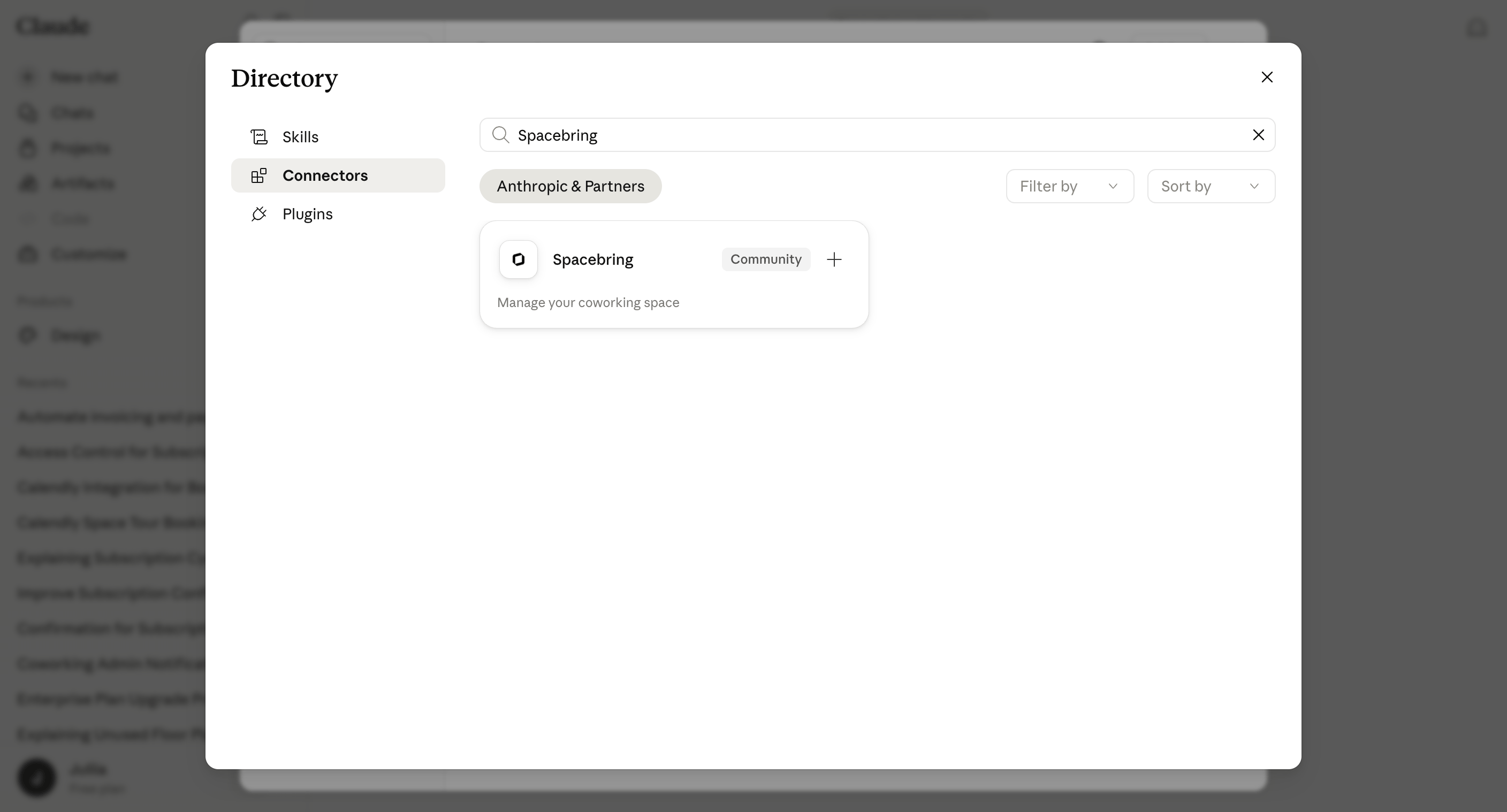
Spacebring is officially listed in Claude’s connector directory, so you can add it in a couple of clicks.- Open Spacebring in the Claude connector directory, or search for Spacebring under Settings > Connectors in Claude.
- Click Connect.
- When prompted, authorize access to your Spacebring network.
Connect in ChatGPT
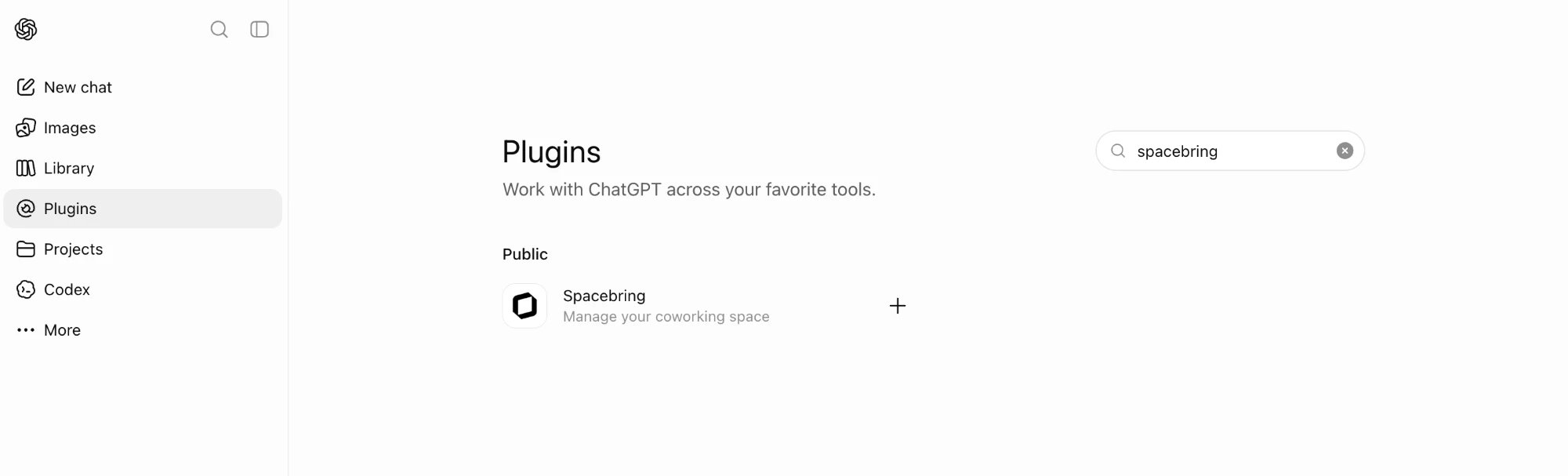
Spacebring is officially listed in ChatGPT’s plugin directory, so you can add it in a couple of clicks.- Open Spacebring in ChatGPT’s plugin directory, or search for Spacebring under Settings > Plugins in ChatGPT.
- Click Install plugin.
- When prompted, authorize access to your Spacebring network.
Connect in another AI assistant
For any other MCP-compatible assistant, add Spacebring as a custom connector:- In your AI client, open the connectors settings and choose to add a custom connector.
- Enter the Spacebring server URL:
- When prompted, authorize access to your Spacebring network.
Supported tools
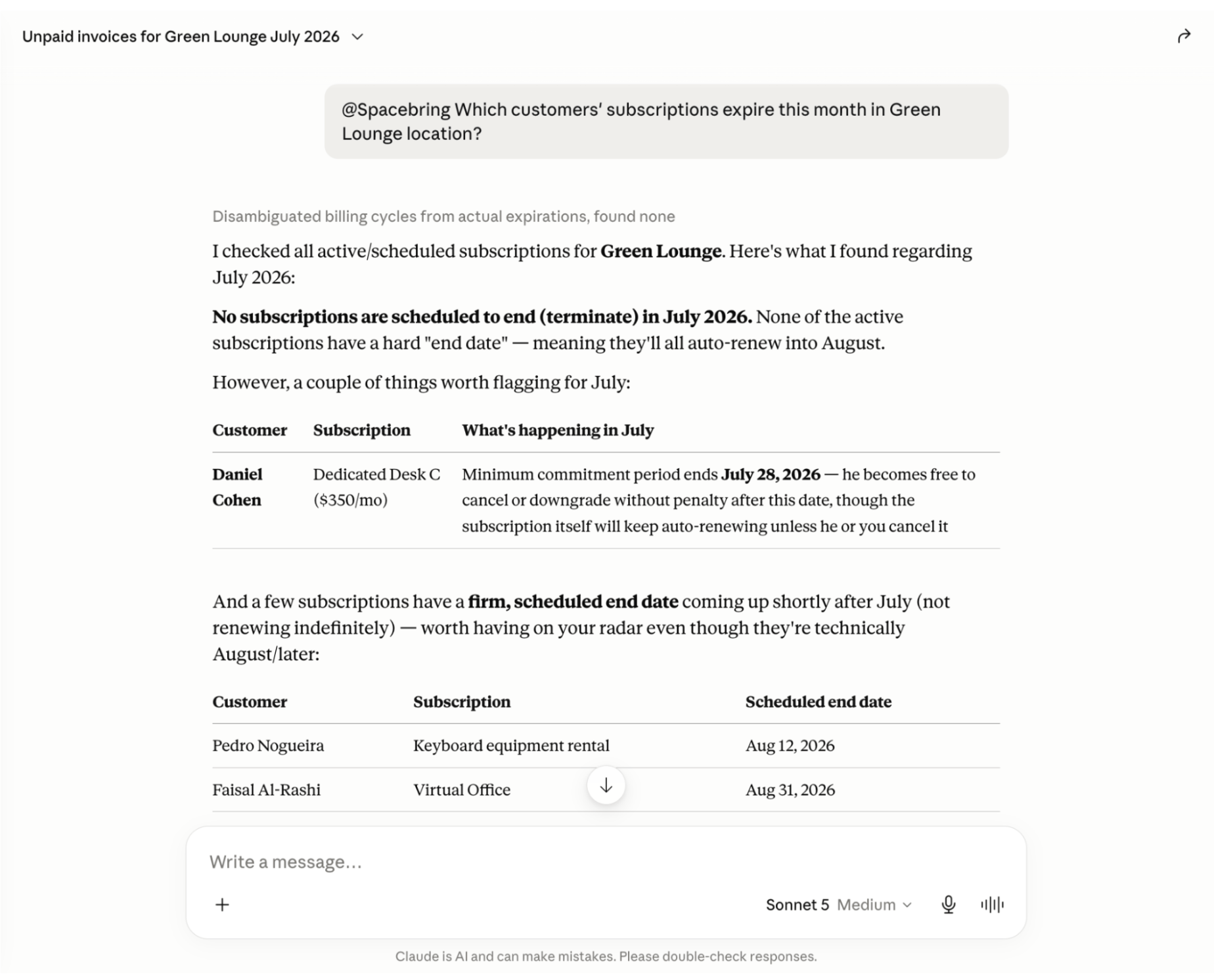
These are the tools your AI assistant can use to look up information across your Spacebring network. They work together, so your single request can span members, subscriptions, bookings, invoices, and more.Network & locations
Customers
Contracts & subscriptions
Resources & bookings
Invoices & transactions
Resources & bookings
Plans, products & packages
Discounts
Events, feed & benefits
Check-ins & visitors
Support tickets & guides
Spacebring’s tools are read-only — they retrieve and summarize information from your network but can’t change any data in your Spacebring account. Support for write actions may come in a future update. We’re continuously adding new data types and capabilities to the Spacebring MCP connector.
Data security and privacy
Connecting Spacebring MCP doesn’t open a new way into your Spacebring network.Access
- You authorize the connection yourself — there are no API keys to manage in your AI client.
- You can disconnect Spacebring from your AI client at any time to end its access.
- Your AI assistant only reaches the network you authorize, based on your Spacebring role and permissions.
Data
- Spacebring’s tools are read-only, so nothing in your account can be changed.
- Your AI assistant sees the same data your Spacebring account can access — nothing more.
- Nothing is shared beyond the AI client you connect.
How your AI provider handles your data
The data your AI assistant looks up becomes part of your chat. Your AI provider, like Anthropic for Claude or OpenAI for ChatGPT, handles it under its own terms and privacy policy. Your plan and settings in your AI client decide, for example, whether your chats can be used to train its models.FAQs
Is there a limit to how much I can ask?
Is there a limit to how much I can ask?
Spacebring MCP accesses your data through the Spacebring API and shares its rate limit of up to 10 requests per second. Normal, conversational use stays well within this limit. If you do exceed it, requests are temporarily rejected with a
429 response — prompt your AI tool to reduce parallel operations, space out sequential requests, and try again after a brief pause.Can I connect Spacebring MCP to more than one AI assistant or account at the same time?
Can I connect Spacebring MCP to more than one AI assistant or account at the same time?
Yes. Each connection — whether it’s a different assistant like Claude or ChatGPT, or multiple accounts on the same assistant — authorizes independently and gets its own access token. There’s no limit on how many can be connected to your network at once. For example, several members of your team can each connect their own account to Spacebring MCP, and all of them can use it at the same time.
Do I need to reconnect when new tools are added?
Do I need to reconnect when new tools are added?
No. When tools are added or changed, Spacebring MCP lets your AI assistant know with its next request, and assistants that support this reload the tool list on their own. If yours keeps using the old list, disconnect and reconnect Spacebring MCP.