

Start a chat with Lem AI
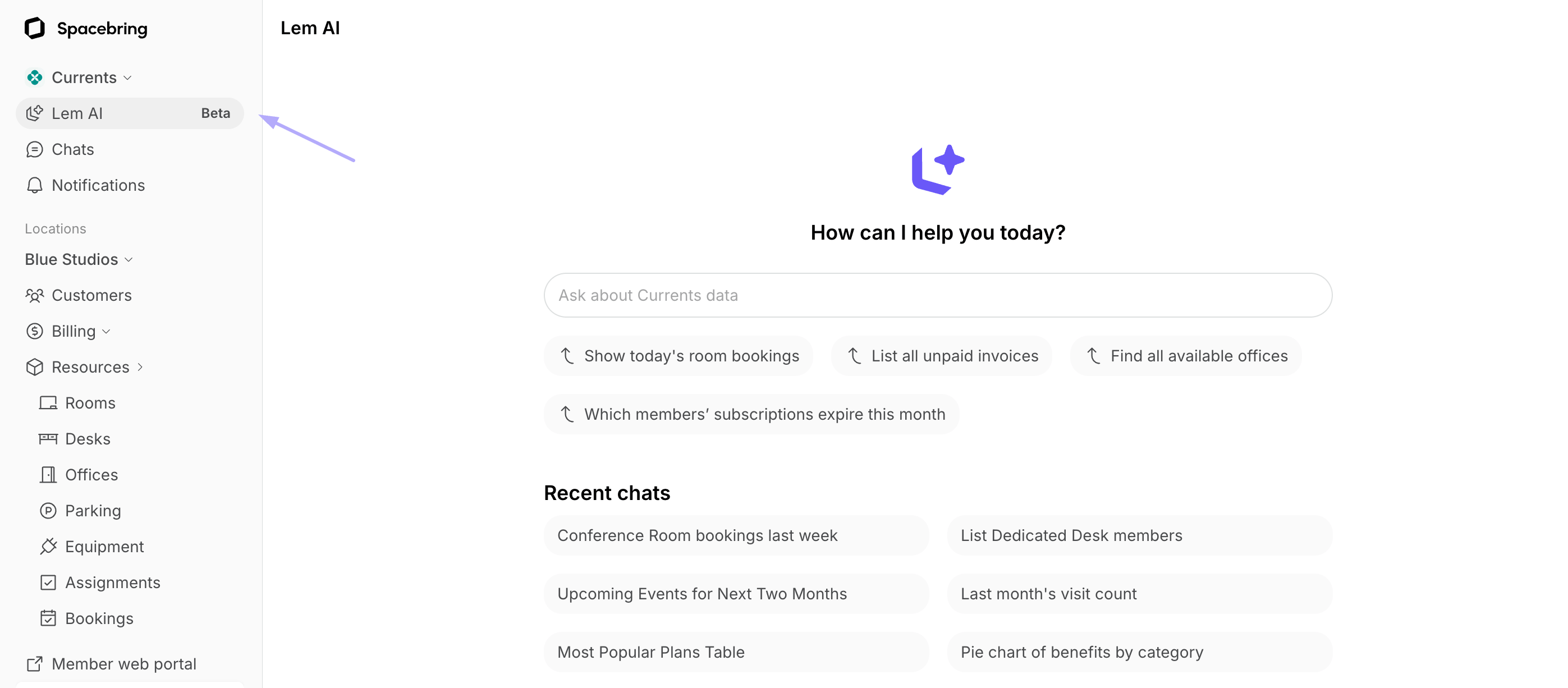
You can start a conversation with Lem AI directly from your admin dashboard:- Click the Lem AI icon in the top left corner.
- Type your question or command into the message field or choose one of the suggested prompts.
- Lem AI will process your request and provide the data, lists, or summaries you need right in the chat for you to review.
.csv, .docx, .json, .log, .md, .odt, .pdf, .pptx, .rtf, .txt, .xls, .xlsx, and .xml. You can attach one file per message: images up to 5 MB, other files up to 20 MB.
Lem AI can make mistakes. Ensure to double-check the information provided.
Lem AI will generate all data and responses in the language of your message.
Ask about the page you’re on
Lem AI knows which page you ask from, so you can say “this user” or “this invoice” instead of naming it.- On any page of the admin web portal, click the Lem AI icon in the top right corner to open the Lem AI panel.

- Type your question, for example, “Does this user have unpaid invoices?”
Continue a previous chat
- On the Lem AI page, click the history icon in the top right corner.
- In Chat history, choose the chat you want to open.
- Send a new message to continue the conversation where you left off.
Delete a chat
- On the Lem AI page, click the history icon in the top right corner.
- In Chat history, click the three dots next to the chat, then click Delete.
- Confirm. The chat and all its messages are deleted and can’t be restored.
/new.
What Lem AI can help with
Lem AI is connected to your entire workspace ecosystem. To get the best results, be specific with location names, date ranges, and formats.Bookings & resources
Check rooms, desks, or equipment availability without opening the calendar.Members, companies & contracts
Quickly pull up customer profiles or check the status of subscriptions and contracts.Invoices, payments & subscriptions
Track revenue and payments by asking for financial summaries or specific transaction details.Events & community
Monitor event attendance, community feed activity, and your chats, or ask Lem AI to write a feed post for you.Support & visitor management
Track support tickets, visitor logs, and check-ins.Data formats & capabilities
Depending on your request, Lem AI can provide data in several helpful formats:- Summaries — get a high-level overview of complex data. For example:
- Structured lists and tables — Lem AI organizes data into easy-to-read lists and tables within the chat.
- Pie and bar charts — Lem AI creates different charts based on the retrieved data. For example:
Lem AI does not only answer questions. It can also create and edit items, change your settings, message your customers, write feed posts, and handle support tickets.
Tips for chatting with Lem AI
- Be specific. Instead of “show me bookings,” try “show me all bookings for ‘Meeting Room A’ between Oct 1 and Oct 5.”
- Refine your search. You can follow up on Lem AI’s answers. If Lem AI gives you a list of invoices, you can say, “Now only show me the ones issued on March 5th.”