

- Choose who gets it, such as nonmembers only, or only customers after their first booking.
- Personalize it with the customer’s name, plan, location, booking, contract, or ticket.
- Add practical details from your location and its guides, such as the address, opening hours, or house rules, with links to them in the member portal.
- Link your Google review page or a survey form.
- Add a welcome gift, such as bonus credits or a free trial day.
- Alert your team when something needs a person, such as a special setup for a room booking.
- Write in the customer’s language.
Set up an email agent
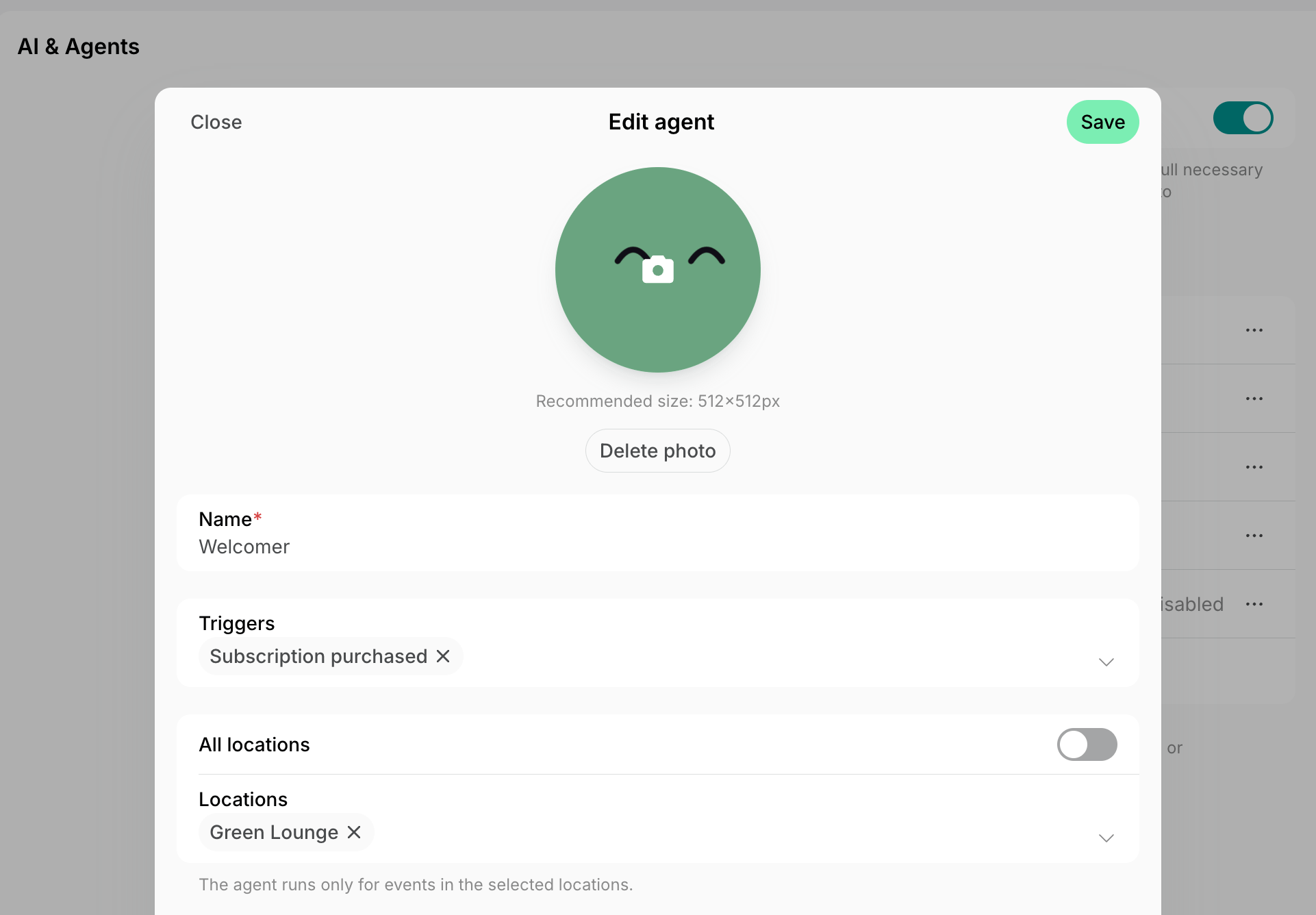
- Create an agent and select the trigger the example shows above its instructions:
- An event, such as Contract signed, to email each customer right after it happens. The agent runs once for each customer.
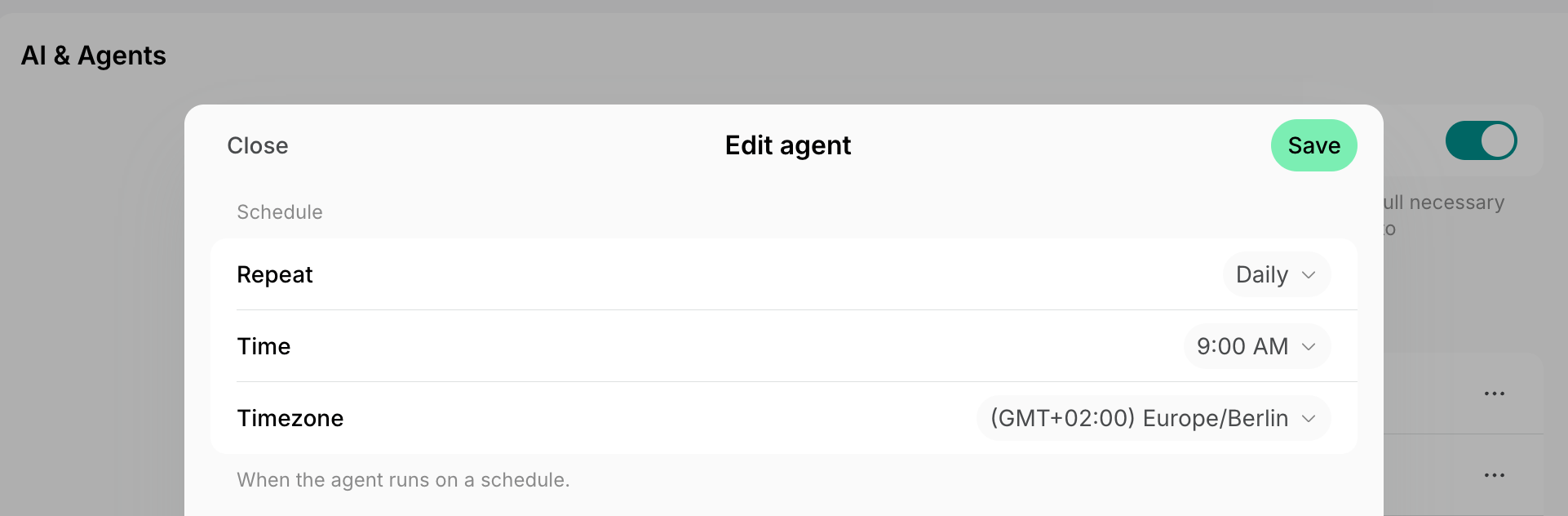
- Schedule, shown with its time, such as Daily at 09:00, to email customers a set time later, such as three weeks into their subscription.
- Turn off All locations and select one location in Locations.
- Each example below works for one location. For another location, create another agent.
- For Schedule, set Repeat, Time, and Timezone as the example shows.
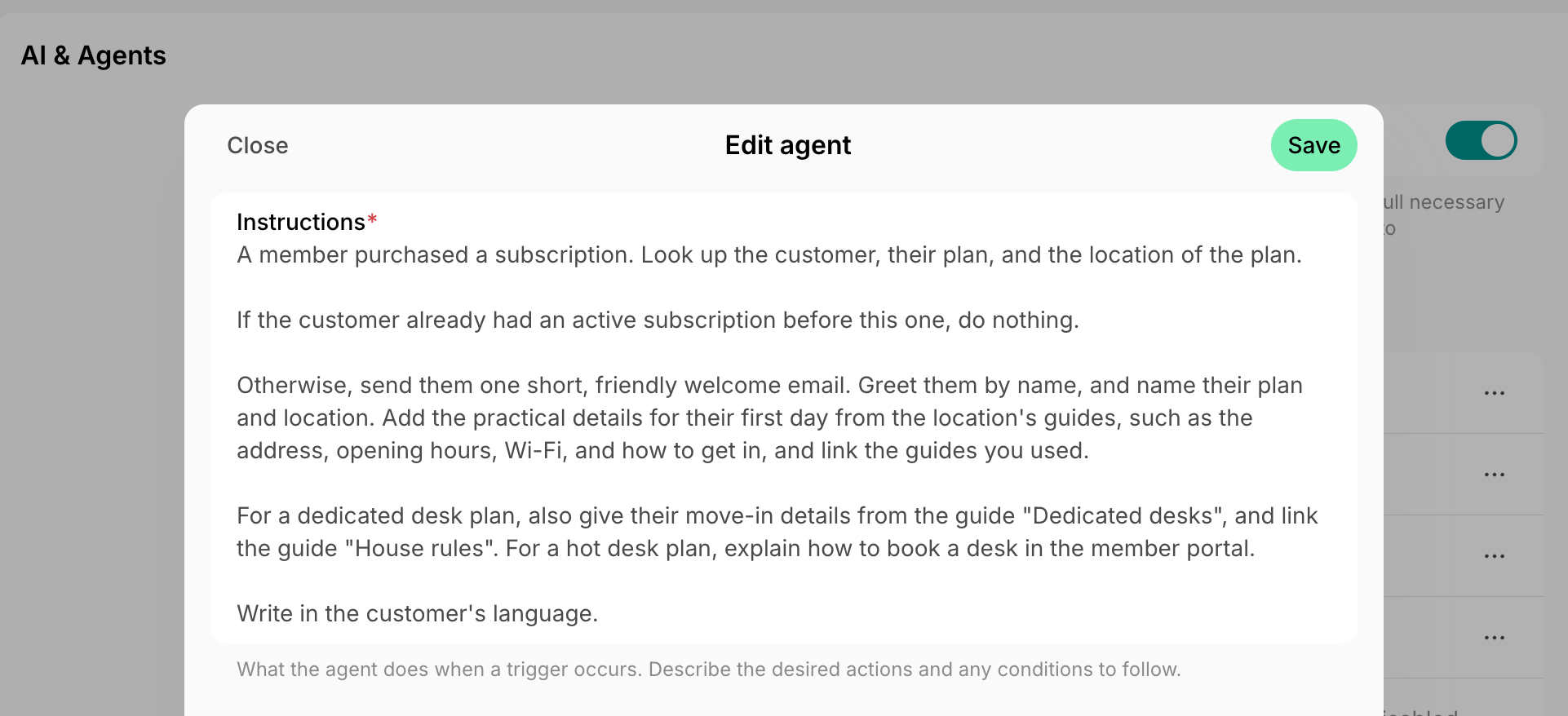
- In Instructions, paste your email’s description, or one of the examples below.
- Leave Permissions off unless the example shows one, such as Customers permission. Looking up data and sending emails need none.
- Turn on Enabled and click Create.
An agent sees each item only as it is now. On an update trigger, such as Booking updated, it can’t tell what changed, so it would write again after every change. Prefer the trigger for when the item is created, such as Booking created.
Describe the email you need
Write the instructions the way you would brief a colleague who writes to customers for you. Say:- Who gets the email and when to do nothing, such as “If an administrator made the booking, do nothing.”
- For a scheduled email, whom to find, such as “the subscriptions that started exactly 21 days ago”.
- How the agent can tell it already wrote to the customer, such as “If you sent this customer a review request in the last 3 months, do nothing.” An agent doesn’t remember its earlier runs.
- What the email says, such as “thank them, name their plan, and list what they need on their first day”.
- Where to take the details from, such as “the location’s guides”.
- The links to add, such as your Google review page. To collect answers, link a form, such as Google Forms or Typeform.
- The tone and length, such as “short and friendly, at most five sentences”, and “Write in the customer’s language.”
Choose who gets the email
The agent emails the customer the trigger is about, such as the booker or the contract’s customer, at the email address on their profile. To also alert someone on your team, name them in the instructions with their email, such asThen email Tom Brown (tom@example.com) the setup they asked for.
To reach people outside Spacebring, connect other apps to the agent:
- An email app, such as Gmail, to email visitors and other people who aren’t customers. These emails go out from the account you connect.
- A team chat, such as Slack, to post alerts in your team’s channel.
- A CRM, such as HubSpot, to add new registrants as contacts.
Onboard new customers
These emails help a new customer settle in: they welcome them, share what they need before their first day, and keep their paperwork moving.Welcome new members
The emails Spacebring sends a new member are the same for every plan, so members may skip the details that matter to them. You may want to send each new member a welcome that fits them, such as:- A welcome as soon as someone buys a plan
- First-day details for their location, such as the address, opening hours, Wi-Fi, and how to get in
- Different details for each plan, such as move-in details for a dedicated desk plan
- Bonus credits on their first plan, to try your meeting rooms
- A welcome for members who join through their company
Instructions
Subscription purchased runs only when a customer buys a plan themselves. To also welcome members whose subscription you create, select Subscription started instead. It runs when any subscription begins, on its start date.
If this is the customer's first subscription, add 2 credits that expire in 30 days, and mention them in the email. Credits must be turned on in the location.
Members who join through their company’s subscription don’t buy a plan themselves. To welcome them, create a second agent with the Customer created trigger, and start its instructions with: A customer was created. If the customer isn't a member of a company, do nothing.
Send onboarding documents after a contract is signed
Once a customer signs their contract, you may want to thank them and share the documents they need before they move in, such as:- A thank-you with the contract’s start date and what happens next
- Your house rules, operations manual, or onboarding guide
- Access details for their first day
Instructions
An agent can’t attach files, so add each document as a guide with Public visibility, or share it from a drive, such as Google Drive. Name the guide or paste the link in the instructions.
Remind customers to sign their contract
A customer may leave a contract unsigned for days, or say they never got it, while you wait to start their subscription. You may want to send:- A reminder a few days after you issue the contract
- A second reminder a week after
- Where to find the signature request, in case it went to spam
Instructions
An agent can’t send the signature request again. When a customer can’t find it, resend the contract for eSignature yourself.
Track onboarding that stalls
A new customer’s onboarding may stall without anyone noticing: a contract waits for a signature, the first invoice stays unpaid, or a question goes unanswered. You may want a regular list of:- Contracts still waiting for a signature, and whether the signature request email was delivered
- New customers’ unpaid invoices
- New customers’ open support tickets
Instructions
Welcome new registrants
Someone may register in your member portal to look around, then never hear from you and never come back. You may want to send each new registrant:- Your plans and prices, with a link to sign up
- A link to book a tour
- A promo code for a free trial day
- A follow-up a week later, if they haven’t bought a plan
- Welcome email
- Follow-up after 7 days
Customer createdTo also add each new registrant to your CRM, connect it to the first agent and add:
Instructions
Then create a contact for them in HubSpot.Give free trial days and meeting room hours
A new registrant may want to try your space before they buy a plan, and a guest at a hot desk may need a meeting room for an hour or two. You may want to give them:- A free trial day at a desk for each new registrant, with no promo code to enter
- Credits for anyone who registers and isn’t a member yet
- Free meeting room hours for everyone who books a full day at a hot desk
- Trial day for registrants
- Room hours for hot desk guests
Customer createdCustomers permissionDay passes must be turned on in the location and in the desks’ pricing. To give credits instead, replace the day pass with
Instructions
add 4 credits that expire in 14 days, and say what they can book with them. If you also welcome new registrants, add your plans and tour link to this email, so they get one email, not two.Only members can pay with credits and day passes, so the agent first invites a nonmember as a member of the location. They get your member invitation email, see what you show only to members, and stay members until you move them to nonmembers.
Follow up with customers
These emails keep in touch with customers before and after their bookings, visits, and events, and as their membership goes on.Remind customers before their booking
A customer may forget a booking they made weeks ahead, and in a large building, their invitees may not find the meeting room. You may want to send:- A reminder a week before the booking
- How to find the room, to the booker and their invitees who are members
- Parking or access details for one room
- A confirmation with your own text when you book for a customer
Instructions
Prepare the room for a booking
A customer may ask for a special setup in their booking’s memo, such as catering or a projector, and your facilities team may learn about it too late. You may want to send your team:- The setup a customer asked for, with the room, date, and time
- Every booking of your event space, so the team can prepare it
Instructions
Otherwise, open a support ticket with the room, the date and time, the booker, and the setup they asked for.
Follow up after a visit
Right after a visit, a customer is most likely to leave a review, tell you what was hard to figure out, or come back as a member. A review request sent with the booking confirmation is easy to forget. You may want to send:- A Google review request once a customer’s booking ends, for some rooms only and at most once every few months
- A question after a customer’s first check-in, about anything they had to figure out on their own
- A thank-you to a guest after their day at a hot desk, with an offer to become a member
- A thank-you to visitors, from your own email app
- Review request
- First check-in question
- Offer to hot desk guests
- Thank-you to visitors
Booking endedTo ask only after a customer’s first booking, replace the 3-month rule with:
Instructions
If the customer had an earlier booking, do nothing.Follow up after an event
After an event, you may thank attendees and ask for their feedback by hand, such as by exporting the attendee list into a newsletter tool. You may want to send:- A thank-you to everyone who came, with a feedback question
- A link to the photos or slides from the event
- The next upcoming event, with a link to join
Instructions
Email only the attendees who checked in.
Check in after the first weeks
After a few weeks, a new member knows your space well enough to tell you what’s missing, but may not say it unless you ask. You may want to send:- A “Did you find everything you need?” question three weeks after they join
- A reminder of what their plan includes, such as meeting room credits
Instructions
The message comes from the agent, under its name and photo, in the member’s chats. Members see it only while Chats is turned on in Network settings > Chats.
Send a satisfaction survey after a support ticket
Checking every repair yourself takes time, especially in another location, and a customer may not say that the problem is still there. You may want to send:- A survey a few hours after a ticket is solved, with a score from 1 to 5 and a comment
- A survey for some ticket types only, such as cleaning or repairs
- A thank-you with a summary of what was done
Instructions
If the ticket's status isn't Solved, do nothing.
Remind customers before their subscription ends
A member may not notice that their subscription ends soon, while you need time to arrange a renewal or a new contract. You may want:- A reminder to the member two months before their subscription ends, with how to renew
- A last reminder three days before, with the plans they can continue on
- A list for you of what ends soon, as a renewals report
- An offer to stay, such as credits or a discount
Instructions
Best practices
- Test a new agent on yourself first. Add a line such as
Email only Anna Smith (anna@example.com). For anyone else, reply with the email you would send., cause the trigger, and read the runs. Remove the line once the emails look right. - Make sure two agents don’t email a customer for the same booking. For example, when one agent thanks guests after a day at a hot desk, keep hot desks out of the review request.
- Give each email a fixed subject, such as
Use the subject "How was your visit?".It lets an agent check whether it already sent the email, and lets you find it when you ask Agent who got it. - Ask for one thing per email, such as one question or one review. A short email gets more answers.
- Before you turn on an agent, make sure the features its example uses are on, such as Chats or credits. A change the agent can’t make appears in its run with the error, while the run itself shows Completed.
FAQs
Why didn't a customer get the email?
Why didn't a customer get the email?
Open the agent on the Network settings > AI & Agents page and check its runs:
- Completed — open the run to see every email it sent, with the subject and the address it went to. If it sent none, its reply says why, such as a rule in your instructions or a feature that is turned off in the location.
- Failed — the run shows the error.
- Skipped — your network’s balance ran out. Runs resume once it’s topped up.