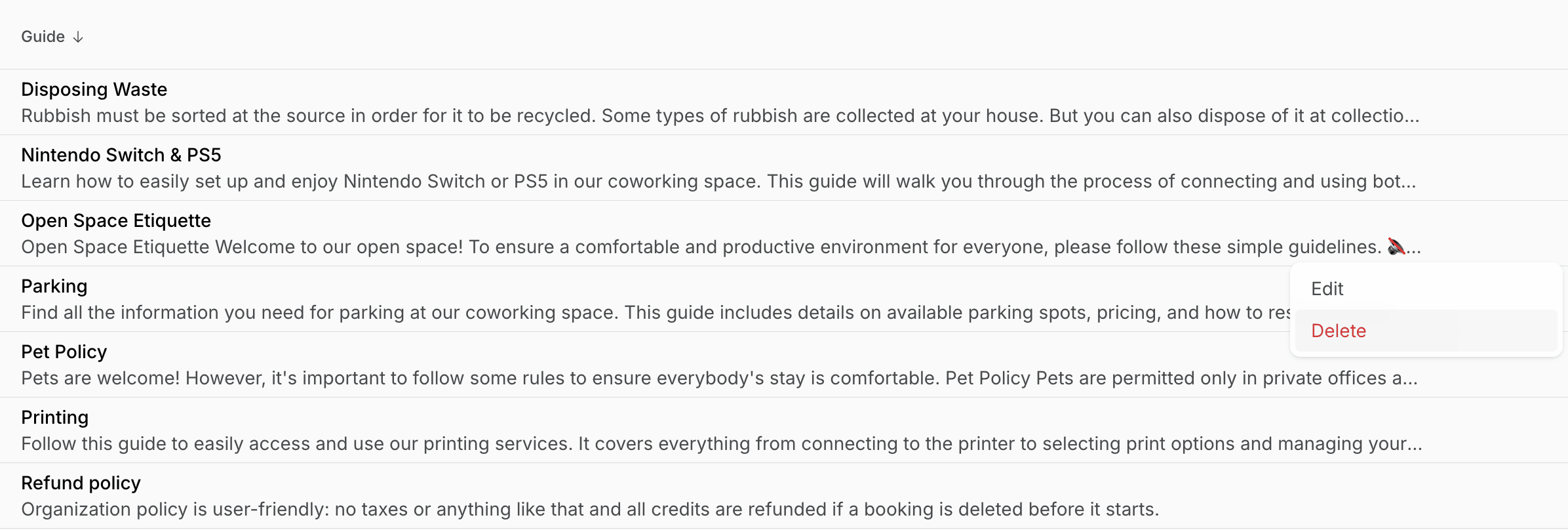
Create a guide
- Go to Support > Guides.
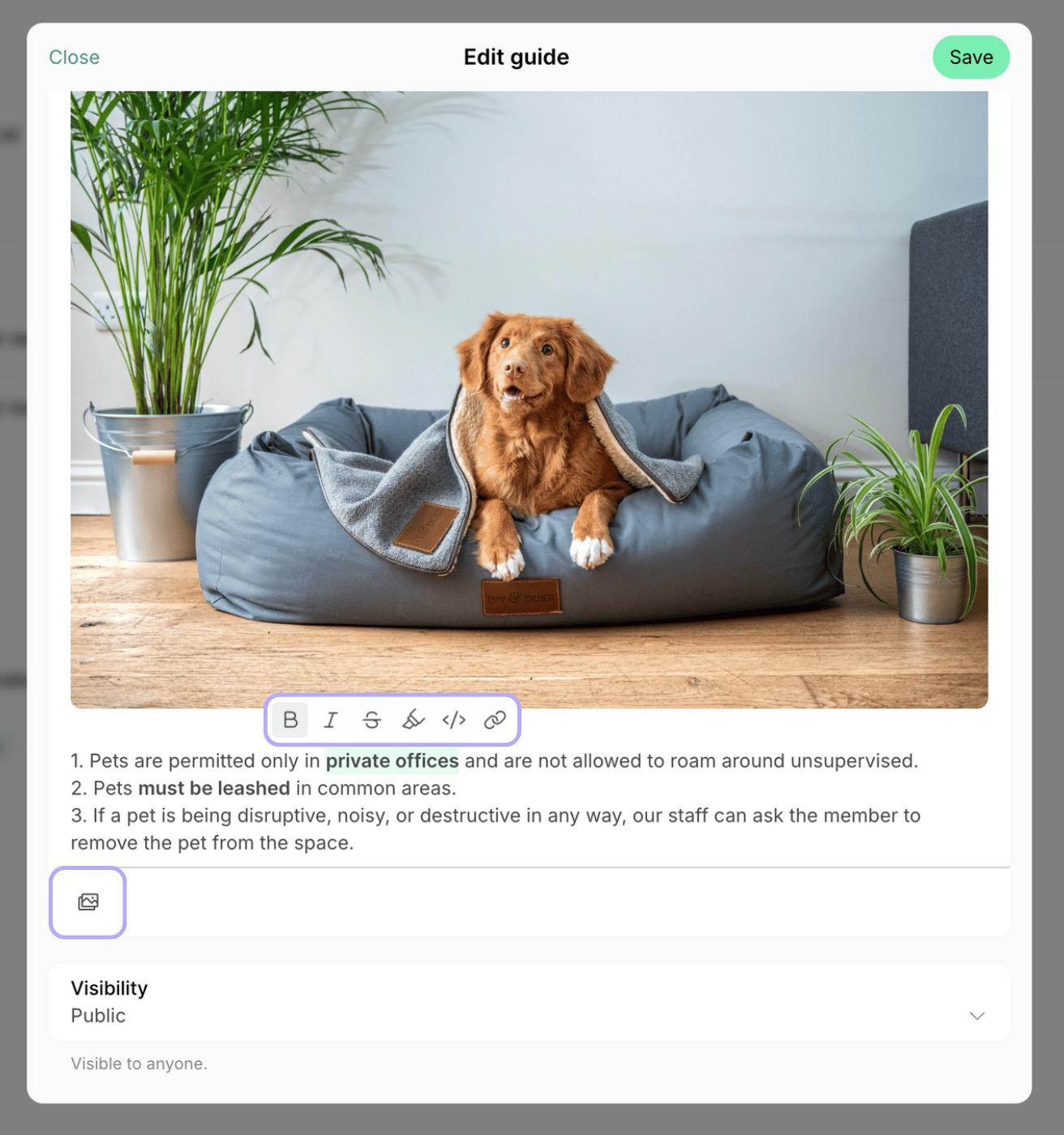
- Press Create guide > add the guide title and description, use rich text formatting.
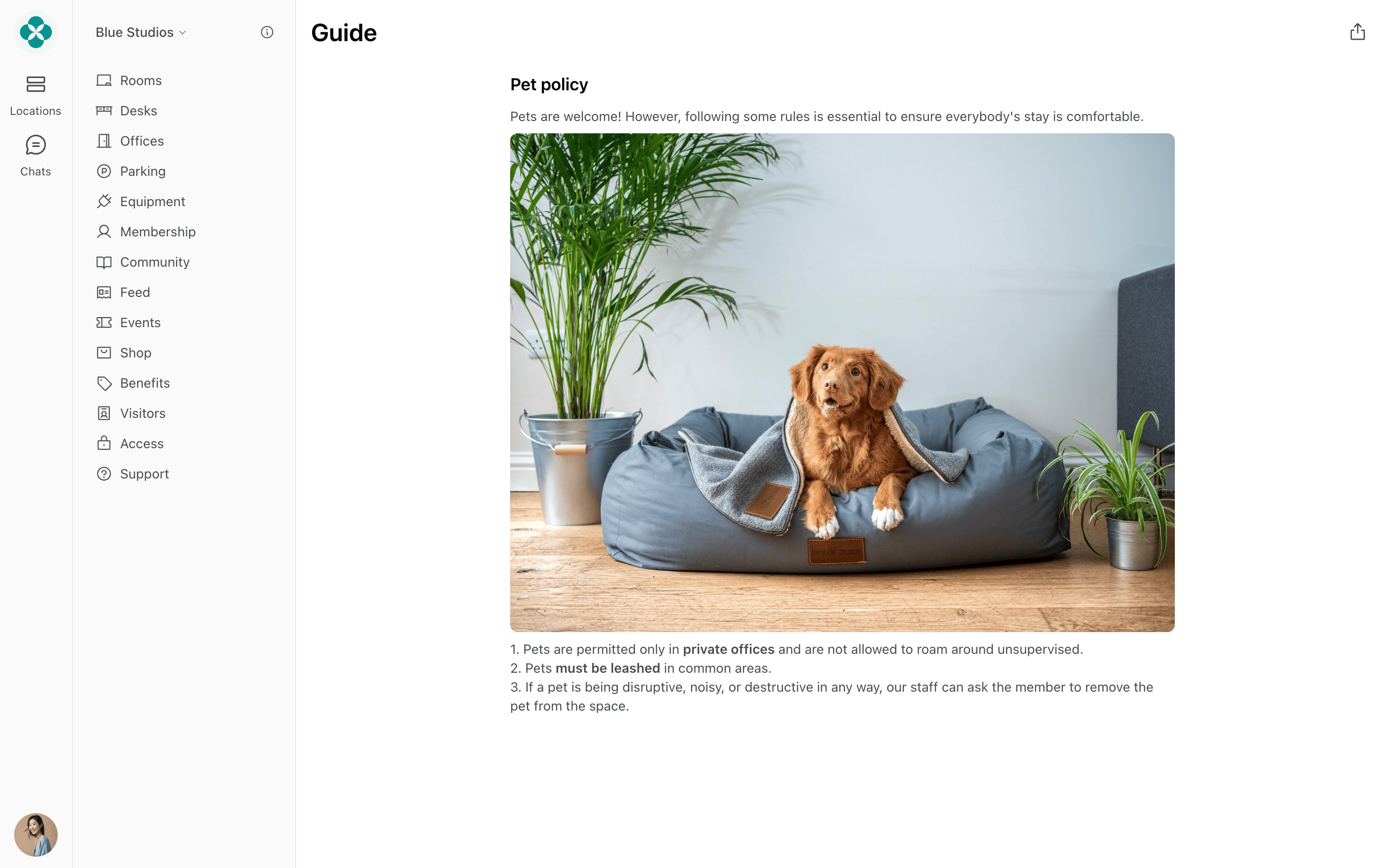
- To add photos and videos to your guide description, click on the place in the text where you want the image or video to be inserted > paste the copied image or press Gallery icon in the lower left corner to pick a photo or video from your device. Any image or video format your device supports works, with images up to 5 MB and videos up to 50 MB.
- To attach files, such as a PDF, to your guide, press Upload in the Attachments section and select one or multiple files from your device. Any file format works, and each file can be up to 50 MB.
- In the Visibility section, select the guide’s visibility.
- Tap Create.
Where guides appear to users
Once created, users can discover guides on the Information and Support pages.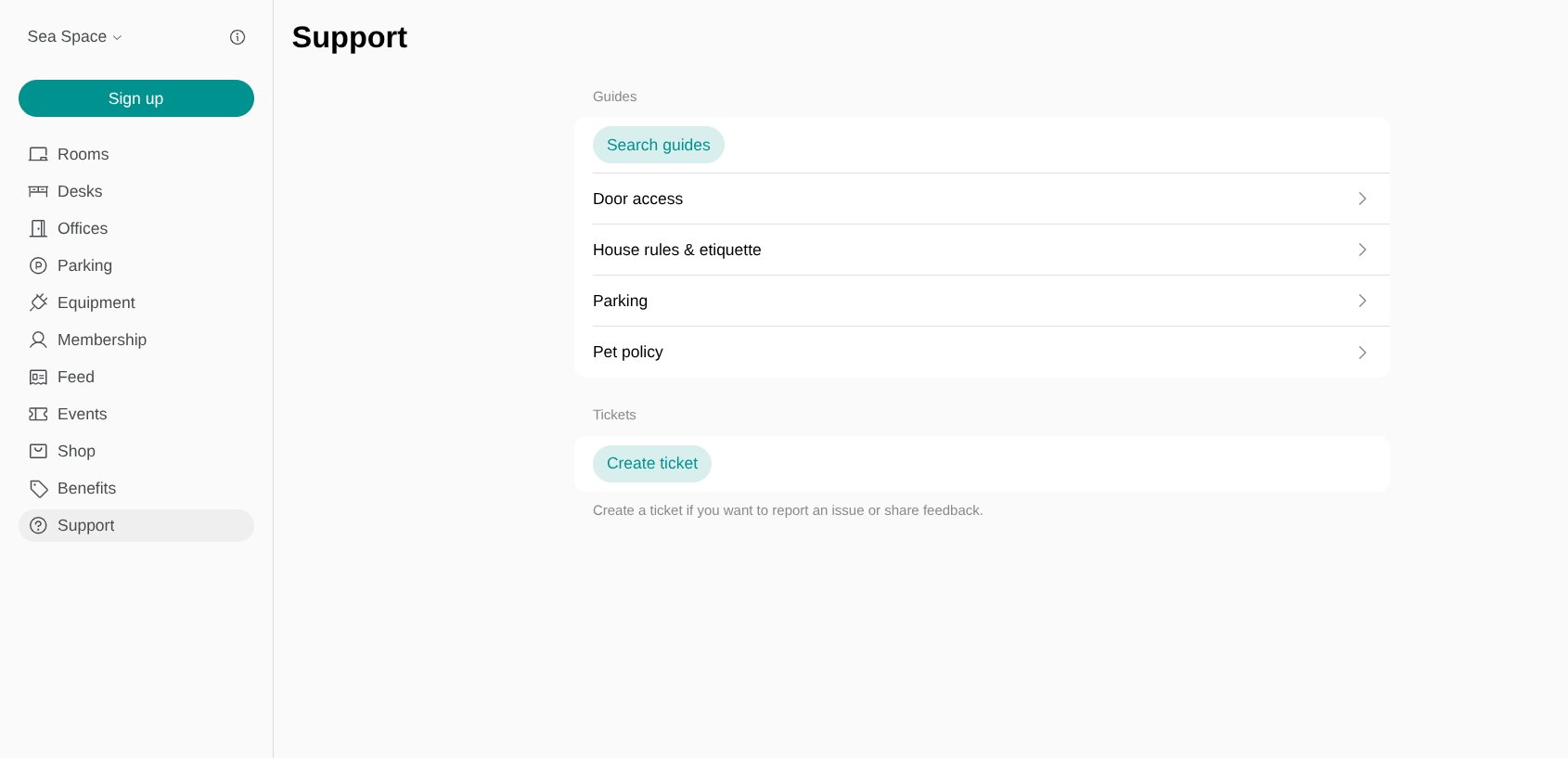
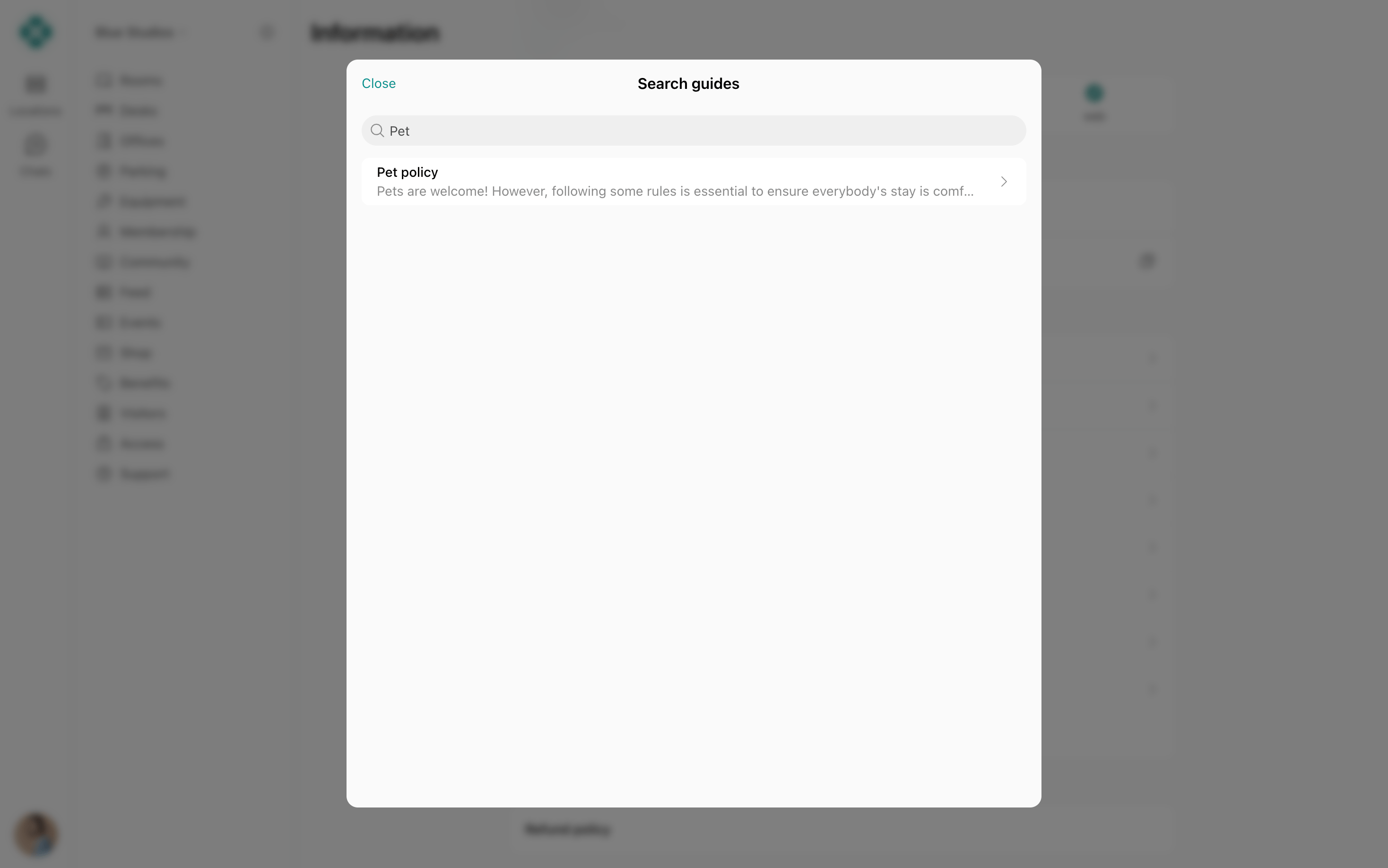
Guides are sorted alphabetically by title.
Recommended guides to create
Guides help all app users find additional information about your location to help them feel more convenient in your space. We recommend you create guides on the following topics:- How to find us - give detailed directions on how to find your space at the given address or attach a video guide.
- How to become a member - a guide explaining how to sign up for a membership or office.
- Parking - share if you provide members with parking possibilities, give the details in this guide.
- House rules - describe room etiquette, kitchen rules, noise regulations, etc.
- Refund policy - clearly state the rules and timelines for processing returns or refunds on bookings, products, or events.
Export a guides report
On the Support > Guides tab, click (…) in the top right corner > Export guides > CSV or XLSX to download a report on all guides.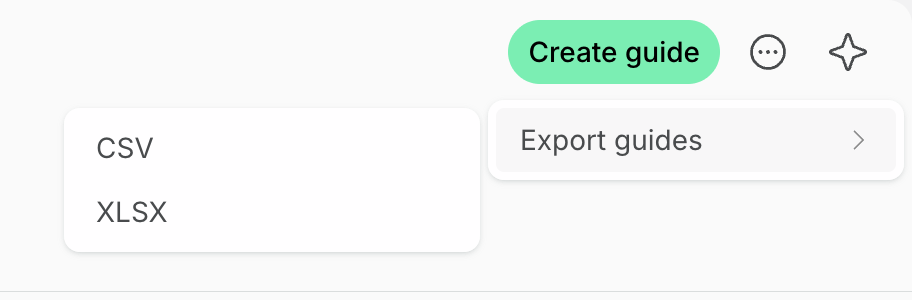
Edit a guide
- Go to Support > Guides.
- Hover over the guide > press the menu (…) next to it > press Edit.
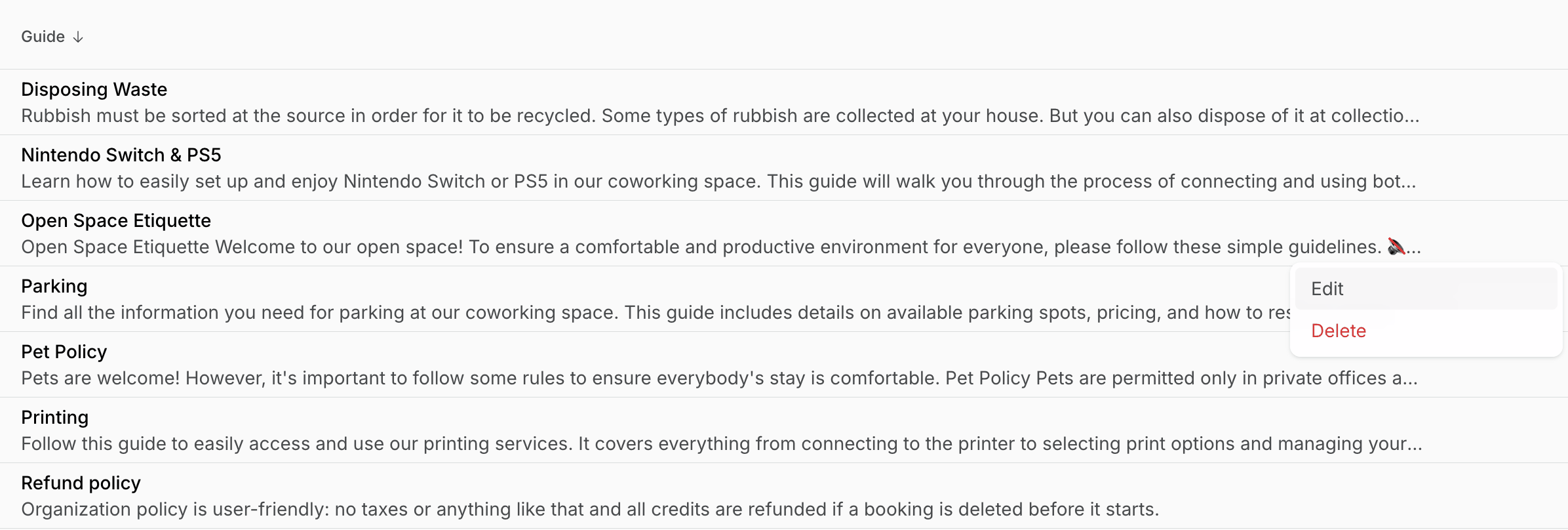
- Change the guide and press Save.
Delete a guide
- Go to Support > Guides.
- Hover over the guide > press the menu (…) next to it > press Delete and confirm your action.