

Visibility levels
There are five visibility levels:Set up visibility
Where you set the visibility level depends on the page: some pages have one Visibility setting, and on others each item has its own.Set the visibility of a page
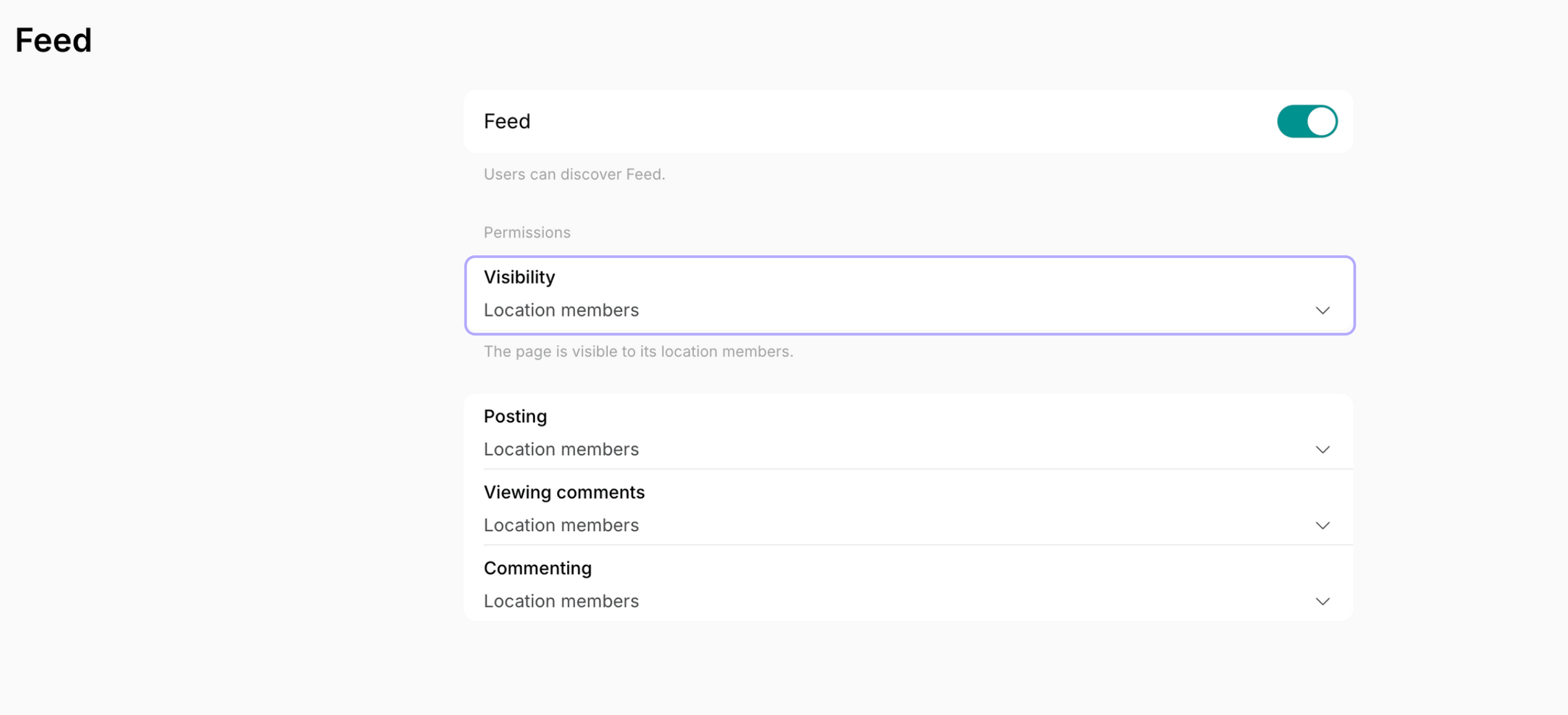
The Community, Feed, Visitors, and Support pages have one Visibility setting that covers the page and everything on it.- In the left-side panel, click the menu (…) next to your location name > Location settings.
- Choose the module > locate the Visibility dropdown > select the level. Some pages offer only a few of the levels.
Set the visibility of an item
On the Rooms, Desks, Offices, Parking, Equipment, Events, Shop, Benefits, and Guides pages, every item carries its own Visibility dropdown, which you set when you create or edit it. Each item on the page can have a different level, so one room can be public while another stays for your members.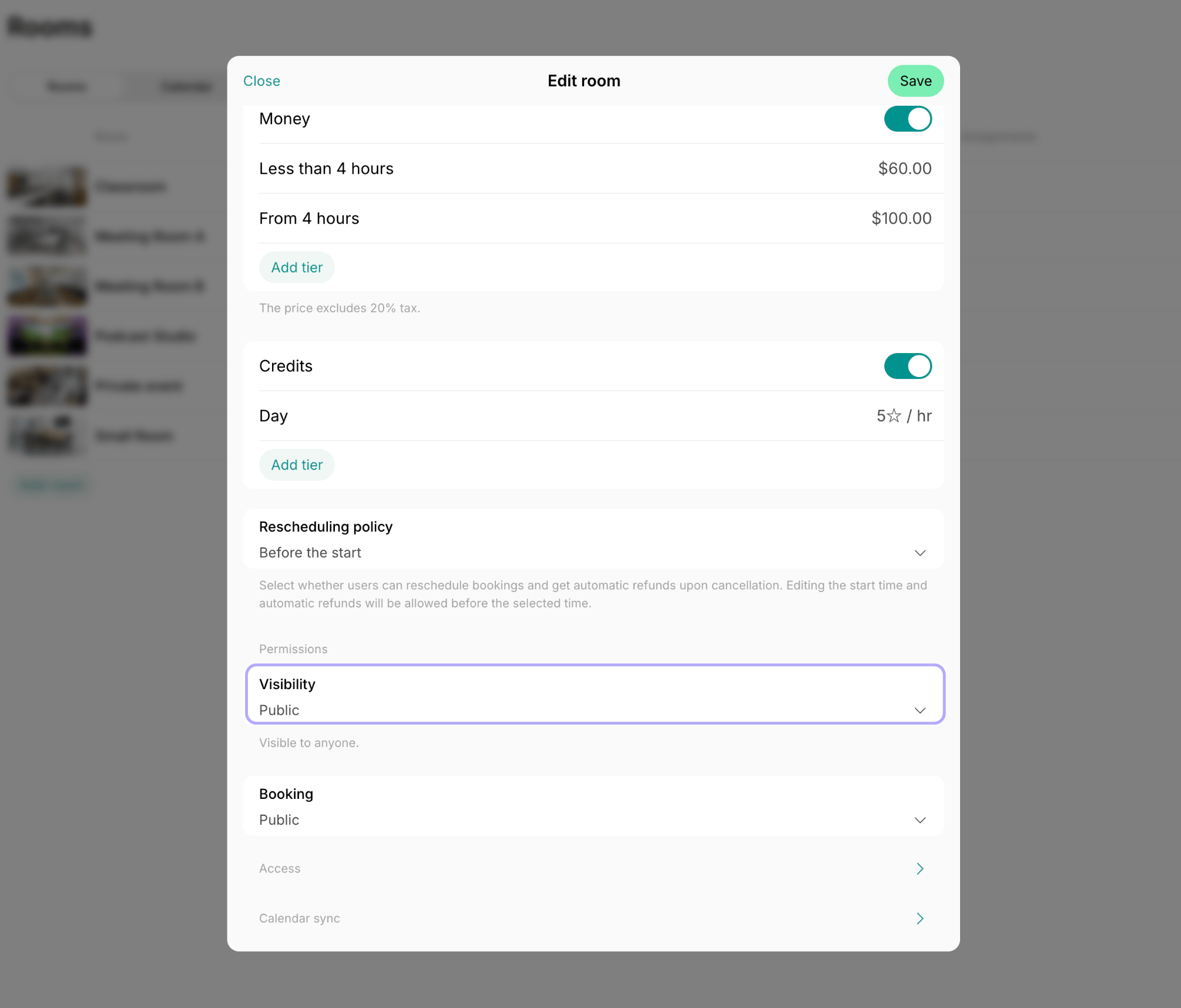
How visibility works
Every customer sees only what the visibility level of a page or an item allows their role to see:- A page with its own visibility level is visible only to the roles at that level and above.
- A page with items shows each customer only the items they may see, so it can look different to two customers, and it doesn’t appear at all to a customer who may see none of them.
Copying a link to a resource, event, feed post, benefit, or shop product never changes its visibility. To let a customer open the link you send them, set the visibility to Location members or Network members for members, or to Public for anyone, including people who are not signed in.
Visibility applies to the whole page or item, on every date, from the moment you save it. To make a resource unavailable for bookings on particular dates, or from a certain date on, mark the dates as closed days or create an assignment without a customer instead.
FAQs
What is the difference between network members and location members?
What is the difference between network members and location members?
- Location members are the members of this location. They see everything marked for Location members and above, so choose that level for content only they should get.
- Network members are the members of your other locations. Choose Network members to let the members of all your locations see a resource, event, or product and book or buy it.
Why can't my customer see a resource in the member web portal or mobile app?
Why can't my customer see a resource in the member web portal or mobile app?
The resource’s Visibility is set above the customer’s role: a resource set to Location members never appears to a nonmember, and one set to Members with exclusive access appears only to the members whose subscription includes it. Compare the level in the resource’s settings with the customer’s role on the Customers page, and raise the level if they should see it.