

- With a subscription — the main way to assign a resource. An administrator adds the resource as a product to the customer’s subscription, or the customer subscribes to a rental. The subscription charges the customer and blocks the resource for them.
- Without a subscription — an administrator creates the assignment on the Assignments page. Use it for a customer whose rental is not billed in Spacebring, or to reserve the resource before their rental starts. Use it without a customer to take the resource off the market, for example while you negotiate with a prospective tenant.
Assign resources to customers for rental
Assign a resource with a subscription
- Go to the Customers page.
- Open the customer’s profile.
- Create or edit their subscription.
- Add a subscription item.
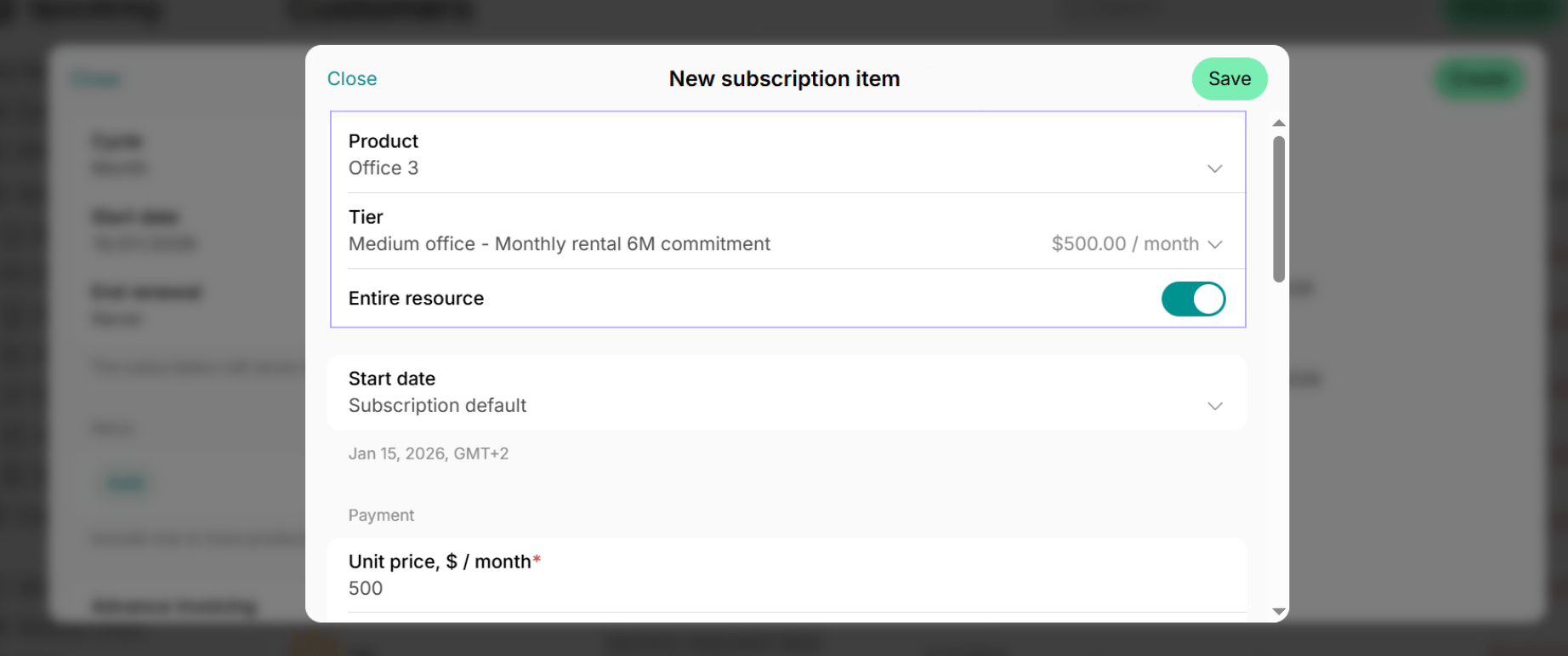
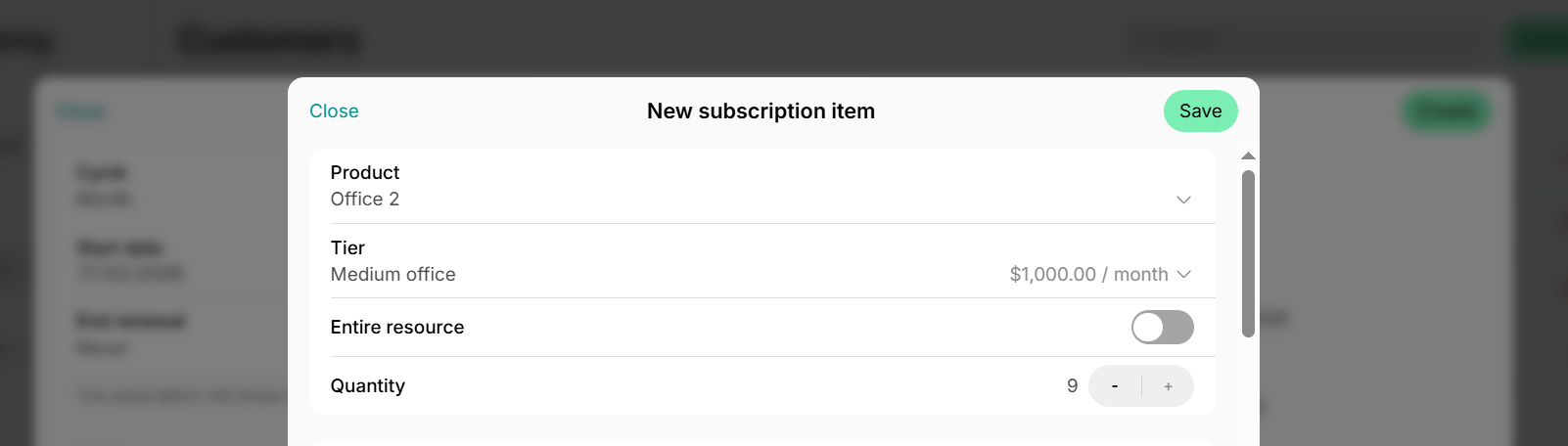
- In the Product field, select a resource (desk, office, etc.).
- In the Plan field, choose one of the rental plans you added in this resource settings or choose Custom to set up the subscription details from scratch.
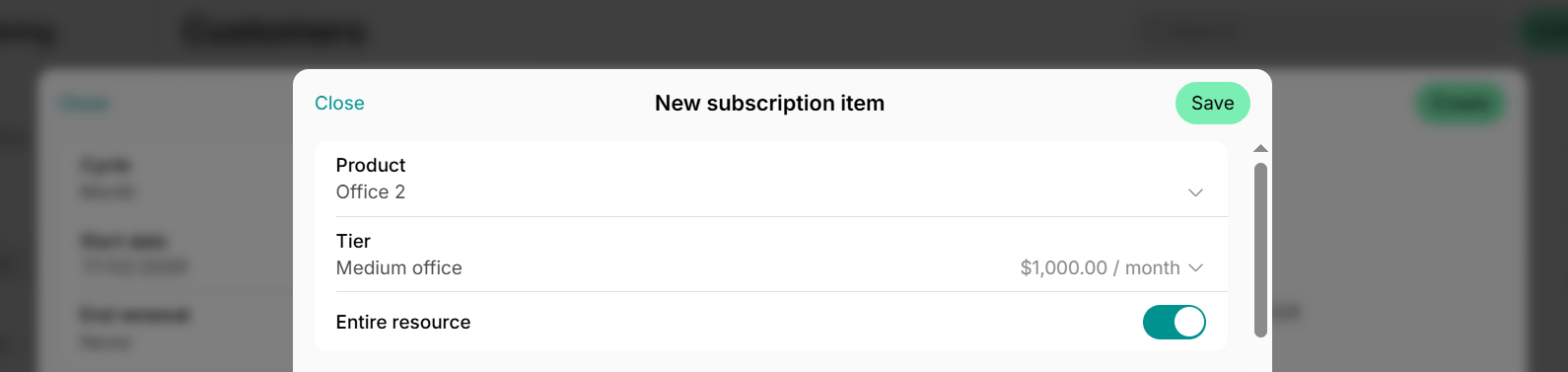
- Use the Entire resource switch to choose the appropriate assignment type.
If you configured long-term rental pricing in resource settings, customers can also apply or sign
up for a resource rental by themselves and be automatically
assigned to the resource.
Assign a resource without a subscription or hold a resource without a customer
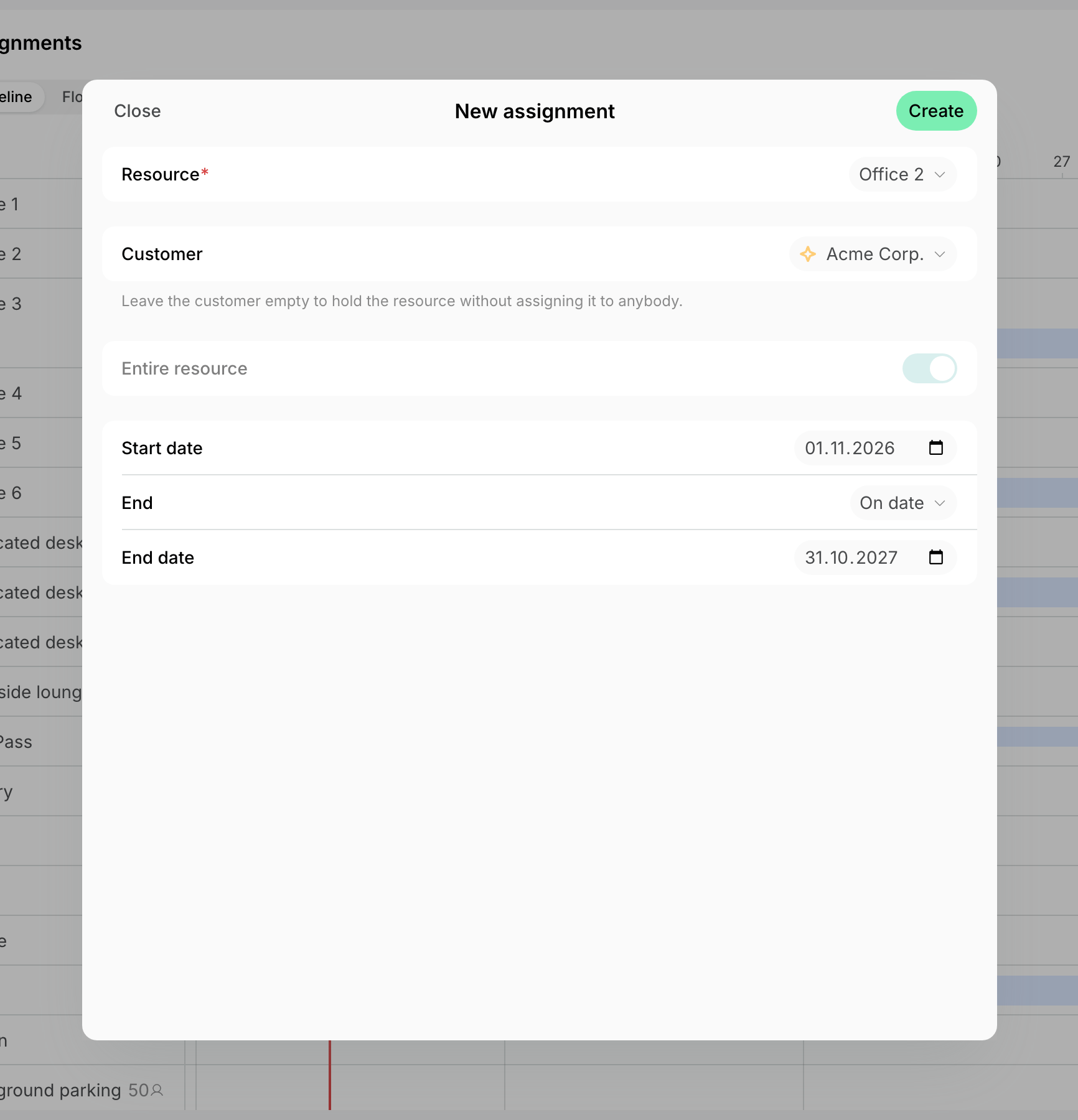
- Go to Resources > Assignments and click Create assignment in the top right corner.
- In the Resource field, choose the resource to assign.
- In the Customer field, choose the member or company that rents it, or leave it as No customer to hold the resource without assigning it to anybody.
- Use the Entire resource switch to choose the appropriate assignment type. Set the Seats or Quantity if you leave the switch off.
- Set the Start date, then choose in the End field whether the rental ends On date or Never. The rental includes its end date, so another rental of the resource can start the day after.
- Click Create.
Only assignments created on the Assignments page can be edited and deleted there. An assignment that comes from a subscription is
managed in that subscription, and its bar opens the customer’s profile instead.
Assignment types
The Entire resource switch on the assignment or the subscription item sets the type.Entire resource
Use it when:- The customer rents the whole resource, such as:
- A private office
- A meeting room
- A desk
- A parking lot rented entirely by one company
- For as long as the assignment lasts, only the assigned customer can book the resource. If the resource is assigned to a company, every member of that company can book it.
- Administrators can book it for the assigned customer only, not for anybody else.
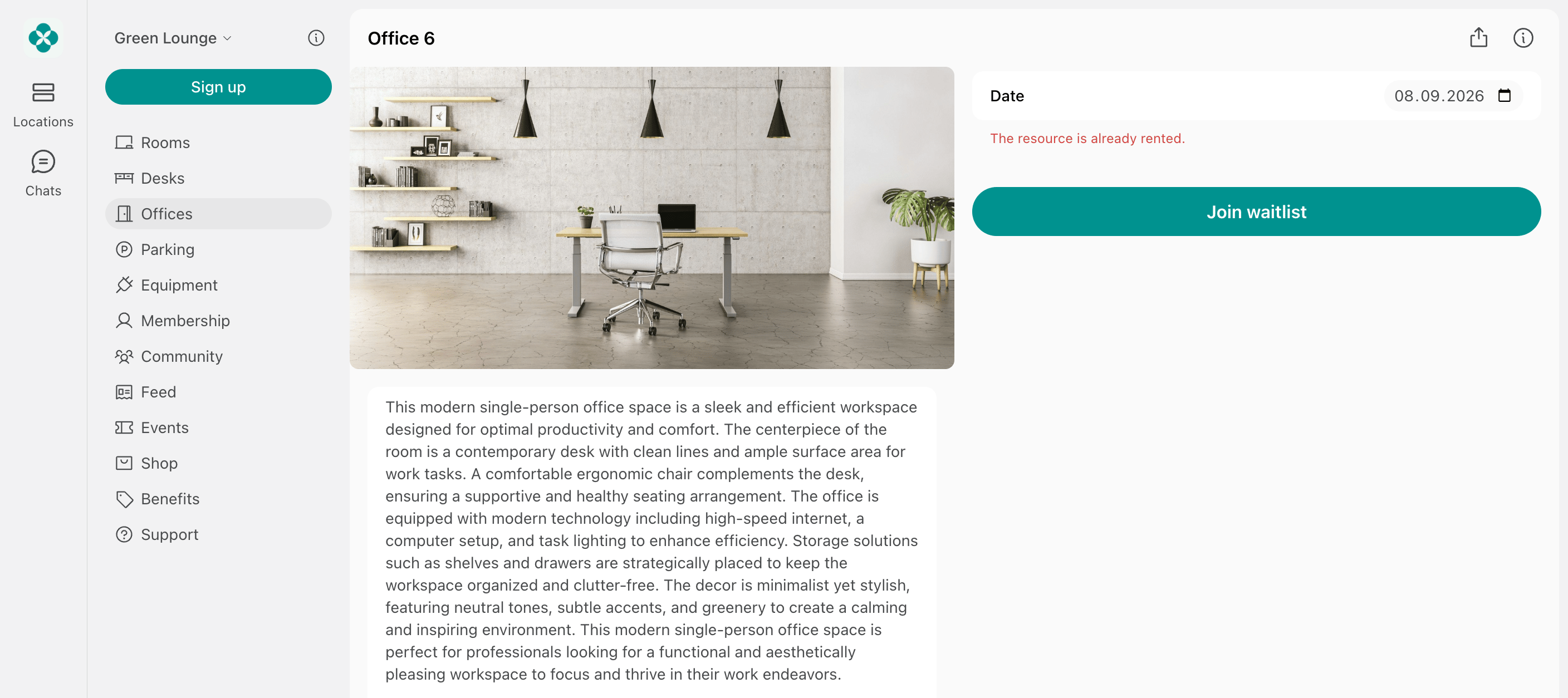
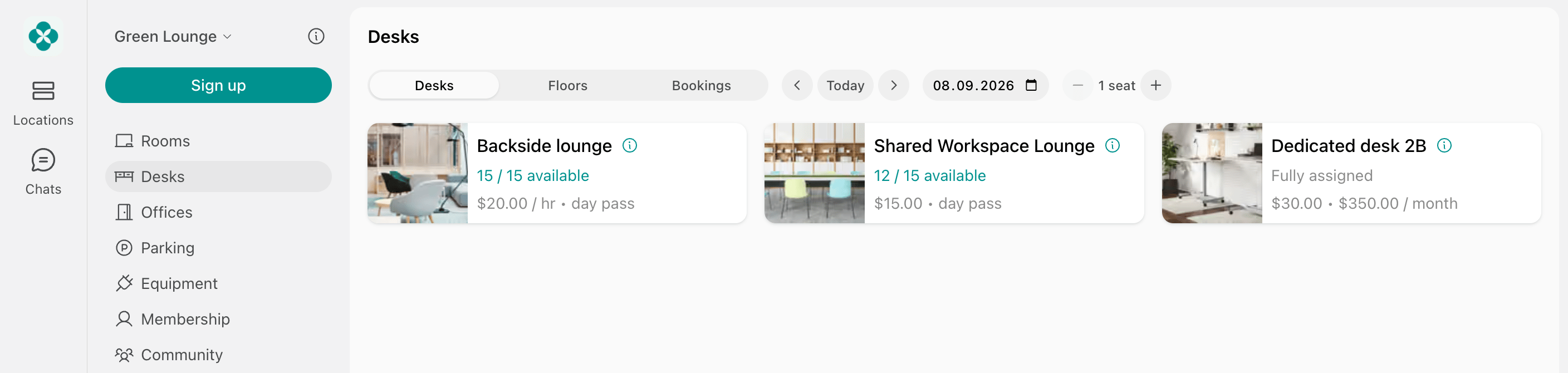
- Other customers still see the resource but cannot book it. It carries the Fully assigned label and a Join waitlist button, which lets them express their interest and creates a ticket for you. Enable the Support page for this button to appear.
- Rooms work differently: an assigned room stays on the booking calendar, but its column is greyed out for everybody else and its time slots cannot be clicked.
- A customer who is assigned an entire resource can book it for free, because the rental already pays for it.
- If the customer books the resource for dates entirely outside their assignment, the booking is charged at the resource’s regular price, and the customer has to pay for it.
- A booking made under an assignment can only be edited while the assignment still covers it. If you move the booking outside the assignment period, or the assignment was canceled, you will face the Cannot update a hybrid booking without a subscription covering it error. The booking stays in the calendar and can still be canceled.
Offices and rooms can only be assigned entirely, so the Entire resource switch is always on for them.
Quantity of seats/spaces/items
This type is available for desks, parking lots, and equipment. Use it when:- The customer rents part of a shared resource, such as:
- 1 dedicated desk in a 10-desk zone
- 3 parking spaces in a 20-space lot
- With this assignment type, customers don’t book their seat(s) during their subscription period; they’re reserved for the customer.
- Users see the reduced resource availability (e.g., 7/10 available).
- When all the seats are assigned, the resource remains visible with the Fully assigned label, and nobody else can book it.
- Customers get no Join waitlist button in this case. Only a resource assigned entirely offers it.
Hold a resource without a customer
Use it when:- You are negotiating with a potential tenant and want the resource off the market until they decide.
- The rental is confirmed, but the tenant has not moved in yet.
- If it covers the entire resource, customers see it as Fully assigned and get the same Join waitlist button as on a rented resource. Nobody can book it during that period, administrators included.
- If it covers a quantity of seats, spaces, or items, that quantity is subtracted from the resource’s availability, and the resource stays visible to customers.
A hold is also the way to make a resource unavailable for a long or indefinite period — a renovation that starts on October 1 with no end
date yet, for example. For a few known dates, such as a holiday or a one-day event, mark them as closed
days in the resource’s custom schedule instead.
Track all rentals on the Assignments page
- Go to Resources > Assignments.
- The Assignments page gives you a consolidated overview of:
- Resources rented by customers
- Resources available for rental
How to read the Assignments timeline
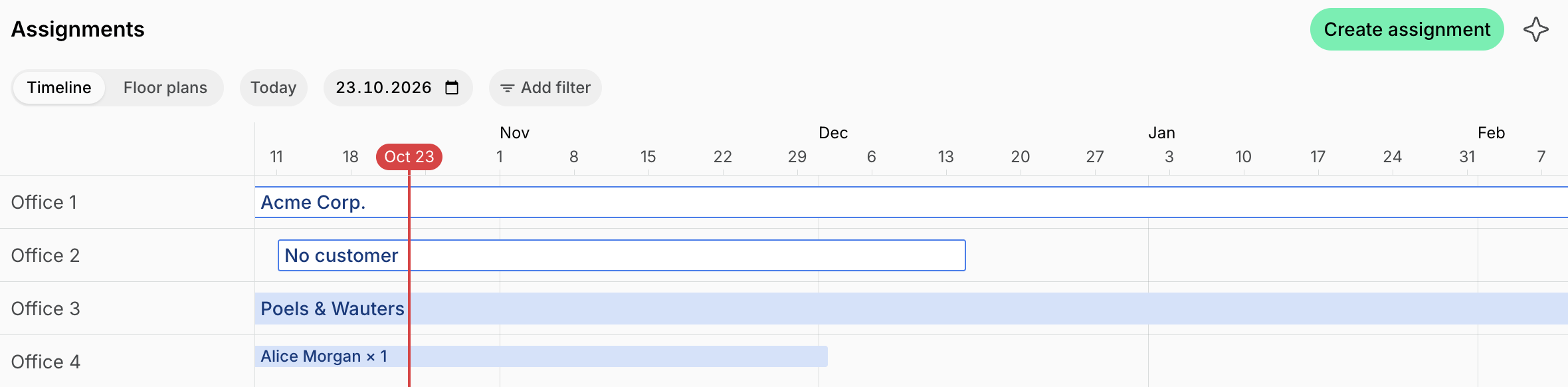
Each resource appears with one or more bars labeled with customer names.- Thicker bars indicate entire resource assignments.
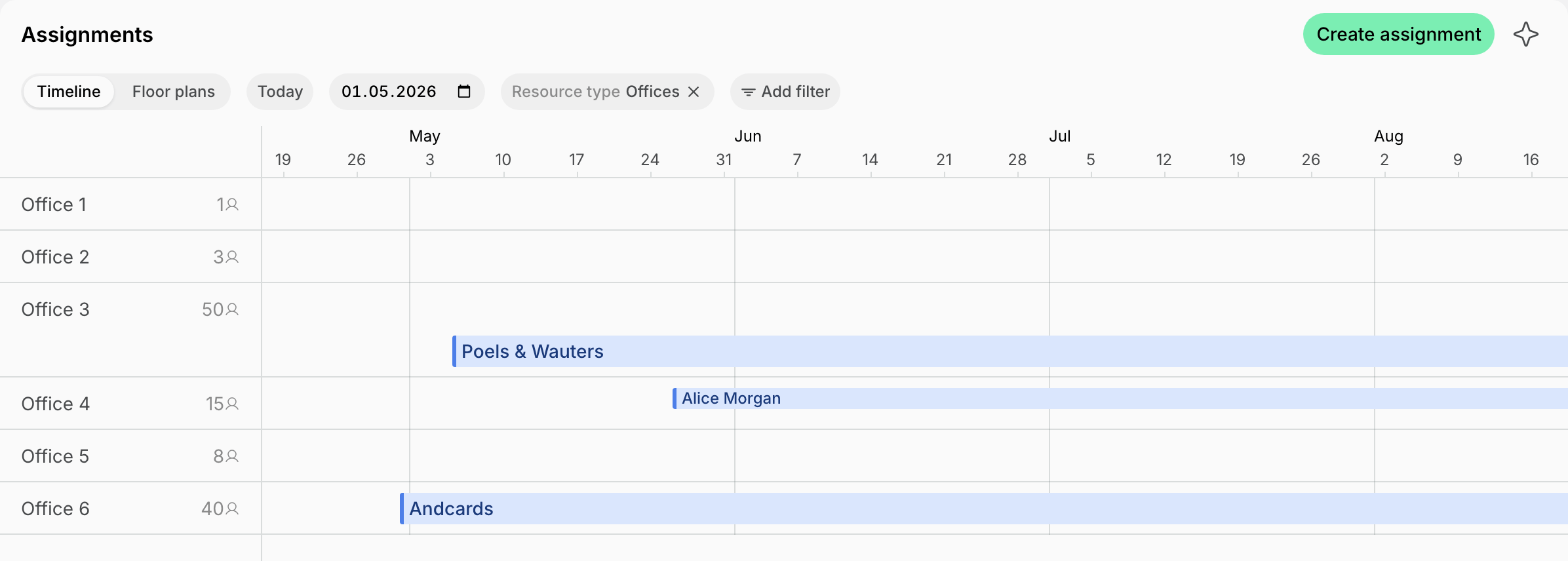
- Thinner bars indicate partial assignments.
- The number of seats is shown next to the customer name.
- If no seat count appears on the thin bar, it means 1 seat is assigned.
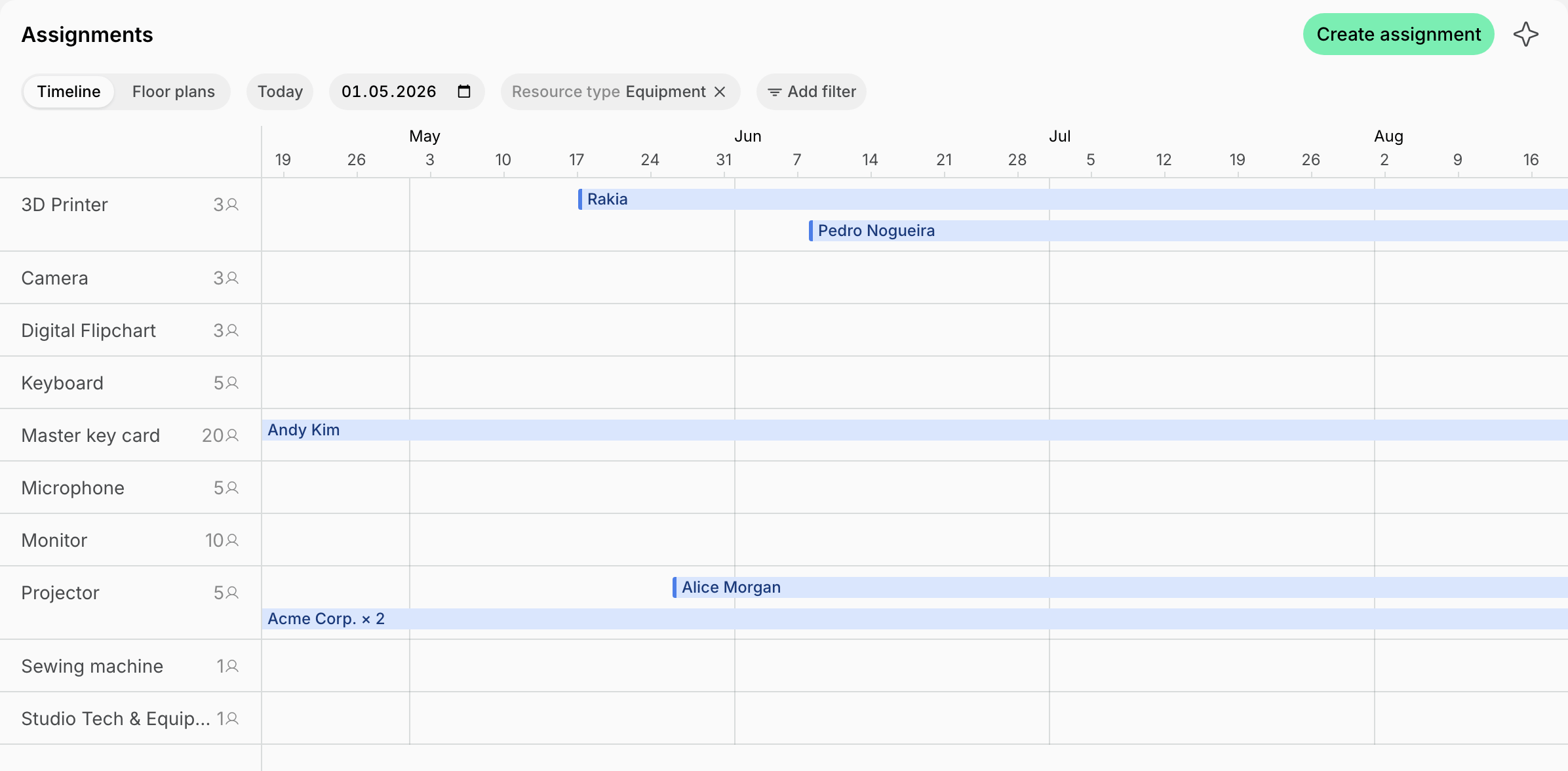
- Bars with a blue fill come from a subscription. Bars with only a blue outline were created on the Assignments page, without a subscription behind them.
- A bar labeled No customer is a hold without a customer.
- Each resource shows its total capacity, so you can quickly assess remaining availability.
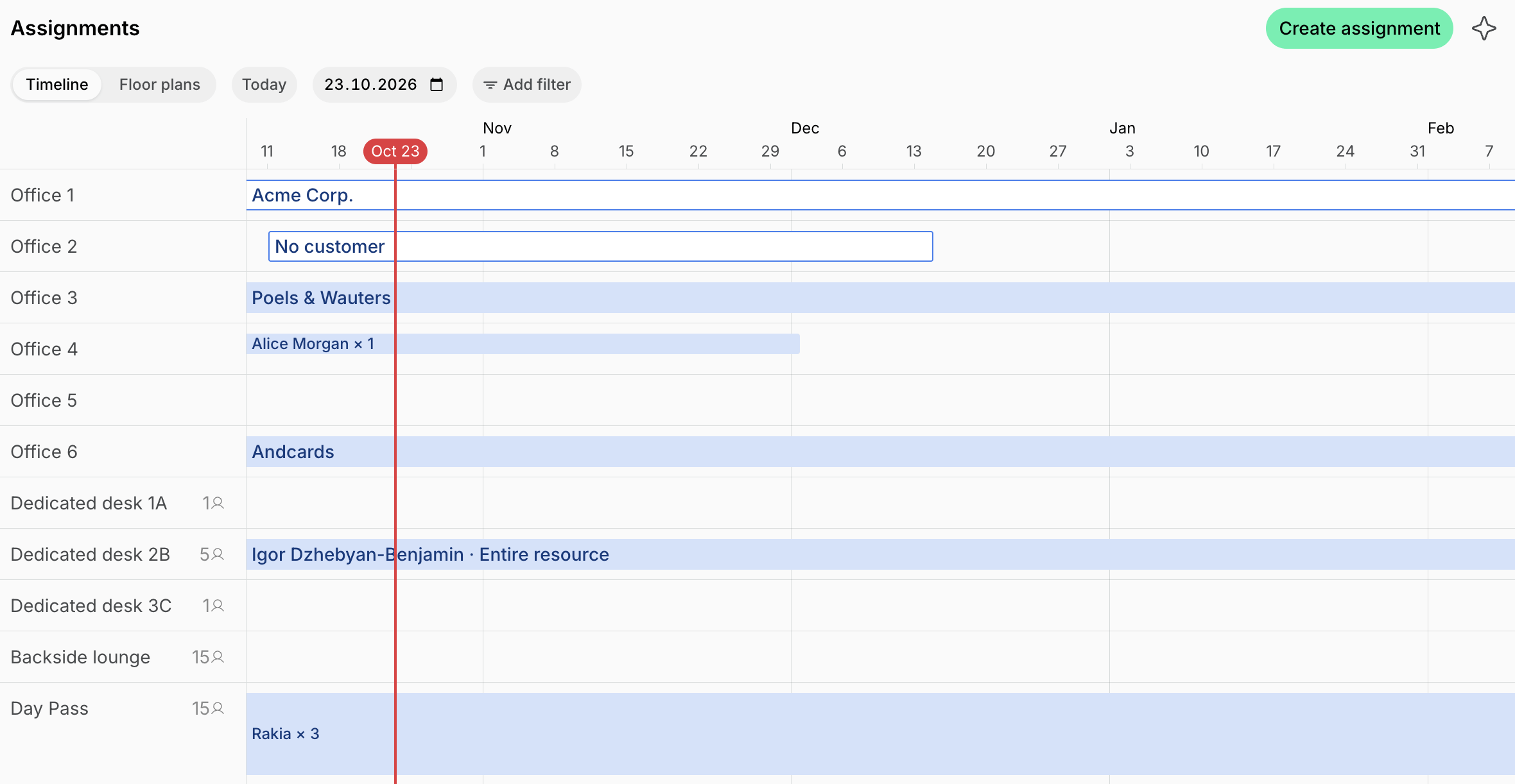
- Unassigned resources appear without any bars.
- Hover over a bar to see the rental period. For an assignment that comes from a subscription, the period follows the customer’s subscription item dates.
- When no end date is set, the assignment shows as indefinite.
- Click a bar that comes from a subscription to open the customer’s profile and manage the resource assignment there.
- Click a bar created on this page to Edit it, Delete it, or open the customer’s profile.
- Drag a bar created on this page to move it to other dates or another resource.
- Click a resource to view its details.
- Use the date picker to check availability for a specific period.
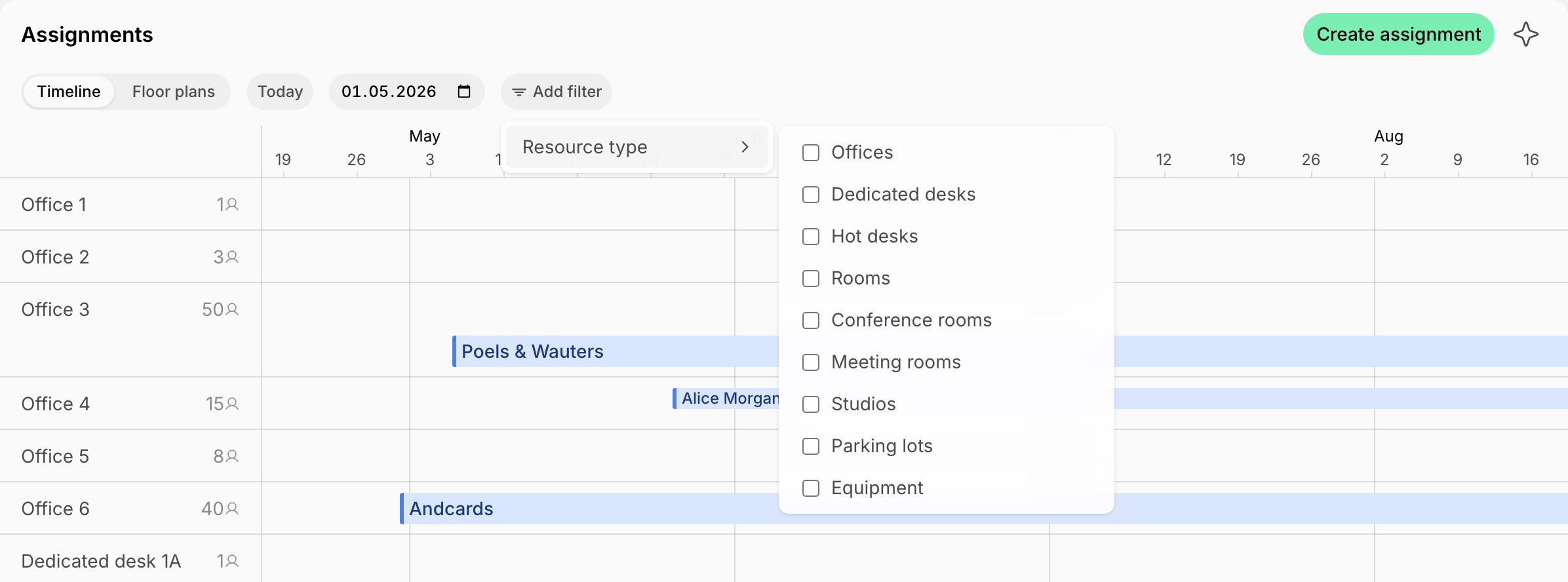
- Click Add filter > Resource type to show only one kind of resource.
The Assignments page is for tracking long-term rentals only — it does not include bookings.
Drag an assignment on the timeline
You can move an assignment created on the Assignments page by dragging its bar:- Drag the bar left or right to change its dates, or to another resource’s row to move it there. To change only when it starts or ends, drag its start or end edge — the pointer turns into a resize arrow over an edge you can drag.
- On a phone or tablet, press and hold the bar until it lifts, then drag it.
- While you drag, the header at the top of the timeline highlights the new period and shows its start and end dates.
- Drop the bar. The change is saved right away.
- The bar turns red over a place it can’t take and shows why: Fully assigned when other assignments already take the resource’s capacity in that period, or Unavailable when the resource can’t take the assignment, such as seats dropped on an office or a room, which are only assigned entirely, or more seats than the resource has.
- If a booking or an assignment the timeline doesn’t show conflicts with the new period, the bar moves back and a message explains why.
- An assignment without an end date has no end edge to drag, so drag the bar or its start edge to change when it starts.
- Assignments that come from a subscription can’t be dragged. Change them in the subscription instead.
Floor plan view
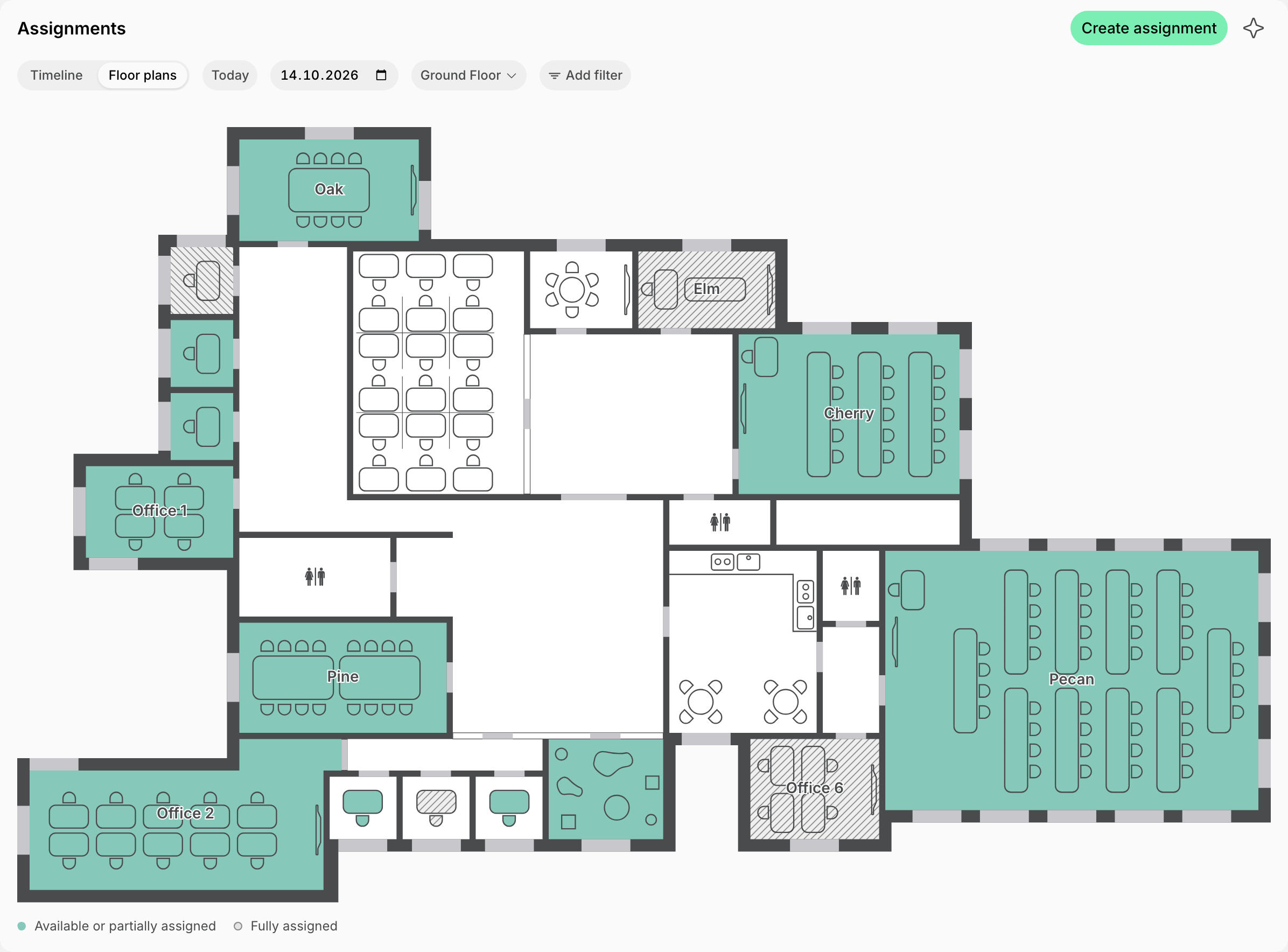
- If you have the Floor plans add-on, switch to Floor plans to see the occupancy visually on floor plans.
- Use the date picker or Add filter > Resource type to check availability for a specific period or a specific resource type.
You can also view real-time availability and current assignments for each resource directly on the Resources pages.
See assignments next to bookings
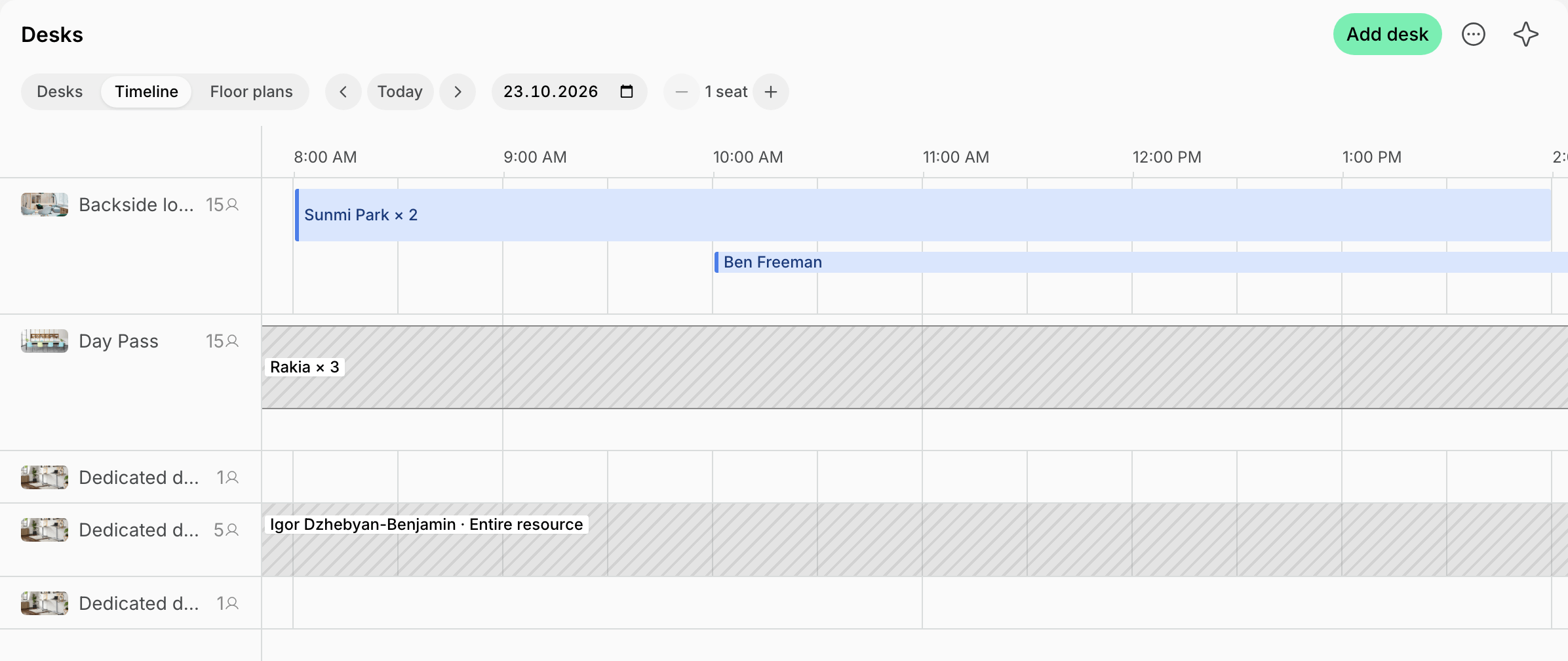
Assignments also show where you and your customers book, so a seat that looks free but is assigned is never a surprise. On the Timeline tab of the Desks, Offices, Parking, and Equipment pages:- A seat assignment is a hatched gray bar as tall as its seats, labeled with the customer and the number of seats. Those seats are no longer free to book.
- An entire assignment hatches the resource’s whole row in gray, labeled with the customer and Entire resource. You can still book the resource for the assigned customer.
- Each resource shows its capacity, and a booking for more than one seat shows its seat count.
- Click an assignment’s label to open the customer’s profile.
- Members of the assigned customer see Assigned to you or Assigned to your company, and can book the room as usual.
- Everybody else sees Assigned, without the customer’s name, and cannot book those times.
FAQs
Why do I see the error 'The resource is already assigned during this period' when creating a subscription for the customer?
Why do I see the error 'The resource is already assigned during this period' when creating a subscription for the customer?
The resource is already assigned for the dates you set, and either that assignment or yours covers the entire resource.Go to Resources > Assignments and find the resource to see which customer holds it, for which dates, and with which assignment type — thick bars are entire assignments, thin bars are assignments by seats. Then:
- Choose a different resource for this customer.
- Shorten the other assignment, or start yours the day after it ends.
- Assign the resource by seats to both customers, if it can be shared.
Why do I see the error 'The resource is already assigned or booked during this period' when assigning a resource?
Why do I see the error 'The resource is already assigned or booked during this period' when assigning a resource?
Before creating an assignment, Spacebring checks that the resource is free for the whole assignment period. This error means something already occupies it:
- The resource has bookings during that period.
- The resource is already assigned to other customers, and your assignment would take it over its capacity.
- A parent or child resource of the one you are assigning is booked or assigned during that period.
Why did a customer book an assigned resource for free?
Why did a customer book an assigned resource for free?
A customer who rents the entire resource already pays for the rental, so booking it costs them nothing extra. This is expected, applies to
all resource types, and does not depend on whether the assignment comes from a subscription. If you want customers to pay per booking
instead, remove the assignment and give them exclusive access to the resource.
How do I remove resource assignments?
How do I remove resource assignments?
Where you remove the assignment depends on where it came from:
- Go to the Resources > Assignments page and find the resource in question to check which customer it’s assigned to.
- Click its bar. If the menu offers Delete, the assignment was created on this page — delete it, or choose Edit to shorten its dates instead.
- If the bar opens the customer’s profile instead, the assignment comes from a subscription. Edit that subscription and remove this resource from its subscription items, or adjust the item’s rental dates to assign the resource to a new customer for other dates.
Can I view room and desk bookings on the Assignments timeline?
Can I view room and desk bookings on the Assignments timeline?
One-off bookings, used for short-term or day-specific use, are not displayed on the Assignments timeline. Track them, together with
assignments, on the Timeline tab of each resource page, or through analytics tools.
How do I make a resource visible and bookable to only one customer?
How do I make a resource visible and bookable to only one customer?
This depends on whether the customer rents the resource or only needs the right to book it:
- If the customer rents this resource full-time (for example, it’s their private office or their dedicated desk), assign it to them in their subscription as a product. Only they can book it, and their bookings are free. Everybody else still sees the resource with the Fully assigned label.
- If the resource should stay hidden from everyone except certain members, but those members don’t rent it and only need the right to see and book it at the resource’s price, set it up as a resource with Exclusive access.
Can I assign a resource to the customer on specific weekdays?
Can I assign a resource to the customer on specific weekdays?
If a customer rents an office, desks, room, or other resource on specific days of the week (for example, only on Mondays and Tuesdays), you can:
- Create a recurring booking for that resource for the customer with the required schedule.
- Create a subscription to invoice the customer for rental.
- Do not select this resource as a subscription item — this would assign it to the customer every day.
- Instead, choose a membership or the Custom option to set up the charge only.