

What are resources
Your space has a limited inventory—this can include zones with hot or dedicated desks, private offices, meeting rooms, phone booths, parking spots, or equipment like monitors and projectors. In Spacebring, all these are called resources.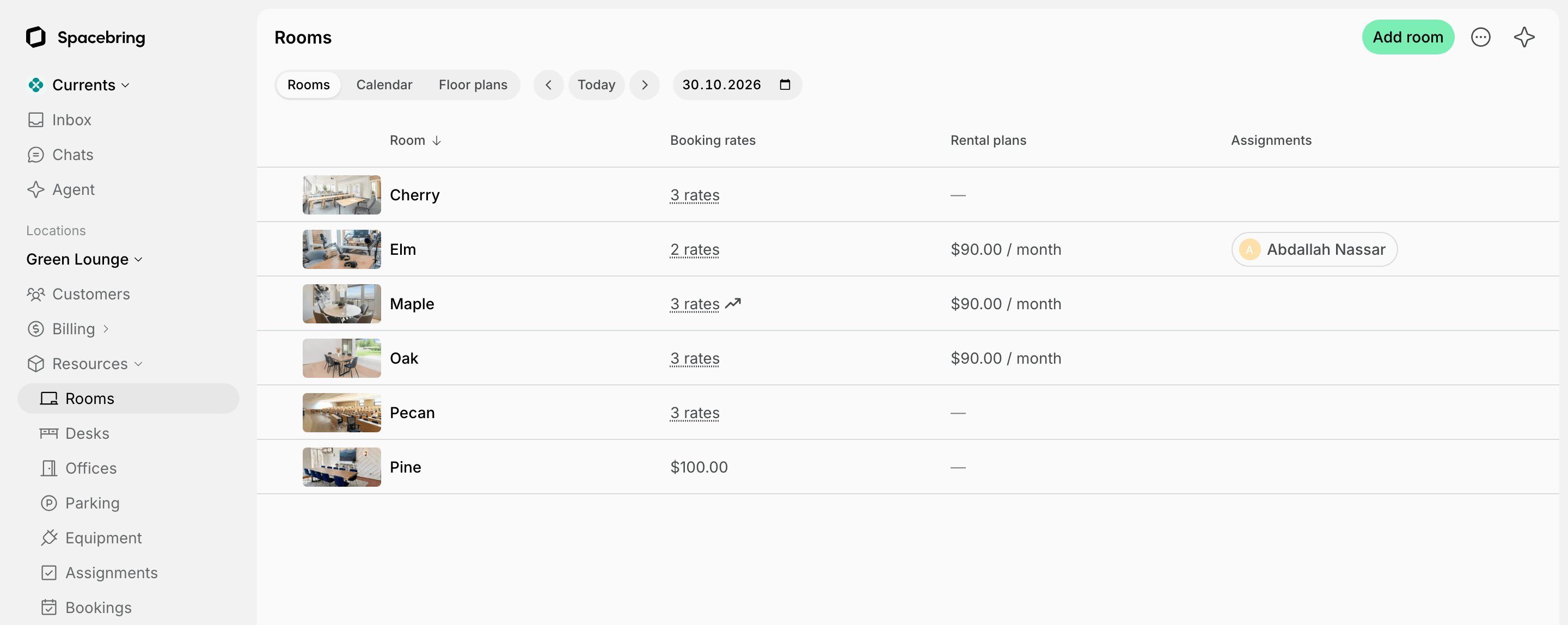
- Only short-term bookings (hourly, daily)
- Only long-term rentals (weekly, monthly, or longer)
- Both bookings and rentals
Every resource type — rooms, desks, offices, parking lots, and equipment — can be set for bookings, for rentals, or for both.
Set up pricing for bookings
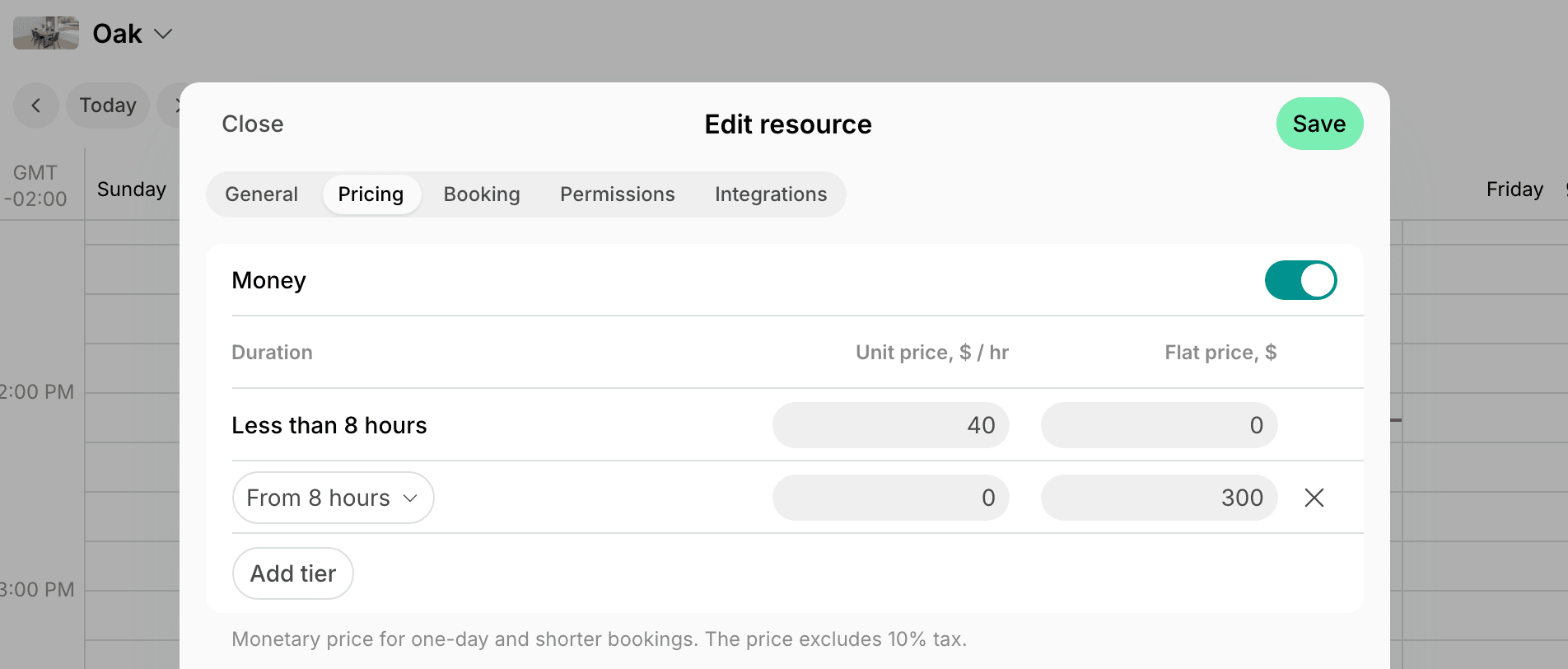
For bookings, you can set a single rate or several rates based on booking duration. For example, lower prices for longer bookings or fixed half-day or full-day prices.Set the first rate
- Add a new resource or edit an existing one.
- On the Pricing tab, under Booking rates, enable the Money switch if the resource is available for short-term bookings.
- Disable it if the resource is only available for long-term rental.
- Find the first rate in the table under the switch. This rate applies to bookings starting from the Min duration.
- Enter the price in the rate’s row:
- If pricing is per hour, enter a Unit price and set Flat price to 0.
- If pricing is fixed regardless of duration, enter a Flat price and set Unit price to 0.
- If pricing includes an hourly rate plus an additional fixed fee, set both values.
- On the Booking tab, set Min duration and Max duration.
At least one price must be non-zero: Unit price, Flat price, or both.
Add more rates
If you offer lower prices for longer bookings, add a rate for each booking duration.- Click Add rate under the table. The new row copies the prices of the previous rate.
- Select the Duration value, which defines the booking duration from which this rate applies.
- Set the Unit price, Flat price, or both, using the same rules as above.
- To remove a rate, click the cross at the end of its row. The first rate can’t be removed.
Rates are created in consecutive order, from the shortest to the longest booking duration. The Duration field only shows predefined duration options between the neighboring rates.
Set different prices on some days
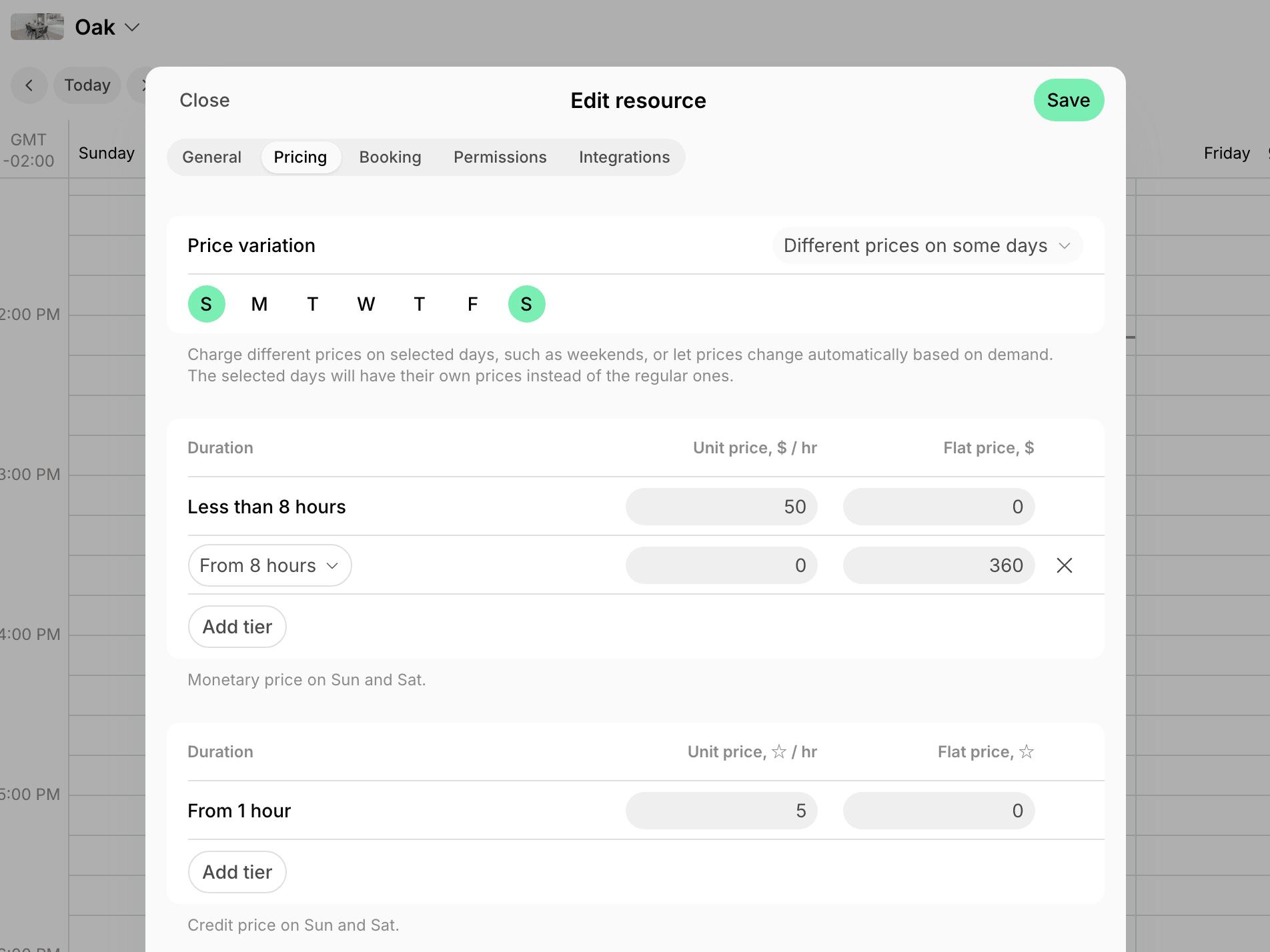
To charge other prices on some days of the week, such as weekends, give those days their own rates.- On the Pricing tab, in the Price variation dropdown, select Different prices on some days.
- Select the days that get their own prices. The other days keep the regular rates.
- Set the rates for the selected days in the Money and Credits tables under the dropdown, with the same rules as the regular rates.
- The tables start as a copy of the regular rates and change independently from then on.
- A table appears only for a price the resource charges: enable Money or Credits above to set it for the selected days.
A booking is priced by the day it starts on, in the location’s time zone, so a booking that starts on Friday evening and ends after
midnight keeps Friday’s prices.
Day passes are not affected: a hot desk costs one day pass on every day.
Common pricing scenarios
Setting several rates lets you offer flexible pricing, attract a wider range of customers, and maximize revenue across short and long bookings.Flexible hourly rates
Flexible hourly rates
Goal: Offer lower hourly rates for longer bookings.Setup:
- Set the first rate with the highest hourly price and shortest duration.
- Add a second rate and define the From duration starting from which the lower price applies.
- Set a lower Unit price for the second rate.
- Add more rates for even longer bookings if needed.
Daily rate
Daily rate
Goal: Offer a discounted rate for full-day bookings.Setup:
- In the first rate, set the hourly price for bookings shorter than one day.
- Add a second rate and set the From value to the minimum number of hours from which the full-day price applies.
- Enter the daily price in Flat price. Keep Unit price to 0.
Half-day rate
Half-day rate
Goal: Offer a discounted rate for half-day bookings.Setup:
- In the first rate, set the hourly price for bookings shorter than a half day.
- Add a second rate and define the From value for half-day duration.
- Enter the half-day price in Flat price. Keep Unit price to 0.
- If needed, add a third rate for full-day or other longer bookings.
Half-day and full-day rates only
Half-day and full-day rates only
Goal: Let customers book a desk, office, parking lot, or equipment item only for a half day or a full day, each at a fixed rate.Setup:
- On the Booking tab, set Min duration to a half day, such as 4 hours, and Max duration to a full day, such as 8 hours.
- Set Availability increment to a half day as well. Booking lengths then go up in half-day steps, so customers can choose only a half day or a full day.
- On the Pricing tab, enter the half-day price in the first rate’s Flat price. Keep Unit price to 0.
- Add a second rate and set the From value to the full day.
- Enter the full-day price in Flat price. Keep Unit price to 0.
Hourly rate + flat fee
Hourly rate + flat fee
Goal: Charge an hourly rate plus a fixed fee (for example, a cleaning fee for longer bookings).Setup:
- In the first rate, set the hourly price for shorter bookings.
- Add a second rate and define the From value from which the flat fee applies additionally.
- Set the hourly price in Unit price.
- Set the Flat price for the fixed fee.
Set up pricing for resource rentals
Rental plans are designed for subscriptions which involve a rental of a dedicated resource — for example, a dedicated desk or a private office. Subscriptions which don’t involve a dedicated resource rental, such as a flex membership with day passes or a virtual office membership, are set up under Catalog > Memberships instead.
- Add a new resource or edit an existing one.
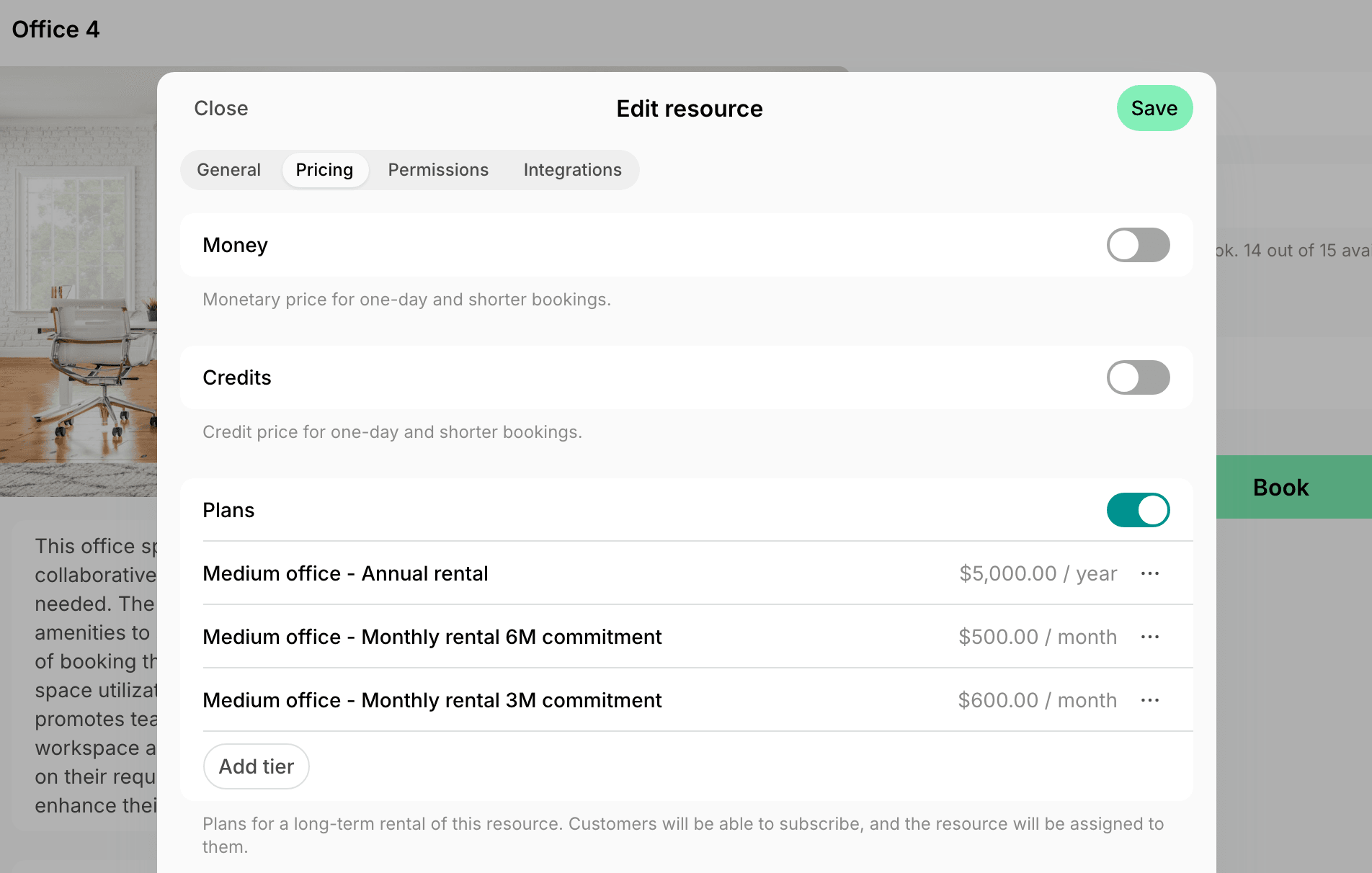
- On the Pricing tab, under Rental plans, enable the Plans switch if the resource is available for long-term rentals.
- Disable it if the resource is only available for short-term bookings.
- Click Add plan. Rental plans are pricing options for the rental of this resource. For example:
- Weekly, monthly, and annual plans.
- Plans with different commitment periods and prices.
Rental plan settings
- Name — will appear on customer invoices and in analytics.
- Cycle — the interval of subscription validity and how often the subscription renews. Available options: 1 week, 1 month, 3 months, 6 months, or 1 year.
- Description — a customer-facing explanation of what the rental plan includes.
- Price for — define if that’s the price for rental of 1 seat/item (e.g., 1 dedicated desk seat) or the entire resource. Offices and rooms are always priced for the entire resource.
- Price — the fee for one cycle.
- Setup fee — a one-time setup fee that is included in the customer’s first invoice.
- Minimum commitment — enable to define the minimum subscription period for this rental plan (in cycles).
The setup fee is subject to tax but is not affected by discounts or invoice proration.
- Credits — the number of expiring credits that will be allocated to a customer with each subscription renewal for bookings or purchases. These credits expire at the end of every cycle. Credits must be enabled for this option to show up.
- Day passes — the number of temporary day passes that will be allocated to a customer with every subscription renewal for booking a hot desk. The day passes expire at the end of every cycle. Day passes must be enabled for this option to show up.
- Discounts > Granted coupons — grant members reduced rates for bookings and other services as part of their membership.
- Sign-up > Type — control whether customers can sign up for this rental plan immediately or have to apply first.
- Immediate — customers can sign up for rental immediately without contacting an administrator.
- Request — customers can apply to rent this resource. Administrators process requests as support tickets. Configure rental applications or immediate sign-ups
FAQs
How do I edit the first booking rate?
How do I edit the first booking rate?
The duration of the first rate is set automatically:
If there is only one rate
- The rate applies to all bookings starting from the Min duration.
- To change it, edit the Min duration on the Booking tab.
If there are several rates
- The first rate is defined as Less than the duration set in the second rate’s From value.
- To change the first rate, edit the From value in the second rate — the first rate will adjust automatically.
Can I charge members less than nonmembers for the same room?
Can I charge members less than nonmembers for the same room?
A resource has one set of prices that applies to everyone who books it, so you charge members less with a discount rather than a second price:
- Create a coupon redeemable for the relevant bookings, enable Apply to specific items, and select the rooms it covers.
- Grant it in your members’ subscriptions, or in the membership so everyone who subscribes to it gets the reduced rate.
How do customers see booking rates and rental plans?
How do customers see booking rates and rental plans?
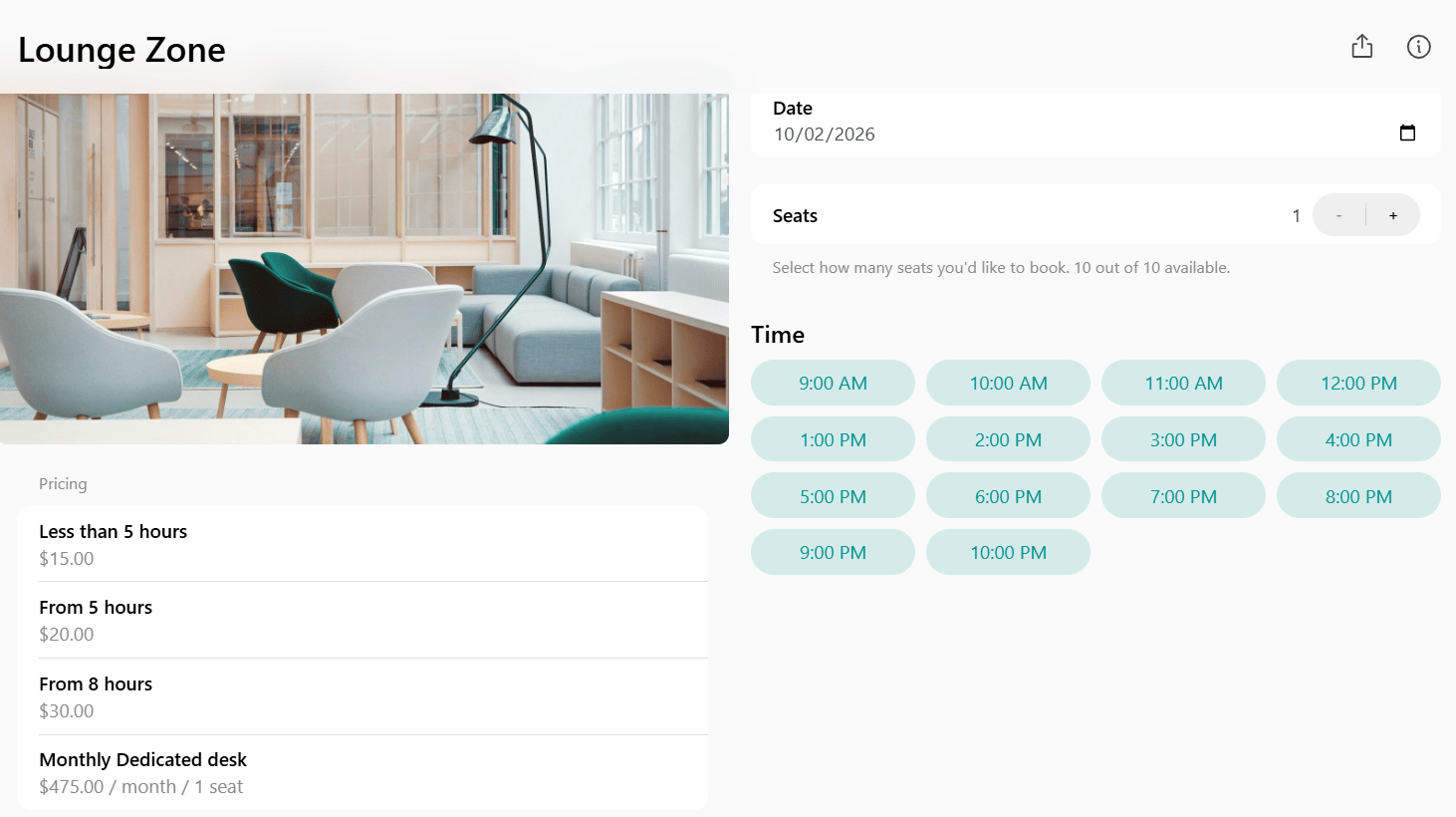
- When customers open a specific desk, parking lot, or equipment unit, they see a Booking rates section and a Rental plans section.
- For rooms, pricing is shown when clicking the ⓘ Information icon next to the room.
- On the Rooms, Desks, Offices, Parking, or Equipment listing pages, customers see the first booking rate by default. For an office rented on plans, the listing shows the first rental plan price. When they open a specific resource, all pricing options for that resource are displayed.
How many booking rates can one resource have?
How many booking rates can one resource have?
In addition to the first rate, you can add rates with the following From values: 1 to 12 hours, or 24 hours.
Can I set a minute-based pricing for bookings?
Can I set a minute-based pricing for bookings?
Pricing for resources is always set per hour using Unit price. For shorter bookings, the system automatically calculates the price based on duration.On the Booking tab, set Min duration, Max duration, and Availability increment to control in which time slots customers can book.Rooms support an Availability increment of 5, 10, 15, or 30 minutes, or 1 hour, and a Min duration and Max duration of 5, 10, 15, 30, or 45 minutes, 1 to 12 hours, or 24 hours.Desks, parking lots, and equipment support an Availability increment of 15 or 30 minutes, or 1, 2, 3, 4, 5, 6, 8, or 12 hours, and a Min duration and Max duration of 15 or 30 minutes, 1 to 12 hours, or 24 hours.
Why can't I see the From value I need when adding a rate?
Why can't I see the From value I need when adding a rate?
Only longer durations than your existing rates are shown. To add a shorter-duration rate, you must first adjust your current rates.Here’s how to do it:Example:If you currently have rates:
- Click your existing rates.
- Adjust their From values so they are in ascending order and include the duration you want to add.
- Re-add the longest duration rate last.
Remember that the first rate cannot be edited directly. Its Less than value automatically updates based on the From value of the second rate. To change it, edit the From value in the second rate.
- Less than 5 hours
- From 5 hours
- Edit the From 5 hours rate and change it to From 2 hours, setting the appropriate price.
- The first rate will automatically update to Less than 2 hours. Edit its price as needed.
- Re-add the From 5 hours rate with its original pricing.
What inventory should I add to each resource type?
What inventory should I add to each resource type?