

Prerequisites
To ensure proper management of booking applications, make sure to fulfill the following requirements:- Enable the Support page.
- Set the Support page visibility to Public so applicants can see administrators’ responses.
- Enable admin notifications to receive a push or email whenever users book or apply for resources.
Understand booking permissions
You can set booking permissions for resources that customers book:- Rooms
- Desks
- Parking lots
- Equipment
- Visibility – Who can see the resource
- Booking – Who can book the resource immediately
Booking permission levels
For example, if Visibility is set to Public and Booking is set to Location members, everyone can see this resource, but only members and administrators can book it immediately. Nonmembers can apply for the booking. Understand user roles
The Booking permission is set as Public by default.
Configure booking permissions
- Go to Resources > Rooms, Desks, Parking, or Equipment.
- Add or edit a resource that requires administrator verification, and configure the Visibility and Booking permissions on its Permissions tab.
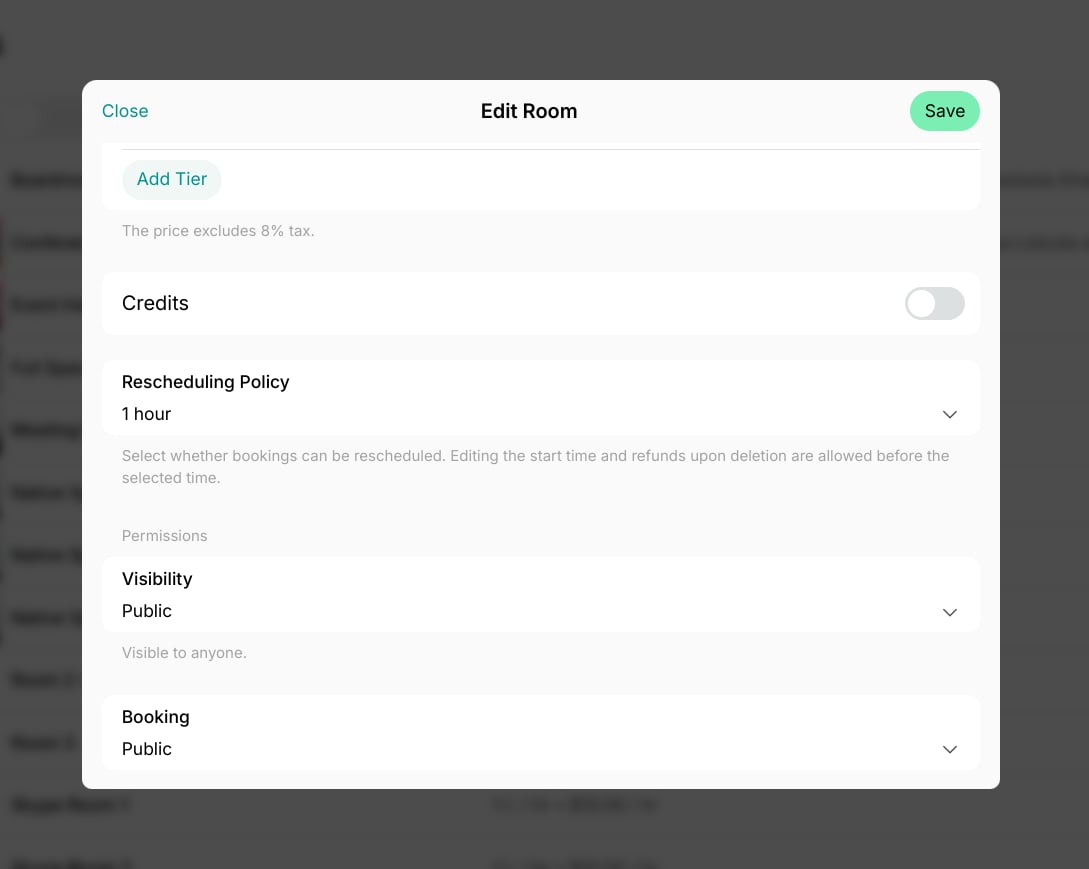
- Once the permissions are configured, press Save.
How users apply for a booking
- Go to the page with the necessary resource.
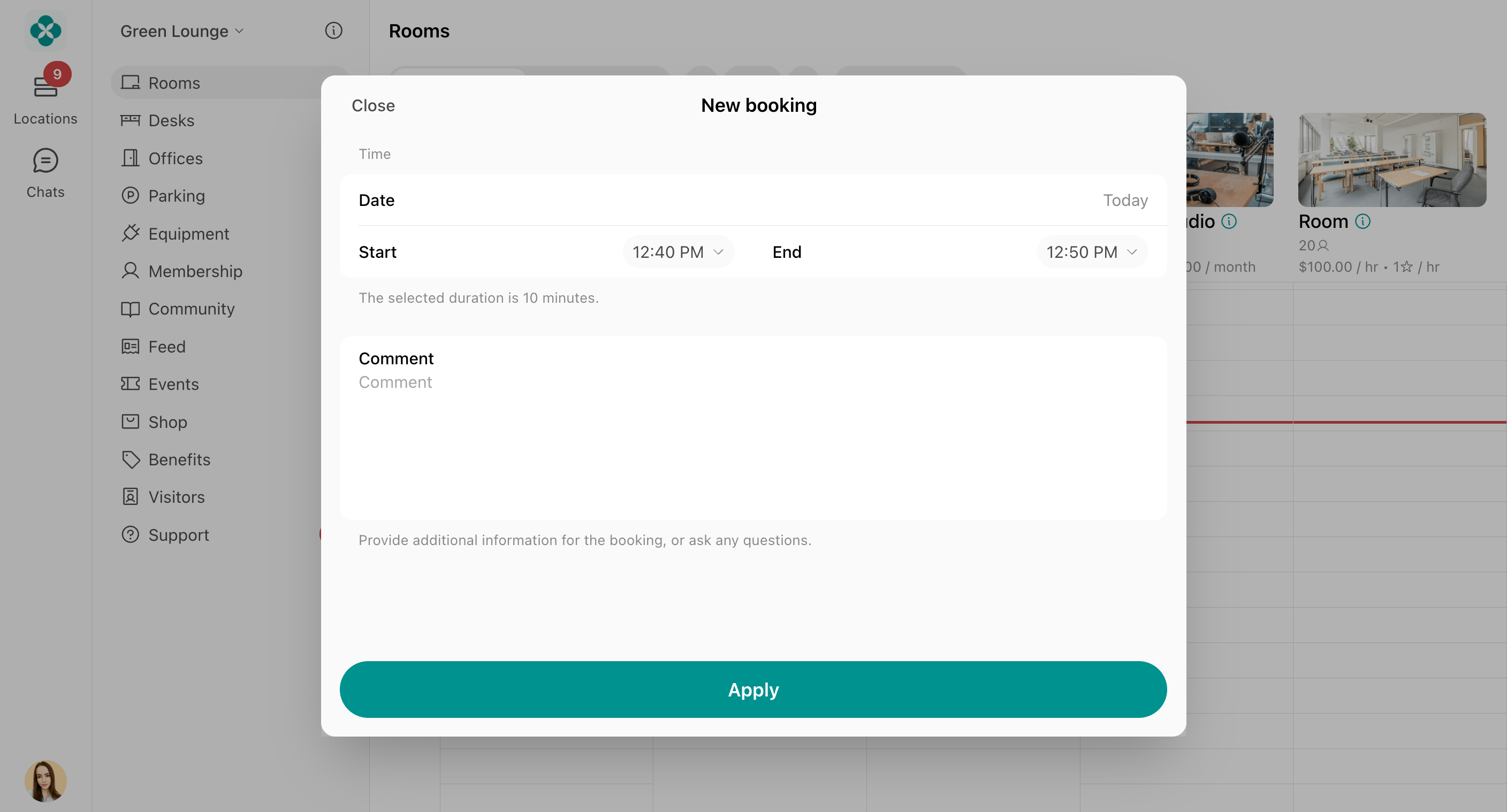
- Select the resource, date, and time, optionally leave a comment, and press Apply.
How administrators manage booking applications
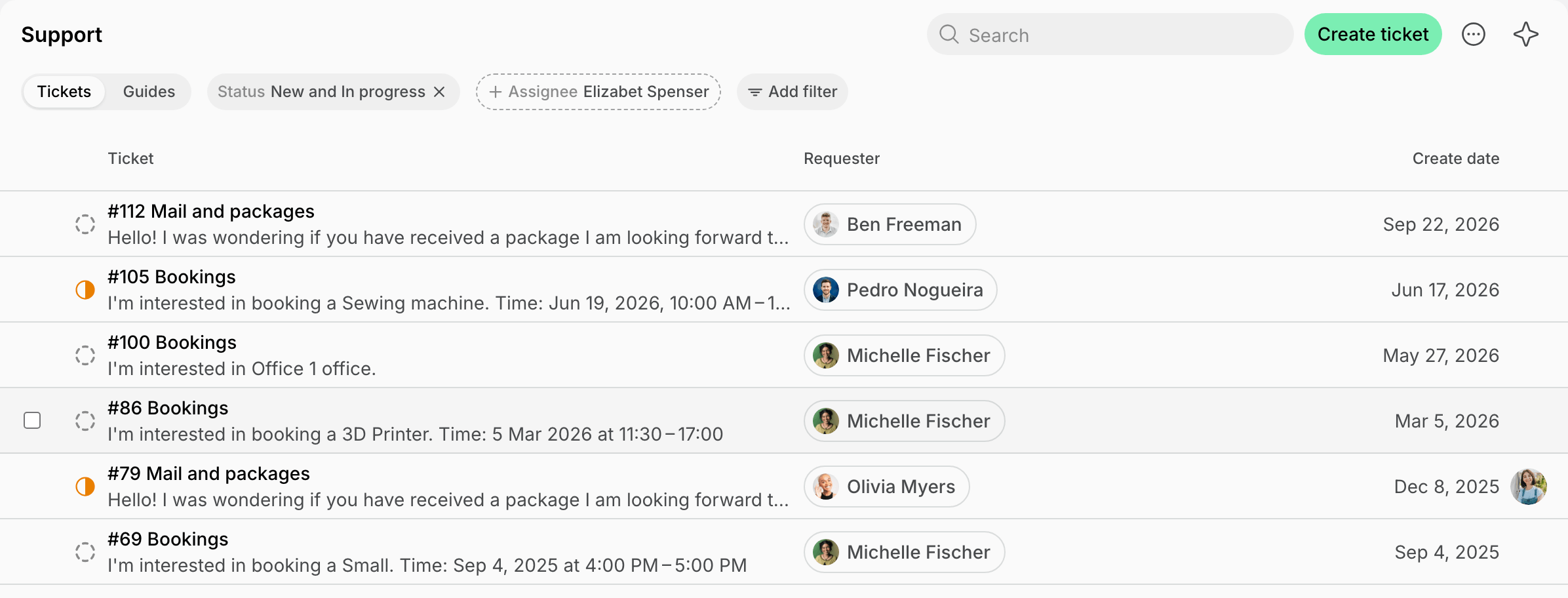
- Once the user submits a booking application, a new ticket appears on the Support page. Via the support ticket, you can request verification documents or communicate with the user.
- If the booking is approved, go to Resources > Rooms, Desks, Parking, or Equipment, select the resource, and create a booking with the user selected in the Booker field. In the Payment section, choose:
Best practices
Restricting booking permissions is perfect for:- Podcast or recording studios, massage rooms, beauty workstations, or costly equipment that require a background check and should not be available for instant booking by nonmembers.
- Resources with flexible or irregular schedules, like conference halls or event venues, where availability must be confirmed.
- Resources with conditional pricing structures.
- Any resources that should only be accessible after admin approval rather than immediate booking by certain user groups.
FAQs
Why did a customer submit a support ticket/booking request instead of immediately booking?
Why did a customer submit a support ticket/booking request instead of immediately booking?
If the customer submitted a booking application, it means that the Booking permission of the resource they booked is set to require approval rather than allowing immediate booking. To check and adjust it:
- Go to the Resources page > Rooms, Desks, Parking, or Equipment, based on what the user booked.
- Click (…) > Edit next to the necessary resource.
- On the Permissions tab, find the Booking permission section and adjust it, as needed, to allow users to book immediately.
Why is one of my resources available for applications only and not for bookings, even though I didn’t change its 'Booking' permission?
Why is one of my resources available for applications only and not for bookings, even though I didn’t change its 'Booking' permission?
Please remember that the Visibility and Booking permissions are interconnected, and the Booking permission cannot allow a lower user role than the Visibility permission. For example, a room cannot be visible only to members but bookable by the public.That’s why, when you edit one of these permissions, the other may automatically adjust to maintain this hierarchy. For instance, if you temporarily set the room’s Visibility to “Administrators,” the Booking permission automatically adjusts to match. However, if you later revert the Visibility to include members or the public, the Booking permission does not update automatically. It remains set to Administrators unless manually changed.To avoid such issues, always review and update both the Visibility and Booking permissions together to ensure they align with your desired settings.
Do users receive replies to their support tickets via email?
Do users receive replies to their support tickets via email?
All users by default have email notifications enabled for support ticket updates, which include new comments (see which email notifications users receive). A certain user can only have them disabled in case they manually disabled that specific type of email notifications.