

Prerequisites
- The tablet has a minimum screen size of 7 inches, and supports Google Play (Android) or the App Store (iPadOS).
- The tablet runs Android 8.0 or later, or iOS/iPadOS 15.1 or later.
- Your rooms are added and configured in Spacebring with photos uploaded — the room photo is used as the Room display background.
Set up Room display
- Download the Room display app to your tablet:
- Open the app and press Log in.

- Log in with the account of an administrator for the location where you want to set up Room display.
- Select your network and location.

- Select a room from the list to activate Room display for it.

- Lock the tablet so strangers can’t close the app or reopen the device: set up Guided access on iPad or Screen pinning on Android.
How Room display works
Availability indicators
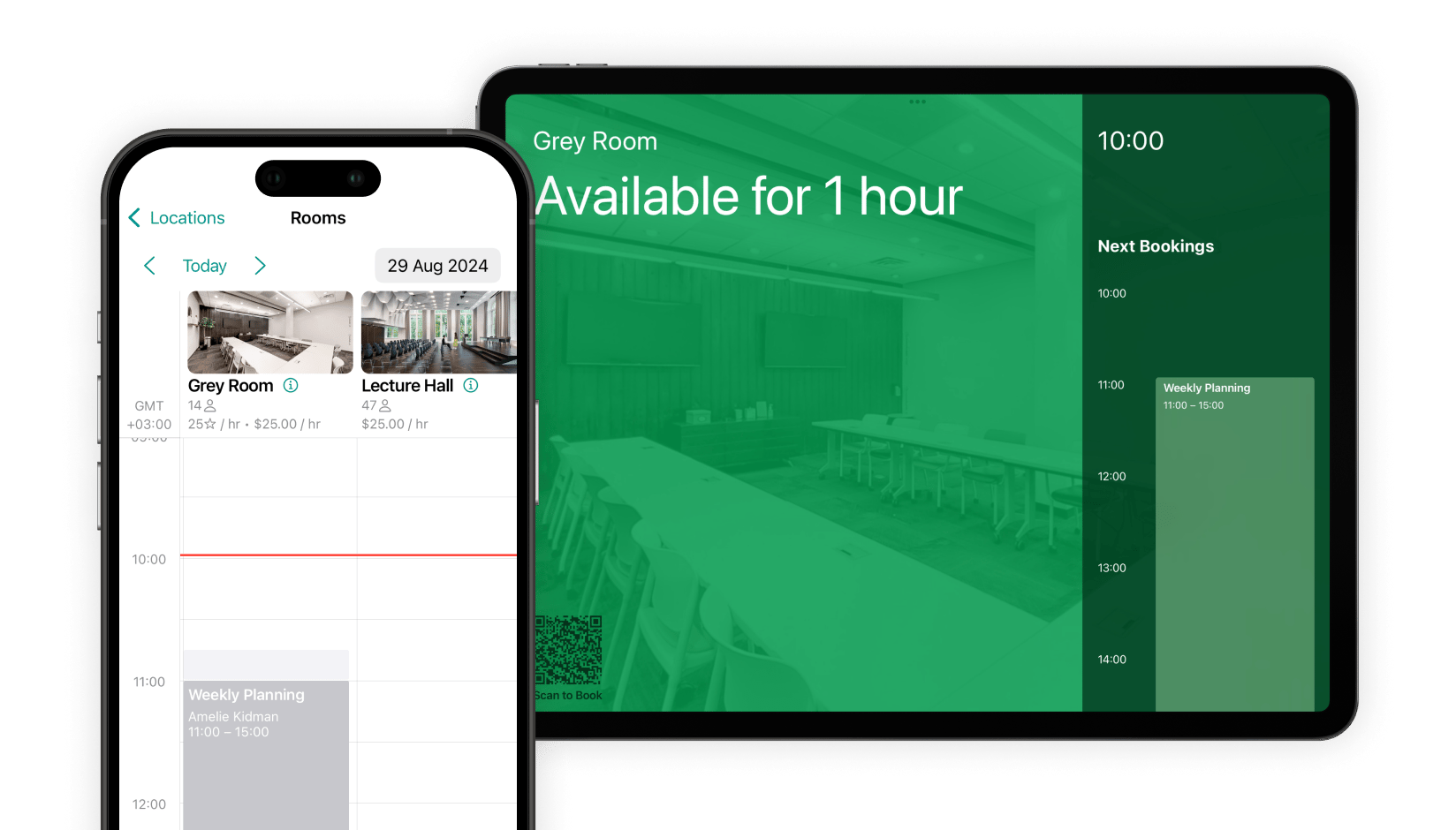
Room display signals room availability by tinting the background color of the tablet.
The display also shows the current and upcoming bookings, with the booker’s full name, booking title, and time.
Room display respects a user’s privacy settings. If a user selects Administrators for their Booking title visibility, their booking title doesn’t appear on the display.
Ad-hoc QR bookings
Abandoned booking protection
To prevent no-shows, Room display can require users to confirm their booking when they arrive. It works for rooms that are completely free, with the Money, Credits, and Plans switches all disabled.Abandoned booking protection is a legacy feature. It stays available only in rooms where it was enabled before September 8, 2026, and can’t be turned on for any other room.
Configure abandoned booking protection
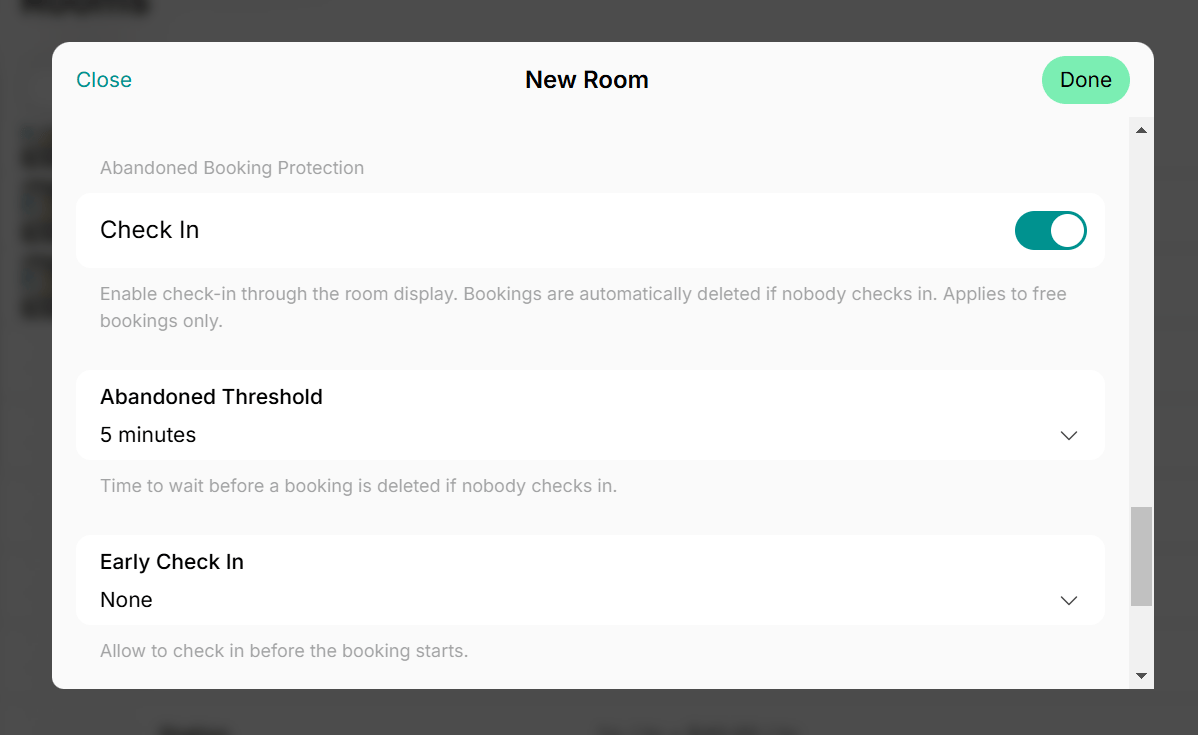
Edit a free room that already has Booking confirmation enabled and set:- Abandoned threshold — how long Room display waits for the confirmation after the booking starts before canceling the booking.
- Early confirmation — how long before the booking start the Confirm booking button appears on Room display.
Confirm a booking on Room display
- If Booking confirmation is enabled for a room, then when a user books it, the booking starts in a Tentative status.
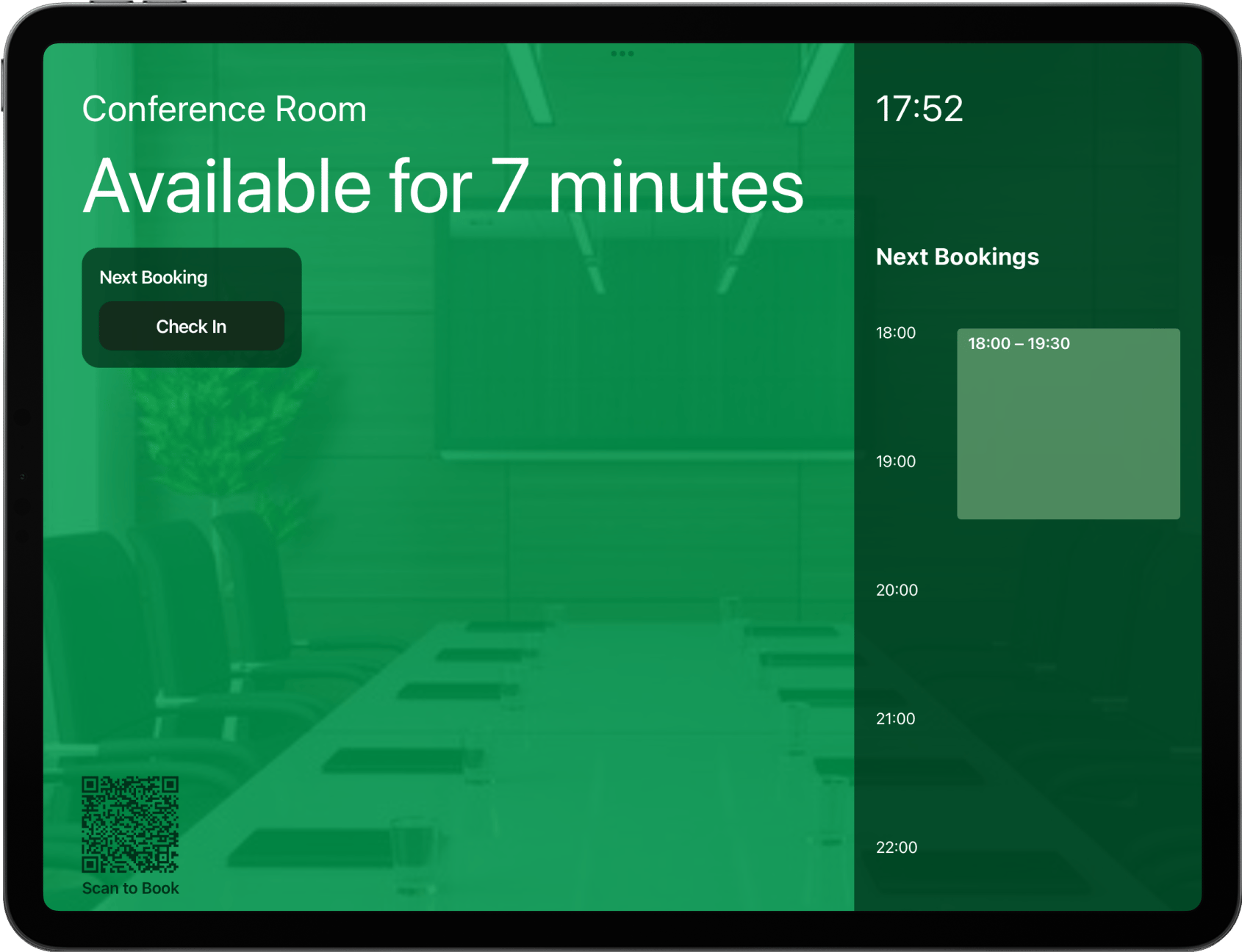
- The Confirm booking button appears on Room display based on the Early confirmation time, for example 10 minutes before the booking starts.
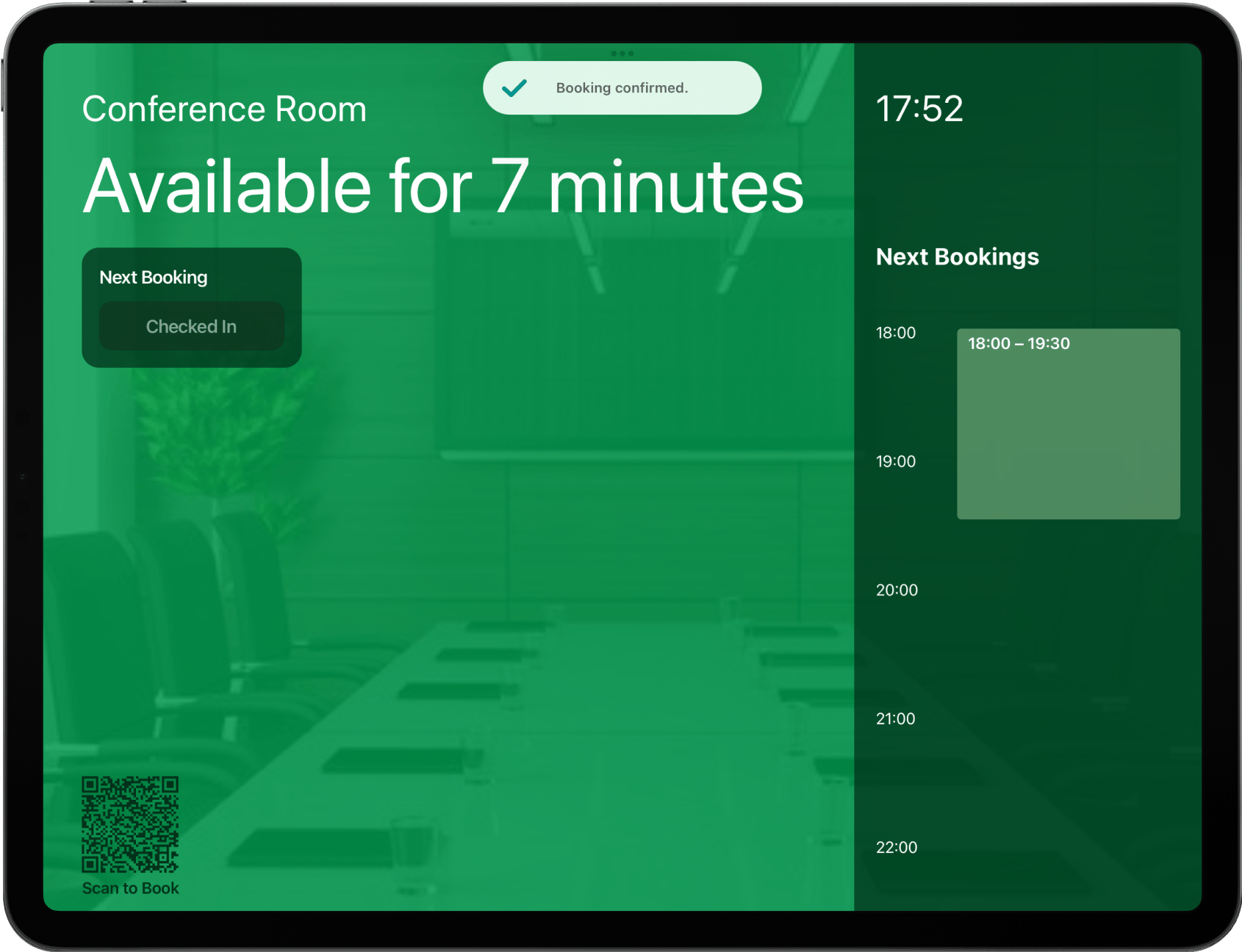
- If the user taps Confirm booking, the booking status changes to Confirmed and Booking confirmed appears on the screen.
- If nobody confirms the booking before the Abandoned threshold passes, for example 5 minutes after the booking starts, the booking status changes to Canceled and is automatically removed from the calendar, freeing up the room for others.
Log out of Room display
Exit Room display
- Turn off Guided access on iPad or Screen pinning on Android.
- Close the app by swiping it up and off the screen.
Log out from Room display
- Close Room display by swiping it up and off the screen, then reopen it.
- Tap (…) in the top right corner, then tap Log out.

Troubleshoot Room display
Poor internet connection
Poor internet connection
If bookings don’t appear on Room display or you can’t access it, the tablet might have a weak or unstable internet connection. Reconnect the tablet to Wi-Fi or connect to a different network.
Logged in with the wrong email address
Logged in with the wrong email address
To set up Room display for a room in a specific location, log in with an administrator account for that location. Log out of the app and log back in with an administrator account that has access to the correct location.
Outdated app version
Outdated app version
Make sure you’re using the latest version of the Room display app. Check the App Store or Google Play for updates, or tap Update if it’s shown.
Your Spacebring subscription is not active
Your Spacebring subscription is not active
Check your Spacebring subscription status to make sure it’s active and not suspended.
The device doesn't meet technical requirements
The device doesn't meet technical requirements
Make sure your tablet meets the prerequisites to install the Room display app.
FAQs
Can I install Room display or Reception on a tablet without Google Play or the App Store?
Can I install Room display or Reception on a tablet without Google Play or the App Store?
The recommended and official way to install Room display and Reception is through the Google Play Store or Apple App Store — access to one of these stores is a requirement.For Android tablets without Google Play access, APK versions of Room display and Reception are available at https://www.spacebring.com/download. APK installations aren’t officially supported in the same way as store installations: updates aren’t automatic, and we can’t guarantee full functionality or stability on every device.For the best experience and reliability, use tablets that meet all system requirements, including access to Google Play or the App Store.