

How users join the event
Users join the event by following these steps:- Go to the Events page.
- View all the scheduled events in the event feed, or
- Use the Calendar tab to switch to a monthly calendar view of all events, or
- Use the Search field to quickly find a specific event or all available dates and time slots for that event.

- Select the desired event and press Join.
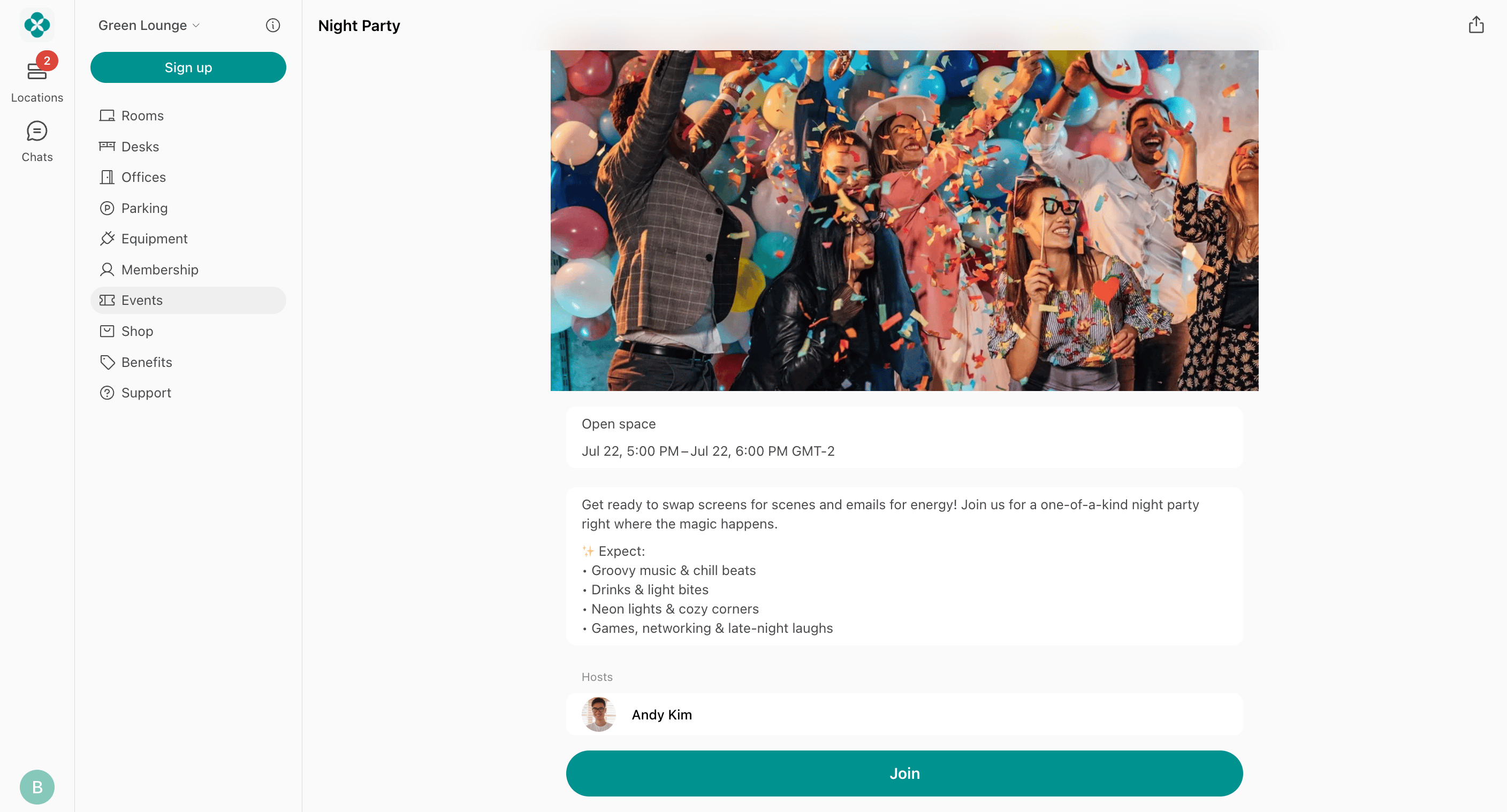
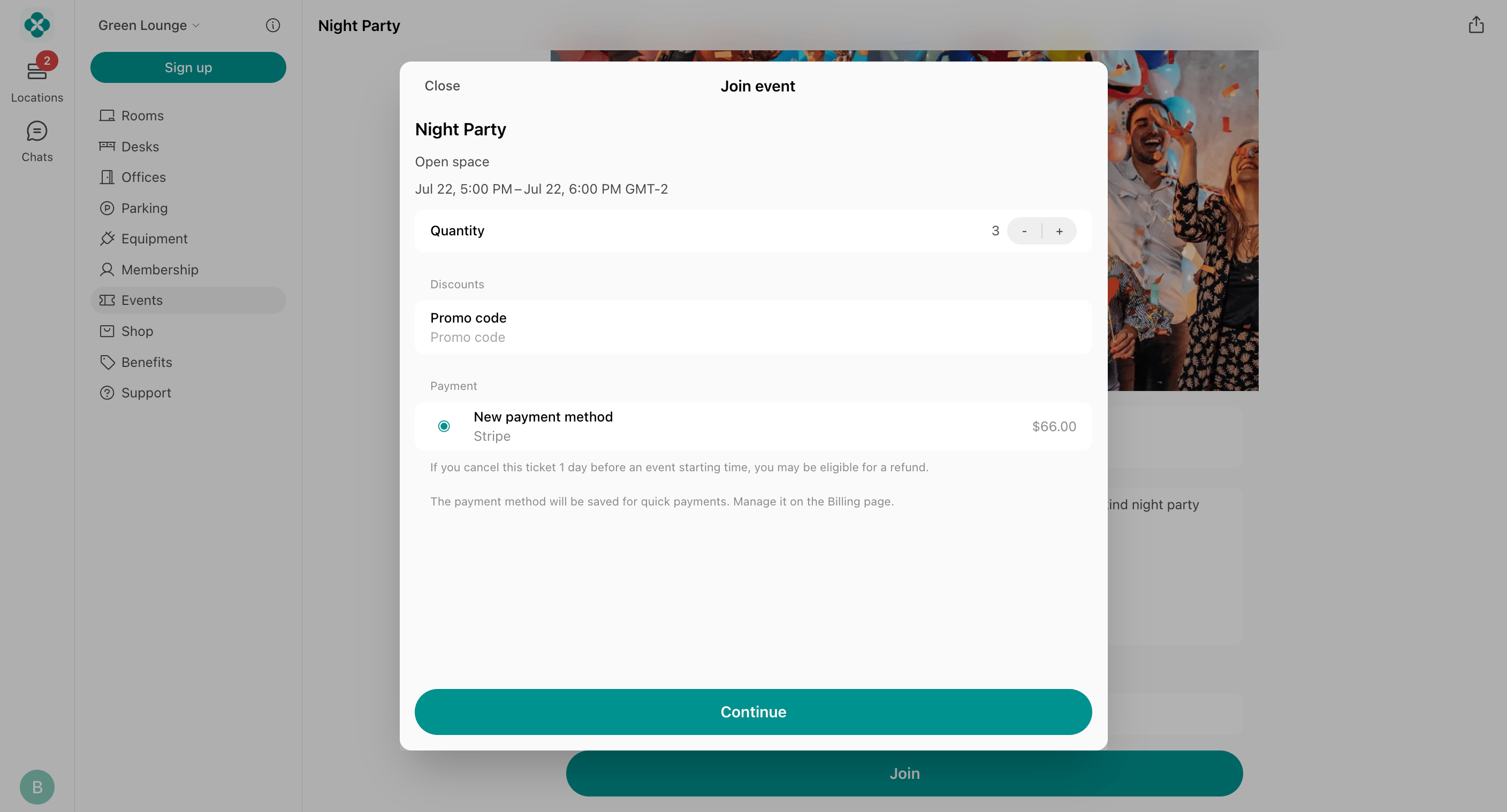
- Select the number of tickets to purchase. If the user purchases more than one, they still get a single ticket, with the quantity indicated on it, rather than a separate ticket per attendee.
- Optionally, add a Comment for the administrators, for example dietary requirements or the name of a guest. Only the user and administrators can see it.
- Enter a promo code to redeem a discount on the event ticket if they qualify.
- Select the payment method and press the Join for… button.
- Enter their billing details, if they haven’t yet. Billing details fields appear depending on the Require billing details setting.
- Once a ticket is purchased, users can also add the event to their Google Calendar or Microsoft 365 Outlook.

How users view event tickets
Users can view their tickets for events in a few ways:- Right after joining the event. Attendees’ tickets show the time of the event, the unique QR code, and the comment the user left when joining. If a user purchased more than one ticket, the ticket view also displays the quantity.


- On the Account (by pressing a button with your profile image, initials, or the user icon on the app’s main page) > Tickets page.

- At the top of the Locations page. By pressing it, the user’s ticket is displayed.

Event reminders
There are several reminders of upcoming events for event attendees:- Email confirmation (if enabled in event settings) at the time of purchase.
- Notification 24 hours before the event starts.
- Notification 1 hour before the event starts.
- Banner on the Locations page until the event ends.
How users cancel the ticket
Users can cancel their event ticket in two ways:- Go to Locations > Events > select the event they joined > press View ticket > press Cancel ticket and confirm.

- Go to the Account page > Tickets > open the necessary ticket > press Cancel ticket and confirm the choice. How users receive a refund
A user who already joined can’t buy more tickets separately, and trying to join the event again shows the “You’ve already joined the event” error. To change the number of tickets, they can cancel their ticket and buy it anew for the needed quantity of people.
How members view event attendees
When members open an event, they can view the attendee list. The visibility of attendees depends on two factors: the event’s Show attendees setting and the individual members’ privacy settings. However, the event host is always visible to members, irrespective of the host’s personal name visibility settings.How nonmembers view event attendees
Once nonmembers open an event, they cannot see any information on event attendees, regardless of their privacy settings. They can view the event host, depending on the host’s name visibility settings.FAQs
How are events ordered in the Event feed for customers?
How are events ordered in the Event feed for customers?
The Event feed shows upcoming events first from nearest to furthest, followed by past events in chronological order from the most recent to the oldest.