

Create an event
- Go to the Location settings > Engagement > Events tab, and enable the Events switch.
- Go to Engagement > Events and press Create event top right.
- Press the Create button.
- Upon saving an event, press the Add button to add hosts. This will allow users to know who will be running the event.

Hosts can be selected from location members.
Create recurring events
If your event only repeats once or a few times, you can duplicate it directly:- On the Events page, click (…) next to the event > Duplicate.
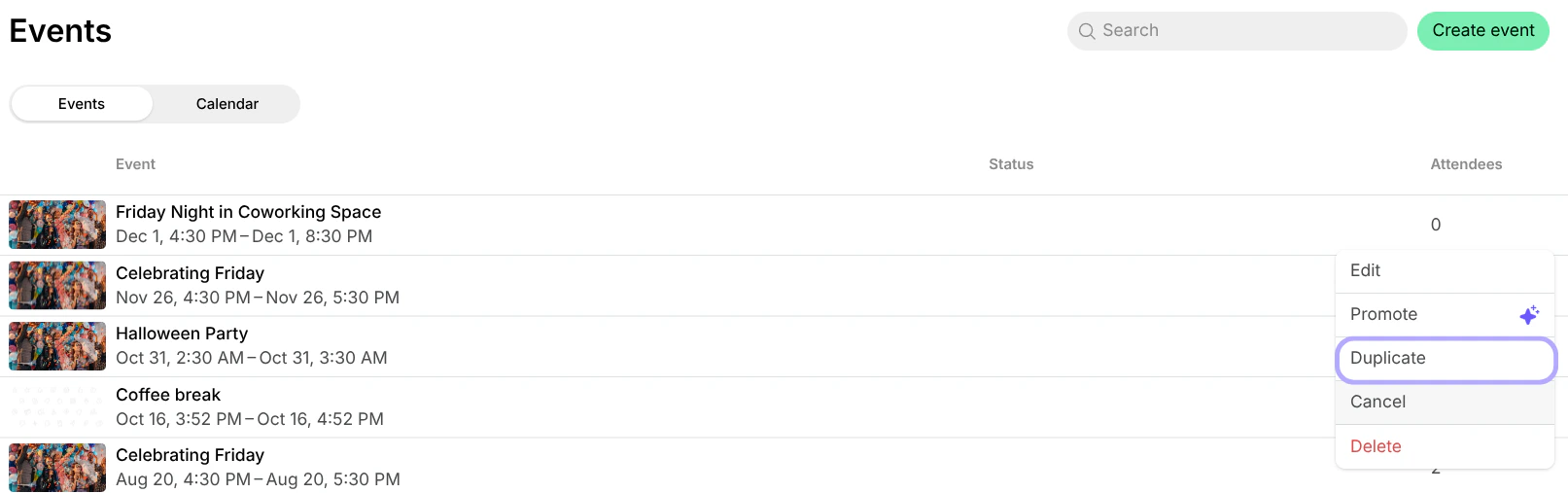
- The duplicated event will open.
- Edit it and update details such as date, time, or any other information.
What’s next
- Once you create an event, it appears on the Events page. Understand how users view and join events.
- Creating an event doesn’t notify your customers. Use the Promote feature to announce the event in a feed post, which sends a push notification to all location members.
- Open the event in your admin dashboard and click the share icon in the top right corner to copy its link to the member web portal. Then promote the event on your website, in a newsletter, or on social media.

Track events
Use the Calendar tab to switch to a monthly calendar view of all events, or use the Search field to quickly find a specific event.
- Click Add filter > Create date to see events created in a ready-made period, such as Today or Last 28 days, or click Custom to set an exact date or range.
Export an events report
On the Events page, apply the necessary filters, then click (…) in the top right corner > Export as CSV or Export as XLSX to download a report on the filtered events. The report includes each event’s title, venue, and visibility, and its start, end, cancellation, and create dates.Check in event attendees
Administrators can check in event attendees to keep track of who’s arrived. Spacebring offers two convenient methods for you to do this.Check in by scanning attendee tickets
- In the Spacebring admin mobile app, go to the Check-ins page and tap Check in.
- The first time, allow the app to use your camera.
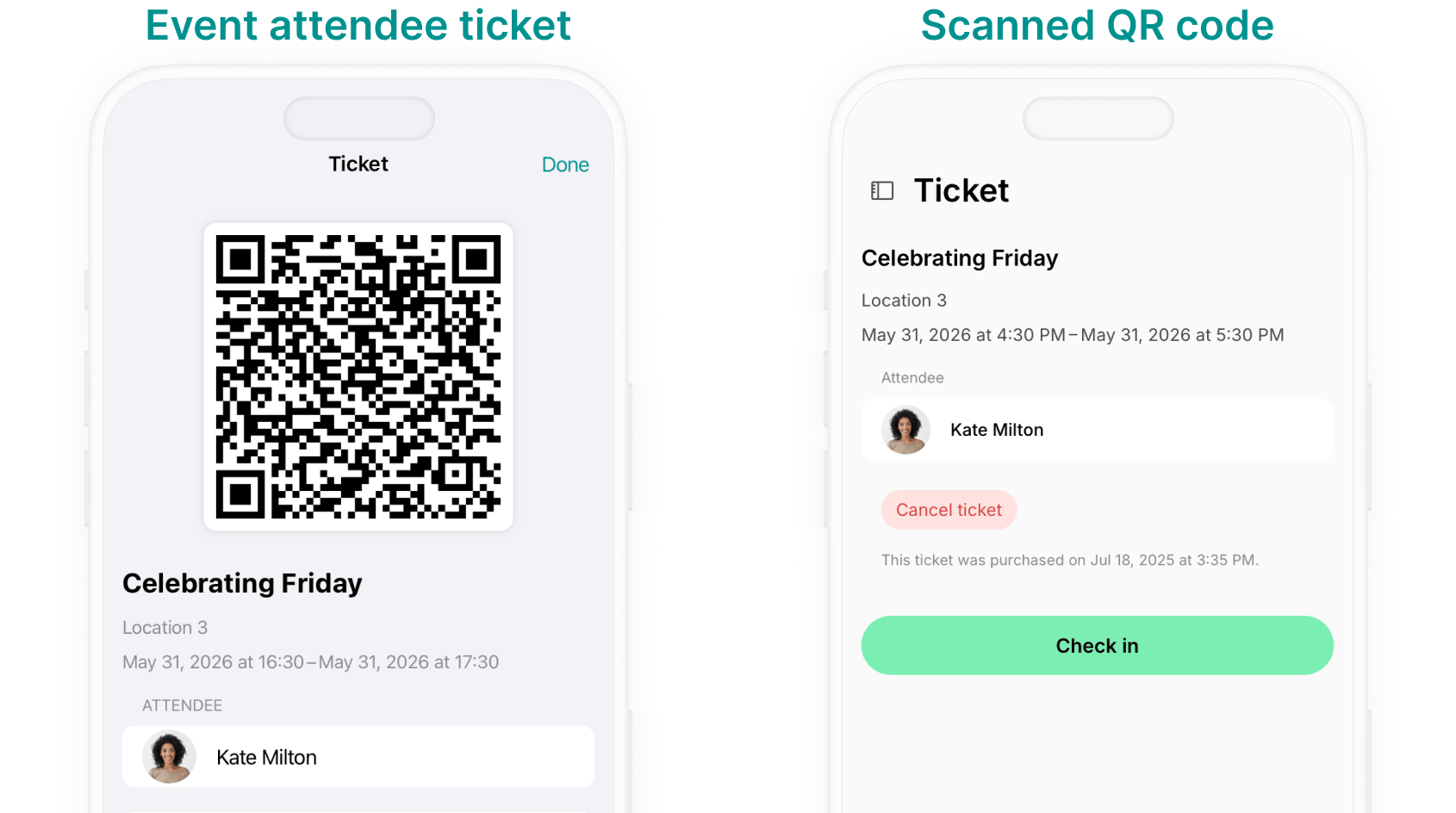
- Ask the event attendee to open their ticket on the Account > Tickets page of the member web portal or mobile app.
- Point your camera at the QR code on the ticket. The attendee’s ticket opens in the app.
- Tap Check in.
Check in directly from your Spacebring account
- Log in to Spacebring on your mobile device or desktop.
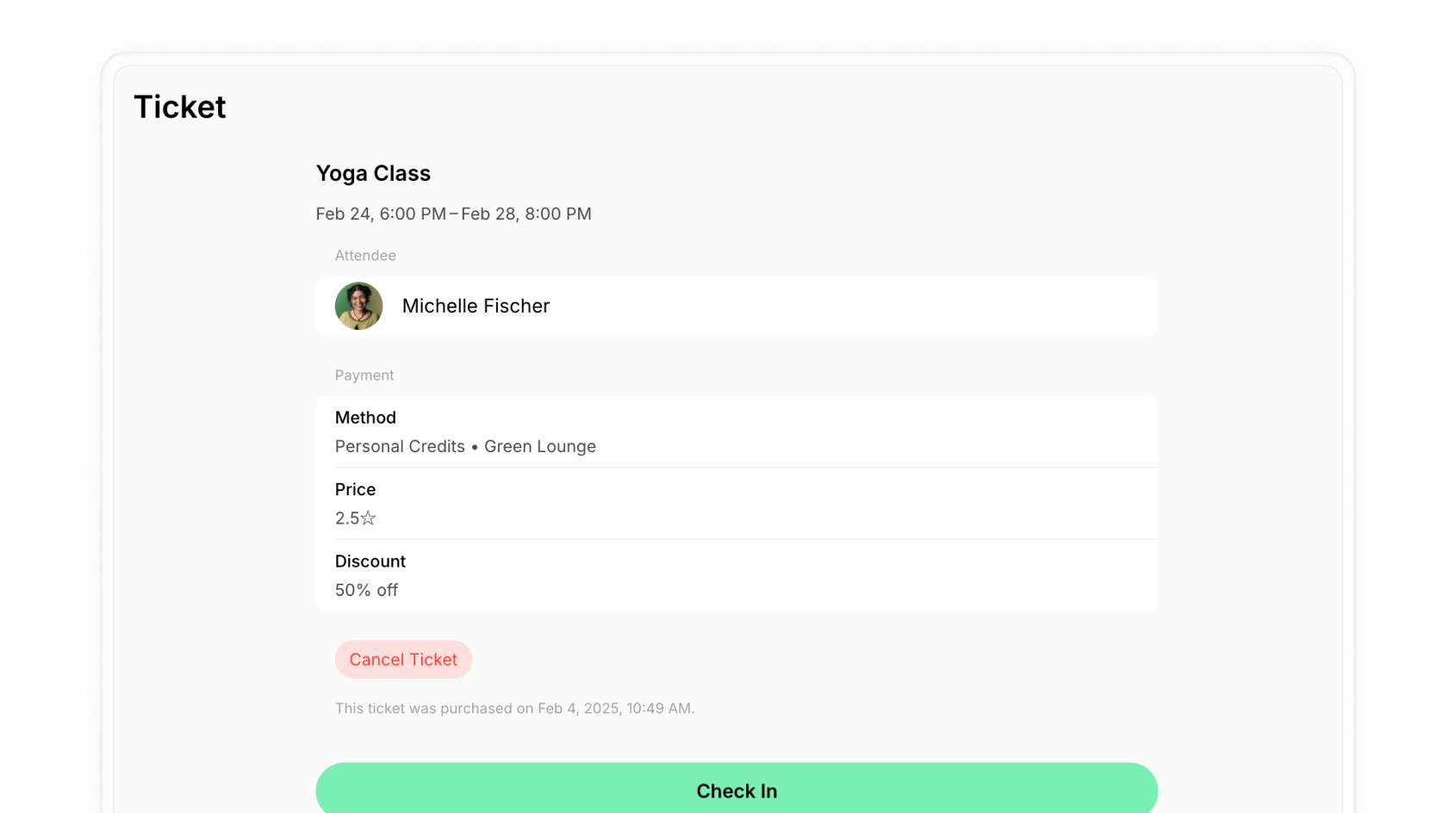
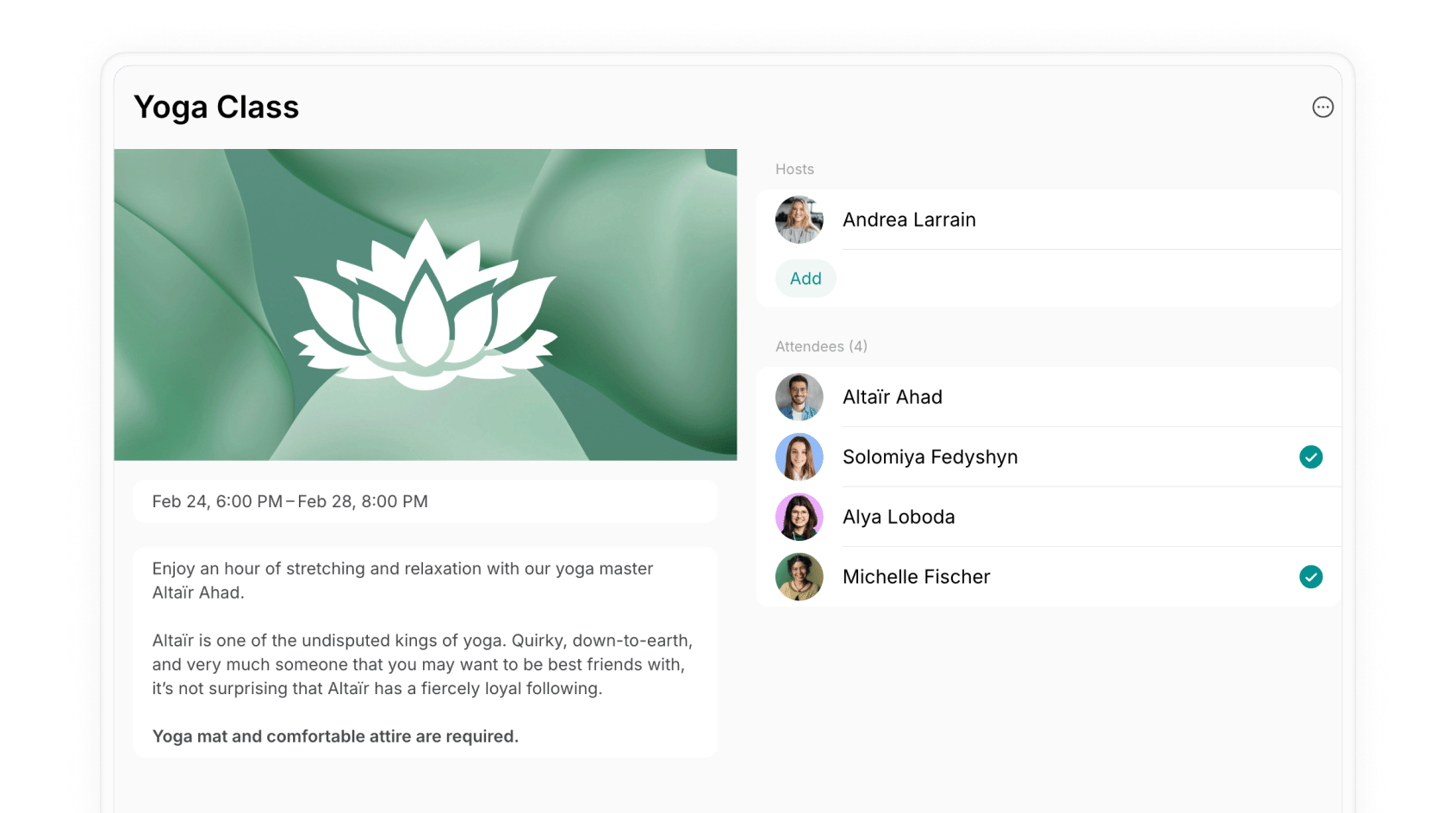
- Go to Engagement > Events page > open the event and tap on the necessary attendee.
- Tap Check in at the bottom of the page.
Export an event attendees report
Go to Engagement > Events, open the relevant event, then click (…) in the top right corner > Export attendees as CSV or Export attendees as XLSX to download a report on that event’s attendees.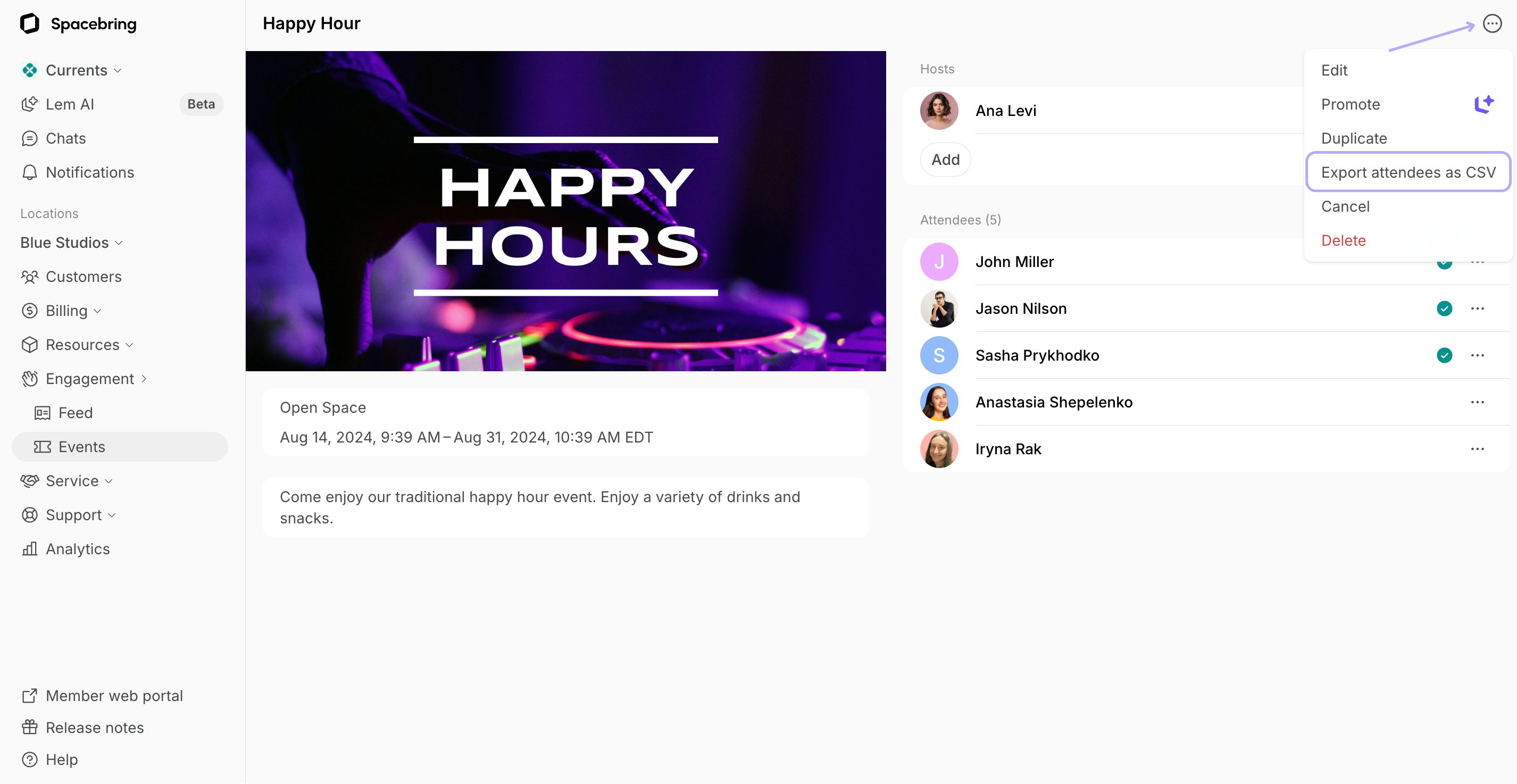
Edit an event
Editing an event allows you to make changes or updates to the event details, such as the date, time, or any other information.- Go to the Engagement > Events page.
- Hover over the event > press the menu (…) next to it > press Edit.
- Make the necessary changes and press Save.
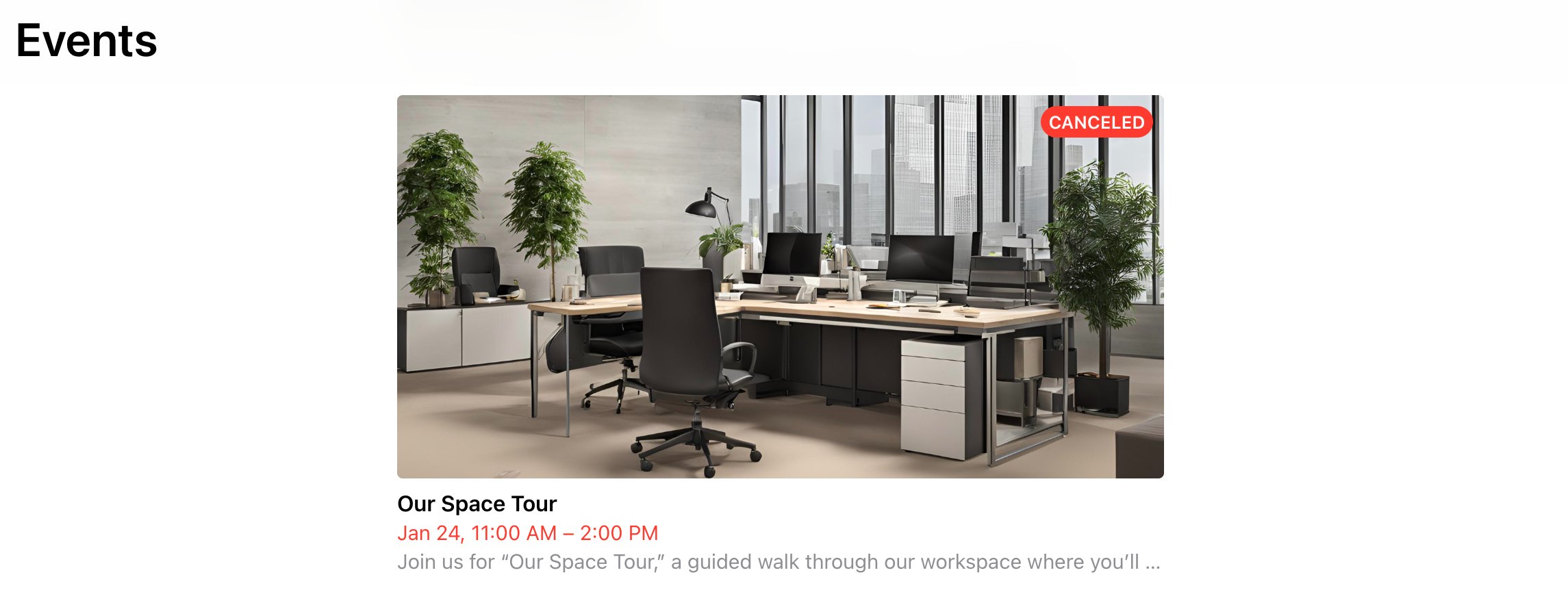
Cancel the event
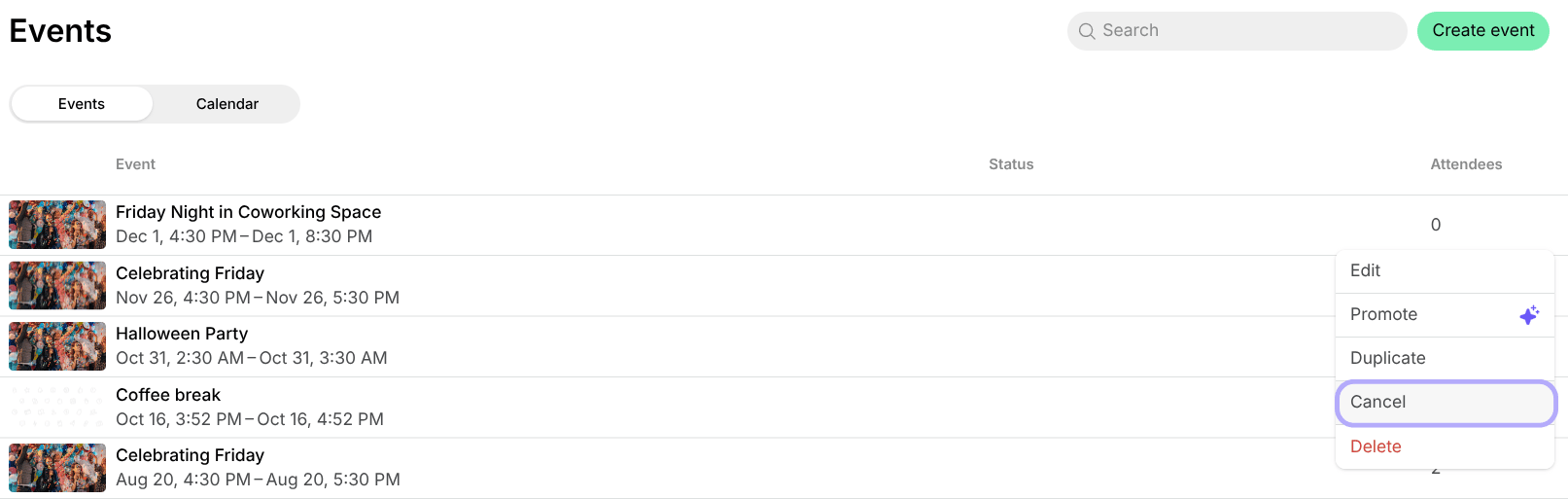
- Go to the Engagement > Events page.
- Click the (…) menu button next to the necessary event > Cancel.
How users are notified about event cancellation
All event attendees receive a push and an email notification that the event has been canceled.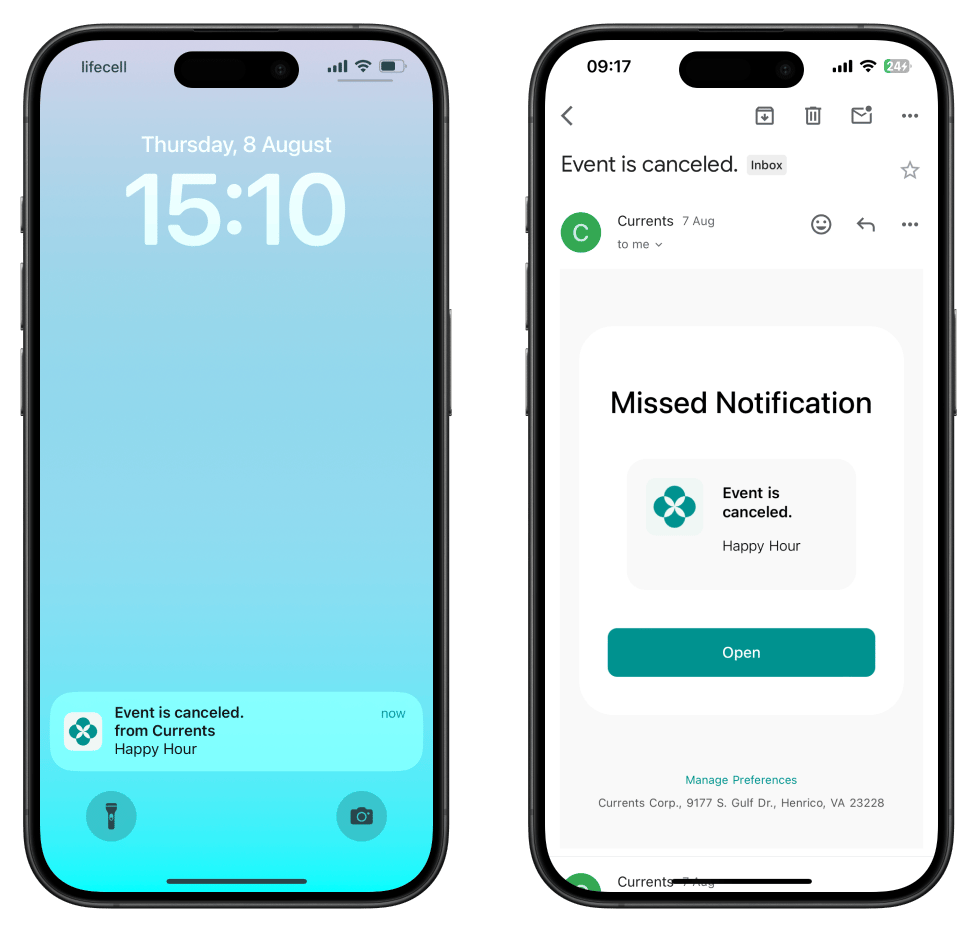
Delete an event
- Go to the Engagement > Events page.
- Hover over the event > press the menu (…) next to it > press Delete and confirm your choice.
FAQs
Can I buy an event ticket for a customer?
Can I buy an event ticket for a customer?
No. Attendees buy their own tickets in the member web portal or mobile app. Administrators can book a resource on a customer’s behalf, but not purchase a ticket for them.
How do I send an email to event attendees?
How do I send an email to event attendees?
- Pre-event confirmation emails: enable the Confirmation email option when creating an event to send a custom email to all attendees as soon as they join.
- Post-event emails: export an event attendees report to get email addresses, then upload them to your preferred email platform for follow-up messages.
Can I ask attendees for dietary requirements or other details?
Can I ask attendees for dietary requirements or other details?
When joining an event, users can leave a Comment on their ticket, for example dietary requirements or the name of a guest they bring. Ask for the details you need in the event Description. To read the comments, go to Engagement > Events, open the event, and tap an attendee to open their ticket, or export the attendees report.
Can I charge different ticket prices for the same event?
Can I charge different ticket prices for the same event?
Set one ticket price in the event’s Pricing, then use discounts to let some attendees pay less:
- Add a discount coupon for this event, or for all events, in members’ subscriptions so those members pay a reduced price.
- Create a promo code for the event and share it with a certain category of attendees, or as an early-bird offer.
How to make events free for members, and paid for nonmembers?
How to make events free for members, and paid for nonmembers?
To give members free access to all or a specific event, add a 100% discount coupon for event tickets in their subscription. Then, when creating an event, set the regular price for nonmembers.
Can members add events to the app?
Can members add events to the app?
Only administrators can create events. However, you can allow members to submit event requests through the Shop page.To set this up, create a product on the Shop page (e.g. Request to host an event) with relevant rules, a questionnaire, and your event hosting guidelines. Interested members can apply by purchasing the product and providing event details in the Comment section. An administrator will then review the request, create the event, and select the member as a host.
Why is the 'Promote' event feature generating posts in the wrong language?
Why is the 'Promote' event feature generating posts in the wrong language?
The Promote event feature relies on AI to identify the language and context of your event. If your title or description is too generic (e.g., “test event”), the system may misinterpret it. For best results, add a clear and descriptive title and description so the AI can generate accurate content.