

- Discount the subscription price — give a customer a discount on their membership plan or rental price.
- Give members reduced rates on bookings and services — let members pay less for meeting rooms, desks, and other purchases as part of their membership.
- Discount one-off purchases — give a discount to a specific customer’s booking, shop product, event ticket, or package.
- Run promotions and campaigns — offer tailored discounts on your services through promo codes, shared with chosen customers or published to everyone.
Discount the subscription price
Give a customer a discount on their membership plan or rental price. You choose how long it lasts when you create the discount: the first month only, a set number of months, or a lower price that never expires.Apply a coupon to a subscription
The steps are the same for a new subscription and an existing one:- Create a coupon redeemable for Subscription items. A membership plan or rental is billed through the customer’s subscription, so this is the coupon type that discounts it.
- Go to Customers and open the user or company profile.
- Open their existing subscription or create a new one.
- Under Items, click the Recurring item whose price you want to reduce — the membership plan, or the office, desk, or other rented resource. The Edit subscription item window opens.
- Scroll to the Coupon field, directly below the Payment section.
- Select your coupon. Only coupons redeemable for Subscription items appear here.
- Press Save in the item window, then Save in the subscription.
- For new subscriptions, the discount takes effect on the subscription start date and applies to their first subscription payment.
- For existing subscriptions, the discount takes effect on the next renewal date.

The same window has a second discount field further down — Granted coupons, in the Discounts section. Use Coupon to reduce what the customer pays for this plan or rental, and Granted coupons to give them reduced rates for bookings and other purchases as part of their membership.
You can apply a different coupon to each item within a subscription — discount only one specific item, or apply different discounts to different items.
Share the discount as a promo code
- Create a coupon redeemable for Subscription items.
- Create a promo code for that coupon.
- Share the code with targeted customers, or publish it in a promotion for the plan or rental.
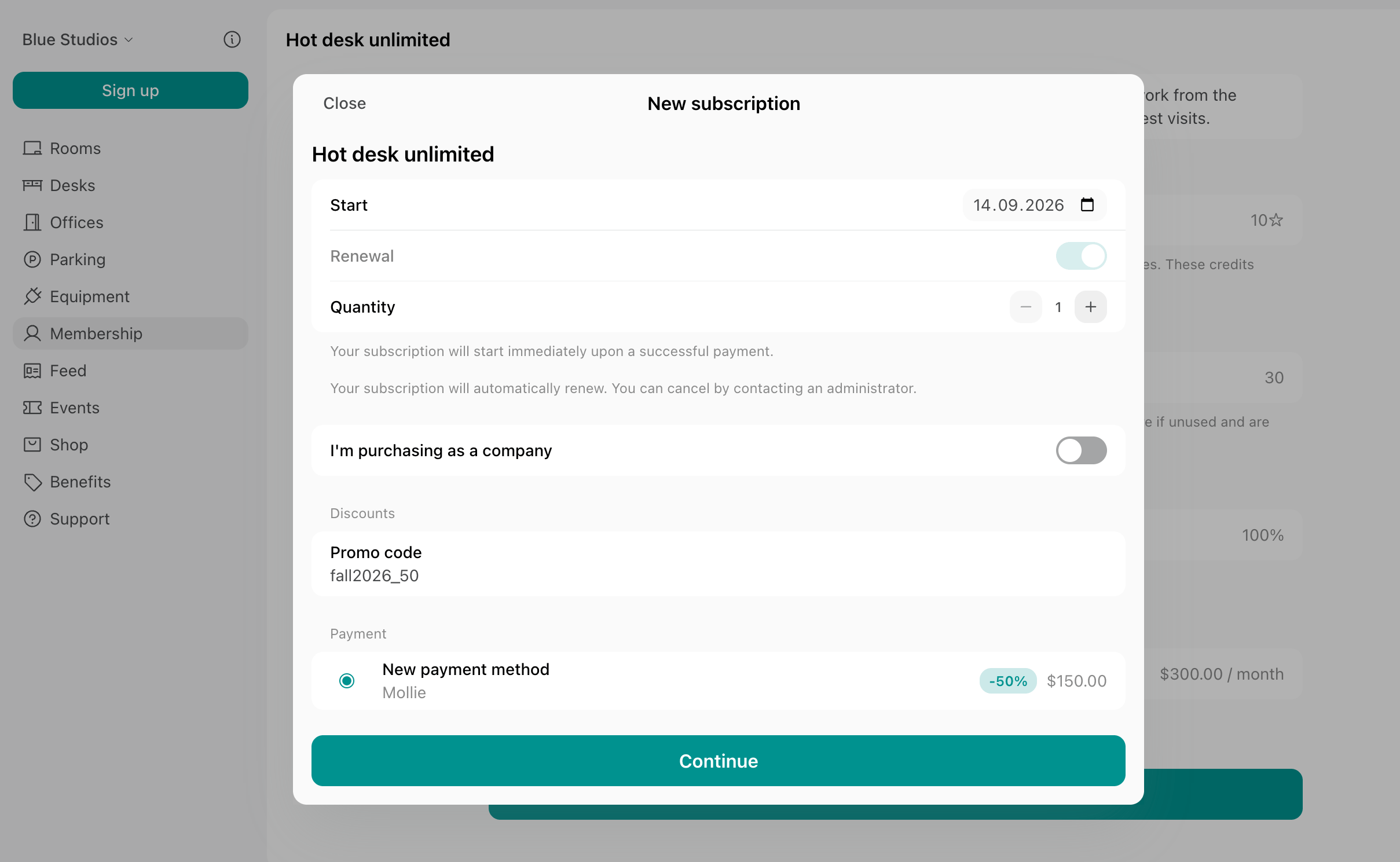
To discount a subscription that is already running, apply the coupon yourself in the customer’s subscription rather than sharing a promo code with them. Customers can enter a promo code only when signing up for a new subscription.
How a discount for subscription items takes effect
The discount duration is determined by the coupon’s Duration type and begins when the discount takes effect. If the coupon’s Duration type is other than “Once,” the discount is applied to subsequent subscription invoices for the defined period.- For coupons with the Repeating duration type applied to a non-monthly subscription, the discount applies to all invoices generated during the configured number of months.
- A coupon with a 3-month duration applied to a yearly subscription discounts only the first yearly invoice, since only one invoice is generated during that period. The discount applies to the full yearly subscription price, not a prorated 3-month amount.
- A coupon with a 3-month duration applied to a weekly subscription discounts all 13 weekly invoices generated within the first 3 months.
Give members reduced rates on bookings and services
Let members pay less for meeting rooms, desks, and other purchases as part of their membership. The discount applies automatically at checkout for as long as they hold the subscription. This is also how you give some members a better rate than others on the same room — limit the discount to the rooms you choose, and give it only to those members.Give a discount to a specific member or company
To give the reduced rate to one member or company only, add the coupons to their subscription:- Create coupons for the services you want to discount, with the rules you need — for example, a discount for selected rooms only.
- Go to Customers and open the user or company profile.
- Open their existing subscription or create a new one.
- Under Items, click the recurring item that carries the membership — the plan, or the rented resource. The Edit subscription item window opens.
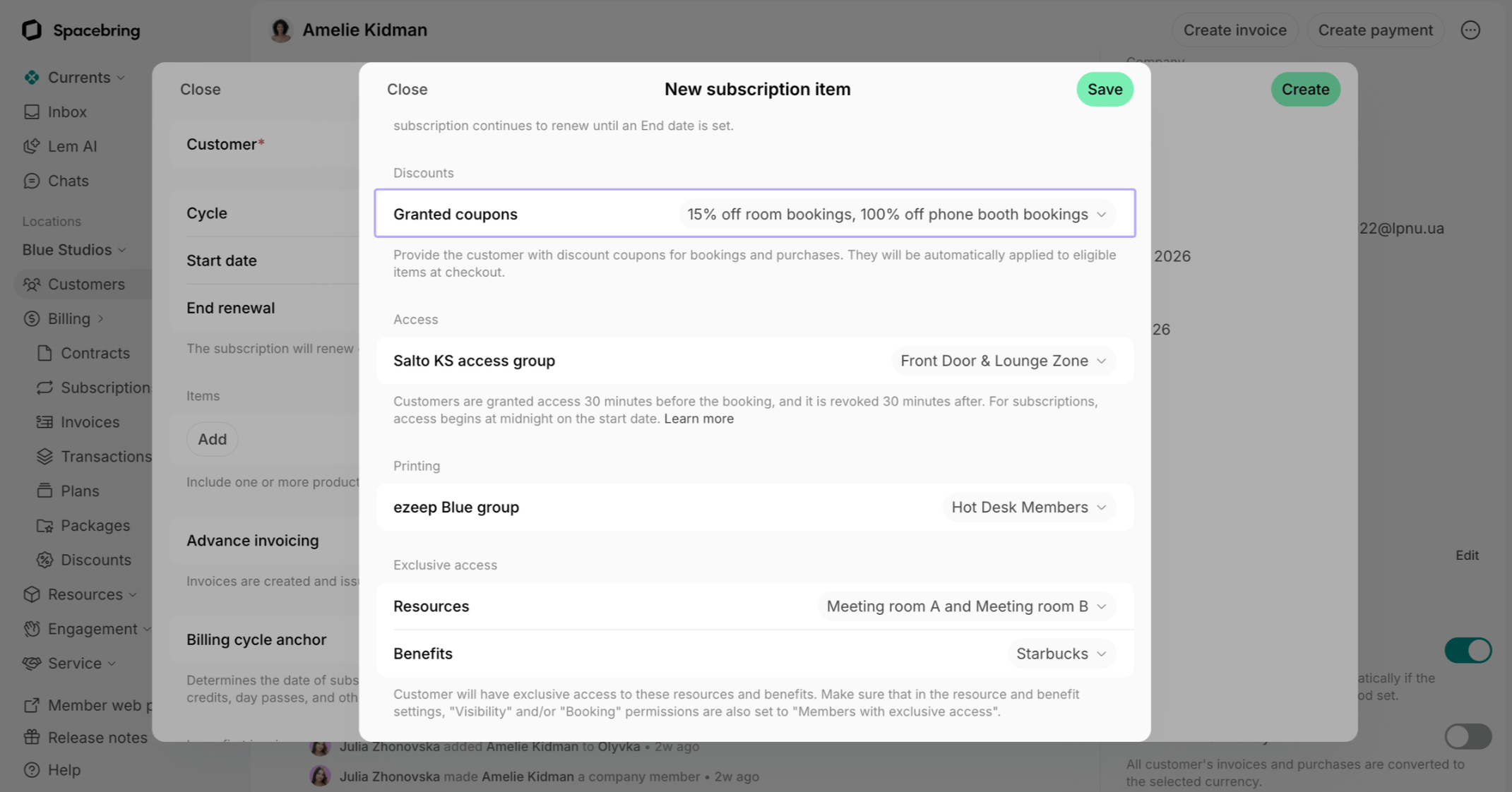
- Scroll to the Discounts section, below Credits and Day passes.
- In the Granted coupons field, select every discount the customer should get. You can select more than one.
- Press Save in the item window, then Save in the subscription.
Give a discount to all subscribers of a plan or resource plan
When you are setting up a plan and everyone on it should get reduced rates for certain bookings or services, follow these steps:- Create coupons for the services you want to discount, with the rules you need — for example, a discount for selected rooms only.
- Open the plan or resource plan you want to include the discounts with:
- For a plan — go to Billing > Plans and open the plan.
- For an office, desk, or other resource — offices, desks, and other resources are rented through a resource plan created inside the resource itself, so open the resource on its Resources page (for example, Offices or Desks) and edit the tier you want.
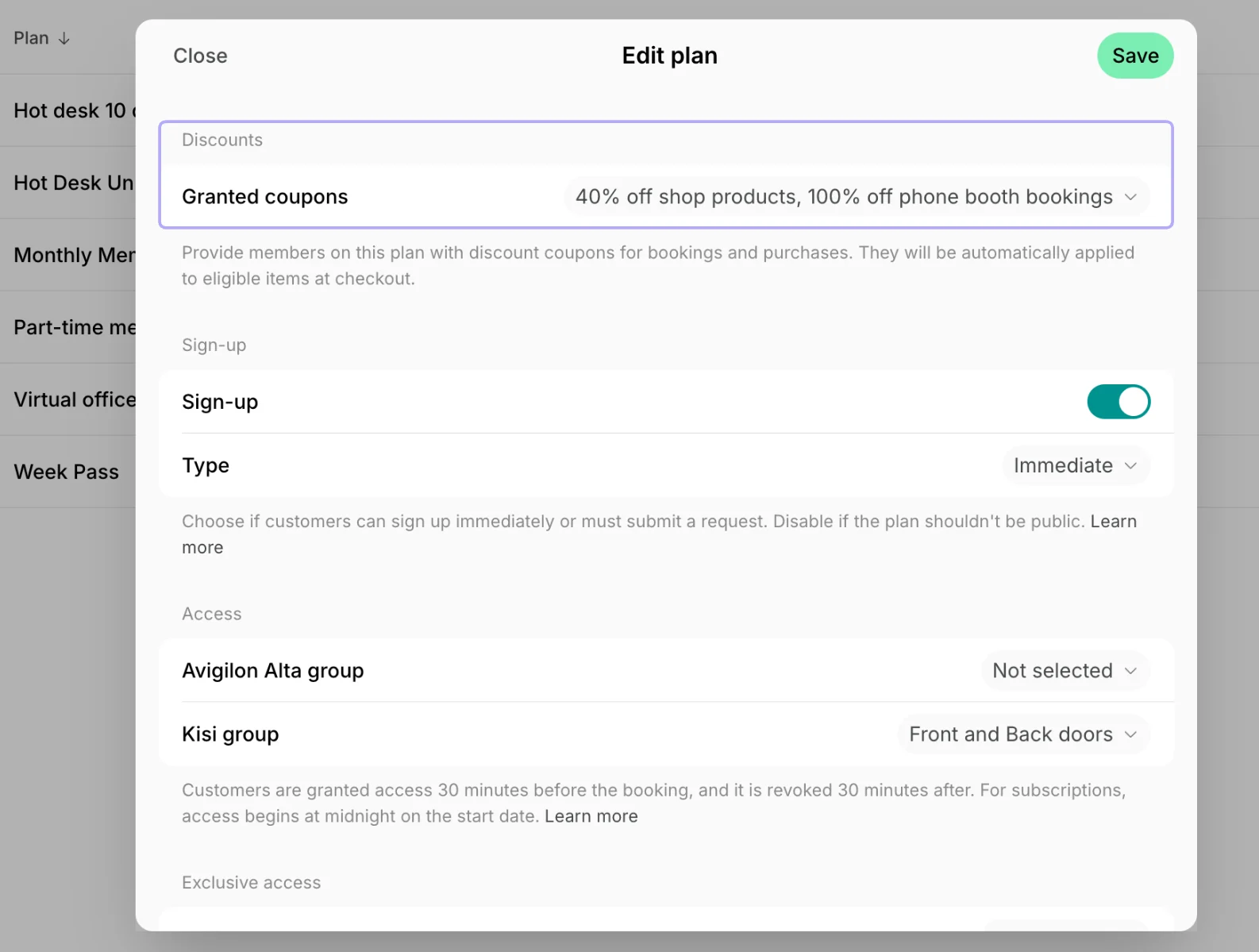
- Scroll to the Discounts section, below Credits and Day passes.
- In the Granted coupons field, select the discounts that members on this plan or tier are eligible for, and press Save.
How granted coupons apply at checkout
- Customers see full, standard prices for all products in the member portal.
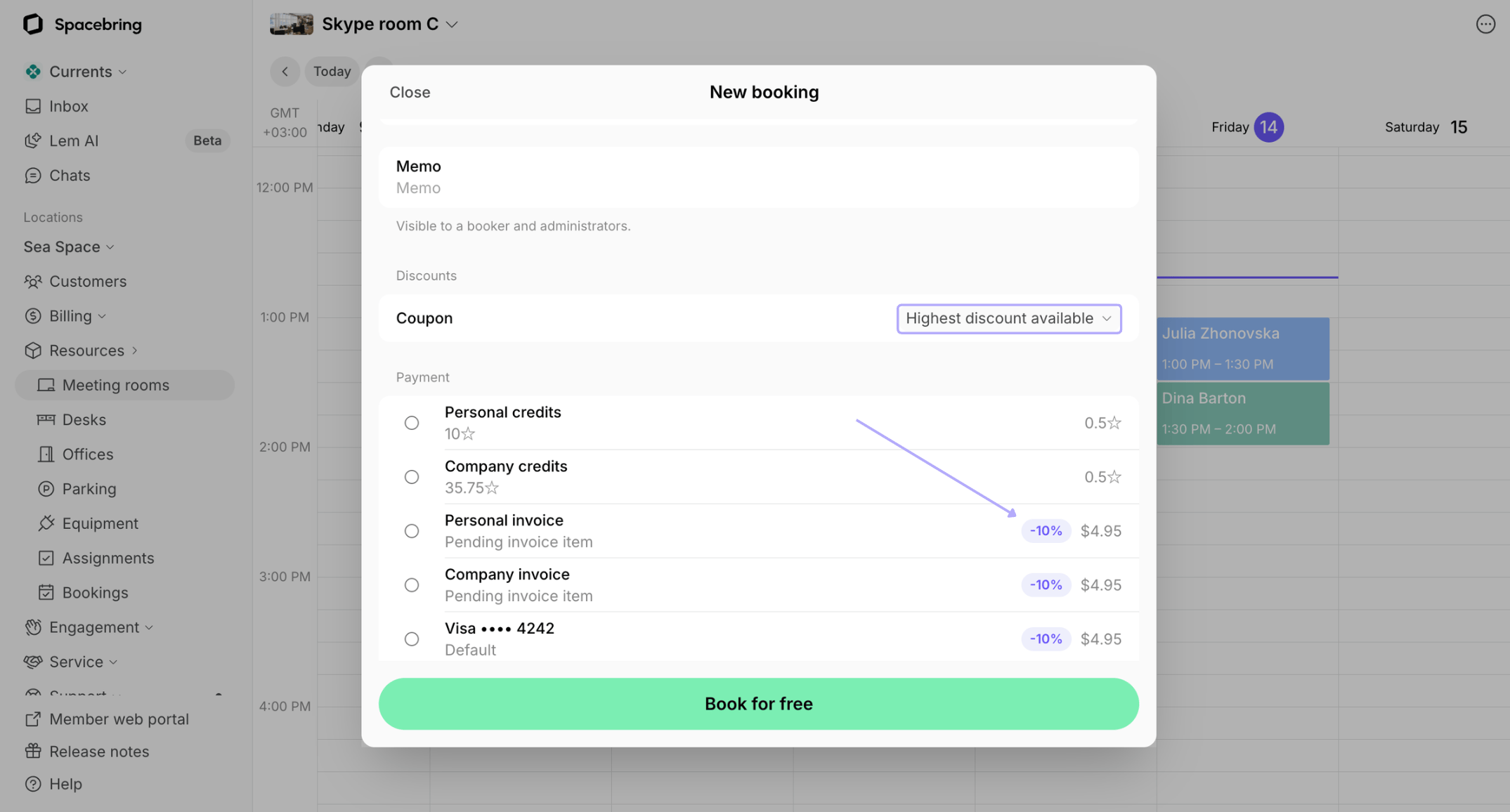
- At checkout, if the customer has any coupons for that product in their subscriptions, the Coupon field applies Highest discount available by default. No promo code or other action is needed to receive the discount, and the discount and discounted total are shown before the customer confirms payment.
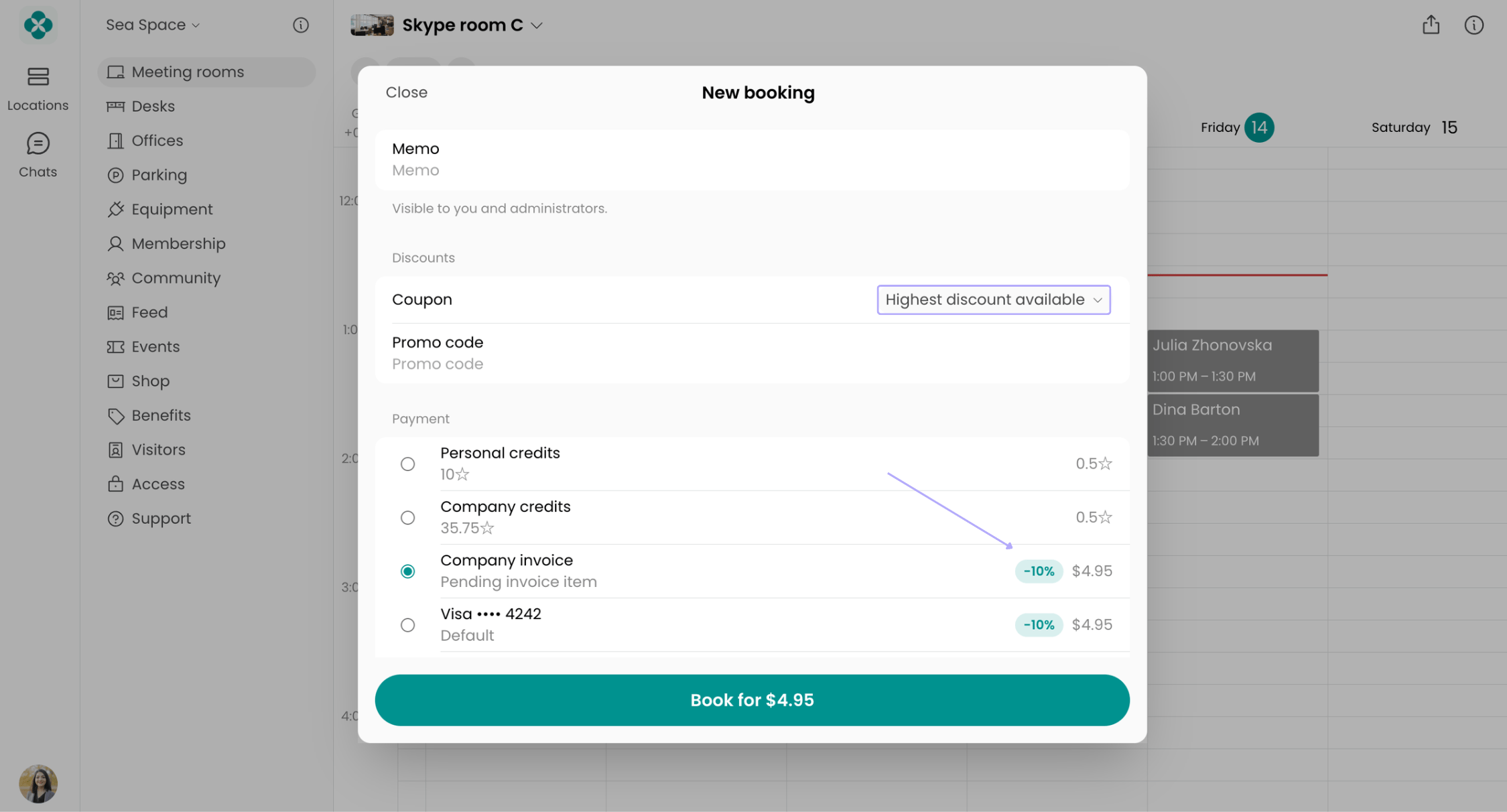
- With Highest discount available, the highest discount is selected for each payment method separately. For example, if the customer has one coupon that discounts only monetary payments and another that also applies to credits, each payment method gets the largest discount available for it.
- The field includes the coupons granted in the customer’s personal subscription and in their company subscription, so the highest discount across all their subscriptions in this location is selected and the customer pays the lowest price.
- Each payment method shows a badge with the discount applied to it, for example -10% or -$5, so the customer sees the discount before choosing how to pay. A payment method without any applicable discount shows no badge.
- Select a specific coupon in the Coupon field if they have a few.
- Enter a promo code. If a promo code is entered, it takes priority over any coupon and replaces it for that transaction. The promo code and the granted coupon do not combine; only the promo code discount applies.
Discount one-off purchases
You can give discounts on one-off bookings and purchases — room bookings, shop products, event tickets, or packages of credits and day passes. They can go to members, nonmembers, or external customers who book with you only occasionally. Either apply a coupon yourself when you create the booking or the invoice, or share a promo code the customer enters at checkout.Apply a coupon for the customer
When you make a booking for a customer:- Create a coupon redeemable for the relevant bookings, with the rules you need — for example, a discount for selected rooms only.
- Go to the Rooms, Desks, Parking, or Equipment page and start a booking.
- Select the customer in the Booker field.
- Check the Coupon field:
- Highest discount available applies by default. It checks whether the customer has any coupons granted for this product in their subscriptions and applies the highest one to each payment method. A discount badge appears next to every payment method the discount applies to. If no badge appears, the customer has no coupons granted for this product.
- Select any other coupon in the field to apply it instead.
- Review the discounted price and confirm the booking.
- Create a coupon redeemable for Shop products.
- Open the customer’s draft invoice or upcoming invoice.
- Click Create item and select the product in the Product list.
- Choose a coupon in the Coupon field and click Create.
The Coupon field appears only for products selected from the Product list, not for Custom items. It offers the coupons redeemable for Shop products that apply to the selected product.
Share a promo code for the customer to apply
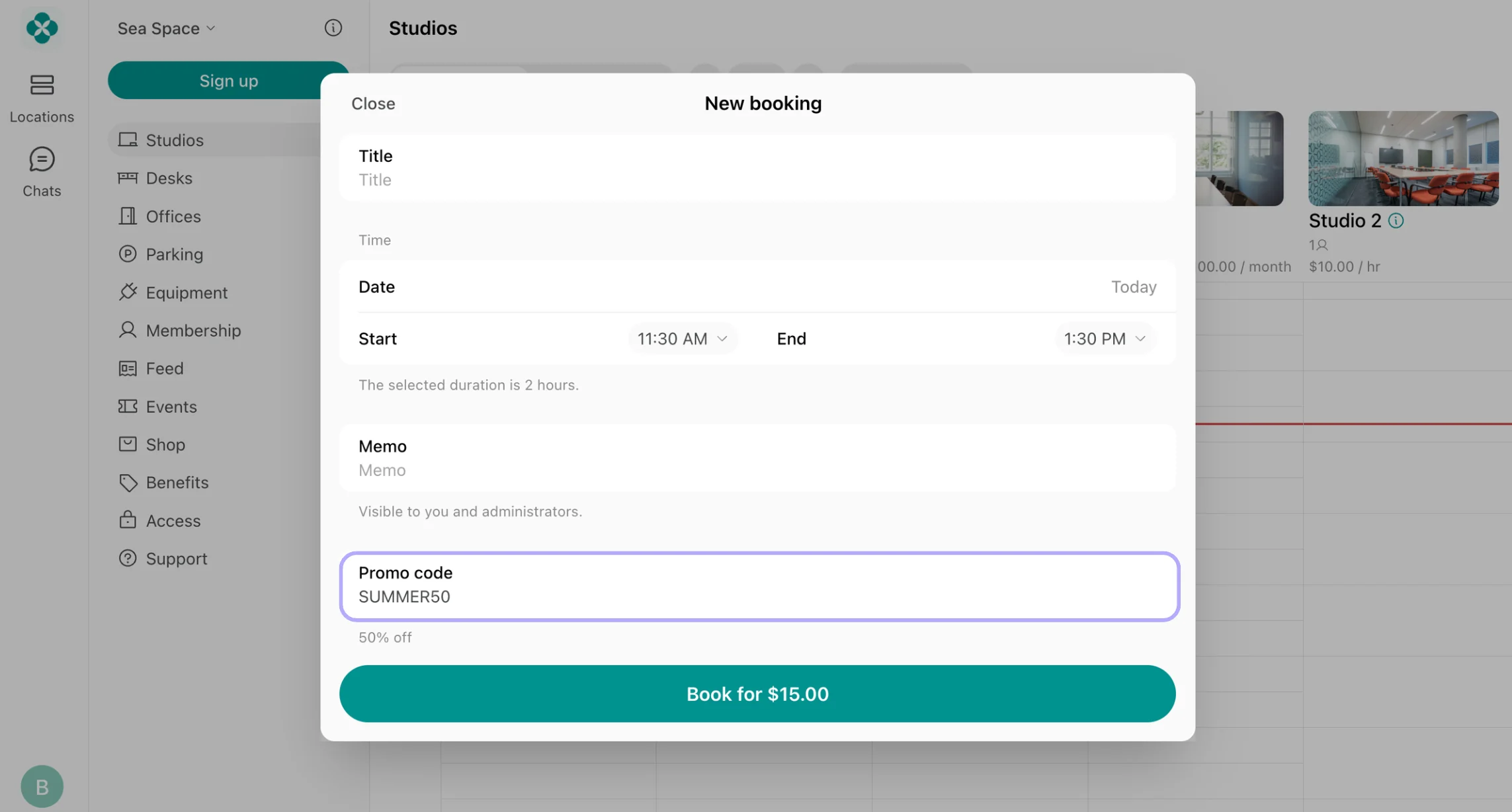
You can also share a discount promo code with customers for bookings, shop products, event tickets, and packages. For event tickets and packages this is the only way, because you can’t buy either on a customer’s behalf.- Create a coupon redeemable for the product you want to discount.
- Create a promo code for that coupon.
- Share the code with the customer, or publish it in a promotion.
- Start a booking, subscription sign-up, or other purchase.
- Enter the promo code in the Promo code field.
- Review the discounted price and confirm payment.
FAQs
How to change or remove a discount granted in a customer's subscription?
How to change or remove a discount granted in a customer's subscription?
If the customer’s discount applies to specific items (for example, specific rooms) and you need to change to which items it is applicable:For any other change — the discount amount or percentage, or the applicable products — create a new coupon with the rules you need, because coupons cannot be edited. Then swap it in the subscription:
- Go to Billing > Discounts and open the coupon.
- Edit the list in the Applicable items section and save. The change applies immediately to every customer who has this coupon granted in their subscription.
This is only possible for discount coupons created with Apply to specific items enabled.
- Go to Customers and open the user or company profile.
- Open the subscription and click the subscription item.
- Click the Granted coupons field, remove the tick next to the current coupon, and tick the new one.
- Press Save twice.
Can I charge some customers less than others for the same room?
Can I charge some customers less than others for the same room?
Yes, with granted coupons. A room’s price is set on the resource and is the same for everyone who books it, so instead of a second price you give the chosen members a discount that applies automatically at checkout:
- Create a coupon redeemable for the relevant bookings, enable Apply to specific items, and select the rooms it covers.
- Grant it to those members — in their own subscriptions for a few named members, or in a plan or tier for everyone on it.
Why does a customer's booking cost less than the resource price?
Why does a customer's booking cost less than the resource price?
A discount might have been applied when the booking was created. Open the booking > the Payment section and look at the Discount and Promo code fields:
- Discount means the customer has a discount on that resource or service type through their personal or company subscription. Open the subscription to adjust it if needed.
- If the booking shows a discount but the customer’s subscription no longer does, the discount was active only when the booking was created and has since been changed or removed.
Why is the user seeing the 'Promo code is not valid' error?
Why is the user seeing the 'Promo code is not valid' error?
This error typically appears for one of the following reasons:
- The code might have been entered with a typo or extra spaces. Please double-check it.
- The promo code might be Limited by first purchases, and the user might have already purchased this product type previously. You can verify the user’s previous purchases in their profile under Customers.
- The promo code might be redeemable for product types different from what the user is trying to purcase. Check the promo code and its associated coupon to confirm its eligible products types.
- The coupon might be limited to specific items, and the selected item is not eligible. Review the Applicable items section for the relevant coupon.
- The promo code might have expired. Check its expiration date.
- The promo code or associated coupon might have reached the redemption limit.
- The promo code might have been archived or the associated coupon was deleted.