

- Change a customer’s plan, resource, or rental plan
- Adjust subscription products or quantities when company members join or leave
- Add extra plans or resources to a subscription the customer already has, so they are billed together with its other items.
Edit a subscription
- Go to Customers > open the customer’s profile.
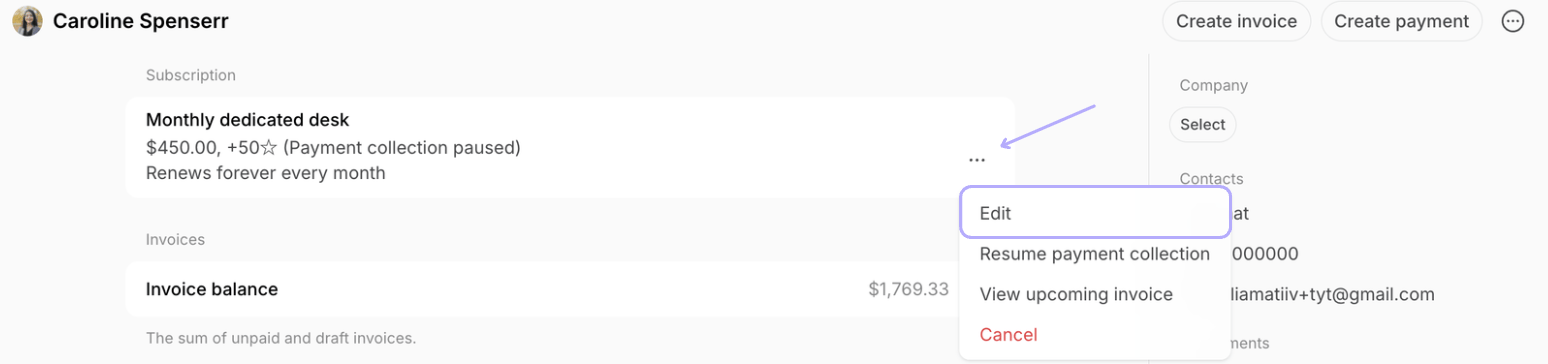
- Press (…) next to the relevant subscription > Edit.
- When the change should take effect:
- Immediately
- On the next renewal date
- On a specific future date
- Whether the customer is staying on the same billing cycle or switching to a different one.
Add an item or create another subscription
- Add an item to the existing subscription when the charge should be added to the same invoice, on the same billing date as its other items — for example, a seat for a new company member, an extra desk, or a recurring add-on.
- Create a second subscription when the customer keeps their current one and the charge needs its own invoice, a different billing date, or a different cycle — for example, an annual membership alongside a monthly one.
- End the current subscription and create another when the customer moves off their billing cycle — for example, from monthly to annual.
Subscriptions with the same cycle
This applies when a customer keeps the same renewal cycle (e.g., remaining on a weekly, monthly, or annual subscription). Choose the tab for when the change should take effect.- Immediately
- From the next renewal date
- From a specific future date
A change may need to take effect today — for example, a customer upgrades their plan mid-cycle, or a new company member joins and needs access right away: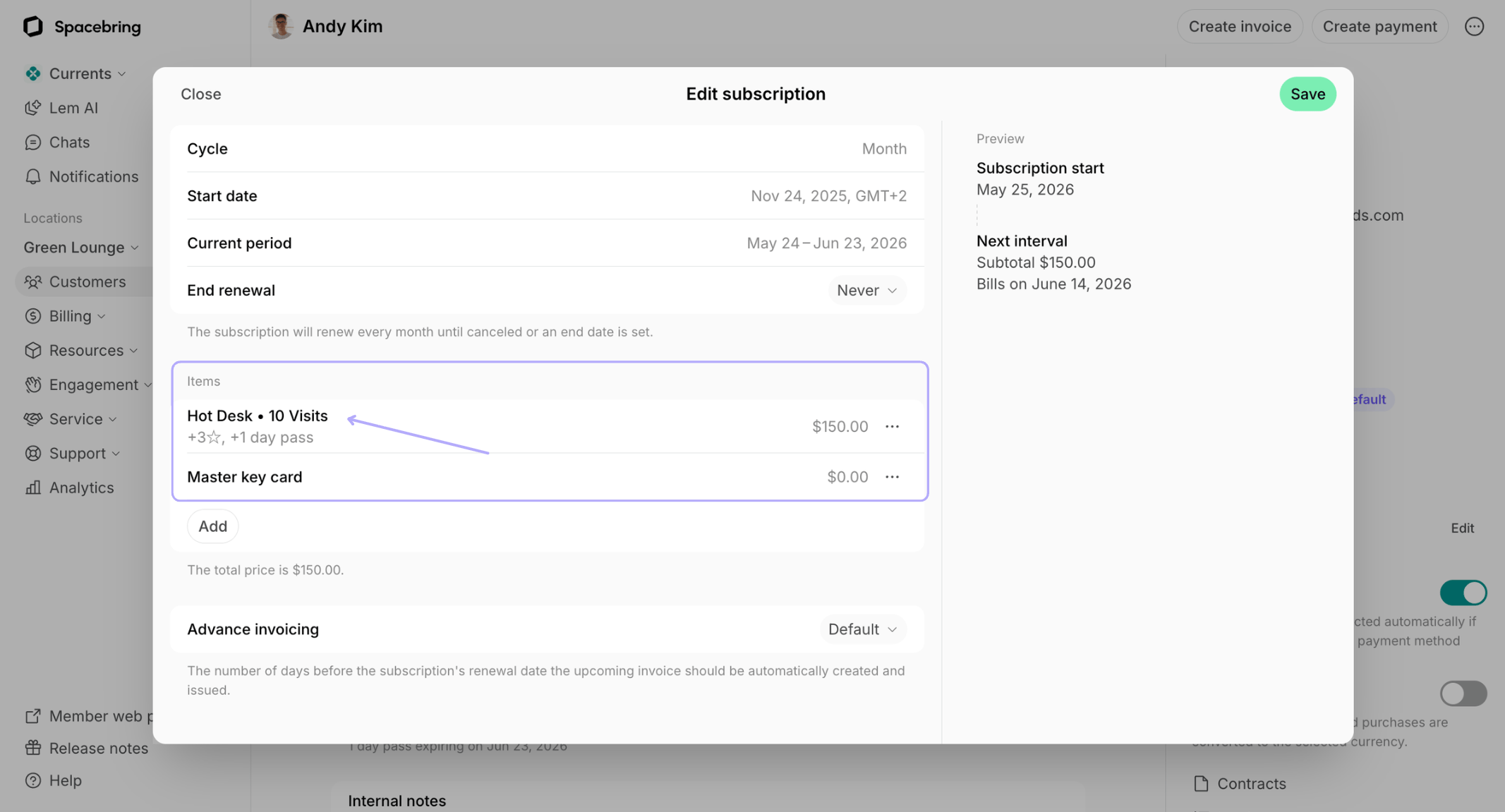
- Edit the existing subscription item, or add/remove a subscription item.
- If adding a new item, keep the item’s Start date set to Subscription default.
- Resource assignment, discounts, door, printing, and exclusive resource access are updated immediately.
- Price, credits, and day passes are updated from the next renewal, when the new amount appears on the subscription’s invoice alongside its other items. The current period has already been invoiced, so the days left in it aren’t charged automatically.
- If pricing, credits, or day passes must change immediately:
- If it’s an upgrade, add the charge for the remaining part of the current period to the upcoming invoice to bill it on the customer’s next invoice, keeping everything on one invoice, or issue a one-off invoice to collect it right away.
- If it’s a downgrade, issue a credit note for the current month’s invoice to refund the necessary amount.
- Manually add or deduct credits or day passes in the customer’s profile.
- If an already invoiced period prevents you from setting the item dates you need, cancel the subscription and create a new one with the updated items, starting on the date the change should take effect.
- Add the person to the company. They get everything the company’s subscription grants — door, printing, exclusive resource access, discounts, and resource assignments — as soon as they are added.
- Add a subscription item for their seat and keep its Start date set to Subscription default, so it applies now instead of from a future date.
- Bill the remaining part of the current period yourself, as above: that period has already been invoiced, so put the charge on the upcoming invoice, or issue a separate invoice for it now. The item’s own price is billed from the next renewal.
- If the company needs more credits or day passes for the current period, add them to its balance manually in the company’s profile. The item’s own credits and day passes arrive at the next renewal.
Subscriptions with different cycles, billing dates, or invoices
A subscription’s billing cycle can’t be changed, and its items are always billed together on its own invoice and renewal date. Two subscriptions are still invoiced separately even when they renew on the same date. To give a customer a different cycle, billing date, or invoice, create a second subscription from the Subscriptions section of their profile. When the customer moves off their current cycle instead of keeping it (for example, from monthly to annual), schedule the old subscription to end first:- Click (…) next to the necessary subscription > Edit.
- Set End renewal to On date and choose the date until which the current subscription should remain active.
- Save the change.
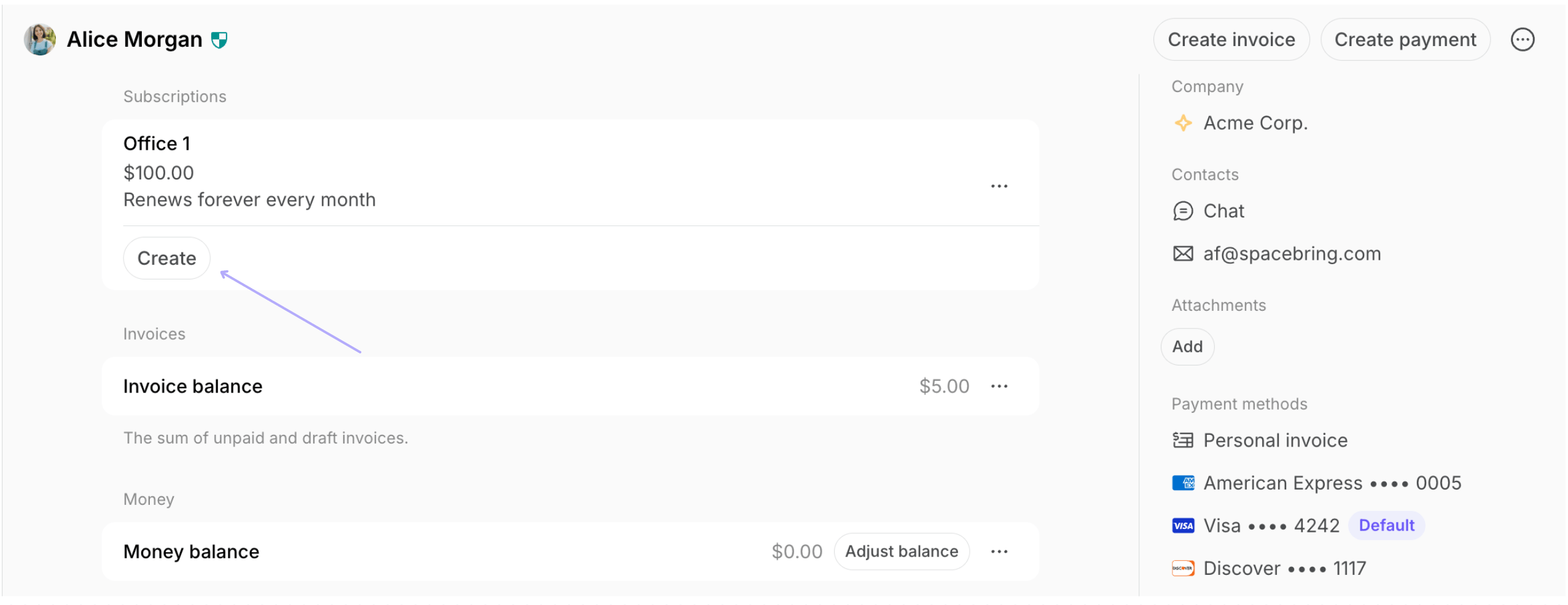
- In the Subscriptions section, click Create to set up a new subscription.
- Set the date when the new subscription should take effect.
Other changes
FAQs
Why do I get an error when adding a subscription item with another date?
Why do I get an error when adding a subscription item with another date?
You may get an error when adding a subscription item with another date because of the following rules:
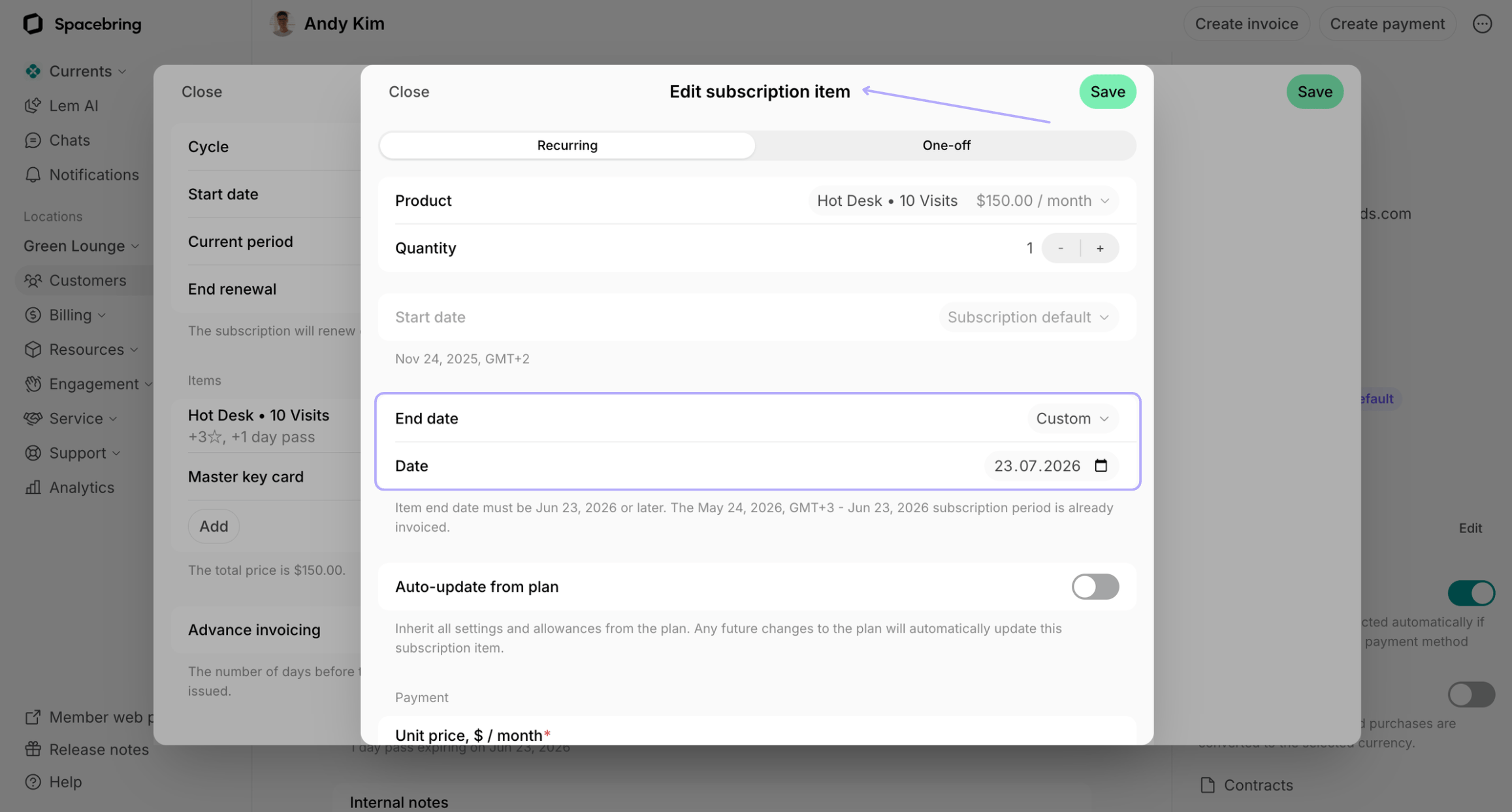
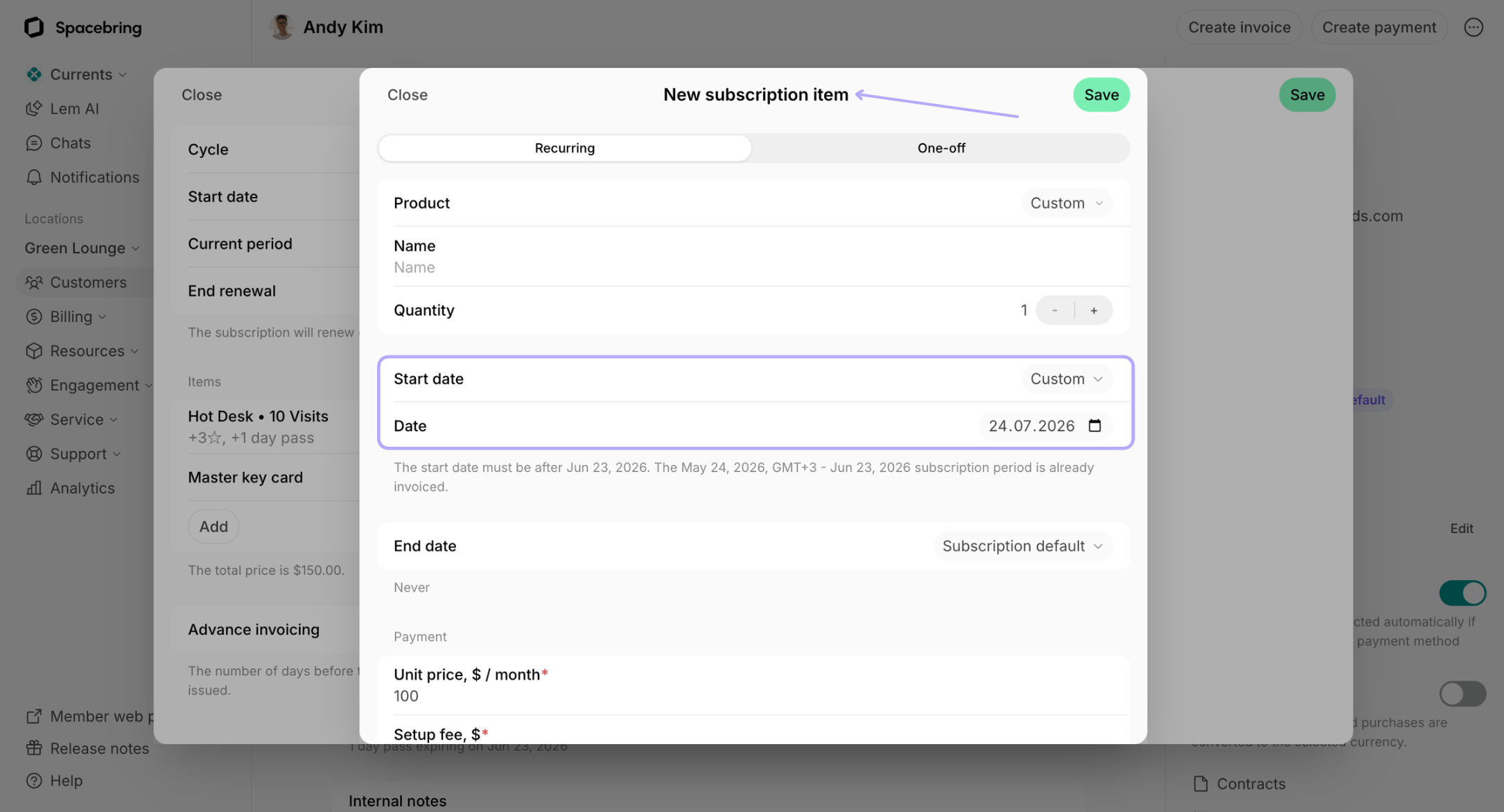
- A new item’s start date cannot be set earlier than the first day of the next subscription period. If the next period has already been invoiced, the new item’s start date can’t be earlier than the first day of the period after next.
- If you want to schedule a change (like switching plans or resources), you must end the current item and add the new one with a start date that follows the end date of the previous item.
- Subscription item dates must fall within the general subscription period; to schedule a change, set an end date for the specific item only, not the entire subscription.
Why is the customer's invoice prorated?
Why is the customer's invoice prorated?
An invoice is prorated when a subscription item’s start or end date doesn’t align with the full billing cycle — for example, it doesn’t start on the first of the month, or it ends before the cycle completes. The customer is then charged only for the portion of the cycle during which the item is active.For example, if the subscription is set for a 5-day period on a weekly plan (which is normally 7 days), the system calculates a partial charge for those 5 days instead of the full week.Proration applies to invoices that haven’t been issued yet. A period the customer was already invoiced for isn’t reopened or recalculated, so bill its remaining days yourself.
How can I automatically apply a surcharge or additional fee to a member's subscription starting from a specific future date (e.g., after a commitment period ends)?
How can I automatically apply a surcharge or additional fee to a member's subscription starting from a specific future date (e.g., after a commitment period ends)?
You can schedule their subscription change as follows:
- Add a new subscription item for the desired percentage of surcharge to their subscription.
- Set this item’s Start date to Custom and choose the necessary date. (Detailed guide)