

How members request subscription cancellation
To let members request subscription cancellation, enable the Support page and set it to Public visibility. Otherwise, customers won’t see the Cancel subscription option, or will not see your replies to their request.
- Members go to the Membership page > personal or company section > Billing.
- Click on their subscription > Cancel subscription.
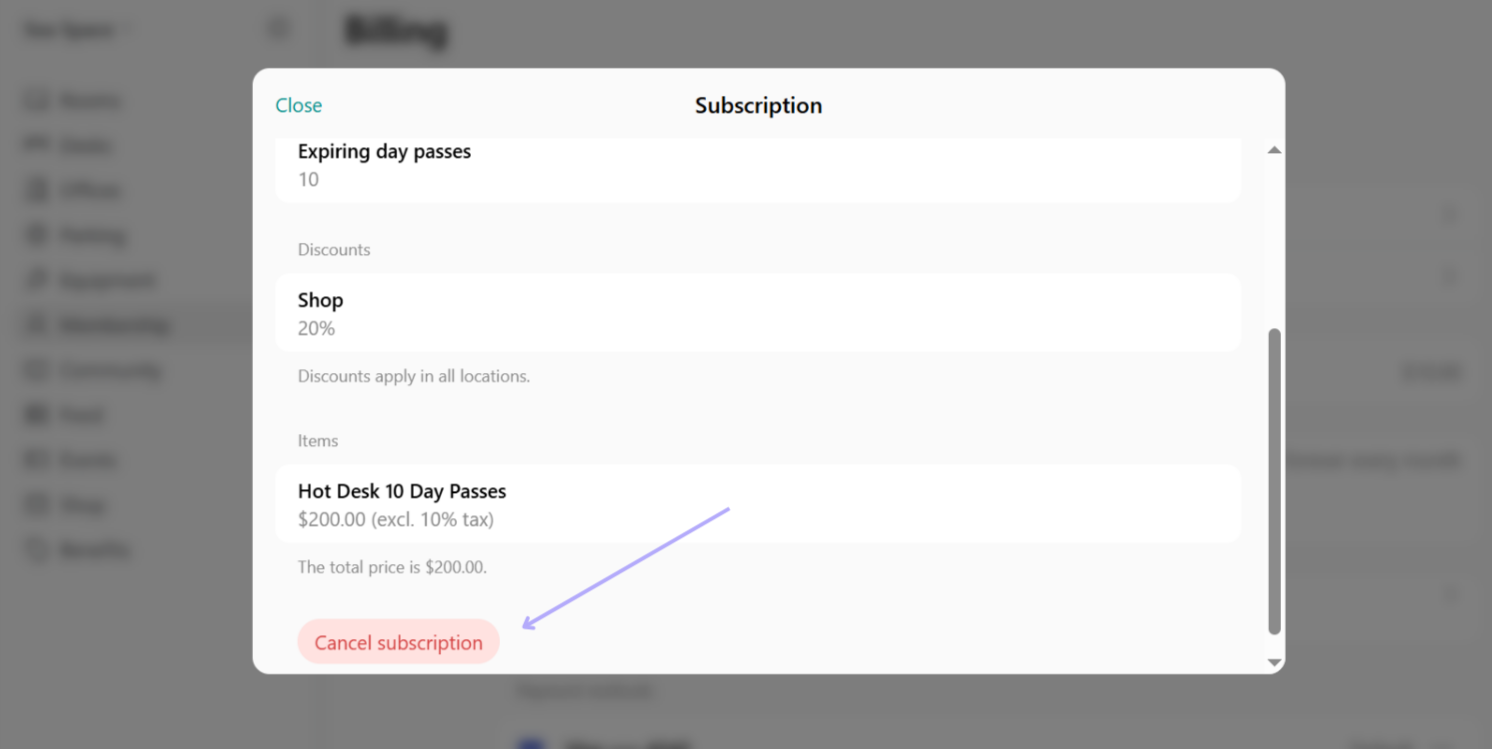
- Confirm the cancellation request.
- Administrators receive cancellation requests as new support tickets and manage them further: schedule the member’s subscription end date, cancel it immediately, or take any other necessary steps.
How to schedule subscription end date
If a member requests to cancel their subscription, consider scheduling the subscription end renewal date instead of canceling it right away. This allows the member to retain access to their subscription allowances until the end of the subscription period which they prepaid. To schedule the subscription end date, do the following:- Go to Customers > select a user or a company.
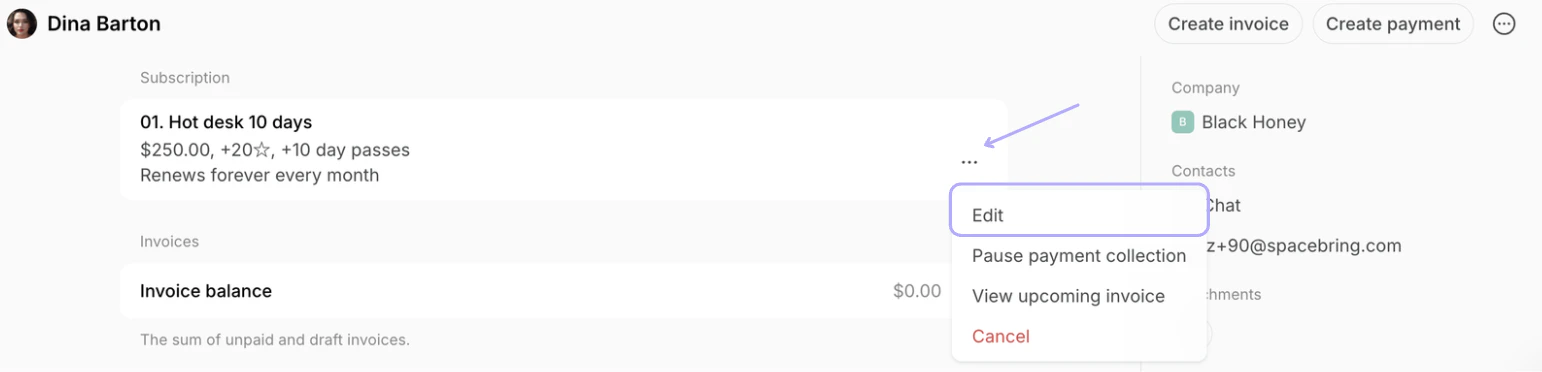
- Tap the (…) menu next to their subscription, press Edit.
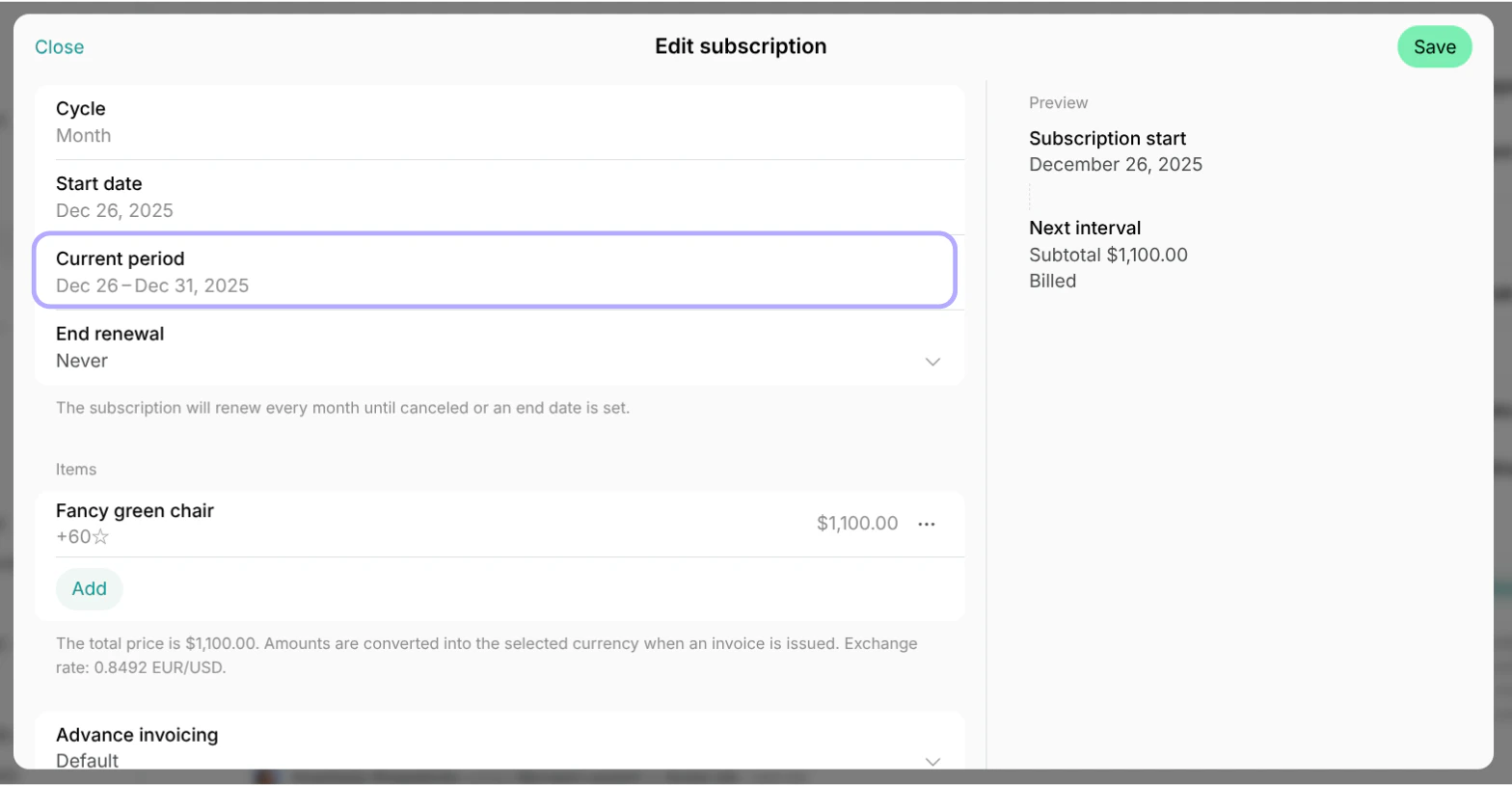
- Check the end date of their current subscription period in the Current period field.
- In the End renewal field, choose On date and set the same end date or any other date requested by the member.
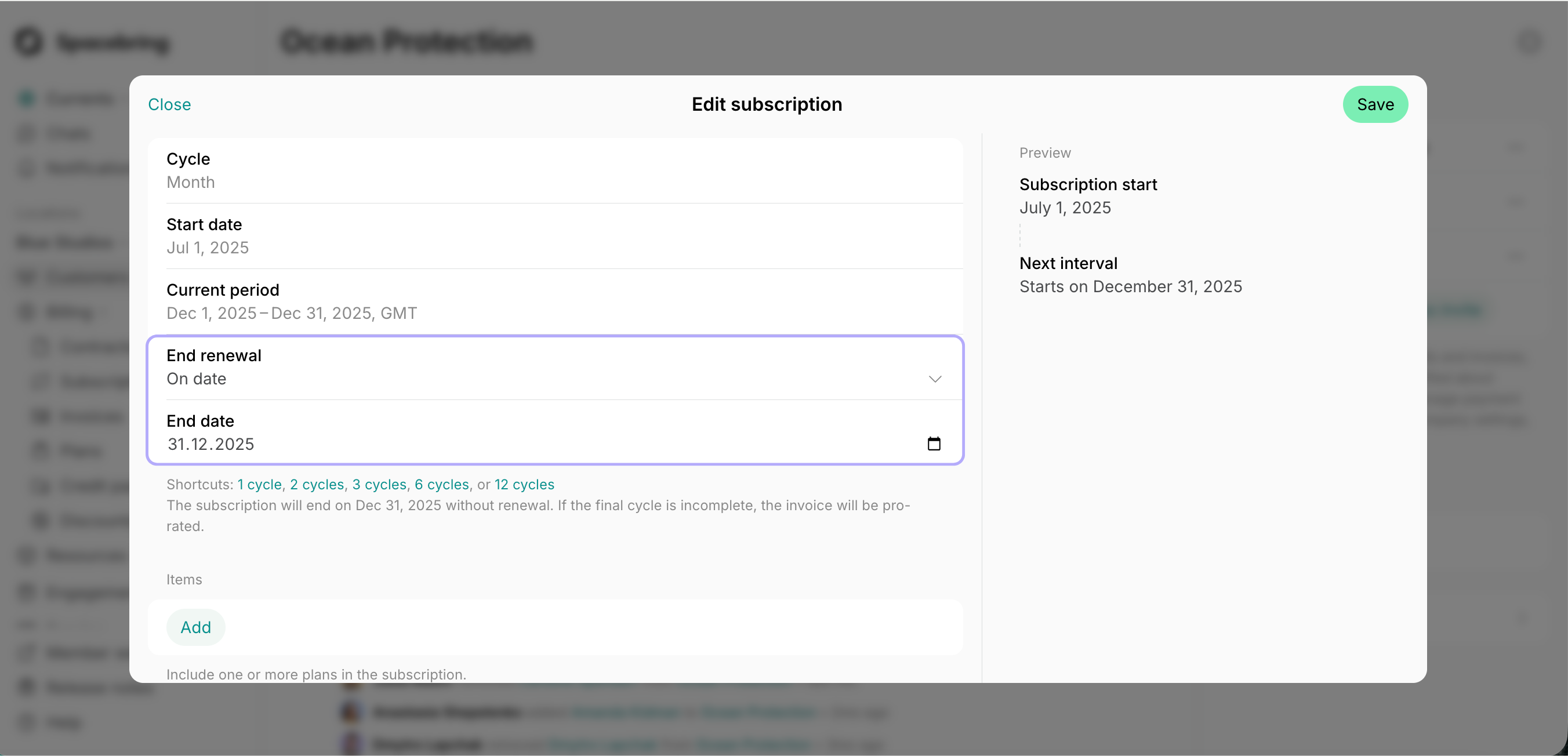
The subscription end date can only be set for a date after the current subscription cycle ends. This ensures the member retains access to the services that have already been invoiced for throughout the full billing period.
How to cancel a subscription
To fully cancel a member’s subscription immediately, do the following:- Go to Customers > select a user or a company.
- Tap the (…) menu next to their subscription > press Cancel > confirm your choice.
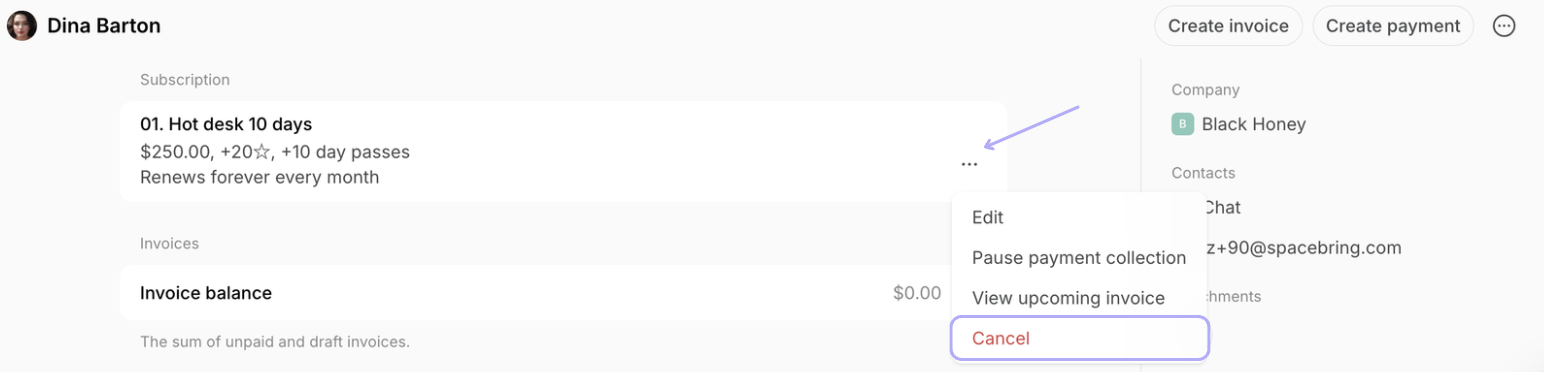
- The credits and day passes the subscription issued, and its assignments, discounts, and access expire immediately. Credits and day passes from packages or added by an administrator stay usable while the customer is a member.
- The subscription stops generating recurring invoices.
- If the customer has any pending invoice items and the subscription has Add to subscription invoices enabled, they receive one final invoice with them, issued automatically. It covers items for future dates too, such as a booking for next month.
If the customer made bookings of a resource assigned to them, and the assignment is canceled, those bookings stay in the calendar. You can cancel such bookings, but not edit them, because no assignment covers them anymore.