

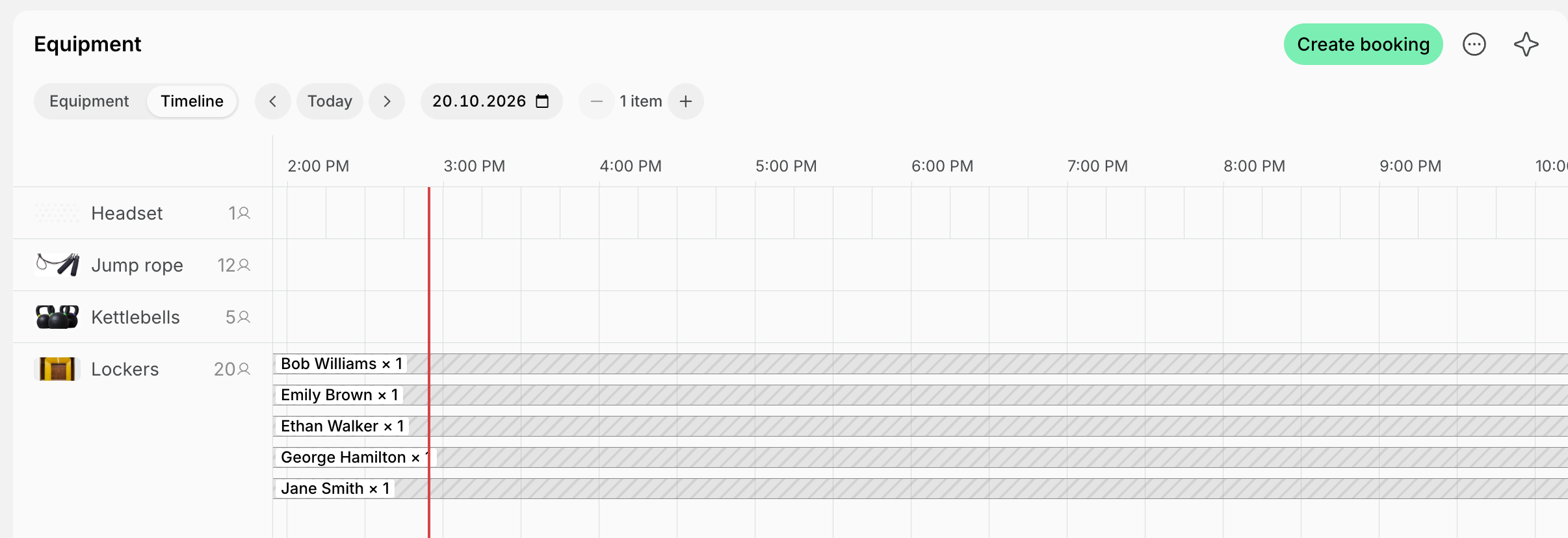
- A space or an item you have a limited number of, such as parking spaces, lockers, or monitors, is a resource on the Parking or Equipment page, rented out with rental plans. Spacebring assigns it to each member who gets it, so you see who has which one and how many are left.
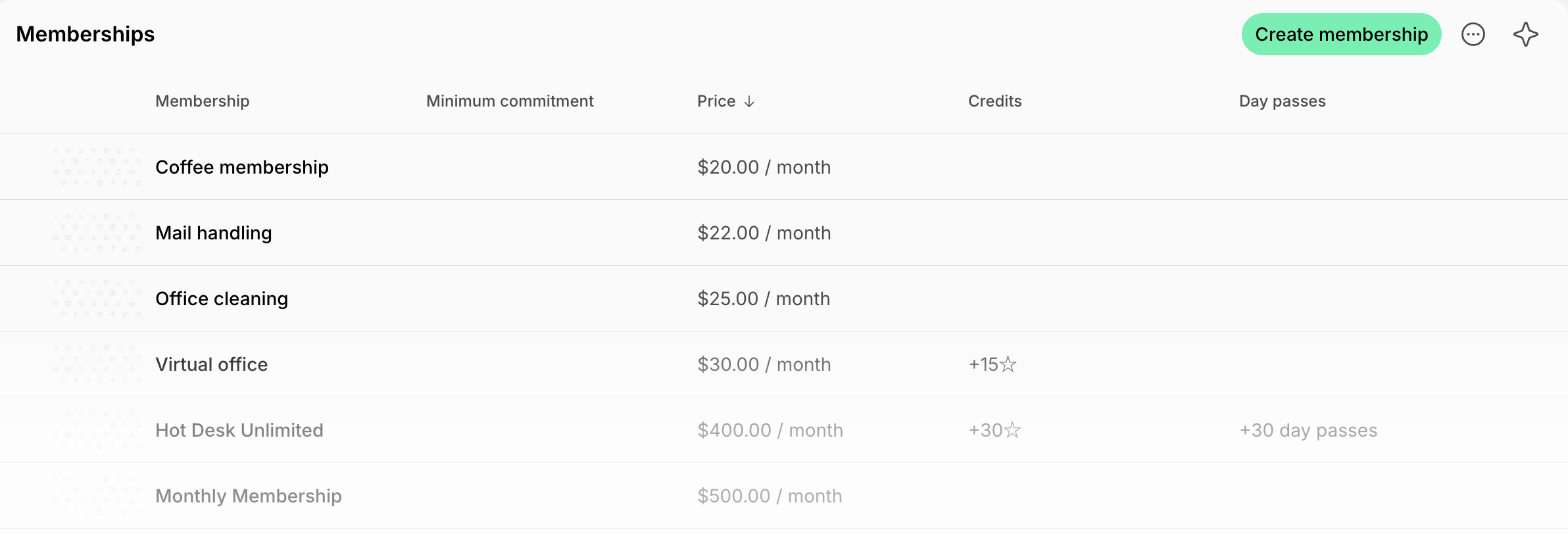
- A service without a limited number, such as a coffee membership, mail handling, or office cleaning, is a membership under Catalog > Memberships.
Sell add-ons only to members
You may offer a parking space or a coffee membership only to people who already have a membership or a rental with you, and charge for it every cycle.Set up a parking space or a locker
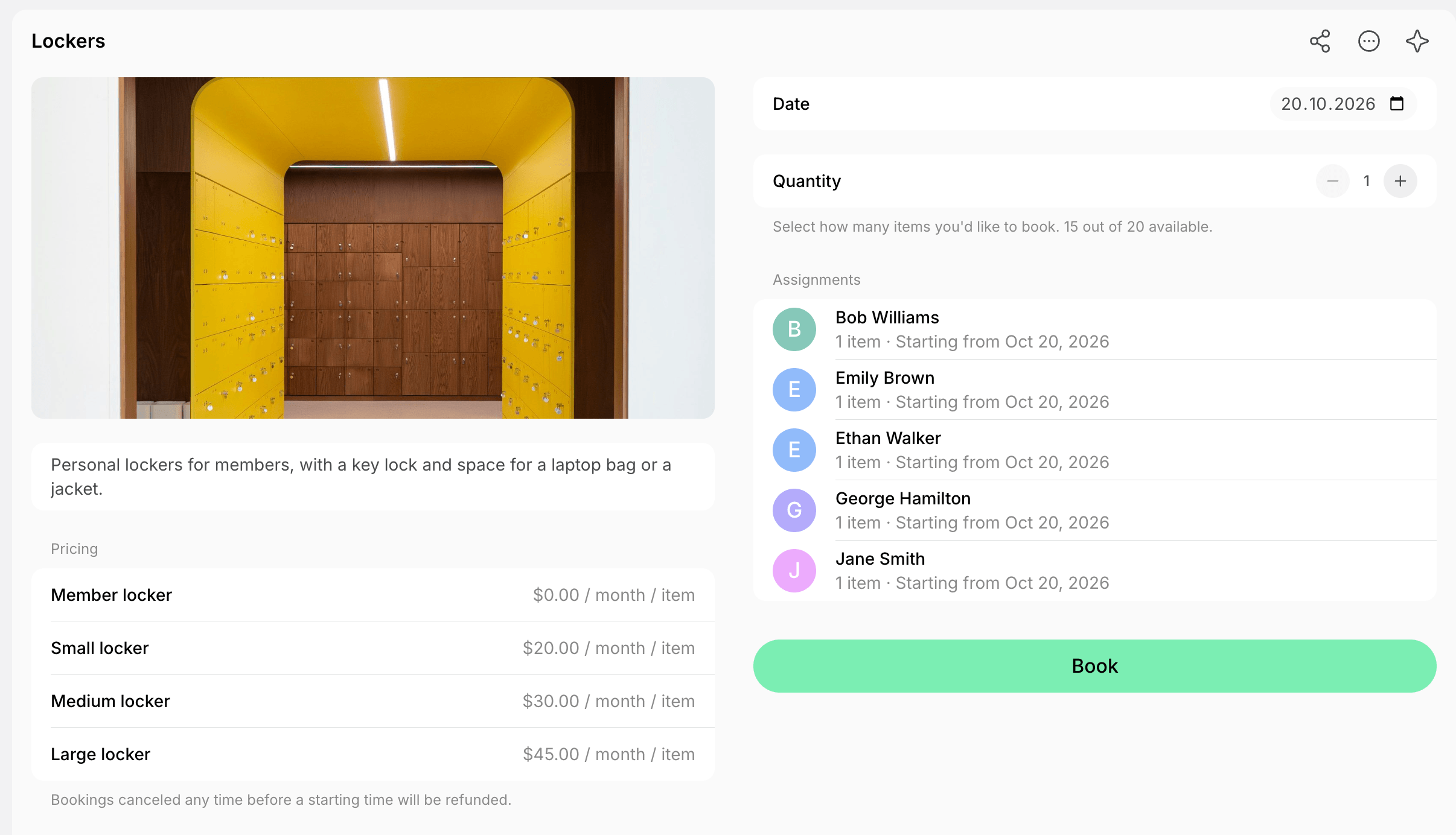
- Go to Resources > Parking or Equipment and add the resource, for example Lockers with a Quantity of 20.
- On the Pricing tab, enable the Plans switch and click Add plan. Fill in the add-on’s name, cycle, and price.
- Disable the Money switch if members can’t also book it by the hour or day.
-
In the plan, under Sign-up > Type, choose how members get the add-on:
- Immediate — members subscribe and pay without contacting you.
- Request — members apply, and you add the add-on to their subscription.
- On the Permissions tab, set Visibility to Location members, so only your members see the add-on.
Set up a service, such as coffee or cleaning
- Go to Catalog > Memberships and click Create membership. Fill in the add-on’s name, cycle, and price.
-
Enable Sign-up and set its Type to Request.
- Memberships have no Visibility setting, so nonmembers see the add-on next to your other memberships. With Request, you check that each applicant is a member before they get it.
- Disable Sign-up instead if only administrators should add it to subscriptions.
- Click Save.
How members get the add-on
Members find a parking space or a locker on its resource page, and a service on the Membership > Billing page under Subscribe.- With Immediate, the member subscribes and pays right away. The add-on becomes a separate subscription, with its own invoices and renewal date. Nothing is added to the member’s main subscription, so they receive two invoices.
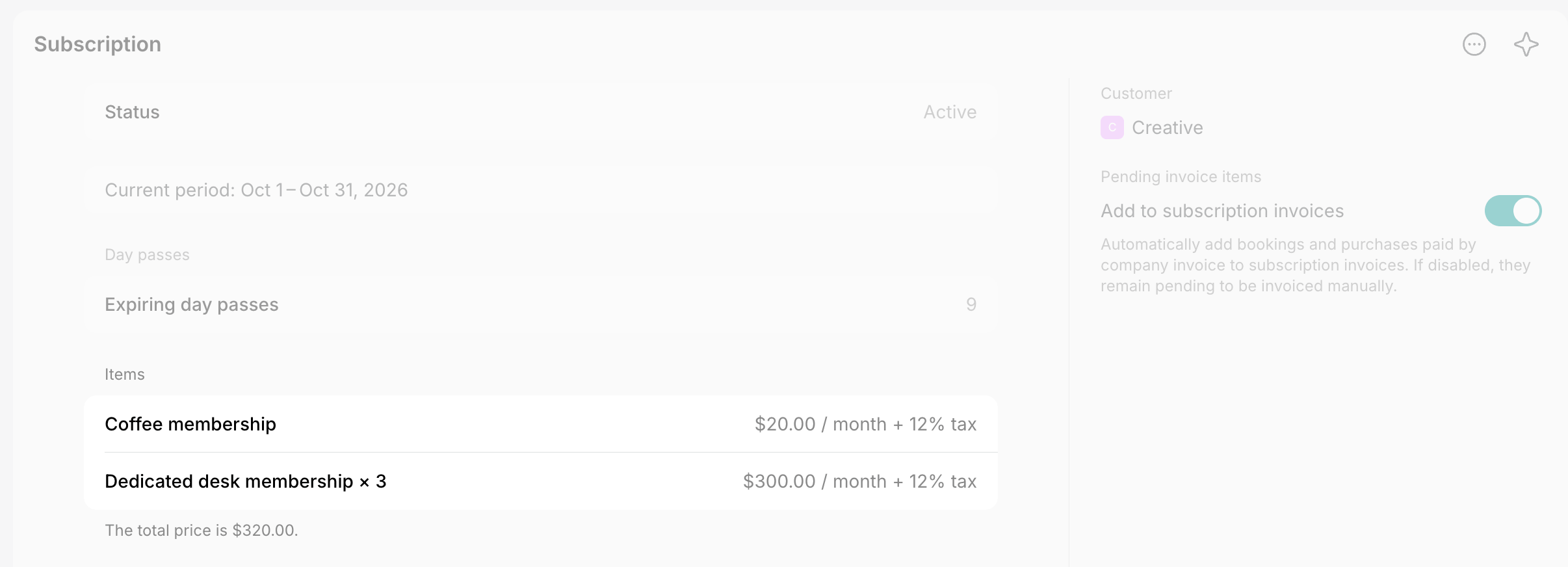
- With Request, the member’s application arrives as a ticket in Support > Tickets. Once you approve it, add the add-on as an item to the member’s existing subscription, so it’s billed on the same invoice as their membership. Only an add-on with the same cycle as the subscription can be added to it.
- You can add an add-on to a member’s subscription yourself with any sign-up type, for example when the member asks for it at the front desk.
Track add-ons included in a membership
Your memberships may include a locker or a parking space at no extra cost, and you only need to know who has which one and how many are left.- Go to Resources > Parking or Equipment and add the resource, for example Lockers with a Quantity of 20.
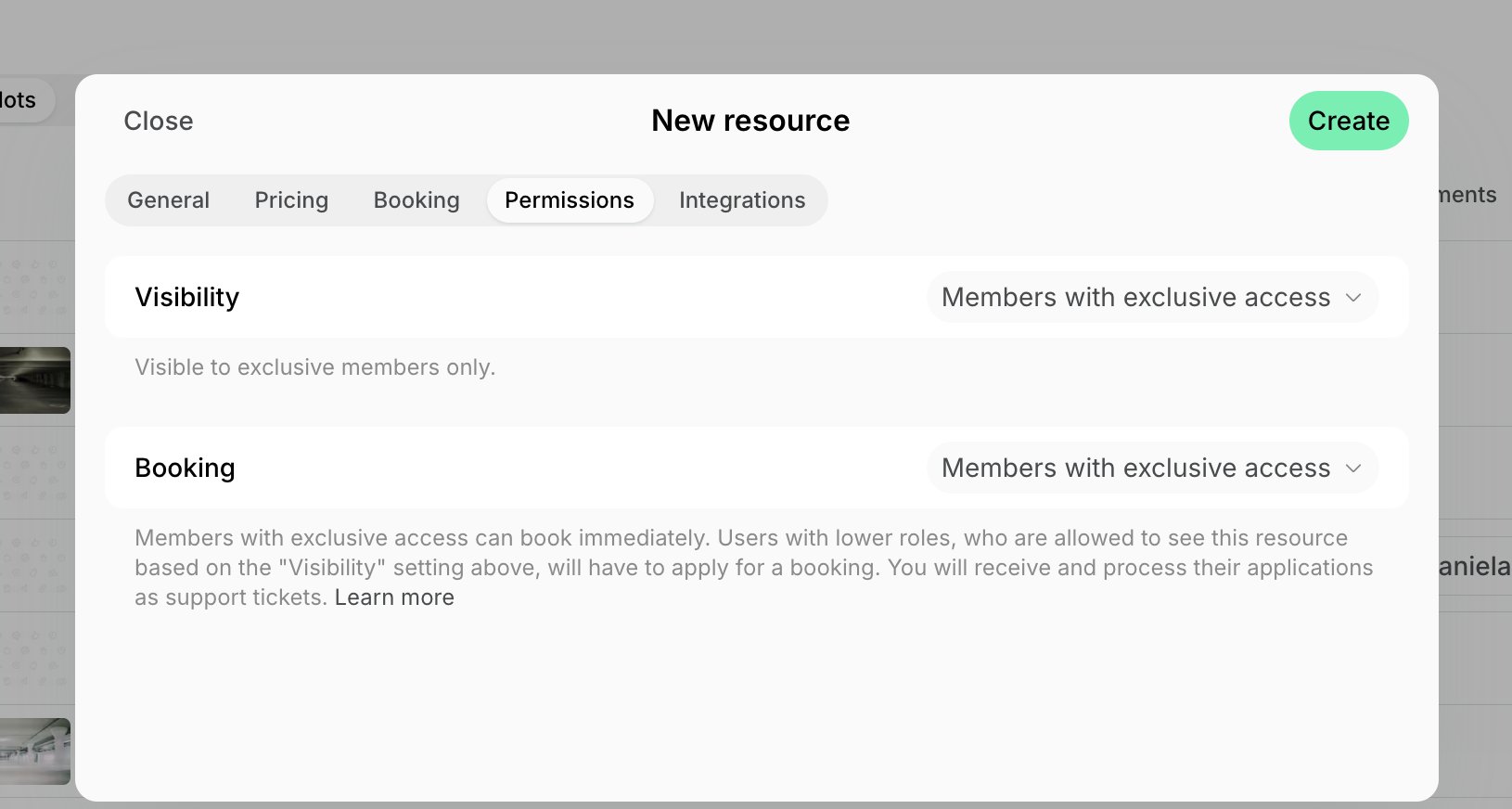
- On the Permissions tab, set Visibility to who can get the add-on:
- Location members — every member of the location.
- Members with exclusive access — members with certain memberships, or certain members. Then grant them exclusive access in the membership or in the member’s subscription.
- To let members apply for the add-on, enable the Plans switch on the Pricing tab and add a plan with a Price of 0. Set its sign-up Type to Request, because members can’t subscribe to a free plan immediately.
- Add the resource as an item to the member’s subscription, with the free plan or Custom and a Unit price of 0. The locker or parking space is assigned to the member for as long as the item runs.
FAQs
How does a member stop an add-on?
How does a member stop an add-on?
It depends on how they got it:
- If the add-on is a separate subscription, the member requests its cancellation on the Membership page.
- If the add-on is an item in their main subscription, the member contacts you, and you set the item’s End date to the day the add-on ends.
Can a member pay for an add-on yearly while paying monthly for their membership?
Can a member pay for an add-on yearly while paying monthly for their membership?
Yes. All items of one subscription share its cycle and invoice, so create a second subscription with a yearly cycle for the add-on.