

- Filter the data the way you need, such as by location, company, plan, status, payment method, or nonmembers only.
- Combine data from different areas, such as bookings with the companies that made them, or the credits customers received with the credits they used.
- Group, count, and total it, such as orders by company and then by person.
- Compare periods, such as this month with last month or with the same month last year.
- Put all your locations side by side in one email.
Set up a report agent
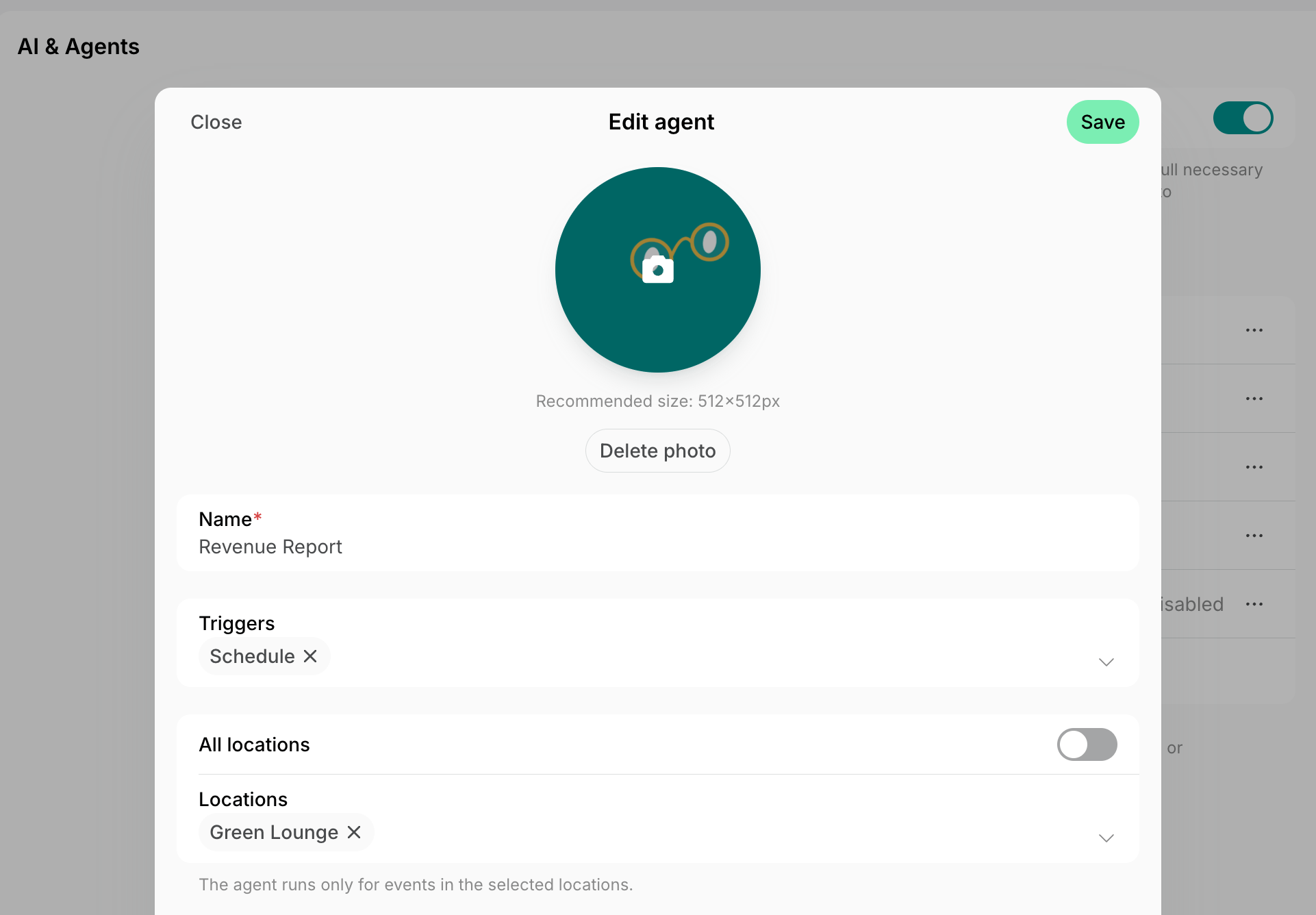
- Create an agent and select the Schedule trigger.
- Turn off All locations and select the location the report covers in Locations, as the reports below do.
- For one report across your network, keep All locations on.
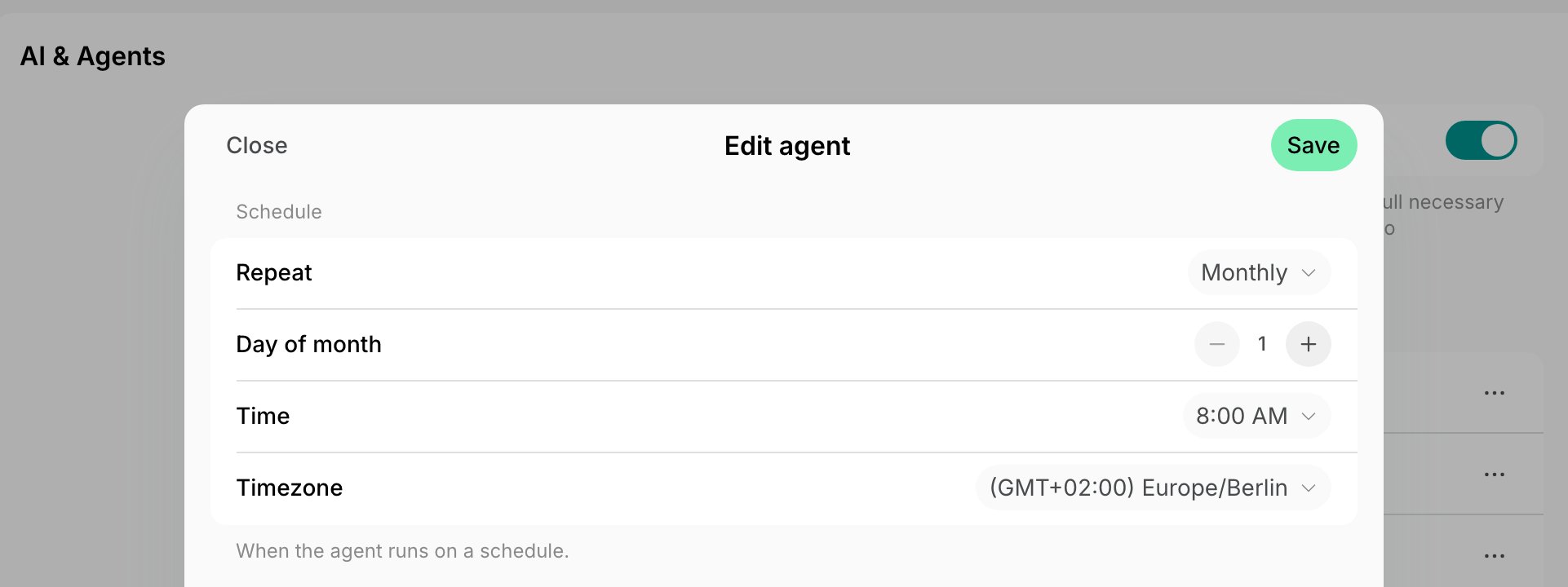
- Set Repeat, Time, and Timezone as the report shows above its instructions, such as Monthly on day 1 at 08:00.
- Monthly runs on a day from 1 to 28. For a report on a full month, run it on the 1st and report on the previous month.
- An agent runs once at its time. For a second report at another time, create a second agent.
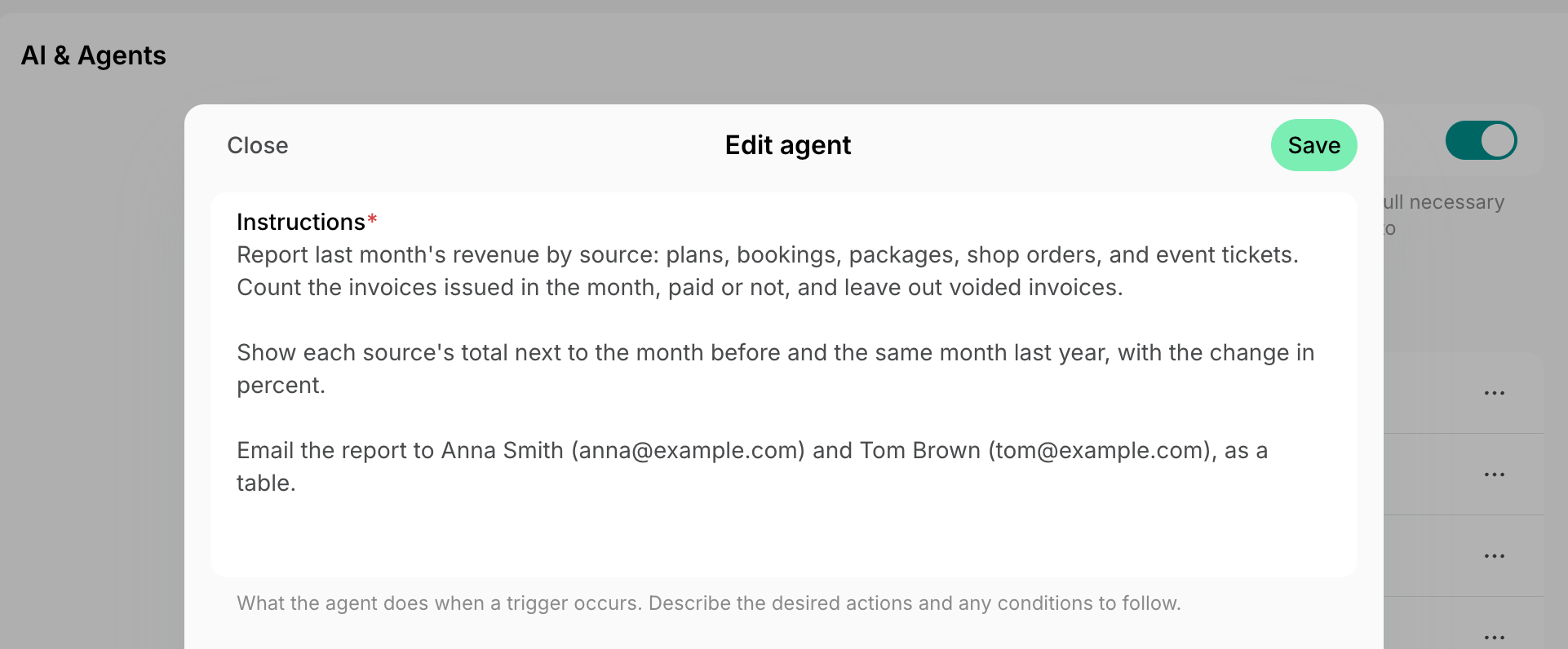
- In Instructions, paste your report’s description, or one of the reports below.
- Leave Permissions off. A report only looks up data, which an agent can do without them.
- Turn on Enabled and click Create.
Describe the report you need
Write the instructions the way you would brief a colleague who prepares the report for you. Say:- The period, such as “the previous calendar month” or “last week, Monday to Sunday”.
- What to include and what to leave out, such as “room bookings paid with credits” or “leave out canceled orders”.
- How to group and total the data, such as “by company, then by person, with each company’s total”.
- What to compare, such as “the change from the month before”. An agent doesn’t remember its earlier reports, so it looks up both periods every time.
- The layout, such as “a table with one row per booking”.
- Who gets the report, and what to do when there’s nothing to report, such as “send nothing”.
Choose who gets the report
Name the people who get the report in the instructions, with their emails:- For one person, write:
Email the report to Anna Smith (anna@example.com). - For several people, write:
Email the report to Anna Smith (anna@example.com) and Tom Brown (tom@example.com).Each of them gets their own email.
Review how your space performs
These reports show how your space did over a period, compared with earlier periods.Track revenue
Instead of exporting and combining several reports, you can see what your space earned, such as:- Revenue by location and by source
- Revenue per plan, month by month and for the year so far
- Revenue per meeting room
- Payments received each month
- A daily snapshot of every location
Instructions
Track subscriptions by plan
To decide which plans to promote, you may want to follow your subscriptions plan by plan, such as:- Active subscriptions and seats per plan, including plans with none
- New subscriptions each week or month
- Monthly recurring revenue per plan
- Plans going up or down month to month
Instructions
Track members
You may want to know how your community grows and whether members use your space, such as:- New members each month
- Member growth month by month or year over year
- Members who neither checked in nor booked
- Invited members who haven’t activated their account
Instructions
Analyze bookings
You may want to know which rooms and desks are in demand and who books them, such as:- Bookings and booked hours per room or resource type
- The least booked rooms
- Bookings paid with credits or money
- Bookings by members and by nonmembers
- The companies that book most
Instructions
Track sales on upcoming invoices
You may charge front-desk sales, such as shop products or a printing fee, to customers’ upcoming invoices, which are issued only later. You may still want to follow these sales every week, such as:- Sales on upcoming invoices this month, per location
- Sales per product
- Sales next to meeting room bookings, compared with last month or last year
Instructions
Act on what needs attention
These reports list what someone has to act on, such as orders to prepare, tickets to answer, or charges to invoice.Prepare shop orders
Shop orders may need someone to prepare or bill them, such as:- Open orders to prepare in each location
- How many of each product to prepare for tomorrow
- What each company’s people ordered, for reimbursement
- Sales per product
Instructions
Prepare for renewals
You may want to know in time whose contract or subscription ends or renews, such as:- Contracts and subscriptions ending in the next 60 days
- Renewal payments due this week
- Customers to ask about renewal two months ahead
Instructions
Chase open support tickets
A ticket may wait for days when nobody opens the Support page. You may want a regular list of:- Open tickets by assignee and age
- Unassigned tickets
- Each location’s tickets, for its manager
Instructions
Follow up on unused credits
A customer who doesn’t use their credits may be about to leave. You may want to see:- The customers who use the smallest share of their credits
- Credits issued, used, and expired, per customer
- What each company spends its credits on
- Package credits left unspent, for your balance sheet
Instructions
Find pending invoice items left unbilled
Some pending invoice items are never billed automatically, such as those of nonmembers and of members without a subscription, so a charge may be forgotten. You may want to check for:- Pending items that aren’t linked to any subscription
- Old pending items
Instructions
Best practices
- Test a new report before you rely on it: set its time to the next quarter of an hour, then read the email and the run.
- Give each report a fixed subject, such as
Use the subject "Open tickets digest"., so you can find the emails and filter them into a folder.
FAQs
Why didn't the report arrive?
Why didn't the report arrive?
Open the agent on the Network settings > AI & Agents page and check its runs:
- Failed — the run shows the error. If the report covers a lot of data, shorten the period or split it across agents by location.
- Skipped — your network’s balance ran out. Runs resume once it’s topped up.
- Completed — open the run to read the agent’s reply. If it couldn’t find the person to email, make sure they are an administrator of your network or a member of the agent’s location. If it sent the email, check your spam folder.