

Set booking duration limits
Set Min duration and Max duration properties for each room when adding or editing it. These limits apply to everyone except administrators. This allows customers to book a room even for a quick 10-15 minute call, while preventing others from monopolizing it all day. For example, you might set a minimum booking duration of 15 minutes and a maximum of two hours. If the room’s Visibility is Public, you can also enable Public duration and set a separate Min duration and Max duration for nonmembers. For example, keep the 15-minute minimum for your members, but require at least one hour from nonmembers booking through your website.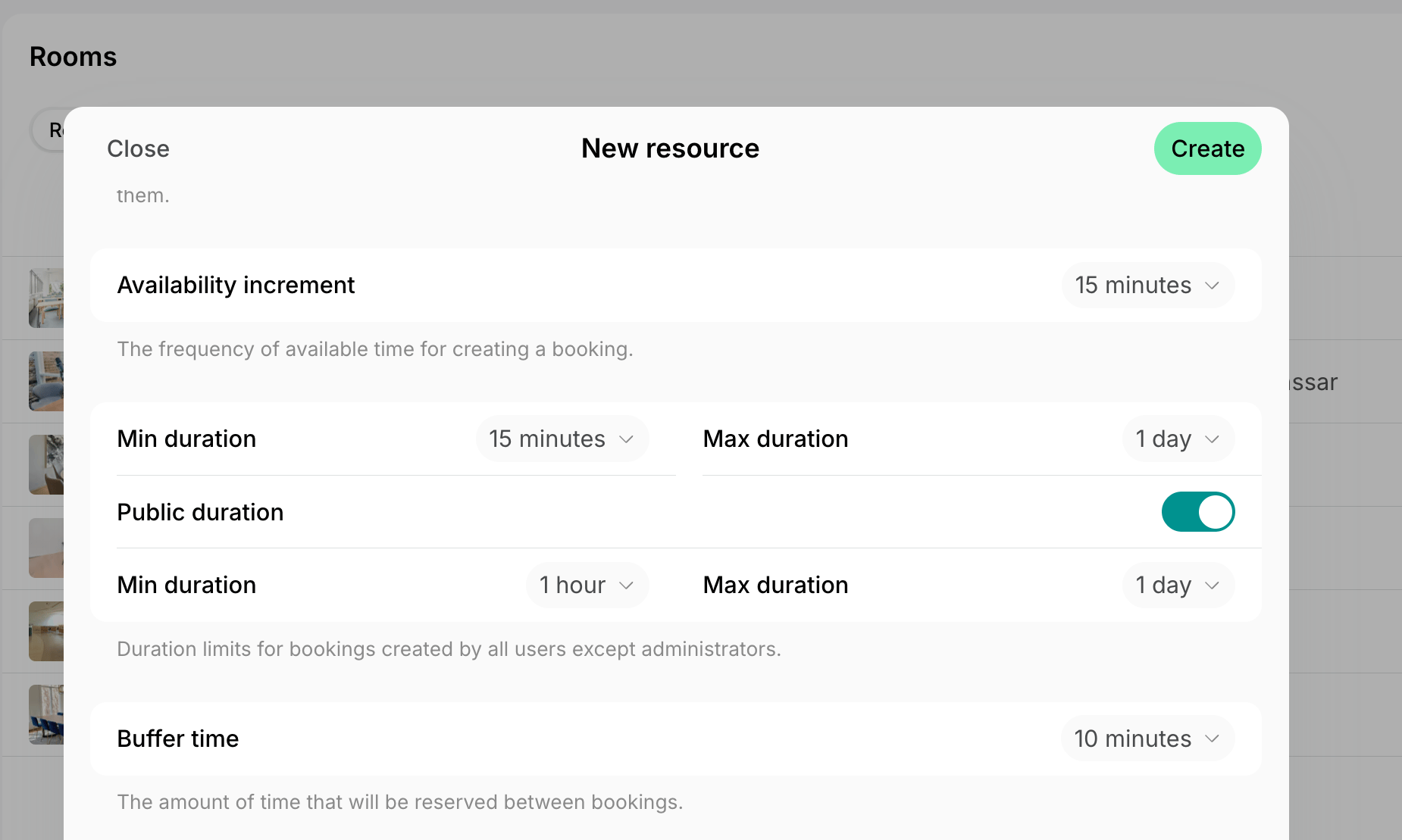
Limit active free bookings at a time
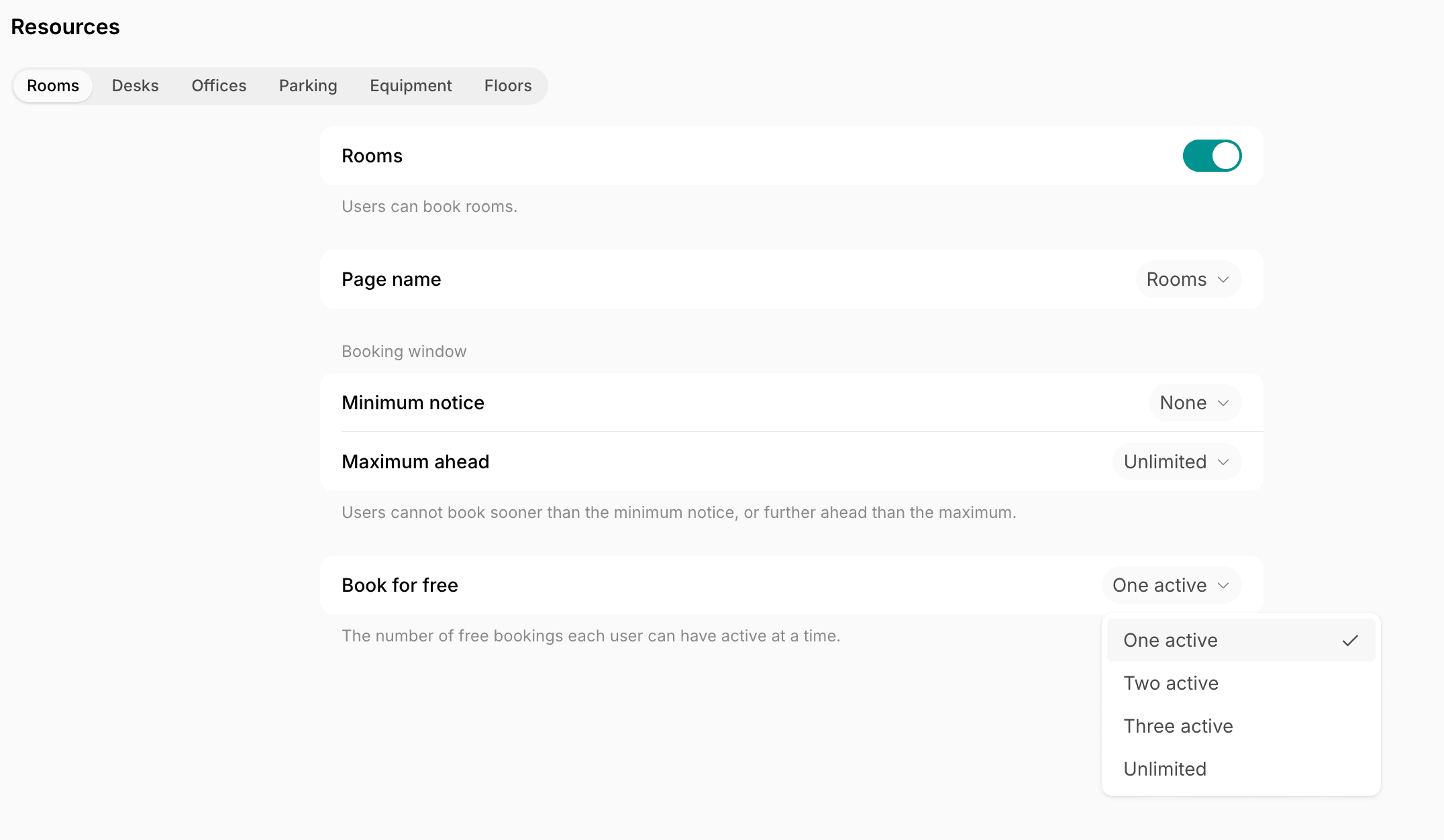
If your Skype rooms, call booths, or meeting rooms are completely free for members, with the Money, Credits, and Plans switches all disabled, you can limit how many active free bookings a user can hold scheduled at any given time. Navigate to the Location settings > Resources > Rooms page and set up the Book for free property. You can choose from:- One active
- Two active
- Three active
- Unlimited
Limit recurring bookings
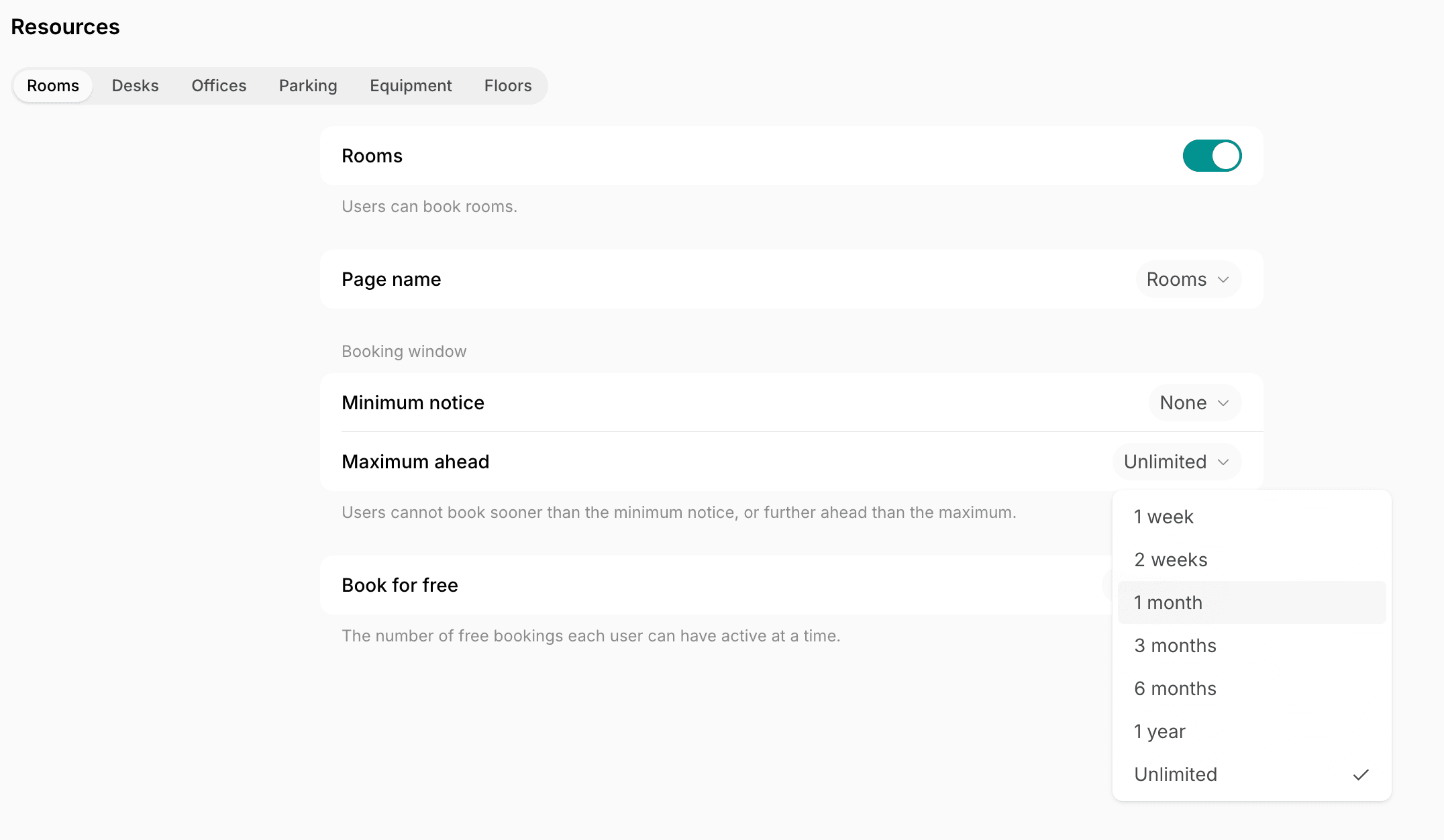
A recurring booking can hold a room for months. A member may book a call pod every week, then stop showing up without canceling, so the pod stays booked and nobody else can use it. Users can make recurring bookings only of completely free rooms. To limit recurring bookings, navigate to the Location settings > Resources > Rooms page and set up one or both of these properties, depending on your approach:- To stop users from booking far ahead, set Maximum ahead in the Booking window. For example, with one month, a user can book a weekly meeting for one month at most.
- To stop one user from taking many slots, set Book for free. Each repeat counts as one booking. For example, with Three active, a user can book a weekly meeting for three weeks at most.
Implement credit system
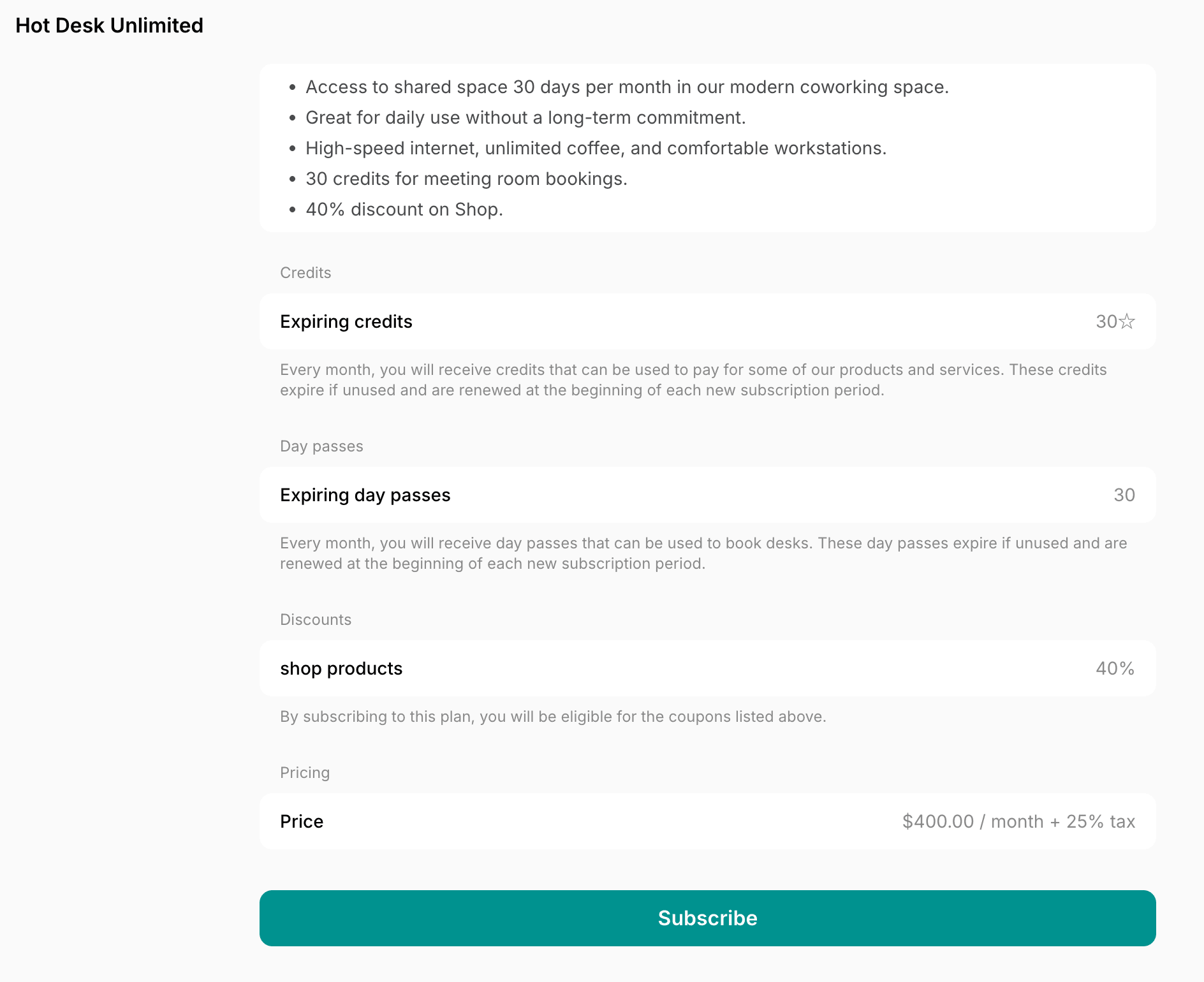
For finer control and a more direct way to limit usage, consider setting up a credit system instead of completely free bookings. This effectively gives each customer a specific usage allowance per month or week.- Enable credits and set credit prices for each room.
- Set a specific number of credits in your membership plans.
- Members automatically receive this amount (e.g., 50 credits) at every renewal of their subscription, and then use these credits to book rooms. Credits left unused expire at the next renewal.
Use Room display
Place a room display next to each room door so users can book on the spot. Users can glance at the display to instantly see if a room is available and book it right then and there by scanning its QR code. This eliminates the need to book far in advance or spend time searching for an available room.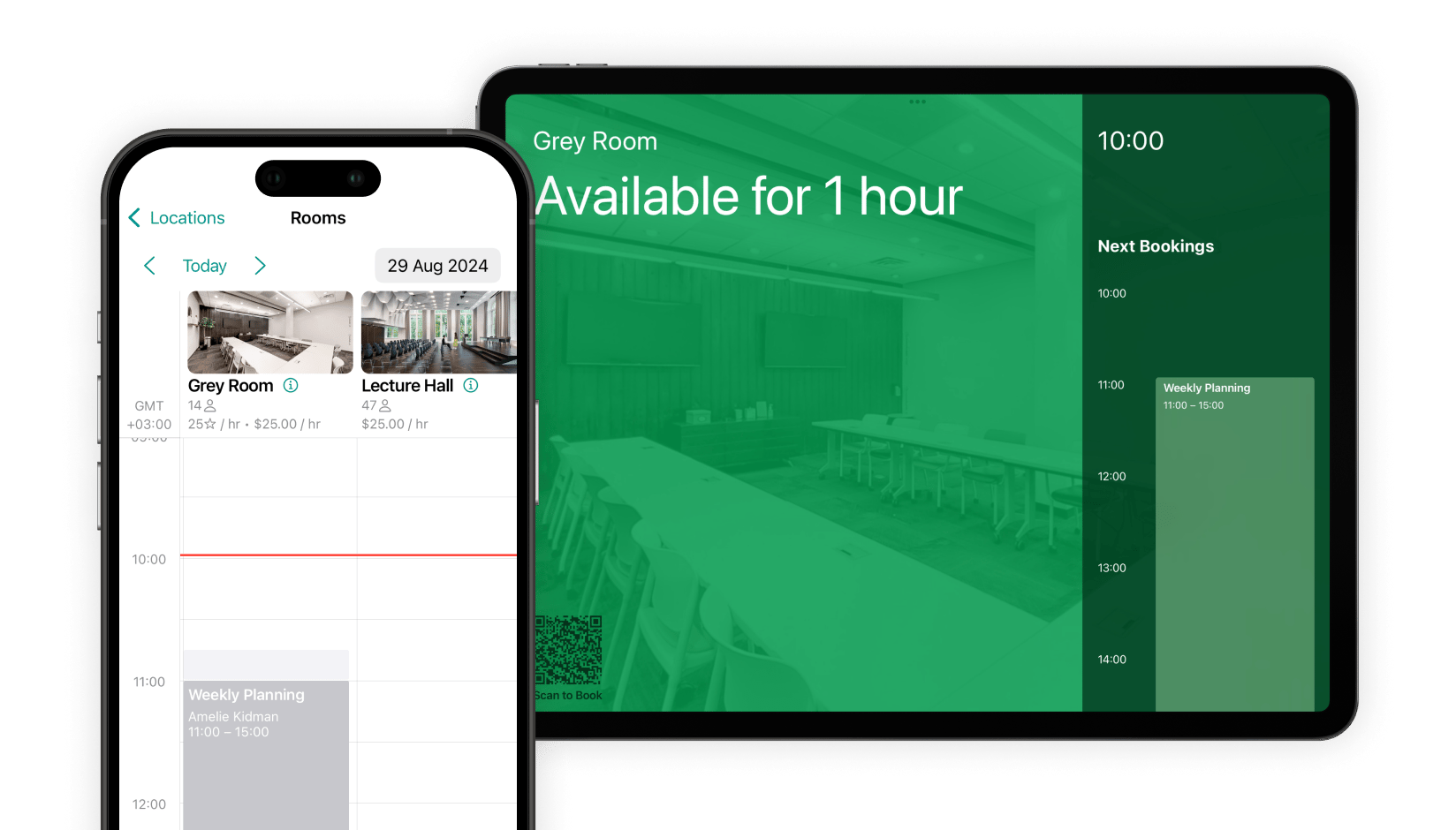
Use interactive floor plans
For larger spaces or those spanning multiple floors, interactive floor plans are invaluable. They instantly show users where an available room is right now and on which floor. This means no more scheduling bookings far in advance or wandering around and endlessly searching – users can quickly find and book the nearest free room at the moment.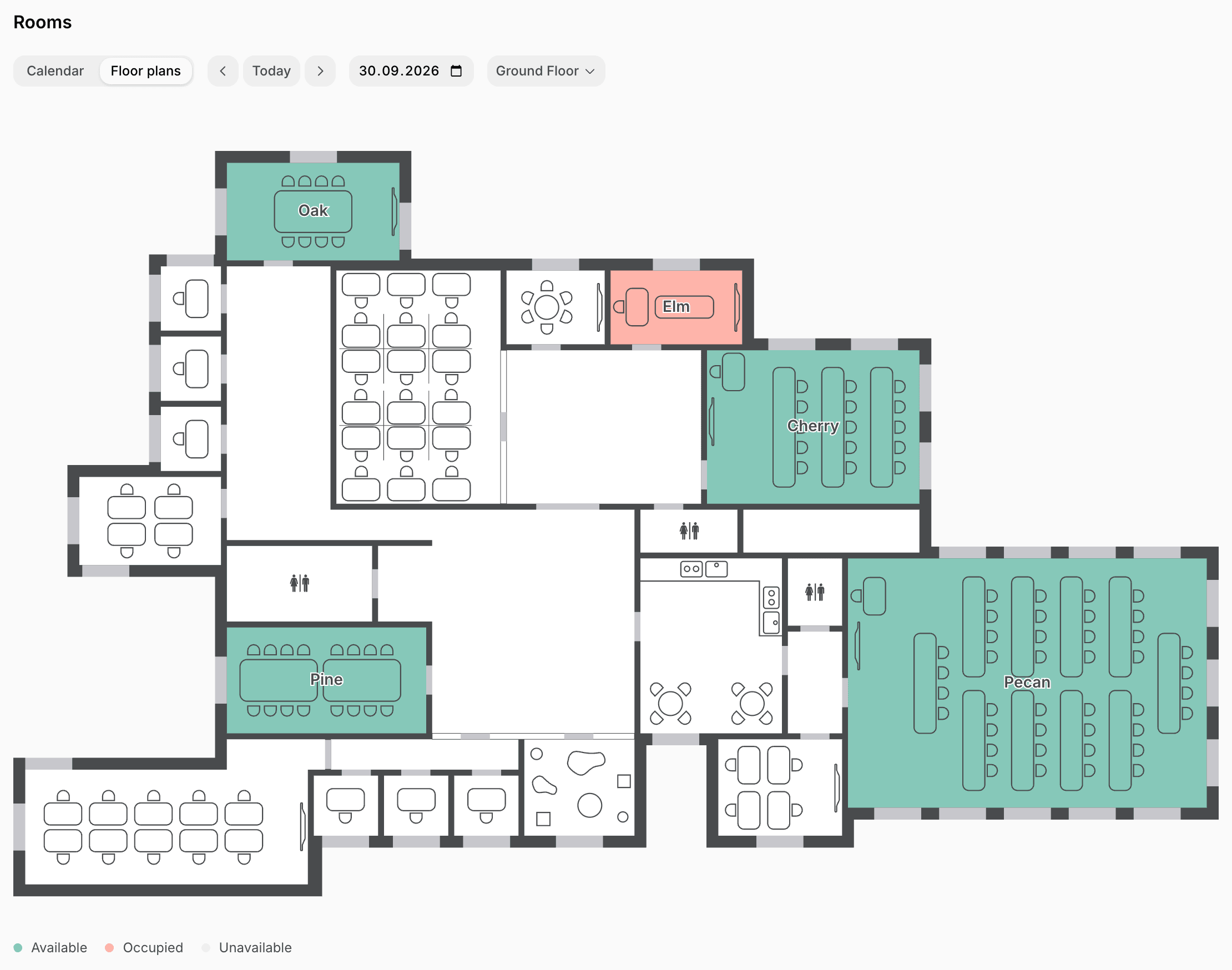
Clearly communicate room booking policy
Create a dedicated location guide for your room booking policy. This ensures all users can easily see it in the member web portal or mobile app and are fully aware of the booking rules. Clearly communicated policies help foster a culture of respect for shared resources within your community.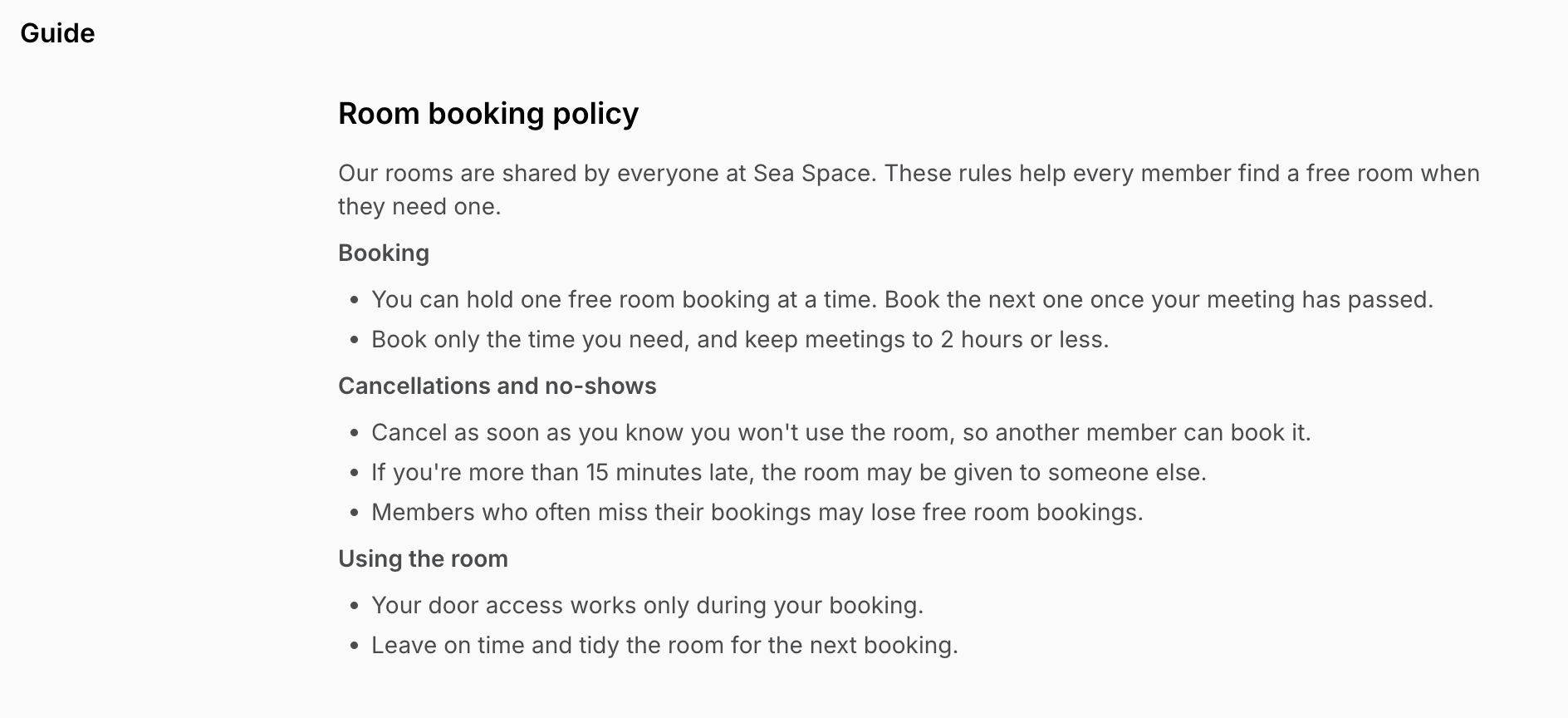
Integrate with access control system
If you use an access control system, select an access group in the Access section of each room to set up automated access granting. This means a user can only access a room if they have an active booking for it. This crucial step prevents unauthorized usage and ensures only the rightful booker can enter.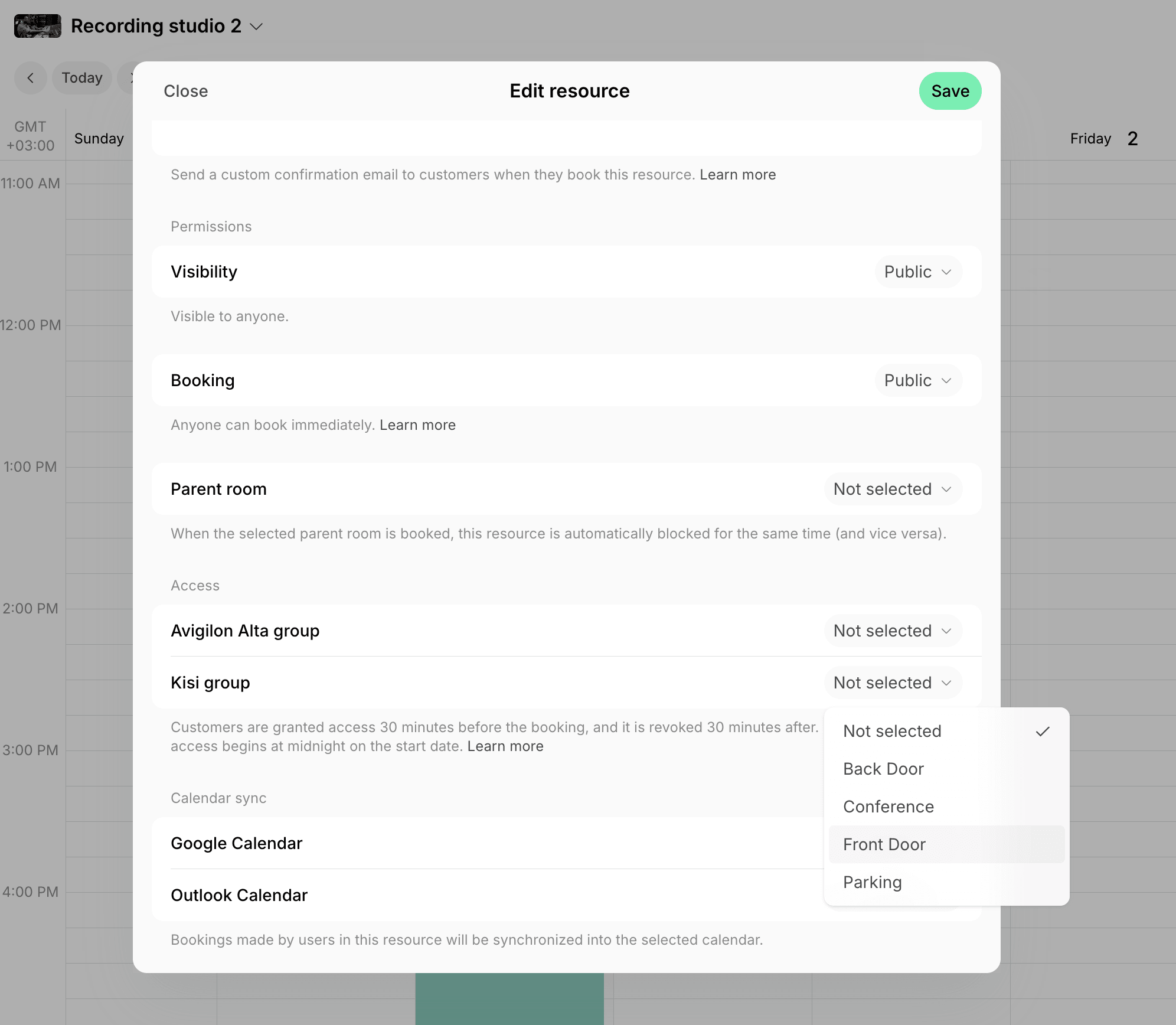
Use data-driven insights for better room management
To continually optimize your room management, regularly analyze your booking data. We recommend downloading and analyzing the bookings report at least once a month.- Go to Resources > Bookings and filter the list by rooms and the period you need.
- Click (…) in the top right corner > Export as CSV or Export as XLSX.
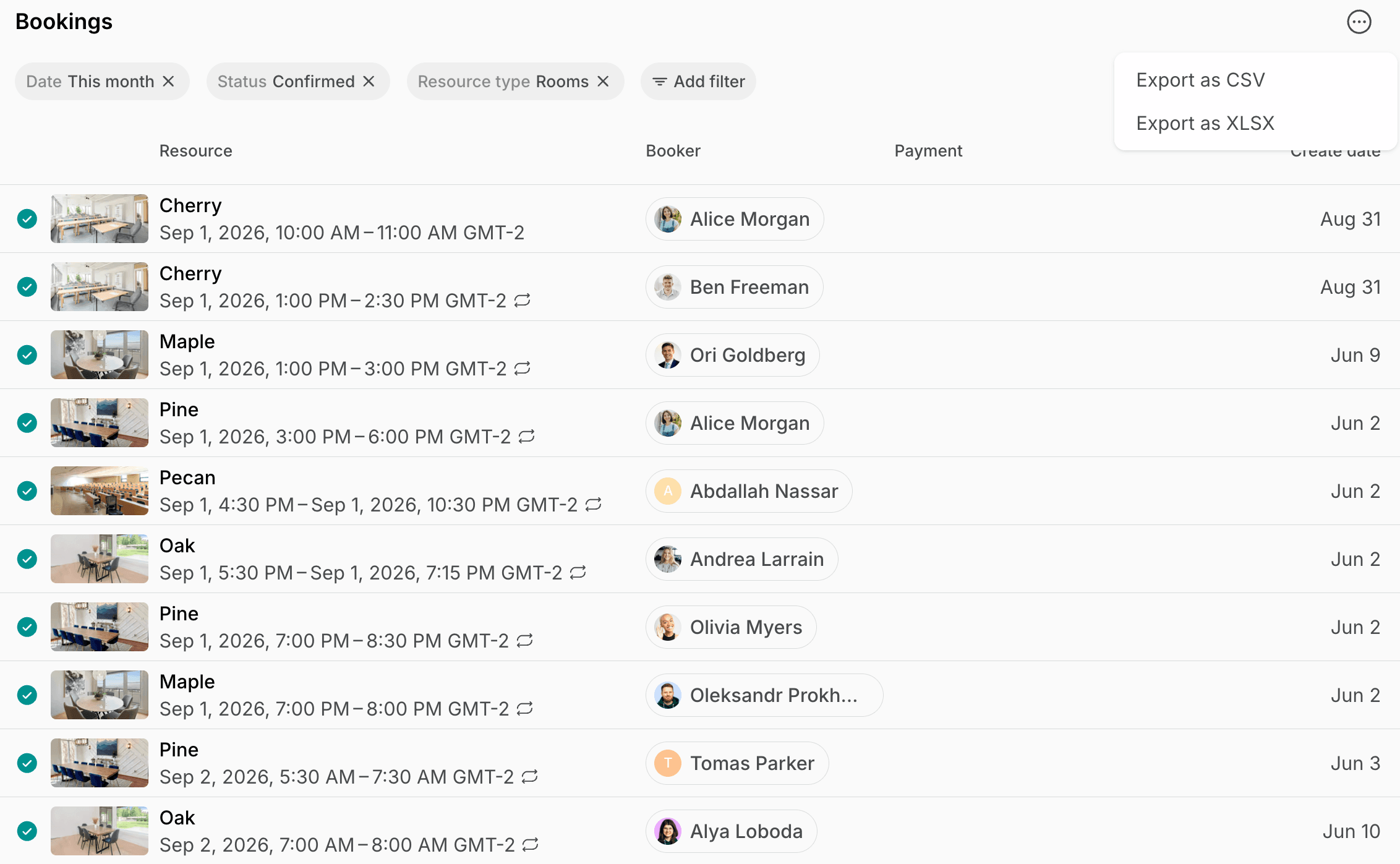
- This report allows you to easily identify the most frequently booked rooms, peak usage days and times, average booking durations, most frequent bookers, and other critical metrics that can inform your policy adjustments and future planning.