

- Give credits to customers with membership plans or resource rentals (e.g., for free meeting room hours)
- Automatically allocate recurring credits to customers
- Sell credit packages for upfront payment and flexible use
- Let members pay with credits, reducing small transactions and processing fees
- Issue credits instead of refunds to improve customer retention
Set up credits
- Click the (…) menu next to your location name on the left-side panel.
- Go to Location settings > Billing > Credits tab.
- Turn on the Credits switch.
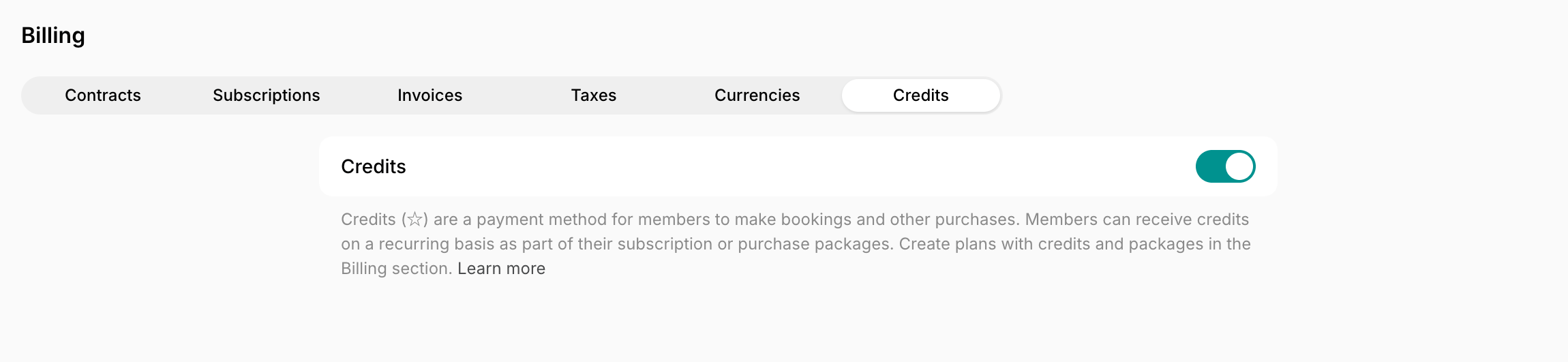
- If you have multiple locations, set cross-location credit usage.
- Set credit prices for all the resources and services you want members to pay for with credits.
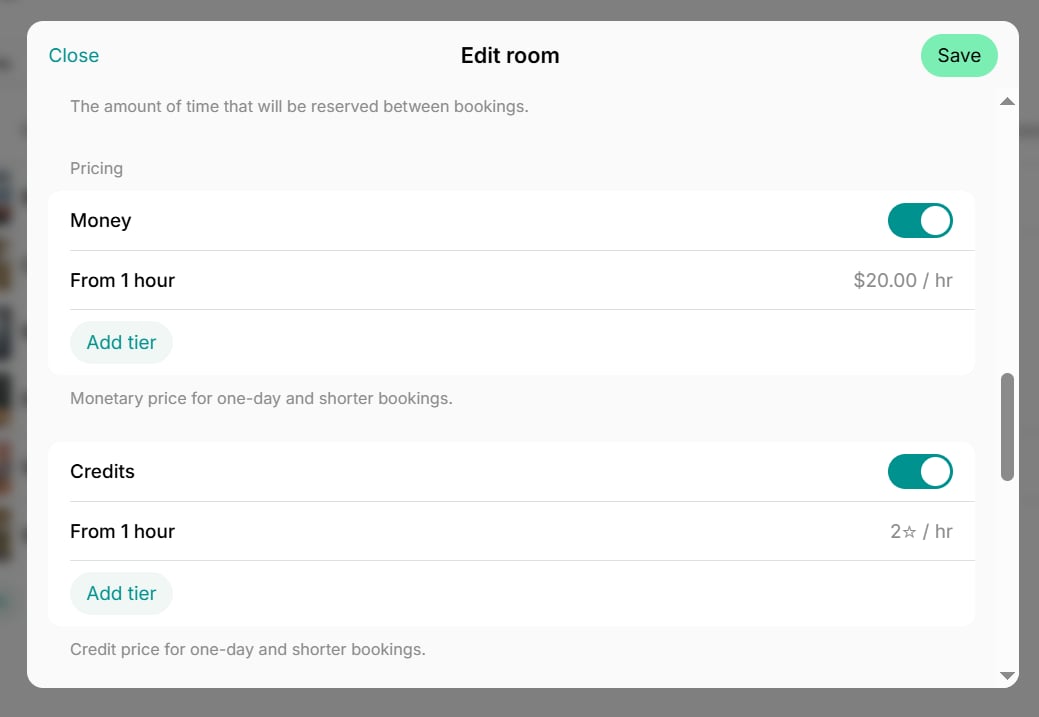
Give credits to members
You can include credits in a recurring plan or subscription, sell credit packages for members to buy themselves, or add them to a customer’s balance directly.With recurring plans
Include credits as part of your membership plans or resource rentals. Members will receive a set number of credits automatically at each subscription renewal.- Add credits in membership plans or resource rental tiers.
- Create subscriptions for customers, or let them sign up themselves.
- Members receive credits automatically at each renewal (e.g., monthly).
- Any unused credits expire at renewal and the new balance accrues.
- If a subscription ends or is canceled, the credits that subscription issued expire.
Credits from packages or added by an administrator stay on the balance and remain usable while the customer is still a member.
One-time packages
Sell one-off credit packages to members who need additional or occasional usage.- Create standalone packages.
- Members can discover and purchase them on Membership > Credits.
- They receive credits immediately upon purchase and can use them until the package expiration date (if there is any).
Only members can receive, purchase and use credits. Nonmembers cannot.
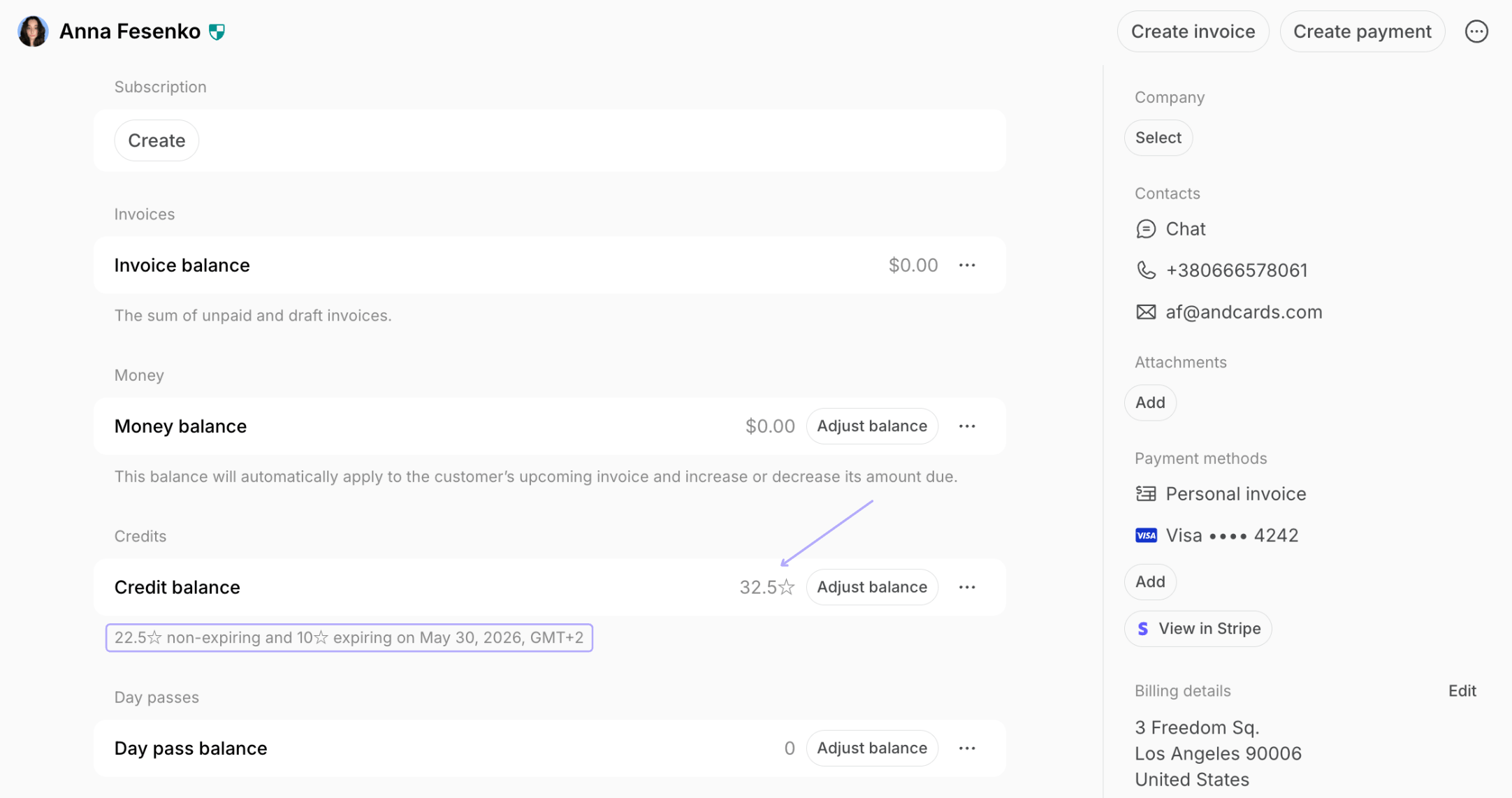
View customer’s credit balance
- Go to the Customers page.
- Open the user or company profile.
- Locate the Credit balance section.
- See the customer’s current balance
- Review credit expiration details below.
Add credits
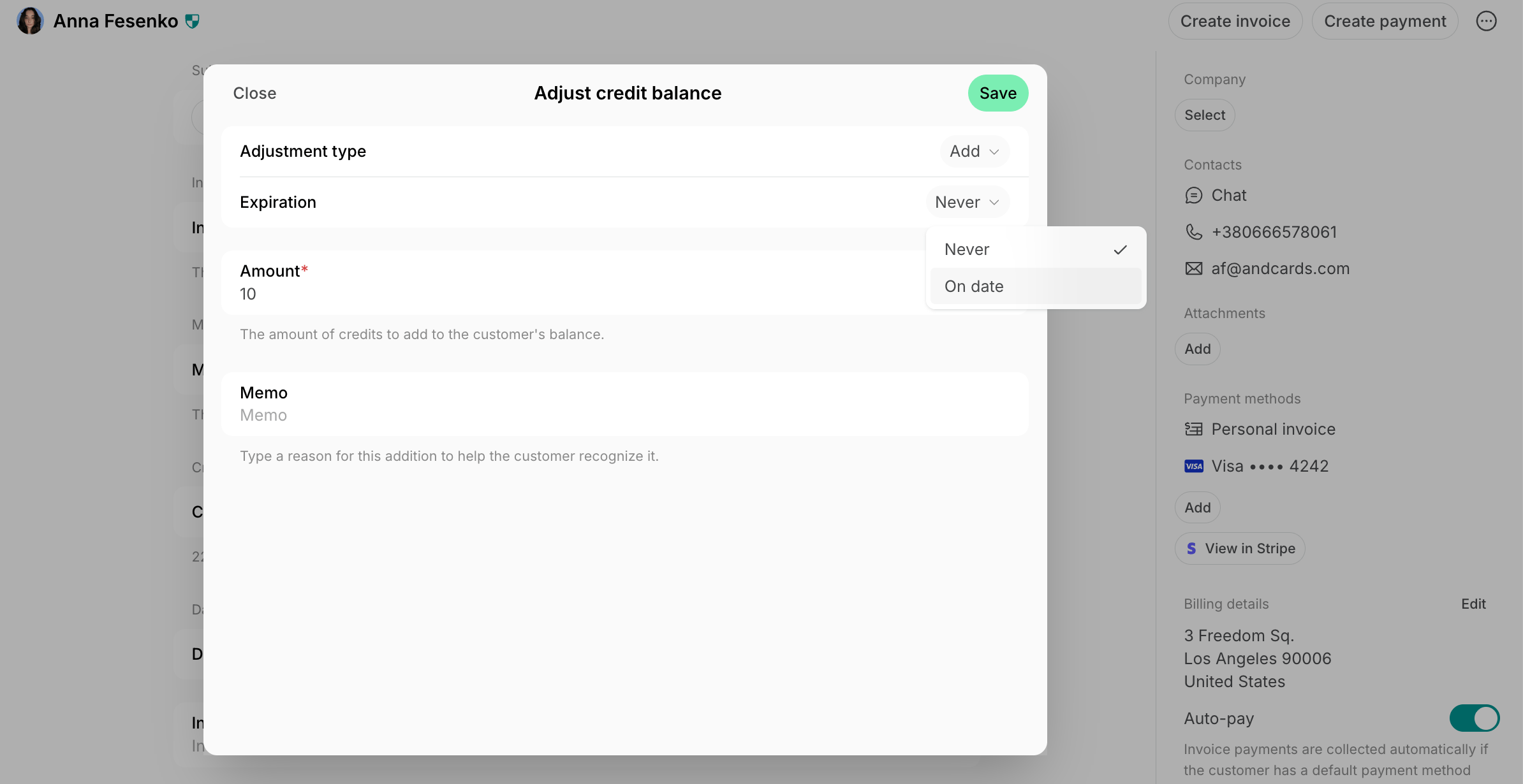
- Open the user or company profile.
- In the Credit balance section, click Adjust balance.
- Adjustment type — choose Add.
- Expiration
- Choose Never to give non-expiring credits, or
- Select a specific expiration date
- Enter the amount.
- Optionally, add a Memo to help the customer identify the adjustment.
Deduct credits
- Open the user or company profile.
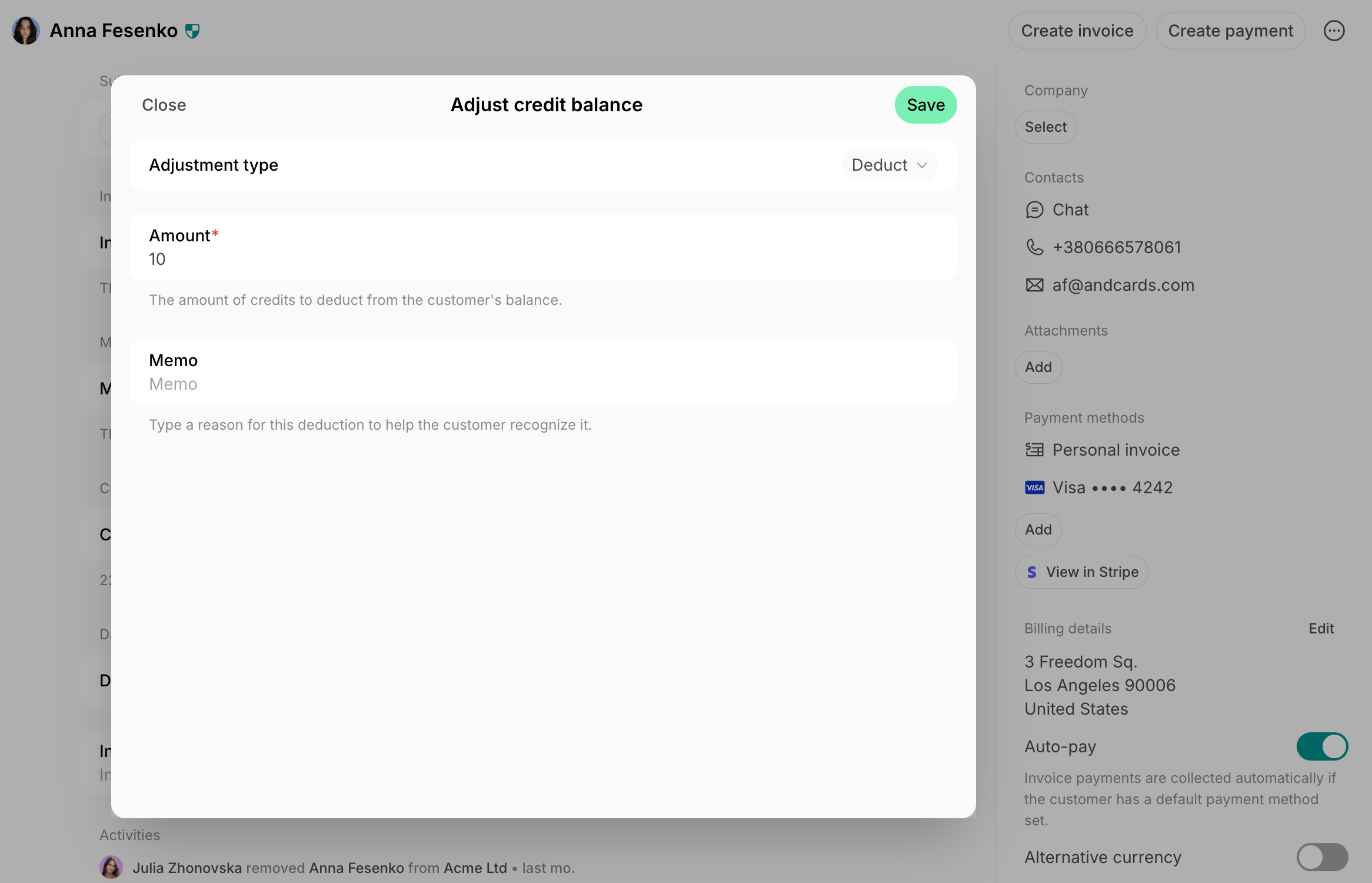
- In the Credit balance section, click Adjust balance.
- Adjustment type — choose Deduct.
- Enter the amount.
- Optionally, add a Memo to help the customer recognize the deduction.
If a customer has expiring and non-expiring credits or credits with different expiration dates, the system will deduct credits with the earliest expiration date first.
Track credit usage history
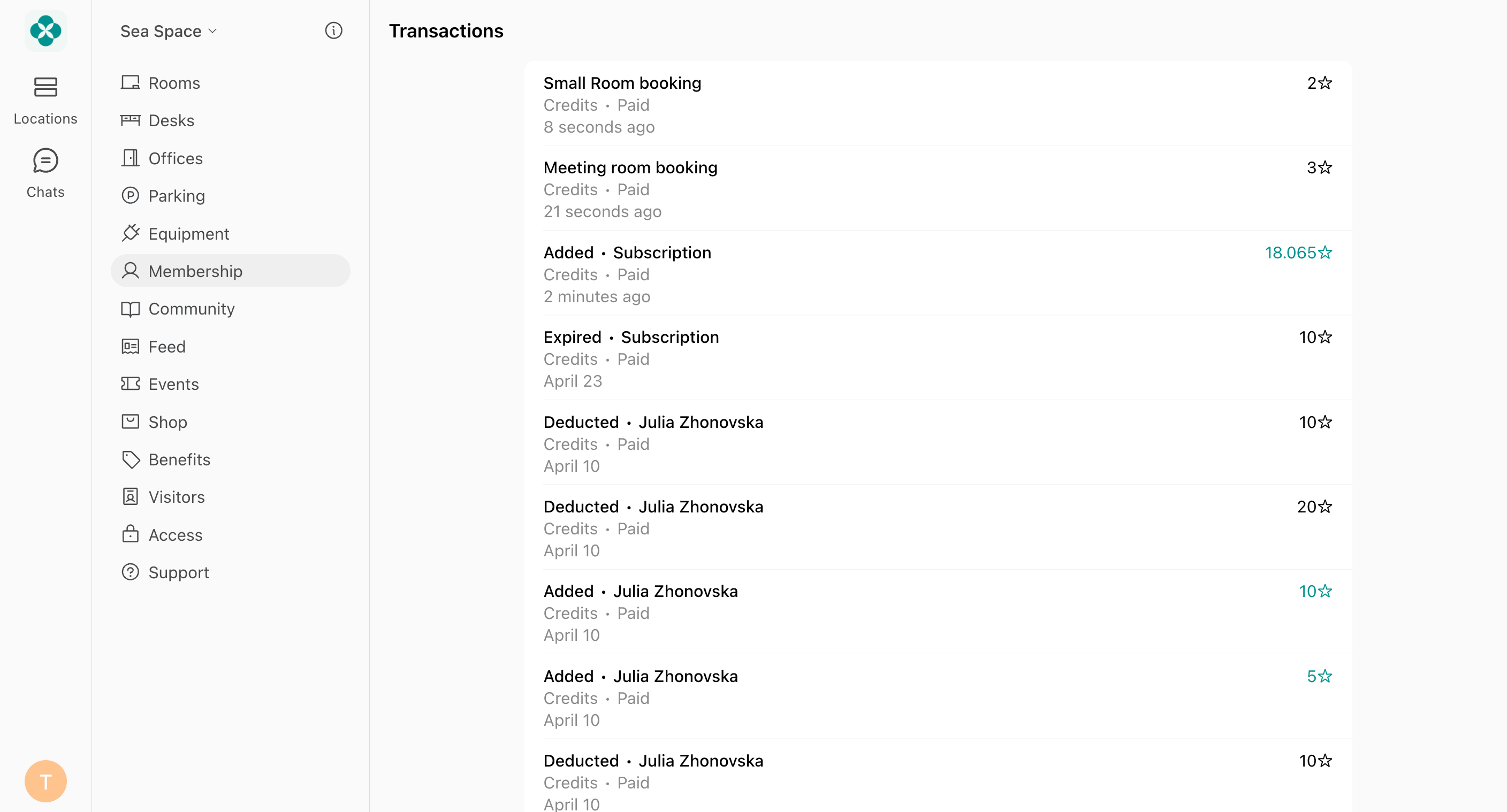
Both administrators and members can view credit transaction history to track additions and usage. Administrators:- Go to the Customers page.
- Open the user or company profile.
- Next to the Credit balance section > click (…) > View transactions.
- Go to the Membership page.
- Under the personal or company section, select Credits > Transactions.
FAQs
How do members pay when they run out of credits?
How do members pay when they run out of credits?
At checkout, the member will see a Not enough credits message and a prompt to: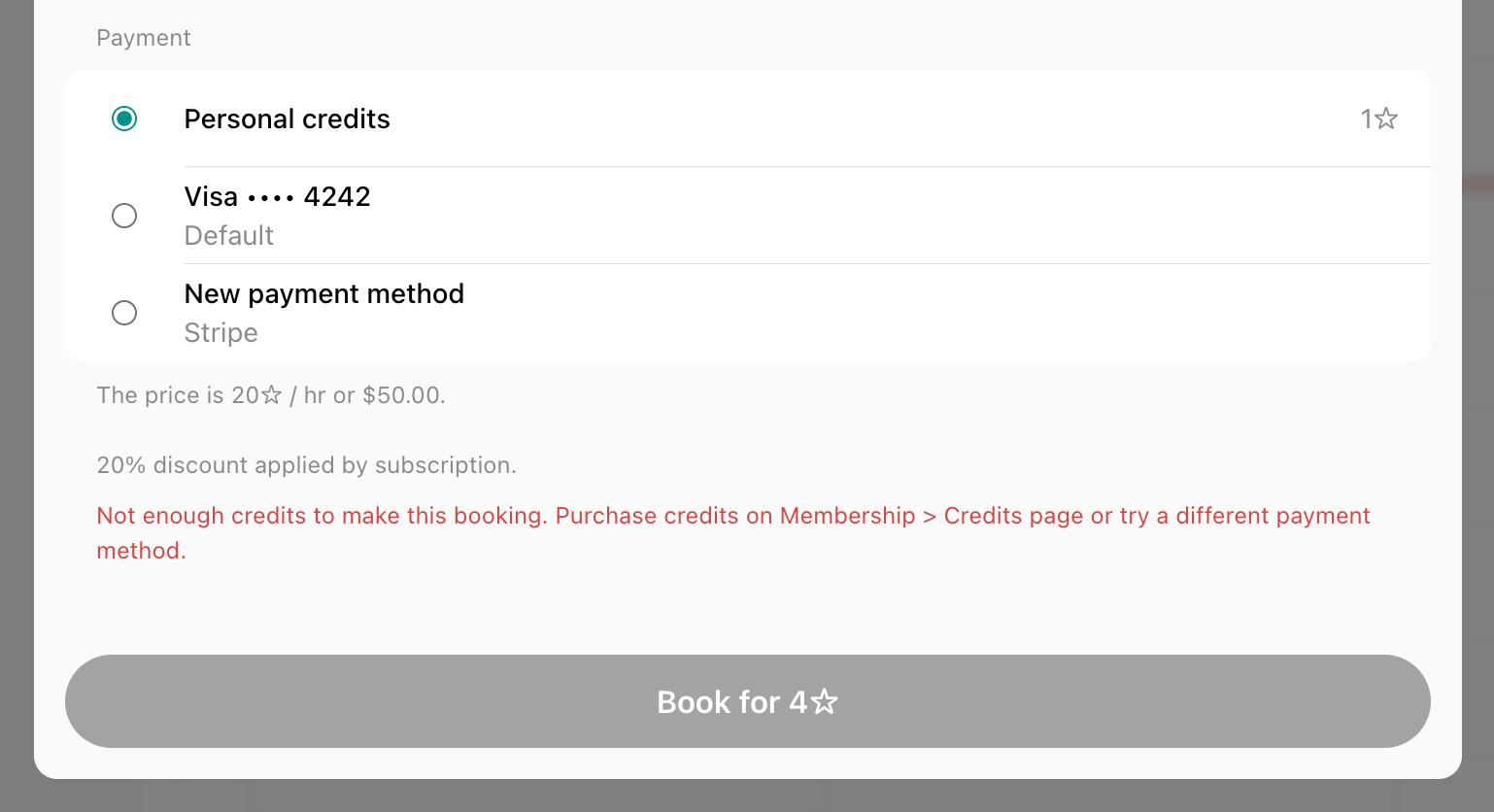
- Purchase a credit package to top up their balance
- Pay with money or a different payment method.
Which credits are used first, expiring or non-expiring?
Which credits are used first, expiring or non-expiring?
If a customer has expiring and non-expiring credits or credits with different expiration dates, credits with the earliest expiration date are deducted first.
Where can I set up the value of 1 credit in terms of money?
Where can I set up the value of 1 credit in terms of money?
Spacebring does not have a specific field to set the value of 1 credit. Instead, you can define the credit-to-monetary unit ratio with your team and consistently apply this rule when setting pricing for all resources. For example, you might decide that 1 ☆ equals 1 monetary unit or 1 ☆ equals 10 monetary units.By maintaining this consistency, you ensure that customers cannot exploit the credit system. They will always pay the credit price equivalent to the price in money. As a result, if users choose to book more expensive services using their credits, they will run out of their credits faster and will be able to make fewer bookings or purchases, maintaining fairness.
Why didn't a member receive credits or cannot see credits at checkout?
Why didn't a member receive credits or cannot see credits at checkout?
If a member is missing credits or received fewer than expected with their subscription, check the following in their profile on the Customers page:1. Subscription > Items > Expiring credits
- The customer’s subscription may not include credits. If the plan was updated recently, note that changes don’t apply to existing subscriptions—you need to update it manually.
- Another administrator on your team might have mistakenly edited their credit allowance in the subscription.
- The credit number may have been edited to the correct one after the customer’s subscription renewed. In this case, the customer will get the new, bigger number of credits only starting the next subscription cycle. If you can see a bigger number of credits set in their subscription but they received fewer this month, it means that their subscription was edited after renewal and not before. Understand how changes to a subscription apply
- If the member belongs to a company, they should see a section with the company’s name on their Membership page. If that section is missing, they are signed in with an email that isn’t added to the company — confirm which email address the member was added to the company under, then have them sign in with it.
Can a member pay for a booking partially with credits and partially with money?
Can a member pay for a booking partially with credits and partially with money?
Each purchase requires a single payment method — either full credits or full monetary payment.Instead of splitting a payment, members are encouraged to purchase extra credits with a credit package if their balance is not enough for making a purchase. This helps you upsell customers and allows users to top up their credit balance whenever they need.
How to check the refund for a booking made with credits?
How to check the refund for a booking made with credits?
Go to Billing > Transactions page > Credits tab > filter by company or user. Here, you can see all refunded credit transactions. If you do not see a refund, it may be because the user was not eligible for a refund according to the resource’s rescheduling policy. In such cases, credits can be manually refunded by adding them to the user’s balance.Users can also check their refunded credit transactions in the member web portal or mobile app under Locations > Membership > Credits > Transactions.