

Configure cross-location credits and day passes
- The owner needs to click the network name top left > go to Network settings > Locations.
- Set the required percentage value on the Cross-location credits and Cross-location day passes sliders.

How users book with cross-location credits and day passes
- Select a different location within the network.
- Choose Room, Desk, Parking, or Equipment.
- At checkout, they can see their credits and day passes from all locations to pay for the booking.
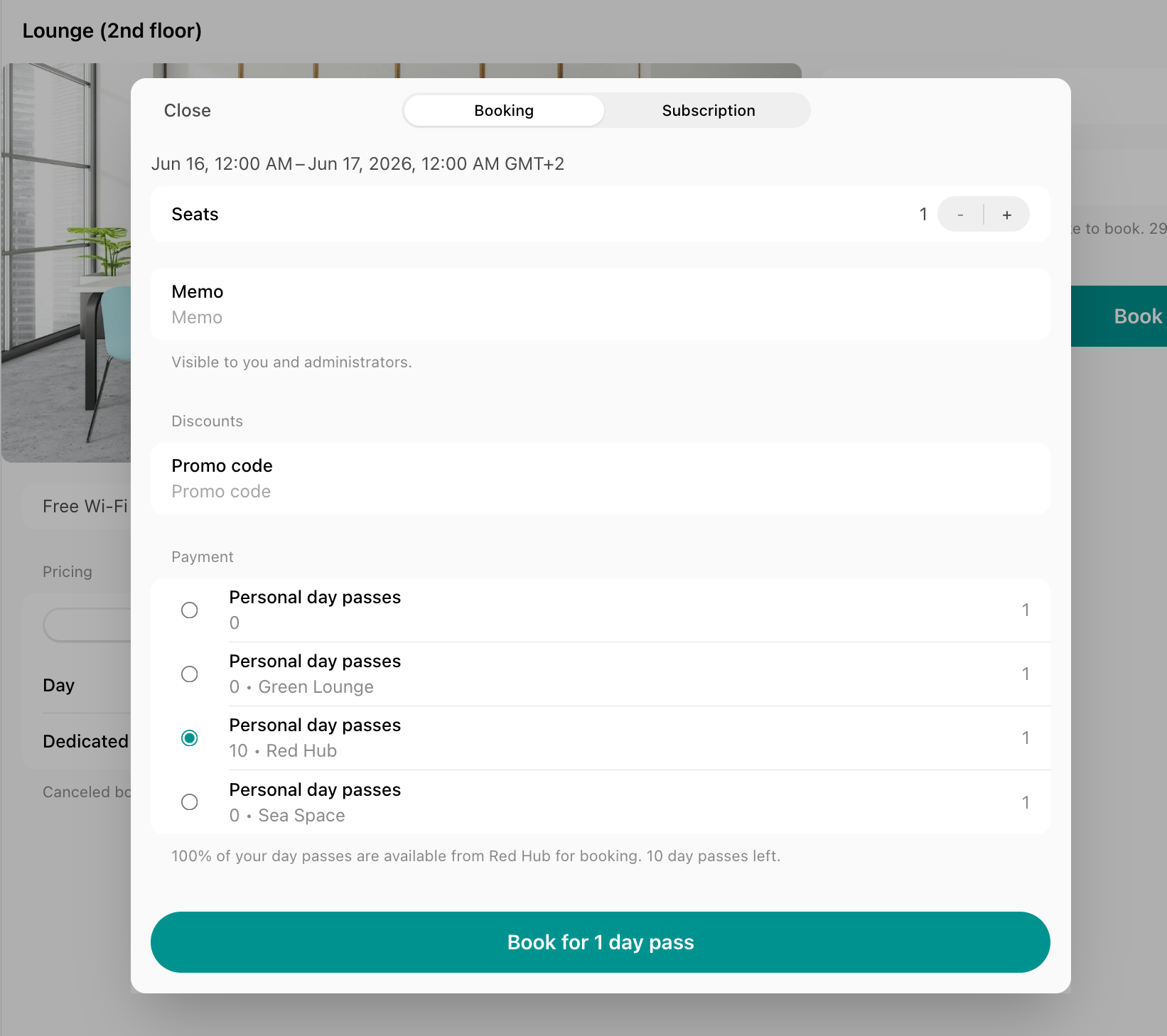
Cross-location credits can be spent on room, desk, parking and equipment bookings in other network locations. They cannot be used to purchase event tickets or shop products.
Best practices
If you have multiple locations, you can use this feature:- As a unique benefit of your space: no matter in what locations your members have a subscription, they can visit other locations and make bookings with credits or day passes.
- As a retention tool: members can spend credits in other locations and may wish to become a member in some of your other locations in the future.