

Plans are designed for subscriptions which don’t involve a dedicated resource rental — for example, a hot desk plan, a flex membership plan with 10 days per month, a plan with credits, or a virtual office plan. Rentals of a dedicated resource, such as a dedicated desk or a private office, are set up inside that resource instead.
- Structure and present your membership options to customers
- Let customers sign up instantly or submit applications
- Quickly set up new customers for subscriptions, using plans as templates.
Set up plans
- Go to Billing > Plans.
- Click Create plan.

Plan configuration
- Name — appears on customer invoices.
- Cycle — the interval of plan validity and how often the subscription renews. Available options: 1 week, 1 month, 3 months, 6 months, or 1 year.
- Description — customer-facing details of what is included.
- Price — the fee for 1 cycle.
- Setup fee — one-time charge to add to the customer’s first invoice.
The setup fee is taxable but is not affected by discounts or invoice proration.
- Custom tax rate — overrides the location’s default tax rate for this plan.
- Minimum commitment — the mandatory minimum number of cycles a customer can subscribe for.
- Credits — expiring credits the customer will receive each cycle for bookings or purchases.
- Day passes - expiring day passes the customer will receive each cycle for booking hot desks.
- Discounts > Granted coupons — grant members reduced rates for bookings and other services as part of their membership.
- Sign-up — control whether and how customers can see and sign up for this plan.
Sign-up setting
- Access — access control group. Appears if you have the integration with the access control system.
- Printing — printing access group.
- Exclusive access — customers on this plan have exclusive access to the resources selected in the Exclusive resources field and the benefits selected in the Exclusive benefits field.
- Tap Save.
What’s next
After creating your plans:- Customers can explore available plans and sign up or submit requests, depending on your settings

- Administrators can quickly set up new members for subscriptions, using plans as ready-made templates with predefined pricing, benefits, and access.
Edit or delete a plan
- Go to Billing > Plans.
- Press the menu button (…) next to the preliminary created plan and tap Edit or Delete.
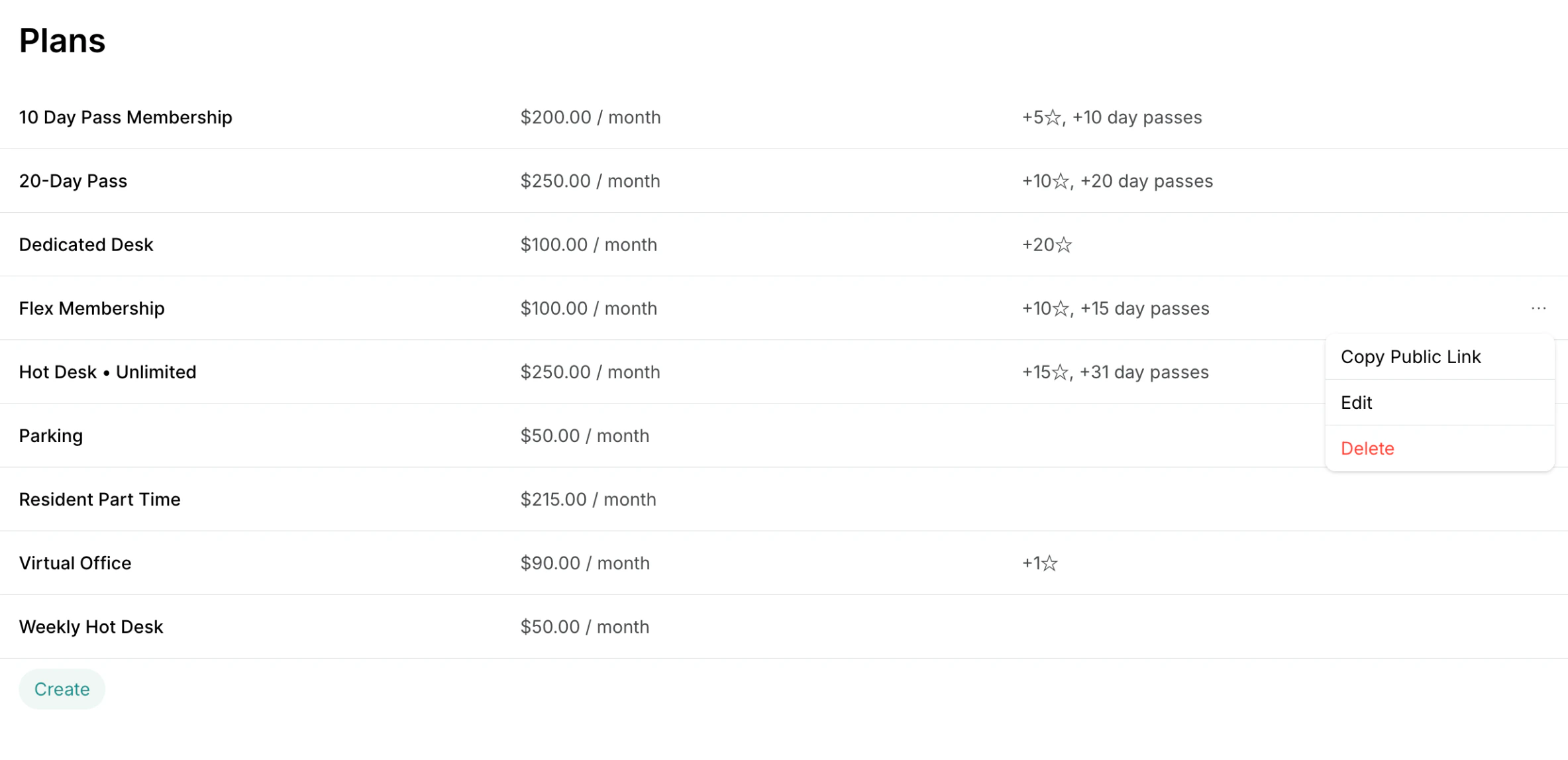
Deleting a plan does not affect active subscriptions. If your members still have this plan selected in their subscription, it will continue to function for them.
Export a plans report
On the Plans page, click (…) in the top right corner > Export as CSV or Export as XLSX to download a report on all plans. The report includes each plan’s title, price and currency, billing period, and minimum commitment in cycles, the number of credits and day passes it grants per cycle, and its create date.FAQs
Why don't customers see my plan?
Why don't customers see my plan?
Check that Sign-up is enabled in the plan’s settings — it is the only setting that controls whether customers see a plan, as plans have no Visibility setting of their own. Customers without a subscription then find the plan behind the Sign up button, and those who already have one subscribe from the Membership > Billing page.A plan that rents out a specific desk or office is a resource plan created inside that resource, and it never appears under the Sign up button. Customers find it on the page of the resource it belongs to — Desks, Offices, or another resource page — and the resource’s Visibility decides who sees it there.
How to create a custom plan for one customer?
How to create a custom plan for one customer?
Start creating the subscription for your customer, keep Custom in the Product field, and manually type the plan name, price, and other allowances.
How can I copy the link to all public plans?
How can I copy the link to all public plans?
Go to Billing > Plans > press the menu (…) top right > Copy link to all public plans. 
Can I offer discounts for plans?
Can I offer discounts for plans?
To offer targeted discounts on specific plans/for selected customers, create coupons and promo codes of Subscription items type. Apply them directly when creating subscriptions for users and companies, or share the promo code with customers to redeem the discount on their own when they sign up.
How to offer a package of hours for booking rooms?
How to offer a package of hours for booking rooms?
You can use any of the following options:
- Create a membership plan with credits: This is ideal for recurring packages. Customers subscribe to a plan and automatically receive a set number of expiring credits each cycle to use for bookings.
- Create a credit package: This is best for one-off purchases. Customers can buy a one-off package of credits at any time and use them for bookings.
Do changes to the plan affect existing members' subscriptions?
Do changes to the plan affect existing members' subscriptions?
Changes to the plan only apply to new future subscriptions and those exiting members that have Auto-update from plan enabled in their subscription.To apply plan changes to existing members, you have two options:
- Edit their subscriptions individually and apply changes manually, or
- Turn on Auto-update from plan in existing customers’ subscriptions > then make a change to the plan. This way, it will automatically apply to existing members, too.
How to raise the price for all customers who are subscribed to the plan?
How to raise the price for all customers who are subscribed to the plan?
Ensure the Auto-update from plan setting is enabled in all your customers’ active subscriptions who have that plan. Then, edit the plan as needed.
- Any changes made to pricing, credits, or day passes will apply automatically to their subscriptions with the start of the next billing cycle.
- Changes to discounts, door access, and exclusive access to resources and benefits apply immediately.
How are plans ordered for customers?
How are plans ordered for customers?
In the member web portal and mobile app, plans are sorted by billing cycle from shortest to longest—Week, Month, 3 months, 6 months, then Year—and plans with the same cycle are sorted by price from lowest to highest.