

- Grant access to specialized facilities (e.g., a podcast studio or gym) only to customers who have completed required training.
- Offer premium resources as an exclusive perk for high-tier memberships.
- Manage different resource pools for different membership levels.
Configure exclusive access to resources
Setting up exclusive access is a two-step process: first, you define the resource’s restrictions, and then you grant access to specific customers or memberships.- Navigate to the resource settings (e.g., Rooms, Desks, or Equipment) and select the specific item.
- On the Permissions tab, locate the Visibility and Booking fields to set your preferred restriction level.
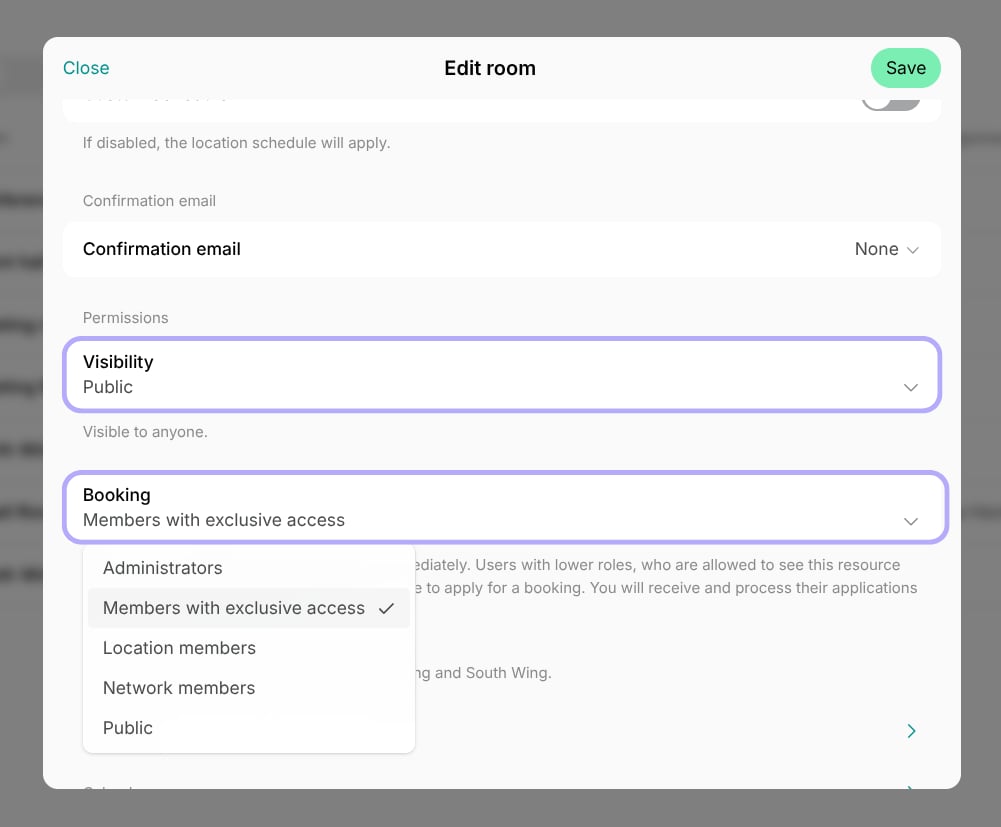
- Grant members access to the exclusive resource using one of these methods:
- Grant access to all members with certain memberships:
- Edit the membership and select this resource in the Exclusive access section > Exclusive resources field.
- All customers who subscribe to this membership will automatically receive access.
- Grant access to individual members:
- Edit the customer’s subscription > open a subscription item.
- Select this resource in the Exclusive access section > Exclusive resources field.
- Use this option when access is based on personal qualifications rather than membership level.
- Granting exclusive access on a company’s subscription gives it to every member of that company.
How users interact with exclusive resources
Once configured, the availability of the resource updates automatically based on the customer’s status.- Customers can see and book an exclusive resource only while their subscription item is running, and only for dates it covers.
- Customers without the required access level will either be unable to see the resource or prevented from making a booking.
- Customers with access pay for each booking according to the resource’s pricing and the payment methods it accepts.
Benefits support exclusive access in the same way, so you can reserve a partner discount or perk for the customers you choose.