

Get customers using the member web portal
Invite your current customers
Members who joined before you moved to Spacebring may not know the member web portal exists, and keep emailing you to book a room. Invite them all at once, and tell them what they can now do on their own.- Set up companies, subscriptions, and bookable resources first, so members find their plan and your rooms when they first sign in.
- Customize the invitation email with any details you want members to know, such as how to get into the building.
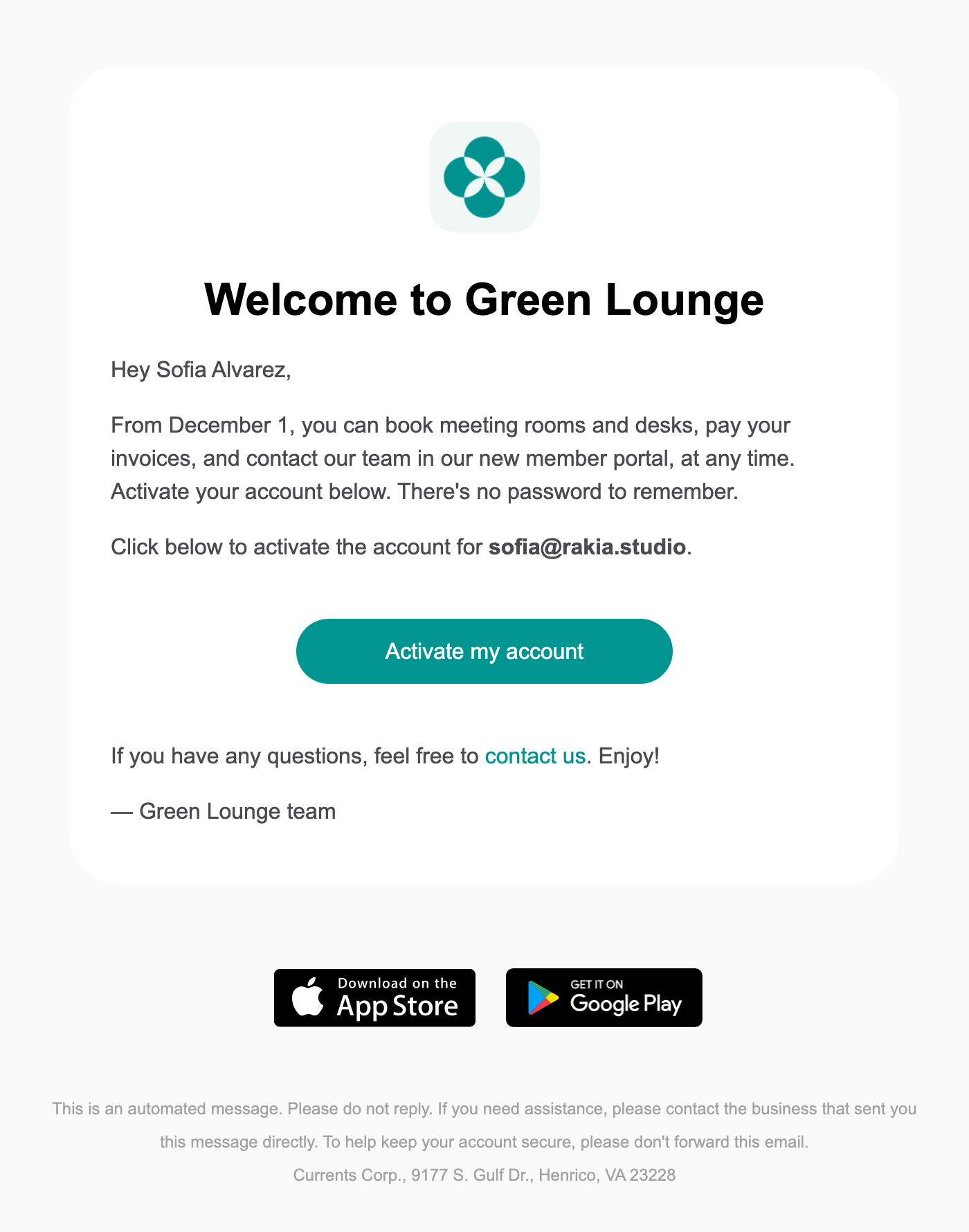
- Mass invite your members.
- Members who don’t activate their account within 3 days get a reminder automatically.
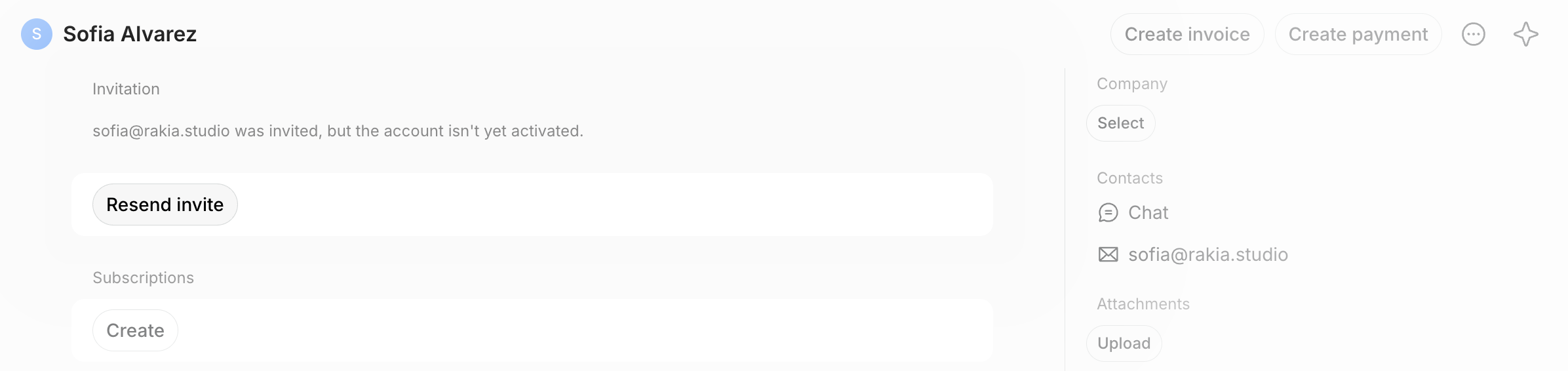
- A few days later, such as a week after the invitations, find the members who haven’t signed in yet.
- Remind them in person, or open their profile on the Customers page and click Resend invite.
Answer requests with portal links
A member may still ask at the front desk or by email to book a room, even after they activate their account. Each time an administrator books it for them, they learn to ask again.-
Reply with a link to the room, desk, event, or membership instead of booking it for them. For example:
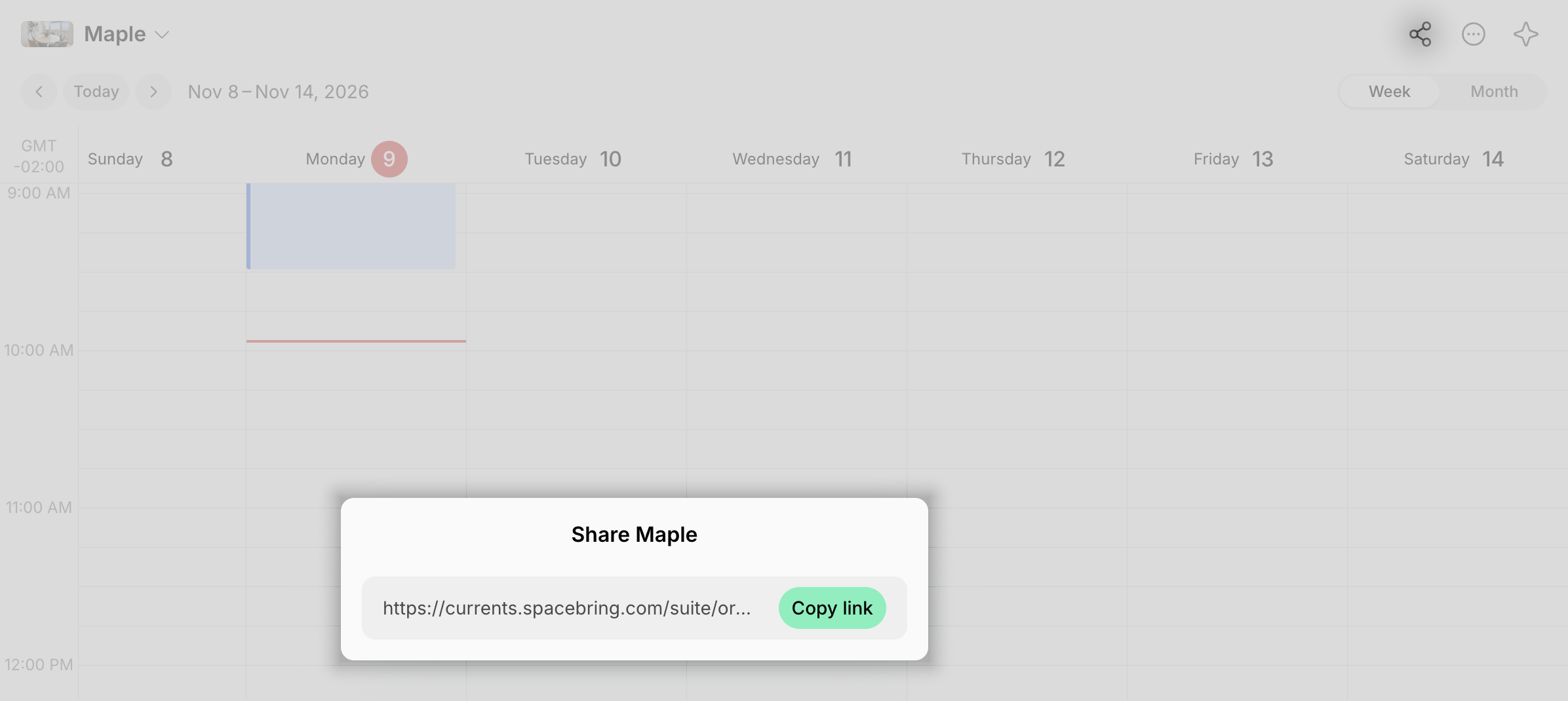
- Add a link to your member web portal to your email signatures and auto-replies.
- Point members to the Support page for questions and issues, and answer common ones, such as house rules, Wi-Fi details, and opening hours, in guides on the Information page.
Move daily tasks into the portal
Members who only book a room once a month may forget the portal is there. A task they do every day keeps it on their phone.- Connect an access control integration that lets members unlock doors from the member web portal and mobile app, such as Kisi, Brivo, or Salto KS.

- If you use visitor check-ins, ask members to preregister their visitors in the portal, so they get a notification when the visitor arrives.
- Post news on Feed and publish your events, so members check the portal for what’s happening in your space.
Show the portal on-site
Visitors and new members are in your space with their phones, but may not know where to book a room or report a broken printer.- Help each new member sign in on their phone on their first day, and book something together, such as a meeting room for later that week.
- Mention the portal on every tour and at reception.
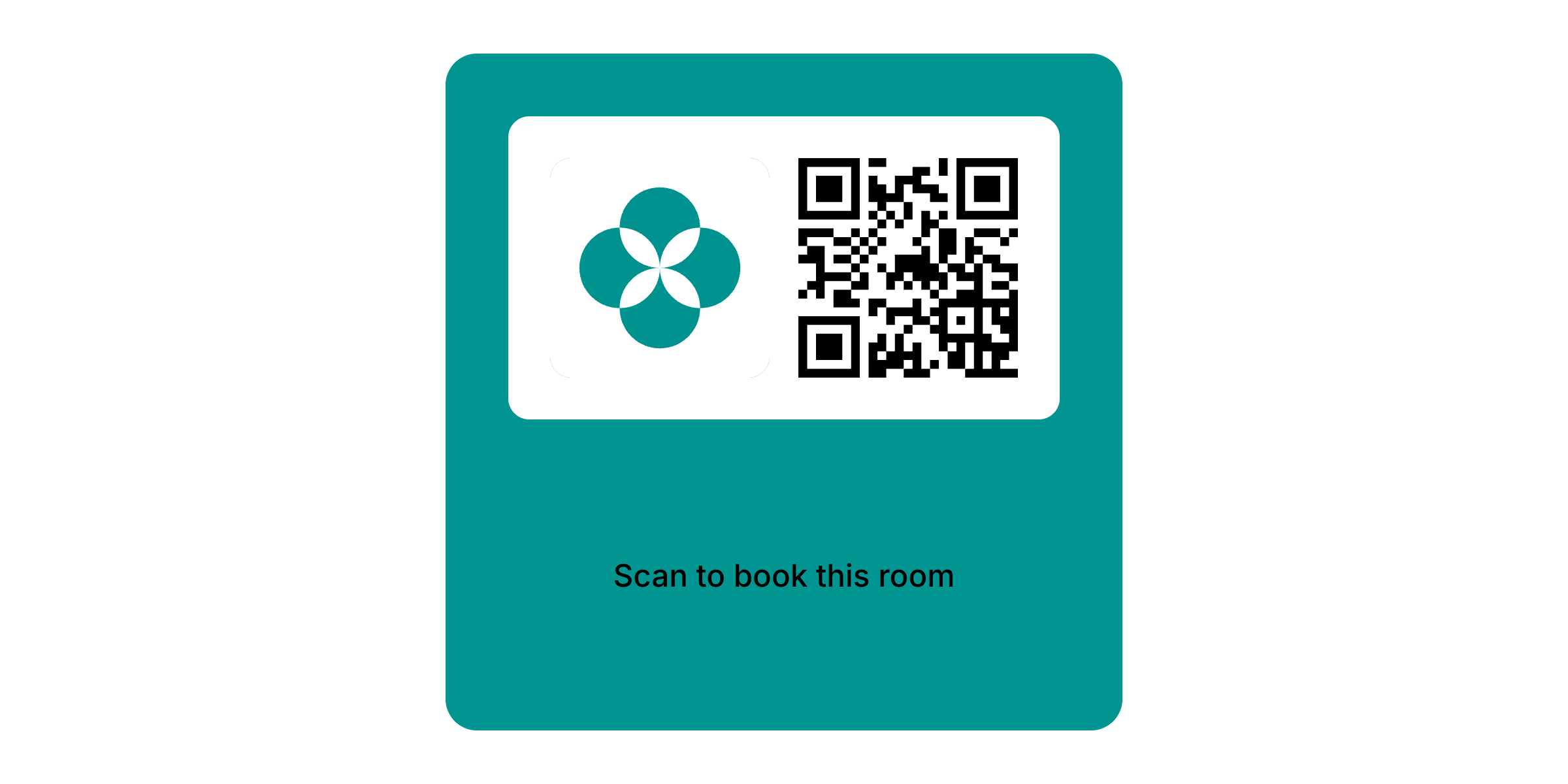
- Place QR code stickers where customers need something, with a short call to action, such as “Scan to book this room” on a meeting room door.
Reach new customers with portal links
Potential customers who find you on Google, on Instagram, or in an ad may leave if they have to email you to ask about prices or availability.- Add buttons such as “Book a room” or “Become a member” to your website, and link them to those pages of your member web portal.
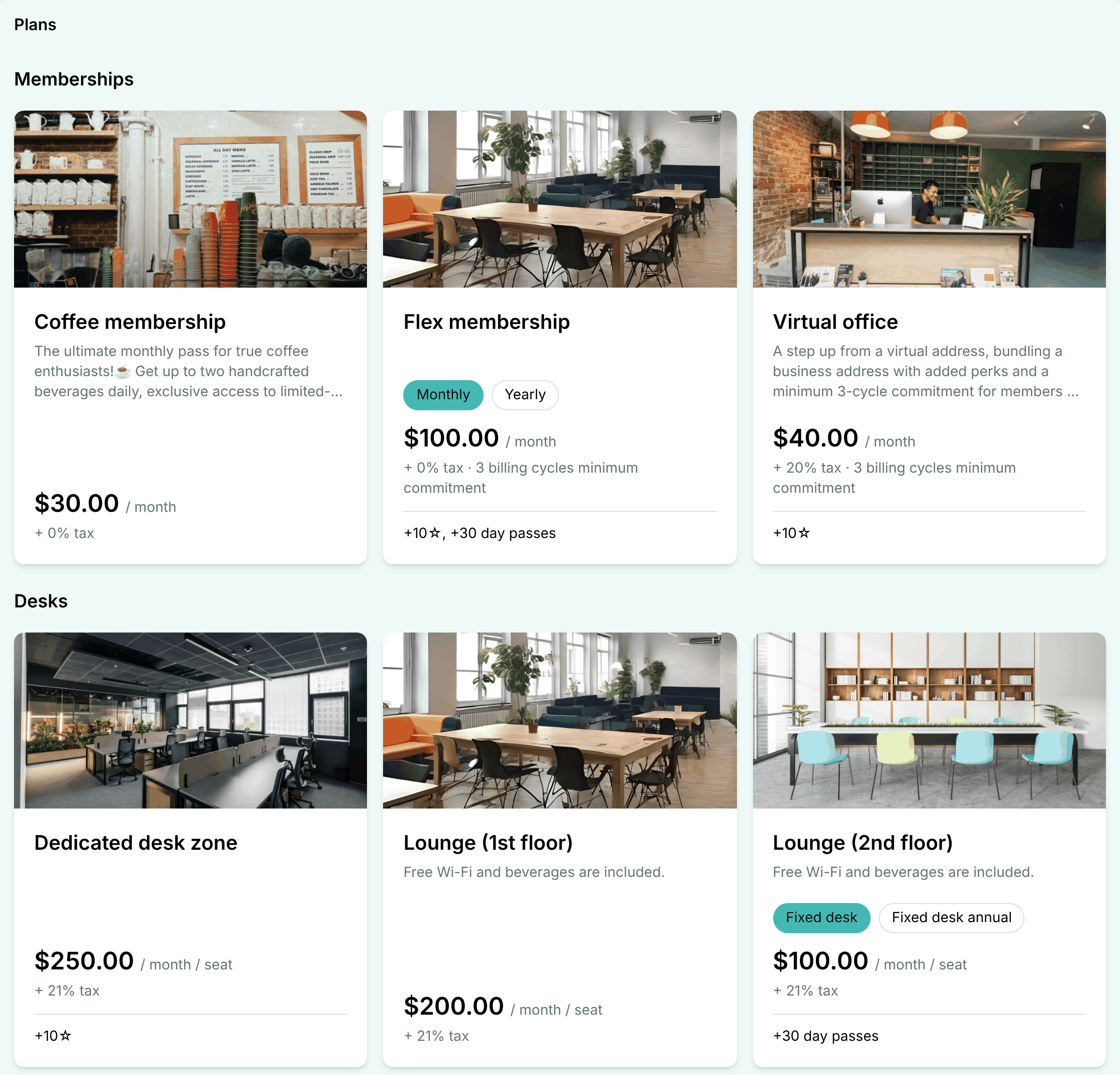
- Add a portal link to your social media bios, and as the booking link of your Google Business Profile.
- Link each ad to the page it promotes, not your landing page, and track sign-ups and purchases with Meta Pixel or Google Analytics.
- Offer a promo code for a first booking, such as a free trial day at a desk.
- Set up a custom domain, such as
members.yourspace.com, so your links carry your brand.
Set the services you promote to Public visibility, and enable Sign-up for your membership plans.
Launch your member mobile app
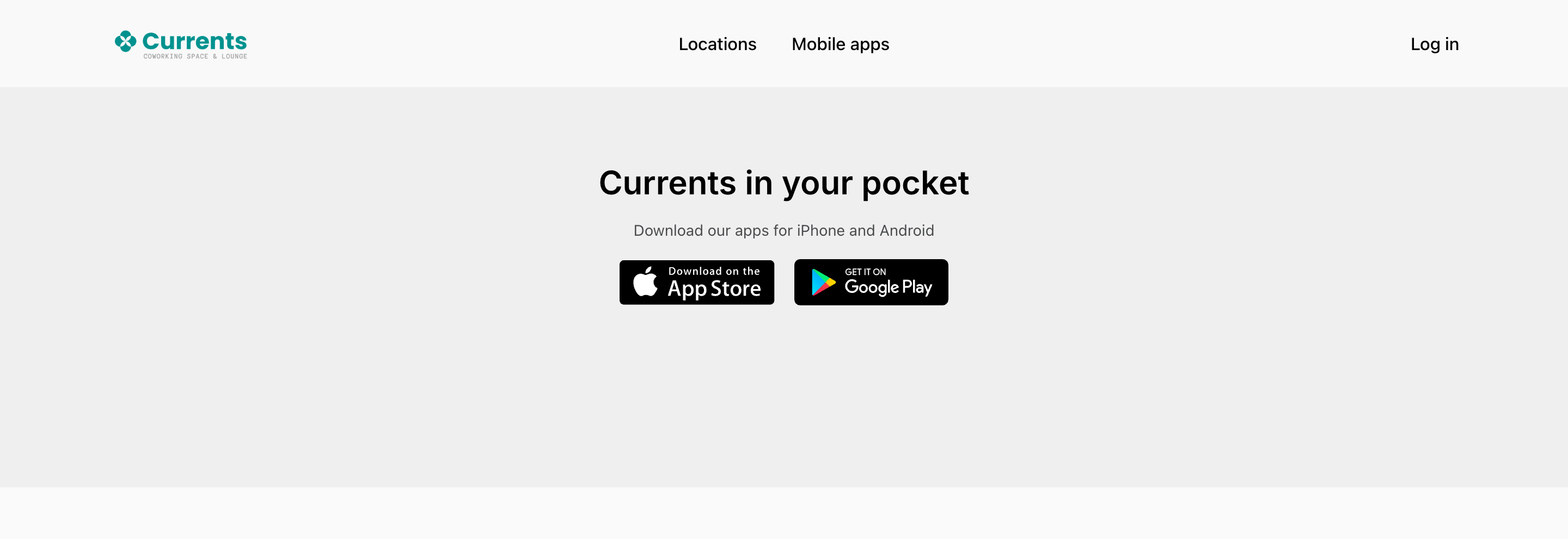
Once your member mobile app is live, Spacebring shows it to your customers without any setup:- Your landing page shows App Store and Google Play badges.
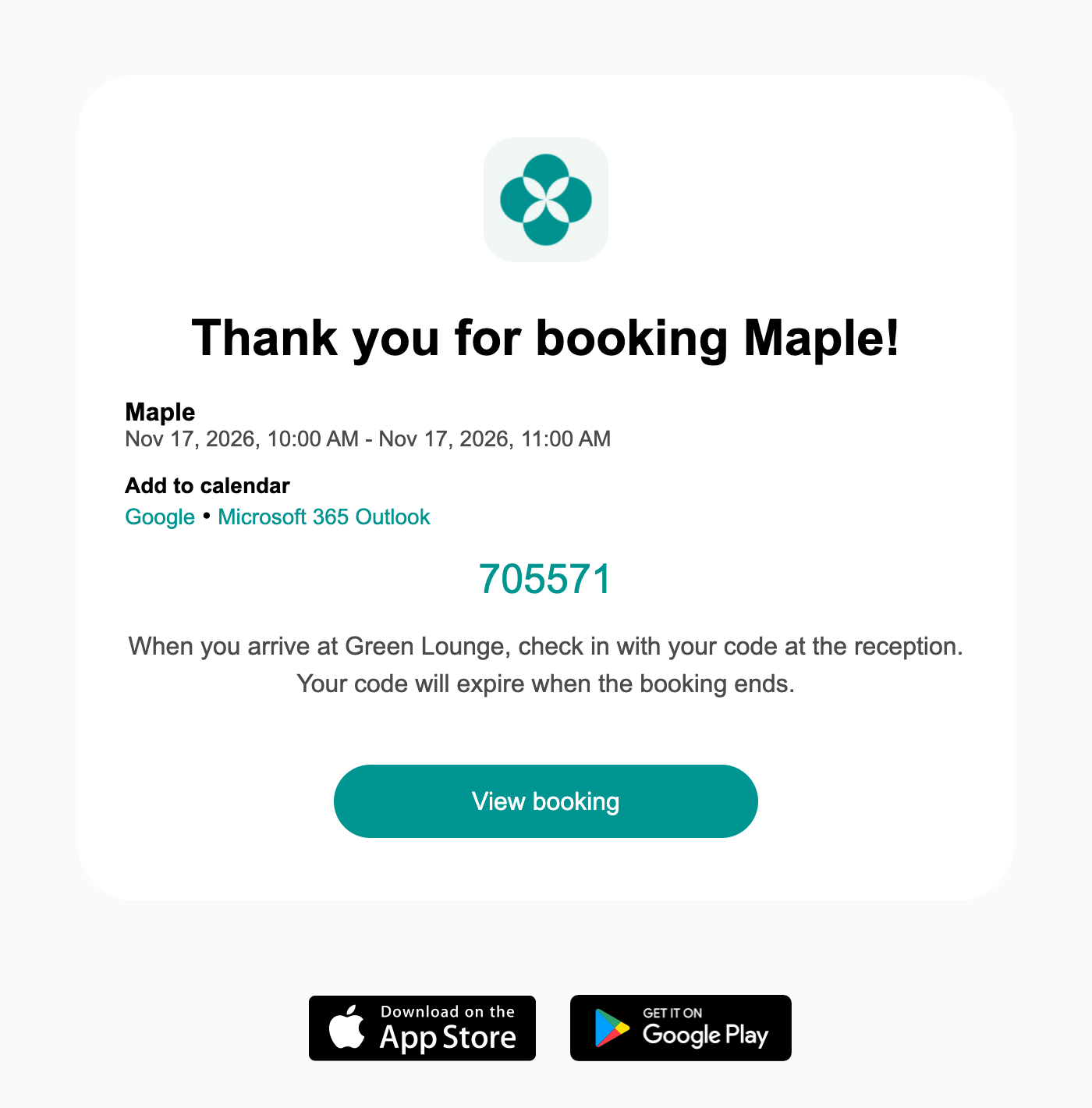
- Emails Spacebring sends your customers, such as invitations, invoices, and receipts, show the badges at the bottom.
- Safari on iPhone shows a banner at the top of your member web portal that opens or downloads your app.
- Links and QR codes you already shared to member web portal pages, such as a room or an event, open the app for customers who have it.
Announce the launch
Members who already use the web portal may not notice that your app is out, and one announcement is easy to miss.- As an owner, go to Network settings > Member mobile app and copy the links of the App Store and Google Play badges.
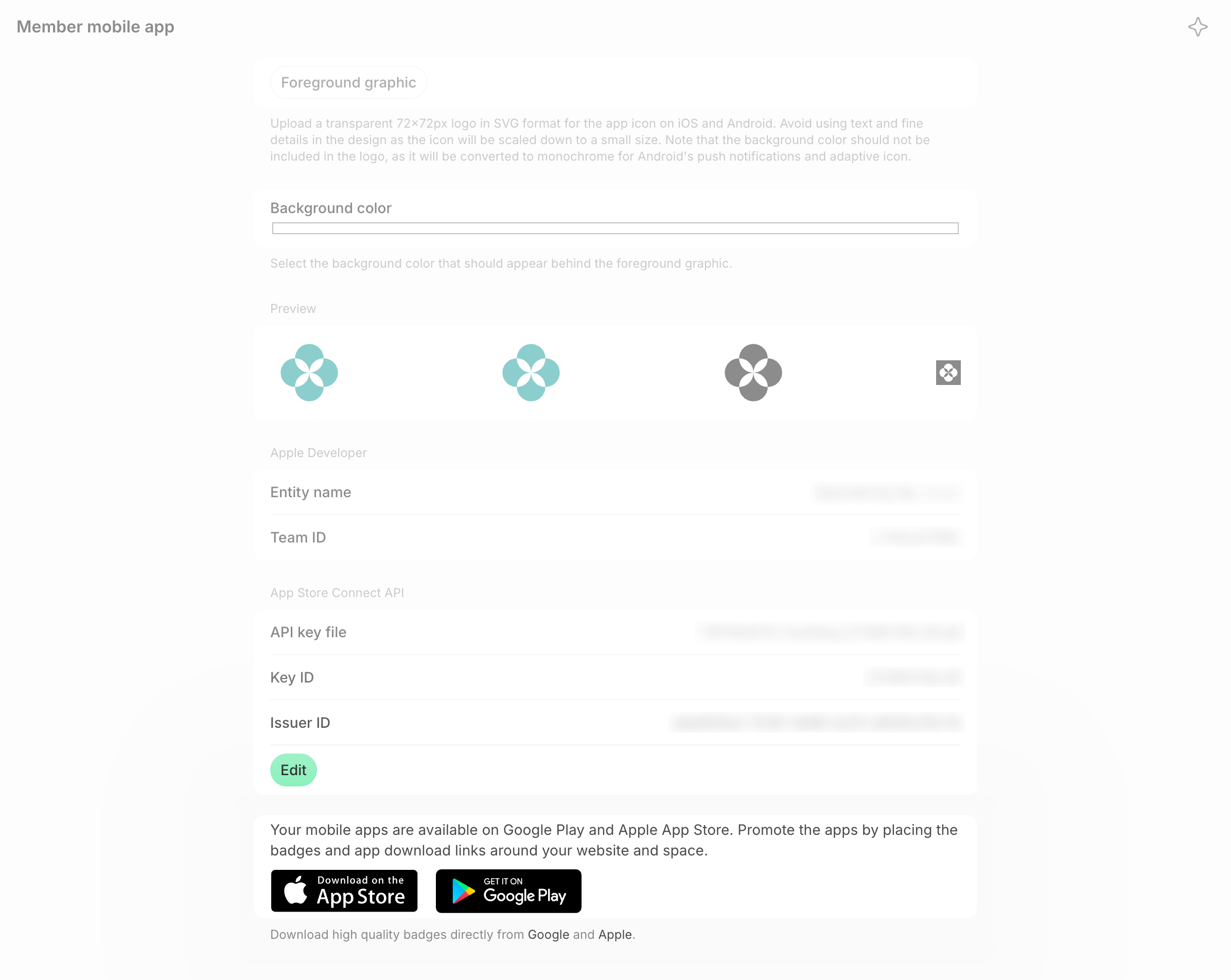
- Send a newsletter to your members with both links to download the app.
- Post the same announcement on Feed and pin it, so members see it when they open the web portal.
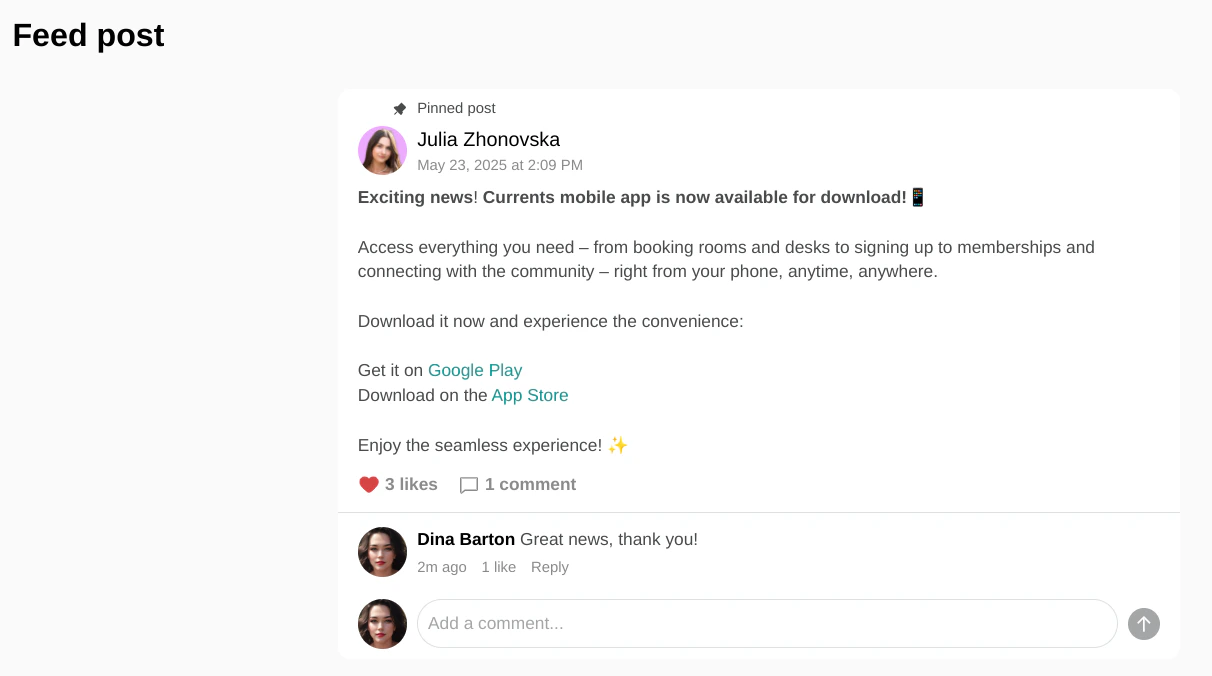
- Mention the app again in your next newsletters, each time with one reason to install it, such as an upcoming event members can join in the app.
Help members install the app on-site
A member who reads your announcement on their laptop may plan to install the app later, and forget.- While the launch is fresh, such as for the first month, offer members help at reception: install the app together, sign in, and book something.
- Install the app with each new member on their first day.
- Place QR code stickers at reception, on desks, and in common areas, with a call to action, such as “Scan to get our app”.
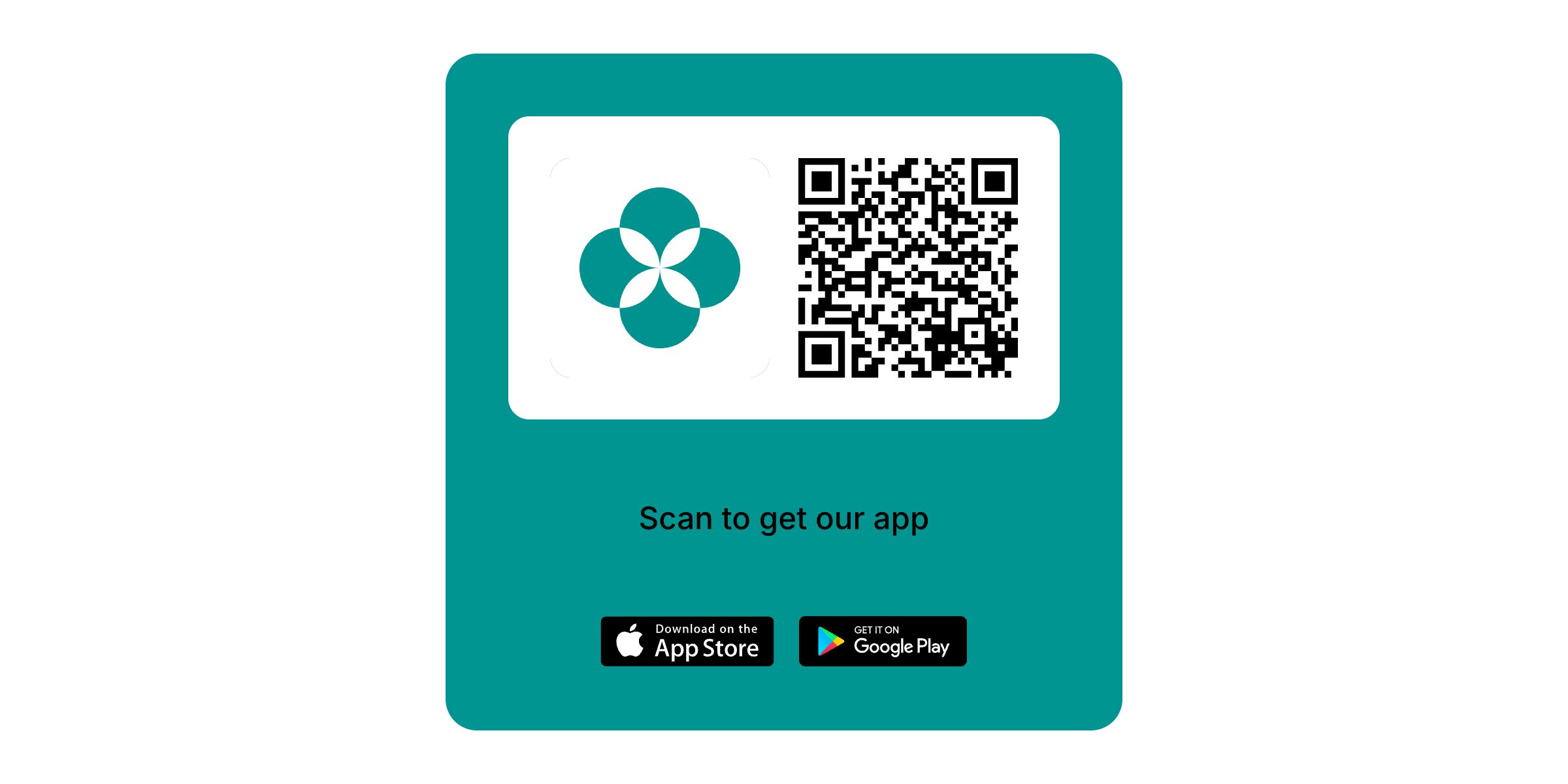
- Hold a short launch moment at a community event, such as a breakfast where you help members set up the app.
Give members reasons to keep the app
Members may install the app, open it once, and go back to email.- Members with the app get push notifications, such as booking reminders with check-in codes, visitor arrivals, and deliveries waiting at reception. Keep these on in the notification preferences.
- Reward a first action in the app, such as a promo code for the first booking.
Keep the app visible
Members who join after your launch may never see your announcement.- Mention the app, with both store links, in your invitation email and in welcome emails to new members.
- Add App Store and Google Play badges to your website, such as in the footer and next to booking buttons, and to printed materials, such as a welcome pack.
- Keep links to portal pages, such as a room or your memberships, on your website buttons and in ads. Customers with the app get the app, and everyone else, such as a visitor booking a desk for one day, books in the browser without installing anything.
Track adoption
Check these numbers regularly, such as once a month, and focus your reminders where they’re low:- To see who has signed in, go to Network settings > Users as an owner or a super administrator. Users with no date under Last active haven’t signed in yet.
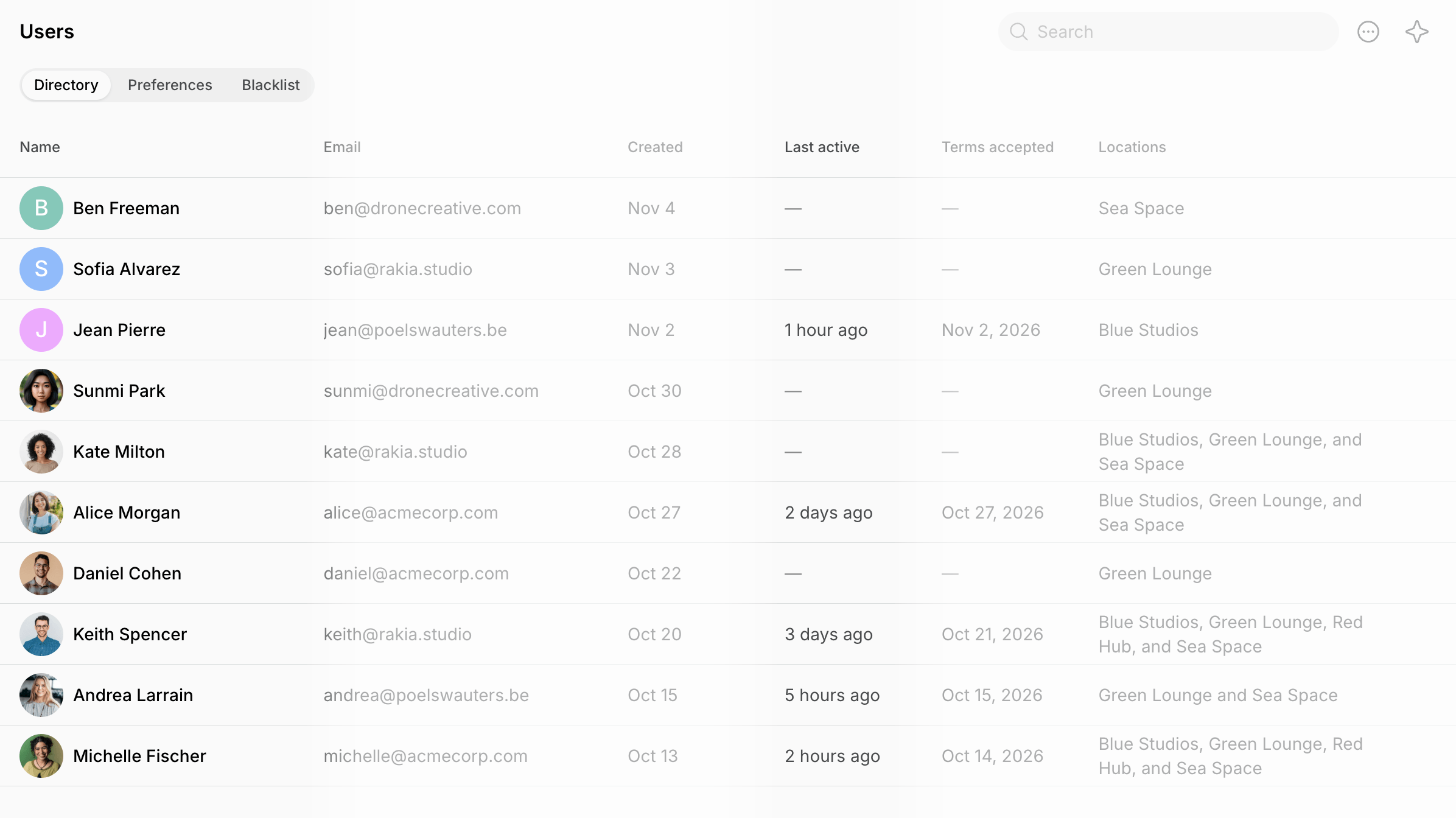
- To see how many bookings customers make on their own, export a bookings report. Bookings with the same Booker name and Creator name were made by the customer.
- To see how many times your app was downloaded, open the analytics in App Store Connect and the statistics in Google Play Console. To get access to Google Play Console, email support@spacebring.com.
FAQs
Do customers need the mobile app to book or pay?
Do customers need the mobile app to book or pay?
No. The member web portal offers the same services in any browser, on a computer or a phone, so customers can book and pay without installing anything.
Can I see which members installed the mobile app?
Can I see which members installed the mobile app?
No. You can see when each user was last active in Network settings > Users, and how many times the app was downloaded in App Store Connect and Google Play Console.