Maximize the efficiency of your ad campaigns by connecting Meta Pixel to Spacebring and tracking all user events. Meta Pixel supports tracking of user behavior in the member web portal through the following events.Documentation Index
Fetch the complete documentation index at: https://www.spacebring.com/docs/llms.txt
Use this file to discover all available pages before exploring further.
| Event name | Explanation |
|---|---|
| PageView | A user viewed a page |
| InitiateCheckout | A user initiated a payment |
| Purchase | A user successfully made a monetary purchase. |
| Schedule | A user schedules a tour booking on the member web portal landing page via the integration with Calendly. |
Integration with Meta Pixel is only available for tracking events in your member web portal.
Prerequisites
To enable Meta Pixel integration with Spacebring, make sure you’ve completed the following prerequisites:- Have an active Spacebring subscription.
- Have your Meta Pixel account set up.
Connect the Meta Pixel integration
- The owner needs to go to Spacebring > Network settings page by pressing the network name > Integrations > Meta Pixel. On this page, you’ll also see two helpful buttons:
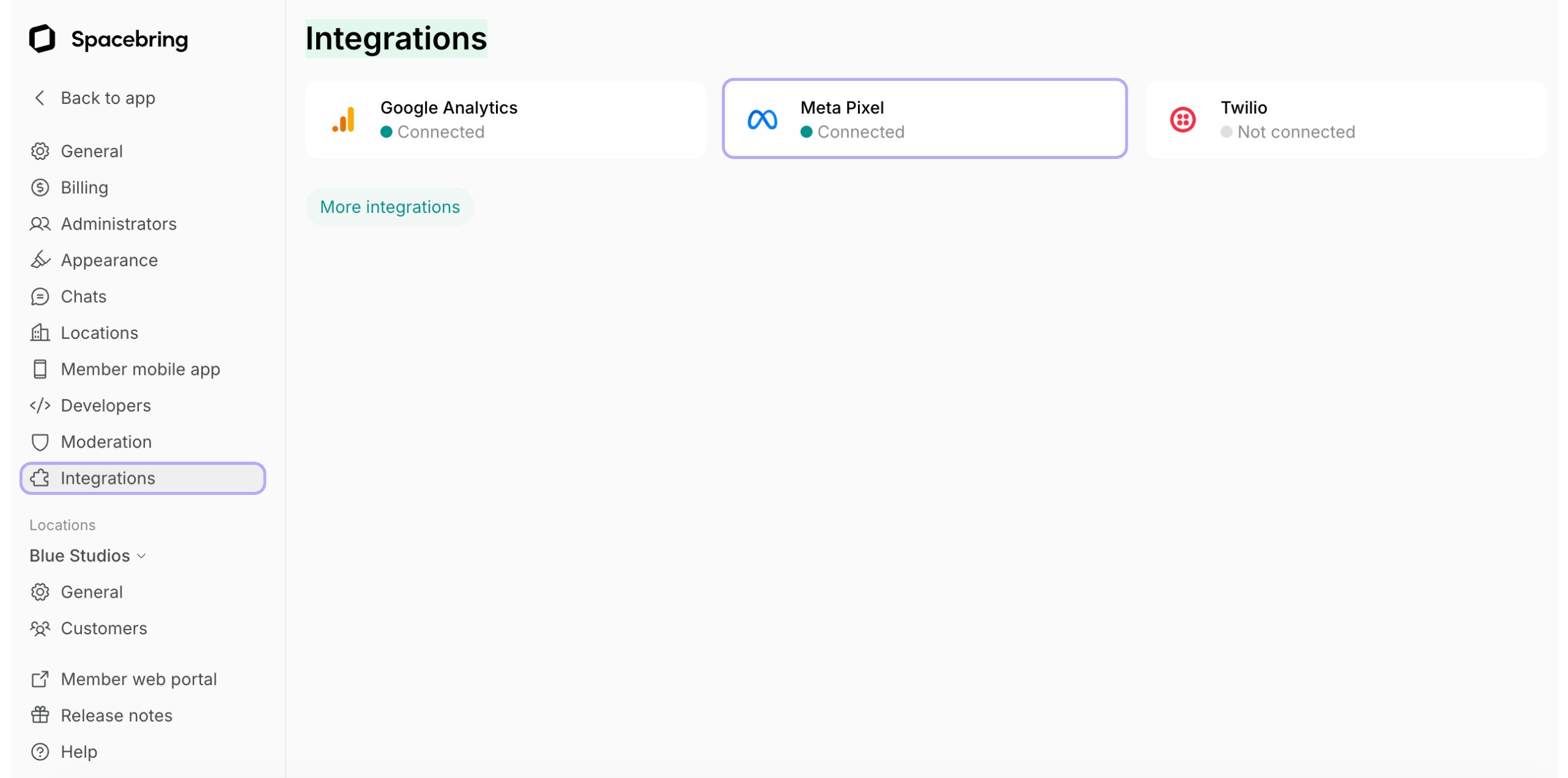
About: For general information about the integration.Docs: For detailed instructions on connecting and configuring.
- Insert your Meta Pixel ID and press
Connect.
- Rooms
- Desks
- Plan sign-ups
- Member web portal landing page
Disconnect the Meta Pixel integration
To disconnect Meta Pixel, follow these steps:- Go to Spacebring as an owner > Network settings page by pressing the network name > Integrations > Meta Pixel.
- Press
Disconnectand confirm your choice.