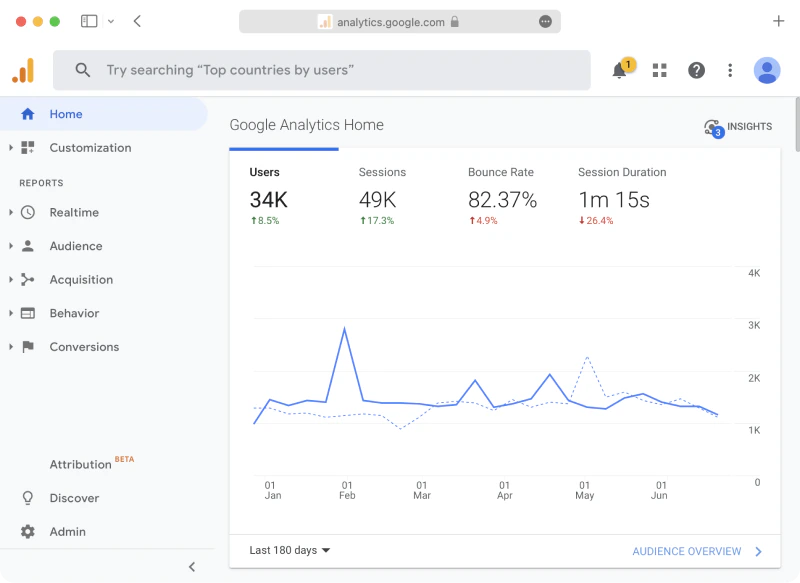
Gain valuable insights into your users’ behavior and optimize ad campaigns with Google Analytics integration for your member web portal and mobile app. You can use integration with Google Analytics 4 for the following use cases:Documentation Index
Fetch the complete documentation index at: https://www.spacebring.com/docs/llms.txt
Use this file to discover all available pages before exploring further.
- Explore the users’ behavior and how they interact with your content inside member web portal and mobile apps.
- Set up tracking events to optimize Google Ads campaigns based on desired user activity.
Access Google Analytics
Google Analytics is available with the Mobile Apps add-on. Order mobile apps
- As an owner, go to Network settings page by pressing the menu (…) near the network name > Google Analytics.
- Press
Open Google Analytics. 
- You will be redirected to the Google Analytics page, where you need to press
Request accessto receive a permission to use Google Analytics.
- After you send a request, confirm it in the “Request access” window.

- We’ll provide you access to view Google Analytics within 24 hours. You will be notified about access granted through email confirmation.

- Once the access is granted, you can always log in to Google Analytics with your email address (to which the access has been provided) and see how users interact with your content.

| Event name | Explanation |
|---|---|
| login | Users log into the member web portal or mobile app |
| share | Users press the “Share” button to share the member web portal or mobile app content |
| begin_checkout | Users initiate a payment in the member web portal or mobile app |
| purchase | Users make a successful monetary purchase |
| generate_lead | Users schedule a tour booking on the member web portal landing page via the integration with Calendly. |
Link Google Analytics with Google Ads
You can optimize your Google Ads campaigns when you understand what the converted users purchase in the member web portal or mobile apps by tracking their events. To track conversions from your Google Ads campaign, do the following:- Request access to Google Analytics 4.
- Navigate to your Google Ads account and link it to Google Analytics following Google guidelines.
Contact our support team if you need access other than “Viewer”. Linking Google Ads account to Google Alanytics may require “Editor” permissions in Google Analytics.
- Constantly monitor the user purchases in the member web portal and track conversions from the ad campaigns containing these links to make informed decisions on your Google Ads enhancement.