

Set up Feed
- In the left-side panel, click the menu (…) next to your location name.
- Go to Location settings > Engagement page > Feed tab and toggle the Feed switch on.
- Configure Feed permissions:
- Visibility — control who can see your Feed page. The visibility of the Feed page determines the visibility of all posts.
- Posting — choose who is allowed to create new posts. Typically, this includes administrators who share updates or announcements.
- Viewing comments — control who can see comments below each post. To encourage high engagement, set comments to be public. Alternatively, you can limit comment visibility to a selected group, such as administrators, location members, or network members.
- Commenting — define who can reply under posts.

These settings define permissions for all posts on the Feed page.
Create a post
- Go to Engagement > Feed and press Create post top right.

- Add the contents of your post.
- Press Post. All members of the location will immediately get notified with a push notification.
Content formatting and attachments
Format your text using a visual editor and shortcuts:- Floating toolbar: Select text and format it (bold, italic, inline code, highlight, code block, hyperlink) with a quick-access menu.

- Keyboard shortcuts:
- Command + B / Ctrl + B → Bold
- Command + I / Ctrl + I → Italic
- Use
#to create a hashtag.
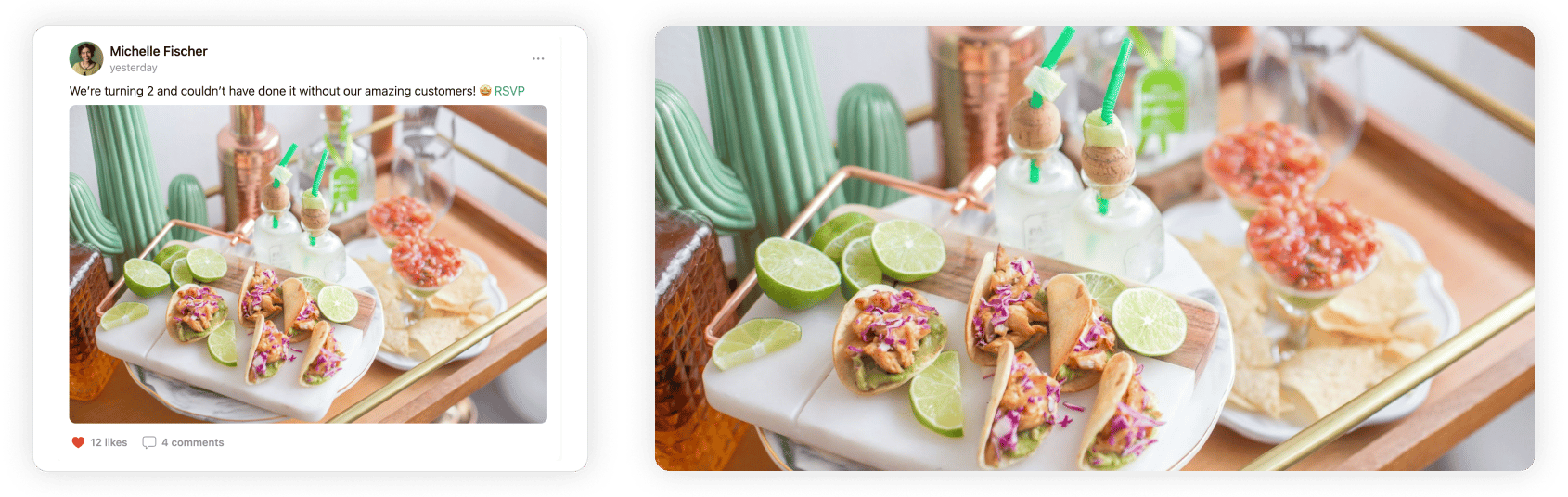
Attachments may be cropped to fit the screen on the Feed page. Users tap an attachment to open it uncropped in full screen.
Use hashtags in posts
- Add hashtags to your feed posts to organize them by topics and make it easier for interested users to find related posts. When a user clicks on a hashtag, the Feed page is filtered to show all posts that contain the same hashtag.
- The 5 most frequently used hashtags in the last 6 months are prominently shown at the top of the Feed page. This allows quick and convenient access to popular or important categories of posts for all users.
Edit a post
Administrators can edit their own posts as well as those created by other administrators and users. For this:- Go to Engagement > Feed.
- Hover over the post > click the menu (…) next to it > Edit.
- Change the post and press Save.
Pin a post
Feed posts are sorted from the most recent to the oldest. To pin a certain post:- Go to Engagement > Feed.
- Click the empty Pin icon next to the necessary post.
Only administrators can pin and unpin posts.
Delete a post
- Go to Engagement > Feed.
- Hover over the post > click the menu (…) next to it > press Delete and confirm your choice.
Administrators can delete any post at any time. Users can only delete their own posts.
Export a posts report
On the Feed page, click (…) in the top right corner > Export as CSV or Export as XLSX to download a report on all posts. The report includes each post’s author, text, and create date, its like and comment counts, and whether it’s pinned.Report a post
Users can report feed posts if they consider the content to be offensive or objectionable. For this, users:- Go to Locations > Feed and find a post.
- Click the (…) menu next to this post > Report.
- Once a user reports a post, administrators receive a support ticket of the Offensive or objectionable content type with a link to the post. The post stays visible until an administrator deletes it.