

- Find what needs a change anywhere in your data, such as overdue invoices or this week’s events.
- Create, change, and copy items in the areas you allow, such as invoices, credits, bookings, shop products, and events.
- Follow your own rules, such as a fee amount, a notice period, or a cutoff time.
- Post to the feed, and message members in chats.
- Email your team what it changed, or what needs a person’s decision.
Set up an agent
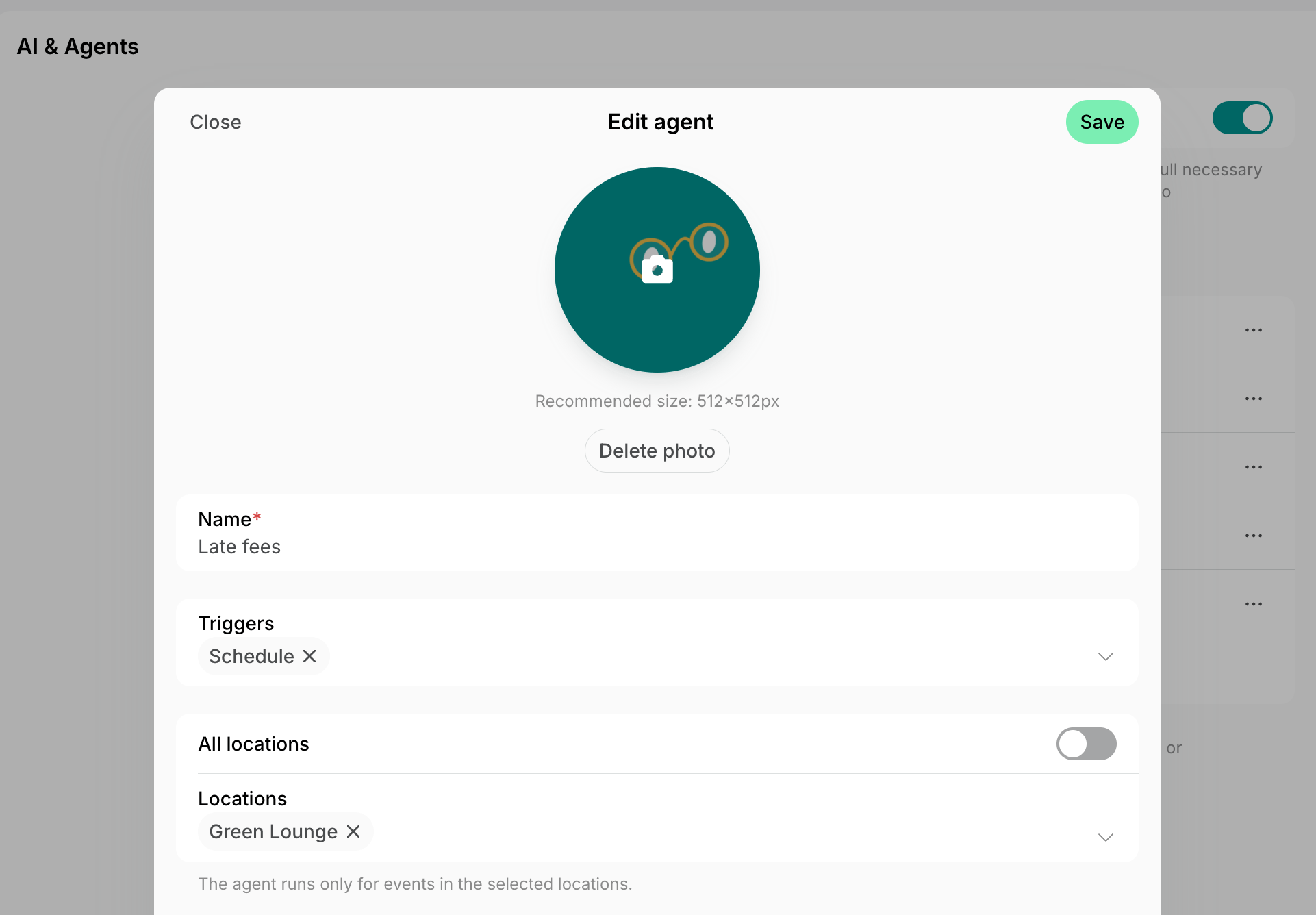
- Create an agent and select the trigger the example shows above its instructions:
- Schedule, shown with its time, such as Daily at 17:00, for a change due at a set time, such as closing orders at 5 p.m.
- An event, such as Booking canceled, to act right after it happens. The agent runs once for each canceled booking.
- Turn off All locations and select one location in Locations.
- Each example below works for one location, unless it says otherwise. For another location, create another agent.
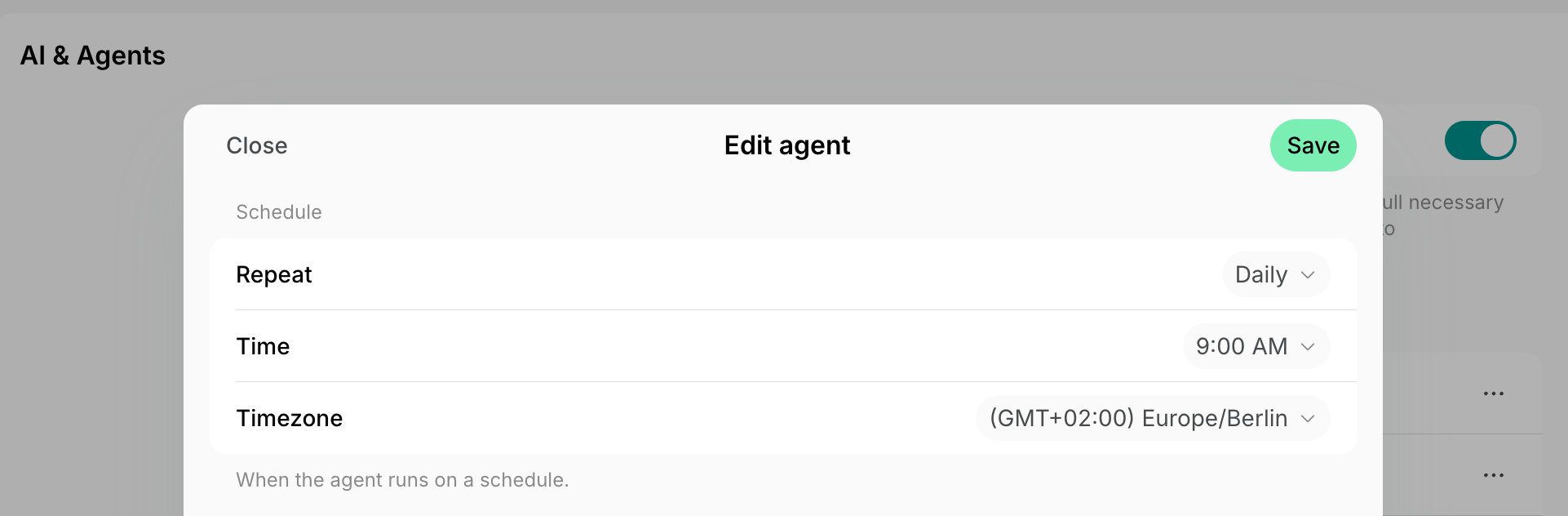
- For Schedule, set Repeat, Time, and Timezone as you need, such as the schedule the example shows.
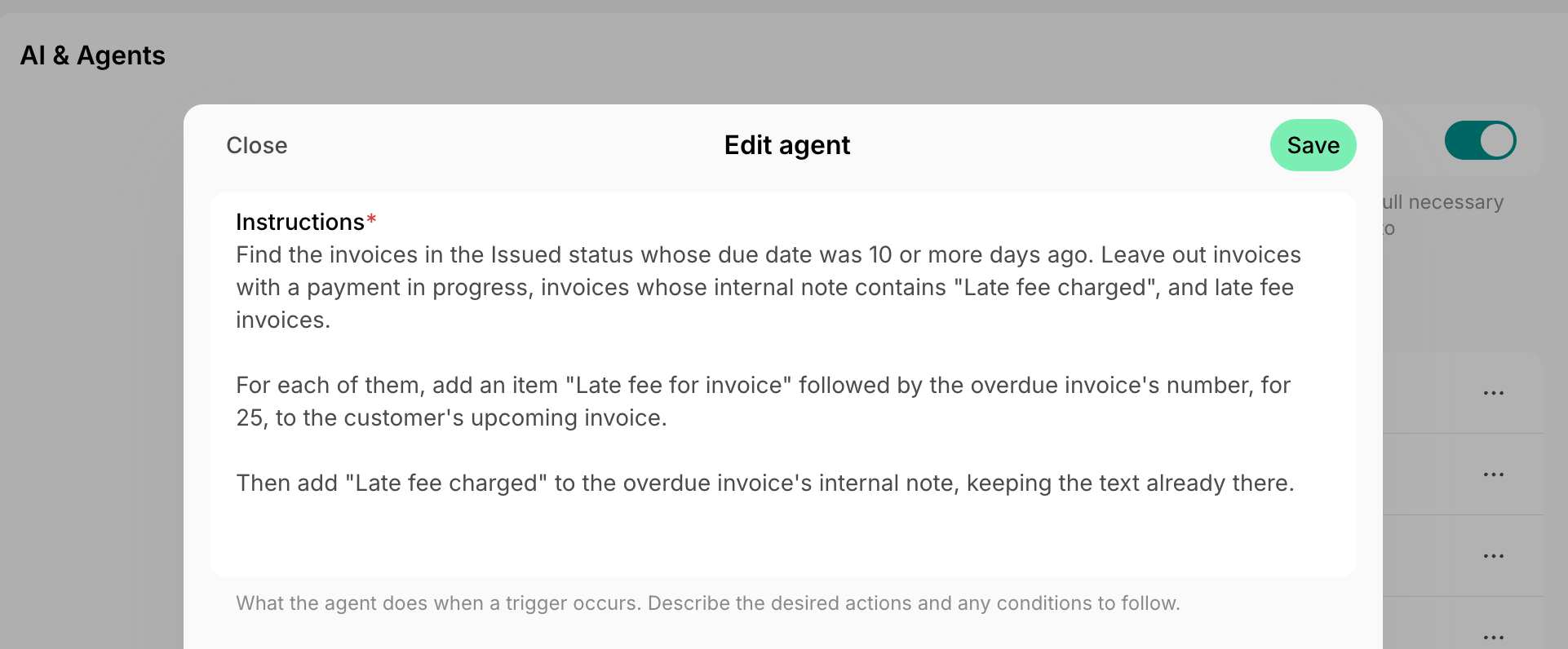
- In Instructions, paste your change’s description, or one of the examples below.
- Under Permissions, turn on the area the example shows, such as Billing permission, and leave the others off. The agent can make changes only in the areas you turn on.
- Turn on Enabled and click Create.
Describe the change you need
Write the instructions the way you would brief a colleague who makes the change for you. Say:- What to find, such as “the invoices in the Issued status whose due date was 10 or more days ago”.
- What to change, with exact values, such as “a late fee of 25” or “turn Joining off”.
- How the agent can tell it already made the change, such as
Leave out invoices whose internal note contains "Late fee charged".An agent doesn’t remember its earlier runs. - When to do nothing, such as “If anyone other than the booker canceled the booking, do nothing.”
- Whom to tell what it changed or couldn’t change, such as “Email the administrator Anna Smith (anna@example.com) what you changed.” The agent can email administrators of your network and customers of its locations.
Automate billing
These agents bill customers on time and apply your billing rules, such as late fees and partial refunds, without anyone doing it by hand.Charge late fees on overdue invoices
A customer may pay their membership invoice days after its due date, and adding a late fee by hand for each one takes time. You may want to:- Charge a fixed late fee once an invoice is a set number of days past its due date
- Charge the same fee for every plan
- Add the fee to the customer’s next subscription invoice
Instructions
For each of them, create an invoice for the same customer with one item, "Late fee for invoice" followed by the overdue invoice's number, for 25. Issue it, and charge it right away to the customer's saved payment method. This also charges customers with no subscription, who have no upcoming invoice.
Chase overdue invoices
When Spacebring can’t charge an invoice, such as a subscription invoice with a declined card, it sends the customer up to two payment reminders, 3 and 6 days later. It sends none for an invoice you issue that nobody tries to pay. A customer may still not pay, and keep using your space. You may want to send:- Reminders a few days after the due date, such as after 3 and 7 days, with a link to the invoice
- A list for your team of customers whose invoice is long overdue, such as by 14 days, to suspend their access
Instructions
An agent can’t block a customer’s door access, Wi-Fi, or bookings, so it tells your team whom to suspend.
Apply a flexible cancellation policy
Your cancellation policy may give back part of a booking’s price for a late cancellation, such as 50% when a customer cancels 24 to 48 hours ahead. The rescheduling policy refunds a booking in full or not at all, so an agent works out the rest. You may want to:- Refund in full when a customer cancels early enough, such as 48 hours or more ahead
- Get an email with the refund to give for a later cancellation
- Give back part of the credits for a booking paid with credits
Instructions
For a booking paid with credits, add the booker 50% of the credits it cost, instead of sending the email.
Update your shop and events
These agents make the changes your team would otherwise make by hand at a set time, such as closing orders or event registration.Close shop ordering at a cutoff time
Your kitchen may need lunch orders by a set time, such as 5 p.m. the day before, while members can order until the lunch is served. Turning ordering off by hand every day needs someone at that time. You may want to:- Turn off ordering for tomorrow’s lunch at a set time
- Send the kitchen the orders to prepare at the same time
Instructions
Close event registration before the event
A workshop may need its attendee list a few days ahead, to prepare equipment and materials, while customers can join until it starts. With many workshops, turning off joining for each one by hand is easy to forget. You may want to:- Close joining a set time before each event starts, such as 2 days
- Close it only for workshops, and keep it open for other events
Instructions
Find the events with "Workshop" in their title that start 2 days from today and have Joining turned on.
Engage your community
These agents bring members together and thank them for coming back.Post the week’s events to the feed
Members may miss the events you publish, and in a network with several locations, they may never see the events of the others. You may want to:- Post the week’s events every Monday
- Show the events of all your locations in one post, with a link to each
- Post a reminder on a set day, such as before a monthly event
Instructions
Include the events of every location, grouped by location, and publish the post in each location's feed.
A member can open an event of another location only when the event is visible to them, such as to network members or the public.
Add event attendees to a group chat
Attendees of an event may want to meet each other, while adding each of them to a group chat by hand takes time. You may want to:- Start a group chat for an event once a second person joins it
- Add everyone who joins later to the same chat
- Welcome attendees and invite them to introduce themselves
Instructions
Add the administrator Anna Smith (anna@example.com) to the group too.
Members see the group chat only while Chats is turned on in Network settings > Chats. An agent can’t remove anyone from a group chat, so an attendee who cancels their ticket stays in it until they leave.
Reward members who come often
A member who comes often may get nothing for it, while a small reward, such as a free coffee on their 10th visit, shows them you noticed. You may want to:- Give a free coffee on a set visit, such as every 10th
- Give credits on every 10th booking of a meeting room
- Give a discount after a set number of shop orders, such as every 10th lunch
Instructions
Otherwise, add the customer 2 credits that expire in 30 days. Credits must be turned on in the location. To reward something else, such as every 10th booking of a meeting room or every 10th lunch order, select Booking paid or Order completed instead, and say in the instructions what to count.
Members see the message only while Chats is turned on in Network settings > Chats.
Best practices
- Test a new agent before it makes real changes. Add a line such as
Don't change anything. Reply with the changes you would make., set its time to the next quarter of an hour, and read the run. Remove the line once the changes look right. - Ask the agent to report what it changed, such as
Then email the administrator Anna Smith (anna@example.com) a list of what you changed.Your team sees it without opening the runs. - Before you turn on an agent, make sure the features its example uses are on, such as Chats or credits. A change the agent can’t make appears in its run with the error, while the run itself shows Completed.
FAQs
Can an agent undo its changes?
Can an agent undo its changes?
No. Open the agent on the Network settings > AI & Agents page and click the run: it lists every change the agent made. Change each one back yourself, such as by voiding an invoice it issued.
Why didn't the agent make the change?
Why didn't the agent make the change?
Open the agent on the Network settings > AI & Agents page and check its runs:
- Completed — open the run to read the agent’s reply. If it changed nothing, the reply says why, such as a rule in your instructions, a permission that is turned off, or a feature that is turned off in the location.
- Failed — the run shows the error.
- Skipped — your network’s balance ran out. Runs resume once it’s topped up.