

Check the tax treatment of deposits with your accountant. In some countries a deposit becomes taxable once you keep it instead of returning it.
Charge a deposit
Pick the option that fits how the customer pays:- A one-off item on their subscription or contract, when the deposit goes on the same invoice as their first payment.
- A separate invoice, when the deposit is paid on its own.
Create a reusable deposit product
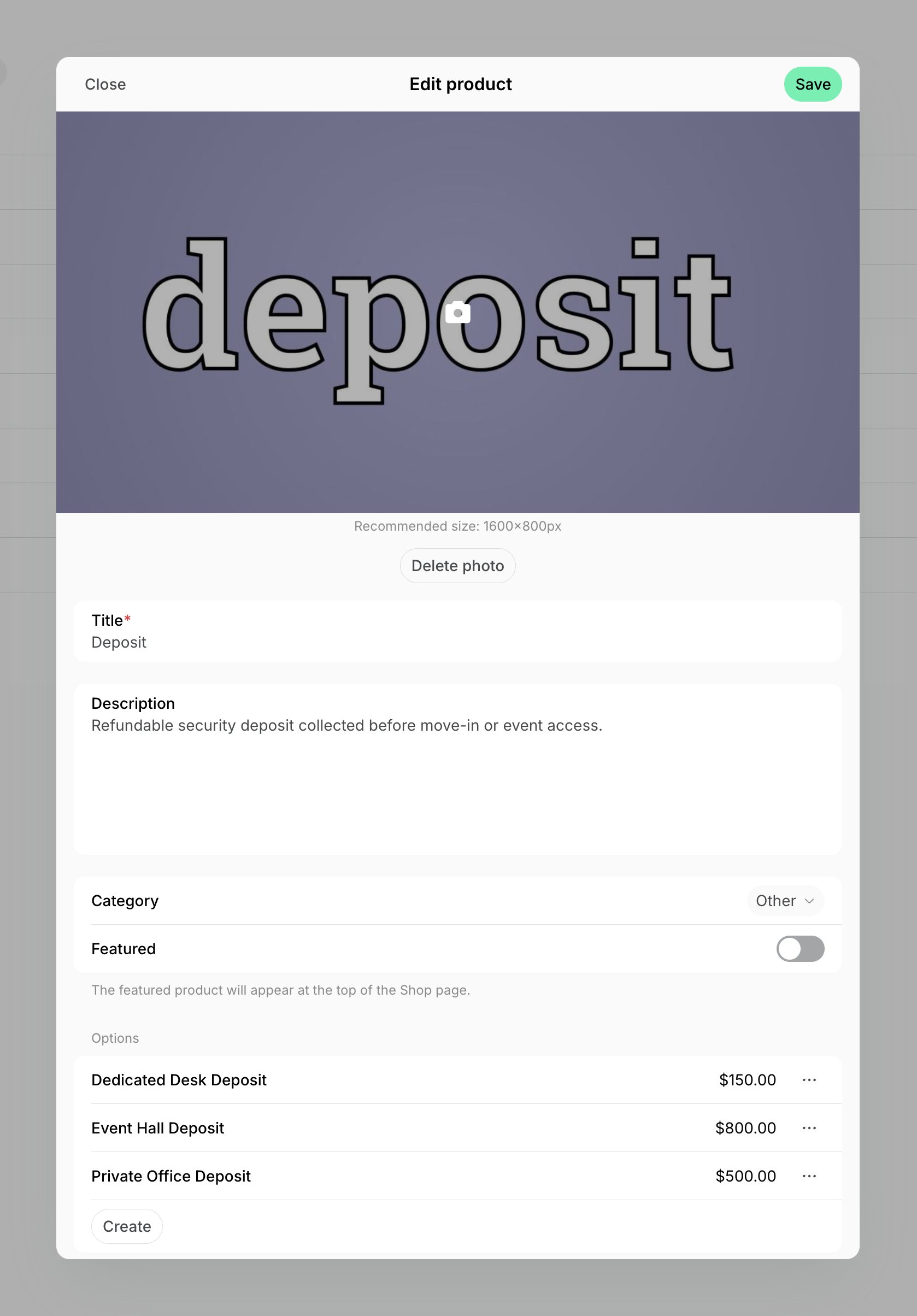
If you charge a few standard deposit amounts, create them once as a shop product and reuse it on subscriptions, contracts, and invoices.- Go to Service > Shop > press Add product.
- Fill in the Title. The customer sees it on their invoice.
- Set Visibility to Administrators, so the deposit stays out of the customer’s Shop.
- Add one option per deposit amount, name it after what it covers, then enable Money and set the Price. Invoices show the product title and the option name together.
- Enable the option’s Custom tax rate and set the Tax rate to 0 if the deposit must be untaxed.
As a one-off item on the first invoice
Add the deposit to the customer’s subscription or contract:- Add an item and set its type to One-off, so the customer pays it only once.
- Select the deposit in the Product field, or Custom to create one, then set its price.
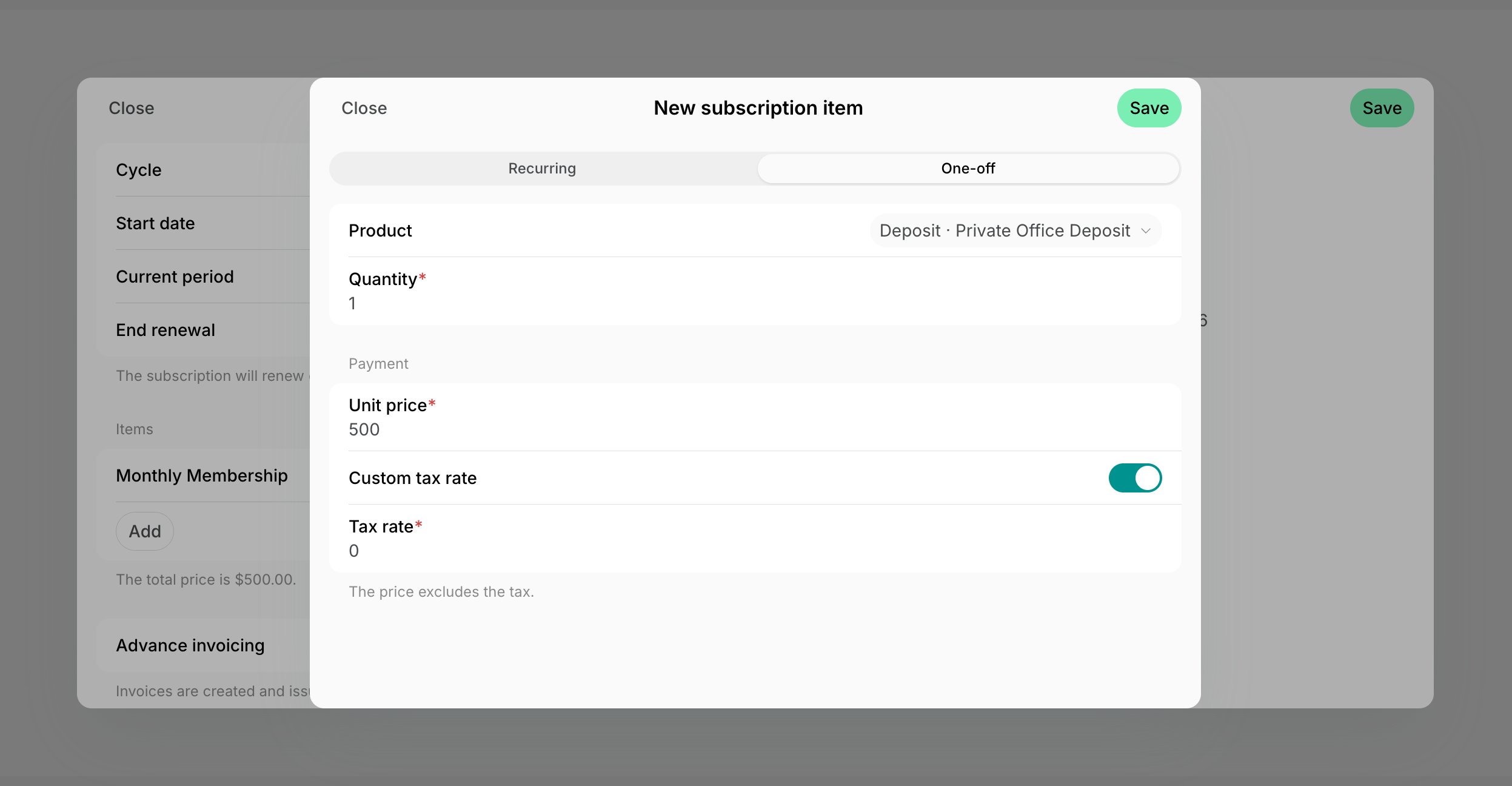
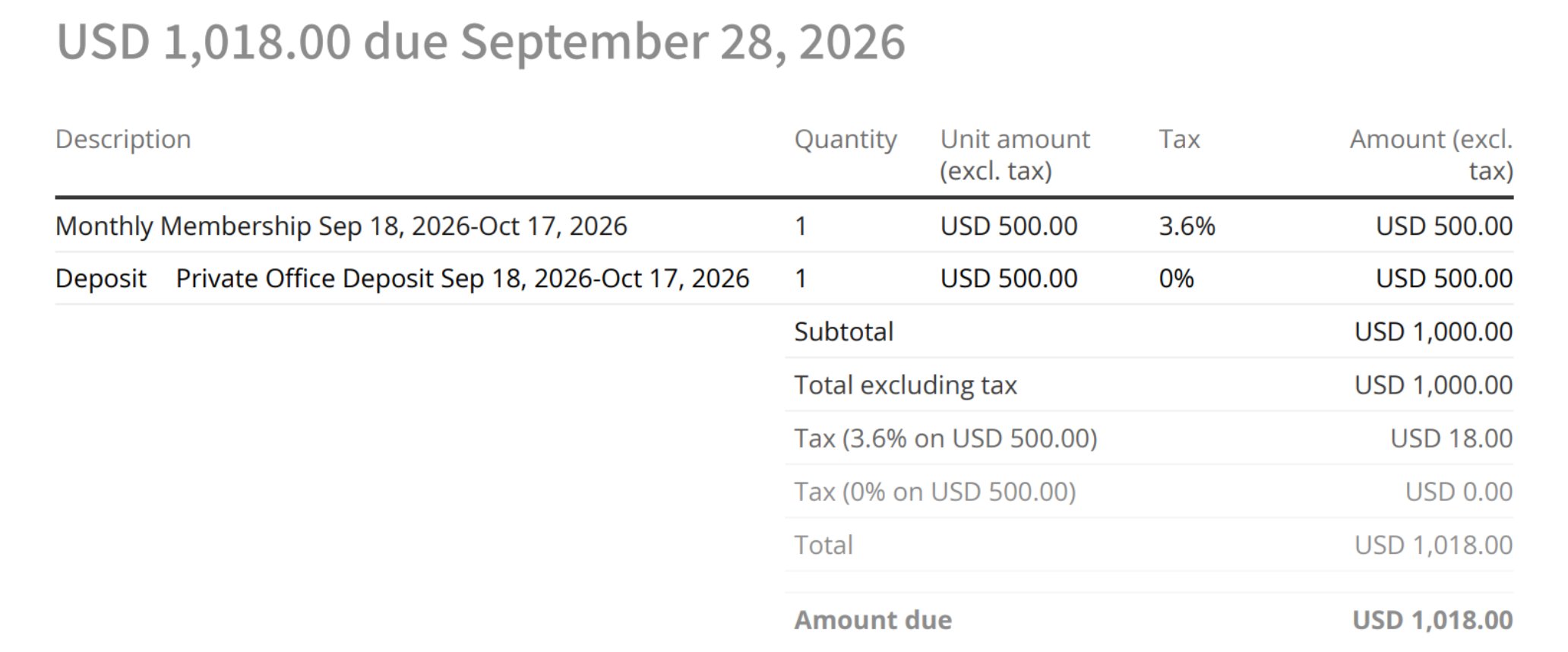
- Press Save. The deposit appears on the first invoice as its own line, named after the product and the option, at the option’s tax rate.
With a separate invoice
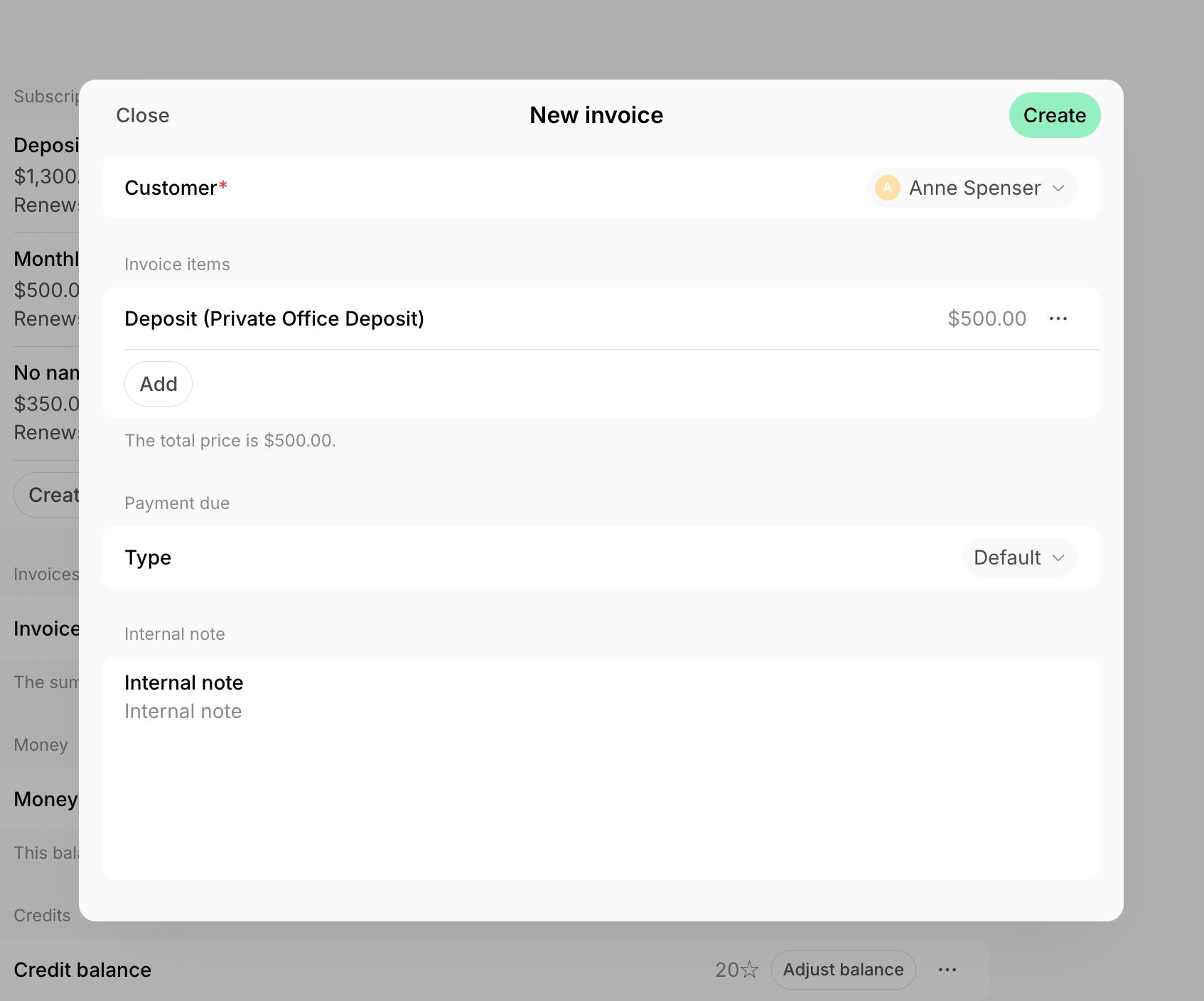
Bill the deposit on its own, before the customer has a subscription or separately from their first subscription invoice:- Go to Billing > Invoices > press Create invoice and select the customer.
- Press Add and select your deposit product, or keep Custom and set the name, price, and Tax rate yourself.
- Press Create > View invoice > Issue.
Track the deposits you hold
- Go to Billing > Invoices, filter by Customer, and open the deposit invoice to see its details.
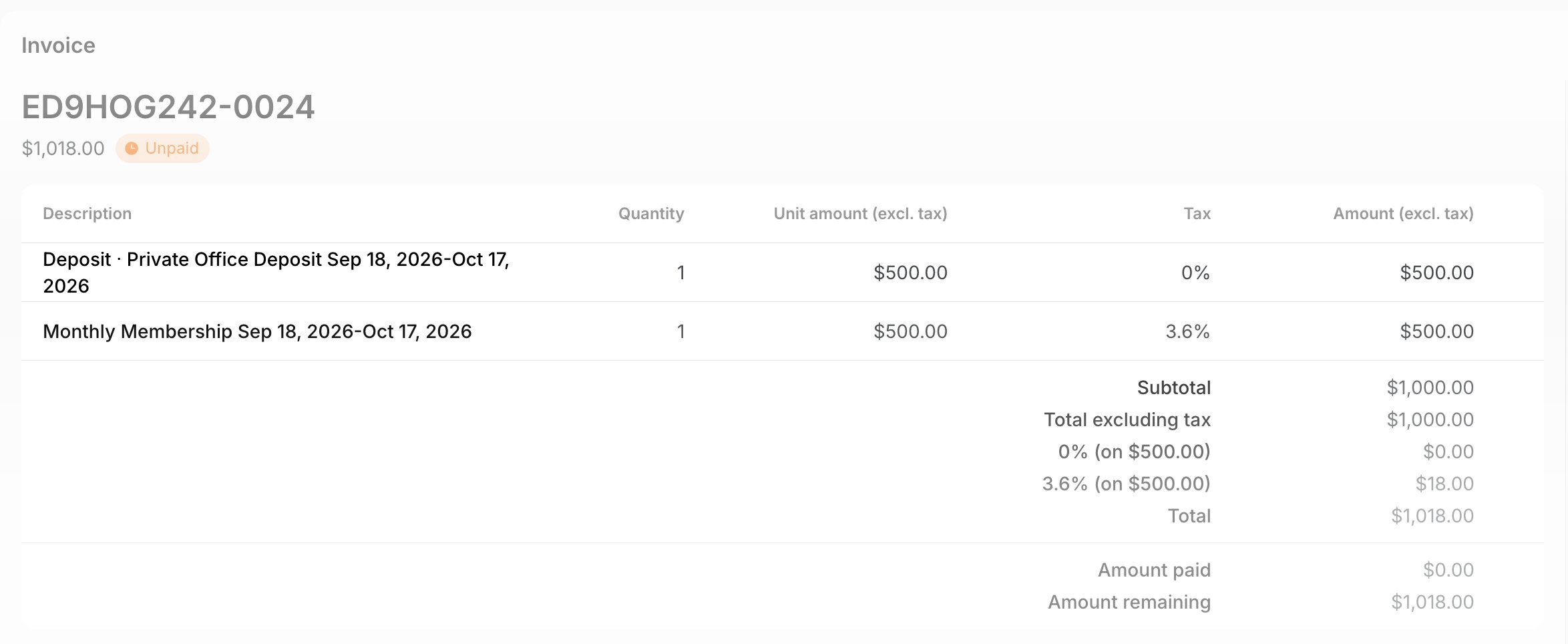
- If you don’t remember which invoice the deposit is on, filter by Customer, press (…) to export an invoice items report, and find the deposit in the Description column.
Return the deposit
Decide whether the customer gets the money back or the deposit is deducted from their final invoice.Refund it to the customer
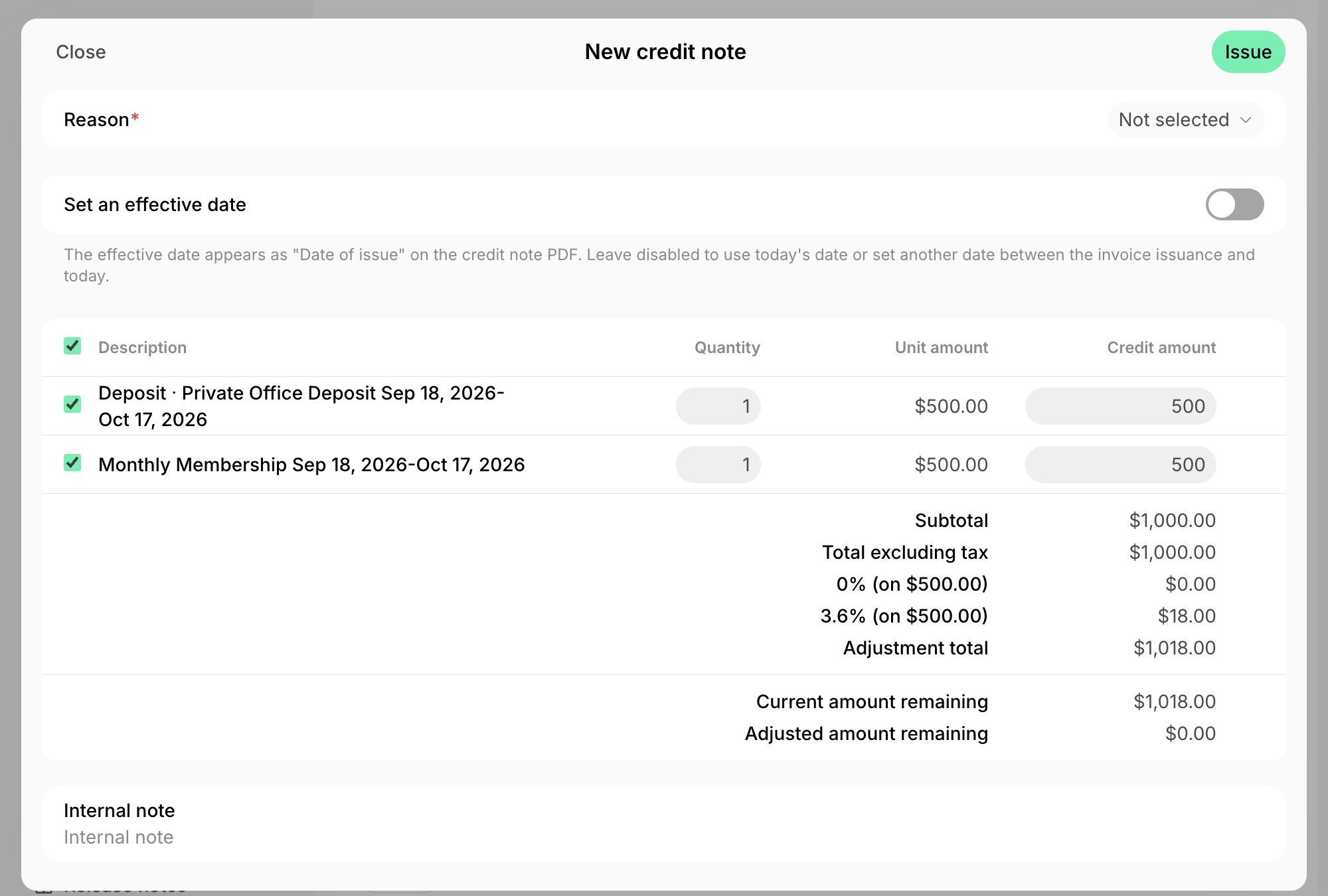
Return the deposit with a credit note on the invoice you charged it on:- Go to Billing > Invoices, open the paid invoice with the deposit, and press Create in the Credit notes section.
- Select a reason and an effective date, then tick the deposit item only.
- Choose how to credit it: the original payment, to send the money back to the card, or Credit outside of Spacebring, for a bank transfer, check, or cash.
- Press Create. The customer receives a credit note naming the deposit.
Deduct it from the customer’s final invoice
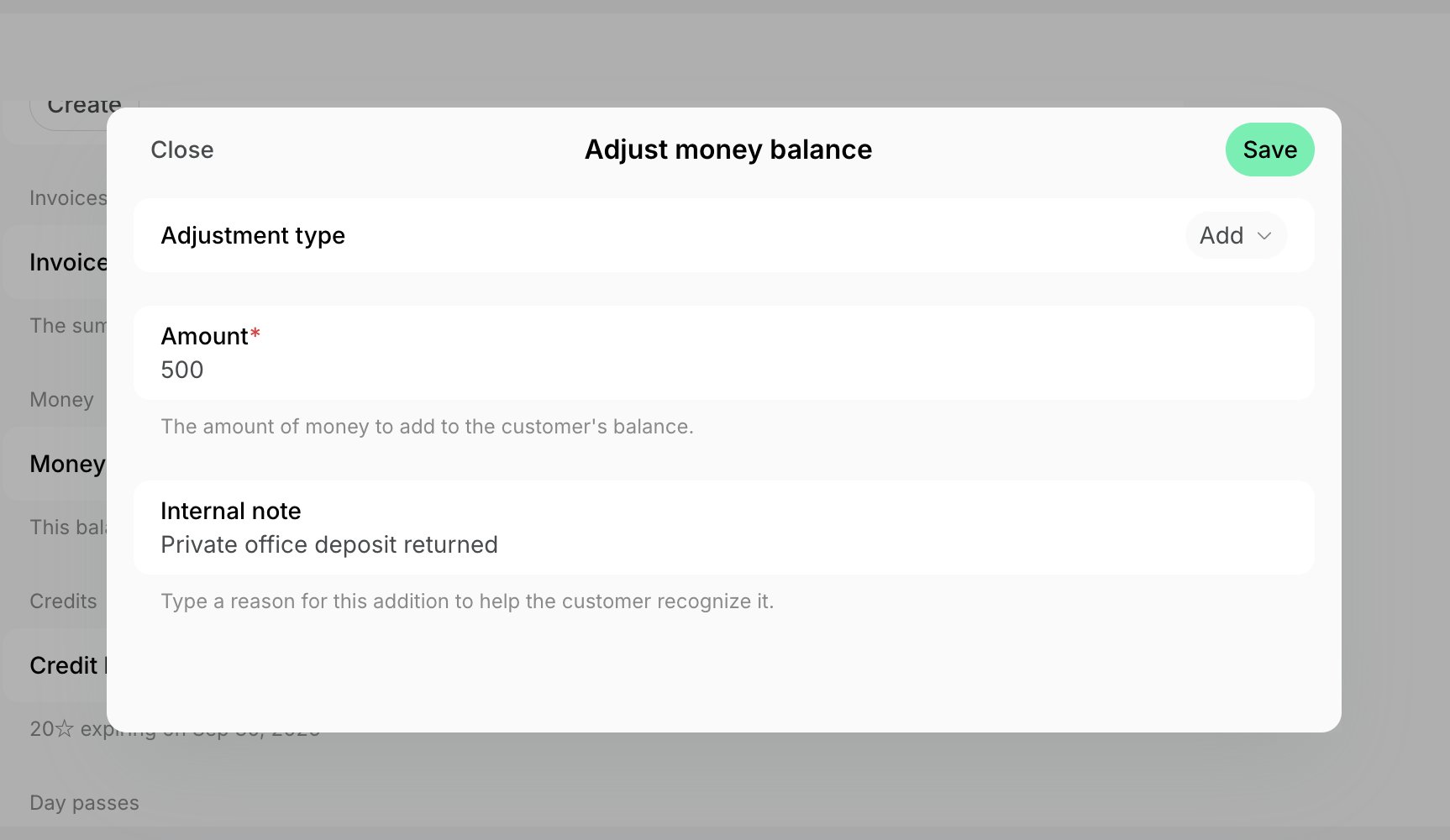
Put the deposit on the customer’s money balance so it comes off what they still owe:- Before the customer’s final invoice is issued, go to Customers > open their profile > press Adjust balance next to Money balance.
- Set the Adjustment type to Add and enter the deposit in the Amount field.
- Note in the Internal note field that the deposit was returned, then press Save.
- The deposit is deducted from the customer’s final invoice as Applied balance, lowering its amount due.
FAQs
Can I charge a deposit automatically when a customer signs up on their own?
Can I charge a deposit automatically when a customer signs up on their own?
Customers who sign up on their own pay for the plan or resource tier they choose, so the deposit has to be part of it. Add it as a Setup fee when you create or edit the plan or the resource tier. It is charged once, on the first invoice.A setup fee can’t carry its own tax rate and appears on the invoice as Setup Fee followed by the plan name. If the deposit has to be tax-free or named explicitly, add it yourself as a one-off item on the customer’s subscription, contract, or invoice instead.