

Track invoices
To find invoices, follow these steps:- Go to Billing > Invoices on the left-side panel.
- Click Add filter and pick a property:
- Status – See all invoices of the specific status: Draft, Issued, Paid, or Voided.
- Customer – See all invoices of a specific company or individual member.
- Issue date – See all invoices issued in a ready-made period, such as Today or Last 28 days, or click Custom to set an exact date or range.
- Create date – See all invoices created in the same way, including drafts.
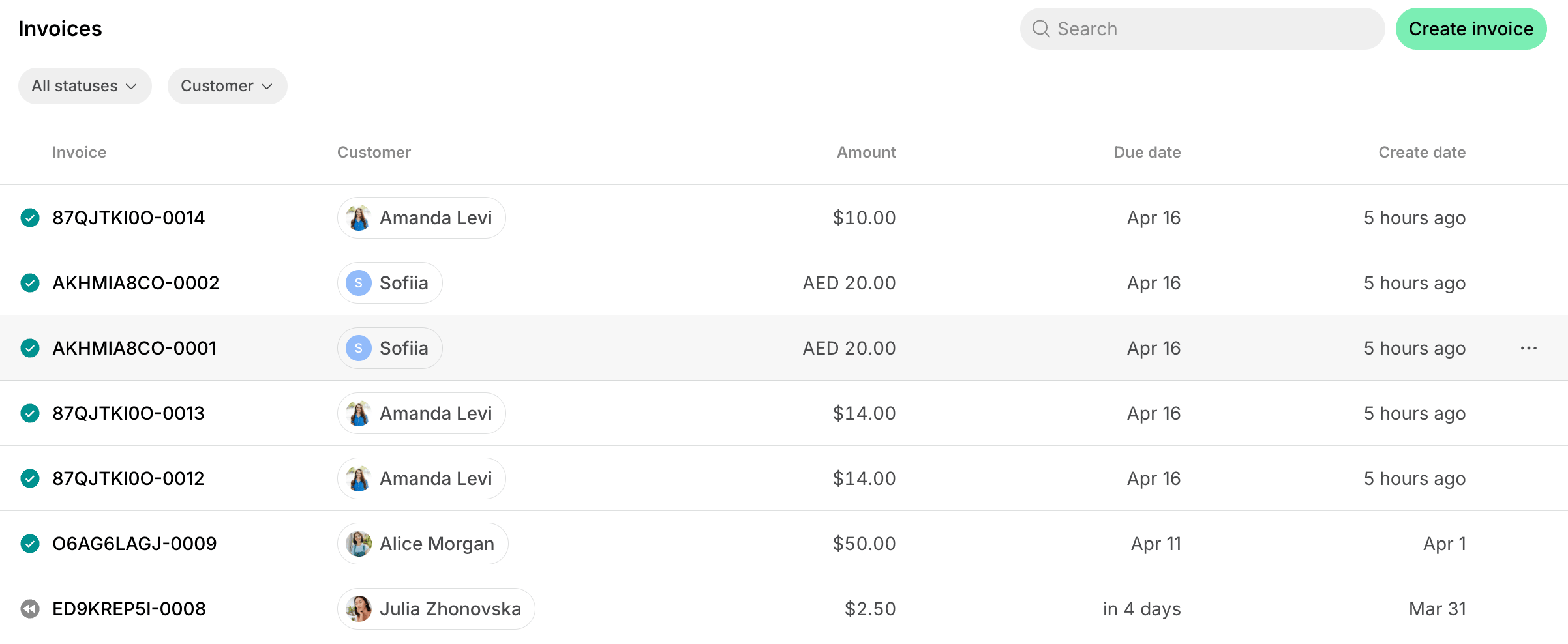
Issued invoice status filter replaces the former Unpaid status and includes only unpaid invoices.
Upcoming invoices don’t appear on the Invoices page because they haven’t been created yet. To find a customer’s upcoming invoice, open their subscription and press View upcoming invoice.
Track invoice items
To see every item billed at a location, one row per item, follow these steps:- Go to Billing > Invoices and open the Items tab.
- Each row shows the item, its customer and amount, whether it’s Pending, and the date it was issued on its invoice.
- Click Add filter and pick a property:
- Customer – See all items of a specific company or individual member.
- Type – See items of a specific type, such as Booking or Subscription.
- Pending – Pick Yes to see only pending invoice items, which aren’t on an invoice yet, or No to see only items on an invoice.
- Issue date and Create date – See items the same way as on the Invoices tab.
- Click an invoiced item to open its invoice, or a pending item to open the customer’s profile.
- Create invoice – Open a new invoice for the customer with all of their pending invoice items.
- Delete – Remove the charge. The booking, order, or ticket itself stays.
Manage invoices
By clicking on a specific invoice on the Invoices page, you can quickly manage it:Notifications about invoice payments appear on the Inbox page by default. If you don’t see notifications about invoice payments, manage your notification settings.
See the history of changes to an invoice
- Go to Billing > Invoices and open the invoice.
- Scroll to the Activities section at the bottom of the page.
Invoice activity is visible starting July 28, 2026, when this feature was implemented. Events that happened before this date aren’t shown.
How to handle unpaid invoices
Although Spacebring automates payment retries and reminders for invoices, sometimes it’s useful to see who has an unpaid invoice to follow up manually.- Use the Issued status filter on the Invoices page to quickly see all unpaid invoices across all customers.
- Check the Due date next to each invoice to track payment deadlines.This helps you quickly identify which invoices need your immediate attention.
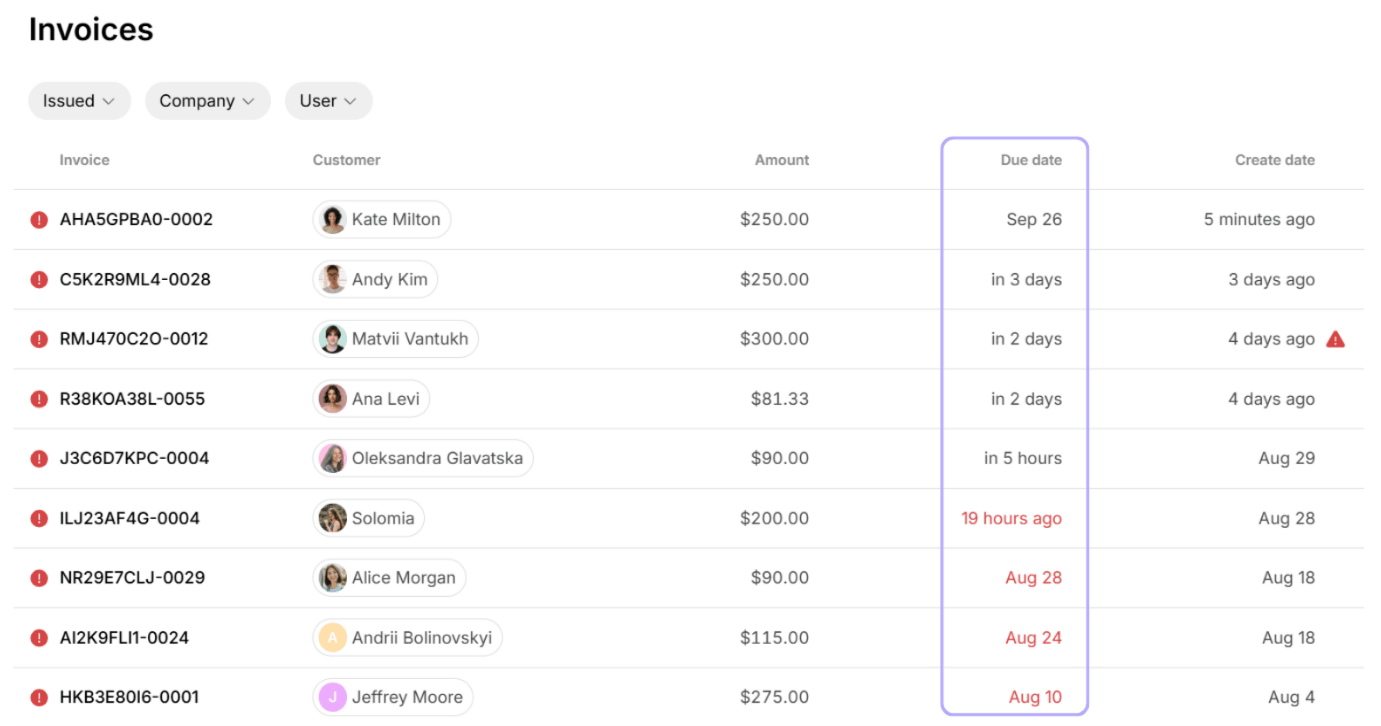
- Black color indicates the invoice is still within the payment terms.
- Red color highlights overdue invoices.
- Click on the invoice and use the
Resend invoicebutton to send the customer a reminder about the due invoice payment. - The customer will receive an automatic payment reminder via email.
How to handle failed invoice payments
Invoice payments can fail due to various reasons, such as insufficient funds, the customer’s bank restrictions, or issues with the payment gateway. To promptly notice failed invoice payments and reduce the risk of missed payments, follow these steps:- Enable automatic payment retries and reminders.
- Enable notifications about invoice Payments failed on the Account > Notifications page in Spacebring.
- Once you notice a notification about a failed invoice payment, tap on it to view the details.
- Contact the customer via chat to assist them in resolving the issue.
- Resend the invoice to the customer if an additional reminder is needed after 2 automatic ones.
How to handle disputed payments
An invoice gets the Disputed status when the customer’s bank reverses a completed payment and returns the money to the customer. This can happen for two reasons:- The customer opened a chargeback with their bank because they didn’t recognize the payment or disagreed with the charge.
- The bank confirmed the payment first and only then failed to collect the money — for example, a direct debit that bounces because the account had insufficient funds. The payment gateway reports this as a dispute as well.
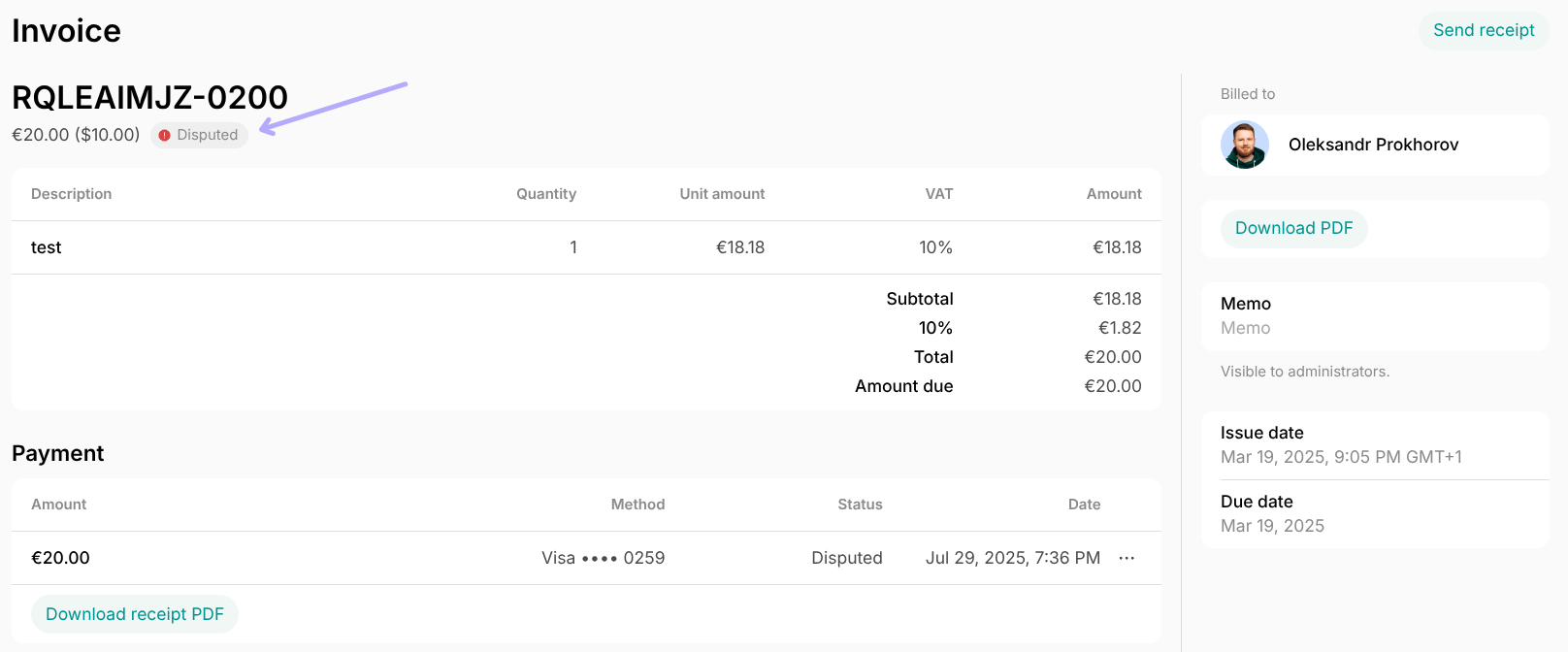
- If a customer’s payment is disputed, you receive a notification about it in Spacebring.
- Open the disputed invoice or transaction to check the amount and the customer.
- Contact the customer to clarify the dispute, or contact Stripe, your payment processor, if you want to respond to the dispute itself.
- To collect the money again, create a one-off payment:
- Go to Customers and open the customer’s profile.
- Press Create payment.
- Enter the same amount and select the customer’s saved Payment method. You may want to reference the original invoice number in the Description.
- Confirm the payment.
Stripe confirms the payment and sets the invoice to Paid before the dispute is raised. Since Paid is a final status, the original invoice can’t be reverted or charged a second time, and the only option is to create a new payment. If that payment succeeds, it creates a new invoice with the Paid status, while the original invoice stays Disputed.
Spacebring reflects the dispute, but it doesn’t automatically alter bookings, invoices, orders, and other records. They remain unchanged, and the invoice and transaction status stays Paid because the funds were initially received.
Add internal notes to invoices
In Spacebring, you can add internal notes to any invoice at any time for record-keeping and tracking. You can use internal notes on voided invoices for audit purposes, leave internal notes to improve team collaboration, and add internal notes when processing external invoice payments to specify the payment source or other key details. To add an internal note, go to Billing > Invoices, open the relevant invoice, and enter your note in the Internal note field. Internal notes are visible only to administrators and are also included in the invoices report.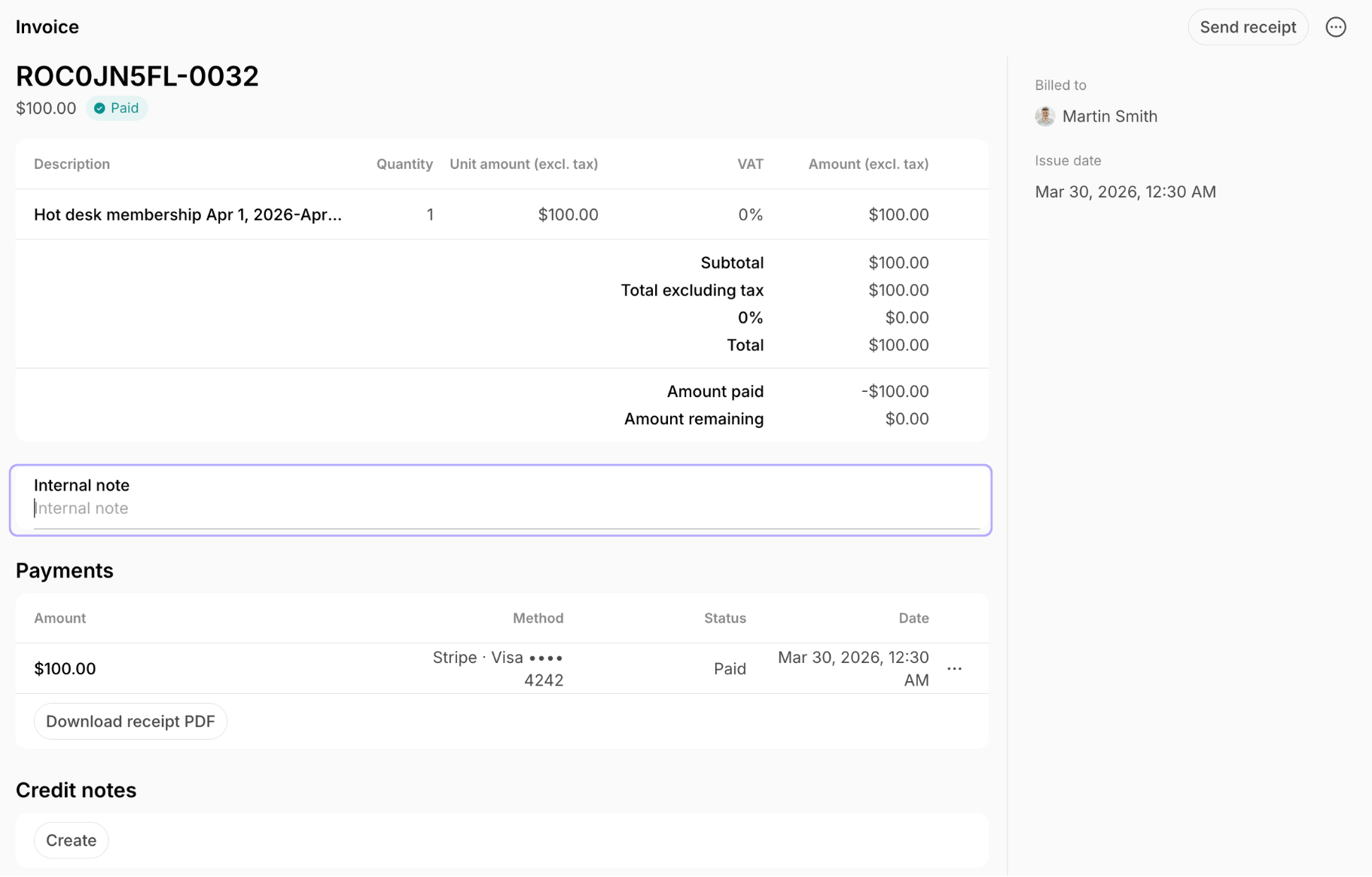
Export an invoices report
On the Billing > Invoices page, apply the necessary filters on the Invoices or Items tab, then click (…) in the top right corner > Export invoices > CSV or XLSX to download a report on the filtered invoices. Every report follows the filters of the tab you export it from.
Both reports include invoices for all payments starting December 9, 2025. Before that date, immediate one-off payments such as bookings, shop orders, and event tickets only generated receipts.
FAQs
The invoice wasn't charged automatically. How do I find out why?
The invoice wasn't charged automatically. How do I find out why?
Open the invoice and check the Activities section at the bottom of the page. It records every automatic charge attempt and the reason it didn’t go through:
- Auto-pay skipped because it is disabled for the customer — Auto-pay is disabled for this customer.
- Auto-pay skipped because the customer has no default payment method — the customer had no default payment method when the invoice was issued.
- Auto-pay skipped because a payment is already in progress — another payment for this invoice was still being processed.
- Auto-pay failed — the charge was attempted and declined by the payment gateway.
What is the Invoice balance in a customer's profile?
What is the Invoice balance in a customer's profile?
Invoice balance is the sum of the customer’s unpaid and draft invoices. It’s a different figure from the Money balance, which is the credit or debt you apply to their next invoice.To see the invoices behind it, open the customer’s profile and click (…) next to Invoice balance > View invoices. Draft invoices appear there alongside issued and paid ones.
How can I get a report for the payments of a particular client?
How can I get a report for the payments of a particular client?
Filter the Invoices page by Customer, then export an invoices report for a summary of their invoices. For a breakdown of what they bought, filter the Items tab the same way and export an invoice items report.You can also view and download individual invoices and receipts directly from the Billing > Invoices or Transactions page.
Where can I check the net, gross, and tax breakdown for each payment?
Where can I check the net, gross, and tax breakdown for each payment?
Export an invoice items report. It has each item’s amounts with and without tax, the tax rate, and the tax amount.
Where can I check the revenue by plan title?
Where can I check the revenue by plan title?
Export an invoice items report and check the plan titles in the Description column.