

Automatic payment
When a subscription issues a recurring invoice, the system charges it automatically as long as all of the following are true:- The customer has a default payment method on file.
- Auto-pay is turned on for the customer.
- Your connected payment gateway supports Auto-pay.
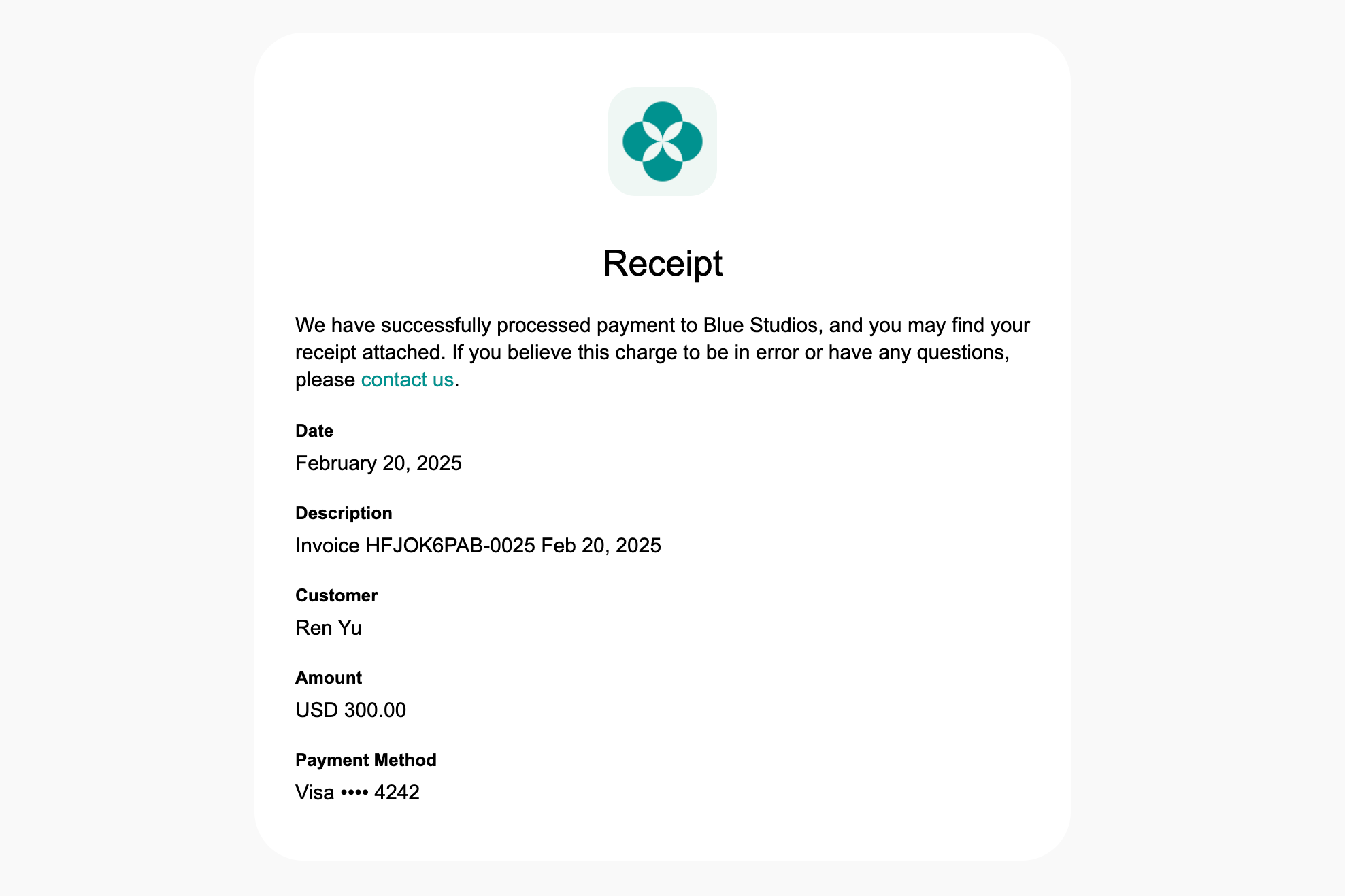
Manual payment
When Auto-pay can’t charge an invoice, the customer pays it manually. This happens when:- The customer has no default payment method on file.
- Auto-pay is turned off for them.
- Your connected payment gateway doesn’t support Auto-pay.
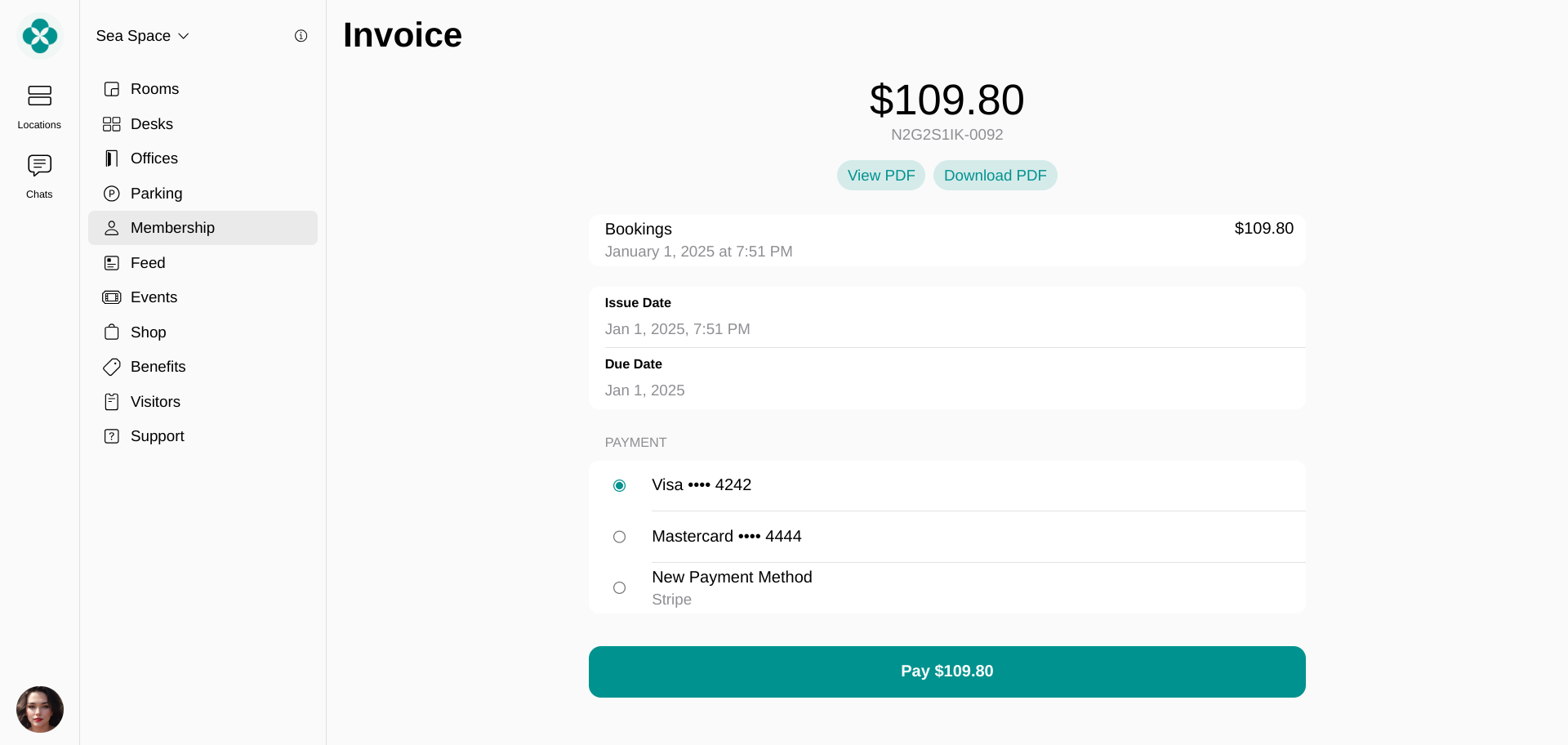
- To pay a personal invoice, go to Membership > Billing > Invoices, select the unpaid invoice, and choose a payment method.
- To pay a company invoice, company managers go to Membership > Billing > Invoices (under the company name), select the unpaid invoice, and choose a payment method. The list shows the company’s saved payment methods, not the manager’s own.
Share an invoice link
Every issued invoice has its own link, and anyone who receives it can open the invoice and pay without signing in. Use it to:- Send the customer a payment reminder in a chat or an email, so they can pay right away instead of looking for the invoice in the member portal.
- Send the invoice payment link to the person who settles it when that isn’t the customer themselves, such as an accountant, a finance department, or a client’s head office.
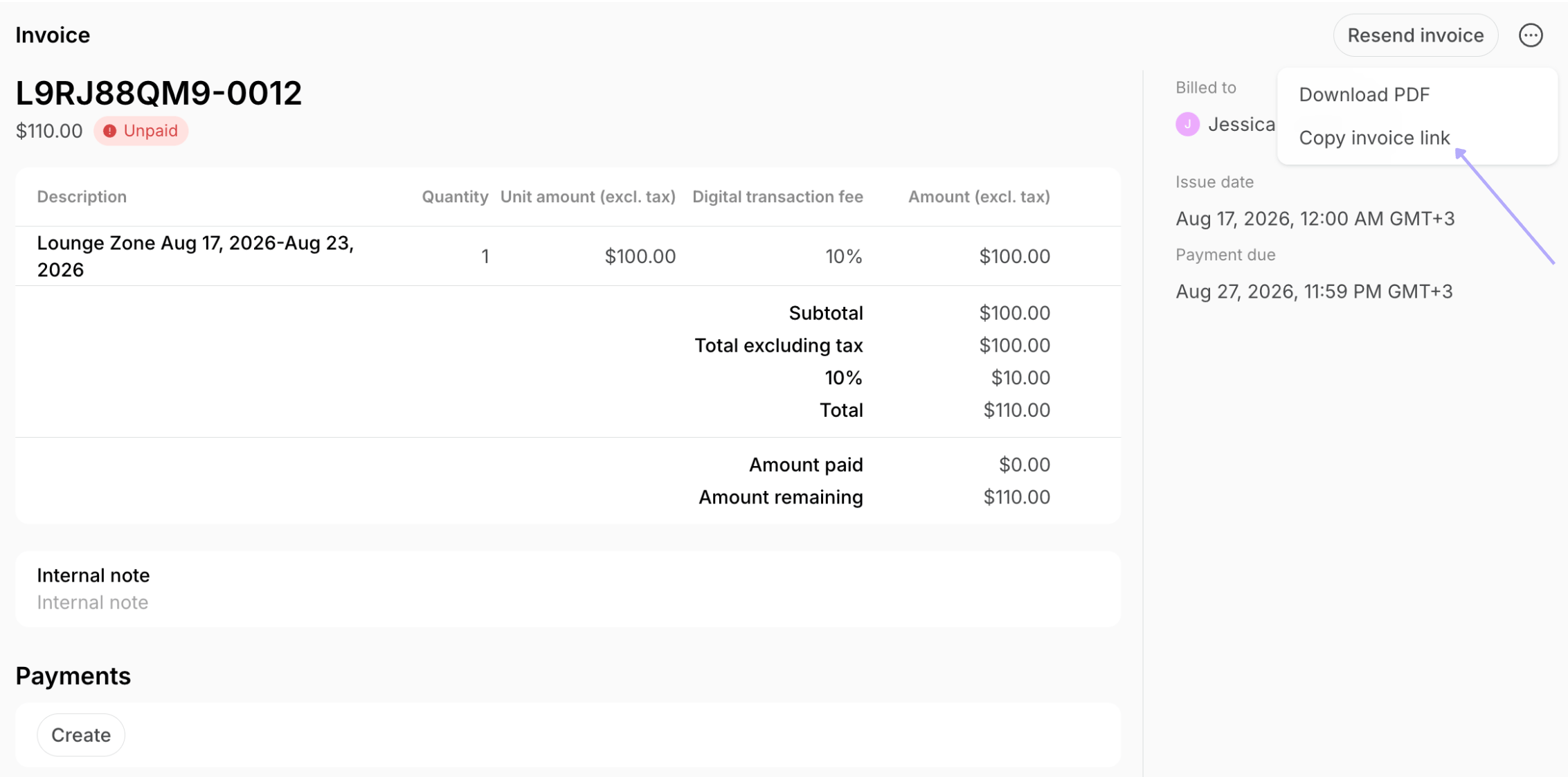
- Go to Membership > Billing under the Personal or company section > Invoices.
- Open the invoice and press Share invoice link.
How a shared invoice link works
- The link appears only after the invoice is issued. A draft invoice has no link because its amounts can still change.
- The link opens a page with the invoice amount and title, the location name, the issue date, the due date, the status, and the itemized breakdown, followed by any credit notes, payments, and applied money balance.
- Download PDF is always available, and Download receipt appears once the invoice is paid.
- If the invoice is unpaid and your location has a payment gateway connected, the page shows the available payment methods and a button to pay. The recipient enters their payment details and returns to the invoice page with the result.
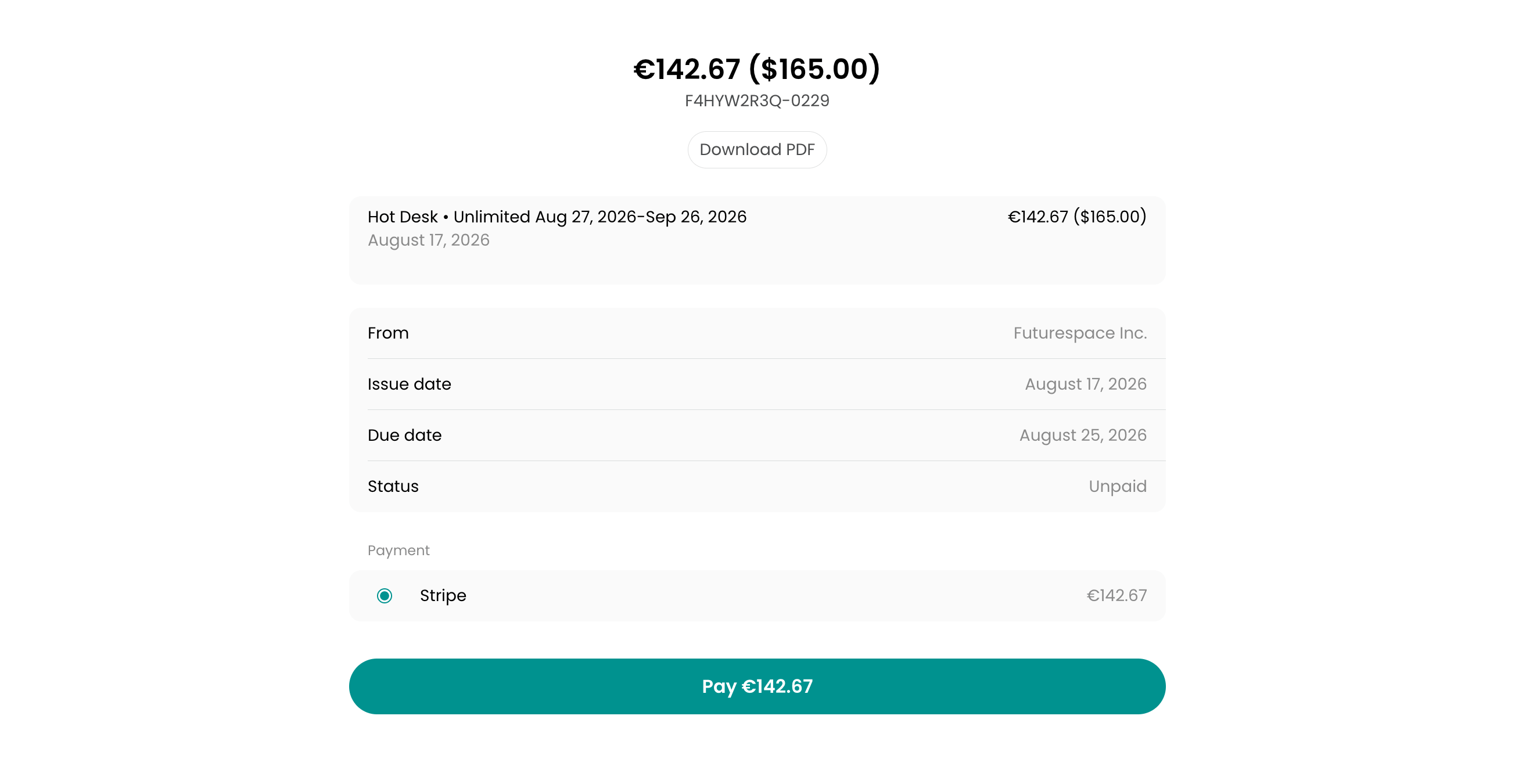
- Only new payment methods are offered. The customer’s saved payment methods never appear, because the link doesn’t identify who opened it.
- If a payment for the invoice is already in progress, the page shows a Complete payment button that returns the recipient to the pending checkout instead of starting a second payment.
- If no payment gateway is available for the invoice, the page asks the recipient to contact an administrator to arrange payment.
Record external or partial payments and charge invoices as an administrator
Administrators can record a full or partial payment against an invoice—either by charging the customer’s saved payment method or by logging a payment received outside Spacebring. This keeps your financial records accurate and auditable.Use cases
- Record a partial payment when a customer doesn’t pay the full balance at once.
- Log a payment received outside Spacebring, such as cash, check, or bank transfer.
- Retry a failed payment to collect on an unpaid invoice.
Create invoice payments
- Go to Billing > Invoices and open the invoice.
- In the Payments section, press Create.
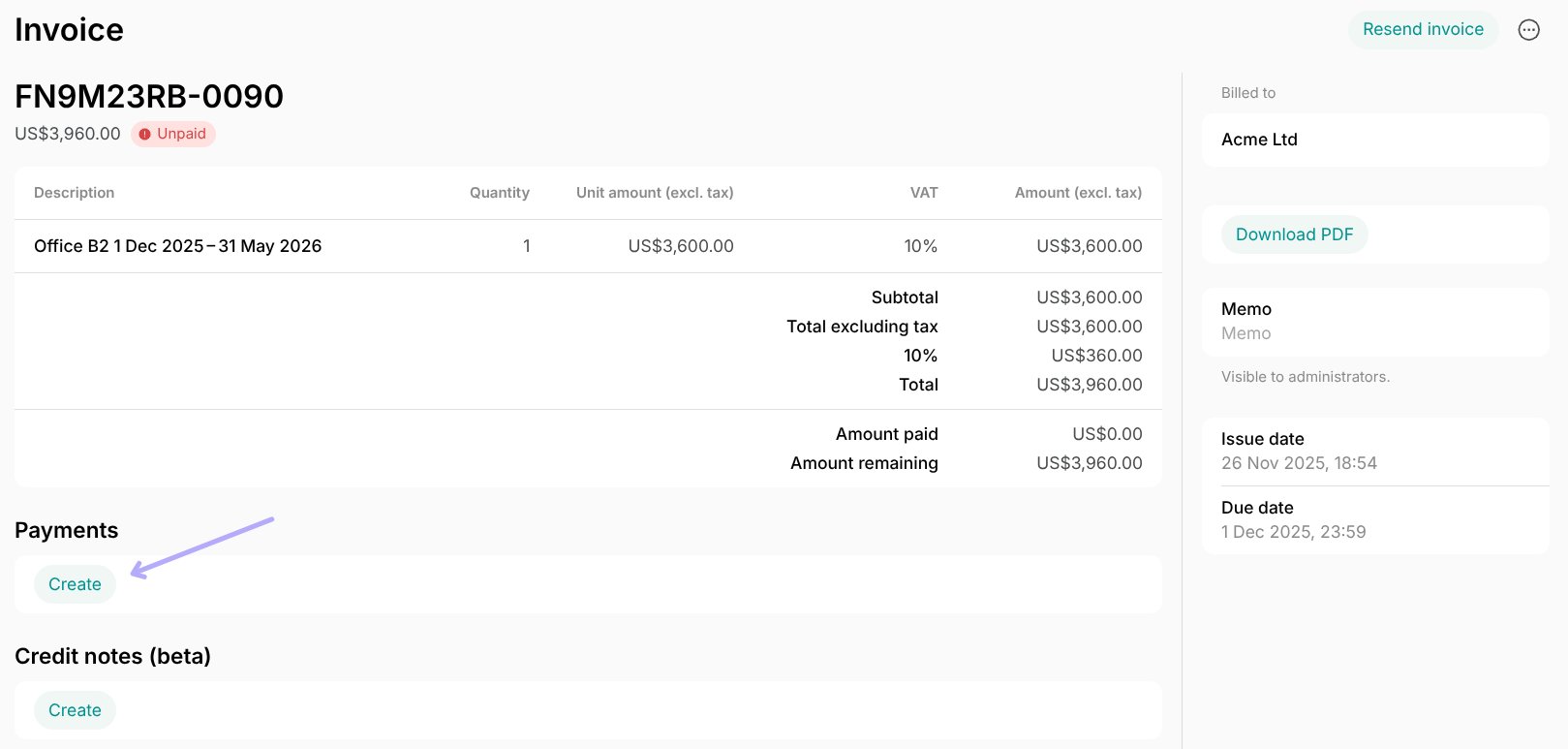
- Enter the amount and select the payment method:
- Select the customer’s saved payment method to charge them now.
- Select External if the customer already paid with cash, check, or bank transfer.
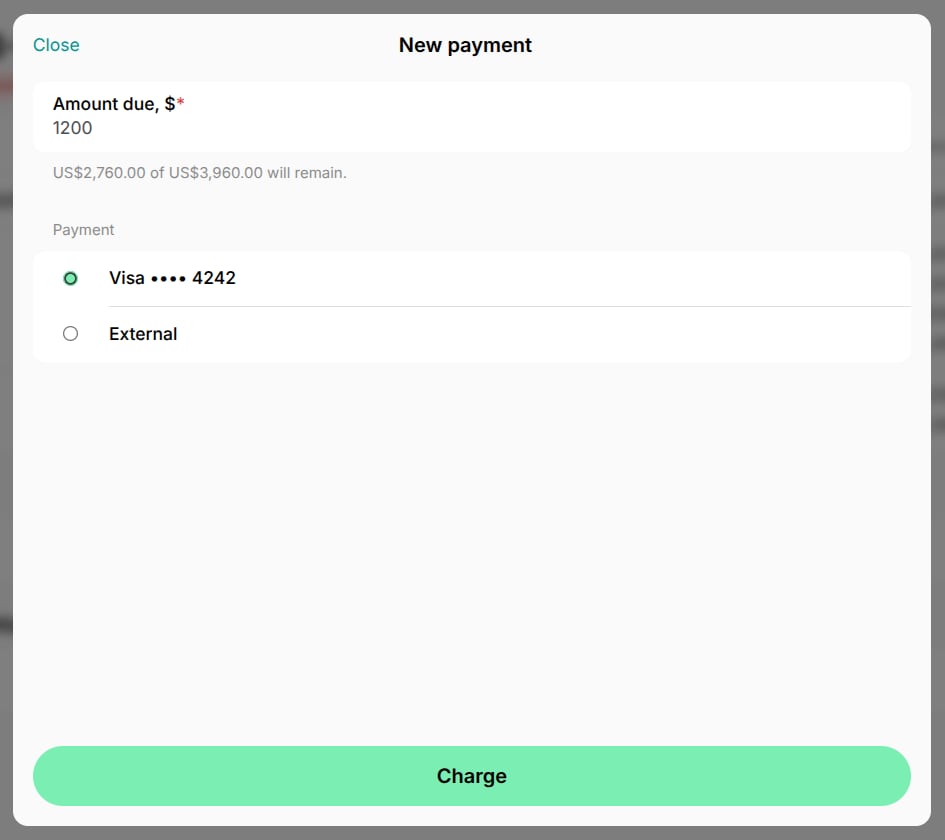
- Press Charge for a saved payment method, or Create payment for External.
You can charge the invoice only if the customer it is issued to has a saved payment method. For a company invoice, the card must be saved on the company, not on a company manager’s personal account.
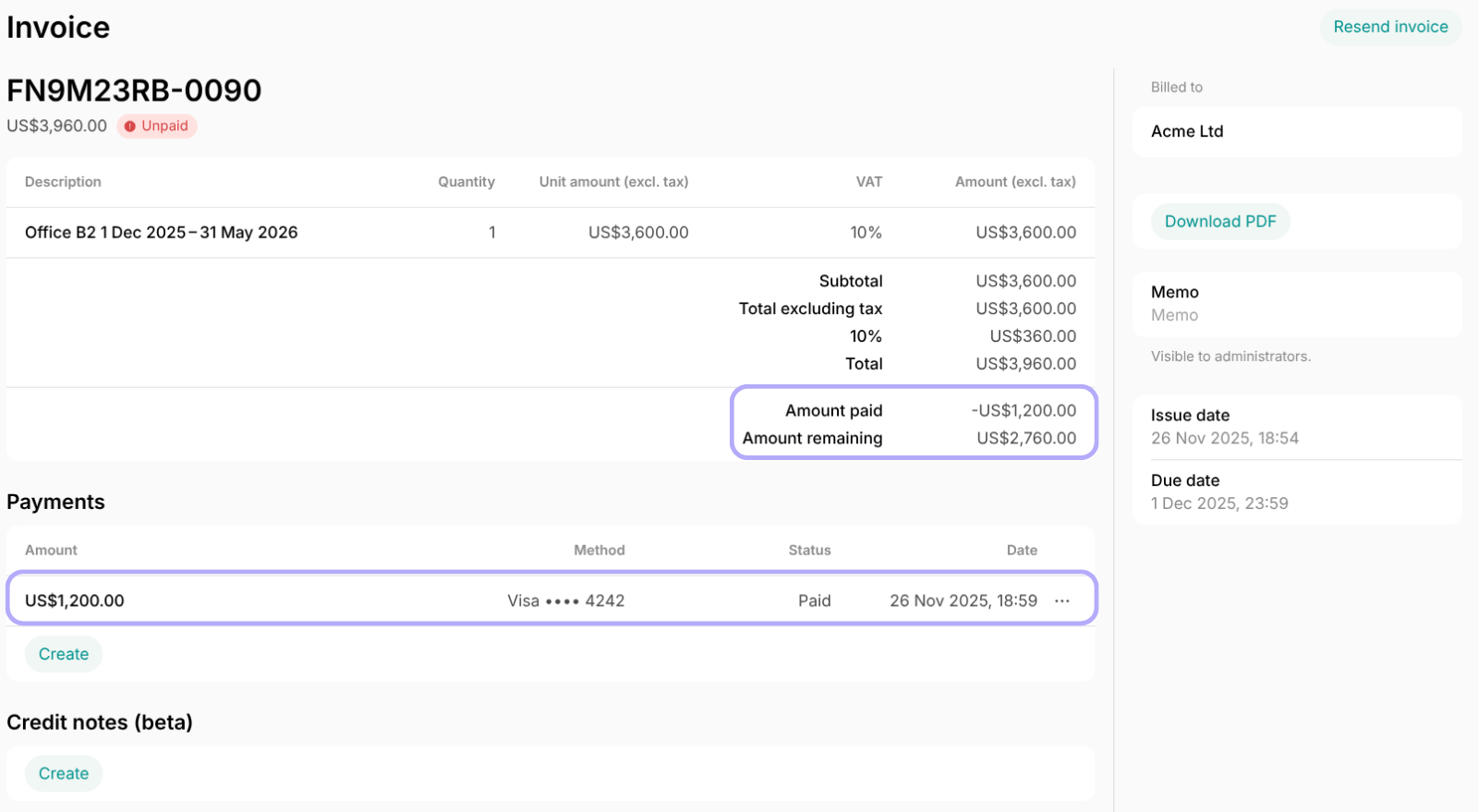
A recorded payment can’t be deleted or removed, and a Paid invoice can’t be set back to unpaid. If you recorded a payment by mistake, issue a credit note to correct the invoice and settle it for accounting, then create a new invoice with the correct amount.
FAQs
How can I check what payment gateway the user paid with for the invoice?
How can I check what payment gateway the user paid with for the invoice?
To find out what payment gateway the user paid with for the invoice, follow the next steps:
- Go to Billing > Invoices, filter the list by the necessary dates and status, then export an invoices report.
- Find the necessary invoice and check the Payment type column to see the payment gateway.