

Invoices for rental or membership
For members or tenants who get a membership or rental for a specific period:- Go to Customers > customer profile.
- Create a subscription.
Invoices for one-off purchases
For one-off purchases (booking, event ticket, shop order, etc.):- The customer makes a purchase in the member web portal or mobile app by themselves and pays through a payment gateway.
- Alternatively, you, as an administrator, can record a one-off booking for the customer with the External payment method.
- The one-off invoice is generated automatically.
Manual one-off invoices
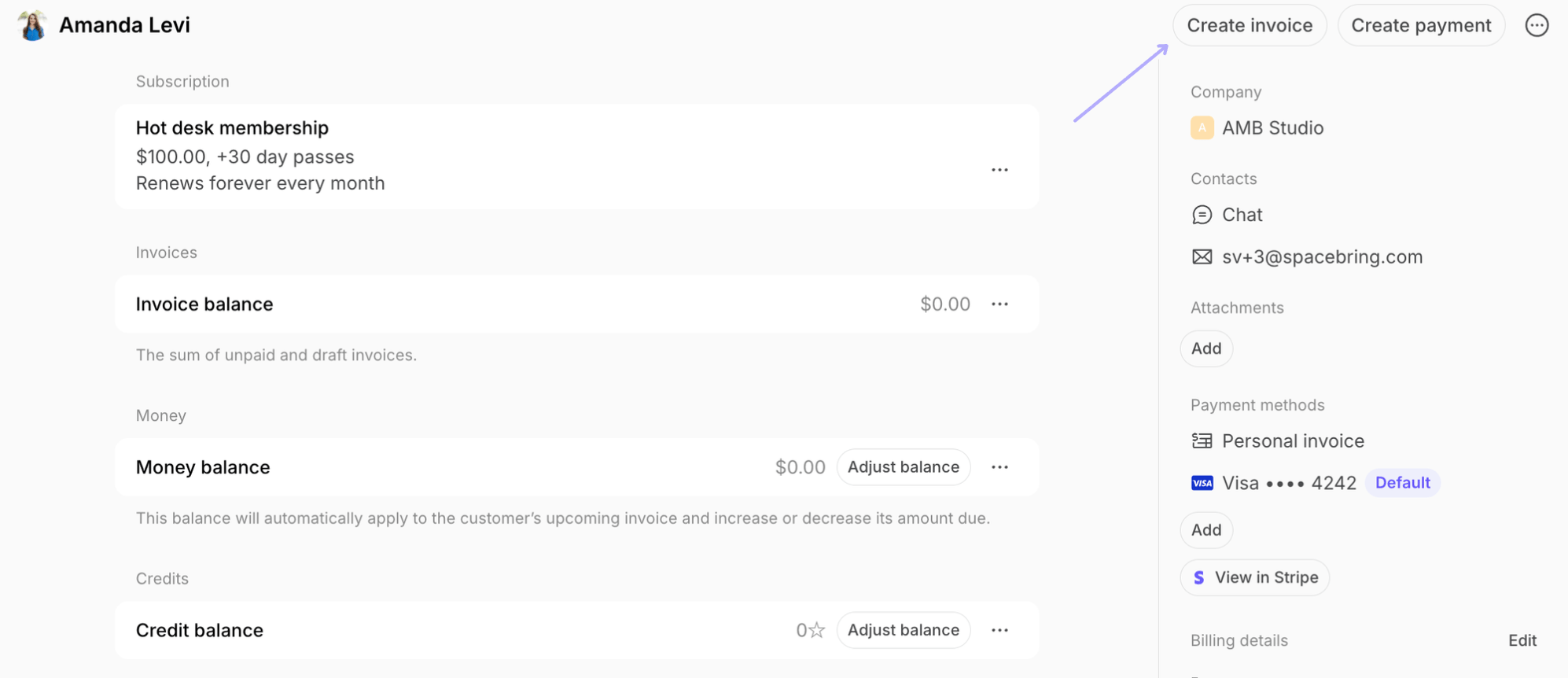
For occasional or irregular charges that are not part of a rental, membership, or a specific service purchase, you can also issue one-off invoices to any customer.- Go to Billing > Invoices or to the customer’s profile.
- Click Create invoice top right.
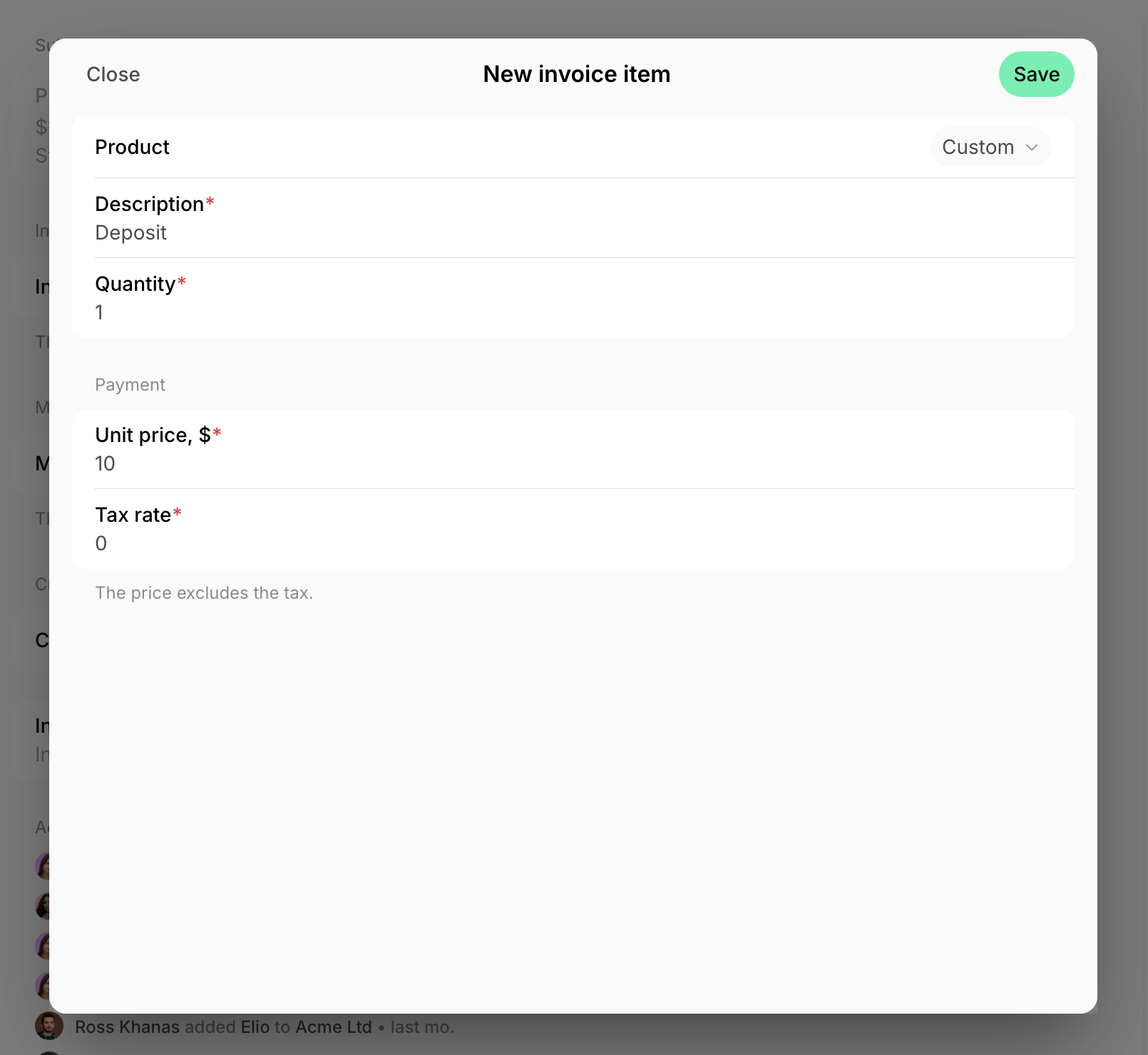
- Tap Add > in the Product field, select the pre-created item or keep Custom to add a unique item and price.
- Specify Quantity, and fill out the other remaining fields > press
Save.
- Optionally, add an internal note to indicate the source of payment or any other relevant details for your payment records, and set a custom Payment due date. Press Create.
- Tap View invoice in the confirmation window below.
- Press Issue. If a user has any saved payment methods, you’ll see Issue and charge button and can charge the invoice right away.
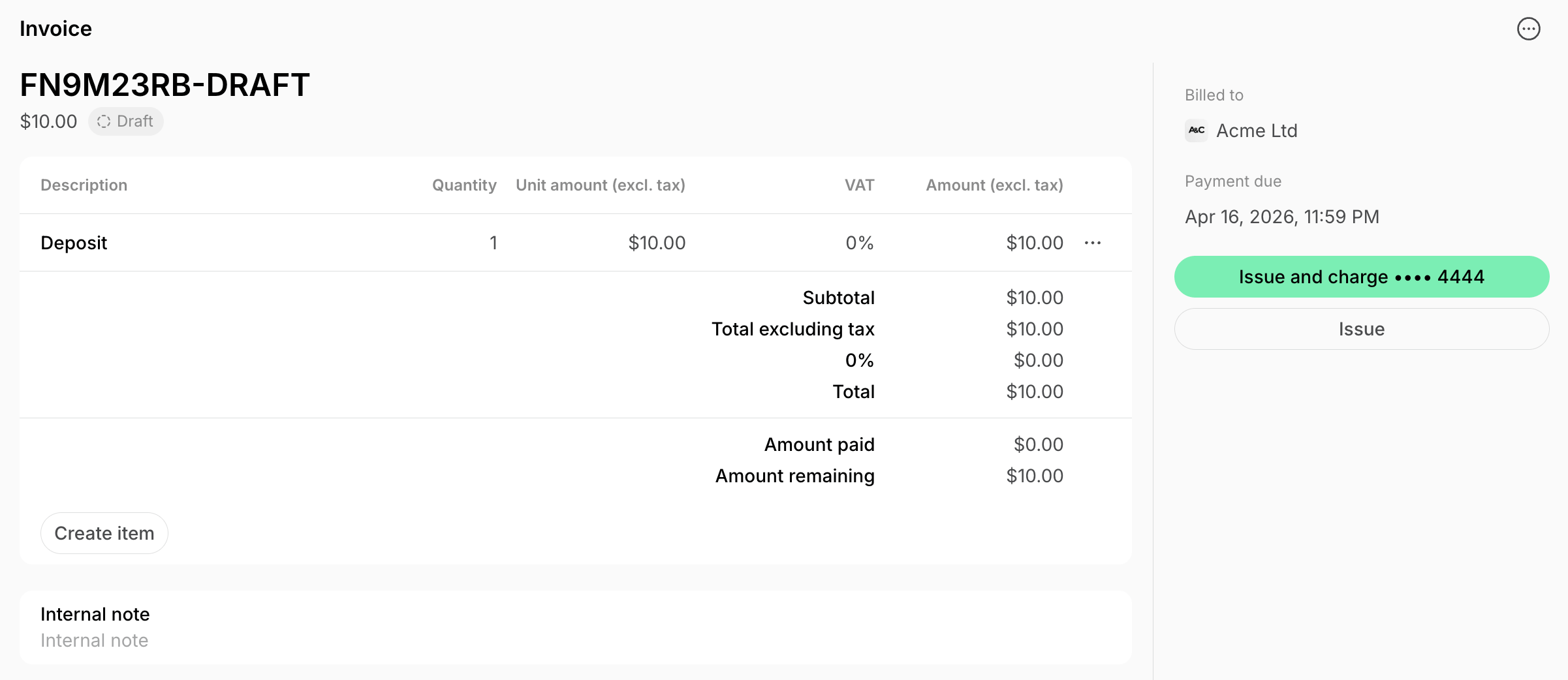
A manual one-off invoice is always issued as a separate document. To add a charge to a customer’s next subscription invoice instead, create the item on their upcoming invoice.
If Require billing details is enabled, the customer’s billing details must be added to be able to issue the invoice.
Manually created invoices use today’s issuance date and the following available sequence number.
FAQs
Why do I see an error asking me to update the customer's billing information before I can issue an invoice?
Why do I see an error asking me to update the customer's billing information before I can issue an invoice?
This happens for one of two reasons:
- Require billing details is turned on for Company or User customers in your location. Their Legal business name, Address, and Tax ID must be filled in before you can issue the invoice. You have a few options:
- Fill out the customer’s billing details yourself: in the customer’s profile, locate the Billing details section > Edit > fill in Legal business name, Address, and Tax ID. Issuing the invoice will then become possible.
- Ask the customer to add their own billing details: they can do this on the Membership > Billing page. Once saved, issuing the invoice will become possible.
- If you don’t actually need this requirement, disable Require billing details for Users and/or Companies: tap the (…) next to the location name on the left-side panel > Location settings > Customers > toggle it off for the relevant type. Then you’ll be able to issue the invoice without the customer’s billing details.
- eInvoicing is connected for your location. Every invoice must be submitted as an eInvoice, which legally requires the customer’s billing details, regardless of the Require billing details setting above. Your options depend on the customer type:
- For a Company invoice, fill out the company’s billing details (Customers > company > Billing details section > Edit), or ask the company manager to add them (Membership > their company’s section > Billing).
- For a User invoice, fill out the user’s billing details (Customers > user > Billing details section > Edit), or ask the user to add them (Membership > Personal > Billing).
- For a User invoice, if you don’t need it synced as an eInvoice and don’t need the invoice to include the customer’s billing details, disable Require billing details for Users, and make sure the user’s Legal business name and Tax ID fields are both left empty (clear them if they were previously filled in). With both empty, Spacebring treats the customer as a simplified consumer, skips the eInvoicing sync for that invoice entirely, and lets you issue it without billing details.
This last option isn’t available for company invoices — when eInvoicing is enabled, billing details are always required to issue a company invoice.
A customer already paid me outside Spacebring. How do I record this without sending them a notification about invoice issuance?
A customer already paid me outside Spacebring. How do I record this without sending them a notification about invoice issuance?
Instead of issuing an invoice, which always sends the customer a notification, create a one-off payment for the customer directly:
- Go to Billing > Transactions > press Create payment top right.
- Select the customer and enter the payment details.
- Choose External as the Payment method, since the money was already received outside Spacebring.
- Confirm the payment.