

- A member settles a period of small charges at once. An individual member or a company on a recurring membership plan or rental makes bookings and purchases through the month. Every charge goes onto the invoice they already pay once a period, instead of each one being paid — and charged a payment processing fee — separately. For companies, this consolidates the whole team’s expenses into a single company invoice.
- You bill a customer for a single purchase. You book a resource or create a ticket or order for a customer, often a new one, and send them an invoice to pay for it.
Let customers pay with invoice
Pay with invoice is off for every customer by default. Turn it on for a customer so they can choose Personal invoice or Company invoice at checkout themselves, and add the charge to their invoice instead of paying right away.- Go to Customers > Members or Nonmembers tab.
- Open a user or company profile > in the right-hand panel, find Payment methods.
- Click (…) > Edit next to Company invoice or Personal invoice.
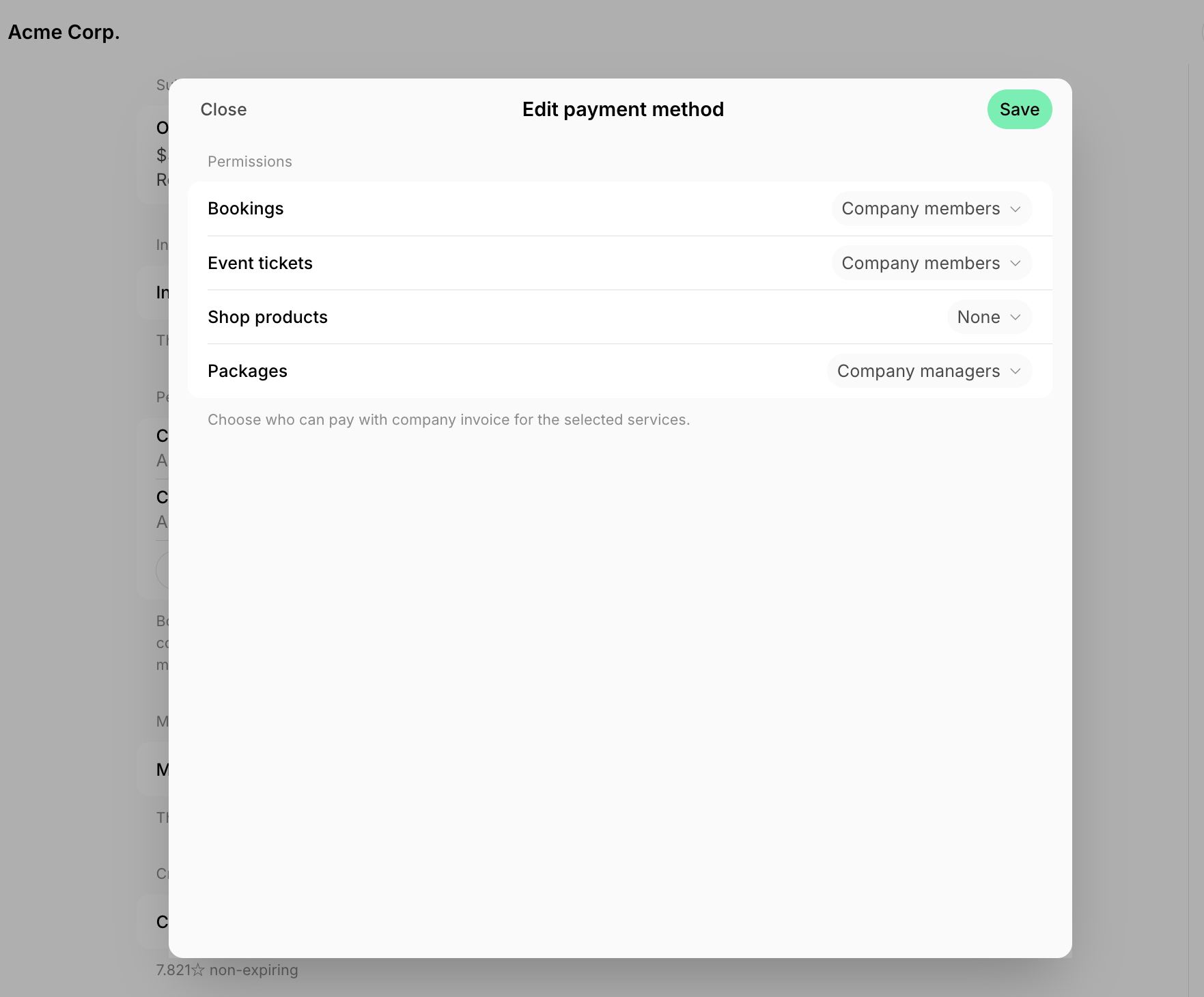
- For an individual customer, select the services for which they can pay by personal invoice. For a company, choose who can pay by company invoice for each service:
- None — paying with an invoice is unavailable for this service.
- Company managers — only managers of the company can pay by company invoice, while members cannot.
- Company members — both company managers and members can pay by company invoice for the selected service.
- For an individual customer, select the services for which they can pay by personal invoice. For a company, choose who can pay by company invoice for each service:
Bill a customer by invoice
You can bill any customer by invoice, even if Pay with invoice is off for them.- Create a booking, event ticket, or shop order for the customer.
- If they aren’t in Spacebring yet, choose New nonmember when you select the customer, and enter their details. A nonmember profile is created for them.
- Under Payment, choose Personal invoice or Company invoice.
- The charge becomes a pending invoice item:
- If the customer’s subscription has Add to subscription invoices on, it’s added to their subscription invoice automatically.
- Otherwise, including for a nonmember, issue an invoice for it.
Pending invoice items
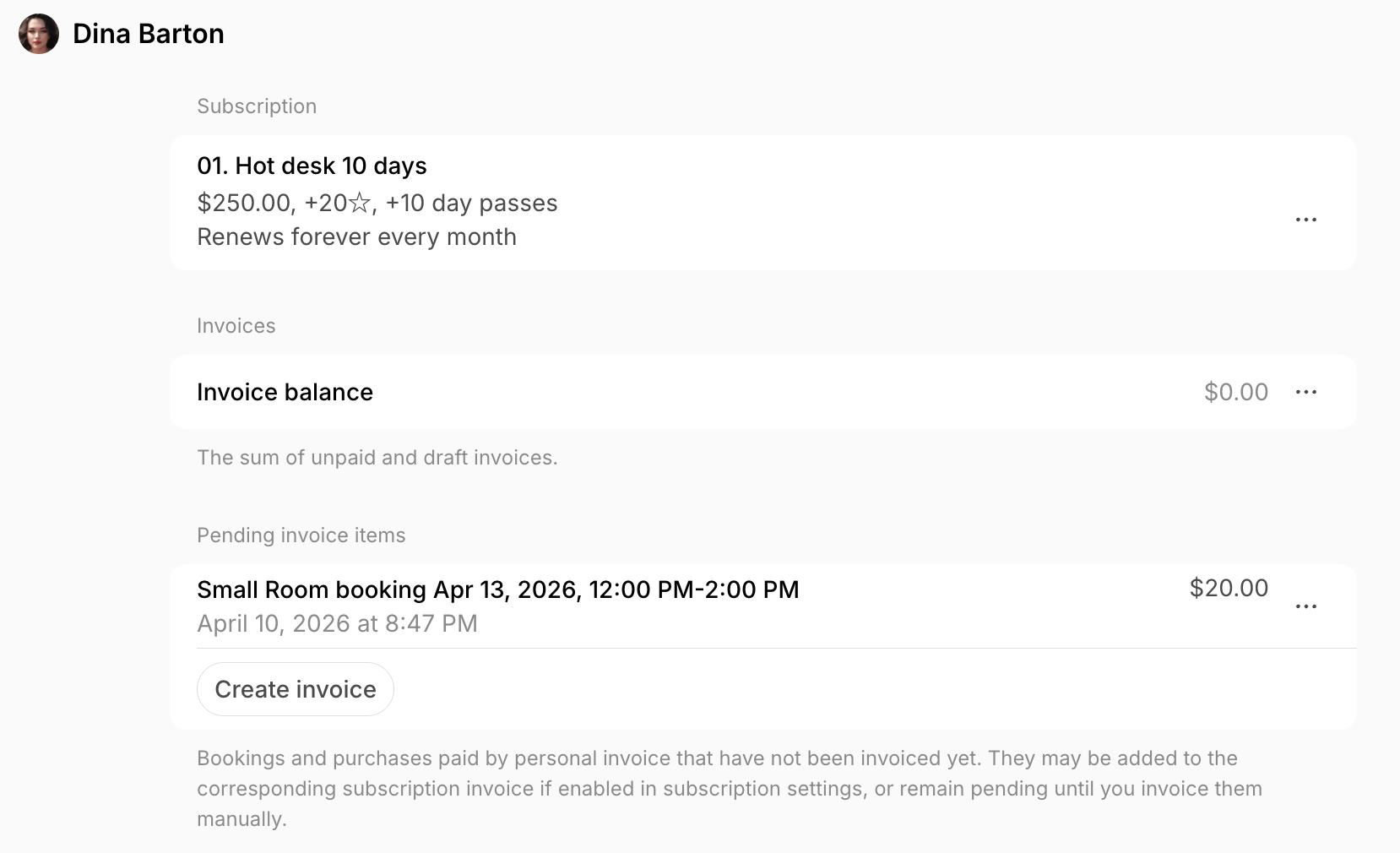
Every booking, event ticket, shop order, or package paid with Invoice becomes a pending invoice item: a charge that isn’t on an invoice yet.- Find a customer’s pending invoice items in the Pending invoice items section of their profile. Each item shows the subscription it will be billed with. An item marked Waiting to be issued manually stays pending until you invoice it yourself.
- To list the pending invoice items of every customer at a location, go to Billing > Invoices > Items and filter by Pending > Yes. From there, you can invoice or delete an item, or export the list.
- You can delete a pending invoice item. This removes only the charge, not the booking, order, or ticket itself.
Subscription fees never become pending invoice items: every subscription bills its own items on its own invoice, so one subscription’s fees never move onto another subscription’s upcoming invoice.
Choose where charges are billed
For nonmembers and members without a subscription, pending invoice items are never billed automatically. They stay in the customer’s profile until you issue an invoice for them. For members with subscriptions, the Add to subscription invoices setting decides how pending invoice items are billed. It’s on by default for a customer’s first subscription, whether you create it or the customer purchases a plan when signing up, so you don’t need to turn it on for each member. To change the setting:- Open the customer’s profile.
- Open their subscription.
- Manage the Add to subscription invoices toggle in the right-hand panel.

- Only one of their subscriptions can have Add to subscription invoices enabled. Their pending invoice items are added to that subscription’s invoices and billed with them.
- If the toggle is greyed out in a subscription, another of their subscriptions has it on. To add the pending invoice items to this subscription instead, turn the toggle off in the other one, then turn it on here.
- To bill their payments with invoice separately from subscription invoices, keep the toggle off in all their subscriptions.
Add to subscription invoices
When Add to subscription invoices is enabled, the customer’s pending invoice items are consolidated into that subscription’s invoices, so you don’t need to invoice them yourself. They show in Pending invoice items until the subscription invoice that bills them is issued.- Bookings for dates within the current subscription period, and other purchases such as event tickets, shop products, and packages, are added to the upcoming invoice.
- Bookings for dates in future subscription periods stay in Pending invoice items. They are billed with the subscription invoice issued after the booking takes place.
- The booking first appears in Pending invoice items.
- On June 2, the period begins in which this booking takes place, so it is added to the upcoming invoice.
- On July 2, the invoice is issued and includes:
- Subscription fees for July 2 – August 1.
- All bookings between June 2 – July 1.

Only purchases paid with Invoice are consolidated this way — no subscription’s fees ever move onto another subscription’s invoice, whatever this toggle is set to. To bill a new plan or resource together with an invoice the customer already receives, add it as an item to their existing subscription instead of creating a second subscription.
Bill separately
When Add to subscription invoices is disabled, pending invoice items aren’t billed automatically. They accumulate in the customer’s profile until you issue an invoice for them at the time you choose. Use this when subscription charges and one-off purchases have to stay on separate invoices.When a subscription is canceled or ends
When a subscription is canceled or reaches its scheduled end date, its Add to subscription invoices setting decides what happens to the customer’s pending invoice items:- Enabled — the system collects them on one final invoice and issues it to the customer automatically. Bookings for future dates are included too, because no further subscription invoices follow.
- Disabled — the system creates no invoice. The items stay in the customer’s profile until you issue an invoice for them yourself.
- If payment collection is paused when you cancel, the final invoice follows the pause setting: Mark as draft keeps it in Draft for you to issue, and Void instantly has the system issue and void it right away.
- Moving a customer to Nonmembers also cancels their subscription. The system creates the invoice with their pending invoice items, but leaves it in Draft instead of issuing it, so you can review and issue it yourself.
Issue an invoice for pending items
- Go to the customer’s profile.
- If needed, add the customer’s billing details on the right-hand panel to appear on the invoice and receipt.
- Locate the Pending invoice items section.
- For a one-time booking, create and issue the invoice immediately.
- For regular customers, you can issue a consolidated invoice with all pending items immediately, or when needed (e.g., monthly). They accumulate here until you issue an invoice.
- Once items are accumulated, they cannot be split into separate invoices. You can issue only one invoice containing all pending items.
- Click Create invoice under the Pending invoice items section to generate a draft invoice.
- If necessary, edit it before issuing, for example to set a due date that falls after the booking.
- Press Issue to send the invoice to the customer, who can then pay it online themselves, or Issue and charge to charge them immediately if they have a payment method on file. Once the invoice is paid online, the customer gets the receipt by email automatically.
FAQs
How do I bill a booking to a company instead of the person who uses it?
How do I bill a booking to a company instead of the person who uses it?
It depends on whether the company has a profile in Spacebring:
- The company is in Spacebring and the customer is its member. Book for the customer, or create their ticket or order, and select Company invoice. The charge goes to the company’s invoice, so the company covers it on the member’s behalf. For any other charge, add the item to the company’s invoice yourself.
- The company isn’t in Spacebring. Nonmember profiles are created as individuals, so add the person as a nonmember, enter their company billing details in their profile, and book for them with Personal invoice. The invoice is generated with the company details you entered. If their accounting team settles it rather than the person you booked for, copy the invoice link and send it to them — they can open the invoice and pay without signing in.