

Create an order for a customer
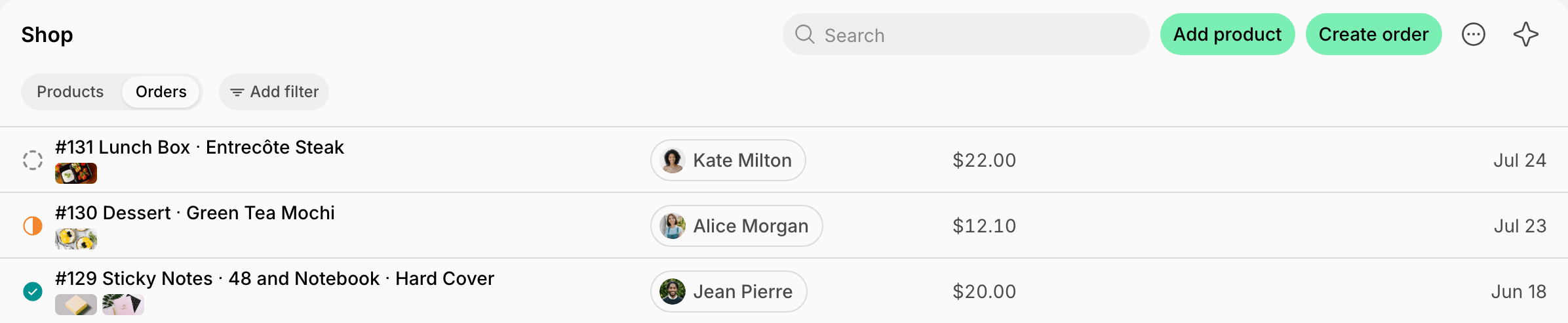
Order shop products for a customer when they ask at the front desk, call, or send a message.- Go to Catalog > Products and click Create order in the top right corner.
- Under Customer, select the member or nonmember the order is for. If the buyer isn’t in Spacebring yet, choose New nonmember, fill in their details, and click Create. The new nonmember is selected as the customer.
- Under Products, click Add, select a product option and its quantity, and click Save. Repeat for every product in the order.
- Optionally, enter a Comment with extra details about the order.
- Under Payment, select the payment method to charge the customer for the order.
- External, invoice, and card payments appear only when every product in the order has a money price. Credits appear only when every product has a credit price.
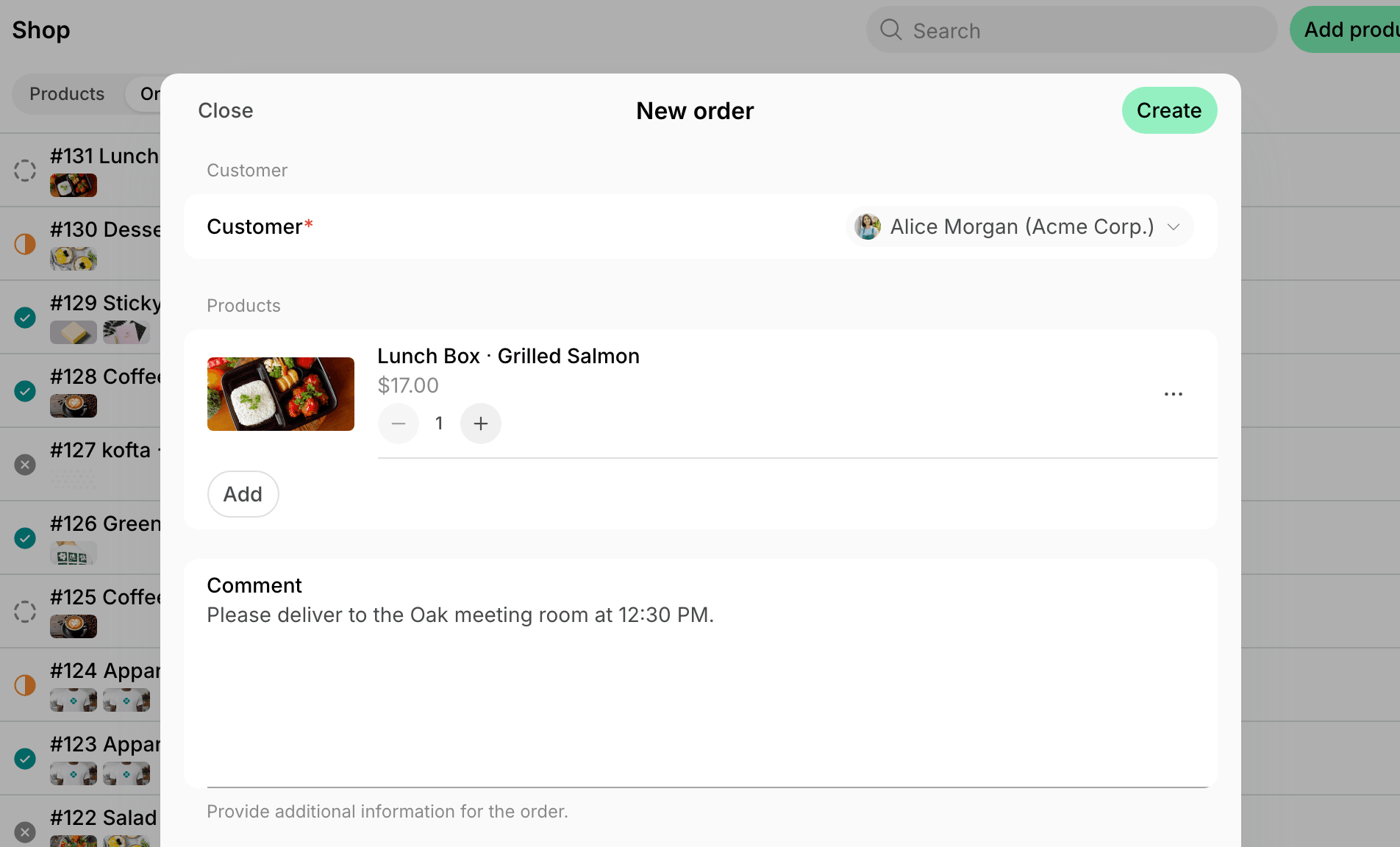
- Click Create.
You can create orders on the web version of the admin app only.
Manage orders
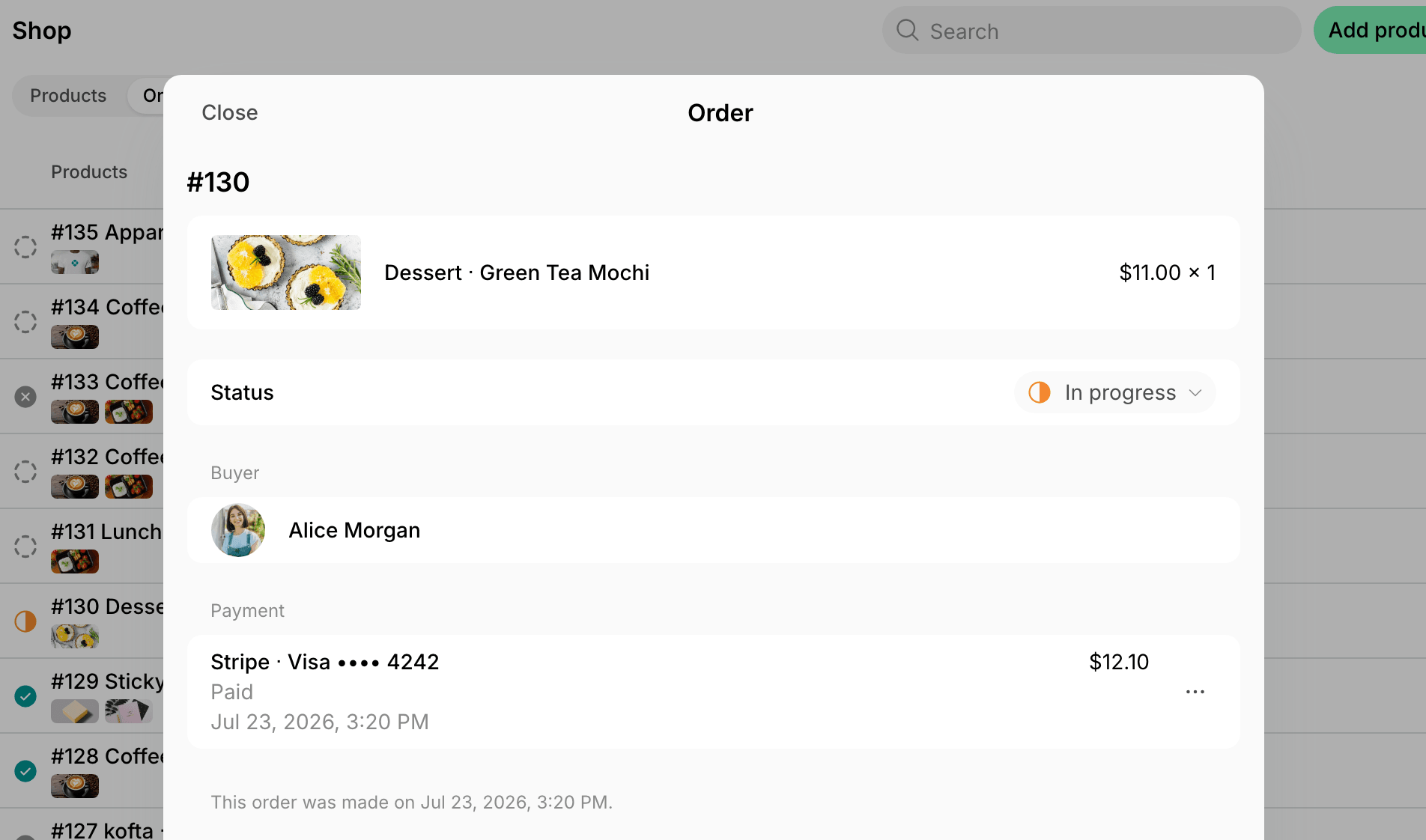
An order’s status shows how far along its processing is:- Pending — the payment hasn’t gone through yet. The order becomes New once the payment succeeds, and its status can’t be changed before that.
- New — placed but not processed yet. Orders paid with credits, by invoice, or for free get this status right away.
- In progress — currently being processed.
- Completed — successfully processed.
- Canceled — canceled by the customer or an administrator, or the payment failed or wasn’t completed.
Cancel an order and issue a refund
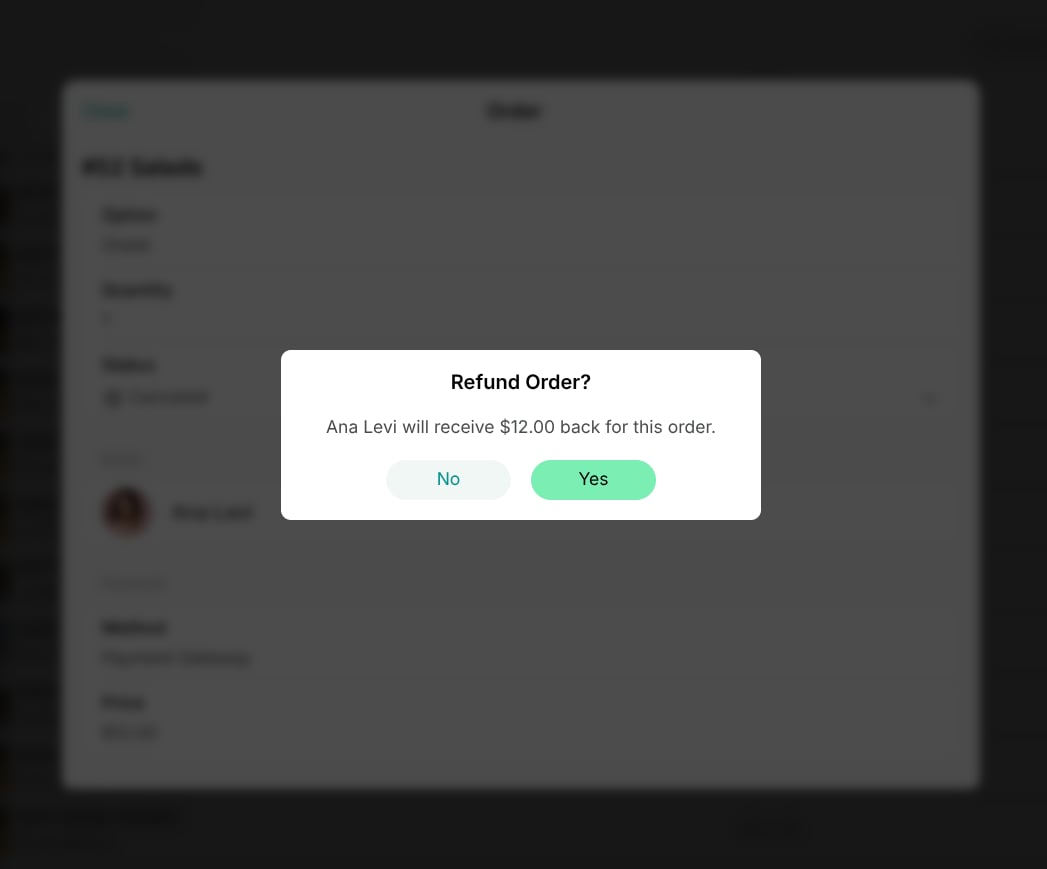
To cancel an order — for example, if the product is out of stock or there is an issue with it — set its status to Canceled. You’ll be asked to confirm whether the customer is eligible for a refund; canceling does not refund automatically. If you confirm, the refund is issued automatically. Understand refunds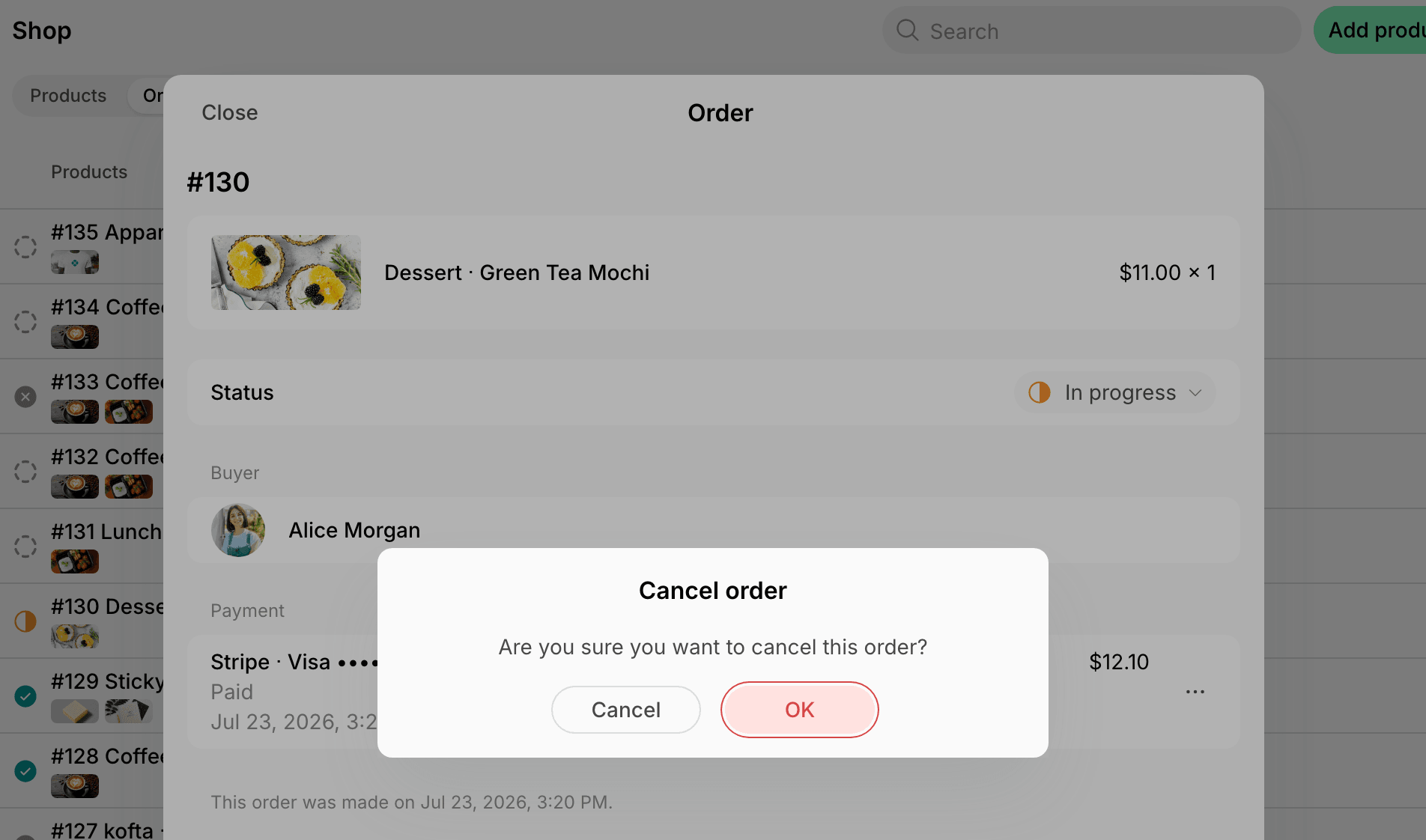
Track orders
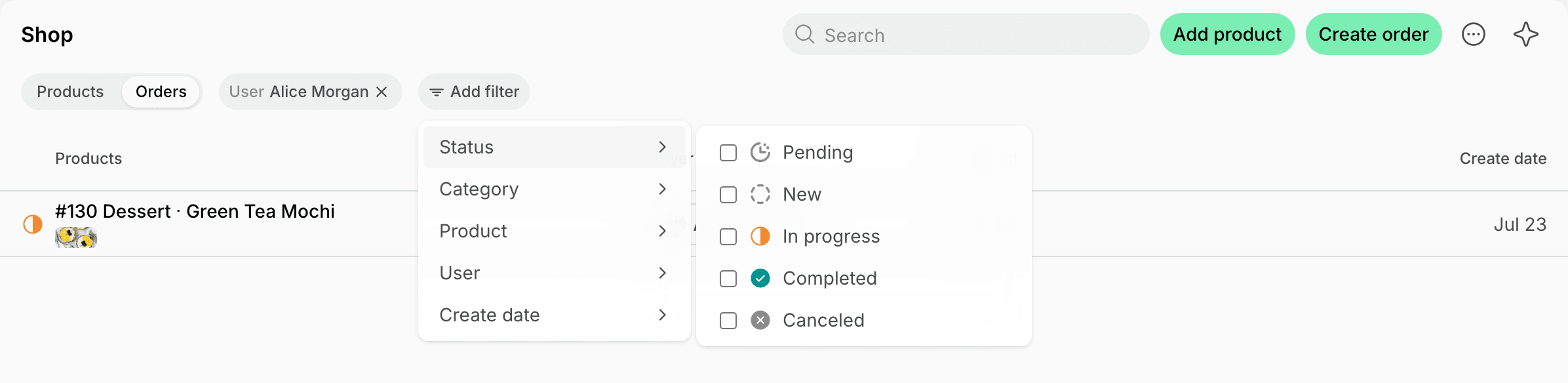
On the Orders panel, click Add filter and pick a property:- Filter by Status to see Pending, New, In progress, Completed, or Canceled orders.
- Filter by Category to see orders from a specific shop category.
- Filter by Product to see orders that include a specific product.
- Filter by User to see all orders of a specific customer.
- Filter by Create date to see orders created in a ready-made period, such as Today or Last 28 days, or click Custom to set an exact date or range.
Export an orders report
On the Orders panel, apply the necessary filters, then click (…) in the top right corner > Export orders > CSV or XLSX to download a report on the filtered orders.
FAQs
What do the Pending and Disputed labels on an order mean?
What do the Pending and Disputed labels on an order mean?
Pending means the payment hasn’t gone through yet, so the order stays in the Pending status. The order is canceled automatically if the payment isn’t completed within 15 minutes. An order with a pending external payment isn’t canceled. It stays pending until its transaction is marked as paid.Disputed means the buyer’s bank opened a dispute over the payment.