

How users make payments
- When making a booking or purchase, users select their saved payment method or the New payment method option (or PayPal, Mercado Pago, or KakaoPay if these payment gateways are connected).
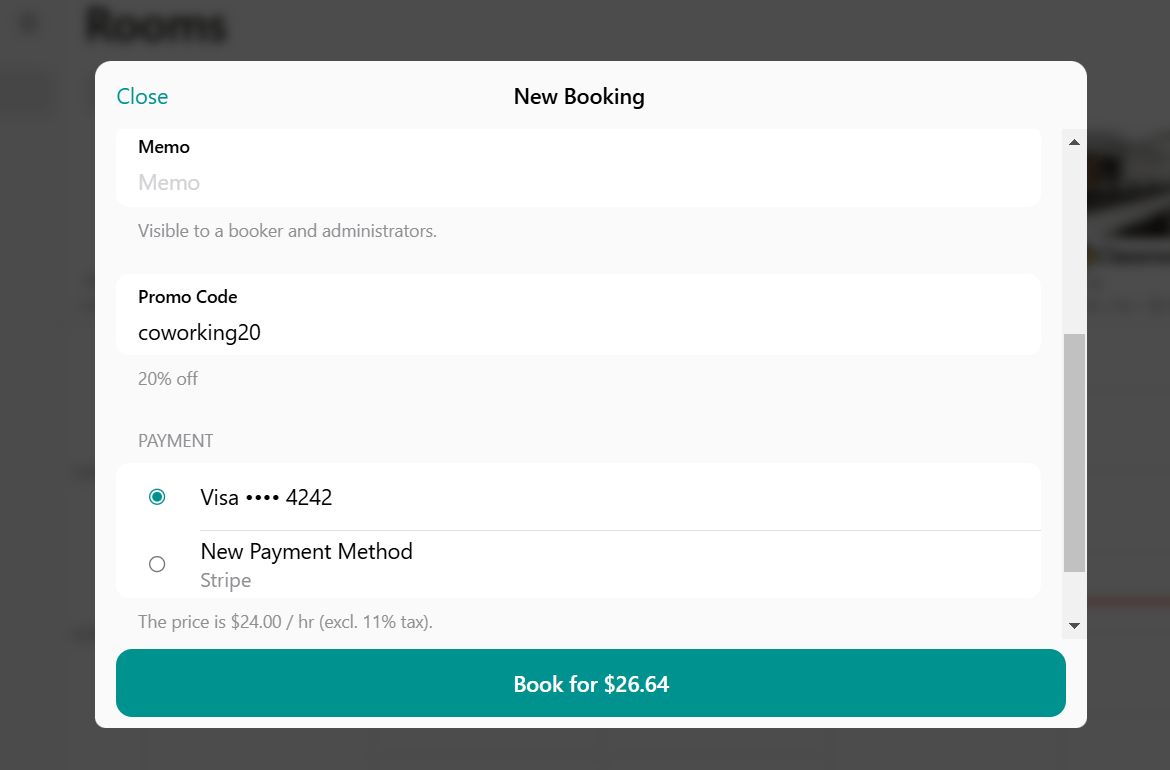
- In case of the New payment method option, users are redirected to the payment page of the payment gateway. There, they can see all the payment methods your payment gateway supports and complete the payment.
- For each initiated payment, users can see a transaction and its status.
- Users can check it from the Membership > Billing > Transactions page.
- Administrators can check all transactions from the Billing > Transactions page.
- Upon successful payment, users see a confirmation on their screen and receive an automated email containing both their payment receipt and invoice.
Track transactions
Administrators can find and manage transactions on the Billing > Transactions page.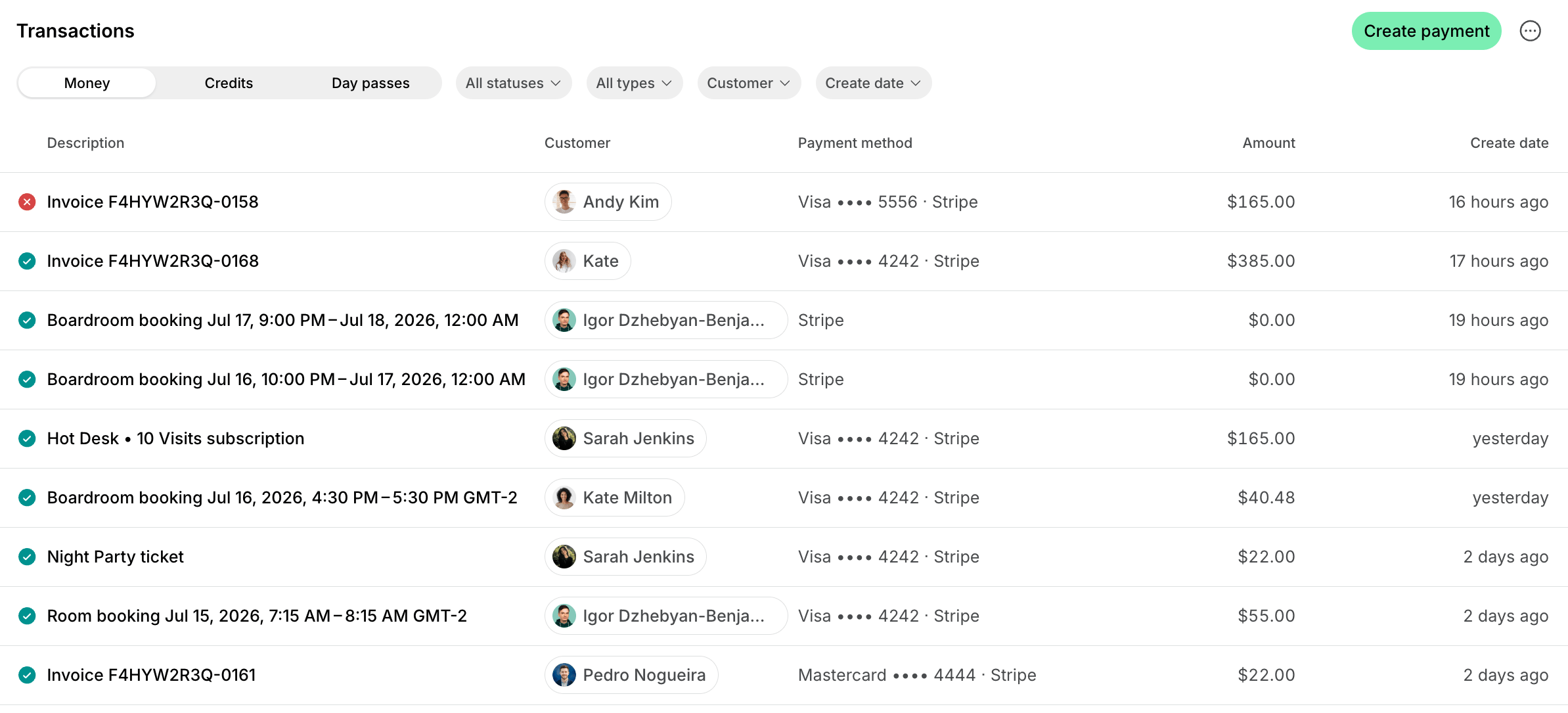
- Use the Money, Credits, and Day passes tabs to switch between transaction types.
- Filter transactions by Status:
- Filter transactions by Type to see payments for specific product types or transactions of a specific kind:
- Money: Subscription, Invoice, Package, Booking, Ticket, Order, Custom.
- Credits: Administrator · Added, Administrator · Deducted, Booking, Ticket, Order, Purchased, Refund, Subscription · Added, Subscription · Expired.
- Day passes: Administrator · Added, Administrator · Deducted, Booking, Purchased, Refund, Subscription · Added, Subscription · Expired.
- Filter transactions by Customer to see all transactions of a specific customer.
- Filter transactions by Create date to see transactions made in a ready-made period, such as Today or Last 28 days, or click Custom to set an exact date or range.
Export a transactions report
On the Transactions page, apply the necessary filters, then click (…) in the top right corner > Export money as CSV/XLSX, Export credits as CSV/XLSX, or Export day passes as CSV/XLSX, depending on the active tab, to download a report on the filtered transactions. The report includes each transaction’s ID, status, amount, and date, and the names of the customer, their company, and whoever created the transaction. The money export also has the payment category and method, the currency, any refunded amount, and a link to the receipt PDF. The credits and day passes exports add the transaction’s type and description — credits show any coupon, promo code, and discount applied, and day passes split the amount into expiring and permanent.Manage payment methods
If you have a Stripe, WayForPay, Tap, plata by mono, HyperPay, or Mollie payment gateway connected, customers can have their payment methods saved for quick and automatic payments.Add a payment method
The user’s payment method is automatically saved once they make at least one payment using it, but it can also be added manually. Customers can add their payment method as follows:- Go to Membership > Billing.
- Individual members go to the Personal section on Membership.
- Company managers go to the section with their company name to add a company payment method, or to the Personal section to add their own.
- Under the Payment methods section, press Add and input their details.

- Go to Customers > open the member or company profile, depending on who the payment method is for.
- In the Payment methods section, click Add.

- Add a payment method > Save.
- Making a booking on behalf of a customer
- Charging customer invoices
- Creating one-off payments to charge the customer.
Set a default payment method
The default payment method is used for automatic invoice charges by subscription. The user’s payment method is automatically saved as the default one once they pay at least one invoice using it, but it can also be set as default manually. Customers can set their payment method as default by following these steps:- Go to Membership > Billing.
- Click (…) next to the preliminary added payment method.
- Press Set as default.
- Go to Customers > open a customer profile.
- Click (…) next to the preliminary added payment method.
- Press Set as default.
Change a default payment method
Users can change the default payment method, as follows:- Go to Locations > Membership > Billing.
- Under the Payment methods section, press Add > input the details.
- Once saved, click (…) next to the new payment method > hit Set as default.
- Delete the previous one, if needed.
- Go to Customers > open a customer profile.
- Click (…) next to the preliminary added payment method.
- Press Set as default.
Delete a payment method
Users can delete their saved payment method, as follows:- Members and company managers go to Locations > Membership > Billing.
- Tap (…) next to the payment method > Delete.

- Go to Customers > open a customer profile.
- Click (…) next to the payment method > Delete.

Delete a default payment method
Customers with an active subscription can’t delete their default payment method. They must first add a new payment method and set it as the default. After that, they can delete the previous one. Administrators, however, can delete a customer’s default payment method even when the customer has an active subscription. This permission is available only to administrators.FAQs
How can I check the average spend per customer?
How can I check the average spend per customer?
- On the Billing > Transactions page, open the Money tab, set the necessary period, and filter by the Paid status.
- Export a transactions report and open it in Google Sheets or Excel.
- Sum the Amount column with the
=SUM()formula to get the total income. - Count the distinct customers in the Customer name and Customer surname columns.
- Divide the total income by the number of customers.
How can I check what payment gateway the user paid with?
How can I check what payment gateway the user paid with?
To check what payment gateway the user paid with for the booking or purchase, follow the next steps:
- Go to Billing > Transactions, and filter by the necessary dates and status.
- Click (…) in the top right corner > Export money as CSV or Export money as XLSX.
- Find the necessary transaction and check the Payment type column to see the payment gateway.