

Track transactions
Go to Billing > Transactions.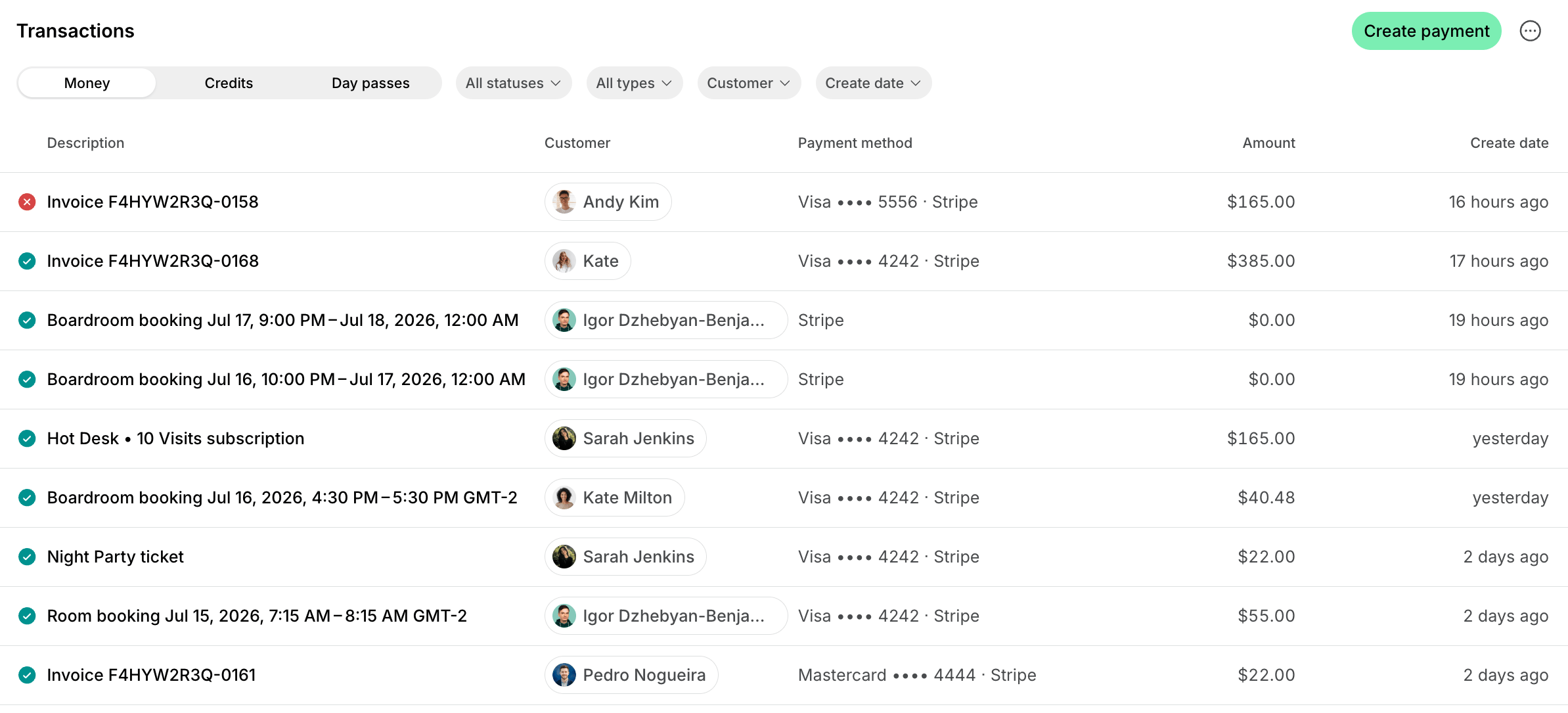
- Use the Money, Credits, and Day passes tabs to switch between transaction types.
- Filter transactions by Status.
- Filter transactions by Type to see payments for specific product types or transactions of a specific kind:
- Money: Subscription, Invoice, Package, Booking, Ticket, Order, Custom.
- Credits: Administrator · Added, Administrator · Deducted, Booking, Ticket, Order, Purchased, Refund, Subscription · Added, Subscription · Expired.
- Day passes: Administrator · Added, Administrator · Deducted, Booking, Purchased, Refund, Subscription · Added, Subscription · Expired.
- Filter transactions by Customer to see all transactions of a specific customer.
- Filter transactions by Create date to see transactions made in a ready-made period, such as Today or Last 28 days, or click Custom to set an exact date or range.
Transaction statuses
Create a one-off payment
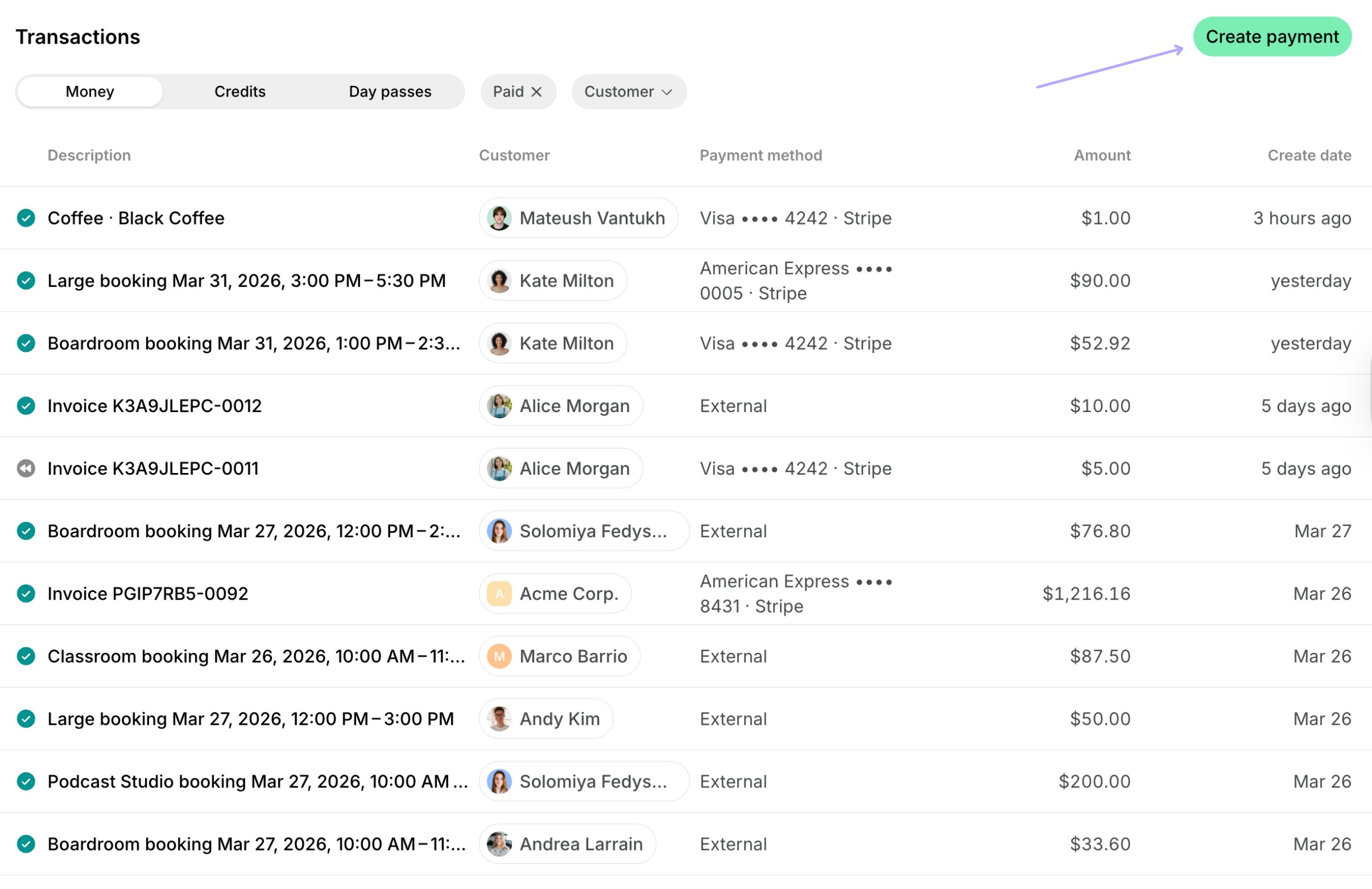
Charge a customer a custom amount right away, or record a payment they made outside Spacebring, such as cash received in person. For example, re-charge a customer after a disputed payment, or charge a small fee for a service their plan doesn’t cover. To bill the customer and let them pay later instead, issue a one-off invoice.- On the Billing > Transactions page, click Create payment in the top right corner.
- Select the customer.
- Enter the payment details:
- Description — the product or service you are charging for.
- Quantity — how many units of the service or product.
- Unit price — the price per unit.
- Currency — leave the default location currency or select an alternative currency.
- Tax rate — leave the default location tax percentage or enter a custom tax rate.
- Payment method — how you collect the money:
- The customer’s saved card or bank account — charge it right away.
- External — record money you already received another way, like cash. It’s recorded as paid.
- Enter the customer’s billing details, if they haven’t yet. Billing details fields appear depending on the Require billing details setting.
- Confirm the payment.

A one-off payment always creates a new invoice for itself. To record an external payment on an invoice you have already issued, open that invoice and create the payment in its Payments section instead.
Creating a one-off payment does not send the customer an email or push notification, unlike issuing an invoice, which does. This makes it a good way to record a payment the customer already made outside Spacebring, such as cash received in person, without notifying them that an invoice is ready.
Add an internal note to a payment
Record how a payment was collected, such as in cash, by bank transfer, or on a card terminal, or anything else your team needs to know about it.- On the Billing > Transactions page, open the Money tab and click the transaction.
- Enter the text in Internal note.
- Click outside the field to save the note.
Export a transactions report
On the Transactions page, apply the necessary filters, then click (…) in the top right corner > Export money transactions, Export credit transactions, or Export day pass transactions, depending on the active tab, and choose CSV or XLSX to download a report on the filtered transactions.
FAQs
How can I check the average spend per customer?
How can I check the average spend per customer?
- On the Billing > Transactions page, open the Money tab, set the necessary period, and filter by the Paid status.
- Export a transactions report and open it in Google Sheets or Excel.
- Sum the Amount column with the
=SUM()formula to get the total income. - Count the distinct customers in the Customer name and Customer surname columns.
- Divide the total income by the number of customers.
How can I check what payment gateway the user paid with?
How can I check what payment gateway the user paid with?
- Go to Billing > Transactions, and filter by the necessary dates and status.
- Click (…) in the top right corner > Export money transactions > CSV or XLSX.
- Find the necessary transaction and check the Payment type column to see the payment gateway.