

Prerequisites
- Enable the Contracts switch on the Location settings > Billing > Contracts page.
- Create and upload your contract templates.
- Create the plans, resources, and one-off services the customer will receive, so you can add them to the contract’s Items section.
Create a contract
- Go to the Billing > Contracts page.
- Press Create contract in the top-right corner.

- Fill in the contract details:
- Customer
- Template
- Expiration date — the signing deadline. If nobody signs by that date, the contract is declined automatically.
- Items — the recurring and one-off services the customer receives. Set each item’s quantity, adjust its unit price, or apply a coupon discount. You can apply coupon discounts to recurring items only.
The expiration date cannot be in the past. For a contract issued for eSignature, it must also be within 90 days from the issue date.
You can only add existing plans, resource tiers, and shop products to a contract. You can’t add a Custom item — create it as a plan or shop product first.
- If the contract has at least one recurring item, also fill in:
- Start date — a past date creates a backdated contract.
- End renewal — select On date to set an end date, or Never if the contract has none.
- Create subscription from contract
- If enabled, once all parties sign, the following happens automatically:
- The subscription activates on the selected start date.
- The first invoice, including all items you added, is issued to the customer.
- If disabled, the administrator must manually create a subscription for the customer.
- If enabled, once all parties sign, the following happens automatically:
- If the contract has one-off items only, also set Issue invoice from contract.
- If enabled, the customer automatically receives an invoice with the selected items when the contract is fully signed.
- If disabled, the administrator must manually issue the invoice to the customer.
With both recurring and one-off items, the one-off items appear only on the first subscription invoice and are removed from the subscription after the first billing period.
- Fill in the Signatories section.
- Enter the signatory’s name, email, phone number (optional), and party (customer side or location side).
- You can add unlimited signatories on both sides. Then, drag and drop them to define the order in which you want all signatories to receive a contract email for signature (if you use eSignature).
- For an individual member, press Prefill from to fill the signatory in with the details from their profile.
A contract must have at least one customer-side signatory. Location-side signatories are optional.
- Press Create, then review the contract before you issue it.
Issue a contract
Open the contract and choose how to collect the signatures:- Press Issue for eSignature to email the contract to the signatories, who sign it online.
- Press Issue for external signature to collect the signatures yourself. Nothing is sent to the customer, so click (…) > Download unsigned PDF, share it, and record the signatures manually.

How contracts work
A contract has one of five statuses:- Draft — created but not issued. Only drafts can be edited or deleted.
- Issued — sent for signature and not signed yet.
- Signed — every signatory has signed.
- Declined — a signatory declined it, or nobody signed before the expiration date.
- Terminated — a signed contract that you ended before its end date.
- The status changes to Signed, and the signed document is stored on the contract.
- If Create subscription from contract is enabled, the subscription is created and activates on the start date.
- If Issue invoice from contract is enabled, the invoice with the contract items is issued.
- Administrators with contract notifications on are notified.

Manage contracts
Edit or delete a draft contract
You can edit or delete a contract only while it is in the Draft status. An issued contract can’t be edited or deleted, even if nobody signed it — decline it instead.- Open the contract.
- Click the (…) button in the top right corner.
- Select Edit to adjust details, or Delete to remove the draft.

Decline an issued contract
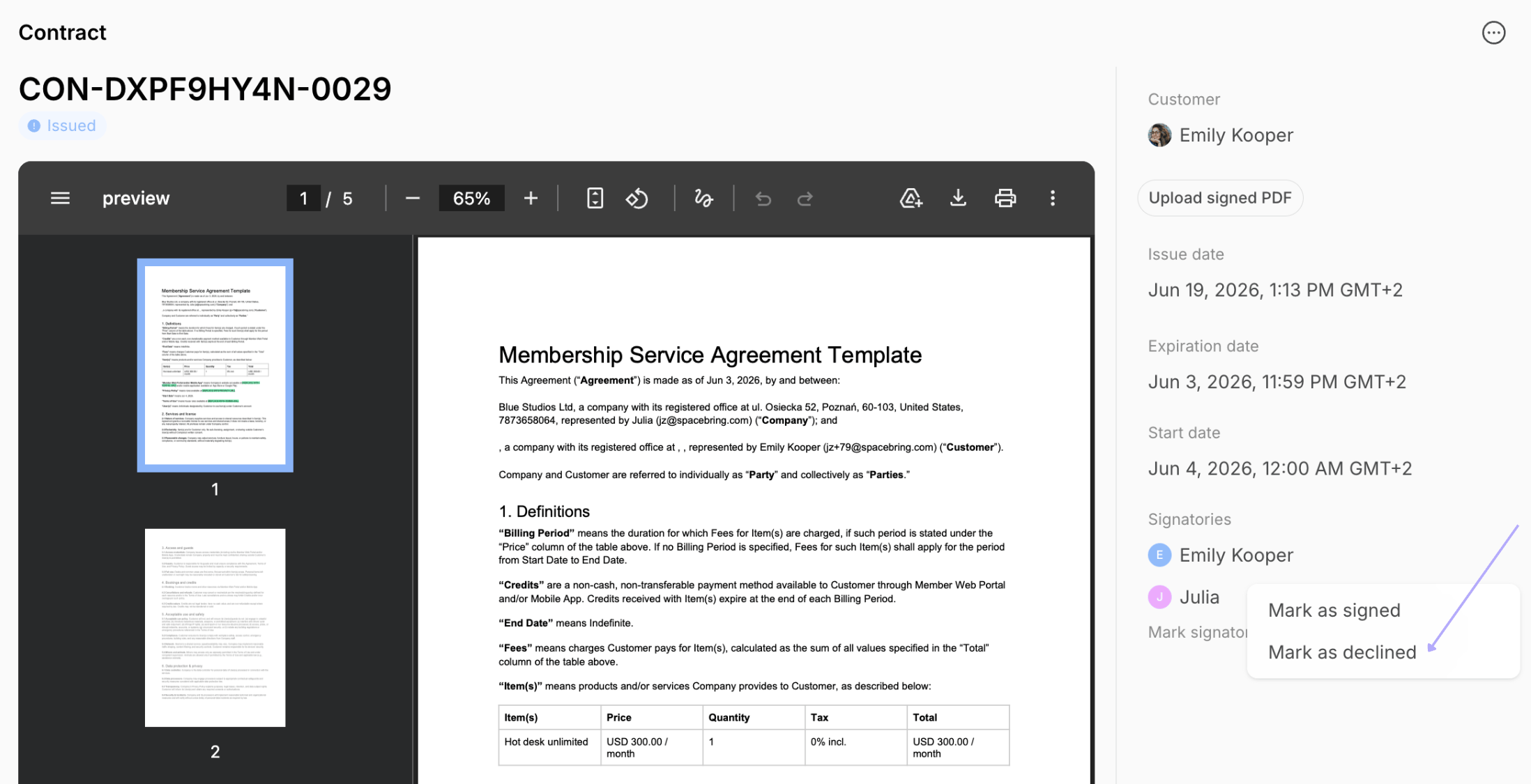
You can’t delete an issued contract, so decline it when it needs to be corrected, was issued by mistake, or should no longer be signed.- Open the contract.
- Find the Signatories section in the right-hand panel.
- Click (…) > Mark as declined next to your space’s signatory name, or next to the customer’s name if only the customer was expected to sign.
- Issue a new contract, if needed.
Terminate a signed contract
Terminate a signed contract to end the agreement before its end date.- Open the contract.
- Click the (…) button in the top right corner.
- Select Terminate and choose the reason.

Track contracts
- Go to the Billing > Contracts page to see all contracts with their statuses and dates.
- Search by contract title, or filter by Status, Customer, or Create date period.
- Filter by Status to hide declined or terminated contracts from the list.