

- Rental plans, with a rental of a specific resource, such as a dedicated desk or a private office
- Memberships, with general access and without a rental of a specific resource
Set up plans with a resource rental
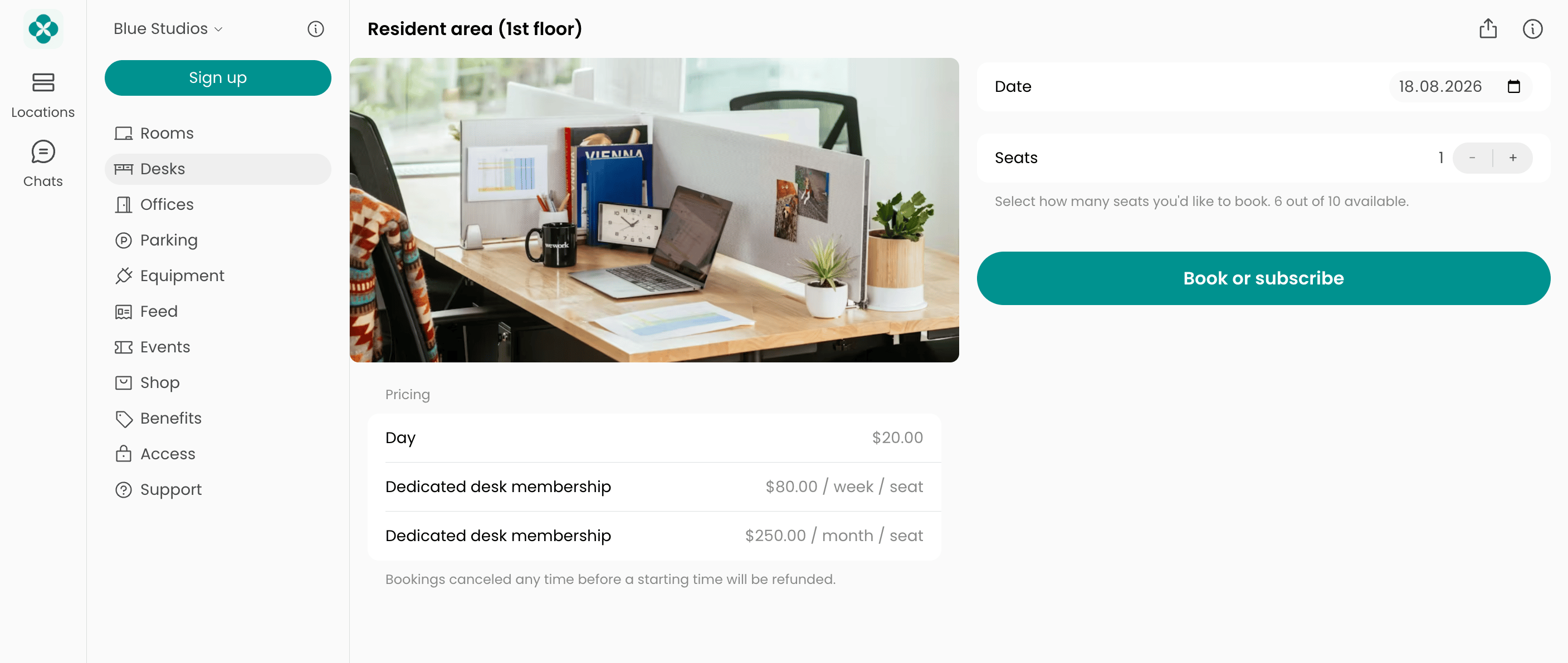
Plans that give the customer their own space, such as a dedicated desk or a private office, are created inside the resource itself and are called rental plans.- Go to Resources > Rooms, Desks, Offices, Parking, or Equipment.
- Add a resource, for example a desk or an office, with its capacity — the number of seats, spaces, or items it has.
- Open it and enable the Plans switch on the Pricing tab.
- Click Add plan and fill in its settings.
- Under Price for, choose what the plan rents:
- For desks, parking lots, and equipment, choose one seat, parking space, or item, or the entire resource.
- Offices and rooms are always rented entirely, so Entire resource is the only option.
- Under Sign-up > Type, choose whether customers can rent immediately or can apply to rent.
- Repeat for every rental option you offer, and for options with a different commitment period or conditions.
Set up memberships without a resource rental
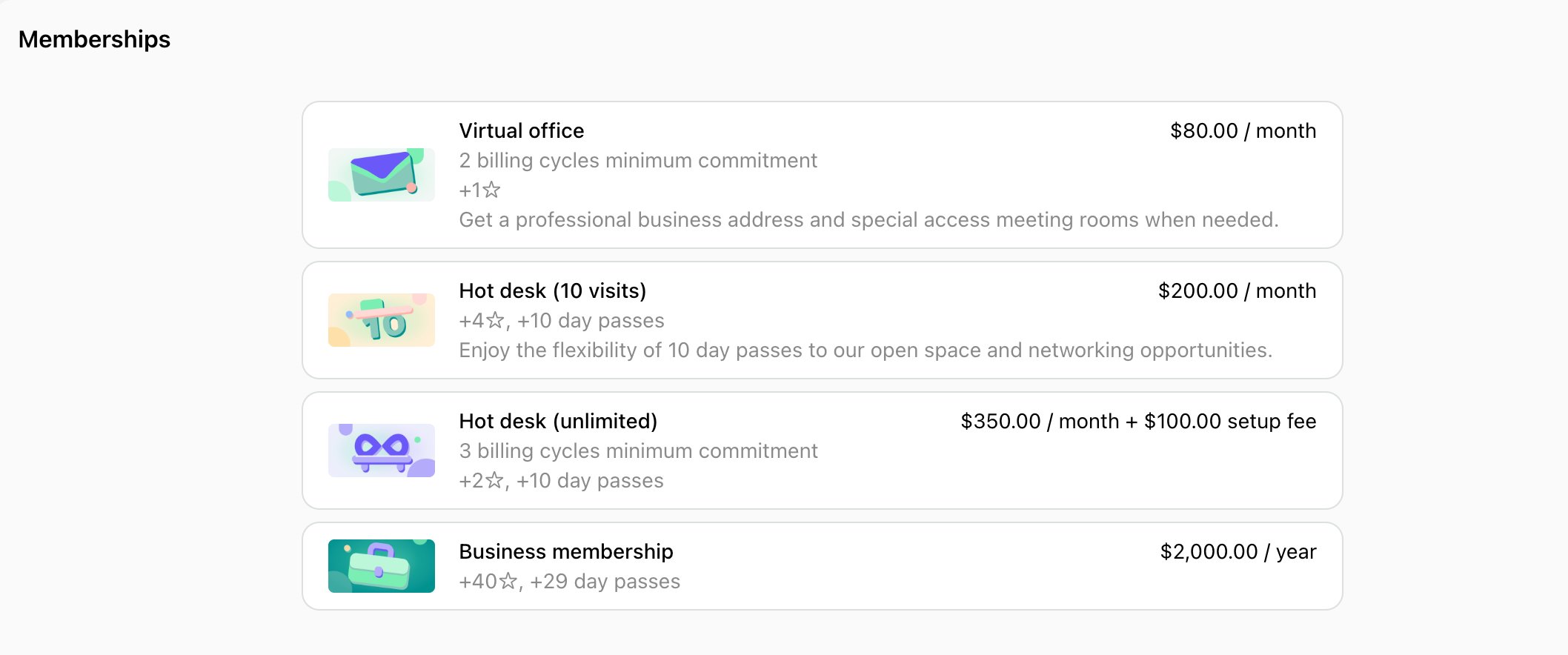
Memberships give customers general access to your space, but not a rental of a specific room, desk, or office, and are configured under Catalog > Memberships. For example:- Hot desk memberships for any cycle — a week, a month, a year
- Flex memberships with day passes, for example 10 days per month
- Virtual office and business address memberships
- Go to Catalog > Memberships, click Create membership, and fill in the membership settings.
- Under Sign-up, choose whether customers can subscribe immediately or can apply for a subscription.
- Tap Save.
FAQs
Do I set up a membership under Catalog > Memberships or a rental plan inside Resources > Plans?
Do I set up a membership under Catalog > Memberships or a rental plan inside Resources > Plans?
Look at what the customer gets. If they get a specific desk or office that nobody else can use, create a rental plan inside that resource. If they get general or partial access to your space, with no specific desk or office attached, create a membership under Catalog > Memberships.What differs is what happens when a customer subscribes. A rental plan assigns the seat or the entire resource to them and updates its availability, so you can see the rental dates, keep others from booking it, and track capacity and occupancy. A membership assigns nothing, so your space stays open to everyone.You can still create a hot desk plan inside your hot desk resource if you want that tracking. For example, set up a full-time hot desk plan as a rental plan so every subscriber gets one seat assigned and counted in your occupancy.
Where do hourly bookings, day passes, and drop-ins belong?
Where do hourly bookings, day passes, and drop-ins belong?
These aren’t memberships or rental plans. Set them up under Resources > Desks: add a hot desk resource, enable its Money switch, and add a booking rate for each price you charge — for example, one rate up to 5 hours and a lower one from 5 hours. A day pass is a daily booking in the same hot desk zone, so it’s priced there too.Rooms, parking lots, and equipment are priced the same way on their own pages. Set up pricing for bookings