

Track occupancy rates
- Go to Analytics > Occupancy.
- The Occupancy dashboard allows you to view:
- Overall occupancy rate — percentage of all desk and office seats occupied today (either booked or rented (assigned) long-term) out of the total number of available seats in your space.
- Occupancy rate for each resource type — a breakdown of how each resource type is being utilized as of today.
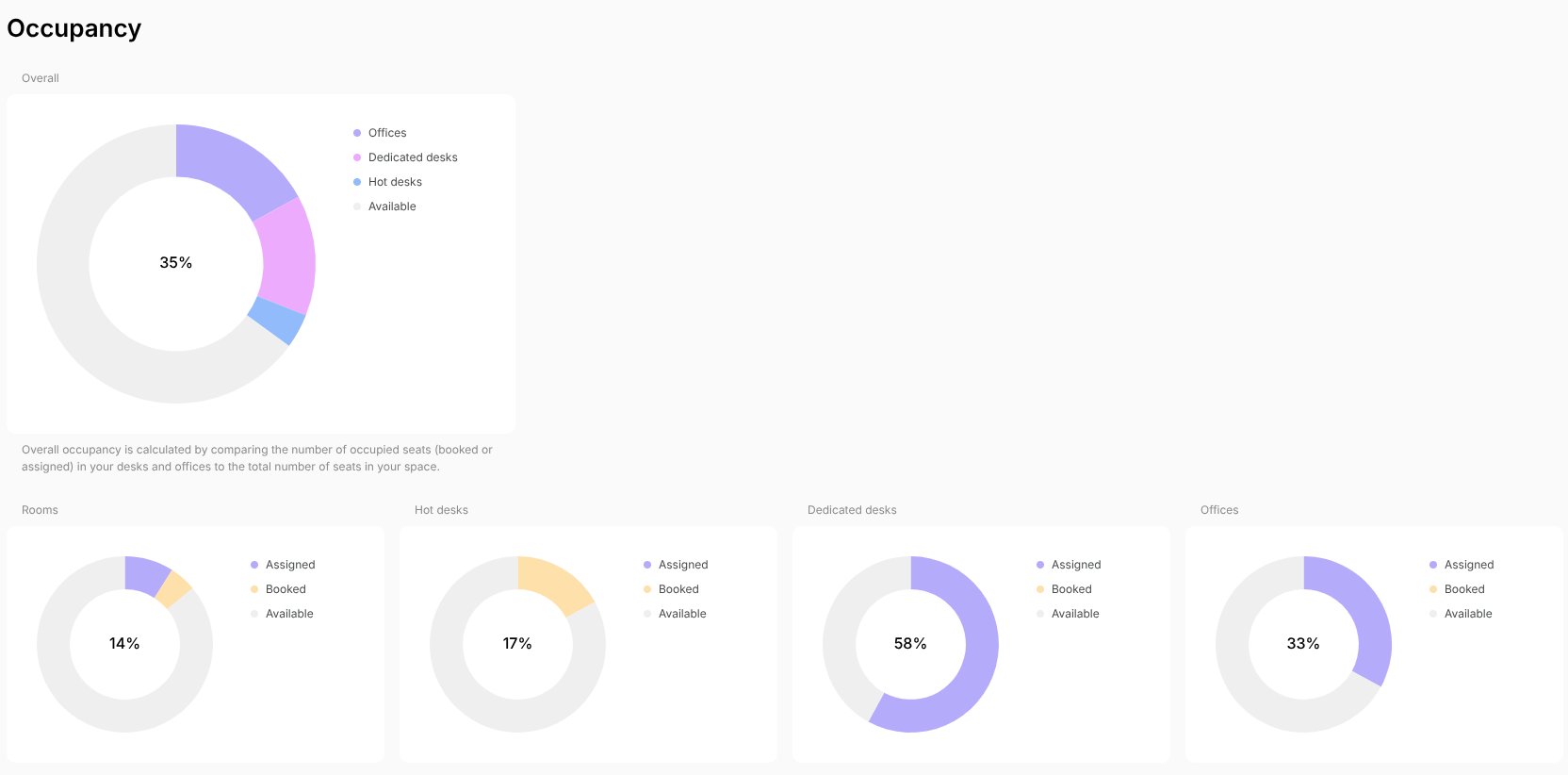
How occupancy is calculated
The occupancy rate for each resource type is calculated as follows:- The Overall rate counts desk and office seats only. If you have none — renting out only rooms and equipment, for example — it shows 0%. Click Occupancy to see the charts for each resource type instead.
- An assignment is counted in occupancy as taking a seat in full for the whole day. A booking counts only for the share of the day it covers, so a desk booked for 2 hours of a 10-hour day adds 20% of a seat to occupancy.
- Occupancy is measured against your public schedule when it’s enabled, and your default schedule when it isn’t.
- Custom schedules set on individual resources don’t apply.
- On a day your location is closed — a weekday outside the schedule, or a closed day — Booked shows 0% and only assignments appear.
- For rooms, seating capacity isn’t taken into account — occupancy reflects only the share of the day’s hours that are booked.