Track all sales
Quick daily/weekly tracking
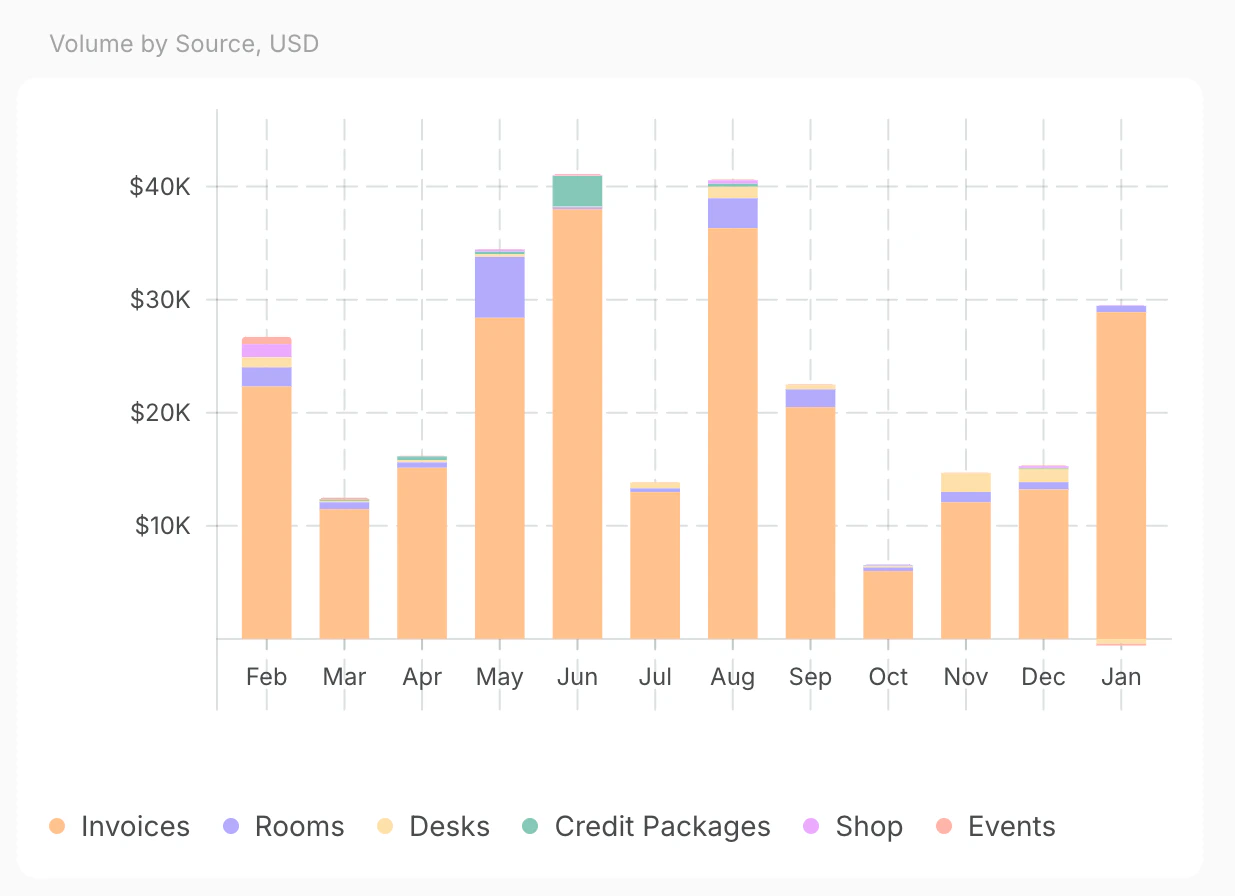
To check all your successfully processed payments go to Analytics > Payments page. Use the Volume by source graph to see revenue sources (e.g., memberships, bookings) and choose a relevant timeline:- 7D/28D - bookings by days.
- 26W - bookings by weeks.
- 12M - bookings by months.
Generate a report
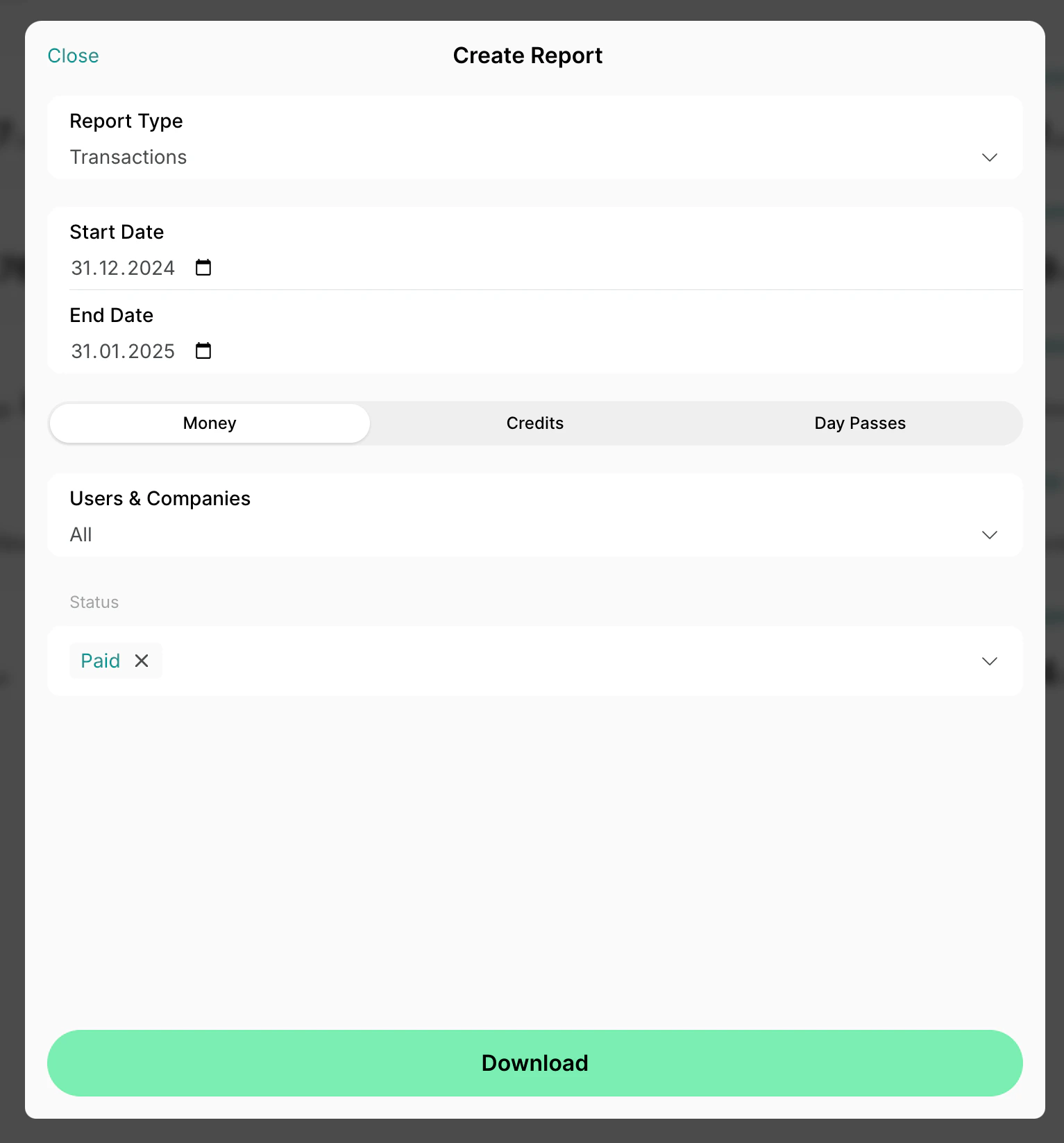
- Go to Billing > Transactions and open the Money tab to include only monetary transactions.
- Set the necessary period and keep only the Paid status filter.
- Click (…) in the top right corner > Export money as CSV or Export money as XLSX to download a transactions report.
Track membership plan sales
Quick daily/weekly tracking
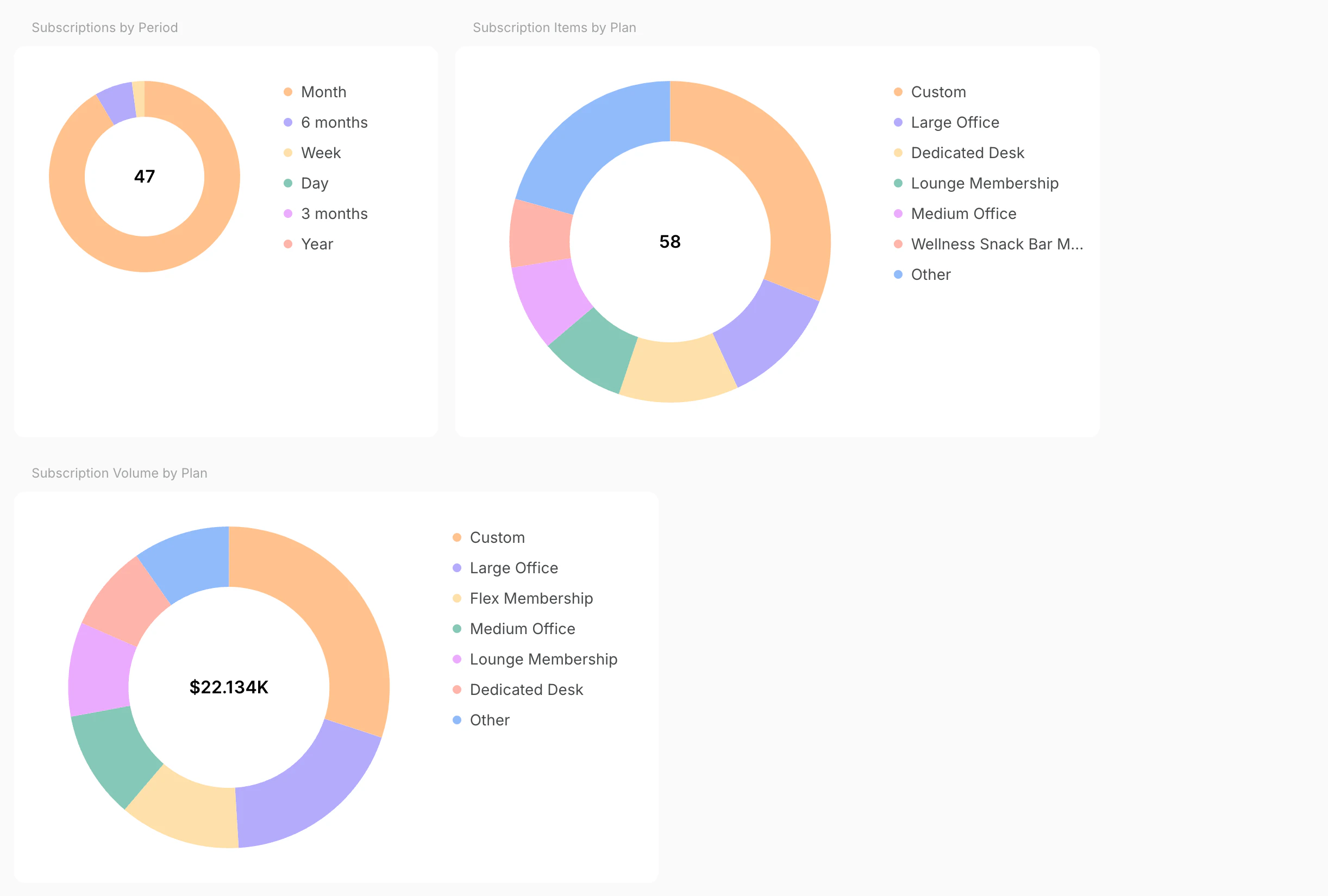
To check your current membership plan sales go to the Analytics page > Subscriptions tab.- The Subscriptions tab: displays the current number of active subscriptions.
- The Subscription items by product: shows active subscriptions for the most popular membership plans.
- The Subscription volume by product: shows recurring revenue.
Generate a report
Subscriptions report
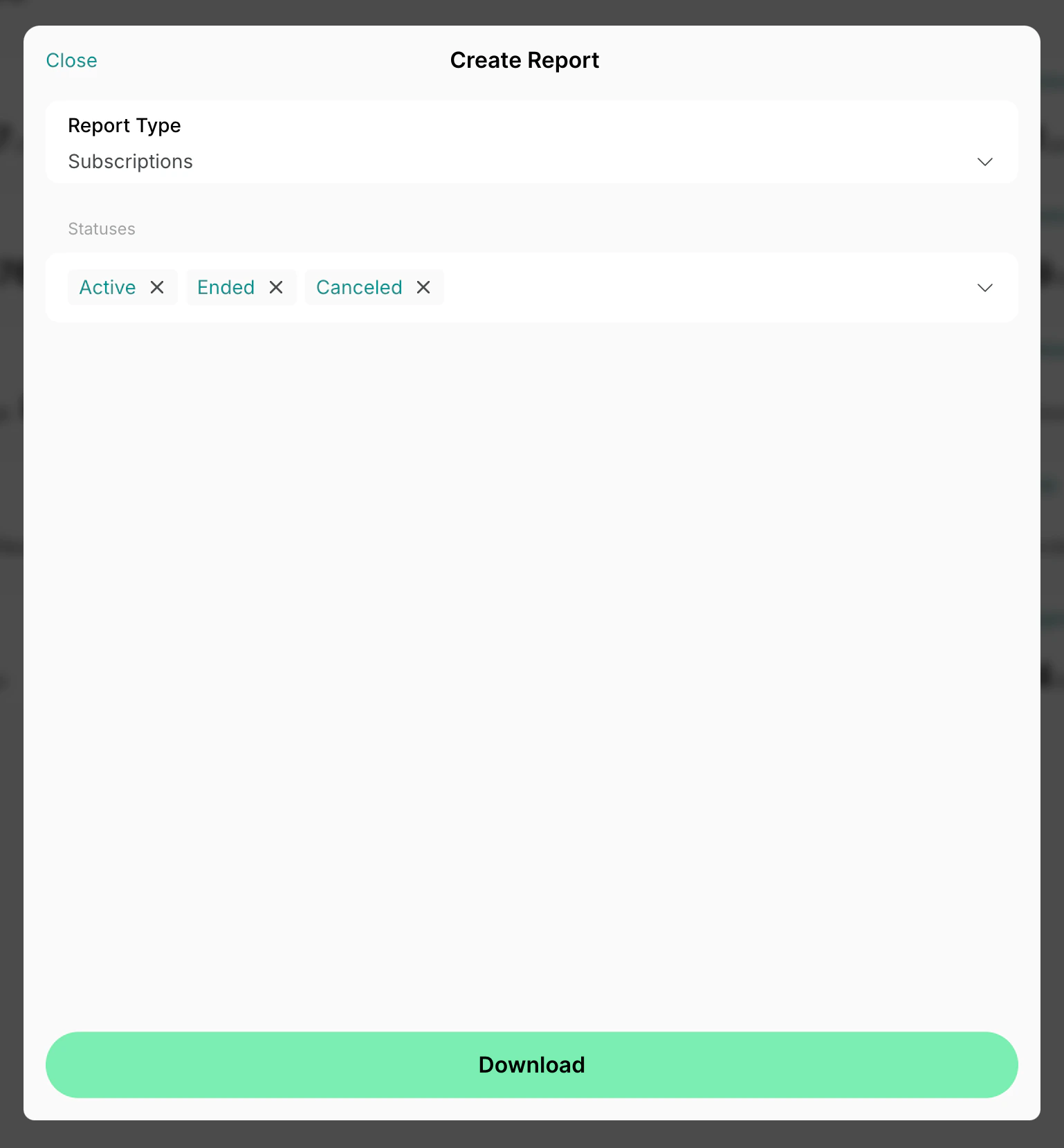
To get full insight into subscriptions in your space:- Go to Billing > Subscriptions.
- Filter the list by the statuses you need.
- Click (…) in the top right corner > Export as CSV or Export as XLSX to download a subscriptions report.
Invoice items report
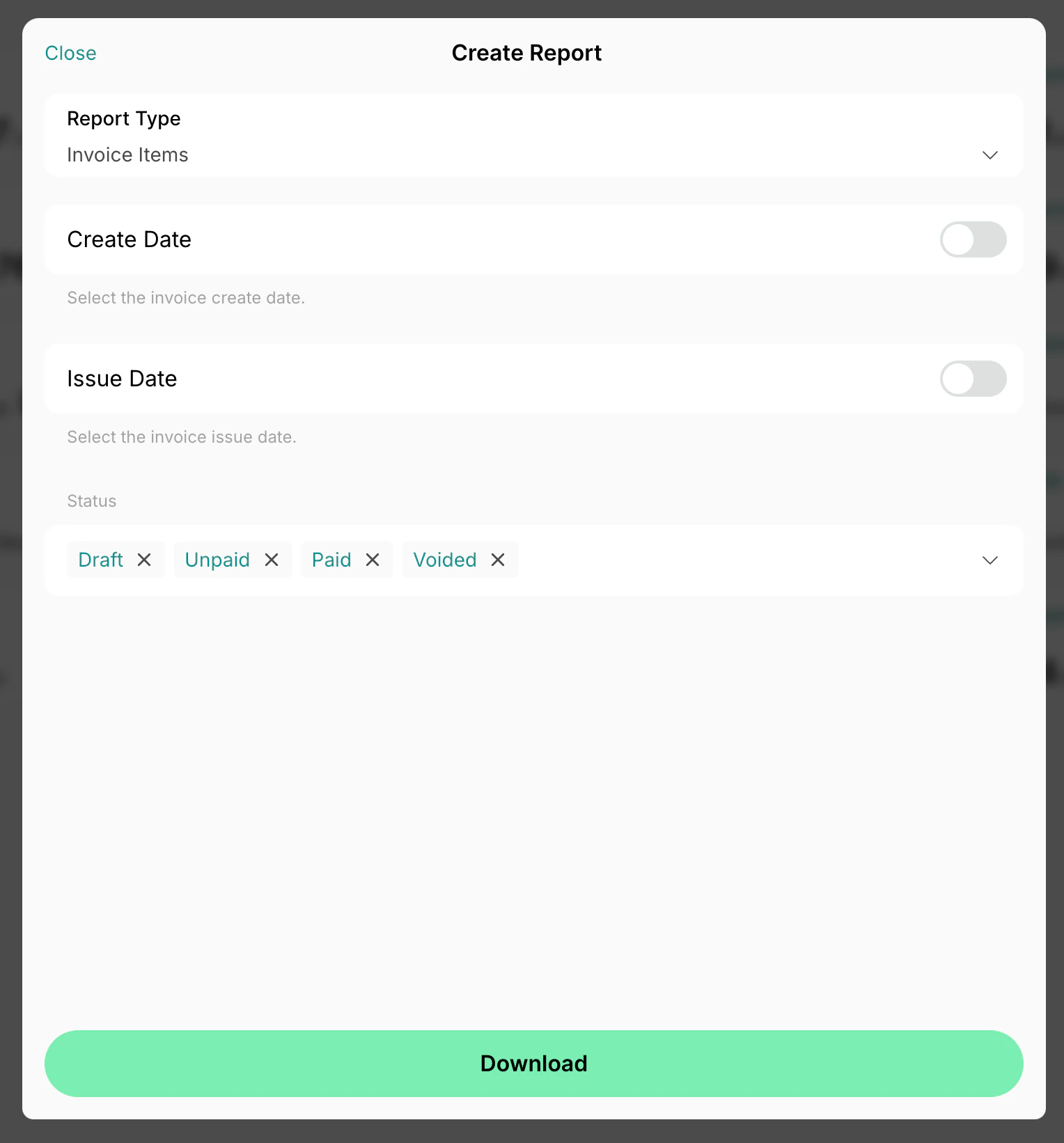
To get a report about invoice payments for each membership plan:- Go to Billing > Invoices.
- Set the necessary create and issue dates, and filter by Status as required.
- Click (…) in the top right corner > Export invoice items as CSV or Export invoice items as XLSX to download an invoice items report.
Track room and desk booking sales
Quick daily/weekly tracking
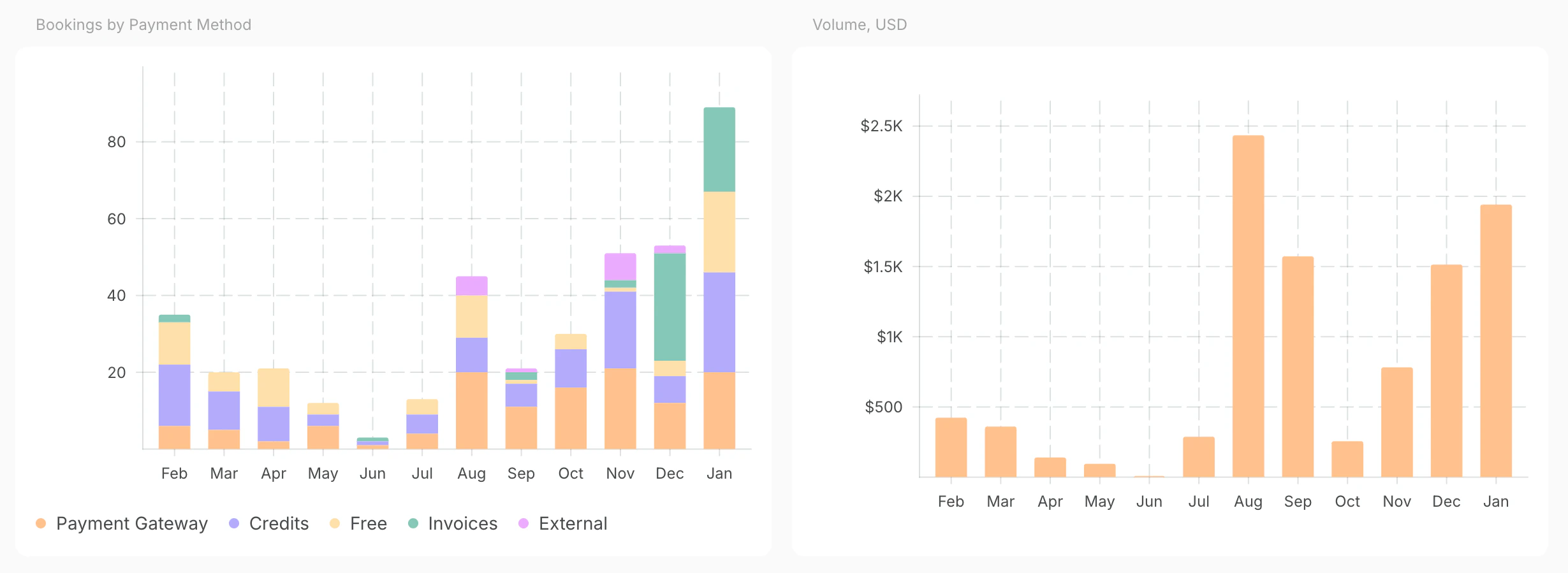
To check all your revenue go to Analytics > Bookings for this month’s booking stats and select a timeline.- Bookings by resource type: shows the number of bookings per resource type.
- Bookings by payment method: shows the number of bookings by how they were paid.
- Volume by resource type: shows the revenue from bookings.
Generate a report
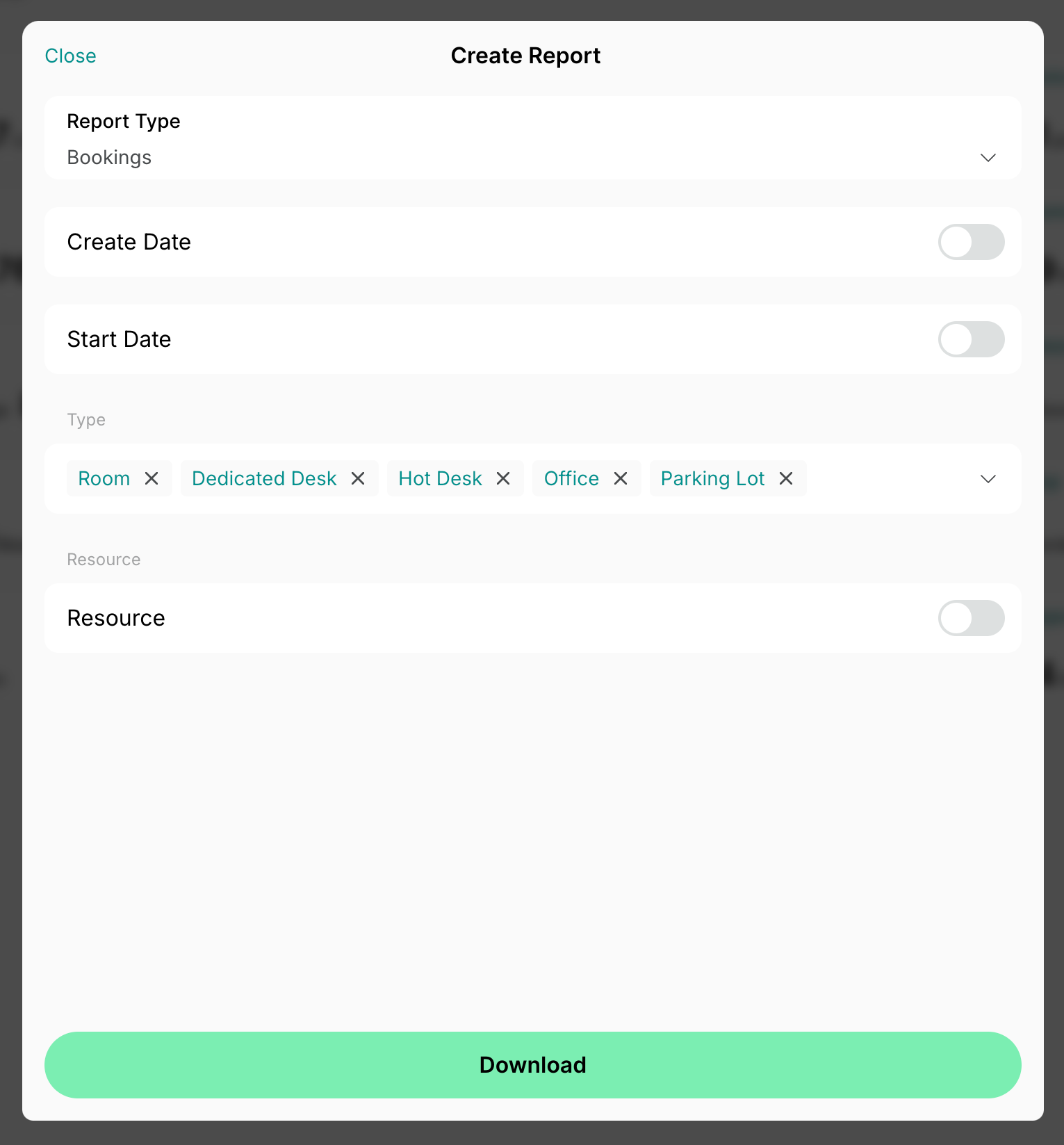
To get a report on bookings:- Go to Resources > Bookings.
- Filter the list by date, resource type, and individual resources if required.
- Click (…) in the top right corner > Export as CSV or Export as XLSX to download a bookings report.