

- Your location’s name and description
- Photos and videos of the location
- Schedule, address, and contact details
- Location guides
- Wi-Fi details.
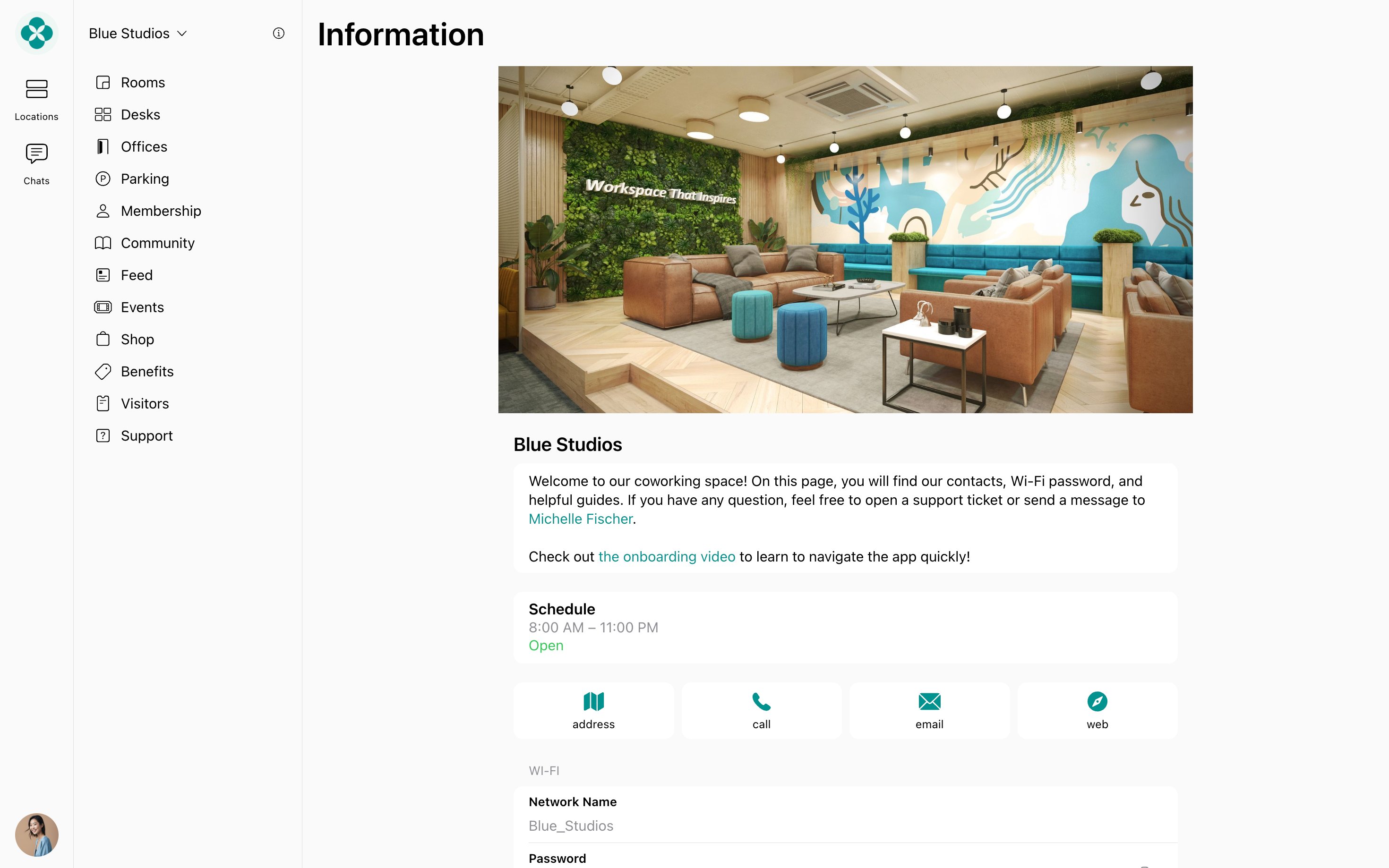
Manage Information page
- Click the menu (…) next to the location name on the left-side panel.
- Go to Location settings > General.
- Upload one or more location photos and videos.
- Format: any image or video format your device supports, such as JPEG, PNG, or MP4.
- Size: images up to 5 MB, videos up to 50 MB.
- Dimensions: use 1600 × 800 px (2:1 ratio), since the preview crops anything outside it.
- Fill out description, address, contact and Wi-Fi details, and set the Language and Timezone.
- Configure the location schedule.
The visibility of the Information page is defined by the highest visibility settings of other pages. For example, if Rooms has Public visibility, the Information page will be automatically visible to the public, too.
Location media
The location photos and videos you upload appear to users in the following places:- Information page.
- Landing page.
- All location cover media added across all locations are included in the slideshow on the landing page of your member web portal.
- The first cover image or video will appear under the specific location in the Our locations section.
The media are updated across your apps immediately.