

Add a location
The owner needs to follow these steps:- On the left-side panel, click your network name > Network settings > Locations page.
- Press Add location, and enter the details:
- Name
- Country
- Timezone
- Language — the default location language used for invoice and receipt PDFs, visit invitations, and in a few more places.
- Currency — a currency used for all prices in the location.
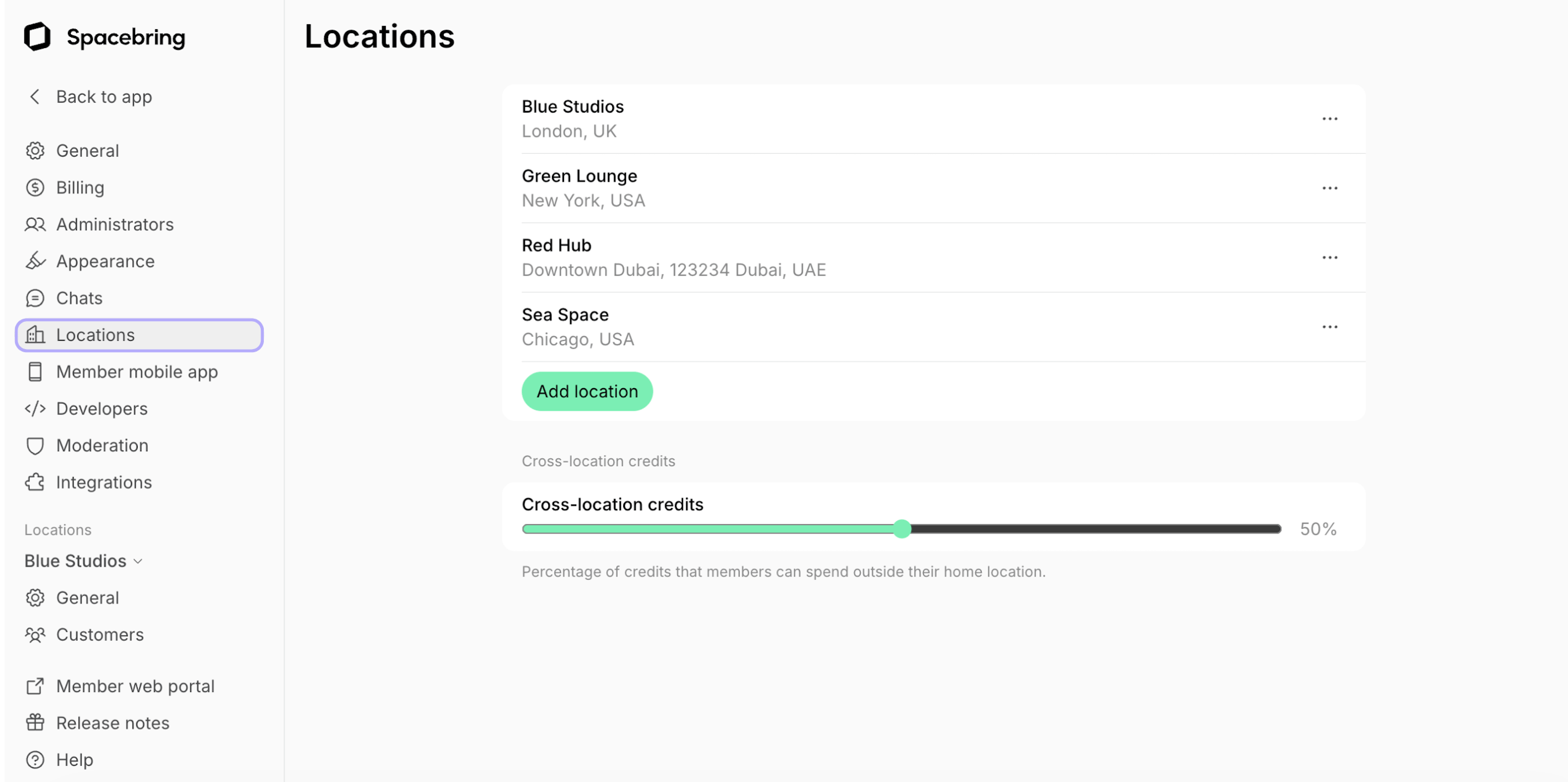
- Press Create.
Adding a location increases your subscription fee and the cost of any add-ons billed per location. Pricing
Edit a location
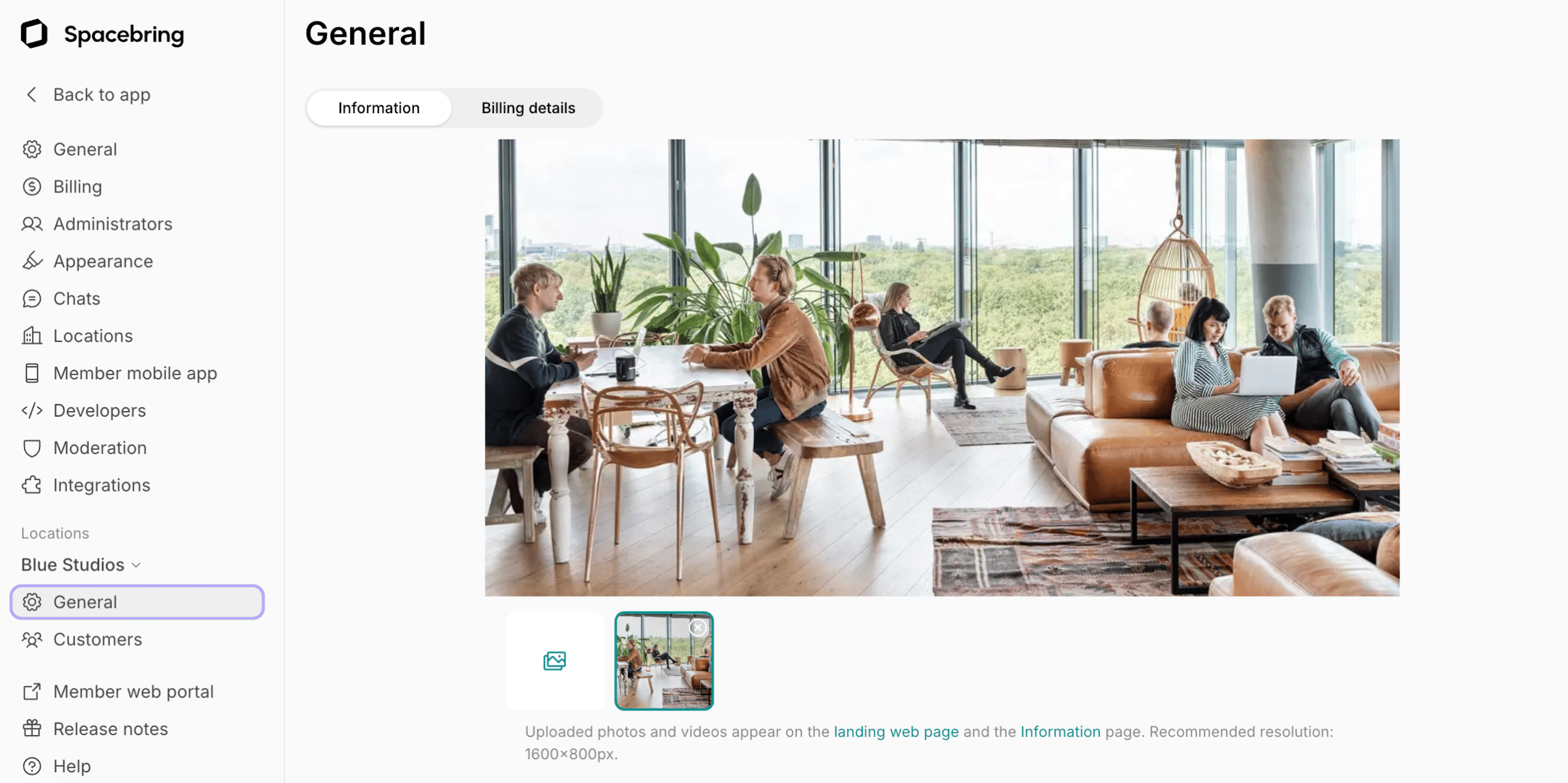
To rename a location, modify your location’s language or timezone, administrators follow these steps:- On the left-side panel, select the location > click (…) next to it > Location settings > General.
- Make your changes and leave the page. The changes will apply immediately.
Delete a location
The owner needs to follow these steps:- On the left-side panel, click your network name > Network settings > Locations page.
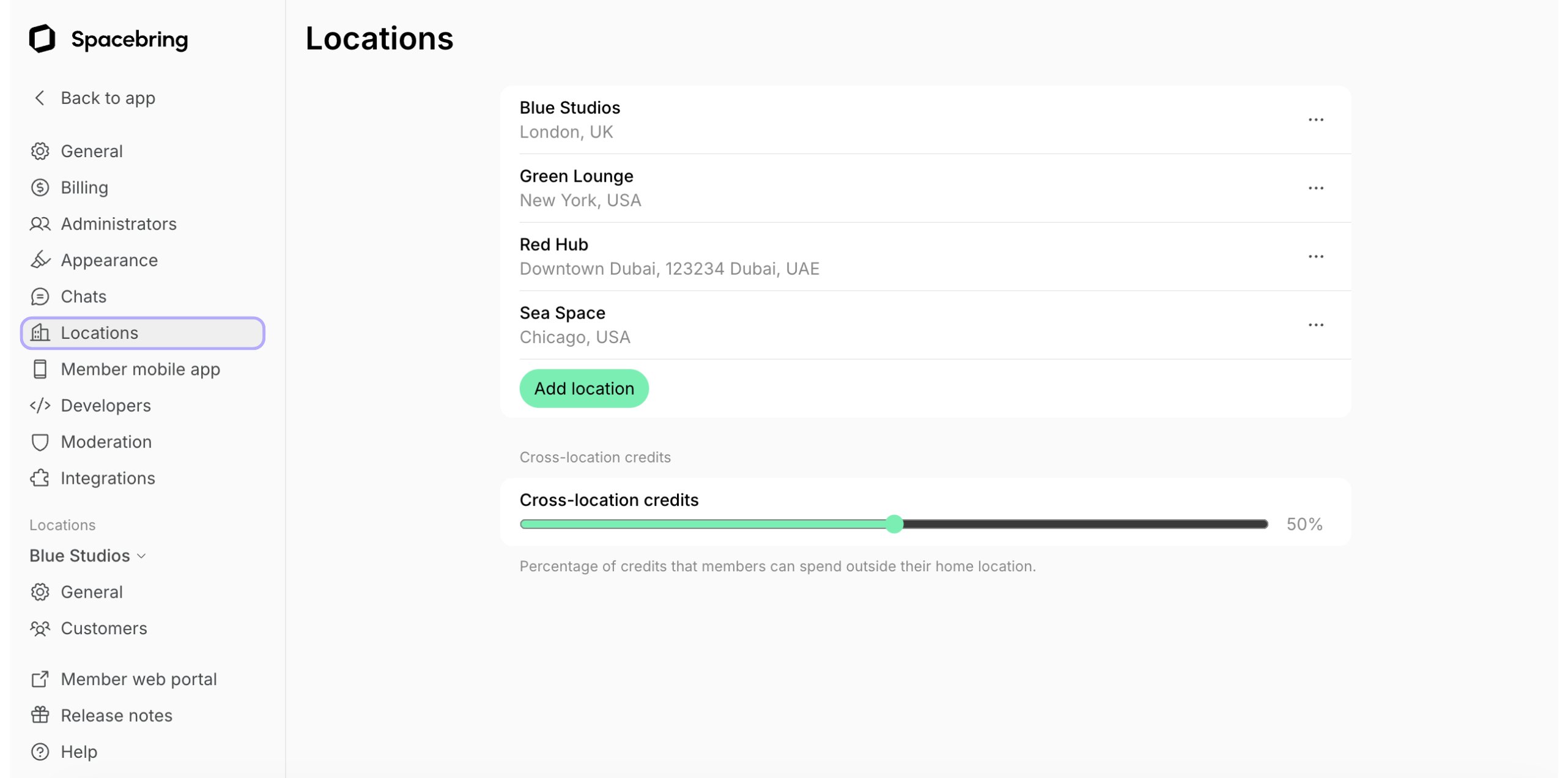
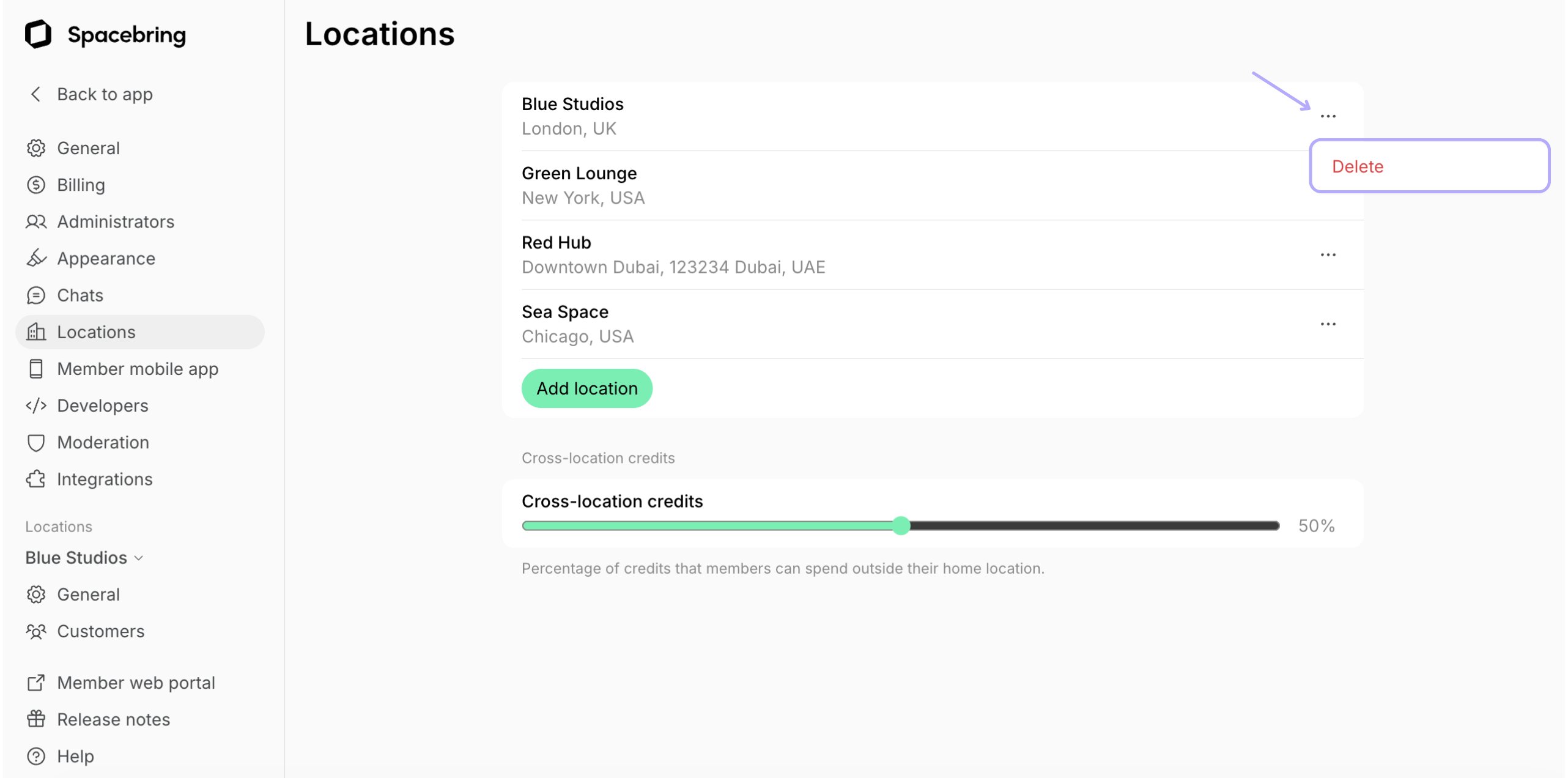
- Press (…) > Delete next to the location you’d like to delete, and confirm your choice.
Deleting a location doesn’t refund the current billing period. The location and any add-ons billed per location drop off your subscription from your next renewal.
Multi-location management tips
When members of one location can seamlessly access your other locations, engagement and retention increase. Learn how to set up a system where members can discover, access, and pay for services across your entire network using their credits and day passes.Configure visibility
Set visibility for all your resources and services in all locations to Network members or Public. This way, members can see all your locations and services in them and book and purchase services across your entire network. Public visibility helps not only your existing members to discover other locations but also first-time customers.Enable cross-location credits and day passes
By enabling cross-location credits and day passes, you allow members to use credits and day passes received in one location in other network locations. Members can spend their personal or company credits and day passes across locations, giving them more flexibility and a consistent experience wherever they go.FAQs
How are locations ordered for customers?
How are locations ordered for customers?
On the landing pageLocations on the **landing page **are ordered alphabetically by their title.On the Locations pageThe order of the locations on the main **Locations **page in the member web portal and mobile apps depends on the user’s geolocation. If the user allowed tracking their geolocation, the locations are sorted in the following order:
- The location where the user is a member (if the user is a member of any location) is at the top of the page.
- Other locations are arranged from nearest to furthest based on the user’s geolocation.
- Locations where a user has either an administrator or a member role.
- All other locations.