

Create a test environment
The owner follows these steps:- On the left-side panel, click your network name > Network settings > Developers.
- Click the Test environments tab.
- Click Create test environment.
- Enter the name, timezone, and currency for your test environment, then click Create.
- Confirm the charge. The test environment is created instantly. Click Open test environment to begin testing and development.
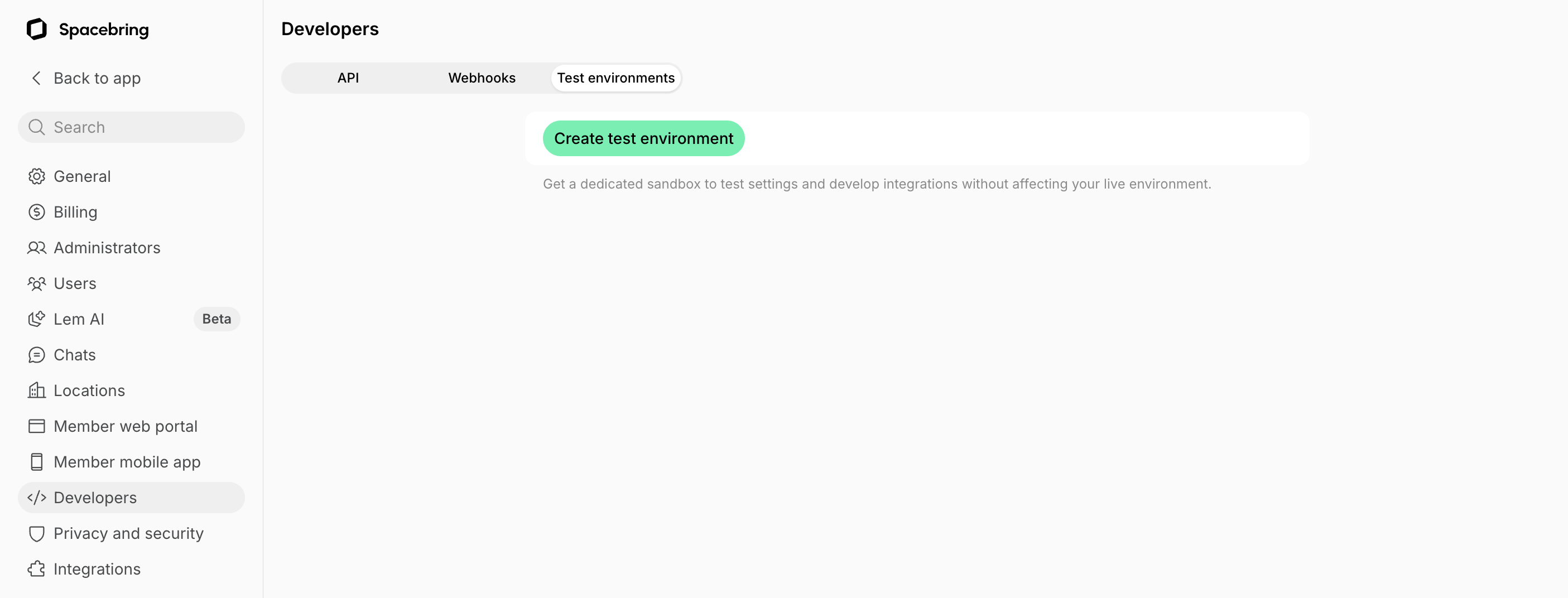
You can create more than one test environment.
The test environment is a paid add-on. Pricing.
How test environment works
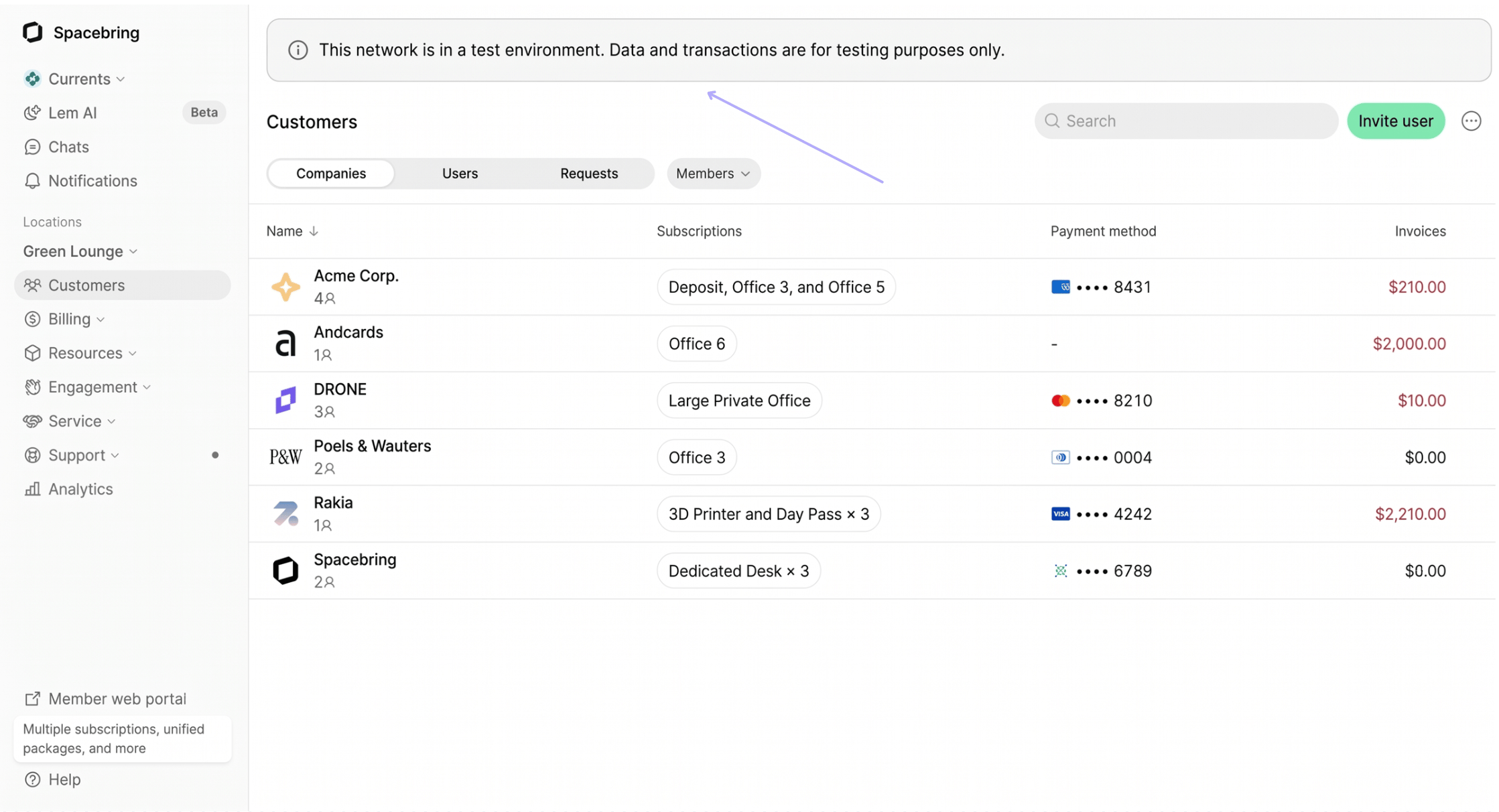
The test environment fully mirrors the functionality of the main environment, with a few exceptions:- Users you invite to a test environment never count as active users. The only charge is the test environment fee itself.
- You can connect Stripe, Mollie integrations, as well as sandbox PayPal, Maya, or Authorize.net accounts to the test environment. Other integrations are not available for connection.
- Setting up a custom domain is disabled.
- All email subjects, invoices, receipts, and credit note PDFs include a
[TEST]prefix and a disclaimer stating they are non-fiscal documents generated for testing purposes only. - The test environment uses the DropboxSign sandbox for eSignatures. Contracts sent for eSignature explicitly state that they are not legally binding.
- Add-ons from your live subscription don’t carry over: Visitors, Floor plans, Member mobile app, and Custom MAIL FROM aren’t available. However, API access is enabled by default.
- You can add any number of locations to your test environment.
Delete a test environment
Once you’ve completed your testing or integration development and no longer need a test environment, delete it. Starting your next subscription renewal, it’s removed from your Spacebring subscription and you’re no longer charged for it. The owner follows these steps:- On the left-side panel, click your network name > Network settings > Developers.
- Click the Test environments tab.
- Click (…) next to the test environment you want to delete > Delete.
- Confirm your choice.
Access to API in test environment
When operating in the test environment, Spacebring API credentials are accessible to you at no additional cost. This allows you to freely build your custom integrations. These credentials are valid for the test environment only. To deploy your integration against your live network and data, purchase the standard API add-on for your live network, then delete your test environment.Switching environments
To toggle between your live and test networks:- Click the network name in the top left of the admin portal.
- In the Network submenu, select your desired environment.