

Upgrade subscription
You may want to upgrade your Spacebring subscription with add-ons to expand your capabilities. The owner can add add-ons or upgrade to yearly billing by following these steps:- Click the network name in the top left corner of the left-side panel > go to Network settings > Billing.
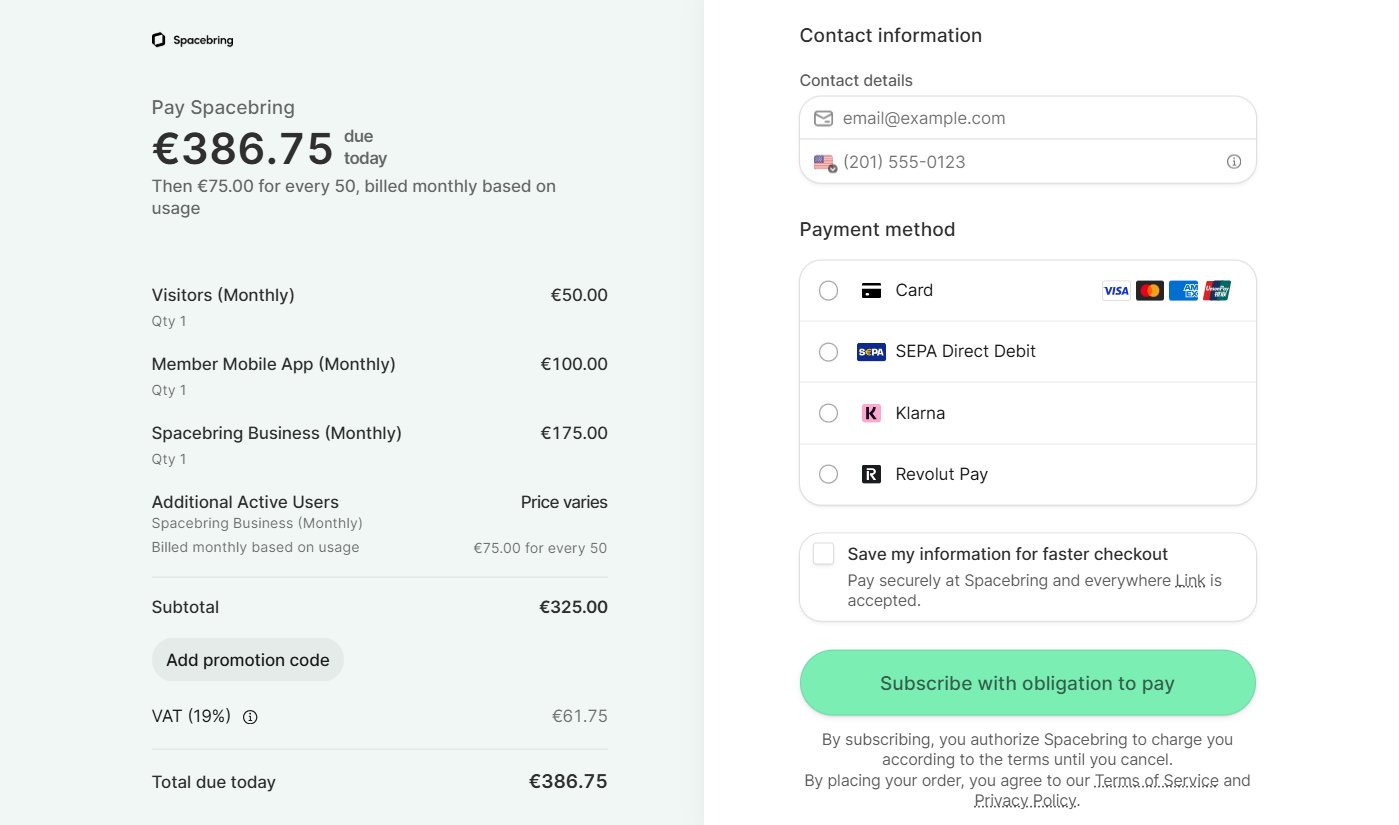
- Click Upgrade in the Plan section.
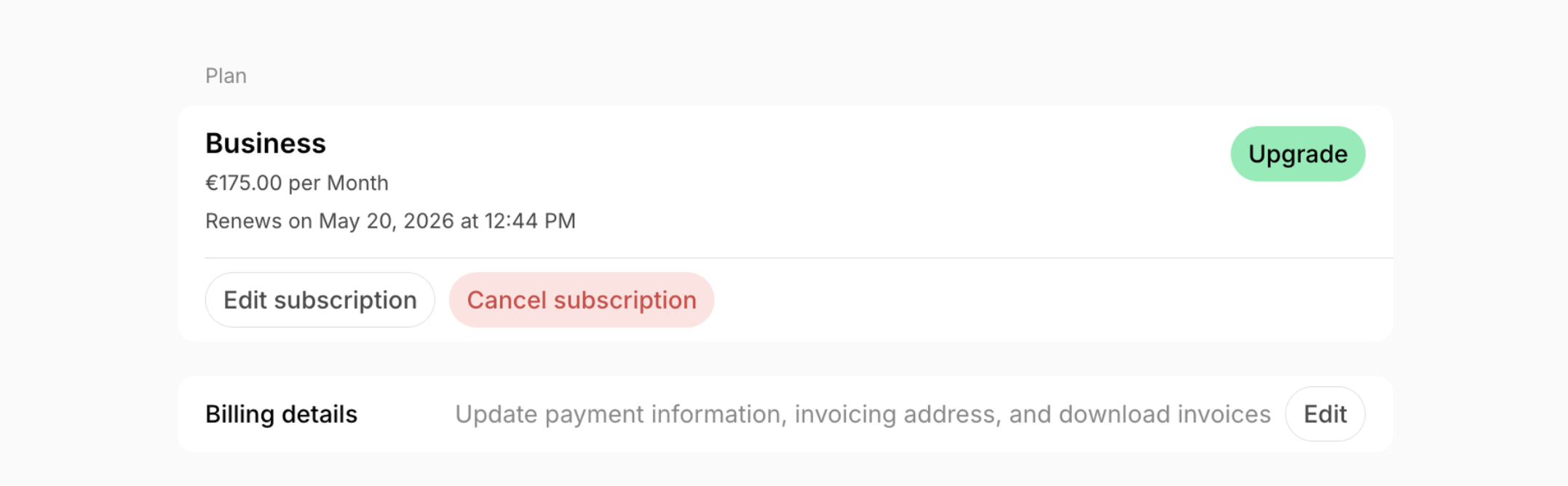
- On Your plan page, choose your preferred add-ons and billing cycle (monthly or annual).
- Review and agree to Spacebring’s terms of use, privacy policy, and data processing addendum.
- Click Continue to payment.
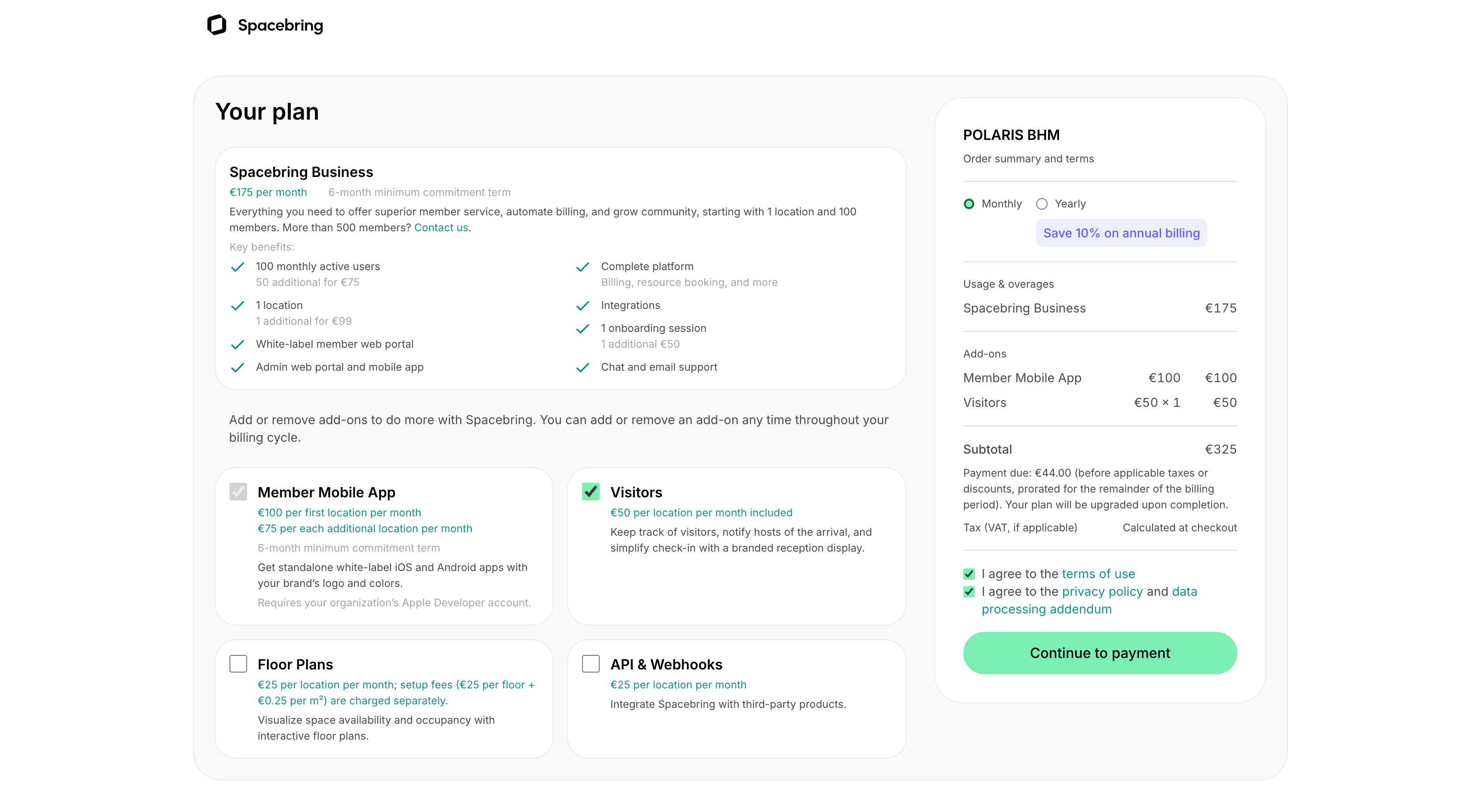
- Enter your contact and payment details.
- If you have a promo code, click Add promotion code and apply it.
- Press Subscribe with obligation to pay.
Important notes
- If you’re on Spacebring’s legacy Starter, Essential, or Pro plan, you will be automatically switched to the new Business plan during the upgrade. Review its pricing and conditions on the upgrade page.
- Before ordering the Member Mobile App add-on, make sure to have an Apple Developer account for your organization ready. We will publish your member mobile apps with the upcoming mobile release.
- Upgrading to the Member mobile app add-on starts a new 6-month commitment term for your Spacebring subscription from the upgrade date.
- If you upgrade mid-cycle, you only pay the prorated amount for the remaining days of the current month. The system automatically calculates the amount you’ve already paid for this month and charges you only the difference for the remaining days.
- The Visitors, API & webhooks, Floor plans, and Member mobile app add-ons apply automatically to every location in your network. Fees for these add-ons depend on the total number of locations in your network.
Update your payment or billing information
You can easily manage your payment and invoicing information for subscription to Spacebring. For example, change a credit card for payments, update the email for receiving bills, or add a VAT number. The owner follows these steps:- Click the network name in the top left corner > Network settings > Billing page.
- In the Billing details section, click Edit.
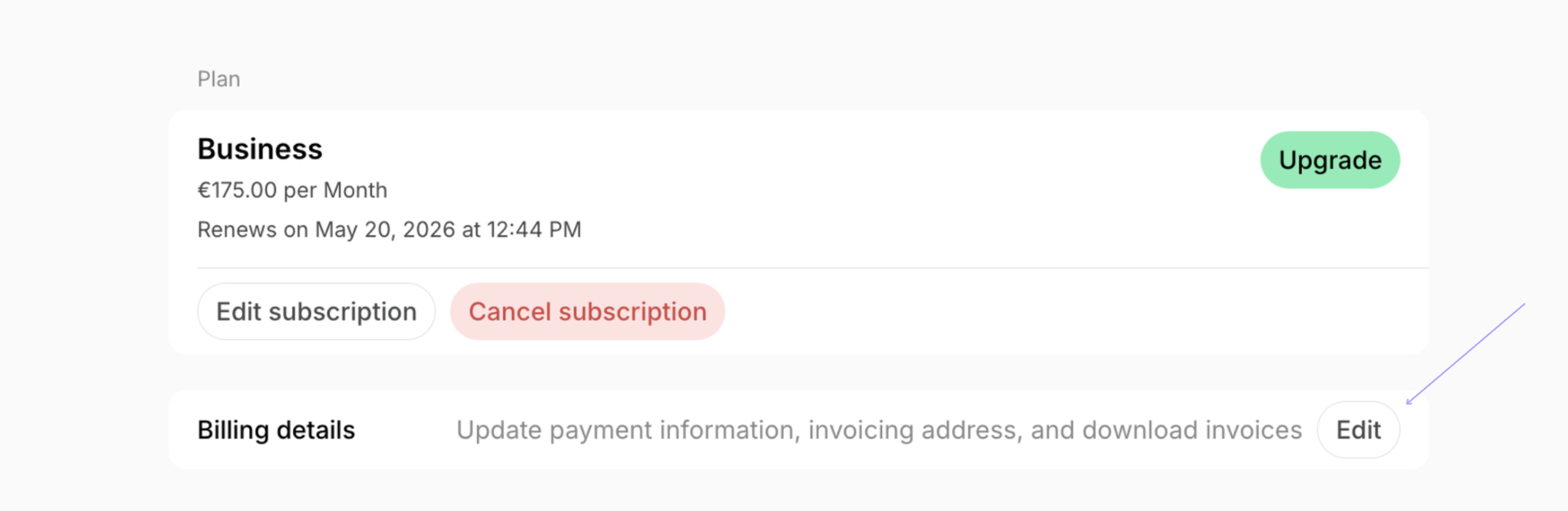
- Proceed with the necessary updates
- Update your default payment method
- Change billing address
- Update the email address to receive invoices and notifications
- Update your Tax ID, which appears on invoices.
View and pay invoices from Spacebring
The owner follows these steps:- Click the network name in the top left corner > Network settings > Billing page.
- Find the Invoices section.
- Locate the necessary invoice.
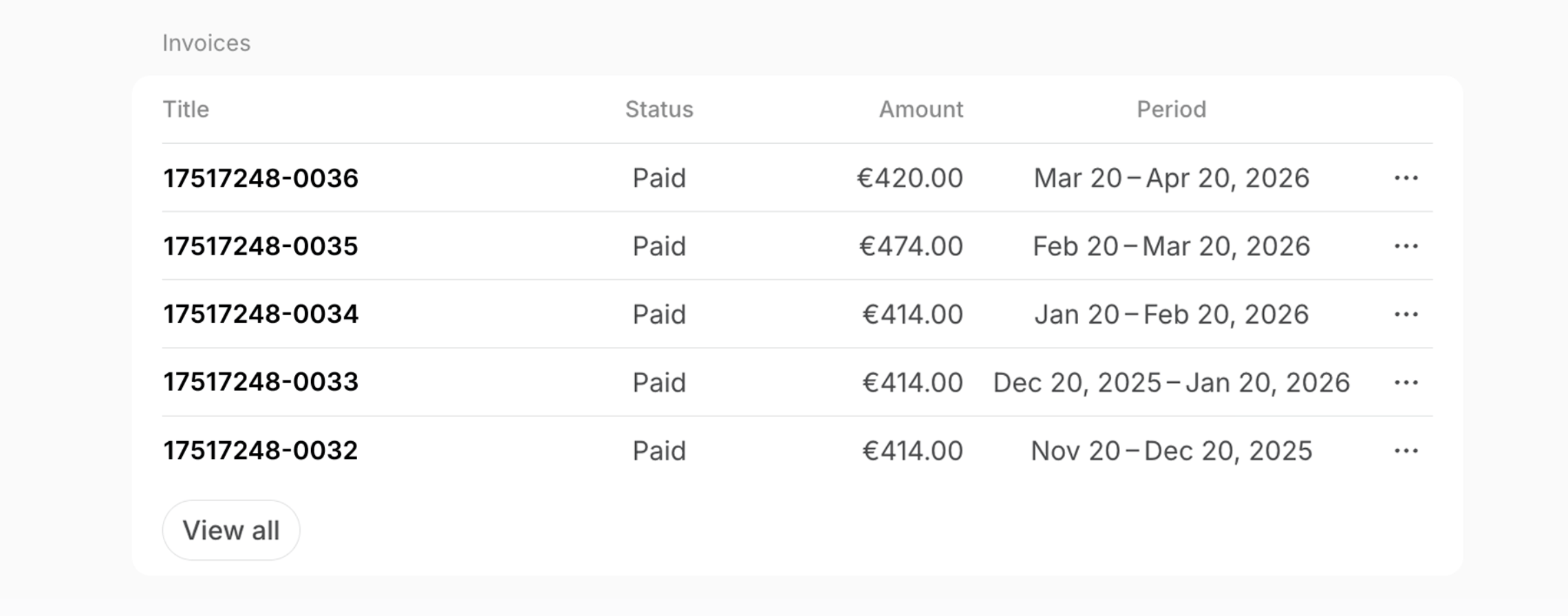
- Click the invoice title to pay it.
- Click (…) > Download PDF to download it.
no-reply@invopop.com.
If the payment attempt for your Spacebring subscription fails, the system will automatically retry the payment up to 4 times within 1 week.
Switch from monthly to yearly billing
The owner needs to follow these steps:- Click the network name in the top left corner of the left-side panel.
- Go to Network settings > Billing.
- Click Upgrade in the Plan section.
- On Your plan page, select the Yearly billing option.
- Select the desired add-ons if necessary and continue to payment.
Cancel or downgrade your subscription
If you want to cancel your Spacebring subscription or downgrade it (remove an add-on, switch from yearly to monthly billing), our team handles that for you:- Ensure that all your past-due invoices with Spacebring are paid.
- Contact us at support@spacebring.com as an owner and confirm the cancellation or downgrade date.
- Before a cancellation takes effect, export necessary data to avoid losing important information — for example, reports on members and invoices.
- Plan for service termination by notifying team members and migrating any dependent workflows.
Cancellation terms
Make sure your request complies with the Spacebring Terms of Use you agreed to: https://www.spacebring.com/terms. Key terms for cancellation include:- You can cancel your subscription only after your Minimum Subscription Term has ended.
- You must provide us with a written notice of non-renewal at least 3 days before your current Subscription Period ends.
- Your Spacebring account will remain active until the confirmed cancellation date.
- After this point, access to the admin portal, member web portal and mobile app, and any associated data will be permanently terminated.
FAQs
Is data associated with my Spacebring account deleted after my trial ends, or I terminate my subscription?
Is data associated with my Spacebring account deleted after my trial ends, or I terminate my subscription?
As part of Spacebring’s commitment to data protection, privacy, and information security, all data associated with your account is scheduled for permanent deletion 60 days after your trial expires or your subscription is terminated. You will receive email reminders 60 days and 30 days before the permanent deletion occurs to ensure you have time to reactivate your plan or export necessary reports.
Where can I find a link to payment for Spacebring subscription?
Where can I find a link to payment for Spacebring subscription?
To complete the payment for your unpaid invoice for the Spacebring subscription, the owner needs to follow these steps:
- Click the network name in the top left corner > Network settings > Billing page.
- Find the Invoices section.
- Locate the unpaid invoice and click its title to make the payment.
The Download button and specific billing periods are unavailable for initial invoices or those generated via a plan upgrade.