

Header
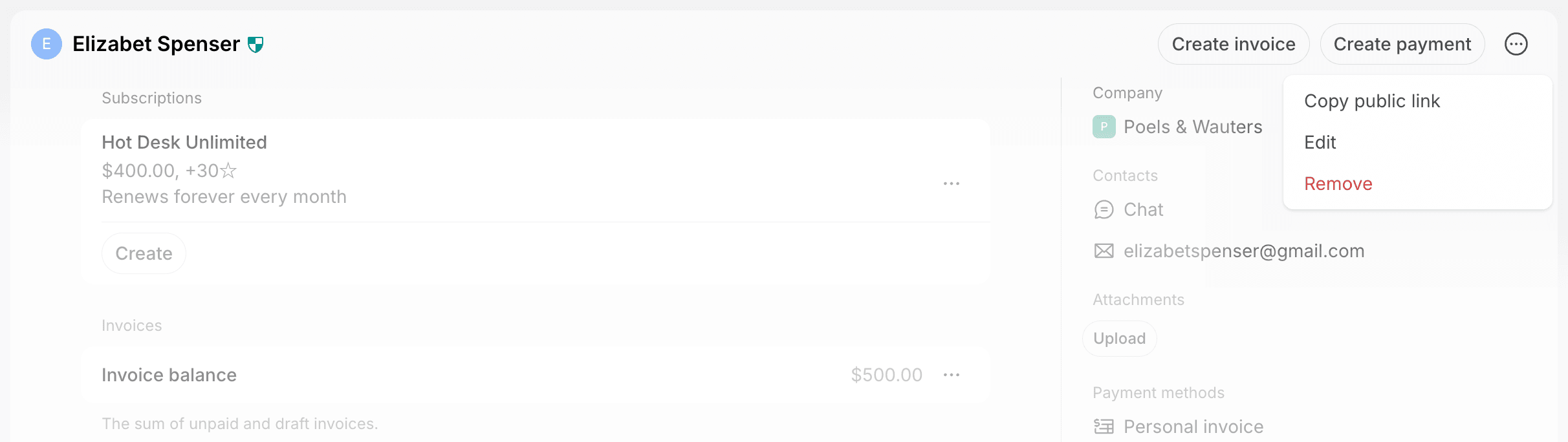
- Create invoice — issue a one-off invoice to the customer.
- Create payment — record a one-off payment.
- The (…) menu:
- For users — Copy public link to their member portal profile, Edit their administrator role and permissions, and Remove a member or Delete a nonmember.
- For companies — Edit the company details, Remove the company with or without its members, or Delete a nonmember company.
Main column
- Invitation — shows until an invited member activates their account. Click Resend invite to send the invitation email again.
- Invite as member — shows on a nonmember’s profile, to invite them back as a member.
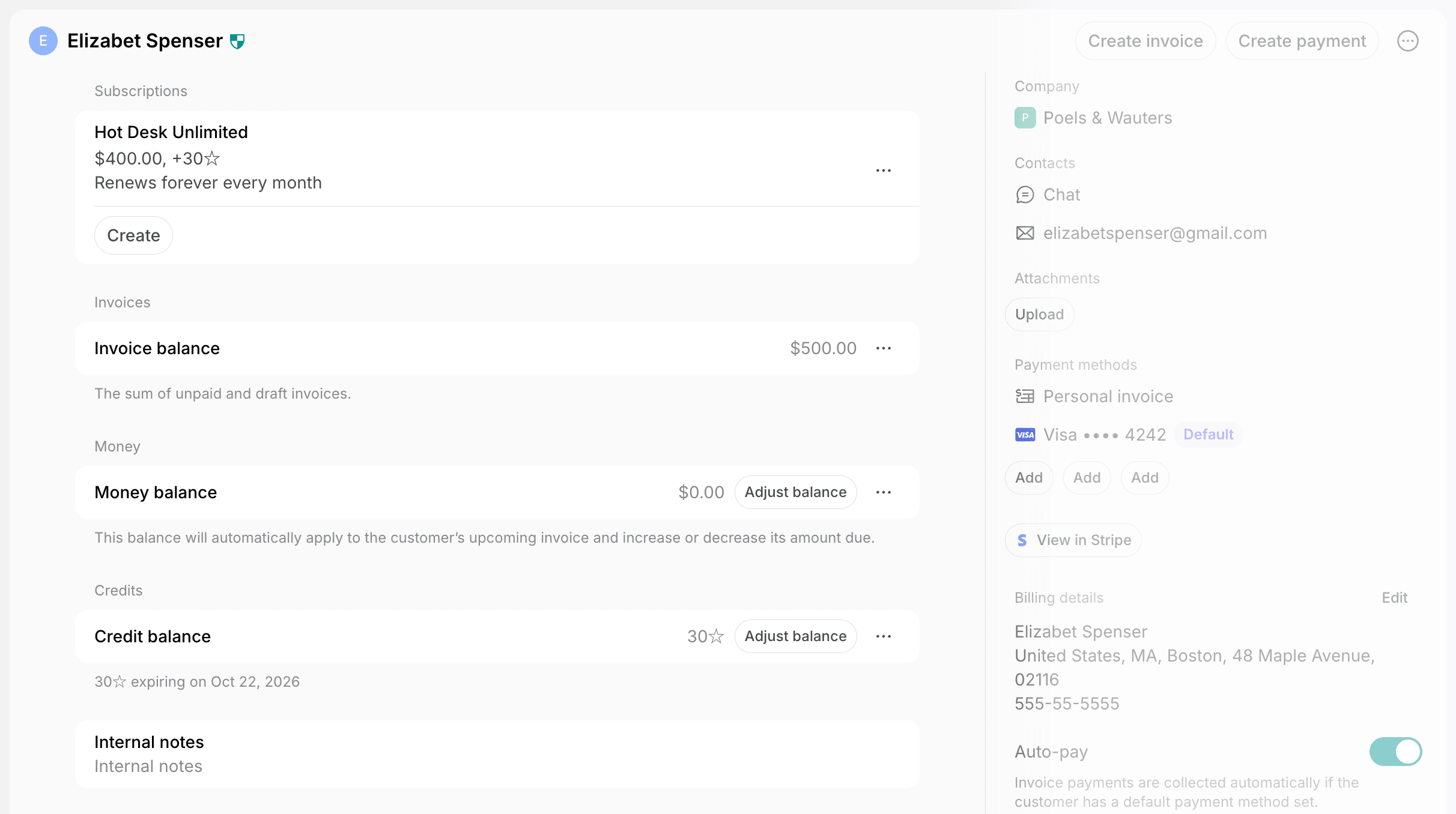
- Subscriptions — click Create to create a subscription, or (…) next to one to edit it, pause payment collection, view the upcoming invoice, or cancel it.
- Invoices — the Invoice balance is the sum of unpaid and draft invoices. Click (…) > View invoices to manage all the customer’s invoices, including drafts. A warning icon next to it means charging the default payment method or syncing an eInvoice failed.
- Pending invoice items — bookings and purchases paid by invoice that aren’t invoiced yet. Click Create invoice to invoice them now.
- Money — the money balance that applies to the customer’s next invoice. Click Adjust balance to change it, or (…) > View adjustments to see its history.
- Credits and Day passes — the customer’s credits and day passes with their expiration dates, followed by any scheduled transactions. Click Adjust balance to change the balance, or (…) > View transactions to see its history.
- Internal notes — details for your team, such as office requirements or preferences. Only administrators see them.
- Activities — the timeline of changes to the customer’s role, subscriptions, and billing settings.
Right-hand panel
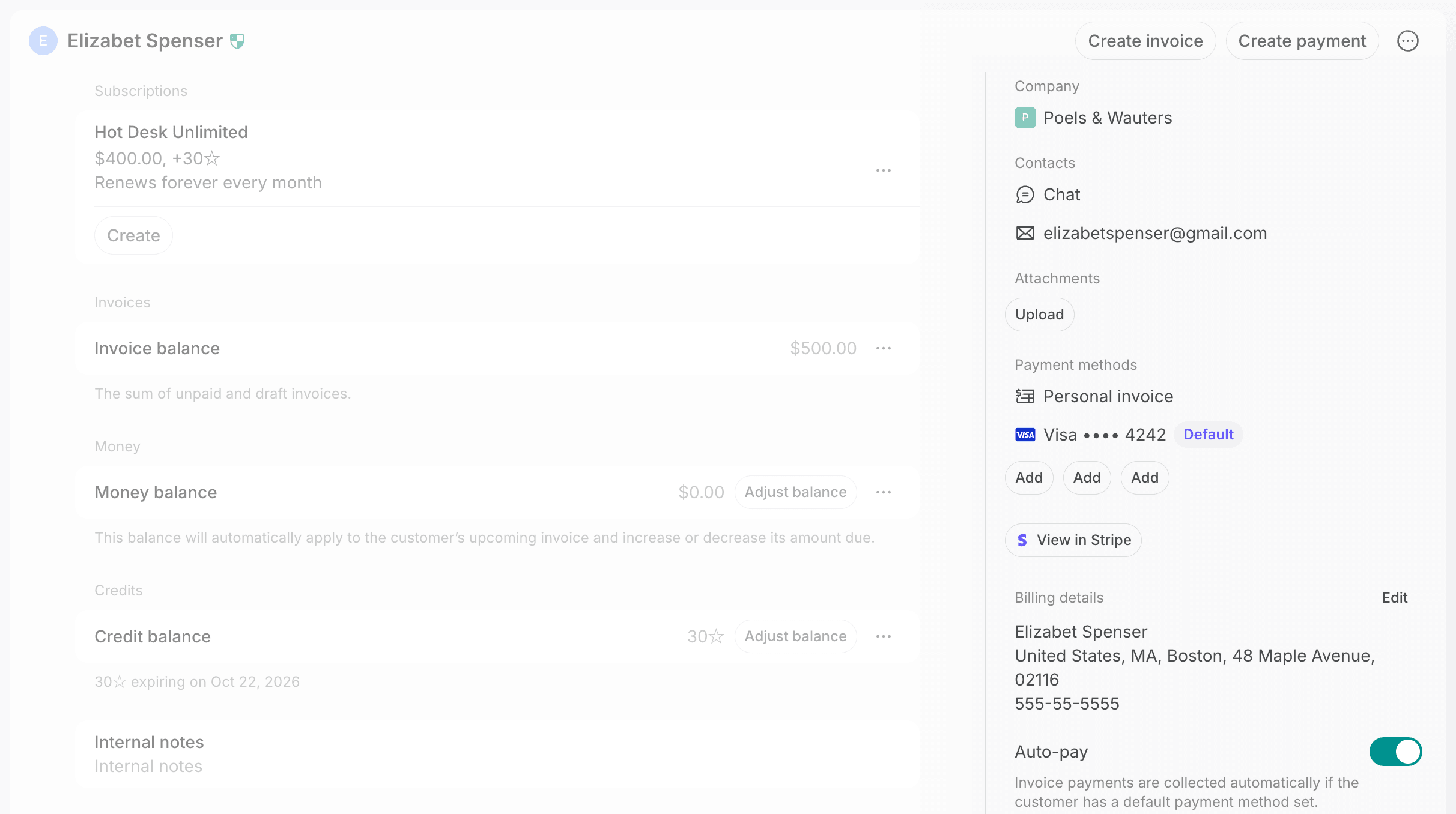
- Company — the company a user belongs to. On a member without a company, click Select to add them to one.
- Members — on a company’s profile, add, invite, and manage company members and managers.
- Contacts — chat with the customer, or copy their email and phone number.
- Attachments — upload files, such as ID scans. Any image, video, or document format works, up to 50 MB per file. Only administrators see attachments.
- Payment methods — click Add to add a payment method, or (…) next to one to set it as default or delete it.
- Personal invoice or Company invoice — click (…) > Edit to let the customer pay with invoice.
- Company credits and Company day passes — click (…) > Edit to choose who in the company can pay with them.
- View in Stripe — open the customer’s payment history in Stripe, if you have the Stripe integration connected.
- Billing details — click Edit to update the customer’s legal business name, address, and tax ID, and a company’s Billing emails.
- Auto-pay — charge invoices to the default payment method automatically.
- Alternative currency — bill the customer in another currency.
- Contracts, Invoices, Transactions, and Bookings — the customer’s contracts, invoices, transactions, and bookings. A user’s profile also links to their event tickets, orders, benefit applications, and support tickets.
When a user deletes their account
Only users can delete their accounts. When one does, you get a notification that opens their profile. The profile stays on the Customers page as Deleted user, so you can still cancel their subscription, manage their billing, or remove them.FAQs
What does the warning icon next to a customer's name mean?
What does the warning icon next to a customer's name mean?
Hover over the icon on the Customers page to see which of the following needs your attention:
- Charging their default payment method failed.
- An eInvoice failed to sync.
- Their invitation email couldn’t be delivered.